How Teachers Share Files Securely and Collaboratively
File sharing for teachers means distributing lesson plans, assignments, worksheets, videos, and feedback securely with students and colleagues. Reliable platforms help avoid email limits, unsecured links, and lost files. Teachers often juggle multiple classes and share files daily with students and colleagues. Generic tools fall short on education needs like student-specific permissions and activity tracking.

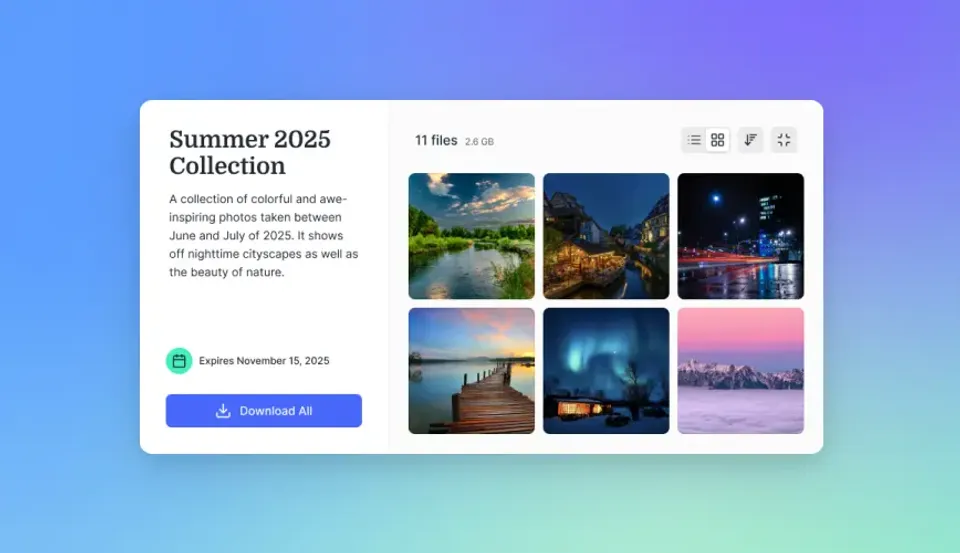
Why secure file sharing matters for teachers
Schools handle student data that falls under FERPA, grades, personal feedback, IEPs, assessment records. When that data passes through email attachments or unvetted cloud links, the school carries the legal risk even if the teacher had good intentions.
Platforms with encryption, access controls, and audit logs reduce that exposure. Audit logs also have a practical classroom use: they show you which students opened a document before asking a question about it, which can change how you respond.
A high school science teacher managing four sections used a workspace per class period. Students received a shared folder link for lab submissions with edit-only access, preventing them from viewing classmates' work. The audit log showed which students had opened the assignment brief before asking for help, a useful signal when differentiating instruction. One constraint to plan for: students using personal Google accounts sometimes face browser cookie conflicts when switching between school SSO and personal logins, so it helps to share a one-paragraph guide with students at the start of term.
See also: Fastio Workspaces, Fastio Collaboration, Fastio AI.
Related guides
- Top K12 File Sharing Platforms for SchoolsTeachers, students, and parents exchange assignments, resources, and feedback on K12 file sharing platforms. Schools...
- How to Build a School Parent Portal for Secure File SharingGuide to school parent portal file sharing: Schools need a secure way to share report cards, IEPs, permission slips,...
- How to Set Up Student Project Collaboration WorkspacesStudent project collaboration workspaces give groups a single place to upload files, add comments, and track changes...
- How to Share Educational Resource Libraries SecurelyEducational resource library sharing enables teachers, schools, and districts to organize and distribute lesson plans,...
- How to Choose the Best Teacher File Sharing PlatformThe best teacher file sharing platform simplifies classroom management by securely distributing lesson plans,...
- 10 Best Classroom File Collaboration Tools for TeachersClassroom file collaboration tools let teachers share assignments, projects. and feedback with students in real time....
More on this subject: Education (15 guides)
Where common tools fall short for classroom use
Gmail's attachment limit is 25 MB. A single lesson video exceeds that. So teachers end up using Drive links, which work fine until students show up with personal accounts that conflict with school logins, or until the folder structure grows and no one can find anything.
Version control is a real problem when students overwrite teacher feedback on shared documents. Most consumer tools don't offer granular enough permissions to prevent this, you can share a file for editing or not, but you can't easily say "students can submit but can't see each other's submissions."
The bigger issue is compliance. FERPA requires that schools document which vendors have access to student data and under what terms. Before deploying any file sharing tool beyond district-approved platforms, get written confirmation from your IT department that the service has signed a FERPA-compliant data processing agreement. Skipping this step is a common mistake when teachers adopt tools independently, and it puts the district at risk, not just the teacher.
How to set up secure collaborative file sharing
Start with passwords and expiration dates on any link you share outside the school system. View-only access is the right default for most student-facing shares; only give edit access where submission or collaboration is the actual goal.
The folder structure that works for most classrooms: one workspace per class, a "Materials" folder teachers can add to but students can only view, and a "Submissions" folder where students can upload but not see each other's files.
A middle school team of six teachers standardized on one workspace per subject, with a shared "Resources" folder that all teachers could contribute to and a separate "Student Submissions" folder that was write-only for students. Setting up the folder structure took one afternoon; the constraint was that folder permission changes require workspace-admin access, so departments should designate one admin per grade level rather than letting every teacher adjust settings independently. After one semester, the team reported spending 15 fewer minutes per week hunting for shared materials.
Archive old semesters rather than deleting them. FERPA and district policies often require retaining student records for several years.
Setting up class workspaces
Group files by subject or unit. Invite students to the workspace once at the start of term rather than sharing individual file links.
Controlling access levels
Assign editor roles only where students need to submit or collaborate. Use viewer access for anything you're distributing, not collecting.
Comparing teacher file sharing tools
Google Drive is the default for Google Workspace schools and it's free, but the permissions model is basic, sharing a folder gives the same access level to everyone in it. Dropbox works fine for small teams sharing files back and forth; it gets expensive when you add more users. OneDrive is the natural choice if the district already runs Microsoft 365.
Fastio's main practical advantage for teachers is the four-level permission system (organization, workspace, folder, file) and the full audit log on all plans. Those two things together make it easier to manage multi-class sharing while staying compliant.


Ready for Secure Classroom File Sharing?
Fastio provides shared workspaces, granular permissions, media previews, and full audit logs. Start a 14-day Business Trial.
What Fastio does that most tools don't
The permission depth is the main difference. Most platforms let you set folder-level sharing. Fastio lets you set different permissions at the organization level, the workspace level, the folder level, and the file level. That granularity matters when you have students, parents, colleagues, and administrators all needing different access to different parts of the same project.
Large uploads are supported, which solves the "video too big to email" problem that comes up constantly in project-based learning. SSO works with school identity providers, Google Workspace, Okta, Azure AD, so students and teachers use their existing school logins.
Audit logs capture every view, edit, and download. That's useful for accountability during administrative reviews, and for reconstructing what happened if a file goes missing or is modified unexpectedly.
Branded share links with custom logos and domains are most useful for sharing with parents or grant partners, where the school's credibility is on the line. Browser previews handle PDFs, videos, and images without requiring students to install anything.

How to set up sharing in Fastio
Get started with a 14-day Business Trial - . The setup takes about 20 minutes for a typical class structure.
Create an organization for your school and an account as a teacher.
Create one workspace per class: "Biology 3rd Period," "Algebra Block B." Invite students by email or share a join link.
Upload lesson materials, PDFs, videos, worksheets. Previews generate automatically so students can view without downloading.
Right-click a folder to set access levels. For a submissions folder, give students edit access but restrict them from viewing the folder contents (so they can upload but not see classmates' work).
Create share links that expire at the end of the unit. Add a password if the content is sensitive. Check the audit log to confirm delivery.
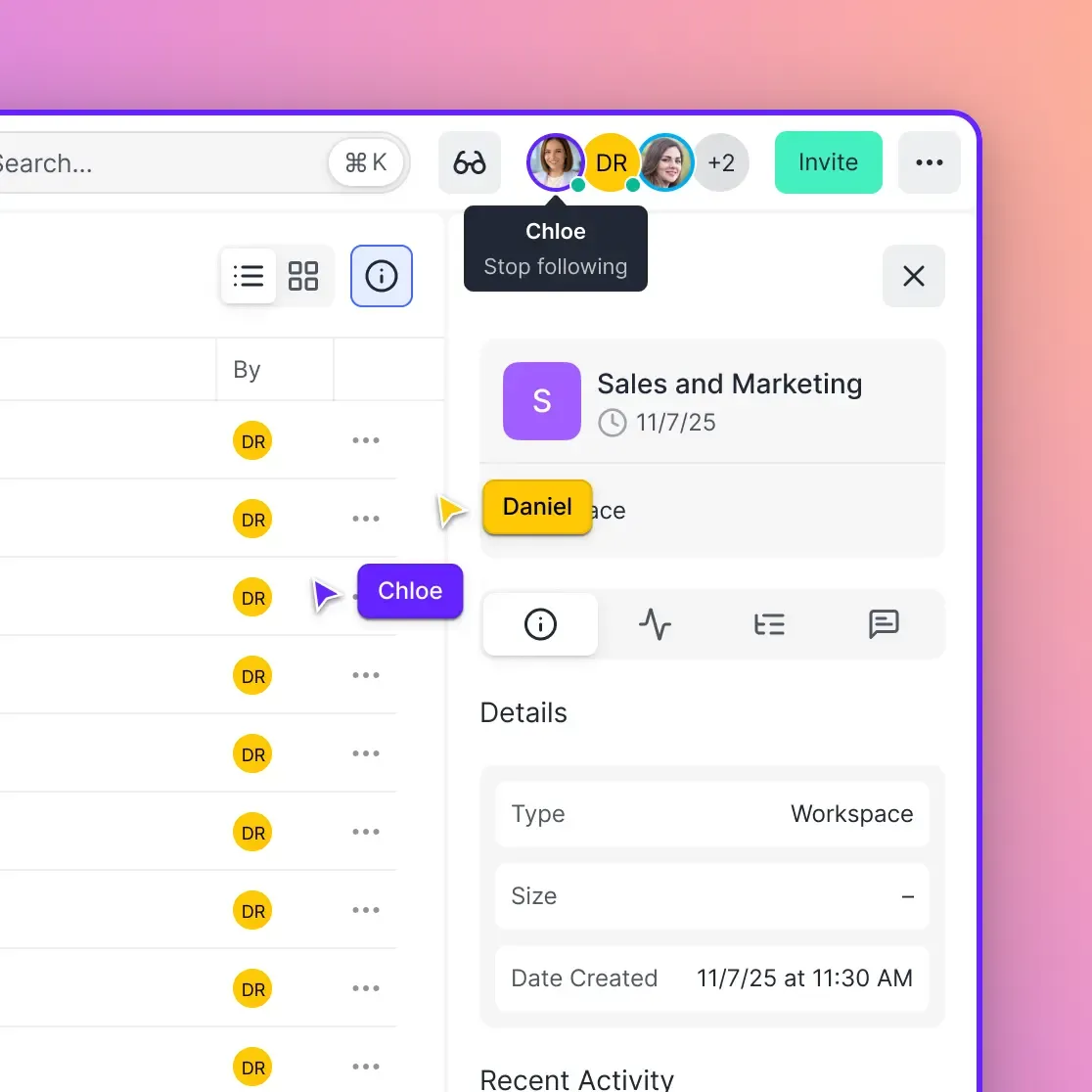
For live review or collaborative grading, use follow mode to sync your view with a student's, or watch their cursor in real time.
Large research files work without a VPN. If your school uses Google Workspace or Microsoft SSO, the integration is straightforward.
Handling student submissions
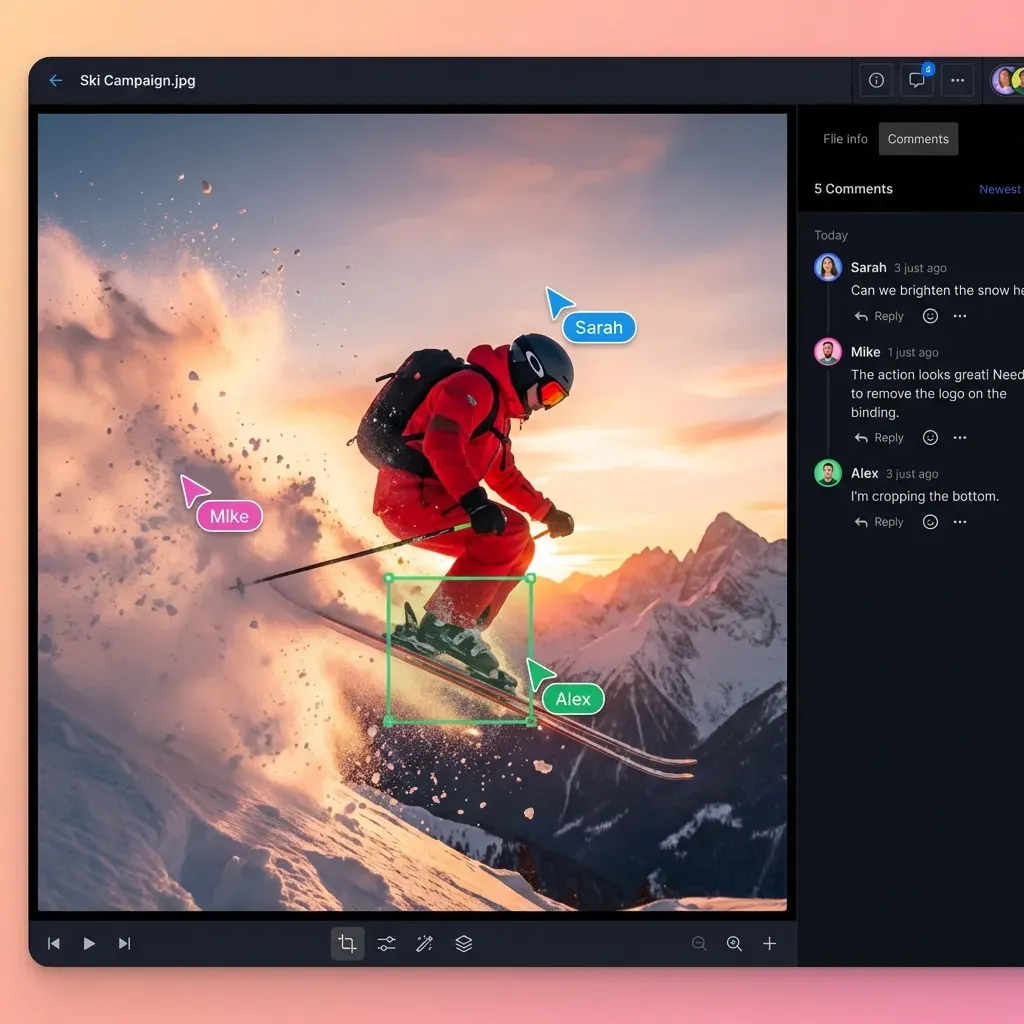
Create a submissions folder with edit permissions for students. Leave feedback via comments pinned to specific pages or file regions.
Parent access for progress
Share view-only links for report cards or portfolio work. The audit log shows whether parents actually opened them, which is useful for conferences.
Advanced features worth knowing
Pinned comments work on video timestamps, specific regions of images, and individual PDF pages, not just on the file as a whole. That level of specificity is useful for feedback on design work, lab reports with diagrams, or video presentations.
Follow mode lets you watch a student navigate a document in real time without being physically present. It's more useful than it sounds for remote or hybrid settings.
Semantic search through Intelligence Mode lets you find files by content. Querying "biology labs from last year" returns the actual files rather than requiring you to remember the exact filename.
A special education coordinator used Fastio's semantic search to pull every IEP-related document from the previous school year across eight teachers' folders in under 30 seconds, something that previously required emailing each teacher individually. The constraint: Intelligence Mode indexes text content but not handwritten notes in scanned PDFs unless OCR is applied first, so the team standardized on typed templates. The time savings on year-end reporting justified the platform cost for the entire department.
Sources
References used to verify factual claims in this guide.
-
Gmail attachment size limit is 25 MB
-
Google Drive allows files up to 5 TB
Frequently Asked Questions
What are the top file sharing apps for teachers?
Google Drive works well with Google tools, Dropbox suits small teams. and Fastio delivers unlimited secure sharing with detailed permissions and audit logs for classrooms.
Is there free file sharing for educators?
Several platforms like Google Drive provide free storage tiers for schools, while Fastio provides a 14-day Business Trial for educators who need deep permission controls and large file support.
How do teachers share large files with students securely?
Pick platforms built for large files like Fastio. Use password-protected links with expiration dates and view-only access. Audit logs confirm delivery.
What secure file sharing tools work best for education?
Look for encryption, detailed permissions, and logs, like Fastio. Skip email for better security.
Which teacher file sharing tools offer permissions control?
Fastio handles controls at org, workspace, folder, and file levels. Great for class-specific access.
How can educators evaluate Fastio?
Teachers can evaluate Fastio using the 14-day Business Trial, which requires a credit card. Paid plans start at $9.99/mo for Starter (3 seats, 250 GB) and scale to Business ($49.99/mo) and Enterprise ($199.99/mo).
How can teachers share large files like videos securely?
Fastio handles large files and offers secure links with passwords, expiration, and view-only. Previews stream without full downloads.
Does Fastio support sharing with parents?
Yes. Set up branded, view-only shares for progress reports. Audit logs show who accessed what.
How do educators manage user access in Fastio?
Fastio manages access through granular permissions at the organization, workspace, folder, and file levels, using email invitations and scoped credentials.
What makes Fastio better for classroom collaboration?
Real-time presence, targeted comments, and follow mode make live reviews easy. Previews work on any device.
Related Resources

Ready for Secure Classroom File Sharing?
Fastio provides shared workspaces, granular permissions, media previews, and full audit logs. Start a 14-day Business Trial.