How to Build a School Parent Portal for Secure File Sharing
Guide to school parent portal file sharing: Schools need a secure way to share report cards, IEPs, permission slips, and class videos with parents. This guide covers the features that matter for FERPA compliance, compares popular platforms like PowerSchool, ParentSquare, and Google Drive, and walks through a step-by-step portal setup using Fastio workspaces with granular permissions and audit logging.

What School Parent Portals Actually Do
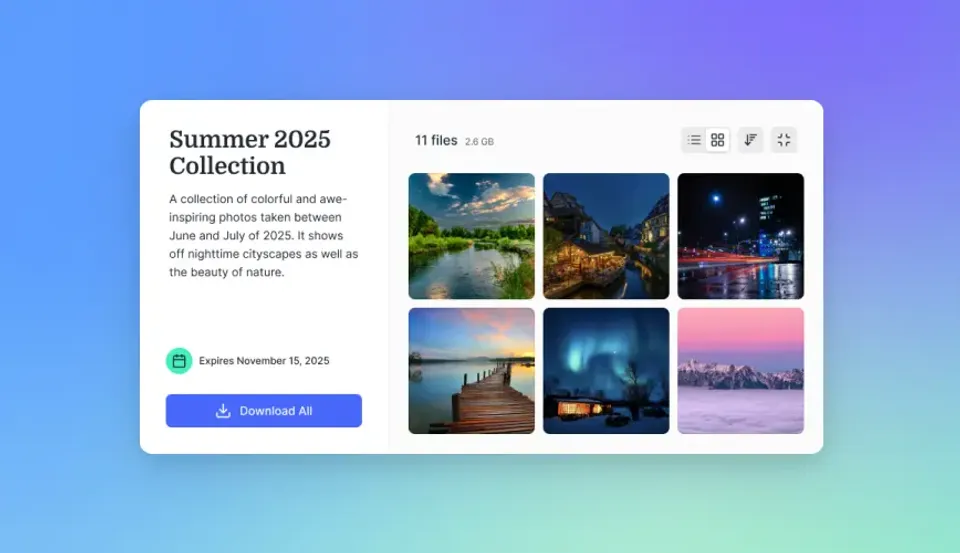
A parent portal is a secure online space where teachers upload files and parents access them with a login. Instead of stuffing report cards into backpacks or attaching PDFs to mass emails, a portal gives each family a single place to find their child's grades, assignments, IEP documents, attendance records, and event videos.
The core value is access control. Parents see only their own child's information. Teachers control who can view, download, or comment on each file. The school keeps a record of who accessed what and when.
Project Tomorrow's Speak Up survey found that 70% of parents prefer digital access to school information over paper-based communication. That preference has only grown as more families manage schedules, health records, and finances through apps. Schools that still rely on paper packets or email chains are working against the way parents already operate.
Portals also save teachers real time. One upload per class replaces printing 25 copies, stuffing envelopes, and tracking down the families who never got theirs. During heavy reporting periods like progress reports or IEP reviews, that difference adds up to hours per week.
Not every family has reliable internet, so print backups still matter for some households. But the portal becomes the default channel, with paper as the fallback rather than the other way around.
Helpful references: Fastio Workspaces, Fastio Collaboration, and Fastio AI.

Related guides
- Top K12 File Sharing Platforms for SchoolsTeachers, students, and parents exchange assignments, resources, and feedback on K12 file sharing platforms. Schools...
- How to Set Up Student Project Collaboration WorkspacesStudent project collaboration workspaces give groups a single place to upload files, add comments, and track changes...
- How Teachers Share Files Securely and CollaborativelyFile sharing for teachers means distributing lesson plans, assignments, worksheets, videos, and feedback securely with...
- Top Student Homework Submission Portals for SchoolsStudent homework submission portals let students upload assignments online in a secure way. Files get organized...
- 10 Best Classroom File Collaboration Tools for TeachersClassroom file collaboration tools let teachers share assignments, projects. and feedback with students in real time....
- How to Share Educational Resource Libraries SecurelyEducational resource library sharing enables teachers, schools, and districts to organize and distribute lesson plans,...
More on this subject: Education (15 guides)
Why Parent Engagement Improves with Portals
The connection between portal access and family engagement is straightforward: when parents can check grades and assignments on their phone during a lunch break, they do it more often than when they wait for a quarterly paper report.
ClassLink has found that active parent portal use correlates with higher event attendance and more involvement in homework, with the effect strongest in elementary grades. A California district that introduced portal-based grade and absence alerts saw parent-teacher conference no-show rates drop noticeably in the first year.
The engagement effect compounds. Parents who regularly check the portal have more specific questions at conferences, which makes those conversations more productive for teachers too. Teachers spend less time catching parents up on basics and more time discussing how to support the student.
Schools that track portal adoption as a metric, rather than just making the tool available, get better results. Measuring the percentage of families who opened at least one document per month gives administrators a clear signal on whether the system is replacing paper distribution or just running alongside it.


Set Up Your School's Parent Portal
Fastio gives schools granular file permissions, full audit logging, and parent access through shares, where guests do not take a seat. Start with generous storage. Built for school parent portal file sharing workflows.
Features That Matter for Secure Parent Access
FERPA requires schools to let parents access their child's education records while preventing disclosure to unauthorized parties. A portal needs to enforce both sides of that requirement, and the details of how it handles permissions, logging, and authentication determine whether it actually meets the bar.
Granular permissions
The most common privacy mistake in school portals is setting permissions at the workspace level instead of the folder or file level. A parent who can browse the entire class workspace can see other students' grades. Fastio handles this with four-level permissions: organization, workspace, folder, and file. Teachers create a class workspace with per-student subfolders, and each parent gets access only to their child's folder.
View-only mode and expiration
IEP documents and medical forms should be viewable but not downloadable. Setting view-only access with expiration dates (for example, 90 days after upload) prevents parents from downloading and forwarding sensitive records. This is a practical FERPA safeguard that most general-purpose file sharing tools lack.
Audit logging
Fastio audit trails record every file view, download, and access attempt, including the user, timestamp, and IP address. Logs export to CSV for compliance reports or district audits. This is the difference between saying "we have security" and being able to prove it when a question comes up.
Single sign-on
SSO through Google Workspace, Okta, or Azure AD lets parents use their existing school or personal Google accounts. Fewer passwords means fewer help desk tickets during the first week of rollout. Parents who use personal Gmail or Yahoo addresses cannot use SSO, so prepare a short PDF guide with password-reset steps for that group.
Unlimited guests
Per-seat pricing is a dealbreaker for schools with hundreds or thousands of parents. Fastio does not charge per guest, so inviting every parent in the school costs the same as inviting ten.
Mobile video streaming
Class videos, concert recordings, and project presentations need to play on phones without requiring a download. HLS adaptive streaming adjusts quality to the parent's connection speed, so videos play smoothly even on cellular data.

Comparing School Portal Platforms
Schools typically consider four categories of tools for parent file sharing, each with different strengths and gaps.
Student information systems (PowerSchool, Infinite Campus)
These are the default in most districts. They handle grades, attendance, and basic messaging well. The parent portal shows structured data pulled from the SIS database. The limitation is file sharing: PowerSchool's portal is built around viewing grades and schedules, not uploading and organizing documents like IEPs, rubrics, or class videos. File size limits (often 50-100 MB) rule out video entirely.
Communication platforms (ParentSquare, ClassDojo, Seesaw)
ParentSquare excels at school-wide announcements, volunteer signups, and permission slips. Pricing is based on student enrollment tiers for schools with up to 600 students. ClassDojo and Seesaw focus on classroom-level sharing, with photos, videos, and student portfolios. They work well for showcasing student work but are not designed for secure document management with audit trails and granular permissions. Seesaw is strongest for pre-K through third grade.
General cloud storage (Google Drive, OneDrive)
Many schools already have Google Workspace for Education and default to shared Drive folders. This works at small scale but breaks down quickly. There is no audit trail beyond basic "last viewed" timestamps, no per-file permission granularity without manual sharing on every document, and no branded portal experience. Parents see a Google Drive folder, not a school portal.
Workspace platforms (Fastio)
Fastio fills the gap between SIS portals and general cloud storage. Four-level permissions (org, workspace, folder, file) handle the access control FERPA requires. Full audit logging with CSV export supports compliance reporting. Branded shares with school logos and colors make the portal feel official rather than like a shared Dropbox folder. Large file support means videos and large archives upload without workarounds. Organization plans start at $9.99/mo with 250 GB of storage and no guest seat fees.
The practical question for most schools is not "which one tool?" but "which combination?" A SIS handles grades. A communication platform handles announcements. A workspace platform handles file sharing and document management. The three work best together.
Step-by-Step Setup with Fastio
This walkthrough covers setting up a parent portal from scratch. Plan about two hours for the initial configuration, then 15 minutes per class to set up folders and invite parents.
1. Create the school organization
Start with a 14-day Business Trial at fast.io/pricing. Set up workspaces with granular permissions, role-based access, and password-protected guest shares.
2. Add staff and set roles
Add teachers as editors and IT staff as owners. Owners can manage organization settings and permissions. Editors can create workspaces, upload files, and manage their own class portals. Set this up before creating any class content so permissions cascade correctly.
3. Create class workspaces
Create one workspace per class or grade level (for example, "5th Grade Math, Spring 2026"). Inside each workspace, create subfolders for Grades, Homework, IEPs, and Videos. Set the workspace to organization-only privacy, then configure folder-level permissions before inviting anyone.
4. Configure sharing permissions
This step matters most. For each student, create a subfolder within the appropriate category folders. Set IEP and medical folders to view-only so parents can read but not download or forward. Set homework folders to allow comments so parents can ask questions. Set grade report files to view-only with a semester-end expiration date.
5. Invite parents
Generate guest links with passwords and expiration dates (set to end-of-school-year). For parents, secure guest links with passwords and expiration dates provide access without requiring account creation. Send a welcome email with the link, a QR code for easy phone access, and a two-minute screen-recorded walkthrough video.
6. Upload content and enable notifications
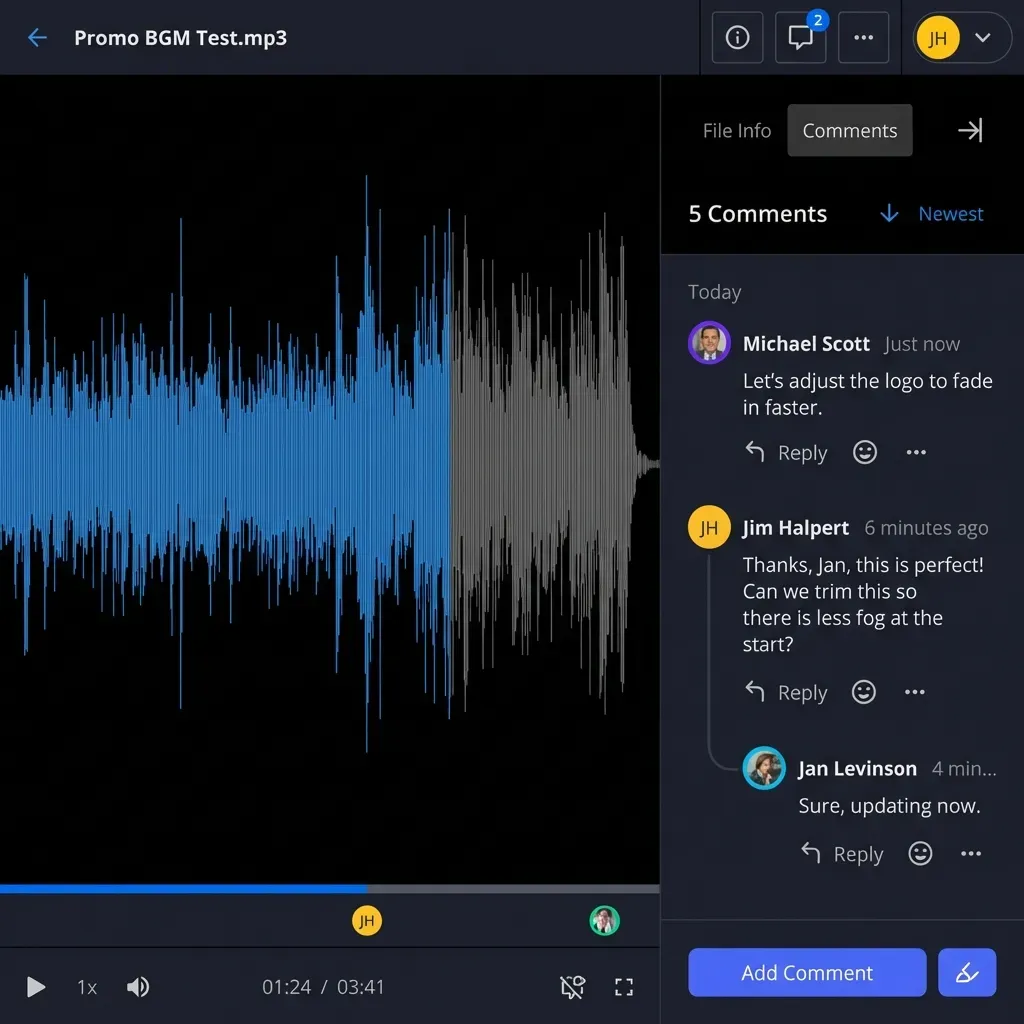
Upload report cards as PDFs, class videos as MP4s (they stream via HLS automatically), and assignment rubrics. Enable upload notifications so parents get an email or app alert when new files appear. Turn on comments for folders where you want parent feedback.
7. Pilot and iterate
Start with one class for two weeks. Check audit logs to see which parents are accessing files and which are not. Survey both parents and the teacher for friction points. Common first-week issues: parents misplacing password details, and permission misconfigurations that give a parent access to the wrong subfolder. Fix these before rolling out to additional classes.
Document which permission template you used for each grade level and who is responsible for updating links at the start of each semester. A mid-year staff change should not leave parents locked out.

Best Practices and Troubleshooting
Run a pilot before full rollout. Pick one grade level, get feedback from five to ten families and two to three teachers, and adjust the folder structure and permission model before scaling. The schools that skip the pilot are the ones that abandon the portal mid-year.
Train teachers in short sessions. A 15-minute walkthrough on permissions, sharing, and audit logs is enough. Create a one-page visual guide with annotated screenshots for common tasks: uploading a file, changing permissions, and checking who viewed a document.
Onboard parents with a clear first experience. The welcome email should include a direct link (not instructions to "go to the website and find the portal"), a QR code, and the screen-recorded walkthrough video. Partner with PTA to run a brief demo at the next parent meeting. Parents who get stuck on first login often never come back.
Track adoption as a metric. Check audit logs weekly for the first month, then monthly. The key number is the percentage of families who opened at least one document. If a class sits below 50%, the issue is usually the onboarding flow, not the platform.
Separate files from conversations. Portals work for document sharing. Phone calls and in-person meetings work for behavioral discussions or sensitive topics. Trying to handle everything through the portal leads to long comment threads that create more confusion than clarity.
Archive at year end. Export logs and folder contents at the end of each school year. Create fresh workspaces for the new year rather than repurposing old ones. Old permissions from last year's class roster create security gaps if not cleaned up.
Troubleshoot login failures fast. The most common first-week support ticket is parents entering an incorrect password for guest shares. A single annotated screenshot in the welcome email showing exactly which field to use eliminates most of these. For video buffering, HLS adaptive streaming adjusts to bandwidth automatically, so persistent buffering usually means a weak connection on the parent's device, not a platform problem.

Sources
References used to verify factual claims in this guide.
-
70% of parents prefer digital access to school information
-
Active parent portal use correlates with higher event attendance and homework involvement
-
ParentSquare pricing starts at $3,000/year for up to 600 students
Frequently Asked Questions
What are the best parent portals for sharing school files?
It depends on what you need to share. PowerSchool and Infinite Campus work well for grades and attendance data but have limited file sharing (especially for large files or video). ParentSquare and ClassDojo handle classroom communication and student portfolios. For document management with granular permissions, audit logging, and large file support, Fastio workspaces fill the gap that SIS portals and communication apps leave open. Most schools use a combination.
How do schools share files with parents securely under FERPA?
FERPA requires that parents can access their own child's records but cannot see other students' information. In practice, this means per-student folder permissions (not class-wide sharing), view-only mode for sensitive documents like IEPs, audit logs that track who accessed what, and password-protected guest share access. Expiration dates on shared links add another layer by automatically revoking access after a set period.
Can parents access portal files on their phones?
Yes. Fastio is responsive on mobile devices, and files preview inline without requiring a download. Videos stream through HLS adaptive streaming, which adjusts quality based on connection speed. Parents on cellular data can watch class recordings without downloading large files first.
What file types work in school parent portals?
PDFs, images (JPEG, PNG), Word documents, spreadsheets, and video files (MP4) all work in Fastio. Most file types preview directly in the browser. Videos use HLS streaming for adaptive playback. The platform handles large uploads, so video recordings and zip archives upload without workarounds.
How much does a school parent portal cost?
Costs vary widely. ParentSquare prices based on student enrollment tiers for up to 600 students. ClassDojo is free for teachers with a $4.99/month premium tier for parents. Seesaw school plans start around $1,000. Fastio offers organization plans starting at $9.99/mo (250 GB storage, 3 seats), and parents join shares as guests without taking a seat.
Related Resources

Set Up Your School's Parent Portal
Fastio gives schools granular file permissions, full audit logging, and parent access through shares, where guests do not take a seat. Start with generous storage. Built for school parent portal file sharing workflows.