10 Best Classroom File Collaboration Tools for Teachers
Classroom file collaboration tools let teachers share assignments, projects. and feedback with students in real time. These platforms cut down on email chains and lost files, making grading and group work simpler. Google Classroom and Fastio work well for K-multiple classrooms that need secure, simple sharing. This guide ranks the top multiple on ease of use, file handling, security features, and student engagement. Each includes pros, cons, and pricing to help you pick the right fit.

What to check before scaling classroom file collaboration tools
Here's a side-by-side look at key features for K-12 needs. Tools were evaluated on free access, max file sizes, sharing controls, and integrations with school systems.
Helpful references: Fastio Workspaces, Fastio Collaboration, and Fastio AI.
Related guides
- Top 10 Lesson Plan Collaboration Tools for Teachers in 2026Teachers spend roughly 7 hours per week searching for instructional materials and another 5 hours creating their own....
- How to Set Up a Teacher Student File Feedback SystemTeachers face a weekly grind reviewing student work—essays, spreadsheets, art sketches, video projects. Traditional...
- How to Share Educational Resource Libraries SecurelyEducational resource library sharing enables teachers, schools, and districts to organize and distribute lesson plans,...
- Top K12 File Sharing Platforms for SchoolsTeachers, students, and parents exchange assignments, resources, and feedback on K12 file sharing platforms. Schools...
- How to Build a School Parent Portal for Secure File SharingGuide to school parent portal file sharing: Schools need a secure way to share report cards, IEPs, permission slips,...
- How to Set Up Student Project Collaboration WorkspacesStudent project collaboration workspaces give groups a single place to upload files, add comments, and track changes...
More on this subject: Education (15 guides)
1. Google Classroom
Google Classroom integrates Drive for simple assignment sharing. Teachers post files, students submit work, and feedback goes inline.
Pros:
- Free for all.
- Familiar Google tools.
- Mobile app strong.
Cons:
- File limits per drive.
- Less real-time editing.
Pricing: Free. Best for basic K-multiple assignments.
2. Microsoft Teams for Education
Teams combines chat, video, and OneDrive sharing. Classes get dedicated channels for files.
Pros:
- Strong audit logs.
- 250GB uploads.
- Office multiple integration.
Cons:
- Steeper learning curve.
- Per-user licensing adds up.
Pricing: Free for educators. Best for hybrid learning.
A high school running a hybrid English class can use Teams channels to post assignment files that students open on any device, with the Class Materials folder keeping read-only resources separate from student submissions. One real constraint: Teams requires SharePoint to be enabled at the district tenant level -- schools with SharePoint disabled lose file sharing in channels entirely, which catches IT teams off guard during rollout. Districts that piloted Teams in a single department, verified SharePoint licensing, and trained teachers on the Class Materials folder before going wider reported smoother adoption than those who pushed it district-wide from day one.
3. Canvas
Canvas LMS handles courses with file modules. Teachers upload resources. track submissions.
Pros:
- Generous storage.
- API for custom tools.
- Gradebook sync.
Cons:
- Setup time.
- Interface dated.
Pricing: Free for teachers. Best for higher ed transition.
A community college instructor can build a Canvas module with all course readings, rubrics, and video recordings in one place, with students submitting work through the assignment tool for inline gradebook feedback. One constraint: the free teacher account doesn't include SSO or learning analytics -- schools need an institutional license to connect Canvas to their identity provider and get submission tracking. Institutions that adopted Canvas as their primary LMS before adding supplemental file tools reported fewer duplicate submissions and clearer grade records than those routing homework through Drive or Teams.


Set Up Secure Class Collaboration
Fastio offers dedicated workspaces and audit logs for K-12 projects. Start a 14-day Business Trial to test classroom file sharing workflows.
4. Fastio
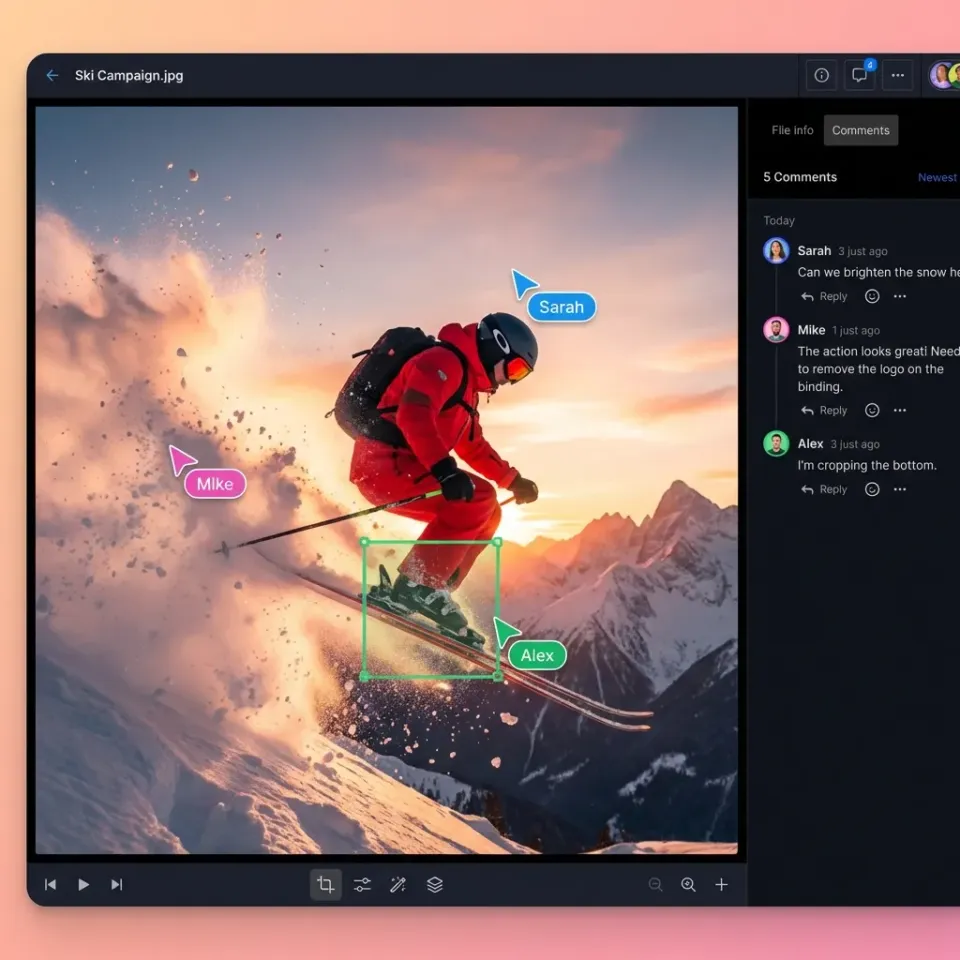
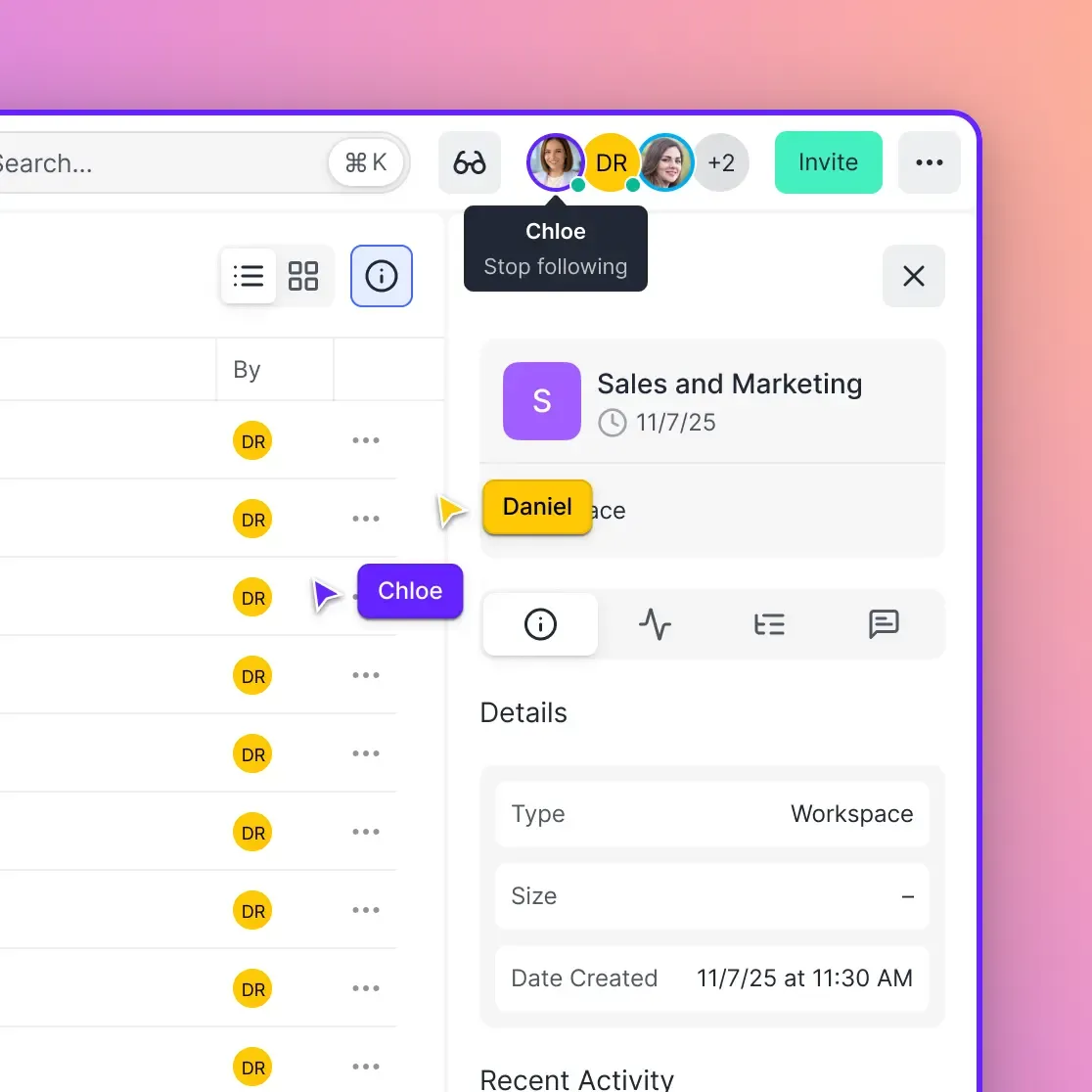
Fastio offers workspaces for class projects with large file uploads. Real-time presence shows who's viewing files, and comments pin to specific areas.
Audit logs track all access, supporting accountability. Granular permissions and guest access let external reviewers view materials without shared accounts.
Pros:
- Shared workspaces for files.
- Real-time collaboration.
- Detailed activity tracking.
- Flat plans with seats included, and a 14-day Business Trial on monthly plans.
Cons:
- Still gaining traction in schools.
- AI features have a learning curve.
Pricing: Starter from $9.99/month, 14-day Business Trial (card required). Best for large student projects and research data.
A university research methods class can use Fastio to give each student team a shared workspace for their semester project, with the instructor pinning comments directly on uploaded datasets or PDFs rather than sending separate feedback emails. Classes that used a dedicated workspace per project group rather than one shared folder reported less file confusion and faster turnaround on instructor feedback cycles.
5. Schoology
Schoology provides district-level file sharing with groups and courses.
Pros:
- Full LMS platform.
- Parent portals.
- Mobile optimized.
Cons:
- Acquired, changes ongoing.
- Storage caps.
Pricing: District pricing. Best for unified schools.
A K-12 district rolling out Schoology can create separate course groups for each class while sharing a district-wide resource library for curriculum materials, keeping teacher content organized without relying on external drives. One constraint: Schoology is now part of PowerSchool, and districts report that feature priorities have shifted since the acquisition -- confirm the current roadmap before signing a multi-year contract. Districts that consolidated from multiple tools to Schoology as a single LMS reported reducing parent communication fragmentation and improving on-time assignment submission rates.
6. Seesaw
Seesaw focuses on early education with portfolios and family sharing.
Pros:
- Kid-friendly.
- Voice notes.
- Progress tracking.
Cons:
- File size limits.
- Less for older grades.
Pricing: Free basic, pro pricing published. Best for elementary.
A second-grade teacher can use Seesaw to have students record a voice note explaining their math drawing, then share the portfolio entry with parents via the family app without requiring a parent account. One limitation: Seesaw caps file uploads at 500MB per item on the free tier, which becomes a constraint when students submit video projects -- schools shooting on iPads quickly hit this limit during media-heavy assignments. Elementary teachers who used Seesaw for weekly reflection posts rather than trying to route homework through it reported higher parent engagement and fewer support tickets from families.
7. Padlet
Padlet creates visual boards for brainstorming files and ideas.
Pros:
- Creative sharing.
- Embed media.
- Real-time posts.
Cons:
- Not full storage.
- Free limits boards.
Pricing: Free basic. Best for group ideation.
A middle school science teacher can set up a Padlet board where student groups each post their hypothesis, a supporting image, and a short explanation before class discussion -- making it easy to display everyone's thinking on the projector simultaneously. The main constraint is the free tier limit of three active boards, so teachers running multiple classes either archive constantly or upgrade to a paid plan. Teachers who used Padlet for pre-lesson brainstorm collection rather than as a primary file repository reported higher participation rates at the start of class compared to verbal warm-ups.
8. Nearpod
Nearpod adds interactive lessons with file uploads for activities.
Pros:
- Engagement tools.
- Reports.
- VR integration.
Cons:
- Lesson-focused, not storage.
- Upload caps.
Pricing: Free basic. Best for lessons.
A history teacher can embed a primary source image directly into a Nearpod lesson and have students annotate it in real time during a synchronous session, with the dashboard showing every student's response before class discussion begins. One constraint: Nearpod is lesson-delivery software, not persistent file storage -- student-generated work from a session isn't retrievable outside the lesson without manual export. Schools that used Nearpod specifically for live formative assessment rather than as a general file-sharing tool reported cleaner participation data compared to chat-based methods.
9. ClassDojo
ClassDojo shares portfolios and messages with multimedia.
Pros:
- Behavior focus.
- Parent app.
- Simple.
Cons:
- Small files only.
- No advanced collab.
Pricing: Free. Best for feedback.
A kindergarten teacher can use ClassDojo to share a short daily photo of classroom activities with parents, who respond directly in the app without needing a school email or separate login. One limitation: ClassDojo restricts uploads to small files and doesn't support documents or spreadsheets, so it can't serve as an assignment tool -- it's a communication channel, not a content repository. Teachers who used ClassDojo solely for parent communication and behavior tracking, rather than trying to route homework through it, reported fewer parent messages asking where to find assignments.
10. Box for Education
Box offers enterprise-grade sharing with education grants.
Pros:
- Generous storage grant.
- Security features.
- Integrations.
Cons:
- Complex setup.
- Paid beyond grant.
Pricing: Free for qualifying schools. Best for admin.
A district IT team can use Box for Education to give teachers unlimited storage for curriculum files and research archives, with folder-level permissions ensuring students only see what's been shared with their class -- not the entire school's file structure. One constraint: Box's education grant applies to qualifying nonprofits and K-12 schools, but setup requires an IT admin to configure SSO and permission structures before teachers can self-serve; schools without dedicated IT staff often stall at this step. Districts that assigned a dedicated admin to configure Box before the school year started reported teachers onboarding within one week, compared to multi-month delays when setup was left to individual teachers.
How to Choose the Right Tool for Your Classroom
Start with your needs: basic assignments (Google), large files (Fastio), or full LMS (Canvas). Check SSO compatibility and audit logs for school policies. Test free tiers or trials first.
Fastio handles large project files well, supporting research and classes with lots of media.
For example, a teacher piloting two tools at once -- Google Classroom for daily assignments and Fastio for a semester-long research project -- can compare which generates less back-and-forth before standardizing. One common constraint is SSO compatibility: many schools have specific identity providers like Clever or ClassLink that tools need to support before IT will approve them for student use. Teachers who ran a structured four-week pilot with one class before rolling out a new tool to all sections reported fewer support requests and higher student adoption rates from the start.
Sources
References used to verify factual claims in this guide.
-
Fastio offers a 14-day Business Trial requiring a credit card
-
Microsoft Teams supports 250GB file uploads
-
Google Drive supports up to 5TB max file size
Frequently Asked Questions
What are the best free classroom collaboration tools?
Top free options include Google Classroom, Microsoft Teams for Education, and Seesaw basic. For advanced team projects, Fastio provides a 14-day Business Trial (card required).
How does Google Classroom handle file sharing?
Teachers attach Drive files to assignments. Students view, edit if permitted, and submit copies. Limits apply per Google Drive storage.
What features matter for K-12 file collaboration?
Look for audit logs, SSO with school IDs, no VPN needs, and granular permissions. Generous storage helps with student projects.
Can Fastio work for classrooms?
Yes, with shared workspaces per class, real-time presence, and activity tracking. A 14-day Business Trial lets educators test workflows before choosing a paid plan.
Do these tools support parent access?
Most do: Google/Teams via invites, Fastio unlimited guests, Seesaw family portfolios. Check permissions for security.
What's the impact of collaboration tools on engagement?
Studies show higher student participation with digital collaboration tools.
Related Resources

Set Up Secure Class Collaboration
Fastio offers dedicated workspaces and audit logs for K-12 projects. Start a 14-day Business Trial to test classroom file sharing workflows.