How to Log In to Claude AI and Claude Cowork on Every Platform
Claude.ai drew 823.5 million visits in April 2026, and every session starts at a login screen. Five authentication paths cover web, desktop, mobile, API console, and enterprise SSO. Each has its own setup steps and common failure points worth knowing before you get locked out.


Five Login Paths, One Account
Claude.ai received 823.5 million visits in April 2026, roughly 27 million daily sessions that all begin at the same screen: a login prompt. Anthropic supports five distinct authentication methods across four platforms, and picking the right one depends on whether you're a casual user, a developer, or part of an enterprise team.
The good news: one Claude account works everywhere. Sign up on the web, and the same credentials get you into the desktop app, mobile apps, and API console. Features like Claude Cowork, which lets Claude work autonomously on your desktop, use the same login with no separate authentication step.
Claude doesn't use traditional passwords. Every login method relies on either Google's OAuth or a time-limited email link, which means there's no password to forget or reset. What changes across plans is usage limits, access to features like Claude Cowork, and whether your organization manages authentication through SSO.
Claude offers free, Pro ($20/month), Max ($100 or $200/month), Team ($30/seat/month), and Enterprise tiers. Your login method stays the same regardless of plan. This guide covers every path in the order most people encounter them: web first, then desktop, mobile, API console, and finally enterprise SSO. If you're already stuck, jump to the troubleshooting section at the end.
Related guides
- How to Install OpenClaw on Any PlatformOpenClaw crossed 370,000 GitHub stars and 1.6 million weekly npm downloads by April 2026, yet most third-party install...
- OpenClaw vs Cursor: When to Use an AI Agent Platform vs an AI Code EditorA 10-person team running Cursor Pro pays $200 per month for AI-assisted coding. That same team can run a single...
- Claude App: How to Download and Use Claude on Every PlatformAnthropic ships Claude across six platforms, but each one gives you different capabilities. This guide covers how to...
- How to Create a Claude Cowork Shared Workspace for TeamsA Claude Cowork Shared Workspace lets teams and AI agents manage files together in one place. The standard Claude app...
- How to Manage Large Files in Claude CoworkGuide to claude cowork large file handling: Processing massive datasets in Claude gets difficult due to strict file...
- How to Build a RAG Pipeline with Claude CoworkAI agents need access to your files to answer questions accurately. A RAG pipeline in Claude Cowork connects Claude to...
More on this subject: Claude and Claude Code (280 guides)
How to Sign In on the Web
The fastest way to start using Claude is through the browser at claude.ai. You'll see two buttons on the login page: "Continue with Google" and "Continue with email." Both paths create the same account type with identical features. The only difference is speed: Google sign-in finishes in one click if you're already logged into Google, while email verification adds a 15-to-60-second wait for the login link to arrive.
One thing worth knowing upfront: Claude doesn't use passwords at all. There's no "forgot password" flow because there's no password to forget. Every session is authenticated through either Google's OAuth handshake or a single-use email link. This eliminates credential stuffing as a risk, but it also means you need reliable access to your Google account or email inbox every time you sign in.
Google sign-in
- Go to claude.ai
- Click "Continue with Google"
- Select your Google account from the popup, or enter your Google email and password if prompted
- Click "Next" to complete authentication
Google sign-in is the quickest path. If you're already signed into Google in your browser, you'll reach a conversation in under ten seconds. To review or revoke Claude's access to your Google account later, visit myaccount.google.com/connections.
Email verification
- Go to claude.ai
- Click "Continue with email"
- Enter your email address and click continue
- Open the email from @mail.anthropic.com with the subject "Secure link to log in to Claude.ai"
- Click the login link
If you open the link on the same device where you started, you're logged in automatically. If you click it from a different device (checking email on your phone but logging in on your laptop, for example), the link generates a six-digit verification code. Enter that code on the original device to complete sign-in.
Both methods create identical accounts with the same features. Google sign-in is faster because it skips the email wait. Email verification works well if you prefer not to link a Google account or if your organization restricts Google OAuth.
First-time account setup
Signing in for the first time creates a free Claude account with basic usage limits. No credit card required, no trial expiration. You can start chatting immediately and upgrade to Pro, Max, Team, or Enterprise from the account settings whenever you need higher limits or features like Claude Cowork.
Desktop App Login and Claude Cowork
The Claude desktop app is available for macOS 11 and later (both Intel and Apple Silicon) and Windows x64 (ARM64 support arrived in March 2026). Download it free from claude.com/download.
Sign-in works the same as the web: click "Continue with Google" or "Continue with email." Your account, conversation history, and plan all carry over. If you're already signed into claude.ai in your browser, the desktop app may use that existing session.
The desktop app adds several features the browser version can't match. Quick Entry lets you pull up Claude with a keyboard shortcut from inside any application, so you can ask a question without switching windows. MCP extensions connect Claude to external tools and data sources through one-click installs.
The biggest desktop-exclusive feature is Claude Cowork, which lets Claude work autonomously on your behalf. Cowork can browse files, run code, and complete multi-step tasks without constant guidance. It requires a paid plan (Pro or higher) and has platform requirements: Apple Silicon on macOS, or Windows Pro/Enterprise/Education edition.
For teams that rely on Claude Cowork for file-heavy tasks, persistent storage matters. Claude conversations don't carry files between sessions by default. Connecting a workspace like Fast.io through MCP gives Claude a place to read, write, and organize files that persist after the conversation ends. The Fast.io MCP server supports Streamable HTTP and legacy SSE, and teams can evaluate it with a 14-day Business Trial.
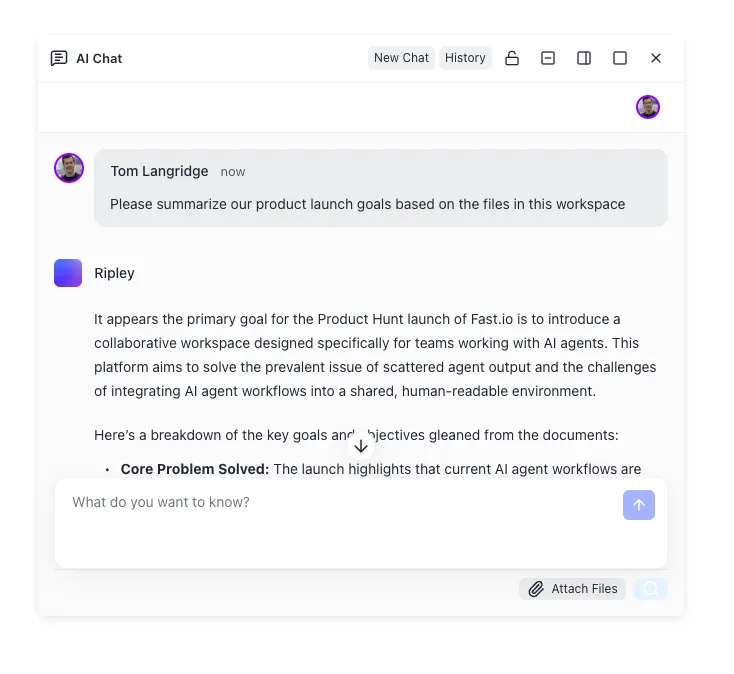


Give Claude a persistent workspace
Your Claude sessions get a workspace that persists after the conversation closes.
How to Access Claude on Mobile and the API Console
Claude's mobile app launched on iOS in May 2024 and Android in July 2024. By May 2026, the app had reached 7.38 million monthly active users, more than doubling from 2.9 million in January 2025.
The mobile app and the API console serve different audiences, but both use the same underlying authentication. Your Google or email login works on both. The key difference is what you're logging into: the mobile app gives you the same chat experience as the web, while the API console at platform.claude.com is a separate developer tool with its own billing and usage dashboards.
iOS and Android
Download from the App Store (requires iOS 17 or later) or Google Play. Sign in with the same Google account or email you use on the web. Your conversations, projects, and plan carry over automatically.
The mobile app covers the full Claude chat experience, including file uploads, model selection, and access to your complete conversation history. You can start a conversation on your phone during a commute and pick it up on the desktop later. Desktop-only features like Cowork and MCP extensions aren't available on mobile.
API Console for developers
Developers access Claude's models through a separate login at platform.claude.com. This is where you manage API keys, monitor token usage, set spending limits, and test prompts in the Workbench.
The API Console uses the same Google or email sign-in flow, but it runs on a separate system from claude.ai. You'll likely need to create a distinct account and configure billing before you can generate API keys. The Workbench tool within the console lets you test prompts, compare model outputs, and adjust parameters before deploying to production.
Enterprise SSO Configuration
Organizations on Claude Enterprise or Claude for Government can configure SAML-based single sign-on. Claude for Government requires SSO for all users except the Primary Owner. Enterprise plans offer SSO as an optional feature alongside standard email login.
Anthropic acts as the Service Provider in the SAML flow, while your identity provider (Okta, Entra ID, or similar) handles authentication. Setting it up takes five steps:
- Sign in as the Primary Owner using a magic link
- Verify your domain by adding a TXT DNS record
- Configure your identity provider with Anthropic's SP metadata (Entity ID and ACS URL)
- Send your IdP details to Anthropic: X.509 signing certificate, IdP Entity ID, and SAML sign-on endpoint
- Test SSO login before disabling magic link authentication
The critical rule: do not disable magic link login until SSO is confirmed working. If SSO has a configuration error and magic link is already off, the Primary Owner will need to contact Anthropic support to regain access.
SSO attribute mappings require username and email claims. Coordinate with your identity team to configure these in your IdP before starting the Anthropic-side setup.
What to Do When Claude Login Fails
The most frequent login issue is a missing verification email. If you chose "Continue with email" and nothing arrives within a few minutes, work through these steps:
- Check your spam or junk folder for messages from @mail.anthropic.com
- Look for server-level quarantine (common with business, government, and .edu accounts)
- Add @mail.anthropic.com to your safe sender list or whitelist
- Wait a few minutes and retry. Delivery delays happen during high-traffic periods
- Ask your IT department to check server-side filtering if you're on a managed email system
If you received the email but clicking the link does nothing, check the Claude status page at status.claude.com for service disruptions. The status page shows real-time information about every Claude service.
Browser and network issues
Clearing your browser cookies and cache can fix login loops where the page refreshes without completing sign-in. Try an incognito or private window first to confirm the problem is cache-related before wiping your main browser data.
If you use a VPN, disconnect it temporarily. Some VPN configurations interfere with the authentication redirect, particularly during Google sign-in. Corporate proxy servers can cause similar problems.
Make sure JavaScript is enabled and your browser isn't blocking third-party cookies from anthropic.com. Ad blockers and privacy extensions occasionally interfere with the Google OAuth popup.
Account restrictions
Claude accounts can be temporarily restricted for Terms of Service violations. If you see a restriction message when logging in and believe it's an error, contact Anthropic support through support.claude.com.
If you forgot which email you used to sign up, try Google sign-in first. If that doesn't match, try each email address you commonly use with the email verification flow until you find the right one.
Sources
References used to verify factual claims in this guide.
-
823.5 million visits in April 2026 7.38 million monthly active users on mobile by May 2026
-
ARM64 support added March 2026
Frequently Asked Questions
How do I log in to Claude AI?
Go to claude.ai and click 'Continue with Google' to sign in with your Google account, or click 'Continue with email' to receive a verification link. The same credentials work on the desktop app (claude.com/download) and mobile apps for iOS and Android.
Why can't I log in to Claude?
The most common cause is a missing verification email. Check your spam folder for messages from @mail.anthropic.com, and ask your IT department to whitelist that address if you're on a business or education email system. Check status.claude.com for service disruptions if the problem persists.
Is Claude AI free to use?
Yes. Claude offers a free tier with basic usage limits and no credit card required. Paid plans include Pro at $20/month, Max at $100 or $200/month, and Team at $30/seat/month, which raise usage caps and unlock features like Claude Cowork.
How do I log in to Claude with SSO?
SSO is available on Claude Enterprise and required on Claude for Government. Your IT team configures SAML-based authentication through an identity provider like Okta or Entra ID, then users sign in through the organization's standard login flow instead of Google or email.
Can I use the same Claude account on multiple devices?
Yes. One Claude account works across web, desktop, and mobile. Conversations and settings sync automatically. Sign in with the same Google account or email address on each platform.
What is the difference between claude.ai and platform.claude.com?
Claude.ai is the consumer chat interface where you have conversations with Claude. Platform.claude.com is the developer API console for managing API keys, billing, and usage. Both use the same sign-in methods but may require separate accounts.
Related Resources

Give Claude a persistent workspace
Your Claude sessions get a workspace that persists after the conversation closes.