Best OpenClaw Workflows for AI Product Demo Video and Walkthrough Creation
OpenClaw's ecosystem includes a dedicated demo-video skill that records browser walkthroughs through CDP screencast, a built-in video_generate tool for creating clips from text prompts, and several community skills for encoding and post-production. This guide evaluates each workflow, explains the three-phase pipeline behind automated demos, and covers how to store and distribute finished recordings.


How OpenClaw Automates Demo Recording in Three Phases
78% of marketing teams now use AI-generated video in at least one campaign per quarter, according to ngram's 2026 AI Video Statistics. Yet most product demo recording still depends on a human pressing record, clicking through the product, and editing out the mistakes. That manual process costs 4 to 8 hours per video and produces footage that needs re-recording every time the UI changes.
OpenClaw's demo-video skill takes a different approach. Instead of recording a person using the product, it scripts browser interactions, captures frames programmatically through CDP screencast, and encodes them into video. The pipeline runs in three phases:
- Plan: Define the pages to visit, elements to click, text to type, and wait times that make up each demo sequence
- Record: Connect to a running browser via Playwright CDP and capture JPEG frames during each automated interaction
- Encode: Feed the frame sequence into FFmpeg to produce MP4, WebM, or GIF output
Each phase can be handled by a different tool or skill depending on what you need. Some workflows cover all three phases in a single pass. Others specialize in one phase and hand off to a separate tool for the rest.
We evaluated each option on four criteria: automation depth (can it run end-to-end without human intervention), output quality (resolution, format options, pacing controls), integration flexibility (does it work alongside other OpenClaw skills), and setup complexity (prerequisites and configuration effort).
Tools by Phase
Related guides
- How to Automate Video Review Workflows with Manus AIWhile AI-driven automation can slash initial video editing and rough-cut assembly times by up to 80%, creative teams...
- How to Integrate an AI Video Editor in Clay GTM SequencesIntegrating an AI video editor API into Clay Go-To-Market (GTM) sequences automates personalized video creation for...
- Best OpenClaw Workflows for AI Music Video and Lyric Video CreationOpenClaw 2026.4.5 shipped music_generate and video_generate as built-in tools, but most guides cover them in isolation....
- Top OpenClaw Workflows for AI Video Dubbing and Lip SyncThe AI video translation market hit $2.68 billion in 2024 and is growing at 28.7% annually, yet most dubbing guides...
- Top OpenClaw Workflows for AI Image-to-Video ConversionOpenClaw's video_generate tool supports 13 providers for image-to-video conversion, each with different strengths. Some...
- Top OpenClaw Workflows for AI Text-to-Video GenerationOpenClaw agents can generate video directly from text prompts, but the right workflow depends on what you are building....
More on this subject: OpenClaw Workflows and Integrations (69 guides)
demo-video: Browser Recording Through CDP Screencast
The demo-video skill is the most direct path to automated walkthroughs. It connects to a running browser instance through Playwright's CDP integration, navigates through your product following a scripted sequence, and captures JPEG frames at each step. Those frames get stitched together with FFmpeg into a finished video file.
You define demo sequences in a script that specifies URLs, element interactions (clicks, hovers, text input), scrolling actions, and pause durations. The recommended pacing is 2 seconds for page loads and 0.5 to 1 second between interactions, which produces footage that looks natural rather than rushed.
Key configuration options:
- Frame skip: Lower values (3-5) produce smoother video at larger file sizes. Higher values (8-10) keep files smaller at the cost of some choppiness
- JPEG quality: 85-90 balances visual clarity against disk usage during the capture phase
- Output resolution: Set by the browser window dimensions at recording time
- Output format: MP4 (H.264), WebM (VP9), or GIF
Strengths:
- Fully repeatable. When your product ships a UI update, re-run the same script against the new build
- No GUI required. The agent handles everything from navigation to encoding
- Configurable pacing and frame density for different use cases
Limitations:
- Only records browser-based applications. Native desktop or mobile apps need a different approach
- Requires FFmpeg installed on the system and a running browser instance
Best for: Teams that maintain a library of product walkthroughs and need to update them with each release cycle.
video_generate: Built-In Text-to-Video Creation
OpenClaw 2026.4.5 introduced video_generate as a built-in tool, so it registers automatically in every agent session without installing a separate skill. You describe the video you want in a prompt, select an aspect ratio and resolution, and the tool handles generation asynchronously through your configured provider.
Three providers ship as defaults: xAI (via grok-imagine-video), Alibaba Model Studio Wan, and Runway. Additional providers can be configured. The tool supports three modes:
- Text-to-video: Describe a scene and get a generated clip
- Image-to-video: Animate a product screenshot or storyboard panel into motion
- Video-to-video: Transform existing footage with new visual styles
Generation tasks run in the background, so they do not block other agent work. Results return as media paths and attach to the agent's reply automatically.
Strengths:
- Zero installation. Available in every OpenClaw session from version 2026.4.5 onward
- Multiple providers with different pricing tiers and visual styles
- Async processing keeps other agent tasks running during generation
Limitations:
- Creates original footage from prompts, not pixel-accurate recordings of your actual UI
- No editing, trimming, or subtitle capabilities
Best for: Generating supplemental clips, transitions, and concept illustrations to combine with recorded walkthrough footage. The combination of demo-video for screen recordings and video_generate for supporting visuals covers both sides of a typical product demo.


Store and share demo videos from your agent pipeline
Fast.io gives your OpenClaw agent persistent storage, in-browser video streaming, and branded share links to review and distribute walkthroughs.
What Post-Production Skills Improve Raw Demo Footage
Raw frames and generated clips usually need post-production before they are ready to distribute. Three community skills handle the most common finishing tasks.
ClawVid + Remotion
The ClawVid pipeline combines OpenClaw with Composio (for tool integrations), Remotion (a React-based video renderer), and fal.ai (for AI generation). It follows a six-phase process: narration generation, scene timing derived from audio duration, image generation, video clip creation, sound effects, and background music. The output is two MP4 files, one in 16:9 for YouTube and one in 9:16 for TikTok and Shorts.
This pipeline suits narrated explainer videos rather than direct product walkthroughs. A practical combination: use demo-video for the screen recording segments and ClawVid for the narrated intro, transitions, and outro that wrap around them.
Best for: Narrated explainer videos and faceless content marketing assets.
Recorder Free
Recorder Free is a ClawHub skill that handles post-production on existing screen recordings. It automates trimming, background music integration, subtitle generation, and rendering through natural language commands. When you have raw demo footage that needs cleanup before publishing, this skill handles the edit without opening a separate video editor.
Best for: Cleaning up raw screen recordings with automated trimming and subtitles.
ffmpeg-video-editor
The ffmpeg-video-editor skill wraps FFmpeg commands in a natural language interface. It handles batch format conversion, trimming, concatenation, and filter application across any format FFmpeg supports. Where the demo-video skill's encoding targets MP4, WebM, and GIF specifically, this skill works with the full range of FFmpeg containers and codecs, including ProRes for handoff to professional editors using DaVinci Resolve or Premiere Pro.
Best for: Format conversion, batch processing, and export to professional NLE workflows.

Where to Store and Share Finished Demo Videos
An automated pipeline that produces demo videos is only half the problem. The finished files need to go somewhere reviewable, shareable, and version-trackable.
Local storage or S3 works for individual developers running one-off recordings. The limitations show up when multiple people need to review footage, approve it, and push it to marketing channels. Google Drive and Dropbox handle basic file sharing but lack video-specific features like in-browser playback and timestamped review comments.
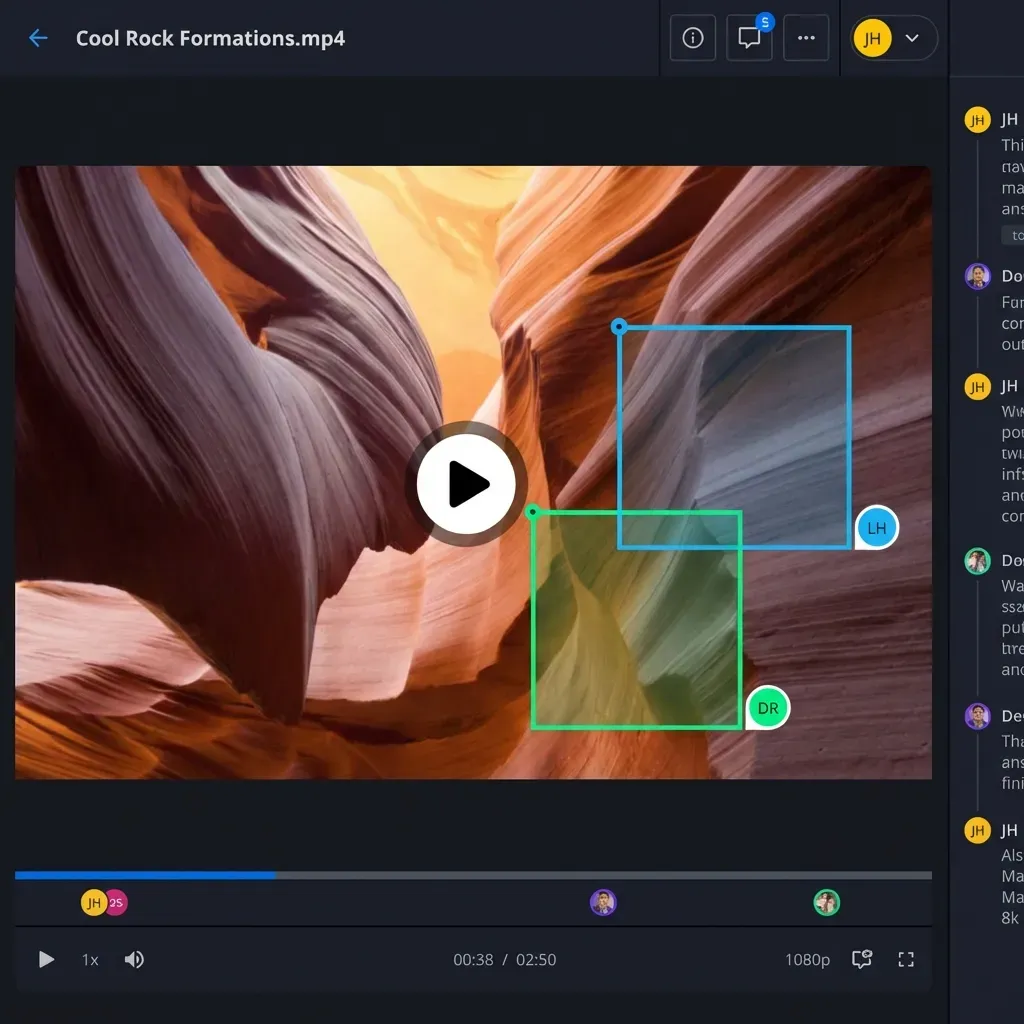
Fast.io is built for this handoff. Agents upload finished videos to a shared workspace through the Fast.io MCP server, where team members preview them in-browser via HLS streaming, leave comments anchored to specific timestamps, and distribute through branded share links. Intelligence Mode auto-indexes uploaded videos, so you can search across your demo library by content rather than filename.
The workflow: your OpenClaw agent records and encodes the demo, uploads the MP4 to a Fast.io workspace, and the marketing team reviews it without downloading anything. When the product ships an update, the agent re-runs the recording script, uploads the new version, and existing share links serve the latest file. Ownership transfer lets an agent build out the entire workspace and hand control to a human when the library is ready.
Fast.io offers a 14-day Business Trial, card required; see /pricing/. For OpenClaw-specific setup instructions, see the Fast.io for OpenClaw guide.
Which workflow should you choose? Start with the demo-video skill if your primary need is recording browser-based walkthroughs. Add video_generate for supplemental clips and transitions. Layer in Recorder Free or ffmpeg-video-editor for post-production polish. The ClawVid pipeline makes sense when you need full narrated explainers alongside your product recordings.
Sources
References used to verify factual claims in this guide.
-
78% of marketing teams now use AI-generated video in at least one campaign per quarter Manual demo video production costs 4 to 8 hours per video
-
demo-video skill captures JPEG frames via Playwright CDP screencast and encodes with FFmpeg into MP4, WebM, or GIF
-
OpenClaw 2026.4.5 introduced video_generate as a built-in tool with xAI, Alibaba Wan, and Runway as default providers
-
ClawVid pipeline produces two MP4 files in 16:9 and 9:16 formats using Composio and Remotion
Frequently Asked Questions
Can OpenClaw record product demos automatically?
Yes. The demo-video skill on ClawHub automates the entire recording process. It connects to a running browser via Playwright CDP, navigates through your product following a scripted sequence, captures JPEG frames at each step, and encodes them into MP4, WebM, or GIF using FFmpeg. No manual screen recording is needed.
How does the demo-video skill capture video frames?
The skill uses Playwright's CDP (Chrome DevTools Protocol) screencast feature. It attaches to a running Chrome instance, starts a screencast session that captures JPEG frames as the agent navigates through the product, then feeds those frames to FFmpeg for encoding. The configurable frame skip parameter controls how many frames to capture per second, which directly affects video smoothness and file size.
What output formats does OpenClaw support for demo videos?
The demo-video skill encodes to MP4 (H.264), WebM (VP9), and GIF through FFmpeg. The built-in video_generate tool outputs MP4. For additional format support, the ffmpeg-video-editor skill on ClawHub works with any container and codec that FFmpeg supports, including ProRes for professional editing handoff.
How do I create a product demo with AI if I have never used OpenClaw?
Start by installing the demo-video skill from ClawHub. Define your demo sequence by listing the URLs to visit, elements to click, and pause durations between steps. Set the browser window to your target resolution, run the skill, and it will record the walkthrough and encode it as an MP4. For supplemental footage like transitions or explainer segments, use the built-in video_generate tool. Upload the finished video to a shared workspace like Fast.io for team review and distribution.
What is the difference between demo-video and video_generate?
The demo-video skill records your actual product by automating a real browser session and capturing what appears on screen. video_generate creates original video from text prompts or images using AI generation providers like xAI, Alibaba Wan, and Runway. Use demo-video when you need pixel-accurate walkthroughs of your UI, and video_generate when you need supplemental clips, transitions, or concept illustrations.
Related Resources

Store and share demo videos from your agent pipeline
Fast.io gives your OpenClaw agent persistent storage, in-browser video streaming, and branded share links to review and distribute walkthroughs.