Top OpenClaw Tools for AI Video Background Removal and Scene Replacement
The AI video background replacement market reached $1.77 billion in 2025, yet most of that spending flows to consumer apps that require manual interaction. OpenClaw's agent-driven ecosystem handles the entire pipeline from subject isolation to scene replacement without opening a GUI. This guide ranks six tools and workflows for video background work, then shows how to chain them into a single automated sequence.


From Consumer Apps to Agent-Driven Video Pipelines
The AI video background replacement market hit $1.77 billion in 2025, growing at a 21.8% compound annual growth rate according to a January 2026 GlobeNewsWire market report. Remote conferencing, virtual production, and social content creation are driving that growth. But the tooling landscape assumes a human is sitting at a screen, clicking buttons, and watching previews render.
OpenClaw changes that assumption. Its ecosystem includes both built-in tools and community-developed skills that handle background removal and scene replacement programmatically, inside agent sessions.
This guide ranks six OpenClaw tools for video background work by use case, explains what each one does well and where it falls short, and walks through a chained pipeline that combines removal and replacement without human intervention.
Related guides
- Best n8n Tools for AI Agents: Top 10 Nodes for 2026n8n changed AI automation with its visual workflow builder. We rank the best nodes and integrations for building...
- Best Tools for CrewAI Agents: Top Picks for 2026CrewAI agents need good tools to be useful. The framework handles coordination, but external integrations let agents...
- Best OpenClaw Tools for AI Video Editing AutomationOpenClaw's ecosystem includes both built-in video generation tools and community-developed editing skills that handle...
- Best OpenClaw Tools for AI Video Upscaling and EnhancementOpenClaw's built-in video_generate tool now supports video-to-video mode with 16 provider backends, but none of them...
- Top OpenClaw Tools for AI TikTok and Short-Form Video OptimizationShort-form video ad spending hit $111 billion in 2025 and is projected to reach $145.8 billion by 2028, yet most TikTok...
- Top OpenClaw Tools for AI Video SEO and Metadata OptimizationVideo results are 50 times more likely to rank organically in Google than text, yet most YouTube creators still write...
More on this subject: OpenClaw Tools (101 guides)
How We Evaluated These Tools
Each tool was scored on five criteria specific to background removal and scene replacement workflows:
- Removal accuracy: How cleanly does it isolate subjects from backgrounds? Edge detection quality matters for hair, transparent objects, and motion blur
- Replacement flexibility: Can it generate new backgrounds from text prompts, swap in reference images, or composite existing footage?
- Automation depth: Does it run end-to-end without human intervention, or does it pause for approval steps?
- Format support: MP4 is baseline. Some workflows need ProRes intermediates or specific codec configurations
- Pipeline compatibility: Can it chain with other OpenClaw tools for multi-step workflows?
Quick Comparison
Six OpenClaw Tools for Video Background Work
1. video-edit Skill: The Background Removal Specialist
The video-edit skill is the most direct path to background removal in OpenClaw. Once installed from ClawHub, your agent gains access to AI-powered subject isolation alongside color grading, upscaling, and stabilization. The skill has accumulated over 1,200 downloads on ClawHub.
Background removal through video-edit works frame by frame, using segmentation models to separate foreground subjects from their surroundings. The output is footage with the background stripped, ready for compositing or replacement. Modern edge detection in these models has surpassed 98% accuracy in controlled lighting, though results degrade with heavy motion blur or transparent materials like glass and flowing fabric.
Best for: Teams that need clean subject isolation as a first step before feeding footage into a separate replacement workflow.
Limitation: video-edit handles removal but not replacement. You need a second tool to generate or composite a new background onto the isolated footage.
2. video_generate: AI Scene Creation from Scratch
OpenClaw's built-in video_generate tool does not remove backgrounds, but it solves the other half of the equation: creating replacement scenes. Introduced in OpenClaw 2026.4.5, it registers automatically in every agent session without installing a separate skill.
The tool supports three modes. Generate creates video from text prompts alone. ImageToVideo turns a reference still into motion footage. VideoToVideo transforms existing clips into new compositions. For scene replacement, VideoToVideo is the key mode: feed it your isolated subject footage with a text prompt describing the target environment, and it produces a composed result through one of 16 supported provider backends including Google Veo, OpenAI Sora, and Runway.
Processing is asynchronous. The tool returns a task ID immediately, the provider processes the job in the background (typically 30 seconds to several minutes), and OpenClaw delivers results through normal reply channels when the generation completes. While a job is in flight, duplicate calls in the same session return the current task status instead of starting new generations.
Best for: Generating AI backgrounds and composed scenes when you already have isolated subject footage or a reference frame.
Limitation: video_generate creates new video. It cannot isolate subjects from existing backgrounds on its own, so it pairs with video-edit rather than replacing it.
3. Loova AI: Integrated Background Swap
Loova AI is one of the few OpenClaw-integrated video tools that handles both removal and replacement in a single step. Its capabilities include removing objects from video, adding objects to video, and changing video backgrounds without requiring separate tools for each stage.
The integrated approach is faster for straightforward background swaps where you want to replace one environment with another. You skip the intermediate step of exporting isolated footage and feeding it into a generation tool. For social content or product videos where a simple environment swap is all you need, Loova AI reduces a two-tool pipeline to one.
Best for: Quick background swaps where removal and replacement happen in a single operation, especially for social video and product demos.
Limitation: Less flexible than chaining video-edit with video_generate for complex compositing scenarios where you need fine-grained control over each stage.
4. video-editor-ai: Post-Production After Replacement
The video-editor-ai skill handles the work that comes after background replacement: adding subtitles, inserting background music, applying effects, and exporting finished MP4 files. It runs entirely through agent conversation with no GUI.
For background removal workflows specifically, video-editor-ai fills the finishing role. Once you have composed footage with a new scene behind your subject, this skill handles color matching, transition effects, and caption overlay. Its three-layer architecture routes editing requests through an SSE streaming backend that processes operations in 45 to 300 seconds depending on complexity. About 30% of edit operations return no visible text response, so the skill uses state-diffing to compare timeline states before and after edits.
Best for: Polishing composed footage after background replacement, especially for output targeting TikTok, Reels, or Shorts.
Limitation: Does not perform background removal or scene generation. It edits existing footage only.
5. eachlabs-video-edit: Dubbing and Localization
The eachlabs-video-edit skill specializes in lip sync and multilingual dubbing. It does not remove or replace backgrounds directly, but it becomes relevant when your background-replaced footage needs localization for different markets.
Consider a product demo where you have swapped the office background with a branded AI-generated environment. The eachlabs skill can then dub the speaker into different languages with synchronized lip movements, producing multiple localized versions from a single source clip. This is the step where one piece of background-replaced content becomes five or ten regional variants.
Best for: Localizing background-replaced footage for international distribution with synchronized dubbing.
Limitation: Handles dubbing and translation only, not visual editing or background work. It is a downstream tool in the pipeline.
6. ffmpeg-video-editor: Pipeline Glue for Multi-Step Workflows
The ffmpeg-video-editor skill generates FFmpeg commands from natural language descriptions. It handles format conversion, batch processing, clip concatenation, and filter application. For background removal pipelines, it serves as the connective tissue between other tools.
When chaining video-edit with video_generate, you often need intermediate format conversions, resolution adjustments, or clip assembly steps. ffmpeg-video-editor handles these transitions without requiring you to write FFmpeg syntax. It supports any format FFmpeg handles, which covers virtually every video container and codec in production use.
Best for: Connecting other tools in multi-step pipelines, batch format conversion, and assembling clips from different stages.
Limitation: No AI capabilities. It wraps FFmpeg for technical operations but does not perform intelligent content editing.
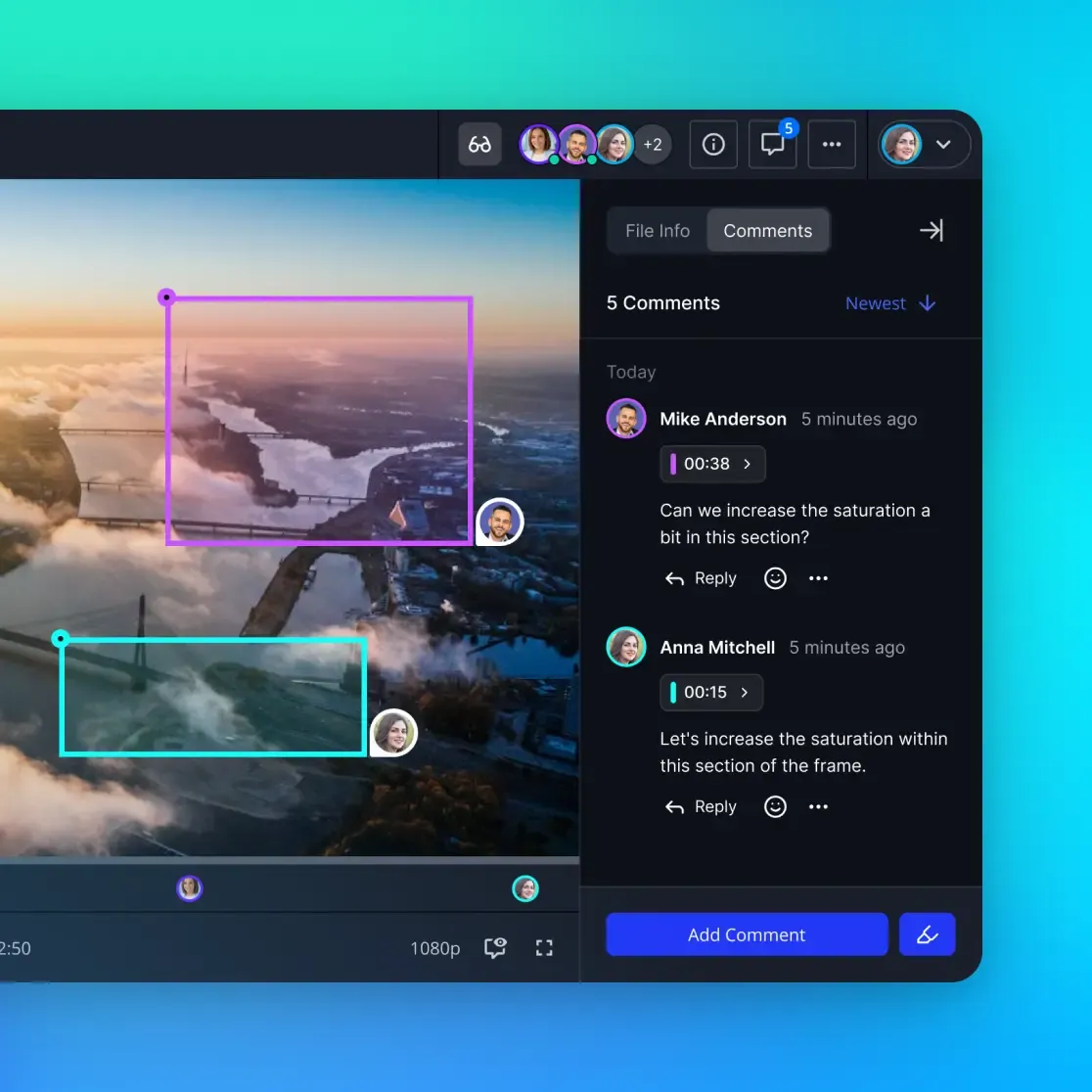


Persist video assets across your agent pipeline
Persistent workspace with MCP endpoints for agentic file I/O. Upload raw footage, share finished clips, and hand off review to your team.
How to Chain Removal and Replacement in One Workflow
The real value of OpenClaw's ecosystem shows up when you chain these tools into a complete pipeline. Here is how a background removal and replacement workflow runs in practice.
Start with video-edit to isolate your subject. Feed in raw footage, and the skill's AI segmentation strips the background, producing clean foreground footage. Next, pass that isolated footage into video_generate using VideoToVideo mode with a text prompt describing your target environment. The generation model composes the subject into the new scene through your chosen provider.
For post-production, route the composed output through video-editor-ai to add transitions, color grade the result for consistency between the subject and new background, and burn in captions. If you need format conversion for specific delivery targets, ffmpeg-video-editor handles the final encoding step.
This four-tool chain produces finished video from raw footage without any manual interaction. The entire sequence runs inside a single OpenClaw agent session, with each tool passing its output to the next.
Where to Store Intermediate and Final Files
Video pipelines generate large intermediate files. Raw 4K footage, isolated subject clips, and AI-generated scenes can total several gigabytes per project. Local storage works for single-agent workflows but breaks down when multiple agents collaborate or when a human needs to review results before publishing.
S3 or Google Cloud Storage handles raw file staging well, but they lack a workspace layer that connects agent output to human review. Local NAS is fast but limits access to one machine. Fast.io sits between these options: cloud-accessible, workspace-organized, and built for the agent-to-human handoff that video pipelines require.
Agents upload intermediate files and finished output via the Fast.io MCP server, while team members review results through the browser interface. The 14-day Business Trial provides workspace storage and usage credits for testing agent pipelines. For video workflows specifically, HLS streaming lets reviewers preview generated video directly in the workspace without downloading multi-gigabyte files. Audit trails track which agent produced each file, creating a clear chain of custody from raw footage through final delivery.

Which Tool Should You Pick for Your Workflow?
Your choice depends on where the bottleneck sits.
If you only need background removal, start with video-edit. It handles isolation cleanly and outputs footage ready for any downstream tool. If you only need scene generation, video_generate covers that with broad provider support and zero installation overhead.
For one-step background swaps on social content, Loova AI is the fast path. You trade fine-grained control for speed. For complex pipelines where you need control over each stage, chain video-edit and video_generate with ffmpeg-video-editor as the pipeline glue between them.
Volume matters too. Single-project workflows can run locally with minimal setup. High-volume pipelines benefit from persistent cloud storage for intermediate files and a review layer for quality control before publishing. Fast.io plans provide persistent workspace storage for iterative video projects, and the MCP server handles automated file I/O from inside agent sessions.
OpenClaw's approach to video background work differs from consumer tools in a practical way: every step runs programmatically, inside agent sessions, with outputs that can be stored, reviewed, and handed off without switching contexts. The tools exist individually. The gap was connecting them into a single automated pipeline.
Sources
References used to verify factual claims in this guide.
-
The AI video background replacement market hit $1.77 billion in 2025, growing at a 21.8% compound annual growth rate
-
video_generate supports 16 provider backends with text-to-video, image-to-video, and video-to-video modes
-
Loova AI supports removing objects from video, adding objects to video, and changing video backgrounds
-
Edge detection accuracy has surpassed 98% in controlled lighting conditions
Frequently Asked Questions
Can OpenClaw remove video backgrounds without green screen?
Yes. The video-edit skill uses AI segmentation models to isolate subjects from any background, not just green screens. Once installed from ClawHub, your agent can strip backgrounds from existing footage frame by frame. Accuracy depends on lighting and subject complexity, with modern models reaching over 98% edge detection accuracy in controlled environments.
What OpenClaw skill replaces video backgrounds with AI?
Two options handle replacement. The built-in video_generate tool creates new background scenes from text prompts or reference images using its VideoToVideo mode. Loova AI, an OpenClaw-integrated tool, handles both removal and replacement in a single step. For maximum control, chain the video-edit skill for removal with video_generate for replacement in a sequential workflow.
How do I do AI scene replacement in OpenClaw?
Use video_generate in VideoToVideo mode. Provide your source footage, ideally with the background already removed via video-edit, and a text prompt describing the new scene. The tool processes the request asynchronously through one of 16 supported providers (Google Veo, OpenAI Sora, Runway, and others) and returns the composed result when generation completes.
Can I chain multiple OpenClaw tools for video post-production?
Yes. A typical chain runs video-edit for background removal, video_generate for scene replacement, video-editor-ai for polish (subtitles, music, effects), and ffmpeg-video-editor for final format conversion. The entire sequence runs inside one agent session. For team workflows, store intermediate files in a shared workspace like Fast.io so both agents and humans can access results at each stage.
Where should I store video files generated by OpenClaw agents?
For solo projects, local storage works fine. For team workflows or agent-to-human handoffs, use a shared workspace. Fast.io provides shared workspaces with remote MCP server integration, so agents upload files programmatically while team members review them through a browser. HLS streaming lets reviewers preview video in the workspace without downloading full files.
Related Resources

Persist video assets across your agent pipeline
Persistent workspace with MCP endpoints for agentic file I/O. Upload raw footage, share finished clips, and hand off review to your team.