Best OpenClaw Tools for AI Video Editing Automation
OpenClaw's ecosystem includes both built-in video generation tools and community-developed editing skills that handle post-production tasks like trimming, subtitle generation, effects, and multi-clip assembly. This guide evaluates the top options for fully automated video pipelines, compares their capabilities, and explains how to connect them to persistent storage for team handoff.

How We Evaluated These Tools
The "ai video editor" keyword pulls 27,100 monthly US searches, but most results cover consumer apps like CapCut and Descript. Those tools require manual interaction. OpenClaw skills operate differently: they run inside an agent session, accept natural language instructions, and produce finished video output without opening a GUI.
We evaluated each tool on five criteria:
- Format support: Which containers and codecs does it handle? MP4 is table stakes, but some workflows need ProRes or MKV
- Automation depth: Can it run end-to-end without human intervention, or does it need approval steps?
- Subtitle and caption handling: Does it generate, burn in, or export SRT/VTT files?
- Provider flexibility: Is it locked to one AI backend, or can you swap models?
- Output targeting: Does it optimize for specific platforms (YouTube, TikTok, Instagram Reels)?
Below is a quick comparison, followed by detailed sections on each tool.
Comparison Table
Related guides
- How to Scale Canva Video Editor Asset Pipelines with Clay AutomationOutbound GTM teams can scale their Canva video editor workflows by connecting Clay data enrichment tables with the...
- Best n8n Tools for AI Agents: Top 10 Nodes for 2026n8n changed AI automation with its visual workflow builder. We rank the best nodes and integrations for building...
- 7 Best OpenClaw Tools for AI Travel Itinerary Planning and Booking AutomationOpenClaw's skill registry includes over 110 transportation skills and 29 dedicated travel tools, but most agents cobble...
- Best OpenClaw Tools for AI Spreadsheet Analysis AutomationManual reporting still eats hours every week, even when the analysis itself takes minutes. OpenClaw skills for...
- 7 OpenClaw Tools That Automate Employee Onboarding ContentGartner projects that 40% of enterprise applications will embed task-specific AI agents by the end of 2026, up from...
- 7 Best OpenClaw Tools for Accountants and Financial Workflow AutomationCPAs recover an estimated 240 hours per year in billable capacity when AI handles routine preparation, according to the...
More on this subject: OpenClaw Tools (101 guides)
video_generate: The Built-In Video Creation Engine
OpenClaw 2026.4.5 introduced video_generate as a built-in tool, so it registers automatically in every agent session without installing a separate skill. You describe the video you want in a prompt, choose an aspect ratio and resolution, and the tool handles generation asynchronously through your configured provider.
The tool supports text-to-video, image-to-video, and video-to-video modes. The three bundled default providers are xAI, Alibaba Wan, and Runway, with additional providers available through configuration. Image-to-video is especially useful for turning product photos or storyboard panels into motion clips without separate compositing steps.
Strengths and Trade-offs
The biggest advantage is zero installation. Every OpenClaw agent session has access to video_generate immediately, with multiple providers available across different pricing tiers and visual styles. Async processing means generations do not block other agent tasks.
The main limitation is scope: video_generate only creates new video. It cannot trim, cut, or edit existing footage. There is no subtitle generation or burn-in capability, and output is always a single clip rather than a multi-segment assembly. If you need post-production on existing footage, you will need one of the editing skills covered next.
Best for: Generating short-form video clips from text descriptions or reference images as part of a larger content pipeline.
video-editor-ai: Conversational MP4 Editing
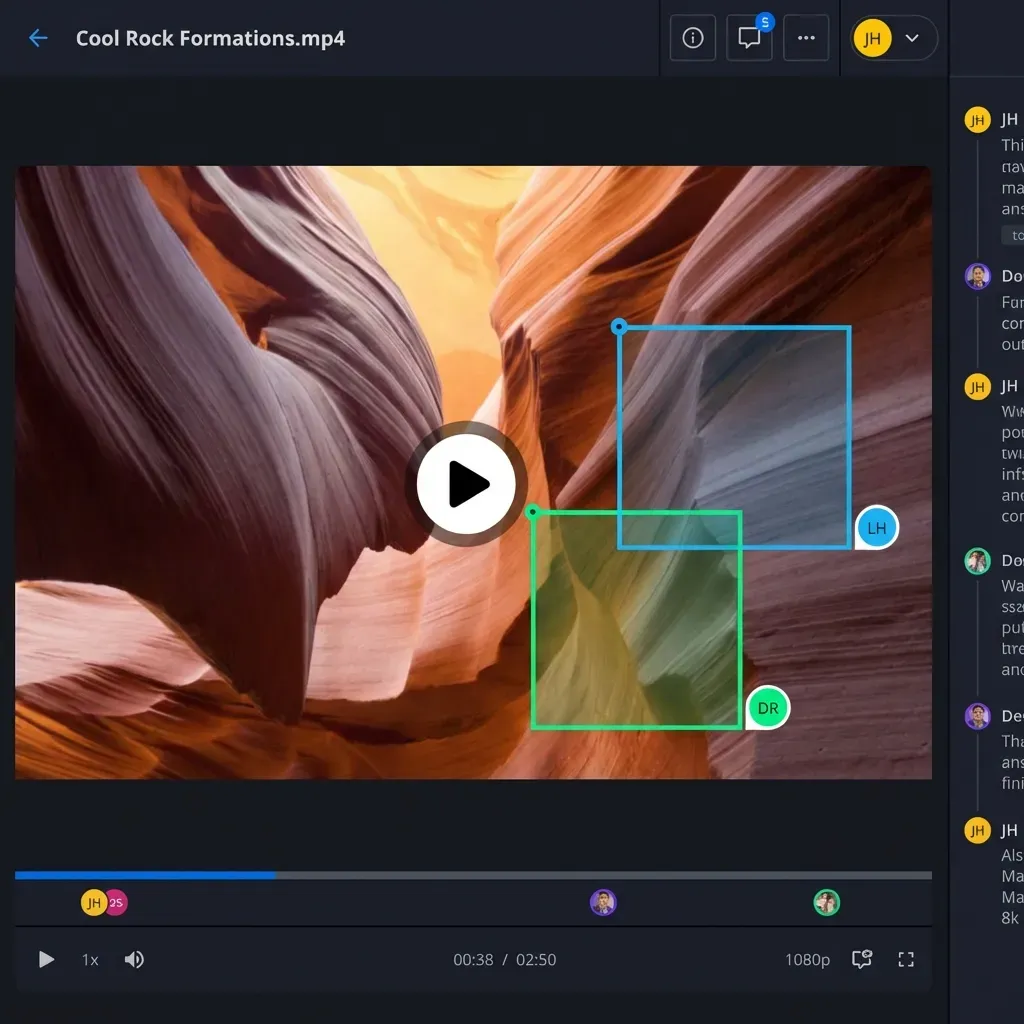
The video-editor-ai skill on ClawHub is dedicated to editing existing video files rather than generating new ones. It accepts MP4 input and lets you manipulate it through natural language instructions: add background music, insert subtitles, apply effects, and export directly.
Where video_generate creates clips from scratch, video-editor-ai handles post-production on footage you already have. The skill is optimized for short-form content targeting TikTok, Instagram Reels, and YouTube Shorts.
Key Capabilities
Subtitle insertion: Generate and burn captions into the video
- Background music: Add audio tracks with volume balancing
- Effects application: Transitions, filters, and overlays
- Direct export: Output finished MP4 without intermediate steps
- No GUI required: Runs entirely through the agent conversation
Practical Workflow
A typical automation sequence looks like this: your agent downloads raw footage from a workspace, passes it to video-editor-ai with instructions like "add captions in white text at the bottom, apply a slight zoom effect on cuts, and add this background track at 30% volume," then receives the edited MP4 back. The agent can then upload the result to a shared workspace for human review before publishing.
Strengths
- Purpose-built for editing, not generation
- Handles the subtitle workflow that video_generate cannot
- Conversational interface means complex edits stack in a single session
- Short-form platform optimization built in
Limitations
- MP4 only. No ProRes, MKV, or other container support
- Limited to what the bundled AI can interpret. Complex motion graphics or color grading may not work well
- No batch processing across multiple clips in a single call
Best for: Adding subtitles, music, and effects to short-form video clips before publishing to social platforms.


Stop losing video files between agent sessions
Give your OpenClaw agents a shared workspace where generated and edited video stays accessible to your whole team. generous storage, MCP endpoint ready.
eachlabs-video-edit and ffmpeg-video-editor: Specialized Editing Skills
Two additional ClawHub skills handle specific editing niches that the broader tools miss.
eachlabs-video-edit
The eachlabs-video-edit skill focuses on three capabilities: lip synchronization, video translation, and subtitle generation. It connects to the EachLabs API for its AI processing.
Lip sync is the standout feature. If you have a talking-head video and want to dub it into another language while keeping natural mouth movements, this skill handles the coordination between speech synthesis, timing alignment, and visual adjustment. That is a workflow that would otherwise require multiple manual tools and significant post-production time.
Strengths:
- Lip sync capability is rare in automated tools
- Translation and subtitles in a single skill
- Useful for localizing content across markets
Limitations:
- Requires EachLabs API access (external dependency)
- Narrower scope than general-purpose editors
- Limited documentation on supported language pairs
ffmpeg-video-editor
The ffmpeg-video-editor skill takes a different approach entirely. Instead of using AI models for editing, it generates FFmpeg commands from natural language descriptions. You describe what you want ("trim the first 10 seconds, convert to 720p, add a fade-in"), and the skill produces the correct FFmpeg command chain and executes it.
This matters for batch processing. FFmpeg handles virtually any container format and codec combination, runs locally without API calls, and processes files at hardware speed rather than waiting for remote inference. For format conversion, concatenation, trimming, and basic filter application across dozens or hundreds of files, ffmpeg-video-editor is faster and cheaper than AI-based alternatives.
Strengths:
- Supports any format FFmpeg can handle (essentially everything)
- No external API costs
- Fast local execution
- Reliable for batch operations
Limitations:
- No AI-powered content understanding
- Cannot generate subtitles from speech (only apply existing SRT files)
- Requires FFmpeg installed on the host system
- Complex filter chains may need manual refinement
Best for: eachlabs-video-edit excels at multilingual dubbing and lip sync. ffmpeg-video-editor is ideal for batch format conversion, trimming, and assembly where speed and cost matter more than AI-driven creativity.
How to Build a Complete Video Automation Pipeline
No single tool covers every stage of video post-production. The practical approach is combining several skills into a pipeline where each handles what it does best.
A Working Pipeline Architecture
- Generation: video_generate creates raw clips from prompts or reference images using Runway, Veo, or another provider
- Editing: video-editor-ai adds subtitles, music, and effects to each clip
- Assembly: ffmpeg-video-editor concatenates clips, adjusts format, and exports at target resolution
- Localization (optional): eachlabs-video-edit handles lip sync and translation for international versions
Storage and Handoff
Automated video pipelines produce large intermediate files. Raw generations, edited versions, and final exports accumulate quickly. You need persistent storage that both agents and humans can access.
Local filesystem works for single-machine setups but breaks down when multiple agents collaborate or when a human needs to review output before publishing. Cloud storage like S3 handles scale but requires custom tooling for access control and handoff workflows.
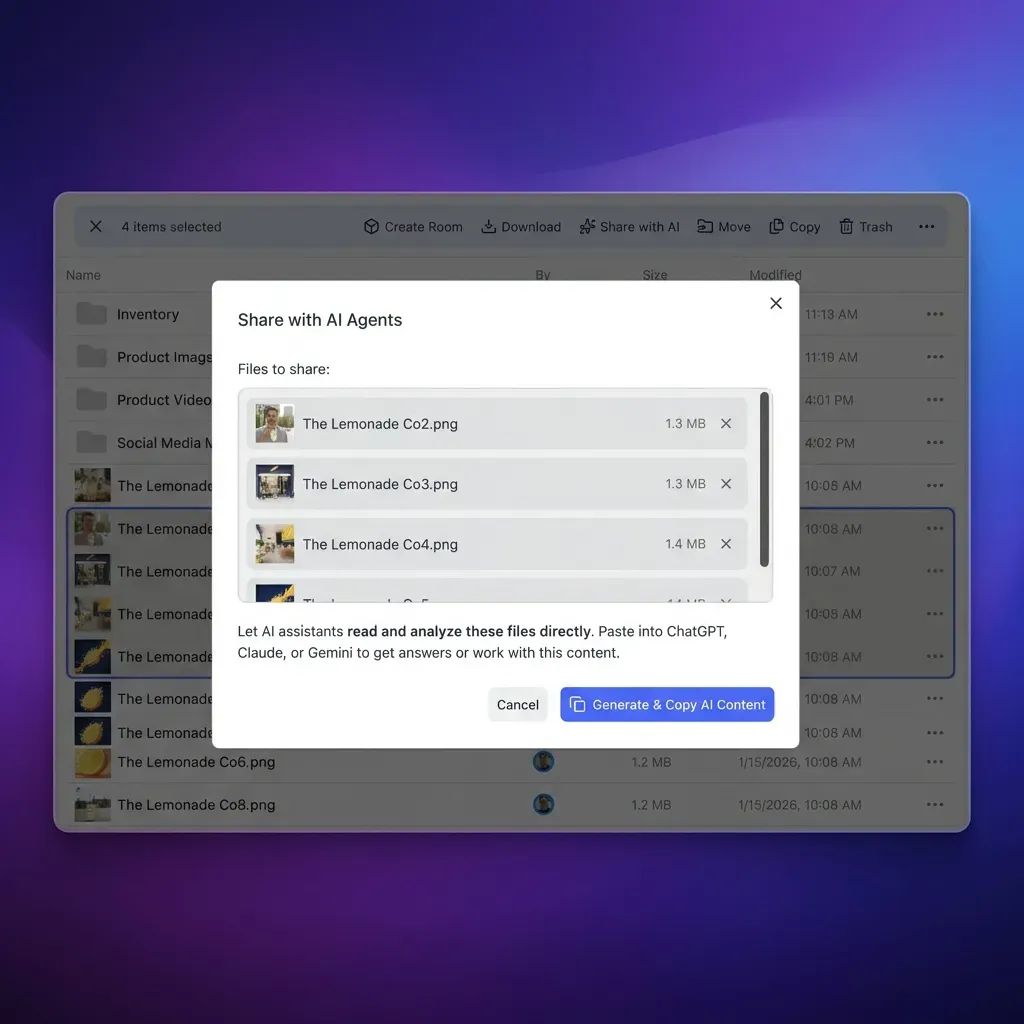
Fastio provides workspace-based storage designed for this pattern. Agents upload video assets through the MCP server, humans review in the browser, and ownership transfers cleanly when the pipeline is done. Fastio offers a 14-day Business Trial with paid plans starting at $9.99/mo (see /pricing/), which covers video automation workflows. Once Intelligence is enabled for the workspace, uploaded files are indexed so you can search across your video library by content description rather than filename.
Other options include Google Drive (good integration but 15GB free limit), Dropbox (solid sharing but no agent-native API), and direct S3 (maximum flexibility but you build everything yourself).
Monitoring Long-Running Tasks
Video generation tasks run asynchronously and can take minutes. OpenClaw's task system tracks these jobs, letting you check status, inspect details, or cancel stuck generations. Build timeout handling into your pipeline so a failed provider does not block downstream stages.
Which Tool Should You Pick for Your Workflow?
Your choice depends on where your bottleneck sits.
If you need to create video from scratch: Start with video_generate. Configure multiple providers so you have fallback options when one is slow or unavailable. The bundled defaults (xAI, Alibaba Wan, Runway) cover a range of quality and speed trade-offs.
If you need to edit existing footage: video-editor-ai handles the common short-form editing tasks (subtitles, music, effects) without leaving the agent session. For heavier editing involving format conversion or multi-file concatenation, add ffmpeg-video-editor to your pipeline.
If you need multilingual content: eachlabs-video-edit's lip sync capability is unique in the OpenClaw ecosystem. No other skill handles dubbed video with natural mouth movements.
If you need a managed solution: KiloClaw ($55/month) bundles OpenClaw with pre-configured integrations for Adobe Premiere Pro, DaVinci Resolve, and Final Cut Pro. It handles proxy generation, cache management, and platform-specific caption formatting. The trade-off is cost and vendor lock-in versus the flexibility of self-hosted OpenClaw with individual skills.
Cost Considerations
- video_generate: Provider API costs vary by provider. Check each provider's pricing page for current rates
- video-editor-ai: Free skill, but AI processing costs depend on clip length
- ffmpeg-video-editor: Zero marginal cost (runs locally)
- eachlabs-video-edit: EachLabs API pricing applies per processed video
- KiloClaw managed: $55/month flat rate with included model access
For teams processing fewer than 50 videos per month, individual skills on self-hosted OpenClaw will be cheaper. Above that volume, KiloClaw's bundled pricing starts making sense, especially if you need NLE integration.
Sources
References used to verify factual claims in this guide.
-
ai video editor has 27,100 monthly US searches
-
video_generate ships with xAI, Alibaba Wan, and Runway as bundled defaults with additional configurable providers
-
OpenClaw 2026.4.5 added built-in video_generate with three bundled providers
-
video-editor-ai supports MP4 editing with subtitles and effects
-
KiloClaw managed plan costs $55/month with 500+ AI models
Frequently Asked Questions
Can OpenClaw edit videos automatically?
Yes. OpenClaw supports automated video editing through both built-in tools and community skills. The native video_generate tool handles creation from prompts, while ClawHub skills like video-editor-ai and ffmpeg-video-editor handle post-production tasks including trimming, subtitle insertion, effects, and format conversion. These run inside agent sessions without requiring a GUI.
What OpenClaw skills add subtitles to videos?
Two ClawHub skills handle subtitles. video-editor-ai generates and burns captions directly into MP4 files through its conversational interface. eachlabs-video-edit generates subtitles as part of its translation workflow, with support for lip-synced dubbing. For applying existing SRT files, ffmpeg-video-editor can burn them in using FFmpeg's subtitle filter.
How do I automate video editing with OpenClaw?
Install editing skills from ClawHub (video-editor-ai for effects and subtitles, ffmpeg-video-editor for format conversion and trimming), then chain them in your agent workflow. The agent downloads source footage, passes it through each skill in sequence, and uploads the finished result to persistent storage. Configure video_generate with provider fallbacks for any generation steps in the pipeline.
Does OpenClaw support MP4 video editing?
MP4 is the primary format for OpenClaw video editing. video-editor-ai works exclusively with MP4 files. The built-in video_generate tool outputs MP4 from all providers. ffmpeg-video-editor supports MP4 along with virtually every other container format, making it useful for conversion workflows between formats.
What video providers does OpenClaw's video_generate support?
OpenClaw's built-in video_generate tool ships with xAI, Alibaba Wan, and Runway as bundled defaults, with additional providers available through configuration. See the official video generation docs for the current provider list and setup instructions.
How do I store video files produced by OpenClaw agents?
For team workflows, upload finished videos to a shared workspace using Fastio's remote MCP server or similar cloud storage. Fastio's 14-day Business Trial (credit card required, see /pricing/) handles video automation output and supports ownership transfer so agents can build content libraries that humans later manage. For solo use, local filesystem or S3 both work but require more manual handoff coordination.
Related Resources

Stop losing video files between agent sessions
Give your OpenClaw agents a shared workspace where generated and edited video stays accessible to your whole team. generous storage, MCP endpoint ready.