Top OpenClaw Tools for AI Color Grading and Video Post-Production
Colorists using AI tools report cutting grading time by 30 to 60 percent, yet most agent-driven video pipelines still treat color as a manual afterthought. OpenClaw's skill ecosystem now includes video-to-video transformation across 16 provider backends, FFmpeg-based post-production automation, and third-party color grading integrations that can apply consistent looks across hundreds of clips without human intervention.

Why Agent-Driven Color Grading Changes the Post-Production Math
Over 70% of studios now use AI-assisted tools for at least part of their color grading workflow, according to industry surveys from PassionFuelsAmbition's 2026 review of AI grading adoption. The time savings are real: what takes a skilled colorist 30 minutes per scene can happen in under a minute with AI-driven matching and correction. But most of those gains come from standalone desktop apps like Colourlab.ai or DaVinci Resolve's built-in AI features. The moment you need to grade 200 clips from a multi-camera shoot with a consistent look, the bottleneck shifts from speed-per-clip to orchestration.
That orchestration gap is where OpenClaw skills become useful. Instead of opening each clip in a GUI, an agent pipeline can pull source footage from cloud storage, apply a color transform using a video-to-video provider or an FFmpeg LUT filter, validate the output against a reference frame, and push the graded files back to a shared workspace. The colorist still defines the look. The agent handles the repetitive application of that look across every clip in the project.
OpenClaw's video tooling supports 16 provider backends with video-to-video transformation modes, which means an agent can send a clip plus a style reference to providers like Runway, Google, or fal and receive a color-transformed result. Combined with OpenMontage's 52 production tools and 400+ agent skills for video pipelines, the building blocks exist to construct grading workflows that would take days to run manually.
Related guides
- Best n8n Tools for AI Agents: Top 10 Nodes for 2026n8n changed AI automation with its visual workflow builder. We rank the best nodes and integrations for building...
- Best Tools for CrewAI Agents: Top Picks for 2026CrewAI agents need good tools to be useful. The framework handles coordination, but external integrations let agents...
- Top 7 OpenClaw Tools for AI Reel Maker and Short-Form Video CreationThe short-form video market is growing at 30.33% annually, but most teams still produce only a few reels per week. This...
- Best OpenClaw Tools for AI Video Editing AutomationOpenClaw's ecosystem includes both built-in video generation tools and community-developed editing skills that handle...
- Best OpenClaw Tools for AI Video Upscaling and EnhancementOpenClaw's built-in video_generate tool now supports video-to-video mode with 16 provider backends, but none of them...
- Top OpenClaw Tools for AI TikTok and Short-Form Video OptimizationShort-form video ad spending hit $111 billion in 2025 and is projected to reach $145.8 billion by 2028, yet most TikTok...
More on this subject: OpenClaw Tools (101 guides)
How We Evaluated These Tools
We tested each tool and workflow against five criteria specific to color grading in agent pipelines:
Color control precision. Can the tool apply a specific LUT, match a reference frame, or adjust individual color channels? Broad style transfer is useful for creative looks, but production color work demands precise control over lift, gamma, and gain.
Batch processing capability. A tool that grades one clip well but requires manual setup for each file is not agent-friendly. We prioritized tools that accept lists of inputs or work inside pipeline loops.
Provider flexibility. OpenClaw's strength is abstraction across providers. We favored tools that let you swap backends without rewriting your pipeline, so you can move from Runway to fal to a local GPU without changing your orchestration logic.
Output format compatibility. Graded footage needs to land in formats that NLEs accept. ProRes, H.264, and H.265 support matter. Tools that only output MP4 at fixed bitrates scored lower than those offering codec and container control.
Integration depth. Does the tool play well with other OpenClaw skills? Can you chain it after a scene detection step and before an audio mix? Pipeline composability is the difference between a demo and a production workflow.
Top 5 OpenClaw Tools and Workflows for AI Color Grading
1. video_generate with Video-to-Video Mode
OpenClaw's built-in video generation tool supports video-to-video transformation when configured with providers that accept reference video input. Providers with full video-to-video support include Runway (using gen4_aleph), Google, fal, OpenAI, and xAI. You send source footage along with a text prompt describing the desired color treatment, and the provider returns a transformed clip.
Best for: Creative color looks, style transfer from reference footage, and cinematic mood shifts across short clips.
Key strengths:
- Works across multiple providers without changing your skill configuration
- Accepts both text prompts and reference video for style matching
- Provider-specific options pass through as JSON, so you can tune model parameters per backend
Limitations:
- Color precision depends on the AI model's interpretation of your prompt rather than exact LUT values
- Not all 16 providers support video-to-video; BytePlus 1.0/1.5, DeepInfra, Together, and Vydra lack this mode
- Best suited to short clips; processing long-form footage requires segmenting first
2. ffmpeg-video-editor Skill for LUT Application
The ffmpeg-video-editor skill on ClawHub generates FFmpeg commands from natural language descriptions. For color grading, this means you describe the operation ("apply this .cube LUT file to the input video and output as ProRes 422") and the skill produces the correct FFmpeg filter chain. This is the most precise approach to color grading in an agent pipeline because LUTs are deterministic: the same .cube file produces identical results every time.
Best for: Batch LUT application across hundreds of clips, format conversion with color space handling, and deterministic color pipelines where consistency matters more than creative exploration.
Key strengths:
- Deterministic output, unlike AI model-based approaches
- Full FFmpeg filter graph access, including lut3d, colorbalance, curves, and eq filters
- Handles codec conversion, bitrate control, and container format in the same pass
- No API costs beyond compute, since FFmpeg runs locally
Limitations:
- Requires a pre-built LUT file; does not generate LUTs from reference images
- Natural language to FFmpeg translation can produce incorrect filter syntax for complex chains
- No visual preview; you need to check output files after processing
3. video-editor-ai Skill for Post-Production Finishing
The video-editor-ai skill handles MP4 editing through chat-style commands: add background music, burn in subtitles, apply visual effects, and export for specific platforms like TikTok, Reels, or Shorts. While not a dedicated color grading tool, it fills the gap between grading and delivery by handling the post-production steps that follow color work.
Best for: Post-grading finishing, adding titles and effects to color-corrected footage, and preparing graded clips for social media delivery.
Key strengths:
- Chat-driven editing reduces the need for timeline-based NLE interaction
- Handles BGM, subtitles, and effects in a single skill
- Platform-specific export presets for social media formats
Limitations:
- Color adjustment capabilities are limited to basic effects, not professional-grade grading
- MP4-only workflow may not suit ProRes or intermediate codec pipelines
- Less control over individual color channels compared to FFmpeg or dedicated grading tools
4. OpenMontage Pipeline with Scene Detection and Grading
OpenMontage provides 52 production tools and over 400 agent skills designed for video production pipelines. For color grading, the relevant combination is scene detection (to segment long-form footage into individual shots), followed by per-shot analysis using CLIP/BLIP-2 vision models (to understand the content of each shot), and then grading via FFmpeg or a video-to-video provider. OpenMontage also includes Real-ESRGAN upscaling and face enhancement tools that pair well with color correction in a finishing pipeline.
Best for: Long-form projects where you need shot-by-shot analysis before applying grades, documentary or interview content with varied lighting, and pipelines that combine grading with upscaling and face enhancement.
Key strengths:
- Scene detection segments footage automatically, so grading decisions can be per-shot
- Vision-language analysis identifies shot content for conditional grading rules
- Composition engines (Remotion, HyperFrames) handle titles and graphics after grading
- LUT-based color grading is a documented post-production capability
Limitations:
- OpenMontage is a framework, not a single-click tool; you need to assemble the pipeline
- Requires local GPU for some components like Real-ESRGAN and WhisperX
- Learning curve is steeper than using a single skill
5. eachlabs-video-edit for Translation and Localization Color Matching
A less obvious color grading use case: when localizing video content with lip sync and translated subtitles, the visual treatment often needs adjustment. The eachlabs-video-edit skill handles video transformation with lip sync and subtitle generation. In a grading context, you can use it after color correction to ensure that dubbed or translated versions maintain the same visual quality as the original, since re-encoding for lip sync can shift color if codec settings differ.
Best for: Localization pipelines where graded footage needs re-encoding for dubbed versions, and maintaining color consistency across language variants.
Key strengths:
- Handles lip sync, translation, and subtitle generation in one skill
- Preserves visual quality during re-encoding when configured correctly
- Pairs well with upstream grading tools in a multi-step pipeline
Limitations:
- Not a color grading tool itself; useful as a downstream step after grading
- Color consistency depends on matching codec settings between input and output
Building an End-to-End Color Grading Pipeline
The individual tools above become powerful when chained into a pipeline. Here is a practical workflow that combines several OpenClaw skills for batch color grading:
Step 1: Ingest and organize. Upload raw footage to a shared workspace where both agents and human reviewers can access it. Fast.io workspaces handle this well: files are indexed once Intelligence is enabled for the workspace, and agents access them through the MCP server without needing local copies. Alternatives like S3 or Google Drive work too, but lack the built-in indexing that lets you search footage by content later.
Step 2: Segment and analyze. Use OpenMontage's scene detection to split long-form footage into individual shots. Run CLIP or BLIP-2 analysis on each shot to tag content type (interview, B-roll, exterior, interior). These tags drive conditional grading rules in the next step.
Step 3: Grade. For deterministic looks, use the ffmpeg-video-editor skill with a .cube LUT file. For creative style transfer, use video_generate in video-to-video mode with a reference clip. The choice depends on whether you need pixel-exact consistency (LUT) or artistic interpretation (AI model).
Step 4: Quality check. After grading, use vision-language analysis to compare output frames against reference frames. Flag any shots where the color deviation exceeds your threshold. This is where the agent pipeline saves the most time: instead of scrubbing through every clip, you review only the flagged ones.
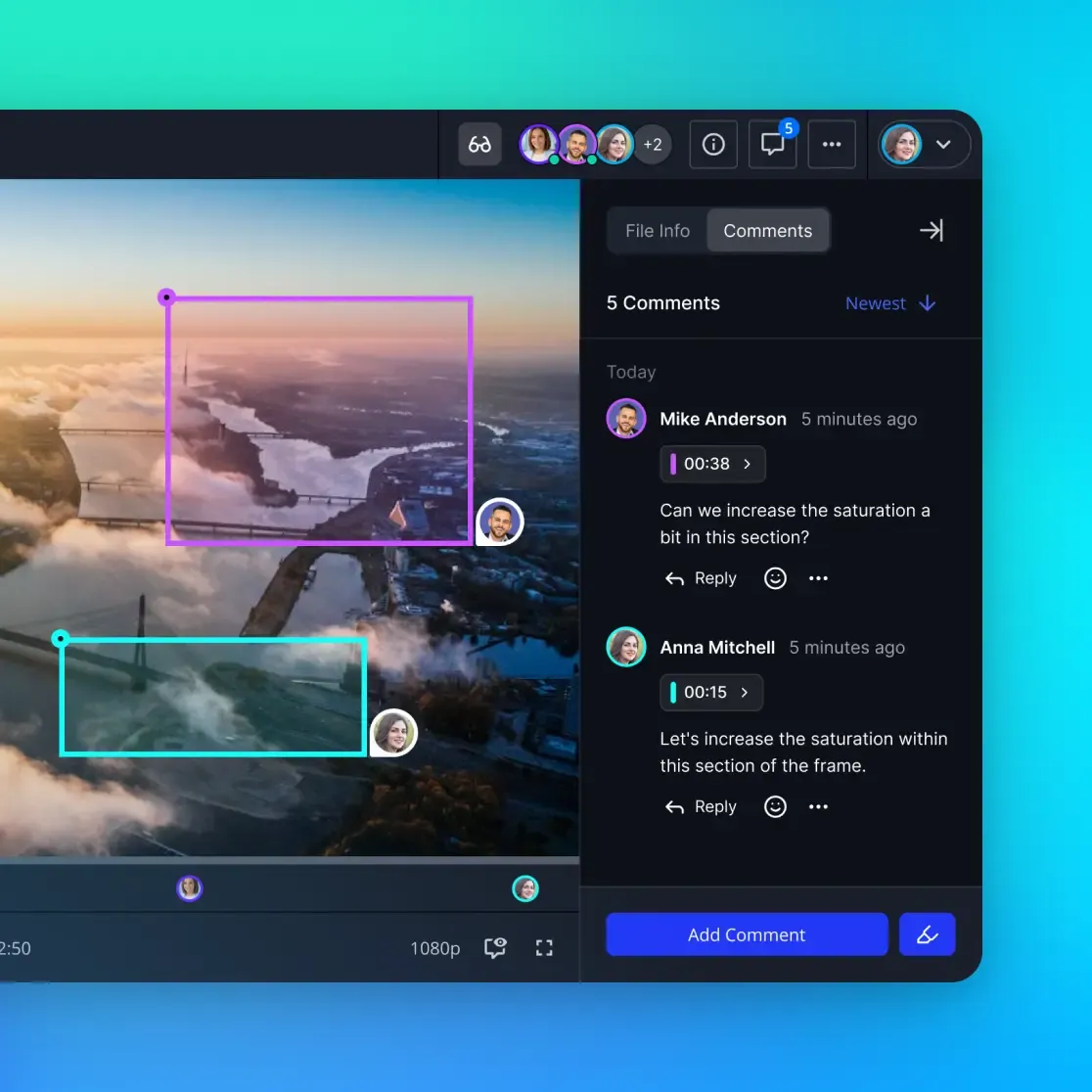
Step 5: Deliver. Push graded footage back to a shared workspace for human review. Fast.io's ownership transfer lets an agent build the entire graded project, then hand it off to a human editor who picks up from there. The graded files, the LUTs used, and the analysis reports all live in the same workspace with full version history.
Local storage works for solo projects, but team workflows benefit from a shared layer. Fast.io's monthly plans start with a Business Trial of up to 14 days (credit card required), with storage and monthly credits scaled to each paid plan, which covers a meaningful amount of graded footage. The MCP server exposes workspace, storage, and AI tools so agents can read, write, and query files without custom API integration.



Store and share graded footage across your entire team
A shared workspace with MCP server access for agent-driven video pipelines. Starts with a 14-day Business Trial.
Choosing the Right Approach for Your Project
The five tools above serve different points on the precision-versus-creativity spectrum. Here is how to choose:
Use FFmpeg LUT application when you have an established look (a .cube or .3dl file from your colorist) and need to apply it identically across dozens or hundreds of clips. This is the fastest, cheapest, and most predictable option. No API calls, no model inference, just deterministic color math.
Use video-to-video transformation when you want AI to interpret a style reference and apply it creatively. This works well for mood boards, film emulation, and cases where you want the AI to adapt the grade to each shot's content rather than applying a flat transform. Expect variation between clips, which may be a feature or a bug depending on your project.
Use OpenMontage pipelines when your project combines grading with other post-production tasks: upscaling, face enhancement, scene detection, and audio sync. Building a pipeline takes more setup time, but it runs unattended once configured.
Use video-editor-ai when your graded footage needs finishing work: subtitles, music, effects, and platform-specific export. It is the last mile of post-production, not the grading step itself.
Combine tools when you need both consistency and finishing. A typical production pipeline might use FFmpeg for LUT application, OpenMontage for scene analysis and upscaling, and video-editor-ai for social media export. Each tool handles what it does best.
For projects where multiple team members or agents need access to the same footage, a shared workspace avoids the "which version is current" problem. Fast.io, Google Drive, or Dropbox all work as the storage layer. Fast.io's advantage for agent workflows is the MCP server: agents can list, read, write, and search files programmatically without downloading everything locally. Once Intelligence is enabled for the workspace, it indexes uploaded footage for semantic search, so you can find clips by content description rather than filename.
What AI Color Grading Cannot Replace
AI color grading tools handle the technical foundation well: exposure normalization, white balance correction, and shot matching across a scene. Colorists who adopt these tools report saving 30 to 60% of their grading time, mostly on the mechanical work of balancing shots before creative grading begins.
But production color work involves creative decisions that current AI models do not make well. Selective color isolation for narrative emphasis, skin tone preservation across mixed lighting, HDR and Dolby Vision mastering with precise nit targets, and ACES workflow compliance all require human judgment and specialized tools like DaVinci Resolve Studio or Baselight.
The practical split looks like this: let agents handle batch LUT application, shot matching, and first-pass correction. Let human colorists handle hero shots, skin tone finessing, and delivery mastering. The agent pipeline does the work that was always tedious. The colorist focuses on the work that was always creative.
OpenClaw's ecosystem fits the automation half of this equation. The tools listed above will not replace a senior colorist on a feature film, but they will handle the 80% of post-production color work that is repetitive, predictable, and well-suited to batch processing. For teams shipping high volumes of content (social media, e-commerce video, corporate communications), that 80% is where the time savings compound.
Sources
References used to verify factual claims in this guide.
-
Over 70% of studios now use AI-assisted tools for at least part of their color grading workflow
-
Colorists report time savings of 30 to 60 percent when incorporating AI tools into their workflow
-
OpenClaw supports 16 video provider backends with video-to-video transformation
-
OpenMontage provides 52 production tools and over 400 agent skills for video pipelines
Frequently Asked Questions
Can AI do color grading?
Yes, AI handles color grading tasks including automatic white balance, exposure correction, shot matching, and style transfer. Current tools get you roughly 70 to 90% of the way to a finished grade, covering technical corrections and consistent look application. Creative grading decisions like selective color isolation for narrative effect and precise HDR mastering still require human colorists. Most professional workflows use AI for the first pass and manual refinement for the final look.
What is the best AI color grading tool for OpenClaw workflows?
For deterministic results, the ffmpeg-video-editor skill with LUT files gives you pixel-exact consistency across clips with no API costs. For creative style transfer, OpenClaw's built-in video_generate tool in video-to-video mode lets you send footage plus a style reference to providers like Runway or fal. The best choice depends on whether you need consistency (use FFmpeg) or creative interpretation (use video-to-video).
How does AI color grading work in an agent pipeline?
An agent pipeline segments footage into individual shots using scene detection, analyzes each shot with vision models to understand content and lighting conditions, applies color transforms using either deterministic LUTs or AI style transfer, and validates output against reference frames. The pipeline runs unattended, flagging only the shots that need human review. This approach replaces manual clip-by-clip grading with batch processing orchestrated by the agent.
Can OpenClaw edit video?
OpenClaw supports video editing through several skills. The video-editor-ai skill handles MP4 editing with background music, subtitles, and effects through chat commands. The ffmpeg-video-editor skill generates FFmpeg commands for trimming, format conversion, filter application, and color correction. OpenClaw's built-in video_generate tool supports video-to-video transformation for style transfer and visual effects. For full production pipelines, OpenMontage adds 52 tools covering scene detection, upscaling, audio mixing, and composition.
What video formats work with OpenClaw color grading tools?
The ffmpeg-video-editor skill supports any format FFmpeg handles, including ProRes, H.264, H.265, and DNxHR in containers like MOV and MP4. The video_generate tool outputs vary by provider but typically deliver MP4 with H.264. For professional pipelines, FFmpeg gives you the most codec and container flexibility, including proper color space metadata handling for Rec. 709 and Rec. 2020 workflows.
Related Resources

Store and share graded footage across your entire team
A shared workspace with MCP server access for agent-driven video pipelines. Starts with a 14-day Business Trial.