How to Build an AI Game Library Manager for Your Raspberry Pi Arcade Cabinet with OpenClaw
Arcade cabinet builds with RetroPie handle emulation well, but managing a growing ROM collection still means manual folder sorting, running scrapers by hand, and guessing which games you actually play. This guide walks through installing OpenClaw alongside RetroPie on a Raspberry Pi 5 inside an arcade cabinet, then building an agent that catalogs ROMs, scrapes metadata and artwork from ScreenScraper and TheGamesDB, tracks play statistics, and recommends games based on your habits.

What an Arcade Game Library Agent Actually Does
A typical Raspberry Pi arcade cabinet runs RetroPie with EmulationStation as the frontend. You drop ROM files into system-specific folders, run a scraper to pull cover art and descriptions, and scroll through the list to pick a game. That works when you have 50 ROMs. It breaks down at 500.
At scale, you run into problems that EmulationStation was never designed to solve. New ROMs need sorting into the correct system folder. Scrapers fail on files with non-standard names, leaving gaps in your game list. Play tracking is limited to "times played" and "last played" counters that sometimes reset after a reboot, as documented in EmulationStation's known issues. And there is no way to get recommendations based on what you actually enjoy playing.
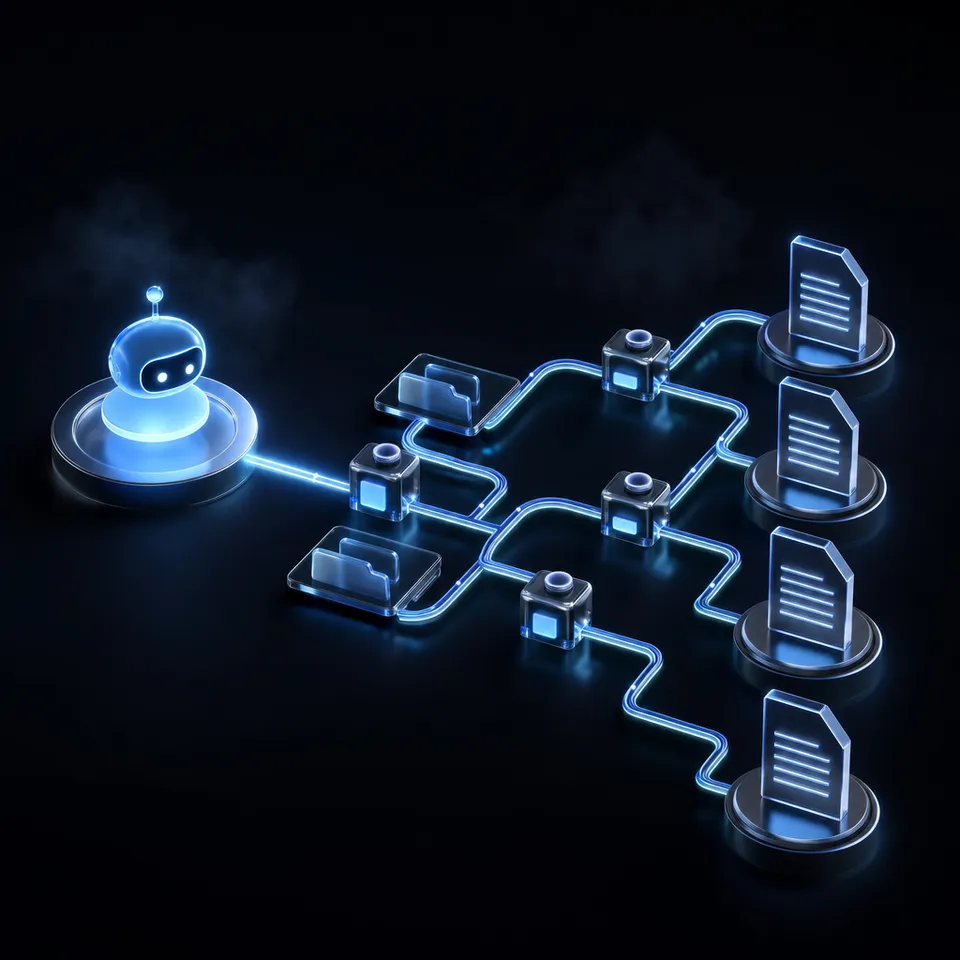
An OpenClaw agent running on the same Pi fills these gaps. OpenClaw is an open-source AI agent framework that turns a Raspberry Pi into an always-on gateway. It does not run language models locally. Instead, it connects to cloud LLMs like Claude or GPT-4 and uses a modular skill system to interact with local files, APIs, and services. For an arcade cabinet, this means the agent can watch your ROM directories, identify new files, rename them to match scraper conventions, trigger metadata downloads, log play sessions to a local database, and suggest games you have not tried based on genre and play history.
The Pi handles both roles simultaneously. RetroPie runs the emulators and frontend. OpenClaw runs as a background service, processing library management tasks between game sessions or on a schedule. Since the agent only runs the gateway (not the LLM), the CPU overhead is minimal.
Most Raspberry Pi arcade cabinet guides stop at the RetroPie install. None of them cover automated ROM cataloging, artwork scraping orchestration, or play analytics. That is the gap this build addresses.
Related guides
- How to Build a Hermes Agent AI Code CheckerThe proportion of copy-pasted code in repositories rose from 8% in 2020 to 12% in 2024, representing a 48% relative...
- How to Build AI Agents with the Claude Agent SDKThe Claude Agent SDK is Anthropic's toolkit for building AI agents that can read files, run commands, search the web,...
- How to Build a Raspberry Pi Handheld Gaming Console with an OpenClaw Management AgentThe Raspberry Pi 5 finally handles N64 and Dreamcast emulation at full speed, but most handheld build guides stop at...
- How to Build a Portable Pen Testing Rig with OpenClaw and Kali Linux on Raspberry PiA portable Kali Linux rig with an OpenClaw agent on a Raspberry Pi turns manual pen testing into an orchestrated...
- How to Build a Wireless Sensor Decoder Agent with RTL-433 and OpenClaw on Raspberry Pirtl_433 decodes signals from over 320 wireless device protocols using a cheap USB radio dongle. Pairing it with an...
- How to Build an Earthquake Detection Agent with OpenClaw on Raspberry PiA geophone on a Raspberry Pi produces continuous seismic data, but most of what it records is foot traffic, trucks, and...
More on this subject: OpenClaw on Raspberry Pi (192 guides)
How to Choose Hardware for an Arcade Cabinet with OpenClaw
The Raspberry Pi 5 with 8GB of RAM is the right board for this build. Its quad-core Cortex-A76 processor at 2.4GHz handles emulation up to PSP and Dreamcast era systems while leaving headroom for the OpenClaw Node.js gateway running in the background. Tom's Hardware testing confirmed that N64, Dreamcast, and PSP games all run at playable frame rates on the Pi 5, with most titles hitting their target of 30 FPS or higher.
A Pi 4 with 4GB works for lighter emulation (NES, SNES, Genesis, arcade CPS1/CPS2), but the tighter memory budget means the OpenClaw gateway competes with emulators for RAM. If your cabinet only runs pre-1995 systems, a Pi 4 is fine. For anything from the N64 era forward, go with the Pi 5.
Core components:
- Raspberry Pi 5, 8GB RAM (approximately $95-120 depending on current availability)
- 32GB or larger microSD card, or NVMe SSD via M.2 HAT for faster ROM loading
- Official 27W USB-C power supply
- Active cooling case or heatsink with fan (sustained emulation generates heat)
Arcade-specific hardware:
- USB arcade encoder board (maps joystick and button inputs to keyboard or gamepad events)
- Joystick and buttons (Sanwa or Happ style, depending on cabinet design)
- Monitor or TV panel (19-24 inch for bartop cabinets, larger for full-size)
- Speakers and amplifier for audio output
A custom arcade cabinet enclosure runs $200-500 depending on whether you buy a flat-pack kit, build from MDF yourself, or modify a thrift store find. The Pi plus controls and encoder add $80-120 on top of that. Pre-built kits from vendors like The Geek Pub or Rec Room Masters include cut panels, T-molding, and marquee holders, which saves significant woodworking time.
Storage planning: ROM collections vary wildly in size. A full MAME 0.78 ROM set for arcade games is around 15GB. Adding SNES, Genesis, N64, and PSP libraries can push total storage past 100GB. An NVMe SSD handles this better than a microSD card, both for capacity and for read speeds during game loading.
How to Set Up RetroPie and EmulationStation
Flash the RetroPie image onto your storage device using the Raspberry Pi Imager. RetroPie bundles Raspberry Pi OS with EmulationStation and a curated set of emulators pre-configured for each supported system. For the Pi 5, download the image from the RetroPie website and follow the standard imaging process.
On first boot, RetroPie walks you through controller configuration. Map your arcade stick directions and buttons through the EmulationStation setup wizard. If you are using a USB encoder board, it typically appears as a generic HID gamepad.
ROM organization matters for the agent. RetroPie expects ROMs in system-specific directories under ~/RetroPie/roms/. Each emulator has its own folder:
~/RetroPie/roms/arcade/for MAME and FinalBurn Alpha~/RetroPie/roms/snes/for Super Nintendo~/RetroPie/roms/n64/for Nintendo 64~/RetroPie/roms/psp/for PlayStation Portable~/RetroPie/roms/megadrive/for Sega Genesis/Mega Drive
The simplest way to load ROMs is plugging in a USB drive with a retropie folder. RetroPie automatically copies files to the correct locations on the SD card. For larger collections, transfer files over the network using SCP or SMB. RetroPie exposes an SMB share by default that you can access from any computer on your local network.
Run the built-in scraper first to establish a baseline game list. In EmulationStation, press Start to open the main menu, go to Scraper, select TheGamesDB or ScreenScraper as your source, and scrape all systems. This creates gamelist.xml files in each ROM directory containing titles, descriptions, release dates, genres, player counts, and paths to downloaded artwork.
This initial scrape gives the OpenClaw agent structured data to work with. Games that the built-in scraper misses (common with arcade ROMs that use cryptic filenames like mslug.zip) become the agent's first job.


Store your arcade library metadata where your agent can reach it
Fastio gives your OpenClaw agent cloud storage with MCP access, workspace intelligence for querying your game collection, and share links for distributing configs to other builders. Start with a 14-day trial (credit card required).
Installing OpenClaw on the Same Pi
OpenClaw runs on Raspberry Pi OS, which is what RetroPie is built on. The official OpenClaw documentation lists the requirements as Raspberry Pi OS 64-bit (Bookworm or later), Node.js 22 or newer, 1GB of RAM minimum, and 500MB of free disk space. Since you already have RetroPie installed, you are working with a full Debian environment that meets these requirements.
SSH into your Pi and install Node.js from the NodeSource repository:
curl -fsSL https://deb.nodesource.com/setup_24.x | sudo -E bash -
sudo apt install -y nodejs
Then install OpenClaw using the official installer:
curl -fsSL https://openclaw.ai/install.sh | bash
The installer pulls down the OpenClaw gateway and walks you through onboarding, which includes connecting to a cloud LLM provider. Configure it with your preferred provider's API key. Since the Pi only runs the gateway, not the model, even a Pi with 2GB of RAM handles the OpenClaw process comfortably alongside RetroPie.
After installation, the OpenClaw gateway runs as a persistent background service. It stores its configuration and state in ~/.openclaw/. The gateway accepts commands through connected messaging channels (Telegram, Discord, WhatsApp, or Signal) and through a local web interface accessible over SSH tunnel.
Running both services together: RetroPie uses the GPU and a significant chunk of CPU during active emulation, but the OpenClaw gateway is lightweight when idle. The agent should perform heavy library management tasks (bulk scraping, file renaming, database updates) when no game is actively running. A simple approach is to schedule these tasks during off-hours or trigger them manually through a messaging command before your next play session.

How to Build the Game Library Management Agent
With both RetroPie and OpenClaw running on the same Pi, you can build an agent workflow that handles the tedious parts of library management. OpenClaw's skill system lets the agent interact with local files, run shell commands, and call external APIs. For an arcade cabinet, the key tasks are ROM identification, metadata scraping, play tracking, and game recommendations.
ROM identification and sorting. New ROM files often arrive with inconsistent names. A file called sf2ce.zip is obvious to a human, but a scraper might not match it. The agent can scan ROM directories, compare filenames against known ROM databases (MAME's XML DAT files are the standard reference for arcade games), and rename files to match expected conventions. For console ROMs, the No-Intro naming standard provides canonical filenames that scrapers recognize reliably.
Metadata scraping orchestration. The built-in EmulationStation scraper works for straightforward cases, but it runs inside the frontend and blocks interaction while scraping. Dedicated tools like Skyscraper (a C++ scraper maintained on GitHub) and Skraper (which uses the ScreenScraper.fr database) offer more flexibility. Skyscraper is particularly well-suited for agent orchestration because it runs from the command line and caches scraped data locally before generating the final gamelist.xml. The agent can invoke Skyscraper for each system, handle API rate limits by spacing requests, and report results through your messaging channel.
ScreenScraper.fr is the largest community-maintained database for retro game metadata, with cover art, screenshots, video previews, manuals, and detailed descriptions in multiple languages. Its API requires a free account and returns data based on file checksums, which provides more accurate matching than filename-based lookups.
Play tracking. EmulationStation records "times played" and "last played" fields in gamelist.xml, but these counters have known persistence issues. They sometimes reset after reboots, and they do not track session duration. The agent can implement more reliable tracking by monitoring the emulator process. When RetroPie launches a game, it starts a specific emulator process (like retroarch or lr-mame2003-plus). The agent can detect when that process starts and stops, log the game name and session duration to a local SQLite database, and build a play history that survives reboots and system updates.
Game recommendations. Once the agent has play history data, it can suggest games you have not tried based on patterns in what you play. If your top-played games are all side-scrolling beat-em-ups (Streets of Rage, Final Fight, TMNT), the agent can search your library for other games in the same genre that you have never launched. The cloud LLM handles the reasoning. The agent provides it with your play history and game metadata, and the LLM returns ranked suggestions with explanations.
Artwork and theme management. Beyond basic box art, EmulationStation supports multiple media types per game: screenshots, title screens, video snaps, marquee images, and wheel logos. Skyscraper can download all of these and composite them into custom layouts. The agent can ensure every game in your library has a complete media set by identifying gaps and queuing targeted scrapes for missing assets.
If you want to persist play history and metadata in the cloud so you can query it across devices, a workspace on Fastio can store the SQLite exports alongside your game metadata and artwork archives.
How to Back Up Your Library and Share Configs with Fastio
An arcade cabinet's game library represents hours of curation work. The ROM files themselves can be re-downloaded, but your customized gamelist.xml files, scraped artwork, play history database, EmulationStation themes, and per-game emulator settings are unique to your build. Losing them means starting the curation process from scratch.
Local backups to a USB drive or NAS are a reasonable first step. But if you are running OpenClaw, you already have an agent that can automate cloud backups as part of its regular workflow. Fastio provides generous storage, which comfortably holds metadata, artwork, configuration files, and play databases for even large collections. The agent can use the Fastio MCP server to upload backup snapshots on a schedule.
What makes this more useful than a simple rsync to cloud storage is the workspace structure. Fastio workspaces keep files organized, versioned, and searchable. You can create a workspace for your arcade cabinet that holds the current gamelist.xml files, artwork archives, and play history exports. When Intelligence Mode is enabled on a workspace, uploaded files are automatically indexed for semantic search and AI chat. That means you (or the agent) can ask questions like "which games in my SNES collection are RPGs with over 10 hours of play time?" and get answers drawn directly from your uploaded metadata.
If you build multiple cabinets or help friends with their setups, Fastio's sharing features let you distribute curated game lists, artwork packs, and configuration templates through branded share links. The ownership transfer feature is useful for collaborative builds: the agent assembles the library configuration in your workspace, and you transfer the workspace to the cabinet's owner when the build is complete.
For a backup workflow, the agent can export the play history database and current gamelist.xml files to a staging directory, compress them, and upload the archive to Fastio. The Business Trial covers regular metadata backups with room to spare. Larger media files like video snaps are better stored locally or on a NAS, since they are easily re-scraped and would consume more storage and bandwidth.
Other cloud storage options work for raw file backup. Google Drive offers 15GB free, and Backblaze B2 provides inexpensive bulk storage. Fastio's advantage for this use case is the combination of MCP access for agent automation, workspace intelligence for querying your collection metadata, and share workflows for distributing configs to other builders.
Sources
References used to verify factual claims in this guide.
-
N64, Dreamcast, and PSP games run at playable frame rates on the Pi 5, with most titles hitting 30 FPS or higher
-
Pi 5 is powered by a quad-core Cortex-A76 at 2.4GHz, approximately 250% faster than a Pi 4
-
OpenClaw requires Raspberry Pi OS 64-bit Bookworm or later, Node.js 22+, 1GB RAM minimum, 500MB disk
-
Raspberry Pi 5 8GB costs approximately $95-120 due to 2025-2026 RAM price increases
Frequently Asked Questions
What Raspberry Pi is best for an arcade cabinet?
The Raspberry Pi 5 with 8GB of RAM is the best current option. Its quad-core Cortex-A76 CPU at 2.4GHz emulates systems up to PSP and Dreamcast at playable frame rates, and the extra RAM provides headroom for running the OpenClaw gateway alongside RetroPie. A Pi 4 with 4GB works for lighter systems like NES, SNES, and Genesis, but struggles with N64 and later platforms when the OpenClaw service is also running.
How do you organize ROMs on Raspberry Pi?
RetroPie expects ROMs sorted into system-specific directories under ~/RetroPie/roms/, with separate folders for each platform (arcade, snes, n64, psp, and so on). The easiest method is plugging in a USB drive with a retropie folder, which triggers automatic copying. For large collections, transfer files over SCP or SMB. An OpenClaw agent can automate the sorting process by scanning incoming files, identifying the correct system based on file headers or database lookups, and moving them to the appropriate directory.
Can OpenClaw manage a game library?
OpenClaw's skill system supports file management, shell command execution, and API calls, which covers the core tasks of game library management. The agent can scan ROM directories, rename files to match scraper conventions, invoke metadata scrapers like Skyscraper from the command line, log play sessions to a local database, and recommend games based on play history. There is no pre-built "arcade library" skill in ClawHub as of May 2026, but the building blocks (file management, shell execution, HTTP API calls) are all available through existing skills.
How much does it cost to build a Raspberry Pi arcade machine?
A basic build runs $300-600 total. The cabinet enclosure (flat-pack kit or DIY from MDF) costs $200-500. The Pi 5 with 8GB is $95-120 depending on current pricing. A USB arcade encoder, joystick, and buttons add $30-60. You also need a monitor, power supply, speakers, and storage media. Pre-built kits that include the cabinet, controls, and wiring use cost more upfront but save time on woodworking and wiring.
How do you scrape metadata for arcade ROMs on RetroPie?
Start with the built-in EmulationStation scraper for easy matches, then use a dedicated tool like Skyscraper for stubborn files. Skyscraper runs from the command line, caches data locally, and generates gamelist.xml files compatible with EmulationStation. It supports multiple sources including ScreenScraper.fr, which matches games by file checksum rather than filename. For arcade ROMs specifically, ScreenScraper's ArcadeDB module provides the best coverage since it uses MAME filename conventions.
Does running OpenClaw affect emulation performance?
The impact is minimal during active gameplay. The OpenClaw gateway is a Node.js process that uses little CPU when idle, typically under 1% on a Pi 5. It consumes roughly 100-200MB of RAM. The agent should perform heavy tasks (bulk scraping, file operations, database updates) when no game is actively running, since emulators for demanding systems like N64 and PSP need the full CPU. Scheduling library management for off-hours or triggering it manually before a play session avoids any performance conflicts.
Related Resources

Store your arcade library metadata where your agent can reach it
Fastio gives your OpenClaw agent cloud storage with MCP access, workspace intelligence for querying your game collection, and share links for distributing configs to other builders. Start with a 14-day trial (credit card required).