How to Build a Raspberry Pi Handheld Gaming Console with an OpenClaw Management Agent
The Raspberry Pi 5 finally handles N64 and Dreamcast emulation at full speed, but most handheld build guides stop at soldering and leave you managing ROMs, thermals, and system health by hand. This guide covers the full build, from component selection through a working OpenClaw agent that automates library management, monitors battery and CPU temperature, and lets you check on your handheld remotely.


Why Handheld Pi Builds Need More Than Hardware Assembly
The Raspberry Pi 5's quad-core Cortex-A76 at 2.4GHz delivers roughly three times the single-core performance of the Pi 4, according to Tom's Hardware benchmarks. That jump brought N64 and Dreamcast emulation to full speed for the first time on Pi hardware, and made PSP playable without overclocking. For handheld builders, this means a pocket-sized device that runs games from the NES through the PSP era.
Most build guides cover component lists, 3D-printed shells, and RetroPie configuration. They stop there. What you get is a working handheld that requires manual ROM sorting, no battery health monitoring, no thermal management alerts, and no way to check system status without picking up the device and navigating menus. If you have 50 games, that is fine. If you have 500 spread across 12 emulator systems, it becomes a second job.
OpenClaw runs alongside your emulation software as a lightweight Node.js service. It connects to cloud LLMs (Claude, GPT-4, DeepSeek) for processing while using local skills to interact with your file system, monitor hardware sensors, and respond to remote queries. On a handheld, this translates to automated ROM organization, thermal throttle warnings pushed to your phone, battery health logging, and the ability to manage your game library from a laptop while the handheld charges on your desk.
The build in this guide produces a complete handheld with a 5-inch IPS display, USB-C charging, physical controls, and an OpenClaw agent handling the management tasks that most guides leave to manual effort.
Related guides
- How to Build a Hermes Agent AI Code CheckerThe proportion of copy-pasted code in repositories rose from 8% in 2020 to 12% in 2024, representing a 48% relative...
- How to Build AI Agents with the Claude Agent SDKThe Claude Agent SDK is Anthropic's toolkit for building AI agents that can read files, run commands, search the web,...
- How to Game on Raspberry Pi 5: Native, Emulation, and Cloud Streaming with OpenClawRaspberry Pi Foundation benchmarks show the Pi 5's VideoCore VII GPU pushing OpenArena to 27 FPS, up from the Pi 4's...
- How to Build an AI Game Library Manager for Your Raspberry Pi Arcade Cabinet with OpenClawArcade cabinet builds with RetroPie handle emulation well, but managing a growing ROM collection still means manual...
- How to Build a Handheld OpenClaw AI Tablet with Raspberry PiAdafruit's OpenClaw-on-Pi learning guide renders the agent interface at 320x240 pixels on a 2.8-inch TFT, which is...
- How to Build a Portable Pen Testing Rig with OpenClaw and Kali Linux on Raspberry PiA portable Kali Linux rig with an OpenClaw agent on a Raspberry Pi turns manual pen testing into an orchestrated...
More on this subject: OpenClaw on Raspberry Pi (192 guides)
What You Need for a Portable Pi 5 Build
The component list for a Pi handheld splits into three categories: compute, display and controls, and power. Getting the balance right between weight, battery life, and emulation performance is the core design challenge.
Compute board:
- Raspberry Pi 5, 8GB RAM ($95). The 4GB model ($75) works but gives the OpenClaw gateway less breathing room alongside emulators. Since OpenClaw offloads LLM inference to cloud APIs, the memory pressure comes from running both EmulationStation and the Node.js gateway simultaneously, not from AI processing.
- Pi 4 with 4GB ($55) is viable if you only plan to emulate pre-N64 systems. You lose Dreamcast and PSP performance, but save $40 and reduce power draw.
Display:
- 5-inch 800x480 IPS display. This is the most common choice for handheld builds. The 5:3 aspect ratio reduces black bars across gaming eras compared to 16:9 panels, and the pixel density is high enough that retro games with native resolutions of 320x240 or lower still look sharp. Waveshare and Elecrow both make well-documented models with HDMI input and capacitive touch.
- 3.5-inch displays save space but feel cramped for anything past the Game Boy era. 7-inch panels make the device less portable than a Nintendo Switch.
Controls:
- A GPIO gamepad PCB with a D-pad, four face buttons, two shoulder buttons, and start/select covers most retro systems. Adafruit's Joy Bonnet and Pimoroni's Picade HAT are popular options with existing RetroPie driver support.
- For analog stick support (needed for N64 and PSP), look for boards with dual thumbstick inputs. The Freeplay CM3 or CM4 carrier boards include joystick headers, though they add cost.
Power system:
- A 5000mAh or larger Li-Po battery provides practical runtime. The Pi 5 draws 5-7W under emulation load, so expect 3-5 hours of active gaming depending on display brightness and emulation intensity. Manufacturer claims of 8-10 hours typically reflect idle or light workloads, not sustained gaming.
- PiSugar 2 Pro ($40) offers a clean integration with safe shutdown support, battery monitoring via I2C, and a web dashboard for charge status. The UPS HAT from Waveshare is another option at a lower price point.
- USB-C charging via a TP4056 module or integrated charge controller. The Pi 5 is particular about power delivery; underpowered supplies cause throttling and SD card corruption.
Enclosure:
- 3D-printed shells are the most common approach. Thingiverse and Printables host dozens of designs for Pi 5 handhelds, including models designed around specific display and control board combinations.
- Pre-made cases from Retroflag (GPi CASE 2W for Pi Zero 2 W) or ExperimentalPi exist, but most are designed for the Pi 4 or earlier. Pi 5 cases are still catching up.
Storage:
- 128GB or 256GB microSD card (Class 10 / A2) for ROM storage. A full set of NES, SNES, Genesis, N64, PS1, and PSP libraries fits comfortably on 128GB. If you add arcade ROM sets, go to 256GB.
Total build cost runs $150-250 for the core electronics (Pi, display, battery, controls, SD card), plus $20-50 for enclosure materials or a printed case. That is competitive with commercial retro handhelds like the Anbernic RG556 or Retroid Pocket 5, but with full customization and the ability to run general-purpose Linux software alongside games.
How to Assemble the Hardware and Install Emulation Software
Start with the display and controls. Mount the 5-inch IPS panel in your enclosure first, then position the Pi 5 behind it with standoffs. Route the HDMI ribbon cable between the display and the Pi's micro-HDMI port. If your display uses the DSI connector instead, the cable runs directly to the Pi's display port without an adapter.
Wire the control board to GPIO pins according to the manufacturer's pinout diagram. Most gamepad PCBs use a simple pull-down configuration where each button connects a GPIO pin to ground. Document which GPIO maps to which button as you solder. You will need this mapping during RetroPie controller configuration.
Connect the battery and charge controller. The PiSugar 2 Pro mounts directly to the Pi's 40-pin header and handles power management, including safe shutdown when the battery drops below a threshold. If you are using a standalone Li-Po with a TP4056 charger module, wire the charger's output through a boost converter to deliver stable 5V to the Pi's USB-C power input.
Operating system installation:
Flash Raspberry Pi OS Lite (64-bit, Bookworm) to your microSD card using the Raspberry Pi Imager. Pre-configure WiFi credentials, enable SSH, and set a hostname during the imaging step. This avoids needing a keyboard and external monitor for initial setup.
Boot the handheld, SSH in from another machine, and update the system:
sudo apt update && sudo apt full-upgrade -y
RetroPie installation on Pi 5:
There is no official pre-built Pi 5 image for RetroPie as of early 2026. Instead, install it on top of Raspberry Pi OS:
sudo apt install -y git lsb-release
git clone --depth=1 https://github.com/RetroPie/RetroPie-Setup.git
cd RetroPie-Setup
sudo ./retropie_setup.sh
Select "Basic Install" from the menu. Compilation takes 20-40 minutes on the Pi 5. After installation, configure EmulationStation to launch on boot.
Alternative: Batocera. If you want a faster path to a working gaming system, Batocera provides a standalone image that boots directly into a gaming frontend with emulators pre-configured. Flash the Batocera Raspberry Pi 5 image to a second microSD card and swap cards to try both options. Batocera is less customizable but works out of the box in under five minutes.
Controller configuration:
On first boot of EmulationStation, map your GPIO gamepad through the setup wizard. Test each button and direction. For analog sticks, RetroPie's input configuration handles dual-stick mapping if your control board supports it.
Copy ROM files to the appropriate directories under ~/RetroPie/roms/ via SFTP or a USB drive. Each emulator has its own folder (nes, snes, n64, psx, psp, and so on). At this point, you have a working handheld. The next step is making it manageable.


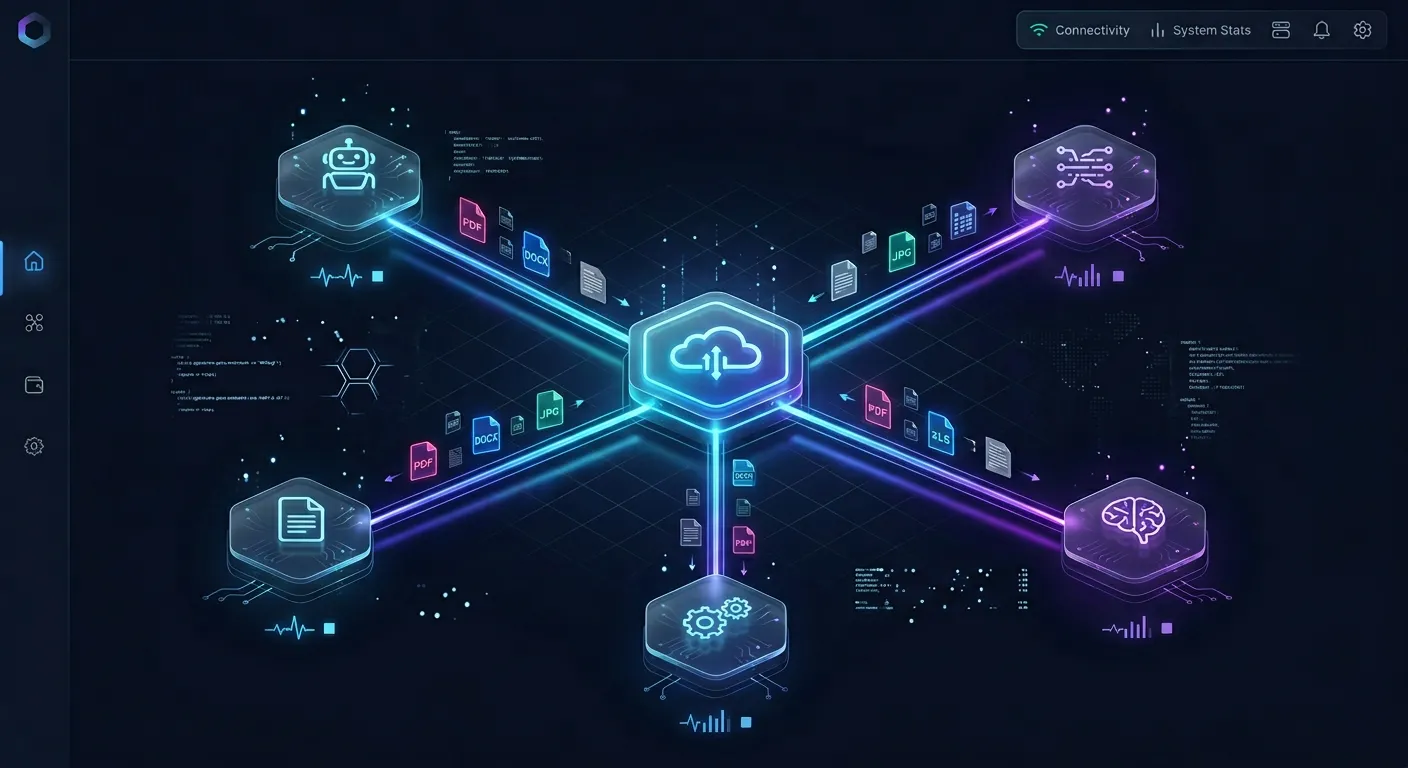
Store your handheld's game library data and health logs in one place
Generous storage workspace for your OpenClaw agent to upload ROM inventories, thermal reports, and battery logs., MCP-ready for agent uploads.
How to Install OpenClaw for Agent-Based Management
OpenClaw officially supports Raspberry Pi deployment with documented requirements: Pi 4 or Pi 5, 2GB or more RAM, and 64-bit Raspberry Pi OS. The Pi 5 with 8GB is the recommended configuration for comfortable operation alongside emulation software.
Prerequisites:
Install Node.js 22 or later. The OpenClaw installer expects it:
curl -fsSL https://deb.nodesource.com/setup_22.x | sudo -E bash -
sudo apt install -y nodejs
If your Pi has less than 4GB of RAM, configure a 2GB swap file:
sudo fallocate -l 2G /swapfile
sudo chmod 600 /swapfile
sudo mkswap /swapfile
sudo swapon /swapfile
echo '/swapfile none swap sw 0 0' | sudo tee -a /etc/fstab
sudo sysctl vm.swappiness=10
Installation:
Run the OpenClaw install script and follow the setup wizard. Use API keys rather than OAuth for headless devices:
curl -fsSL https://docs.openclaw.ai/install.sh | bash
Have at least one cloud API key ready (Anthropic, OpenAI, or DeepSeek). OpenClaw does not run models locally on the Pi. It uses the Pi as a gateway, sending requests to cloud LLMs and executing returned instructions through its local skill system.
Verification:
After installation, confirm the service is running and test connectivity. The OpenClaw documentation provides diagnostic commands for checking service status, verifying API key configuration, and testing LLM connectivity.
Running alongside RetroPie:
OpenClaw runs as a systemd service in the background. It consumes minimal CPU and around 100-200MB of RAM when idle. During active agent tasks (processing a ROM library scan, for example), memory usage can spike briefly but drops back quickly since the actual AI processing happens on the cloud side.
Set up the systemd service to start automatically on boot and enable user lingering so the service persists after you disconnect SSH. The OpenClaw docs cover systemd configuration with restart policies and environment variable setup.
Remote access:
Since the handheld connects via WiFi, you can SSH into it from any device on the same network. OpenClaw also offers a web dashboard accessible via SSH tunnel, which gives you a browser-based interface for interacting with the agent, reviewing task history, and checking system status without needing to use the handheld's small screen.

Building Agent Skills for ROM Management and Health Monitoring
With OpenClaw running, you can build skills that automate the tedious parts of handheld management. Skills are modular task definitions that the agent executes using local file access and cloud LLM reasoning.
ROM library organization:
The most useful first skill is ROM sorting. When you dump new game files onto the handheld via SFTP, they often land in a staging folder with inconsistent naming. A sorting skill watches a designated inbox directory, identifies the game system based on file extension and header data (.nes for NES.sfc for SNES.z64 for N64.iso or .cso for PSP), and moves each file to the correct RetroPie ROM directory. The agent can also standardize filenames to match scraper conventions, which improves metadata lookup accuracy in EmulationStation's built-in scraper.
Metadata and artwork scraping:
EmulationStation supports scraped metadata (descriptions, release dates, ratings, cover art) but the scraping process is manual and failure-prone when filenames do not match database entries. An OpenClaw skill can orchestrate scraping by iterating through your ROM folders, querying services like ScreenScraper or TheGamesDB, and downloading artwork and XML metadata for each matched game. When a file does not match, the agent can use LLM reasoning to suggest corrections to the filename.
Thermal monitoring:
The Pi 5 runs warm under sustained emulation load, and a handheld enclosure restricts airflow compared to a desktop case. A monitoring skill reads the CPU temperature from /sys/class/thermal/thermal_zone0/temp at regular intervals and logs the data. If the temperature exceeds a threshold (typically 80 degrees Celsius, where the Pi starts throttling), the skill can send a notification via a webhook or log the event for later review. Over time, this data reveals whether your cooling solution is adequate or if you need to add thermal pads or adjust fan speed.
Battery health tracking:
If you are using a PiSugar board, battery data is available via I2C. A health monitoring skill polls charge level, voltage, and charging state, logs it to a local SQLite database, and flags anomalies like rapid discharge rates that suggest a degrading cell. For builds using other power solutions, the skill can monitor the Pi's undervoltage warnings from the kernel log.
Storing logs and reports with Fastio:
As your agent generates ROM catalogs, temperature logs, and battery reports, you need somewhere to store and review them beyond the handheld's small screen. Fastio provides shared workspace storage, starting with a 14-day trial (credit card required). The agent can upload daily health reports and ROM inventory snapshots to a Fastio workspace via the MCP server, making them accessible from any browser. When you want to review thermal trends over the past month or check which games were recently added, you can pull up the workspace on your laptop instead of SSHing into the handheld.
For teams building multiple handhelds (a classroom retro gaming project, a hackathon, a family gaming setup), Fastio workspaces let each device's agent upload to a shared location. Intelligence Mode auto-indexes uploaded files, so you can search across all devices by asking questions like "which handheld has the highest average CPU temperature" or "list all N64 ROMs across devices."
Troubleshooting Common Build Problems
Display shows no output after assembly:
Check the HDMI ribbon cable seating. Loose connections are the most common first-build failure. If using a DSI display, confirm that the display is enabled in /boot/firmware/config.txt. Some 5-inch displays require specific hdmi_group and hdmi_mode settings. The Waveshare wiki and Elecrow documentation list the exact config lines for each model.
GPIO buttons not responding in EmulationStation:
Verify your GPIO-to-button mapping matches the RetroPie driver configuration. The retrogame utility (for Adafruit boards) and the mk_arcade_joystick_rpi kernel module (for generic wiring) have different configuration formats. Test individual GPIO pins with gpio readall or gpioinfo before debugging the driver layer.
Battery runtime shorter than expected:
The Pi 5 draws more power than the Pi 4 under load. If you are getting less than 2 hours on a 5000mAh battery, check for undervoltage warnings in dmesg. A boost converter with insufficient current capacity causes the Pi to throttle, which paradoxically extends runtime but makes games unplayable. Use a converter rated for at least 3A output at 5V.
Reduce display brightness if your panel supports PWM dimming. Disable Bluetooth and HDMI audio output when not needed. Set GPU memory allocation to 128MB (enough for emulation but not wasteful) in config.txt.
OpenClaw service crashes after reboot:
Ensure user lingering is enabled so systemd keeps the service alive after SSH sessions end. If the service starts but the agent fails to connect to cloud APIs, check that your WiFi connection is stable and that your API keys are correctly configured. The OpenClaw daemon logs to ~/.openclaw/logs/ where you can review error messages.
Thermal throttling during extended gaming sessions:
If your OpenClaw thermal monitoring skill logs frequent temperatures above 80 degrees Celsius, your cooling is inadequate. Options, in order of effectiveness: add a copper shim between the SoC and heatsink, replace passive cooling with a small active fan (Noctua NF-A4x10 at 5V is quiet and effective), and increase ventilation holes in the enclosure. Avoid overclocking until your cooling can handle stock speeds comfortably.
SD card corruption:
Frequent power cuts (yanking the battery without proper shutdown) cause filesystem corruption. The PiSugar's safe shutdown feature prevents this by triggering a clean shutdown when charge drops below a set threshold. If you are using a manual power switch, add a software shutdown script bound to a GPIO button. Hold the button for three seconds to trigger sudo shutdown -h now before flipping the physical switch.
Sources
References used to verify factual claims in this guide.
-
The Pi 5's quad-core 2.4GHz Cortex-A76 CPU delivers roughly 3x the single-core performance of the Pi 4
-
N64 and Dreamcast games run at full speed on the Raspberry Pi 5 for the first time
-
OpenClaw officially supports Raspberry Pi deployment with Pi 4/5, 2GB+ RAM, and 64-bit OS
-
Raspberry Pi 5 8GB is priced at approximately $95
Frequently Asked Questions
Can you make a handheld console with Raspberry Pi?
Yes. The Raspberry Pi 5 and Pi 4 are both capable of running retro game emulators in a portable form factor. You need a display (typically 5 inches), a battery pack, physical controls wired to GPIO pins, and an enclosure to hold everything together. RetroPie or Batocera provides the emulation software. The Pi 5 handles games up through PS1, N64, Dreamcast, and PSP at playable frame rates.
What is the best Raspberry Pi for a handheld gaming console?
The Raspberry Pi 5 with 8GB RAM is the best current option. Its Cortex-A76 CPU delivers roughly three times the performance of the Pi 4, which means N64 and Dreamcast games that stuttered on the Pi 4 now run at full speed. The 8GB model gives enough headroom to run emulation software alongside background services like an OpenClaw management agent. The Pi 4 with 4GB works for pre-N64 systems at a lower price point.
How much does it cost to build a Raspberry Pi handheld?
A complete build runs $150-250 for core electronics (Pi board, display, battery, controls, SD card) plus $20-50 for an enclosure. The Pi 5 8GB costs around $95, a 5-inch IPS display runs $25-40, a PiSugar battery is about $40, and a GPIO gamepad PCB is $15-25. 3D-printed cases cost $5-15 in filament. That puts you in the same range as commercial retro handhelds like the Anbernic RG556, but with full customization.
What games can a Raspberry Pi handheld play?
A Pi 5 handheld plays games from NES, SNES, Game Boy, Game Boy Advance, Genesis, TurboGrafx-16, Neo Geo, PS1, N64, Dreamcast, PSP, and arcade systems (via MAME). PS1 games run at full speed with optional resolution upscaling. N64 titles like Super Mario 64 hold a steady 30 FPS. PSP and Dreamcast are playable for most titles. GameCube and PS2 emulation is experimental and not reliable for handheld use.
How does OpenClaw help manage a Raspberry Pi handheld?
OpenClaw runs as a background service on the Pi and connects to cloud LLMs for reasoning. For a handheld, it automates ROM sorting into correct emulator directories, orchestrates metadata scraping for game artwork and descriptions, monitors CPU temperature and battery health, and provides remote access to system status via SSH or its web dashboard. It does not run AI models on the Pi itself, so the performance impact on gaming is minimal.
How long does a Raspberry Pi handheld battery last?
With a 5000mAh battery, expect 3-5 hours of active gaming on a Pi 5 handheld. Runtime depends on display brightness, emulation load (PSP draws more power than NES), and whether WiFi is active. Manufacturer claims of 8-10 hours reflect idle or light workloads. Reducing display brightness, disabling Bluetooth, and using lightweight emulators extends runtime. The PiSugar 2 Pro provides battery monitoring and safe shutdown to prevent SD card corruption from sudden power loss.
Related Resources

Store your handheld's game library data and health logs in one place
Generous storage workspace for your OpenClaw agent to upload ROM inventories, thermal reports, and battery logs., MCP-ready for agent uploads.