Image Converter Workflows for Clay GTM Pipelines
US search demand for image converter alone sits at 22,200 monthly queries, while related seeds like webp to png and png to jpg run far higher. GTM teams still treat conversion as a one-off browser click instead of a Clay-driven pipeline with format standards, batch QA, and a shared handoff for campaign assets.


Why image conversion bottlenecks Clay GTM work
US marketers search for "image converter" about 22,200 times each month, while related format seeds climb higher still: png to jpg at 60,500 monthly searches, webp to png at 165,000, and batch convert images at 210 [DataForSEO US volume, 2026-07-17]. Those numbers describe a daily operational job, not a niche design task. The gap this guide fills is operational: converter utility sites answer "click upload, pick format, download," but they almost never cover GTM pipeline standards, row-level automation in Clay, batch QA, or shared workspace handoff after conversion.
An image converter transforms files between formats such as PNG, JPG, WebP, and SVG so GTM assets meet tool, size, and quality requirements before campaign use. In a Clay table, each row may hold a logo URL scraped from a domain, a product shot from a CMS, a WebP hero from a landing page, or a PNG screenshot from research. Downstream systems rarely accept every source format. Email tools choke on transparent PNGs that are too large. Ad platforms reject WebP when the creative upload path still expects JPG. Design systems want SVG for icons but PNG for social cards. Without a converter step in the pipeline, ops teams burn hours on browser tools while enrichment runs keep producing new rows.
Clay does not ship a native image converter. Clay's HTTP API integration is the supported path for calling external conversion services row by row, using GET, POST, PUT, or DELETE against any endpoint when no native integration exists [Clay University HTTP API]. That design is a strength for GTM builders: you pick a converter API that matches volume and quality needs, map source URLs from table columns, and write output URLs back onto the same row. Templates on Clay's template library show related GTM patterns such as automated screenshots and personalized landing pages, which often depend on clean image URLs after enrichment [Clay Templates].
Converter sites such as FreeConvert, CloudConvert, and Canva's free image converter solve the single-file case well. FreeConvert supports batch conversion in the browser and more than 500 image formats, with files deleted after a short retention window [FreeConvert Image Converter]. Canva converts JPG, PNG, HEIC/HEIF, WebP, and SVG into JPG, PNG, SVG, or PDF through an editor download path [Canva Image Converter]. CloudConvert adds a production API with import, convert, and export tasks chained in a single job [CloudConvert File Conversion API]. The content gap is what happens next: QA rules, naming, versioned storage, and handoff to marketers who did not run the Clay table.
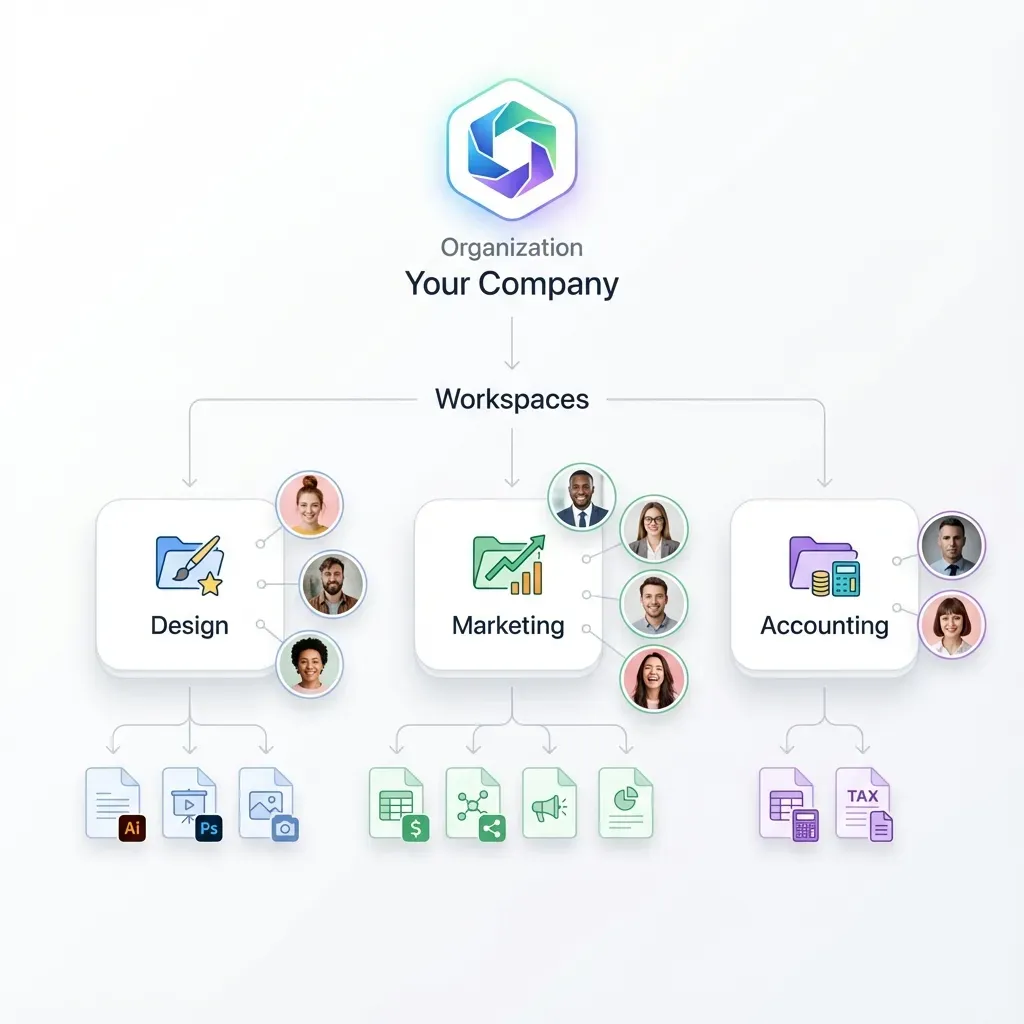
Local disks, Amazon S3 buckets, and Google Drive folders can hold converted files, but they stay passive. A Fast.io workspace gives agents and humans the same org-owned files, per-file version history, granular permissions, and Intelligence Mode so campaign folders become searchable by meaning, not only by filename. That handoff layer is what turns a converter call into a GTM pipeline instead of a zip of mystery files in chat.

Related guides
- Best OpenClaw Workflows for AI Image Generation PipelinesOpenClaw 2026.4.5 turned agents into image producers. The native image_generate tool supports 10 providers out of the...
- How to Build the Top 10 OpenClaw Workflows for AI AutomationOpenClaw workflows combine multiple AI agents and MCP servers to automate multi-step business processes. From managing...
- How to Use DALL-E 3 Image Generation in Clay GTM WorkflowsThe query "dall-e 3 ai image generator" draws about 60,500 monthly US searches at a keyword difficulty of 53 and...
- Image Resizer Workflows for Clay GTM CampaignsPages that rank for "image resizer" almost never show how Clay GTM teams turn one master creative into email, ad, and...
- Clay Templates: How to Launch Ready-Made GTM WorkflowsUS searchers look up "clay templates" about 320 times per month, enough demand to justify a real operating playbook...
- The Clay Tool: A Comprehensive Guide to No-Code GTM WorkflowsWhile traditional B2B databases yield low match rates, the Clay tool sequences data waterfalls across multiple...
More on this subject: Clay and GTM Agents (82 guides)
What image formats work best by GTM use case
Before you wire Clay to any image converter API, lock a format matrix for your campaign types. Wrong defaults cause rework: converting every logo to JPG destroys transparency, and shipping multi-megabyte PNGs into email templates inflates HTML weight and spam-filter risk.
Use this map as a working standard for Clay-driven asset tables:
- Email HTML and newsletter headers: Prefer JPG for photographs and solid-background banners. Convert PNG to JPG when you do not need transparency and need a smaller payload. Keep PNG only for logos that must sit on variable backgrounds.
- Paid social and display ads: Prefer JPG or platform-native sizes for photos. Use PNG when the creative includes hard edges, text overlays, or required alpha. Confirm each ad account's current upload list before batch convert images at scale.
- Landing pages and CMS media libraries: WebP is often best for weight and quality on modern browsers. Keep a PNG or JPG fallback column when a CMS or email client still rejects WebP. webp to png is a common reverse conversion when tools only accept legacy formats.
- Icons, simple logos, and UI chrome: Prefer SVG when the source is vector and the brand team owns the paths. Raster png to svg conversion is lossy guesswork and should be treated as a redesign request, not a bulk automation. Convert SVG to PNG when a channel only accepts raster.
- CRM attachments and sales decks: Prefer JPG or PDF-wrapped pages for photos. Prefer PNG for product UI screenshots where text sharpness matters more than file size.
- Print and partner kits: Prefer high-quality PNG or TIFF when the partner specifies it. JPG at high quality is acceptable for photo-heavy kits when file size caps apply.
Quick conversion rules that prevent bad batches
- Never strip alpha from brand marks unless the destination background is fixed and approved.
- Cap email assets to a team size budget (many teams target under 200 KB per hero image after conversion).
- Store both source and converted URLs on the Clay row so you can re-run quality settings without re-scraping.
- Record width, height, mime type, and byte size as columns. QA fails fast when dimensions drift from creative specs.
- Treat "png to svg" as a manual design step unless your converter API returns true vector paths from vector sources only.
Browser converters remain useful for spot checks. FreeConvert and Canva are fine for one-off png to jpg or webp to png work during creative review. Production GTM pipelines should call an API such as CloudConvert so Clay can run the same job on every qualified row with rate limits, auth headers, and field paths for the export URL [CloudConvert API docs].
How to call an image converter from Clay HTTP API
Clay's HTTP API enrichment processes data row by row and works with any API endpoint, which is how GTM teams attach an image converter to lead or account tables [Clay University HTTP API]. The pattern is stable: source image URL on the row, conversion job via POST, export URL written back to a new column, conditional run so empty URLs never burn credits.
Prerequisites from Clay's docs
Before you configure the column, collect:
- HTTP method (usually POST for conversion jobs)
- Endpoint URL from the converter provider
- Authentication (API key or bearer token)
- Headers, query parameters, and JSON body shape from the provider docs
- Field paths to return so Clay only stores the export URL and status
Clay recommends storing auth in an HTTP API (Headers) account at the workspace level instead of pasting keys into plain-text headers on every column. Credentials saved that way are encrypted and reusable across enrichments. Manual header keys remain visible to anyone with table access [Clay University HTTP API].
Example: CloudConvert job from a Clay row
CloudConvert's API v2 models work as jobs made of tasks. A typical image job imports a file from a URL, converts formats, then exports a temporary download URL [CloudConvert File Conversion API]. Using the sync endpoint reduces polling for smaller tables:
Method: POST
Endpoint: https://sync.api.cloudconvert.com/v2/jobs
Headers (prefer a saved HTTP API Headers account):
Authorization: Bearer YOUR_CLOUDCONVERT_API_KEYContent-Type: application/json
JSON body sketch (map Clay columns with Clay's dynamic references):
{
  "tasks": {
    "import-asset": {
      "operation": "import/url",
      "url": "/Source Image URL"
    },
    "convert-asset": {
      "operation": "convert",
      "input": "import-asset",
      "input_format": "png",
      "output_format": "jpg",
      "quality": 85
    },
    "export-asset": {
      "operation": "export/url",
      "input": "convert-asset"
    }
  }
}
Configure field paths to return only the export URL and job status so the table stays readable. Clay's docs emphasize testing a single row before running the full table, setting rate limits to match provider quotas, removing empty fields from requests, and using conditional runs so the enrichment fires only when the source URL column is populated [Clay University HTTP API].
For webp to png or png to jpg batches, either hardcode input_format and output_format on specialized columns or drive them from columns such as Target Format. Separate columns for email-JPG, social-PNG, and icon-SVG keep QA simpler than one mega-column that rewrites format per row without clear naming.
AI-assisted setup in Clay
Clay's Sculptor path on the HTTP API Generate tab can draft the request from natural language and an API docs link, then you switch to Configure, test one row, and run the table [Clay University HTTP API]. For converter jobs, paste the CloudConvert job documentation URL and describe the outcome: "Import the image URL in this row, convert PNG to JPG at quality 85, return the export URL." Always verify the generated body against the provider docs before a full run. Clay's own guidance is that about 95% of users find AI-assisted setup faster than manual configuration, but review remains required [Clay University HTTP API].
Rate limits and cost control
CloudConvert prices conversions on a per-file basis (marketing pages list on-demand pricing starting around $0.008 per file depending on volume) [CloudConvert File Conversion API]. Clay credits also apply per enrichment run. Configure Clay rate limiting (for example, request limit and duration in milliseconds) using the converter's published caps. Conditional formulas should skip rows missing a source URL, failing brand QA, or already holding a valid converted URL with matching hash or byte size.



Keep Clay-converted assets in one campaign workspace
Store source and converted GTM images with version history, Intelligence Mode search, branded shares, and MCP access for agents. Start a 14-day free trial and connect the workspace after your Clay conversion columns land.
How to batch convert images for campaigns and QA outputs
Batch convert images for marketing campaigns is a process problem more than a format problem. A Clay table might hold 500 account logos scraped during enrichment, 200 product tiles from a catalog export, and 50 WebP heroes from competitor research. Running conversion without QA produces files that are "converted" and still unusable.
A practical batch sequence
- Normalize sources. Add columns for
source_url,source_format,campaign,channel, andrequired_format. Fill format using URL extension when reliable, or a lightweight HEAD request enrichment that readsContent-Type. - Segment the table. Filter rows by channel so email, ads, and website assets do not share one quality preset.
- Run the image converter enrichment. Use HTTP API columns scoped per format pair (png to jpg, webp to png) rather than one overloaded body.
- Capture metadata. Store
converted_url,width,height,bytes,mime, andconverter_job_id. - Auto-flag failures. Mark rows where the job status is error, where bytes exceed channel limits, or where dimensions fall outside creative specs.
- Human spot-check. Sample 5% of rows visually for banding, washed logos, and text blur before you declare the batch ready.
- Persist winners. Move approved files out of temporary converter export URLs into durable storage. Converter export links and free browser tool outputs are not archives.
FreeConvert documents browser batch conversion and short-lived file retention after processing [FreeConvert Image Converter]. That is acceptable for a designer fixing three screenshots. It is not a system of record for a multi-week ABM program. CloudConvert export URLs and similar temporary links also need a second write into shared storage before creative review closes.
QA checklist for GTM image batches
- Transparency: Logo PNG still has alpha where required.
- Color profile: No unexpected shifts on brand reds and blues after jpg compression.
- Text sharpness: UI screenshots remain readable after resize.
- Weight: Email heroes meet size budgets after png to jpg.
- Naming: Filename includes account slug, channel, and format (
acme_email_hero.jpg). - Lineage: Clay row still points at source URL and converted URL.
- Rights: Scraped or generated assets carry usage notes before paid media use.
Where converted files should live
Teams often default to a shared Google Drive folder or an S3 prefix. Those work for bulk dump storage. Campaign ops usually need more: permissions that match who can approve creatives, version history when a designer re-exports, comments on a specific crop, and search across hundreds of account folders. Fast.io workspaces provide org-owned folders with granular permissions at org, workspace, folder, and file levels, per-file version history, and a detailed activity log of access events. Enable Intelligence Mode so files are indexed for hybrid search and citation-backed chat. For structured tracking of dimensions, channel, and approval state across image batches, Metadata Views can extract fields from filenames and side-car notes into a sortable grid without custom OCR rules.
Pull temporary converter outputs into the workspace with URL import when the export link is still live, or upload via the Fast.io API or consolidated MCP tools from an agent that finished the Clay run. Store source and converted variants side by side so a rejected JPG does not force a full re-scrape from Clay.

Handoff from Clay conversion columns to shared campaign workspaces
The last mile is where most image converter workflows fail quietly. Clay holds the truth about which rows converted cleanly. Marketers need folders, share links, and approvals, not a spreadsheet of temporary URLs. Build an explicit handoff so GTM, design, and sales ops touch the same files.
Recommended handoff flow
- Clay finishes conversion columns and a status column reads
ready_for_workspace. - A final HTTP API column posts a payload to your receiver (or an agent listening on webhooks) with account name, channel, converted URL, and campaign id.
- The receiver writes files into a campaign workspace folder tree such as
/Campaigns/2026-Q3-ABM/{account}/email/and/.../paid/. - Fast.io preserves version history when a re-conversion overwrites a filename, so prior JPG quality experiments remain restorable.
- Design or brand reviews with comments anchored to image regions, and signs off in a comment when your process requires approval before paid spend.
- Approved assets go out through branded Send shares that can expire, stay durable until revoked, and grant access per recipient.
- Agents connected through Fast.io MCP (Streamable HTTP at
/mcp, legacy SSE at/sse) can list new files, open Collaborative Notes with the campaign brief, and notify humans without inventing a second file store. See the MCP skill docs and agent storage guide for current tool surfaces.
Clay remains the enrichment and conversion control plane. Fast.io is not a built-in Clay feature. It is the shared workspace layer around Clay for persistence, permissions, search, and human-agent handoff. Ownership transfer still applies when an agent scaffolds the org or campaign workspace and a human takes over billing ownership after the 14-day free trial on Starter ($9.99/mo), Business ($49.99/mo), or Enterprise ($199.99/mo).
Example payload Clay can POST after conversion
{
  "account": "/Company Name",
  "campaign": "2026-Q3-ABM",
  "channel": "email",
  "source_url": "/Source Image URL",
  "converted_url": "/Converted Image URL",
  "format": "jpg",
  "bytes": "/Converted Bytes",
  "status": "ready_for_workspace"
}
Run this column only when conversion status is success and QA flags are clear. That single guardrail stops broken export URLs from polluting the campaign library.
Troubleshooting patterns
Empty export URL: Job may still be async. Prefer CloudConvert sync for small batches, or add a second Clay column that GETs job status with a delay and conditional retry pattern documented by your provider.
- Auth errors: Move keys into Clay's HTTP API Headers account; confirm bearer scope allows job create and task write [CloudConvert API docs].
- Body parse errors in Clay: Quote string column references in JSON; Clay's docs call this out as a common 400 cause [Clay University HTTP API].
- Quality complaints after png to jpg: Raise quality, raise minimum dimension, or keep PNG for that channel.
- webp to png needed mid-flight: Add a parallel column rather than rewriting history on rows that already shipped to ads.
- png to svg requests from stakeholders: Route to design. Automated raster-to-vector is not a reliable GTM standard.
When the pipeline is healthy, Clay rows, converter jobs, and workspace folders tell the same story: source, format, QA state, and final share. That is the difference between an image converter click and a GTM asset system.

Sources
References used to verify factual claims in this guide.
-
US monthly search volume for image converter is about 22,200; png to jpg about 60,500; webp to png about 165,000; batch convert images about 210
-
Clay HTTP API lets you send or retrieve data from any tool using an API endpoint when Clay has no native integration, processing enrichments row by row with GET, POST, PUT, or DELETE Clay documents AI-assisted HTTP API setup via Sculptor, workspace-level HTTP API Headers accounts for encrypted auth, single-row testing, rate limiting, conditional runs, and field paths to return
-
Clay publishes a templates library for GTM automation patterns such as automated screenshots and personalized landing pages
-
FreeConvert offers online image conversion including batch convert, 500+ formats, browser use, and short-lived file retention after conversion
-
Canva free image converter supports converting JPG, PNG, HEIC/HEIF, WebP, and SVG into JPG, PNG, SVG, or PDF
-
CloudConvert API v2 processes files via jobs and tasks (import, convert, export), supports Bearer API key auth, sync and async modes, and documents rate limiting on job creation
-
CloudConvert file conversion API chains import/url, convert, and export/url tasks and markets on-demand pricing starting around $0.008 per file
Frequently Asked Questions
What is the best free image converter for GTM teams?
For one-off fixes, FreeConvert and Canva's free image converter are practical browser options for png to jpg, webp to png, and similar pairs. For Clay pipelines, free browser tools are the wrong primary path because they lack durable APIs, row-level runs, and long-term storage. Use a conversion API such as CloudConvert for automation, and keep free tools for spot checks during creative review.
Should I convert PNG to JPG for email?
Yes when the image is a photograph or solid-background banner and you need a smaller file. Convert PNG to JPG for email when transparency is not required and weight budgets matter. Keep PNG for logos and UI that need alpha or crisp edges. Store both source and converted URLs on the Clay row so you can reverse the decision without re-scraping.
How do you batch convert images for marketing campaigns?
Put source URLs and target formats in a Clay table, call an image converter API through Clay's HTTP API enrichment with rate limits and conditional runs, capture export URLs and file metadata, QA dimensions and size, then write approved files into a shared campaign workspace. Browser batch convert features work for small sets; campaign-scale work needs API runs plus durable storage beyond temporary download links.
Does Clay include a native image converter?
No. Clay does not provide a built-in image converter. Clay's supported approach is the HTTP API enrichment (or HTTP API as a source), which calls external conversion services row by row using standard HTTP methods and stored auth headers.
When should I convert WebP to PNG?
Convert webp to png when a downstream CMS, email builder, ad UI, or partner still rejects WebP. Keep WebP for modern web delivery when the channel supports it. In Clay, run webp to png as a dedicated column so you do not overwrite web-ready sources used on landing pages.
Is PNG to SVG a good automated step?
Usually no. True SVG should come from vector design sources. Automated png to svg from photographs or complex rasters produces unreliable paths. Automate SVG to PNG for channel delivery when needed, and treat raster-to-vector as a design task.
Where should converted GTM assets be stored after Clay?
Not only in temporary converter export links. Write approved files to durable storage your team already uses, such as S3 or Drive, or into a Fast.io workspace when you need version history, granular permissions, Intelligence Mode search, branded shares, and agent access through MCP alongside human review.
Related Resources

Keep Clay-converted assets in one campaign workspace
Store source and converted GTM images with version history, Intelligence Mode search, branded shares, and MCP access for agents. Start a 14-day free trial and connect the workspace after your Clay conversion columns land.