Best OpenClaw Workflows for AI Image Generation Pipelines
OpenClaw 2026.4.5 turned agents into image producers. The native image_generate tool supports 10 providers out of the box, the bundled ComfyUI plugin routes generation through local or cloud workflows, and third-party skills like Creaa.ai add access to 13+ models. This guide covers the best workflow patterns for building agent-orchestrated image pipelines, from single-prompt generation to batch runs with post-processing and delivery.


Why Agent-Orchestrated Image Pipelines Beat Manual Workflows
Most image generation guides focus on API calls or UI tools. You write a prompt, hit generate, download the result, rename it, move it to the right folder, and repeat. That works for one image. It breaks down at 20.
OpenClaw image generation workflows chain the agent's native image_generate tool with ComfyUI nodes, third-party model skills, and output delivery to produce images as part of automated agent pipelines. The agent handles the entire loop: research what to generate, pick the right model, produce the image, post-process it, name and organize the output, and deliver it to stakeholders.
The 2026.4.5 release made this practical by shipping three built-in media tools (image_generate, video_generate, music_generate) alongside a first-class ComfyUI plugin. Before this release, image generation required cobbling together external scripts. Now it's a native capability with provider fallback chains, reference image support, and automatic output attachment.
The workflows below are ranked by how much they automate. Each one builds on the previous pattern, so you can start simple and layer complexity as your pipeline matures.
Related guides
- How to Use DALL-E 3 Image Generation in Clay GTM WorkflowsThe query "dall-e 3 ai image generator" draws about 60,500 monthly US searches at a keyword difficulty of 53 and...
- Image Converter Workflows for Clay GTM PipelinesUS search demand for image converter alone sits at 22,200 monthly queries, while related seeds like webp to png and png...
- 8 OpenClaw Workflows for AI Batch Image Generation at ScaleAI platforms produce over 34 million images per day, but most batch generation guides only cover single-tool setups....
- Top OpenClaw Workflows for AI Image Generation with Brand ConsistencyAbout one in four companies have AI agents fully integrated into their marketing stack. For the rest, brand consistency...
- Best OpenClaw Workflows for AI Headshot GenerationOpenClaw turns AI headshot generation into a repeatable, chat-driven workflow. Dedicated skills like...
- Best OpenClaw Workflows for AI Sketch-to-Image and Concept RenderingOpenClaw's image_generate tool routes sketch inputs through providers like OpenAI gpt-image-2, fal Krea 2, and Gemini,...
More on this subject: OpenClaw Workflows and Integrations (69 guides)
1. Native image_generate with Provider Fallback Chains
The simplest workflow uses OpenClaw's built-in image_generate tool with no additional skills or plugins. You configure a primary provider, set fallbacks, and the agent handles generation directly.
OpenClaw's image_generate tool supports 10 providers: OpenAI (gpt-image-2), Google (gemini-3.1-flash-image-preview), OpenRouter, DeepInfra (FLUX-1-schnell), fal (flux/dev), xAI (grok-imagine-image), MiniMax (image-01), LiteLLM, ComfyUI, and Vydra. Each provider has different strengths. OpenAI handles transparent backgrounds well. xAI supports up to 5 reference images for editing. MiniMax can generate up to 9 images in a single call.
The fallback chain is what makes this a pipeline rather than a single API call. Configure your preferred provider as primary, then list alternatives:
imageGenerationModel:
  primary: "openai/gpt-image-2"
  fallbacks: ["fal/fal-ai/flux/dev", "deepinfra/black-forest-labs/FLUX-1-schnell"]
If OpenAI is down or rate-limited, the agent automatically tries fal, then DeepInfra. No error handling code, no retry logic. The agent also accepts per-call overrides, so you can route specific tasks to specific providers. Need a transparent PNG sticker? Override to OpenAI's gpt-image-1.5. Need cheap batch thumbnails? Route to DeepInfra's FLUX-1-schnell.
Key parameters you can control per generation: prompt (required), model, size (up to 2048x2048), aspectRatio (1:1 through 21:9), quality (low/medium/high/auto), outputFormat (png/jpeg/webp), background (transparent/opaque/auto), and count (1-4 images).
Best for: Teams that need reliable image generation without external dependencies. The fallback chain means your pipeline doesn't stop when one provider has an outage.
2. ComfyUI Custom Workflow Integration
The native image_generate tool covers standard generation well, but custom workflows need ComfyUI. If you're running fine-tuned models, multi-step inpainting pipelines, or ControlNet-guided generation, the bundled ComfyUI plugin connects OpenClaw directly to your node graph.
The plugin shipped in OpenClaw 2026.4.5 and supports both local ComfyUI installations and Comfy Cloud. It handles prompt injection into your workflow nodes, optional reference image uploads, and automatic output download. The agent sends a generation request, the ComfyUI backend processes the workflow, and the result comes back as a media attachment in the agent's response.
Configuration points the plugin at your ComfyUI instance and maps the workflow's input/output nodes. You specify the workflow path, the prompt node ID where text gets injected, and the output node ID where the final image lives. For local installations, set the base URL to your ComfyUI server. For Comfy Cloud, authenticate with your cloud credentials.
The real power is workflow reuse. Design a complex node graph once in ComfyUI's visual editor, with ControlNet guidance, upscaling steps, face restoration, or style transfer. Then reference that workflow by ID from OpenClaw. The agent doesn't need to understand the node graph. It injects a prompt, optionally uploads reference images, and gets the result. This keeps generation consistent across hundreds of runs while letting non-technical team members trigger production-quality pipelines through conversation.
A token-saving architecture references local workflow templates by ID rather than transmitting the full JSON structure on every call. This matters for complex workflows where the JSON can run to thousands of tokens.
Best for: Teams already using ComfyUI for custom models or multi-step generation. The plugin preserves your existing node graphs while adding agent orchestration on top.
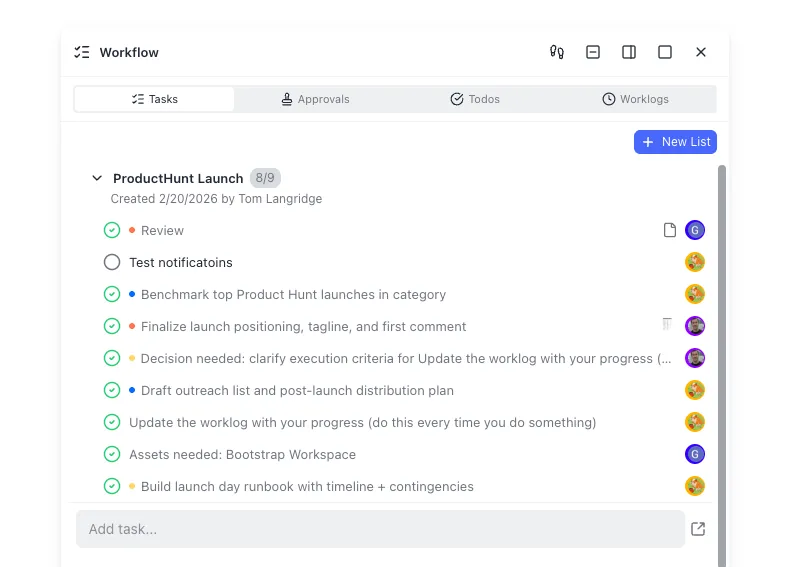


Store and share your generated images in one workspace
Upload agent-generated images to Fastio, organize by campaign, and share with branded links. generous storage, MCP-ready for OpenClaw pipelines.
3. Multi-Model Comparison with Creaa.ai and ClawHub Skills
Sometimes you don't know which model will produce the best result for a given prompt. The multi-model comparison workflow generates the same image across several providers, then lets you pick the winner.
Creaa.ai's OpenClaw skill is the most practical way to do this. It provides access to 13+ models through a single skill installation, spanning both image generation (Seedream 4.5, Nano Banana 2/Pro, GPT Image 1.5, Z-Image Turbo) and video generation (Veo 3.1, Seedance 2.0, Sora 2 Pro, Kling 3.0). Pricing follows a pay-per-use model starting as low as 1 credit per image for Z-Image Turbo.
The comparison workflow runs like this: the agent takes a single prompt, generates images across 3-4 models, names each output with the model identifier, and delivers all variants to a shared workspace. You review the results and tell the agent which model to use for the remaining batch. This front-loads the quality decision so you don't discover halfway through a 50-image run that the wrong model was selected.
Beyond Creaa.ai, the awesome-openclaw-skills repository maintains a dedicated image-and-video-generation category with dozens of specialized skills. Notable options include:
- best-image for high-quality generation at roughly $0.12-0.20 per image
- cheapest-image for budget runs at approximately $0.0036 per image
- fal-ai for generation through fal.ai's API with multiple model backends
- eachlabs-image-generation for Flux, GPT Image, Gemini, and Imagen access
- nanobanana-pro-fallback for Nano Banana Pro with automatic model fallback
- grok-image-cli for Grok API generation and editing
Each skill installs from ClawHub and exposes different model access, pricing, and capabilities. The multi-model workflow lets you test several before committing to one for production use.
Best for: Creative teams evaluating model quality for brand-specific visual styles, or anyone running A/B tests on generated imagery.
4. Batch Generation and Automated Delivery Pipelines
Single-image workflows scale to batch pipelines by combining OpenClaw's generation tools with file management and delivery. The pattern looks like this: feed the agent a list of prompts (from a spreadsheet, JSON file, or database query), generate images for each, organize outputs with consistent naming, and push results to a delivery destination.
Creaa.ai's skill documentation highlights batch use cases: generating 20 product images from a spreadsheet of URLs, creating a week's worth of social media visuals in one session, and building CI/CD pipelines that auto-generate assets on merge. The key is that the agent maintains context across the full run, so it can apply style consistency, skip duplicates, and recover from generation failures without restarting the entire batch.
For delivery, you have several options. Local storage works for development. S3 or Google Cloud Storage handles high-volume production runs. But if your pipeline feeds into a team review process, pushing generated images to a shared workspace adds value that raw storage doesn't. Fastio workspaces give agents a persistent location to upload generated images, organize them into folders by campaign or batch, and share them with reviewers through branded links. Fastio offers a 14-day Business Trial, card required; see /pricing/.
The Fastio MCP server exposes a consolidated MCP toolset that agents can call for file operations, workspace management, and sharing. An OpenClaw agent can upload generated images, create a share link, and notify the team, all within the same conversation. When the team approves the batch, ownership transfers from the agent to the human reviewer. The agent keeps admin access for future runs while the reviewer takes over the workspace.
For teams already using Intelligence Mode on their Fastio workspaces, uploaded images are automatically indexed. This means you can later ask questions like "show me all product shots generated in the last batch that used the blue background" and get results with citations. That's useful when you're managing hundreds of generated assets across multiple campaigns.
Best for: Marketing teams, e-commerce operations, and content agencies running recurring image generation at scale.
5. Style-Consistent Series and Post-Processing Chains
The hardest image generation problem isn't producing one good image. It's producing 10 images that look like they belong together. Style-consistent series require locking down model parameters, maintaining reference images across a run, and applying post-processing uniformly.
OpenClaw's reference image support makes this workflow practical. The image_generate tool accepts reference images for editing mode, with providers like OpenAI and xAI supporting up to 4-5 reference images per call. Feed the agent a style reference, a color palette, and a set of subject prompts, and it generates each image with the same visual anchors. ComfyUI workflows take this further with ControlNet, IP-Adapter, or style-transfer nodes that enforce consistency at the model level rather than through prompt engineering alone.
Post-processing chains extend the pipeline after generation. Common patterns include:
- Upscaling through a dedicated ComfyUI node or the eachlabs-image-edit skill, which offers 200+ AI models for editing and enhancement
- Background removal using transparent background support (OpenAI's gpt-image-1.5 handles this natively)
- Format conversion by specifying outputFormat per generation (png for transparency, webp for web delivery, jpeg for email)
- Metadata tagging where the agent adds descriptive filenames, alt text, and EXIF data before uploading
The post-processing step is where agent orchestration differentiates itself from standalone API calls. A script that calls an image API can generate images. An agent that chains generation with upscaling, format conversion, metadata tagging, and organized delivery in a single pipeline saves hours of manual work per batch.
For teams managing large asset libraries, consider uploading final outputs to a Fastio workspace with Metadata Views enabled. Metadata Views let you define custom fields (subject, style, campaign, model used) and the system extracts structured data from your uploaded files into a searchable, filterable spreadsheet. No manual tagging required.
Best for: Brand teams maintaining visual consistency across campaigns, product photography pipelines, and content series with recurring visual formats.
How to Pick the Right Workflow for Your Pipeline
The five workflows above aren't mutually exclusive. Most production pipelines combine elements from several patterns. Here's how to decide where to start:
Start with native image_generate if you're adding image generation to an existing OpenClaw agent and don't have custom models. The fallback chain gives you reliability without setup overhead. Configure two or three providers and you're generating images in minutes.
Add ComfyUI when you need custom models, ControlNet guidance, or multi-step processing that cloud APIs don't support. The plugin preserves your existing ComfyUI workflows, so there's no migration cost if you're already using ComfyUI for image work.
Use Creaa.ai or ClawHub skills when you want access to specific models (Seedream 4.5, Nano Banana 2, Seedance 2.0) without managing API keys for each provider individually. The pay-per-use pricing means you only pay for what you generate.
Build batch pipelines when you're generating more than 10 images per run. At that scale, manual download-and-organize workflows become the bottleneck, not generation speed. Pair the agent's generation with organized workspace storage so outputs are immediately accessible to reviewers.
Layer post-processing when consistency matters more than speed. Style references, upscaling, and format standardization add time per image but save significant rework downstream.
The common thread across all five patterns: the agent handles the mechanical parts of the pipeline (retries, naming, organization, delivery) so humans focus on the creative decisions (prompt refinement, style selection, final approval). That division of labor is what makes agent-orchestrated pipelines faster than running the same tools manually.
Sources
References used to verify factual claims in this guide.
-
OpenClaw 2026.4.5 introduced native image_generate, video_generate, and music_generate tools with bundled ComfyUI plugin
-
OpenClaw image_generate supports 10 providers including OpenAI, Google, DeepInfra, fal, xAI, MiniMax, OpenRouter, LiteLLM, ComfyUI, and Vydra
-
Creaa.ai OpenClaw skill supports 13+ models including Seedream 4.5, Nano Banana 2, and Seedance 2.0
-
The awesome-openclaw-skills repository maintains a dedicated image-and-video-generation category with dozens of skills
Frequently Asked Questions
How do I generate images with OpenClaw?
OpenClaw's built-in image_generate tool handles generation directly. Set an API key for at least one supported provider (OpenAI, Google, fal, DeepInfra, xAI, MiniMax, OpenRouter, LiteLLM, ComfyUI, or Vydra), then ask your agent to generate an image. The tool accepts parameters for prompt, model, size, aspect ratio, quality, output format, and count. You can configure a primary provider with fallbacks so generation continues even if one provider is unavailable.
Does OpenClaw support ComfyUI?
Yes. OpenClaw 2026.4.5 shipped a first-class ComfyUI plugin supporting both local installations and Comfy Cloud. The plugin injects prompts into your ComfyUI workflow nodes, handles reference image uploads, and retrieves outputs automatically. You configure the plugin with your ComfyUI server URL, workflow path, prompt node ID, and output node ID. This lets you run complex multi-step workflows (ControlNet, upscaling, style transfer) through OpenClaw without modifying your existing node graphs.
What image generation models work with OpenClaw?
Through the native image_generate tool, OpenClaw supports gpt-image-2 and gpt-image-1.5 (OpenAI), gemini-3.1-flash-image-preview (Google), FLUX-1-schnell (DeepInfra), flux/dev (fal), grok-imagine-image (xAI), image-01 (MiniMax), and models available through OpenRouter and LiteLLM. Third-party skills expand this further. Creaa.ai's skill adds Seedream 4.5, Nano Banana 2/Pro, GPT Image 1.5, Z-Image Turbo, and video models like Veo 3.1 and Seedance 2.0. ComfyUI integration lets you use any model available through ComfyUI nodes, including custom fine-tuned checkpoints.
How much does OpenClaw image generation cost?
Costs depend on the provider and model. OpenClaw itself doesn't charge for generation. You pay the underlying provider's API pricing. Through Creaa.ai's skill, costs start at approximately 1 credit per image for Z-Image Turbo and go up for higher-quality models. The cheapest-image skill on ClawHub advertises generation at roughly $0.0036 per image, while the best-image skill runs $0.12-0.20 per image. ComfyUI on local hardware has no per-image API cost, just your compute costs.
Can OpenClaw generate images in batch?
Yes. Feed the agent a list of prompts from a spreadsheet, CSV, JSON, or any structured source. The agent iterates through each prompt, generates images, applies consistent naming, and organizes outputs. Creaa.ai's documentation highlights batch workflows like generating 20 product images from a URL list or creating a week's worth of social visuals in one session. For large batches, pair generation with a delivery destination like a shared workspace to keep outputs organized and reviewable.
How do I store and share OpenClaw-generated images with my team?
Local storage works for development, but team workflows benefit from shared cloud storage. Fastio workspaces give agents a persistent upload destination with organized folders, branded share links, and automatic indexing through Intelligence Mode. The agent uploads generated images via the Fastio MCP server, creates a share link, and the team reviews results directly. When approved, workspace ownership transfers from the agent to a human reviewer. Fastio offers a 14-day Business Trial (card required; see /pricing/).
Related Resources

Store and share your generated images in one workspace
Upload agent-generated images to Fastio, organize by campaign, and share with branded links. generous storage, MCP-ready for OpenClaw pipelines.