How to Manage Cross-Channel Campaign Files
Cross-channel campaign file management keeps assets consistent across email, social media, web, and print. Teams often struggle with version mismatches and disorganized storage, leading to delays and errors. This guide covers best practices for organization, workflows, and tools to synchronize multi-channel assets effectively. Follow these steps to ensure every channel uses the right files.


What Is Cross-Channel Campaign File Management?
Cross-channel campaign file management synchronizes assets for omnichannel campaigns. It involves storing, organizing, and distributing creatives like images, videos, and copy so they match up across platforms.
Marketing teams run campaigns on multiple channels simultaneously. Social posts need square images optimized for Instagram or LinkedIn. Email newsletters require responsive HTML designs that render correctly in various inboxes. Print materials demand high-resolution PDFs at multiple DPI or higher. Web banners need web-optimized formats that load quickly in browsers.
Without proper management systems in place, the wrong version ends up in the wrong place. A designer updates a banner in their local folder, but the social media team continues using the old one. The email team pulls from a shared drive, but someone accidentally uploaded an outdated version. These mismatches create inconsistent customer experiences and wasted time.
A single file management system puts all files in one spot. Everyone accesses the same approved files. Version history shows who changed what and when. The result is faster campaign launches and consistent branding across every touchpoint.
Campaigns often experience delays due to asset mismatches between channels. Structured file management addresses this common issue for marketing teams of any size.
Helpful references: Fastio Workspaces, Fastio Collaboration, and Fastio AI.
Related guides
- How to Choose File Storage for Martech StacksMartech stack file storage puts assets in one place across marketing tools. Marketing teams handle dozens of platforms...
- How to Choose Marketing Project Management Software for Creative TeamsMarketing teams juggle campaigns, creative assets, and client feedback across dozens of tools. This guide breaks down...
- How to Set Up an AI Marketing Team Intelligence WorkspaceAI marketing team intelligence workspaces combine semantic search and agent collaboration for files. Marketing teams...
- How to Set Up a Content Marketing Platform for Your TeamA content marketing platform is an integrated workspace where teams create, store, collaborate on, and distribute...
- How to Build a Content Production Workflow That ScalesMost content workflow guides stay abstract. This one walks through the actual steps to build a repeatable production...
- How to Build a Sales Enablement Platform That Actually Gets UsedMost sales enablement platforms collect dust. Reps ignore them because content is hard to find, the interface adds...
More on this subject: Creative and Marketing Teams (27 guides)
Common Challenges in Multi-Channel Asset Management
Multi-channel asset management brings specific problems that eat away at team productivity. Understanding these challenges helps you build better systems to overcome them.
Version Control Issues top the list of frustrations. When multiple team members work on the same campaign, tracking the latest version becomes a nightmare. A designer updates a banner in their local folder, but the social team continues using the old one. Changes scatter across tools like Dropbox folders, Google Drive, and Slack messages. Without a single source of truth, teams waste time debating which file is current.
Access and Permission Problems slow down external collaboration. Agencies wait for links that never arrive. Permissions expire at the worst moment. Clients receive access but cannot find what they need. Finding files takes hours when folders lack clear naming conventions or organization structures.
Storage and Format Constraints force teams to make compromises. Storage limits push teams toward compression that degrades quality. High-res videos become pixelated when uploaded to systems with low size limits. Bandwidth costs rise with repeated uploads of the same files. The creative quality suffers because the infrastructure cannot keep up.
Disorganized Libraries lead to duplicated effort. Teams recreate assets they already have but cannot locate. Similar files accumulate with slight variations. Without metadata or tagging systems, searching feels impossible. Creative teams spend hours hunting for files instead of actually creating.
Many campaigns run late because of these compounding issues. A central workspace solves this by keeping all versions in one place with clear history tracking and role-based permissions. Teams stop asking "where is the latest file?" and start collaborating on actual creative work.
Best Practices for Campaign File Organization
Effective campaign file organization requires consistent systems that scale with your team. These practices work whether you manage five campaigns or fifty.
Start with Naming Conventions that everyone follows without thinking. Use formats like "CampaignName_Channel_AssetType_Version_Date.extension". For example, "SummerSale_Instagram_Story_v2_20260303.mp4" or "Q1Launch_Email_Header_v1_20260115.jpg". This structure makes files easy to identify at a glance. Include the channel because the same asset often appears across multiple platforms.
Build Logical Folder Structures that mirror your workflow. Start with top-level folders by campaign, then subdivide by channel, then by asset type. Include an "Approved" subfolder for final versions that only approvers can modify. Add metadata tags during upload for quick searches later.
Implement Version Control from day one. Never overwrite original files. Use suffixes like "_v1", "_v2" or date stamps. Enable activity logs to track who changed what and when. Set permissions so only designated approvers can move files into the approved folder. This prevents accidental publication of work-in-progress materials.
Schedule Regular Cleanups to prevent accumulation. Archive completed campaigns quarterly. Delete duplicate files. Review folder structures annually and adjust as teams grow. Train new team members on conventions during onboarding to maintain consistency over time.

Naming Convention Examples
Social Media:
CampaignName_Instagram_Post_v1.jpgCampaignName_TikTok_Video_v2.mp4CampaignName_LinkedIn_Banner_v1.png
Email:
CampaignName_Newsletter_Header_v1.jpgCampaignName_Email_HTML_v3_Approved.htmlCampaignName_Footer_Logo_v1.png
Print:
CampaignName_Brochure_A4_v2.pdfCampaignName_Poster_18x24_HighRes_v1.pdfCampaignName_BusinessCard_v3_PrintReady.ai
Folder Hierarchy Example
Campaigns/
  SummerSale2026/
    Instagram/
      Images/
      Videos/
      Stories/
    Email/
      Templates/
      Headers/
      Footers/
    Print/
      Proofs/
      Final/
    Web/
      Banners/
      LandingPages/
    Approved/  access)
    Archive/
  Q1Product (restrictedLaunch/
    [same structure]
Step-by-Step Workflow for Cross-Channel File Synchronization
Following a consistent workflow prevents errors and keeps campaigns on schedule. This five-step process works for teams of any size.
Step 1: Plan the Campaign Structure. Before creating any assets, outline all channels and their specific requirements. List every format, size, and specification needed. Create a shared workspace with folders for each channel. This planning phase takes thirty minutes but saves hours of rework later.
Step 2: Upload and Tag Assets. Designers upload original files to the appropriate folders. Add tags during upload such as "Instagram-Ready," "Email-Responsive," or "Print-300DPI." Use preview features to verify formats before sharing. Check that video files have the correct codec and resolution.
Step 3: Review and Approve. Share the workspace with team members and clients. Use comment features on specific files to gather feedback. Mark approved versions with "_Approved" suffixes or move them to the approved folder. This step prevents confusion about which files are ready for distribution.
Step 4: Distribute by Channel. Generate channel-specific links or exports for each team. The social media team grabs files from the Instagram folder. The email team pulls HTML from the templates folder. Each channel accesses exactly what they need without digging through unrelated files.
Step 5: Track and Archive. Monitor activity logs throughout the campaign to ensure everyone uses current versions. After campaign launch, archive the entire folder structure. This preserves the historical record and keeps active workspaces clean for the next campaign.
This process takes minutes per campaign when using a unified platform. It prevents mismatches entirely because everyone references the same source.


Get Started with Fastio
Fastio provides shared workspaces for cross-channel file management. Invite teams and clients, preview media instantly, and track everything securely. Start a 14-day trial (credit card required). Built for cross channel campaign file management workflows.
Top Tools for Cross-Channel Campaign File Management
Choosing the right tool boosts your team's productivity. Look for workspace organization, real-time collaboration, and easy external sharing.
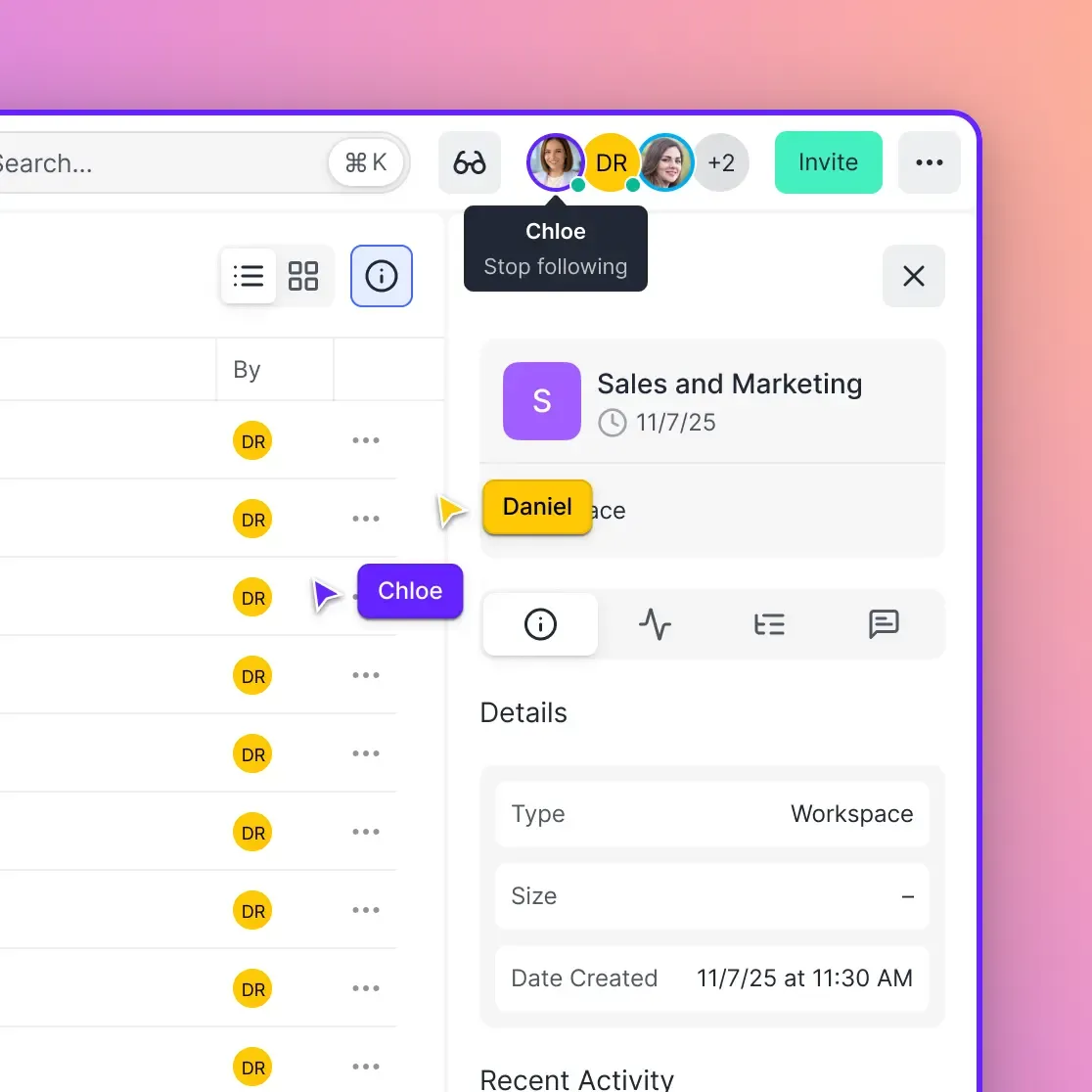
Fastio suits marketing teams managing cross-channel campaigns. Shared workspaces fit multiple simultaneous campaigns without extra costs. Organization-owned files stay with the team even when members leave. Real-time presence shows exactly who is viewing assets at any moment. The platform handles large video files with HLS streaming that loads instantly, unlike progressive download that forces viewers to wait for buffering.
Dropbox offers basic version history but limits workspace customization. Per-user pricing adds up quickly for large teams. External sharing works but lacks branded portal options for professional client presentations.
Google Drive provides familiar folder structures but lacks advanced campaign management features. Version history exists but becomes difficult to navigate with large file volumes. Integration with Google Workspace helps teams already in that ecosystem.
Box targets enterprise customers with advanced security features and compliance tools. The pricing reflects this focus, making it expensive for smaller agencies. Media preview capabilities lag behind purpose-built creative platforms.
For most marketing teams, Fastio offers the right features for campaigns, shared workspaces, and flat plans with seats and storage included.

How Fastio Handles Multi-Channel Asset Management
Fastio offers workspaces designed for marketing teams managing cross-channel campaigns. The platform combines organization, collaboration, and delivery features that address common pain points.
Dedicated Campaign Workspaces keep each initiative organized. Create separate workspaces for each major campaign or client. Invite team members and agencies to specific workspaces without exposing unrelated files. This isolation prevents accidental access to sensitive client materials or unreleased campaign assets.
Media Streaming for Large Files eliminates download waits. Upload campaign videos once and they stream instantly to anyone with access. No more sending large files through transfer services or dealing with inbox limits. Reviewers watch in browser without installing playback software.
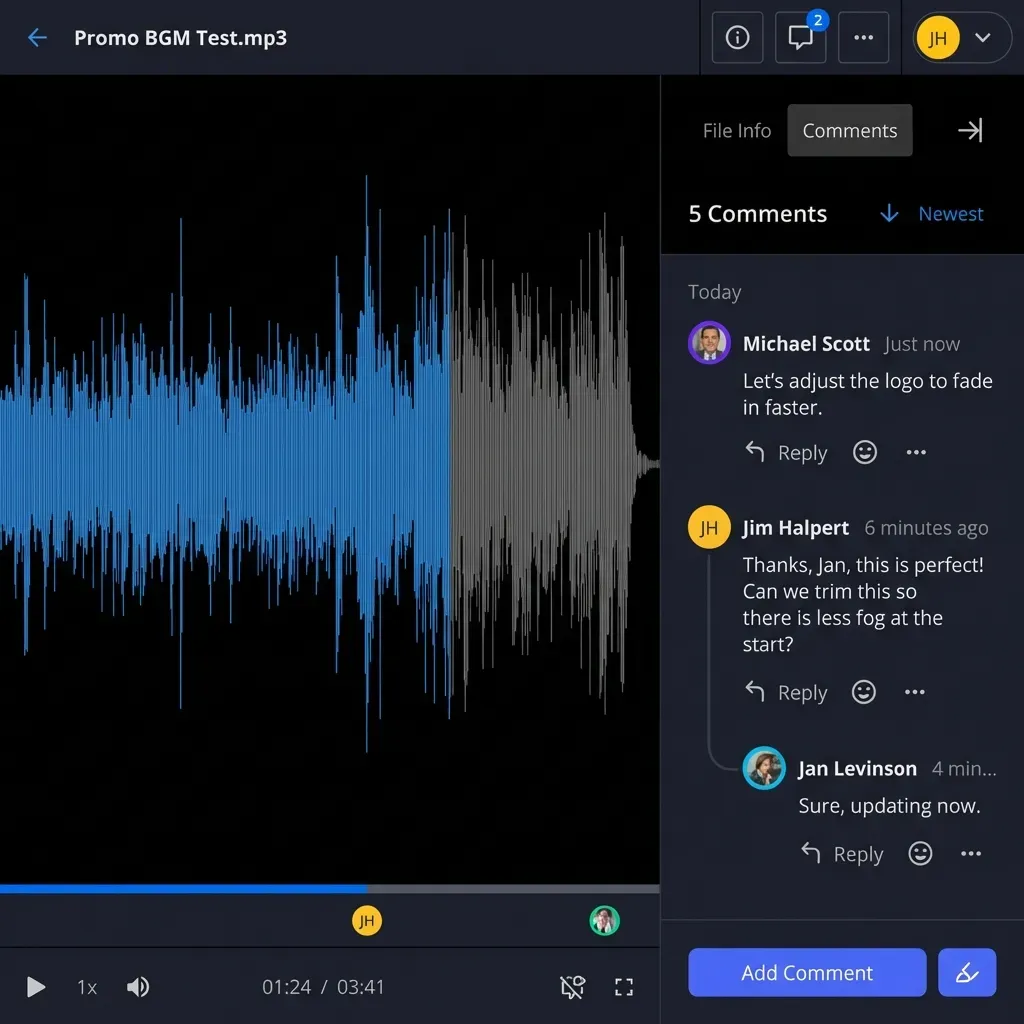
Frame-Accurate Comments enable precise creative feedback. Point to specific moments in video timelines. Mark exact areas on images that need adjustment. This precision reduces revision rounds because feedback is unambiguous.
Granular Permissions control access at multiple levels. Restrict who can upload versus who can only view. Limit who can edit final versions. External collaborators access only the specific folders you share, nothing more.
Branded Client Portals deliver assets professionally. Replace generic download links with custom-branded pages showing your logo and colors. Clients access their campaign materials through a professional interface that reinforces your agency's brand.
Audit Logs track every interaction. See who viewed files, when they downloaded, and what they accessed. This visibility helps teams understand client engagement and supports compliance reviews.
Teams see faster approvals and fewer errors after switching to purpose-built platforms. Files live in the cloud without sync conflicts that plague traditional desktop applications. Scale to any campaign size without surprise bills or storage limits.
Measuring Your Cross-Channel File Management Success
Tracking metrics helps teams understand where improvements are needed. Focus on these key performance indicators for campaign file management.
Time to Asset Retrieval measures how quickly team members find files. Set benchmarks for common searches. If finding a banner takes more than two minutes, your organization needs improvement. Good file management should enable retrieval in seconds, not minutes.
Revision Cycle Count tracks how many times assets go back for changes. High numbers often indicate unclear approval processes or poor feedback systems. Frame-accurate commenting reduces this metric by eliminating ambiguous feedback.
Late Launch Rate measures how often campaigns miss deadlines due to asset issues. Track whether delays stem from missing files, wrong versions, or approval bottlenecks. Addressing root causes improves future campaign timing.
Client Satisfaction Scores capture external perception. Ask clients about their experience accessing and reviewing materials. Positive scores indicate your file management supports good relationships.
Regular measurement creates accountability. Share results with stakeholders. Celebrate improvements and address persistent problems. Data-driven decisions lead to continuous refinement of your processes.

Frequently Asked Questions
How do you manage cross-channel assets effectively?
Centralize all campaign assets in a shared workspace with folder structures organized by channel. Use consistent naming conventions that include campaign name, channel, and version. Enable activity tracking to monitor access and changes. Tools like Fastio provide previews and comments that help teams stay aligned.
What are the best tools for managing campaign files?
Look for platforms with shared workspaces, version history, and secure external sharing. Fastio works well for marketing teams with shared workspaces, media streaming for large videos, and seats included in every plan. Dropbox and Google Drive work for simpler needs but lack campaign-specific features.
How do you avoid asset mismatches in campaigns?
Implement strict version control by never overwriting originals. Use approval workflows that mark final versions. Store all assets in one central location rather than scattered across personal drives. Enable activity logs so everyone sees the latest changes automatically.
What folder structure works best for multi-channel campaigns?
Organize by campaign first, then by channel, then by asset type. Example: Campaigns/SummerSale/Instagram/Images. Include an Approved subfolder accessible only to approvers. Tag files with metadata for quick searching across folders.
Why use workspaces for campaign management?
Workspaces keep campaigns isolated and organized. Multiple campaigns run simultaneously without file mixing. Real-time collaboration features speed up reviews. External sharing simplifies client delivery without giving access to unrelated projects.
How do external agencies access campaign files securely?
Use external sharing features that limit access to specific folders. Generate branded portal links for professional presentation. Set appropriate permissions so agencies can view and download but not modify approved assets. Monitor activity logs to track engagement.
Related Resources

Get Started with Fastio
Fastio provides shared workspaces for cross-channel file management. Invite teams and clients, preview media instantly, and track everything securely. Start a 14-day trial (credit card required). Built for cross channel campaign file management workflows.