How to Set Up the Confluence MCP Server for AI Knowledge Retrieval
Integrating the Confluence MCP server with your development workspace allows AI agents to retrieve documentation, search spaces, and update pages in real time. This configuration guide provides the complete JSON schema for connecting Cursor, Cline, and other clients via Atlassian Rovo. Learn how to manage permission scopes and coordinate multi-agent teams using persistent Fast.io workspaces.

Why AI Agents Need the Confluence MCP Server
Two coding agents pointed at the same workspace will search for documentation independently, often missing critical context hidden in nesting spaces. When agents retrieve knowledge from Confluence, they require permission-aware querying that respects Atlassian OAuth scopes rather than relying on loose RAG vector pipelines.
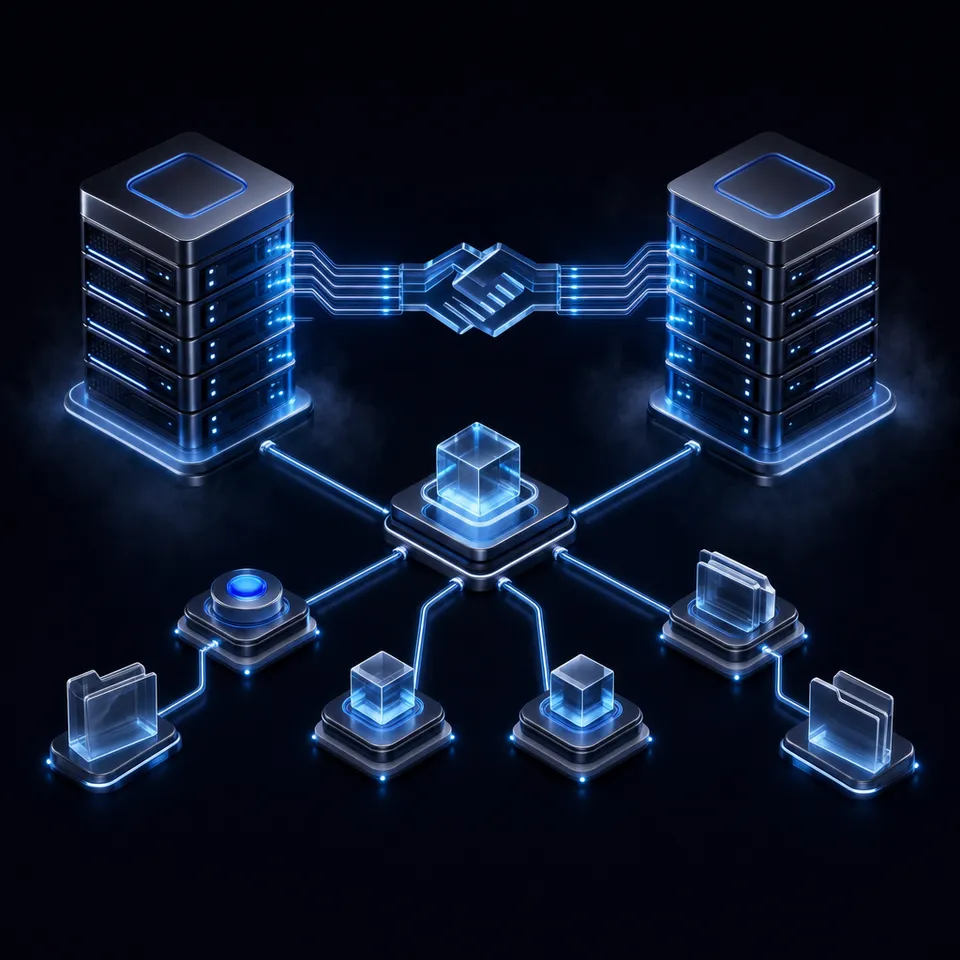
A Confluence MCP Server exposes Confluence workspaces, pages, and search indices to AI agents, permitting them to retrieve company documentation to solve tasks in real-time. This server creates a standardized communication channel using the Model Context Protocol, allowing models to invoke predefined actions like listing spaces, searching content, and reading page contents. Instead of relying on custom search integrations or manual file exports, developers connect their AI assistants directly to the company knowledge base, enabling natural language tools to inspect the source of truth.
In a team environment, different members run different tools. A developer might write code in Cursor, an analyst might review specifications using Claude Code, and a background agent might perform dependency checks using the CrewAI framework. To prevent information siloing, all of these tools can connect to the same cloud-hosted Confluence endpoint. The agent reads the page hierarchy, searches for active specifications, and retrieves text selections using the user's existing permissions.
Related guides
- How to Set Up the GitLab MCP Server for AI Devops AgentsSetting up a GitLab MCP server connects your AI coding assistants directly to your repositories, issues, and pipelines....
- How to Set Up a MySQL MCP Server for SQL Query AgentsExposing relational databases to large language models allows AI agents to inspect schemas and run queries on demand....
- How to Set Up the ClickHouse MCP Server for AI AgentsRunning analytical queries with AI agents requires strict safety controls to prevent performance issues. This guide...
- How to Set Up a Gmail MCP Server for Email AutomationRunning multiple email automation agents without a shared environment leads to conflicting drafts and duplicate...
- How to Set Up the MongoDB MCP Server for AI Database AgentsConnecting LLMs to document databases requires translating complex data structures and managing polymorphic schemas....
- How to Set Up an MCP Server Proxy for Production AI AgentsMCP servers work fine over localhost during development, but production deployments need TLS termination,...
More on this subject: MCP and Model Context Protocol (244 guides)
How to Configure the Confluence MCP Server with Rovo
Atlassian provides a cloud-hosted Model Context Protocol server, known as the Atlassian Rovo MCP Server, which connects your workspaces to external AI clients. The server handles authentication via OAuth, ensuring that the connected agent only reads and writes data that your active Atlassian account is authorized to access.
To configure this connection in Cursor or Cline, you add the server definition to your global settings. The server URL for the official Atlassian Remote MCP Server is:
https://mcp.atlassian.com/v1/mcp/authv2
Add the following JSON block to your configuration file:
{
  "mcpServers": {
    "atlassian-rovo-mcp": {
      "url": "https://mcp.atlassian.com/v1/mcp/authv2"
    }
  }
}
This JSON configuration block is the standard schema for registering Confluence access via Rovo. If you are configuring the connection in Cursor, open the Settings panel, navigate to Features, find the MCP section, and add the server using the URL. Cursor will save this to your global mcp.json file.
If you are using the Cline extension in Visual Studio Code, you must add the server block to the global cline_mcp_settings.json file. Cline 4.x keeps this file in one shared location used by both the VS Code extension and the CLI:
- macOS and Linux:
~/.cline/data/settings/cline_mcp_settings.json - Windows:
%USERPROFILE%\.cline\data\settings\cline_mcp_settings.json
Older Cline releases stored the file under the VS Code extension's globalStorage directory, for example ~/Library/Application Support/Code/User/globalStorage/saoudrizwan.claude-dev/settings/cline_mcp_settings.json on macOS, %APPDATA%\Code\User\globalStorage\saoudrizwan.claude-dev\settings\cline_mcp_settings.json on Windows, and ~/.config/Code/User/globalStorage/saoudrizwan.claude-dev/settings/cline_mcp_settings.json on Linux. Treat those as legacy paths. Cline 4.x migrates them into the shared settings file on first launch.
Alternatively, click the MCP Servers icon in the Cline panel toolbar and select Configure MCP Servers to open the file in VS Code.
When you save the settings file, your AI client initializes the connection. The next time the agent attempts to use an Atlassian tool, a browser window opens, directing you to an Atlassian authorization screen. Sign in to your account, choose your site, and authorize access. Once approved, the client receives the session credentials, and the Confluence tools become active in the editor.
Executing Confluence Tools for Search and Retrieval
Once initialized, the mcp confluence server exposes several structured query tools that let the agent inspect Confluence spaces and fetch document contents. Rather than extracting full spaces and ingesting them into a local vector database, the agent executes targeted queries using Confluence APIs under the Model Context Protocol.
The core tools available to the Confluence RAG agent include:
searchConfluenceUsingCql: Searches for documents, pages, and blog posts using keywords or Confluence Query Language (CQL).getConfluencePage: Retrieves the full body content, space key, title, and page metadata of a specific page.getConfluencePageDescendants: Lists the page titles and IDs located under a specific parent page, allowing the agent to traverse the page hierarchy.createConfluencePage: Creates a new page within a specified space key, establishing parent-child relationships.updateConfluencePage: Updates the content of a page, preserving version history on the Atlassian site.
Every Rovo Confluence tool call also needs a cloudId, the identifier of the Atlassian site the agent should query, so the agent must supply it with each request. The server's resource-discovery tool, getAccessibleAtlassianResources, lists the sites available to the authenticated user along with their cloudId values.
To search for an API specification, the agent calls searchConfluenceUsingCql with a targeted CQL query, such as space = "ENG" AND text ~ "authentication". This API-backed query returns the matching page titles and unique page IDs. The agent then calls getConfluencePage with the target page ID to retrieve the full page text in Markdown format. This structured retrieval ensures that the agent reads the exact, current specification, complete with headings and lists, rather than pulling fragmented text chunks from an uncoordinated database.
Neutral Ground: Coordinating Multi-Agent Workspaces in Fast.io
When multiple agents work together, retrieving documentation is only the first step. The ultimate goal is to synthesize that information and build artifacts, such as software code, deployment scripts, or client reports. If a developer runs Cursor locally and a background task runs a separate script, saving outputs locally creates silos. Work becomes stranded on individual machines, and agents lack visibility into what their peers have done, resulting in overwritten files and lost context.
To resolve these coordination problems, teams use Fast.io to create shared workspaces for both people and AI agents. Fast.io serves as a neutral substrate where different tools write their outputs. Instead of setting up local folders, agents connect to a remote, shared Fast.io workspace. The agent reads from Confluence via the Confluence MCP server, processes the files, and writes the output directly to the Fast.io workspace. Teammates and other agents see the files, check changes in the realtime activity feed, and read versions.
While teams sometimes use Google Drive, Dropbox, or Box for file sharing, these platforms were designed for human file synchronization, which introduces latency and conflict risks when accessed by automated tools. Fast.io is purpose-built for agentic workloads, supporting clean file writes, large file handling, and expiring access controls. Within a shared Fast.io workspace, the handoff is tangible: the agent writes the finished design document to a folder, and the next agent reads it directly from that folder. A human supervisor oversees the entire workflow, verifying changes and taking ownership when needed.
Agents write to the shared space using the Fast.io MCP server. The server is cloud-hosted and accessible via Streamable HTTP. Coding agents such as Cursor connect at:
https://mcp.fast.io/mcp/code
Claude and most other MCP clients connect at:
https://mcp.fast.io/mcp/tools
Interactive clients sign in to Fast.io with OAuth in the browser. A background script with no browser sends its API key as an Authorization: Bearer header on the connection instead.
Using Fast.io, you can create workspaces and configure folders for your team. Monthly plans start with a trial of up to 14 days (credit card required); annual plans have no trial. Paid subscription plans are Starter at $9.99/mo, Business at $49.99/mo, and Enterprise at $199.99/mo. Creating a user account is free, and doing real work requires an organization subscription. An agent can sign up, create the shared workspaces, and then transfer organization ownership to a human administrator to start the trial. To configure your shared environment, visit the Fast.io pricing page.


Store Confluence retrieval outputs in shared workspaces
Give your AI agents a secure, persistent workspace to save, version, and share retrieved Confluence documentation with your team. Monthly plans start with a trial of up to 14 days (credit card required); annual plans have no trial.
Managing Permission Boundaries and Security Controls
Connecting AI models to internal company documentation requires clear permission controls. The Confluence MCP server enforces these boundaries by mapping the agent's operations directly to Atlassian OAuth scopes. Because the server respects the permissions of the authenticated Atlassian user, the agent cannot access spaces, restricted pages, or admin settings that the user is barred from viewing. If a developer lacks access to a confidential project space, the agent running in their editor cannot retrieve files from that space, preventing accidental data exposure.
In the shared storage layer, Fast.io provides granular permissions across organizations, workspaces, folders, and files. You can restrict an agent's credentials to a single workspace folder, ensuring it only writes to its assigned output path. When sharing documents with external clients, you can package files into branded shares. These shares support expiring access, allowing you to configure links that automatically revoke after a set duration.
Fast.io protects your files using stable cloud hosting environments. The platform runs on cloud infrastructure partners, including Google Cloud Platform and Cloudflare, that are certified to industry-leading security standards. All operations, including file creation, permissions updates, and agent writes, are recorded in the activity log. This log captures team and agent activity, giving administrators visibility into who accessed and changed each project file.
Sources
References used to verify factual claims in this guide.
-
Atlassian runs the official Rovo MCP server as a cloud-hosted bridge between an Atlassian Cloud site and external AI tools.
-
The Rovo MCP server exposes a Confluence search tool named searchConfluenceUsingCql that runs CQL queries.
Frequently Asked Questions
How does Claude read Confluence pages?
Claude reads Confluence pages by acting as a Model Context Protocol (MCP) client. When you configure the Atlassian Rovo MCP server URL in Claude's settings, the client connects to the endpoint and registers tools like `getConfluencePage` and `searchConfluenceUsingCql`. When you ask Claude to read a document, it calls the appropriate tool, queries the Confluence API, converts the page content into Markdown, and reads it within the chat context.
Can I connect my agent to Confluence via MCP?
Yes, you can connect any agent that supports the Model Context Protocol to Confluence. For interactive clients like Cursor and Cline, add the official Atlassian Rovo MCP URL (`https://mcp.atlassian.com/v1/mcp/authv2`) to your server configuration. The client will guide you through an OAuth login flow. For background agents or non-interactive services, you can configure a local MCP server that connects using personal Atlassian API tokens.
What are the benefits of a Confluence MCP server?
A Confluence MCP server provides structured query tools for finding pages across spaces while maintaining Atlassian permissions mapping via OAuth scopes. Unlike static Retrieval-Augmented Generation (RAG) databases that store outdated document chunks, the MCP server queries the live Confluence API in real time. This ensures your agent always reads the current document version, respects page restrictions, and can update content directly.
What is the difference between the Rovo MCP server and local community servers?
The official Atlassian Rovo MCP server is a cloud-hosted, managed service that handles authentication securely via OAuth, eliminating the need to expose API tokens to the local client. Local community servers, such as those run via `npx` or Docker, require you to manage your own credentials, such as an Atlassian API token and site URL, in a local configuration file, but they are useful for headless setups.
How do I restrict an AI agent's access to specific Confluence spaces?
You restrict access by managing the permissions of the Atlassian user account used during the OAuth authentication flow. The Confluence MCP server respects Atlassian permissions. If the authenticated user is blocked from viewing a specific space or page in Confluence, the agent will receive a permission error if it attempts to search, read, or write within that space.
Related Resources

Store Confluence retrieval outputs in shared workspaces
Give your AI agents a secure, persistent workspace to save, version, and share retrieved Confluence documentation with your team. Monthly plans start with a trial of up to 14 days (credit card required); annual plans have no trial.