How to Set Up the MongoDB MCP Server for AI Database Agents
Connecting LLMs to document databases requires translating complex data structures and managing polymorphic schemas. This guide covers how to set up the official MongoDB MCP Server, configure connection string settings, and manage BSON-to-JSON type conversions. We also detail how to integrate these agents with persistent, versioned workspaces to keep database reports secure.

Why Database AI Agents Need Shared Workspaces
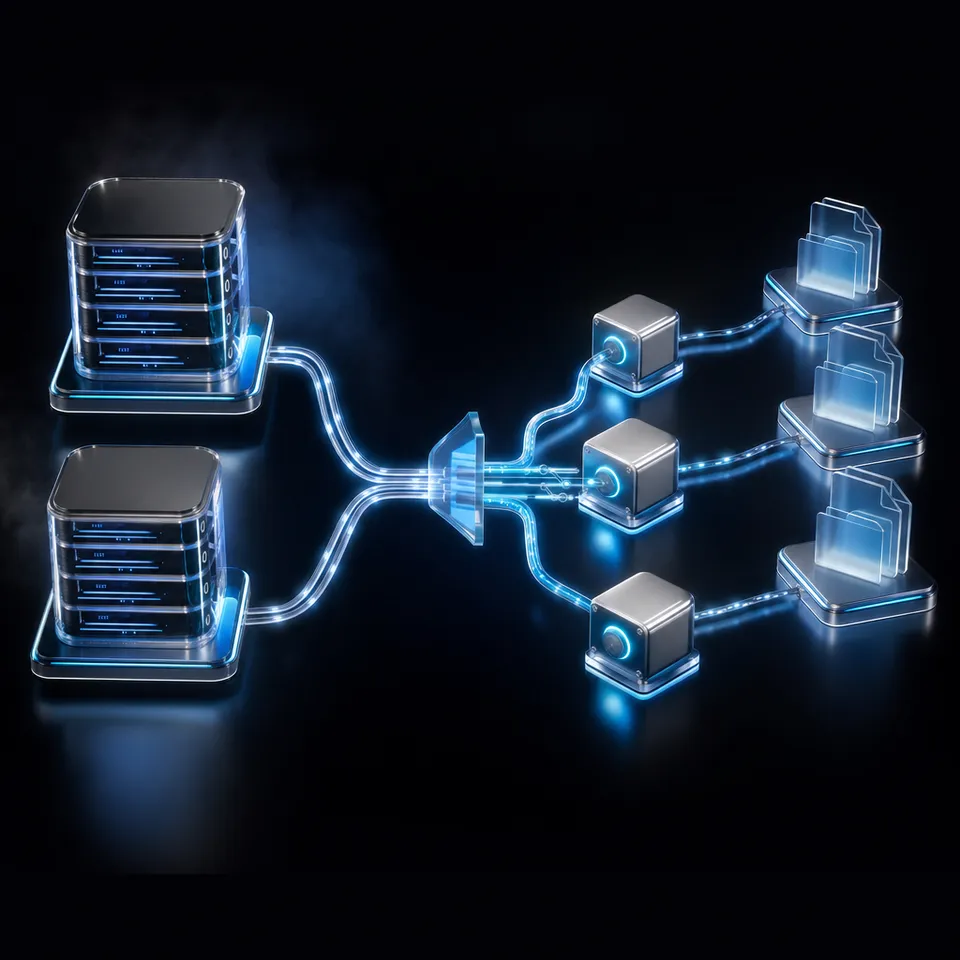
Two database agents pointing at the same collection will overwrite each other's updates without warning. The fix is not to write more complex agent logic, but to establish a shared, versioned workspace where humans can monitor agent writes and track document revisions in real time. AI agents are increasingly tasked with querying and managing data, but without a structured pathway, connecting a large language model to a database requires building custom APIs or scripting raw queries.
The MongoDB MCP Server is an integration built by MongoDB that allows AI agents to interface directly with MongoDB databases and Atlas clusters to fetch document collections, inspect schemas, and run aggregations. By operating under the open Model Context Protocol, the server establishes a secure and standardized interface for AI tools. Instead of managing database drivers inside the model context, developers run the server as a local or remote process, exposing database operations to any compliant AI assistant.
For development teams, this setup changes how database operations are monitored. Fast.io serves as the central coordination layer where agent output becomes team output. By integrating a database agent with Fast.io AI workspaces, the files, JSON schemas, and database snapshots generated by the agent are persisted, versioned, and shared. This ensures that database exploration remains transparent and secure.
Understanding the Model Context Protocol Interface
The Model Context Protocol establishes a standard for client-server communication between AI applications and data sources. In a typical database setup, the AI client does not connect directly to the database port. Instead, it sends JSON-RPC requests to the MCP server.
The server acts as a translator, receiving commands from the AI, executing the corresponding database queries, and returning the results in a clean JSON format that the LLM can easily parse. This architecture separates the database credentials and connection logic from the LLM itself, improving security and reducing context window bloat.
Why Shared Workspaces Matter for Database Automation
When multiple AI agents query a database, they often generate large volumes of schema diagrams, export logs, and performance reports. Storing these files locally on a single machine or using general-purpose sync tools leads to data conflicts.
A shared workspace provides a persistent substrate where agents write their outputs directly. With per-file version history and a detailed activity log, human operators can trace every query export back to the specific agent and execution timestamp, ensuring compliance and reliability.
Related guides
- Open WebUI MCP Setup: Adding Model Context Protocol Tools to Self-Hosted AIOpen WebUI supports the Model Context Protocol natively through Streamable HTTP connections, allowing self-hosted...
- How to Connect Cloudflare R2 to AI Agents via MCP ServerA Cloudflare R2 MCP server connects AI agents directly to Cloudflare S3-compatible R2 object storage for reading,...
- Box MCP Server Setup and AI Agent Storage IntegrationA Box MCP server allows AI agents to interact with Box enterprise files and folders using the standardized Model...
- How to Set Up a OneDrive for Business MCP Server for AI AgentsSetting up a onedrive business mcp server requires navigating organizational Entra ID tenant consent, enterprise...
- Connecting AI Agents to QNAP NAS: MCP Server Setup GuideSetting up a QNAP MCP server connects local AI clients directly to network attached storage for fast file access. While...
- Zed MCP Setup: Configuring Context Servers in the Zed EditorConfiguring a zed mcp environment connects the Zed editor AI assistant to local and remote context servers for codebase...
More on this subject: MCP and Model Context Protocol (244 guides)
How Document Databases Present Schema Challenges for AI
A major gap in current AI database integration tutorials is their focus. Competitors only discuss relational SQL databases and fail to cover document database schemas or BSON-to-JSON type conversions under MCP. Relational databases rely on strict tables with fixed column structures, which are straightforward for an LLM to map. MongoDB, however, uses a polymorphic document model where documents within the same collection can have different fields and nested arrays.
To solve this, the MongoDB MCP Server uses automated schema inference. When an agent requests information about a collection, the server samples a subset of documents to build a representative schema. This schema is returned to the agent in a structured format, enabling the AI to understand the fields and data types available for filtering. Without this inference layer, an LLM would have to execute multiple exploratory queries, wasting tokens and increasing latency.
Another challenge is BSON-to-JSON translation. MongoDB stores data in BSON, a binary format supporting rich data types like ObjectId, Date, and Decimal128. The Model Context Protocol, however, communicates strictly via JSON. The MongoDB server resolves this by translating BSON types into Extended JSON formats.
Handling Polymorphic Document Schemas
Because MongoDB does not enforce a rigid schema, collections can grow organically. An AI agent needs to know that a field named status might contain a string in one document and an integer in another.
The server's schema tool analyzes the variations within the sampled documents and presents a unified schema to the LLM. This description helps the agent construct queries that account for polymorphic fields, preventing runtime errors during database scans.
Extended JSON and Smart ObjectId Translation
BSON types require specific syntax when represented in JSON. For example, a document identifier is formatted as an Extended JSON object containing a special key.
The server features smart ObjectId handling. When an AI agent passes a twenty-four character hexadecimal string in a query filter, the server converts it into a BSON ObjectId before sending it to the database. This translation ensures that queries succeed without requiring the agent to manually write Extended JSON syntax. Similar automatic conversions apply to date strings, mapping them back to BSON Date objects.
How to Configure the MongoDB MCP Server Connection String
Setting up the server requires Node.js 20.19+, 22.13+, or 24+. The server is executed via npx, making it easy to run without manual installation. The primary configuration variable is the connection string, which must be passed as an environment variable named MDB_MCP_CONNECTION_STRING.
To connect your AI assistant, you must modify the configuration file of your MCP client, such as Claude Desktop or Cursor. The configuration file is typically located in the application support directory on macOS or the AppData directory on Windows. For a detailed reference on how to set up the client connection settings, see MongoDB's official MCP Server documentation.
To get started, make sure your local system has Node.js 20.19+, 22.13+, or 24+ installed, as the execution of npx command tools requires a modern JavaScript runtime environment. If you run the server inside a containerized setup, you can use the official Docker image instead. Configuring the server involves registering it as a persistent daemon process that communicates via standard input/output streams. The configuration is managed by specifying environment variables or command-line arguments within your client configuration file, allowing the AI to call database operations safely.
JSON Configuration for Desktop Clients
In your MCP client settings file, you can register the server under the mcpServers block. You must specify the command, arguments, and environment variables.
Here is the JSON configuration setup:
{
  "mcpServers": {
    "mongodb-mcp-server": {
      "command": "npx",
      "args": [
        "-y",
        "mongodb-mcp-server@latest",
        "--readOnly"
      ],
      "env": {
        "MDB_MCP_CONNECTION_STRING": "mongodb+srv://<username>:<password>@<cluster-address>/<database-name>?retryWrites=true&w=majority"
      }
    }
  }
}
This configuration instructs the client to run the server using npx. The MDB_MCP_CONNECTION_STRING environment variable provides the connection URI for the database or Atlas cluster, and the --readOnly argument keeps the agent restricted to read operations.
Securing Access with Read-Only Restrictions
Read-only mode is not the default. The --readOnly flag, and its environment variable equivalent MDB_MCP_READ_ONLY, default to false, so a stock installation gives the agent full write access, including tools that drop collections and databases. Treat that as the setting to change before you connect the server to anything you care about.
To disable writes, add --readOnly to the server arguments or set MDB_MCP_READ_ONLY=true in the environment block. With that flag in place, the server rejects insert, update, delete, and drop operations, which is the right configuration when the agent only needs to analyze data. Leave the flag off only when the agent genuinely has to write, and point it at a non-production database. Always ensure your MongoDB Atlas network settings permit connections from the IP address where the client is running, or add the egress IP of your hosting environment to the Atlas access list.


Persist database agent reports in shared workspaces
Build persistence for database agents with the Fast.io Model Context Protocol server. Share and collaborate on database reports, schema files, and query exports in secure workspaces. Monthly plans start with a trial of up to 14 days (credit card required); annual plans have no trial.
How to Query MongoDB Atlas Collections with AI Tools
Once configured, the server automatically registers its tools with your AI client. The MongoDB MCP Server exposes database tools and Atlas management tools. These tools allow the AI agent to execute database commands and manage Atlas projects using natural language prompts.
The AI assistant acts as an orchestrator. When you ask a question like "Find the active users who signed up last month," the agent selects the appropriate tool, inspects the schema, and executes the query.
The server executes raw query and schema analysis via npx command tools. This allows the agent to handle complex operations, such as aggregation pipelines, that would otherwise require manual scripting.
Executing Aggregation Pipelines via AI
For complex analytics, the agent can design and run aggregation pipelines. The agent defines the pipeline stages in JSON, and the server executes them on the database.
The server translates the returned BSON aggregation results into JSON format, allowing the agent to summarize the data or output it to a report file. This capability makes it easy to generate data summaries without writing custom backend code.
Monitoring Agent Queries in the Activity Feed
When the database agent runs queries and saves results to a shared workspace, the team can monitor all activities in real time. Fast.io provides an activity feed and events log that records every file creation and update.
This visibility ensures that database operations remain transparent. Team members can see what data the agent extracted, verify the query results, and review the generated reports immediately.
How to Integrate Shared Workspaces and Perform Handoffs
Running database agents requires a secure environment where files and logs are persisted. Traditional storage systems like Google Drive or Dropbox were designed for human file synchronization and lack the features needed for autonomous agents. Fast.io provides persistent, intelligent workspaces where both humans and agents collaborate.
When a database agent performs schema analysis or generates reports, it writes the outputs as JSON or Markdown files into a shared Fast.io workspace. Fast.io keeps a per-file version history, ensuring that concurrent writes by multiple agents do not destroy previous data. Every change is captured in the activity log, giving human administrators full visibility into what the agent accessed and modified.
For teams that need to process database exports or document logs, Fast.io provides Metadata Views, which turn unstructured files into a queryable database interface. Agents can generate JSON dumps from the database, save them to a workspace, and use Metadata Views to extract structured fields without writing custom parser scripts.
Handoff and Ownership Transfer
Once the agent finishes building a database report or setting up a client workspace, it can perform an ownership transfer. The agent transfers the workspace and its branded share links to a human team member while retaining admin access.
This transition ensures that deliverables are handed off to clients securely, using expiring, branded share links. The human administrator takes full control of the billing and administrative aspects of the workspace.
Trial Policies and Pricing Plans
Creating an account is free; doing real work requires an organization on a paid subscription. Monthly plans start with a trial of up to 14 days (credit card required); annual plans have no trial.
Paid subscriptions include the Starter plan at $9.99/mo, the Business plan at $49.99/mo, and the Enterprise plan at $199.99/mo.
Sources
References used to verify factual claims in this guide.
-
The MongoDB MCP Server is an integration built by MongoDB that allows AI agents to interface directly with MongoDB databases and Atlas clusters to fetch document collections, inspect schemas, and run aggregations.
Frequently Asked Questions
How do I connect Claude to MongoDB Atlas?
You can connect Claude to MongoDB Atlas by configuring the official MongoDB MCP Server in your Claude Desktop configuration file. Pass your Atlas connection string using the MDB_MCP_CONNECTION_STRING environment variable in the server configuration block.
Is there an official MongoDB MCP server?
Yes, MongoDB maintains an official, open-source Model Context Protocol server. It is published as the mongodb-mcp-server package on npm and can be executed using npx.
How to query MongoDB database with AI agents?
AI agents query MongoDB databases by calling structured tools exposed by the MCP server, such as list-collections, collection-schema, and find. The server translates the agent's query parameter JSON into BSON commands for the database and returns JSON-formatted results.
Related Resources

Persist database agent reports in shared workspaces
Build persistence for database agents with the Fast.io Model Context Protocol server. Share and collaborate on database reports, schema files, and query exports in secure workspaces. Monthly plans start with a trial of up to 14 days (credit card required); annual plans have no trial.