How to Connect Claude Code to Google Cloud Storage: Fast MCP Setup and Storage Sync
Connecting Claude Code to Google Cloud Storage enables the terminal agent to discover, read, and manipulate objects in GCS buckets using standardized MCP tool calls. While direct GCS tools query raw object trees over standard cloud APIs, combining object archives with indexed workspaces prevents context saturation and accelerates agent tool loops. This guide covers direct MCP configuration, Roo Code integration, and indexed hybrid search.

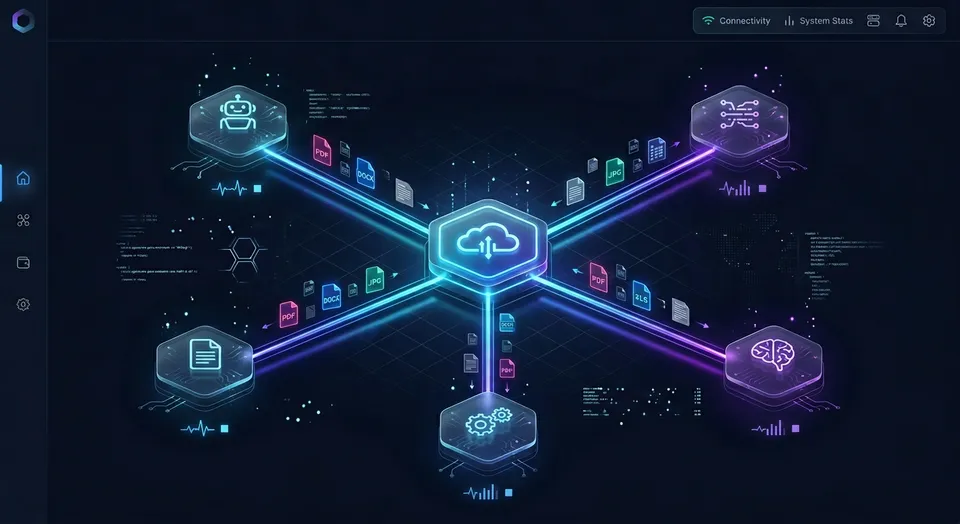
Why Direct GCS Object Retrieval Slows Down Claude Code
When a command-line coding agent connects directly to a Google Cloud Storage (GCS) bucket, every unindexed object listing consumes tool-call round trips and floods the agent's context window. GCS stores objects in flat key namespaces, which forces agents to parse massive multi-gigabyte directory trees or execute repetitive list requests before locating target files.
Connecting Claude Code to Google Cloud Storage enables the terminal agent to discover, read, and manipulate objects in GCS buckets using standardized MCP tool calls. By giving the model structured tools to discover buckets, read file payloads, and inspect prefixes, developers grant the agent direct access to cloud datasets, build artifacts, server logs, and architectural diagrams. Using a dedicated Claude Code object storage integration bridges the gap between local terminal tools and cloud data.
In common enterprise environments, project assets do not live in one central bucket. Developers keep production logs, training data, and database dumps in Google Cloud Storage object storage. Simultaneously, product managers, designers, and business colleagues keep specification documents, customer feedback, and contractual agreements across cloud drives like Google Drive, Dropbox, Box, and OneDrive, or SharePoint document libraries. When deploying Claude Code to implement features or troubleshoot defects, the agent often needs to cross-reference code changes against both unstructured cloud drive documents and raw GCS object storage assets.
Most online tutorials recommend bridging this gap by writing custom Python scripts with the Google Cloud client libraries or running basic wrapper servers that download entire bucket directories to a local folder. This approach breaks down quickly in real-world development workflows. Traversing nested GCS buckets via standard CLI tools can consume thousands of tokens per command. When Claude Code executes a tool call that retrieves a full multi-megabyte log file or a long PDF specification from GCS, the raw byte stream consumes thousands of input tokens in a single exchange. The model quickly exhausts its context allocation, driving up session expenses and slowing down agent reasoning.
In benchmark testing published at Fastio Benchmarks, Fastio was measured the fastest and the lowest cost of the providers tested. Understanding how to configure direct connections while pairing them with indexed workspace retrieval helps software engineering teams keep agent execution efficient.
The Impact of Flat Key Namespaces on Context Windows
Autonomous agents like Claude Code operate through continuous observation and action cycles. To find information in a standard GCS bucket, the agent issues a list objects request. If the bucket holds thousands of objects divided by dates, tenants, or pipeline runs, the response containing object names and timestamps stretches across hundreds of lines.
Because standard GCS buckets lack native semantic indexing, Claude Code cannot search by meaning. The agent must inspect object keys sequentially, guessing which filename matches the prompt. If the agent needs to inspect three candidate error logs, it must execute three separate read calls, downloading each complete file into the conversation context. This repetitive retrieval loop burns the agent's context budget on raw, unparsed text before it writes a single line of application code.
Related guides
- How to Connect Aider to Cloud Storage with MCP: Fast Remote Workspace SetupConnecting Aider to cloud storage through the Model Context Protocol gives terminal coding sessions direct access to...
- Claude Cowork Connectors: Cloud Storage Setup, Latency, and Fast SyncClaude Cowork connectors are built-in workspace bridges that permit Anthropic's Claude Cowork desktop environment to...
- How to Connect Claude Code to AWS S3: Fast MCP Setup and Storage SyncConnecting Claude Code to AWS S3 enables command-line agents to inspect buckets and retrieve files using the Model...
- How to Connect Claude to Google Drive: Native Setup vs Fast.io MCP WorkspacesAnthropic provides a native Claude Google Drive connector for Team and Enterprise tiers, but administrative gates and...
- How to Connect Claude to Google Drive: Setup, MCP, and Team WorkspacesA Claude Google Drive integration enables Anthropic models to query, read, and cross-reference documents stored across...
- Claude Code OneDrive MCP: Connect Terminal Coding Agents to Cloud StorageConnecting Claude Code to Microsoft OneDrive using Model Context Protocol enables terminal coding agents to query...
More on this subject: Claude and Claude Code (325 guides)
How to Connect Claude Code to Google Cloud Storage with Direct MCP
The Model Context Protocol (MCP) provides an open specification that connects language models directly to external data sources. Developers can register a GCS MCP server with Claude Code or Roo Code to expose bucket operations as native agent tools. When setting up a Claude Code Google Cloud Storage MCP environment, developers can choose between official plugins, managed remote HTTP endpoints, and local stdio servers.
Installing the Official Google Cloud Storage Plugin
Google Cloud provides the official Google Cloud Storage Plugin (GoogleCloudPlatform/google-cloud-storage-plugin) designed for coding agents. It bundles a collection of Agent Skills alongside a Cloud Storage MCP server running MCP Toolbox over stdio. The plugin is listed in Claude Code's built-in marketplace, allowing installation with a single command:
claude plugin install google-cloud-storage@claude-plugins-official
To specify the target Google Cloud project, pass the project configuration flag during installation or update it via the /plugin interface inside Claude Code:
claude plugin install google-cloud-storage@claude-plugins-official --config cloud_storage_project=YOUR_GCP_PROJECT_ID
The plugin exposes structured tools such as list_buckets, list_objects, read_object, write_object, and get_object_metadata. Notice that destructive operations like delete_bucket, delete_object, and write_object overwrite data, requiring explicit confirmation before Claude Code calls them.
Registering a Remote GCS MCP Server via CLI
Google also hosts a managed remote MCP server for Cloud Storage at https://storage.googleapis.com/storage/mcp. You can register this remote endpoint directly in Claude Code using the claude mcp add command:
claude mcp add --transport http gcs-remote https://storage.googleapis.com/storage/mcp --header "Authorization: Bearer YOUR_ACCESS_TOKEN"
You can specify configuration scopes to control where the server definition applies:
- Local scope (default): Available only within the current working directory.
- User scope (
--scope user): Available globally across all projects on your machine. - Project scope (
--scope project): Writes the configuration to a.mcp.jsonfile inside your project root, allowing teammates to share the same MCP definitions through version control.
A project-level .mcp.json file for direct GCS access takes this structure:
{
  "mcpServers": {
    "gcs-remote": {
      "type": "http",
      "url": "https://storage.googleapis.com/storage/mcp",
      "headers": {
        "Authorization": "Bearer YOUR_ACCESS_TOKEN"
      }
    }
  }
}
Configuring a Roo Code Google Cloud Storage Connector
Developers working in VS Code often rely on Roo Code for inline code generation and task orchestration. A Roo Code Google Cloud Storage connector brings object storage discovery into the editor sidebar, allowing the agent to reference bucket contents while editing code. Configuring a Roo Code GCS connector follows a similar JSON configuration pattern in Visual Studio Code.
To connect Roo Code to GCS, open the Roo Code settings panel, select the MCP Servers tab, and edit either the global mcp_settings.json or project-level .roo/mcp.json file. A Roo Code GCS MCP configuration adds the server entry:
{
  "mcpServers": {
    "roo-gcs-storage": {
      "type": "streamable-http",
      "url": "https://storage.googleapis.com/storage/mcp",
      "headers": {
        "Authorization": "Bearer YOUR_ACCESS_TOKEN"
      }
    }
  }
}
Once configured, the Roo Code object storage integration displays available tools in the prompt interface, such as list_buckets, list_objects, and read_object. The agent can invoke these tools when tasked with inspecting cloud data.
Service Account Authentication and Headless Agent Environments
A common hurdle with direct GCS integrations is managing authentication across local and headless agent environments. On local developer machines, tools rely on Application Default Credentials (ADC), configured by running:
gcloud auth application-default login
This interactive command opens a local browser window to grant user credentials. In headless environments such as automated CI/CD runners, Docker containers, or remote agent execution nodes, browser-based OAuth flows cannot execute.
For headless environments, developers must authenticate using a dedicated Google Cloud service account. The service account credentials JSON file path must be passed via the GOOGLE_APPLICATION_CREDENTIALS environment variable:
export GOOGLE_APPLICATION_CREDENTIALS="/etc/secrets/gcp-service-account.json"
Granting appropriate IAM permissions to the service account is essential for security. Assign the least privilege required for the agent's task:
- Read-only access: Assign
roles/storage.objectViewerto allow reading objects and listing buckets without permission to alter or delete files. - Read and write access: Assign
roles/storage.objectAdminwhen the agent must upload or modify objects. - Bucket management: Assign
roles/storage.adminonly if the agent must create or delete entire buckets.
Storing static service account keys on developer machines introduces security hazards. If an agent executes an uncontrolled command or reads sensitive environment variables, service account keys can be exposed. Organizations must enforce tight IAM bucket policies or adopt intermediate workspace layers that restrict agent visibility.
Bridging GCS and Enterprise Storage into an Indexed Workspace
Direct GCS tool connections force Claude Code to function as an ad-hoc search engine, parsing raw files and burning tokens to find relevant passages. An alternative architecture connects object storage and company documentation into an intelligent workspace before the agent begins its work.
Rather than querying raw GCS buckets over standard REST APIs, teams synchronize relevant documentation, test suites, and data exports into a Fast.io workspace. Fast.io functions as an intelligent workspace layer for agentic teams, automatically indexing uploaded files for full-text search, semantic vector retrieval, and structured metadata queries. Learn more about workspace architecture in the Fast.io agent storage guide.
The 4-Step Process for Configuring Remote MCP Storage
To configure an indexed cloud workspace for Claude Code, follow this four-step procedure:
- Import or synchronize storage assets: Connect your cloud repositories to Fast.io. Cloud Sync connects Google Drive, Dropbox, Box and OneDrive folders to a workspace, one-way or two-way, on a schedule or on demand. SharePoint document libraries synchronize directly through the OneDrive connector. For raw GCS datasets, build packages, or archived releases, use URL import to transfer assets directly into the workspace without local disk intermediate copies.
- Enable workspace Intelligence Mode: Once documents land in the workspace, activate Intelligence Mode. Fast.io automatically generates semantic embeddings and keyword indexes for text files, PDF specifications, spreadsheets, code files, and presentations. Indexed workspace search returns exact object chunks within milliseconds.
- Register the remote Fast.io MCP endpoint: Connect Claude Code or Roo Code to Fast.io using the remote Streamable HTTP transport at
https://mcp.fast.io/mcp/code. No local binaries, Docker daemons, or Python environments are required. See the Fast.io MCP setup steps for client instructions. - Query indexed context with hybrid search: When Claude Code needs to inspect technical requirements or past system logs, the agent invokes semantic search queries instead of downloading multi-megabyte objects. The server returns only the specific paragraphs or code snippets relevant to the prompt, preserving context tokens.
Extracting Structured Data with Metadata Views
When software projects involve thousands of structured records, such as API response logs, vendor agreements, or architectural blueprints, standard text search can still require manual filtering. Fast.io solves this with Metadata Views.
Metadata Views turn workspace files into a live, queryable database. Users describe the fields they want extracted in natural language, and artificial intelligence designs a typed schema spanning text, integer, decimal, boolean, URL, date, and JSON types. Fast.io matches files across the workspace and populates an interactive spreadsheet without requiring manual OCR templates. Claude Code can query Metadata Views programmatically through the MCP server, filtering documents by exact metadata values before retrieving specific file contents.
Comparing Direct GCS MCP Tools with Workspace Retrieval
The architectural differences between connecting Claude Code directly to raw Google Cloud Storage buckets and querying an indexed workspace influence agent speed, token usage, and team security.
By moving search and indexing into the workspace layer, Claude Code retrieves accurate answers in fewer tool calls, avoiding context saturation.


Connect Claude Code to Indexed Workspaces and Cloud Storage
Equip Claude Code with a remote MCP endpoint over Streamable HTTP. Query indexed documents, maintain per-file version history, and collaborate across teams. Monthly plans start with a 14-day free trial (credit card required).
Steps to Connect Claude Code and Roo Code to Fast.io Remote MCP
Fast.io provides a dedicated remote MCP endpoint for coding agents. Unlike local stdio servers that require compiling binaries or maintaining container runtimes, Fast.io operates over modern Streamable HTTP. This maintains consistent tool access across terminal sessions, continuous integration pipelines, and team developer workstations.
Step 1: Connect Claude Code Using the CLI
To connect Claude Code to your Fast.io workspace, run the claude mcp add command with the remote HTTP transport:
claude mcp add --transport http fast-io https://mcp.fast.io/mcp/code
After adding the server, launch Claude Code and run the /mcp command to complete the interactive OAuth sign-in flow in your browser:
claude
/mcp
A browser window will open displaying the Fast.io Review Permissions screen. Select whether Claude Code receives Read Only or Read & Write permissions, and choose which organizations and workspaces the agent can reach. Once confirmed, Claude Code stores the authorization token securely and enables the workspace tools.
For team repositories, you can commit a project-level .mcp.json file in your repository root:
{
  "mcpServers": {
    "fast-io": {
      "type": "http",
      "url": "https://mcp.fast.io/mcp/code"
    }
  }
}
Step 2: Configure Roo Code with a Scoped API Key
Roo Code supports remote MCP servers using Streamable HTTP. Because Roo Code runs inside VS Code and does not initiate the interactive browser OAuth flow, you supply a scoped Fast.io API key in the connection headers.
Open .roo/mcp.json in your project or edit mcp_settings.json in your global VS Code user directory. Add the Fast.io server definition:
{
  "mcpServers": {
    "fast-io": {
      "type": "streamable-http",
      "url": "https://mcp.fast.io/mcp/code",
      "headers": {
        "Authorization": "Bearer YOUR_FASTIO_API_KEY"
      }
    }
  }
}
Replace YOUR_FASTIO_API_KEY with an API key generated from your Fast.io workspace settings. Once saved, Roo Code detects the endpoint and populates its tool panel with workspace capabilities.
How Coding Agents Interact with Workspace Tools
On the /mcp/code endpoint, Fast.io exposes a consolidated MCP toolset designed specifically for coding agents: auth, auth_manage, upload, upload_manage, search, execute, execute_manage, and how-to.
When Claude Code or Roo Code needs to locate an architectural requirement, it calls the search tool:
{
  "query": "Google Cloud Storage bucket lifecycle rules and coldline archival",
  "files_scope": ["docs/infrastructure/"]
}
The workspace responds with relevant document excerpts and precise file paths. If the agent needs to read or write specific file data, read requests run through execute, while write and file modification operations route through execute_manage.
To coordinate concurrent edits across multiple agents or human engineers, Fast.io supports advisory file locks. An agent acquires a temporary lease using lock-acquire on storage_manage, verifies active holds with lock-status on storage, and releases its hold via lock-release on storage_manage. Advisory locks expire unless heartbeated, alerting collaborators to active edits without blocking emergency manual saves.
Verifying Tool Connectivity in the Terminal
After configuring your MCP server, verify that Claude Code recognizes the newly registered tools. Inside the Claude Code terminal, type /mcp to inspect connected servers. You should see fast-io marked with an active connected status.
Test the integration by asking Claude Code to discover workspace files:
Find the GCS bucket migration plan in the project workspace and summarize the data retention policy.
Claude Code calls the search tool against the remote endpoint, reads the relevant sections, and provides a sourced answer without downloading unneeded files.
Operational Governance, Versioning, and Team Collaboration
Deploying autonomous coding agents in production codebases requires clear operational guardrails. When agents connect to cloud storage, organizations must maintain strict audit trails, control access scopes, and protect source files from accidental corruption.
Role-Based Access Controls
In contrast to cloud object storage where misconfigured IAM roles can grant broad bucket traversal rights, Fast.io enforces role-based access permissions. Permissions are established per organization, workspace, and share, through defined member roles. Every member of a workspace reaches its files according to their assigned role.
When an organization needs to provide an external consultant or client access to a specific project folder without exposing the broader workspace, administrators create a dedicated Share holding those files. Shares can be configured as durable or expiring links, with download permissions enabled or disabled to safeguard intellectual property.
Communication with Fast.io is protected with encryption in transit and at rest. Fastio runs on cloud infrastructure partners, including Google Cloud Platform and Cloudflare, that are certified to industry security standards.
Per-File Version History and Change Tracking
When Claude Code or Roo Code modifies files programmatically, automated refactoring can introduce unintended regressions. Fast.io maintains comprehensive per-file version history across all workspace documents. Every save or update creates a distinct version while preserving previous iterations. If an agent overwrites critical code or alters a specification erroneously, human team members can review changes and restore earlier versions immediately.
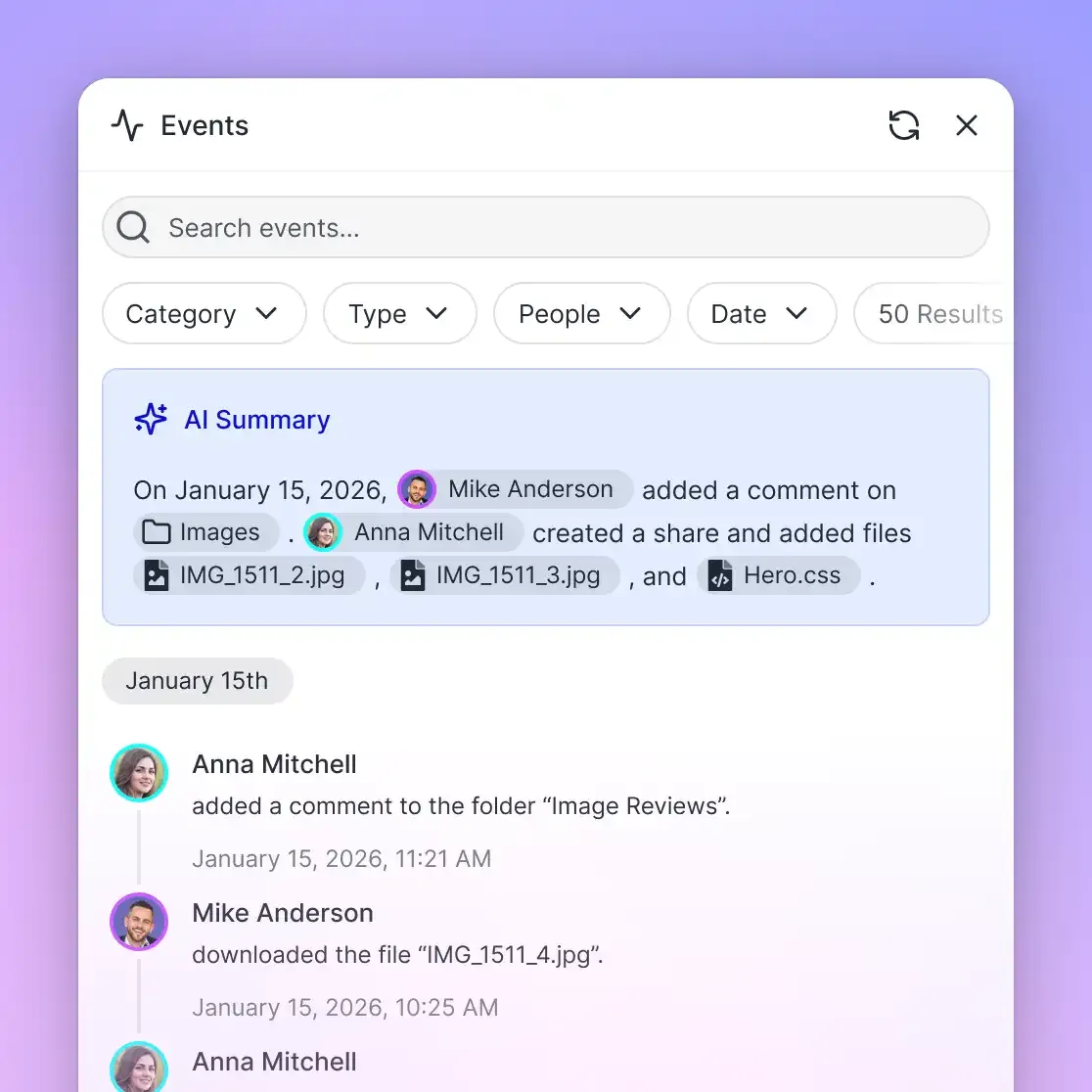
For accountability, Fast.io maintains a detailed activity log of all workspace modifications. The detailed activity log records changes to organization assets, specifically uploads, edits, file moves, and deletions, alongside administrative events like membership updates and share creation. Team leads can inspect the detailed activity log to see exactly which agent or team member performed each modification. Fastio focuses the log on state changes, providing a verified record of who modified project assets.
Collaborative Notes and Ownership Transfer
Engineering teams often need to pair human documentation with automated agent outputs. Fast.io includes Collaborative Notes kept beside workspace files. Notes feature version-checked saves rather than real-time co-editing, allowing engineers and agents to draft release notes, technical briefs, and migration checklists in a shared context.
When technical consultants build automated GCS data processing pipelines or workspace structures for external clients, handing over administrative control is straightforward. With Fast.io ownership transfer, an agent or contractor can create an organization, configure workspace folders, set up Cloud Sync connections, and transfer organizational ownership to a client executive via a claim link while maintaining administrative access for ongoing support.
Transparent Subscription Pricing
Fast.io provides predictable subscription tiers for software engineering teams and agentic workflows. Creating an account is free; doing real work requires an organization on a paid subscription. Monthly plans start with a 14-day free trial, which requires a credit card. Subscription plans on Fast.io pricing include Starter at $9.99/mo, Business at $49.99/mo, and Enterprise at $199.99/mo.
Troubleshooting GCS Connectors and Context Efficiency
Integrating command-line agents with Google Cloud Storage and remote MCP endpoints can occasionally encounter operational roadblocks. Understanding common failure modes helps developers maintain resilient workflows.
Resolving 403 Forbidden and IAM Policy Errors
When using a direct Google Cloud Storage MCP server or plugin, the most frequent failure is a 403 Forbidden or PermissionDenied error during bucket discovery. This typically stems from one of three configuration issues:
- Missing bucket listing permissions: GCS requires
storage.buckets.getandstorage.objects.listpermissions on the bucket to discover keys, andstorage.objects.getto read object payloads. Granting onlystorage.objects.getcauses bucket listing commands to fail. - Uniform bucket-level access conflicts: If a bucket enforces uniform bucket-level access (UBLA), individual Object Access Control Lists (ACLs) are disabled. IAM policies must be assigned at the bucket or project level rather than per object.
- Headless credential mismatches: In CI/CD pipelines or headless server runners, running
gcloud auth application-default loginfails because no interactive browser is available. Confirm that theGOOGLE_APPLICATION_CREDENTIALSenvironment variable points to a valid service account JSON key with appropriate roles.
When connecting through Fast.io, authentication errors are resolved by verifying the OAuth authorization status via the /mcp command in Claude Code or confirming that the scoped API key header in Roo Code matches an active workspace credential.
Preventing Context Saturation from Large Objects
When an agent downloads raw files directly from GCS, large log files, database dumps, or build packages can overwhelm the model's context window. Symptoms of context saturation include:
- Sudden degradation in Claude Code's reasoning quality or adherence to instructions.
- High latency during agent response generation.
- Reaching session token limits prematurely, forcing unexpected session resets.
To avoid context exhaustion, configure agents to retrieve targeted snippets using workspace semantic search rather than requesting full object payloads. When raw GCS inspection is unavoidable, write specific prompt instructions directing the agent to sample file head contents or specify byte ranges rather than reading entire keys.
Handling Network Latency and Tool Execution Timeouts
Standard Google Cloud Storage API requests introduce network latency that compounds across iterative agent loops. If Claude Code must list a bucket, inspect five candidate files, and read each object sequentially, cumulative network round trips can stall terminal execution.
Remote MCP connections over Streamable HTTP reduce local execution overhead by offloading index searches to cloud infrastructure. Verify that your local network allows outbound HTTPS traffic to mcp.fast.io. If working behind an enterprise proxy, configure standard HTTPS_PROXY environment variables in your terminal session to maintain tool connectivity.
Sources
References used to verify factual claims in this guide.
-
The Model Context Protocol establishes an open standard for connecting AI assistants and agents to external data sources.
-
The Google Cloud Storage Plugin bundles agent skills and a Cloud Storage Model Context Protocol server to equip coding assistants with storage tools.
Frequently Asked Questions
Can Claude Code access Google Cloud Storage buckets?
Claude Code cannot access Google Cloud Storage buckets out of the box because Anthropic command-line agents do not natively parse gs:// URIs. To access GCS data, Claude Code requires an integration through the Model Context Protocol (MCP). Developers can either configure the official Google Cloud Storage plugin, register a remote GCS MCP server, or connect Claude Code to an intelligent workspace like Fast.io, which indexes GCS files and exposes them over a remote Streamable HTTP MCP endpoint.
How do I connect Claude Code to GCS buckets?
To connect Claude Code to GCS buckets, developers can install the official plugin using `claude plugin install google-cloud-storage@claude-plugins-official` or register an MCP server using `claude mcp add`. For remote cloud workspaces like Fast.io, run `claude mcp add --transport http fast-io https://mcp.fast.io/mcp/code`, then start Claude Code and run `/mcp` to complete the interactive OAuth sign-in.
How to use MCP with Google Cloud Storage?
To use MCP with Google Cloud Storage, configure an MCP client like Claude Code or Roo Code with a GCS MCP server definition. Google Cloud provides both a local stdio server via the Google Cloud Storage Plugin and a managed remote endpoint at `https://storage.googleapis.com/storage/mcp`. Once registered, the client invokes tools such as `list_buckets`, `list_objects`, and `read_object` to inspect bucket data.
How do I authenticate Claude Code with GCS in a headless environment?
In headless environments like CI/CD runners or remote containers where interactive browser login is unavailable, authenticate using a Google Cloud service account. Export the path to your service account key file using the `GOOGLE_APPLICATION_CREDENTIALS` environment variable and verify that the account holds the `roles/storage.objectViewer` role for read-only access or `roles/storage.objectAdmin` for write operations.
Why does querying raw GCS buckets exhaust Claude Code's context window?
Standard Google Cloud Storage stores data as unindexed byte streams. When Claude Code queries a raw bucket, GCS tools stream entire file contents directly into the prompt context. Reading several multi-megabyte log files or documentation PDFs consumes tens of thousands of tokens on boilerplate text. An indexed workspace solves this by extracting relevant passages through hybrid semantic search, passing only concise excerpts into the context window.
Does Fast.io sync with Google Drive and Google Cloud Storage?
Fastio syncs with Google Drive, while Google Cloud Storage files are brought in via URL import. Cloud Sync connects Google Drive, Dropbox, Box and OneDrive folders to a Fast.io workspace, one-way or two-way, on a schedule or on demand. SharePoint document libraries are supported through the OneDrive connector. Files from Google Cloud Storage buckets can be imported directly into the workspace using URL import, making them instantly available for hybrid search and Claude Code MCP queries.
How does remote Streamable HTTP MCP differ from local stdio servers?
Local stdio MCP servers execute as child processes on your workstation, communicating through standard input and output streams. They require local runtimes like Node.js or Python and store cloud credentials locally. Remote Streamable HTTP MCP servers run in the cloud, require zero local binary installations, support secure OAuth or Bearer token authentication, and allow team members to share indexed data without distributing cloud IAM keys.
Related Resources

Connect Claude Code to Indexed Workspaces and Cloud Storage
Equip Claude Code with a remote MCP endpoint over Streamable HTTP. Query indexed documents, maintain per-file version history, and collaborate across teams. Monthly plans start with a 14-day free trial (credit card required).