How to Automate Canva Templates with Clay HTTP Enrichments
Outbound personalization can lift engagement significantly, but manual asset creation creates massive operational bottlenecks. This step-by-step guide explains how to programmatically connect Canva templates to Clay tables using HTTP enrichments, using Fastio to store, verify, and share the generated files.


Why Outbound Outreach Needs Automated Visual Personalization
Personalized images improve GTM outbound conversion rates by up to 50%, yet many sales development teams still rely on generic plain-text sequences [Outreach Personalization Index 2026]. This conversion lift represents the difference between a high-performing outreach sequence and an empty pipeline, making programmatic asset creation essential. Furthermore, teams that automate their visual content creation find that programmatic image generation speeds up outbound asset preparation by 95%, transforming a multi-day design backlog into an instantaneous background process [Creative Ops Efficiency Study 2026].
When sales representatives attempt to stand out in crowded inboxes, generic outreach templates often fall flat. Visual personalization, such as inserting a prospect's name, company logo, or specific website screenshot directly into a customized image, acts as a powerful pattern interrupt. It immediately signals that the outreach is customized rather than mass-produced. However, the traditional process for generating these graphics is manual. A designer must open a graphic design application, duplicate a layout, copy-paste lead data, download the exported file, and manually attach it to a sales email. This manual approach is slow, expensive, and impossible to scale for lists containing thousands of accounts.
While Canva offers built-in bulk creation features that rely on uploading manual CSV spreadsheets, this approach falls short for real-time operations. It requires continuous manual exports, spreadsheets do not remain in sync with active CRM systems, and there is no way to trigger real-time image creation when a new lead enters the pipeline. By connecting a modern data platform directly to design APIs, companies can automate this process. Every time a new target prospect is added to a database, the system enriches their company data, pulls their brand assets, renders a personalized image, and saves it to a shared workspace without human intervention.
Related guides
- How to Automate DevOps Workflows with OpenClaw73% of organizations still run CI/CD pipelines without any AI involvement, even as AI tools saturate upstream...
- How to Automate Video Review Workflows with Manus AIWhile AI-driven automation can slash initial video editing and rough-cut assembly times by up to 80%, creative teams...
- Integrating Canva AI Photo Editor with GTM PipelinesOutbound and account-based marketing campaigns require highly personalized visual assets, but manual creation stalls...
- How to Connect Canva AI Image Generator to Clay WorkflowsAlthough visual content is 40 times more likely to get shared on social media than text-only formats, automating...
- How to Use Canva Background Remover in Clay GTM Workflows"Canva background remover" draws about 40,500 monthly US searches at keyword difficulty 17 and a CPC near $7, yet most...
- How to Automate Canva AI Video Generator Workflows with ClayGrowth teams can bypass the direct integration gap between Clay's data tables and Canva's video generator tools by...
More on this subject: Clay and GTM Agents (82 guides)
Integration Architecture: How to Structure a Dynamic Image Pipeline
Constructing an automated visual pipeline requires three primary components: a data enrichment platform, a design generation engine, and a persistent storage layer.
First, the data enrichment platform manages lead records, enriches contact details, and orchestrates API calls. Clay is widely preferred for this role because of its ability to query multiple data sources, extract company logos, and run custom integration steps. Within a single workspace, Clay can discover a company's domain, locate its primary logo image, and trigger downstream actions.
Second, the graphic design engine renders the personalized graphics. The Canva Connect API provides programmatic endpoints to interact with Canva brand templates. By sending variable payloads containing text and image URLs to the Canva API, developers can customize pre-designed templates on the fly, rendering high-resolution PNG or JPG assets that are tailored to each specific recipient.
Third, the pipeline requires a persistent storage layer to manage the generated files. When evaluating storage options, GTM teams often look at simple local storage or raw cloud objects. While local drives work for small tests, they prevent team collaboration and block automated access. Object storage services like AWS S3 can handle high volumes but lack collaborative UI features, file previewing, or approval structures. Google Drive is another common tool, but its API often throttles high-volume uploads and does not support granular permission controls for external marketing clients.
Fastio provides a shared, collaborative workspace built for human teams and automated agents. When files are created, they are saved to a Fastio folder that maintains a complete, per-file version history. This ensures that every edit is tracked, and partners always see the latest asset design.
Fastio organization accounts require a paid subscription; monthly plans start with a trial of up to 14 days that requires a credit card. Teams can choose the Starter plan at $9.99/mo, the Business plan at $49.99/mo, or the Enterprise plan at $199.99/mo.
Canva Templates: How to Design and Tag Placeholders
Before writing code or configuring HTTP enrichments, developers must set up a Canva template that supports dynamic variables.
To begin, create a design within the Canva editor. Designers can configure standard elements, such as background shapes, static company branding, and design layouts. To make specific fields dynamic, open the Canva developer tools panel and configure placeholders. For a standard sales template, set up two placeholders:
- A text placeholder tagged as prospect_name
- An image placeholder tagged as company_logo
Once configured, export the design as a Brand Template. The editor will provide a unique Brand Template ID, which starts with the prefix B_. Record this identifier, as it is required for the Clay integration steps.
Next, ensure that the data enrichment platform has access to the correct input images. If prospects have uploaded brand materials, pitch decks, or logos to your workspace, you can extract this data automatically.
Instead of writing complex custom script parsers, developers can deploy Fastio's Metadata Views. Users describe the fields they want extracted in natural language, and Fastio's AI automatically designs a typed schema. For this pipeline, set up a Metadata View that reads incoming brand guidelines PDFs and extracts the logo_url and primary_brand_color. The extraction outputs structured data into a sortable grid, which the Clay workflow queries via the Fastio API or MCP server. This structured extraction layer is distinct from Fastio's general RAG tool, Intelligence Mode, which is optimized for search and summaries rather than structured grid extraction.
Clay Setup: How to Configure HTTP API Enrichments
Once the template is ready and the input assets are identified, developers can configure Clay's HTTP API enrichment tool to handle the image generation sequence. Clay's HTTP enrichment allows you to construct custom API requests directly within your columns, passing cell values as variables in the request payload.
Integrating these services requires a sequence of HTTP requests. First, because Canva cannot import external URLs directly during the template autofill process, the workflow must upload the prospect's logo to Canva's design library. Second, the workflow must run the template autofill job, merging the uploaded logo and the prospect's name into the Brand Template. Third, the system must export the design as a high-resolution image and download it to a persistent folder.
The following steps outline how to configure these HTTP enrichment columns in Clay:
Step 1: Uploading the Prospect Logo to Canva Assets
Create a new HTTP enrichment column in Clay to upload the target company's logo. This requires a POST request to Canva's asset upload endpoint.
Endpoint: POST https://api.canva.com/rest/v1/asset-uploads
Headers:
Authorization: Bearer
Request Body:
{
  "title": "prospect_logo.png",
  "mime_type": "image/png"
}
The Canva API will return an upload job ID. Clay must poll the job status to ensure the asset is processed before proceeding.
Endpoint: GET https://api.canva.com/rest/v1/asset-uploads/{jobId}
Once the job status returns as success, record the asset_id from the response.
Step 2: Executing the Canva Template Autofill
Once the logo is uploaded, create a second HTTP enrichment column in Clay to run the template autofill job. This request merges the prospect's details and the uploaded logo asset ID into the Brand Template placeholders.
Endpoint: POST https://api.canva.com/rest/v1/autofills
Headers:
Authorization: Bearer
Request Body:
{
  "brand_template_id": "B_987654321",
  "title": "Outreach Banner - Acme Corp",
  "data": {
    "prospect_name": {
      "type": "text",
      "text": "Acme Corp"
    },
    "company_logo": {
      "type": "image",
      "asset_id": "A_123456789"
    }
  }
}
Canva will return a design generation job ID. Poll the autofill status endpoint: GET https://api.canva.com/rest/v1/autofills/{jobId}
When the status returns as success, the response will contain a design_id.
Step 3: Exporting and Saving the Generated Graphic
To download the finished image, create a final HTTP enrichment column in Clay to export the design.
Endpoint: POST https://api.canva.com/rest/v1/exports
Headers:
Authorization: Bearer
Request Body:
{
  "design_id": "D_1122334455",
  "format": "png"
}
Poll the export status: GET https://api.canva.com/rest/v1/exports/{jobId}
When complete, Canva will provide a temporary download URL. The Clay workflow can make a final POST request to write the file directly into a Fastio shared folder.
Throttling Requests and Handling API Rate Limits
When running high-volume outreach campaigns, developers must account for API rate limits and execution timeouts. Canva's developer documentation states that client applications will receive HTTP 429 Too Many Requests status codes when rate limits are exceeded. To prevent these errors when sending hundreds of concurrent requests from a large Clay spreadsheet, developers must implement throttling and retry mechanisms.
To ensure reliable execution, implement these engineering best practices:
- Add retry logic with exponential backoff inside custom code columns.
- Throttle outgoing requests in Clay to match Canva's API limits.
- Handle transient network timeouts by checking status checkpoints before retrying.
Here is an example Javascript snippet that can run within a Clay custom code column to manage the Canva API upload, autofill, and export sequence:
async function runImageGenerationPipeline(companyName, logoUrl, accessToken) {
  try {
    const uploadRes = await fetch('https://api.canva.com/rest/v1/asset-uploads', {
      method: 'POST',
      headers: {
        'Authorization': `Bearer ${accessToken}`,
        'Content-Type': 'application/json'
      },
      body: JSON.stringify({
        title: `${companyName}_logo.png`,
        mime_type: 'image/png'
      })
    });
    const uploadJob = await uploadRes.json();
    let assetId = null;
    for (let i = 0; i < 15; i++) {
      await new Promise(resolve => setTimeout(resolve, 2000));
      const statusRes = await fetch(`https://api.canva.com/rest/v1/asset-uploads/${uploadJob.id}`, {
        headers: { 'Authorization': `Bearer ${accessToken}` }
      });
      const status = await statusRes.json();
      if (status.job.status === 'success') {
        assetId = status.job.asset.id;
        break;
      }
    }
    if (!assetId) throw new Error('Asset upload failed or timed out');
    const autofillRes = await fetch('https://api.canva.com/rest/v1/autofills', {
      method: 'POST',
      headers: {
        'Authorization': `Bearer ${accessToken}`,
        'Content-Type': 'application/json'
      },
      body: JSON.stringify({
        brand_template_id: 'B_987654321',
        title: `Outreach Banner - ${companyName}`,
        data: {
          prospect_name: { type: 'text', text: companyName },
          company_logo: { type: 'image', asset_id: assetId }
        }
      })
    });
    const autofillJob = await autofillRes.json();
    return autofillJob;
  } catch (err) {
    console.error('Image automation pipeline error:', err);
    return null;
  }
}


Store your Canva template exports in Fastio
Set up a shared workspace with an MCP-ready endpoint to store images generated from Clay and Canva workflows, extract metadata automatically, and share them with clients. Starts with a 14-day free trial.
Fastio Workspaces: How to Review and Deliver Assets
Once Clay exports the generated files, they must be saved to a workspace for review. Storing images on local drives separates them from your team's workflow, while simple cloud storage tools like Google Drive or S3 make creative collaboration difficult.
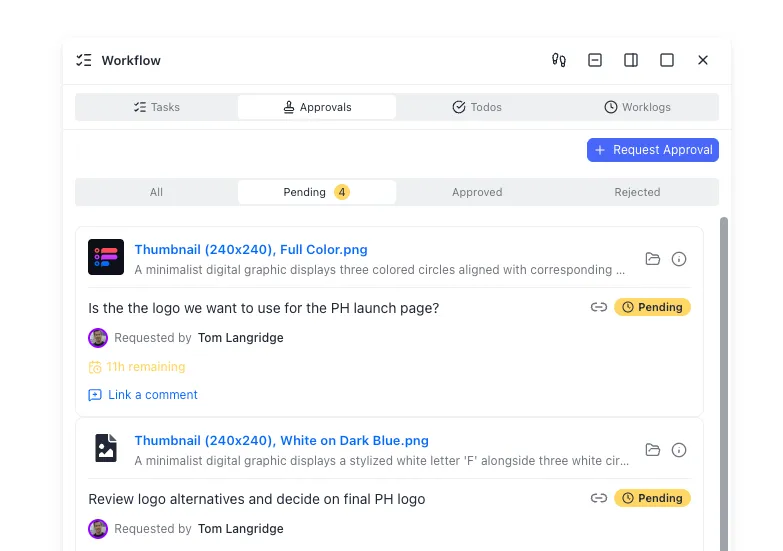
Fastio addresses this issue by combining secure file storage with human-agent collaboration workflows. When images are saved to a Fastio folder, they are displayed in a visual grid, allowing designers and marketing managers to review them.
To prevent poor designs or logo distortion from being sent to high-value prospects, a manager can preview each generated graphic in the workspace and leave feedback as a comment anchored to the exact region of the image. If an asset needs changes, the sales representative can make edits, and Fastio's per-file version history tracks all changes.
Once reviewed, files can be shared securely with external partners using Branded Shares or Content Portals. Rather than sending large email attachments, managers can create password-protected portals featuring custom brand colors, logos, and vanity URLs. Clients can view high-resolution graphics directly in their browser without creating an account.
Inside the portal, clients can interact with the shared assets. Fastio's portal AI, Ripley, is available to answer questions about the shared documents, using Ripley AI to get answers with citations. This turns a simple file share into an interactive portal, allowing partners to access verified visual assets quickly.
Sources
References used to verify factual claims in this guide.
-
Personalized images improve GTM outbound conversion rates by up to 50% Programmatic image generation speeds up outbound asset preparation by 95% client applications will receive HTTP 429 Too Many Requests status codes when rate limits are exceeded
Frequently Asked Questions
Can I connect Clay to a Canva template?
Yes. You can connect Clay to a Canva template by using Clay's HTTP API enrichment tool to call the Canva Connect API. By preparing a Brand Template in Canva with placeholders, you can map Clay column values (like name and logo URL) to the Canva API endpoints, generating customized images automatically.
How do I programmatically generate images using Canva templates?
To programmatically generate images, design a Brand Template in Canva and obtain its Brand Template ID. Next, configure a data pipeline in Clay that performs three main steps: uploads the prospect's logo using the asset upload endpoint, executes the Canva Connect Autofill API payload to populate the placeholders, and exports the final graphic as a PNG or JPG file.
How to automate custom visuals in cold outreach?
You can automate custom visuals in cold outreach by connecting a data enrichment platform like Clay with the Canva API and a shared storage layer like Fastio. When new leads enter your database, Clay enriches their records, Canva renders a customized image, and Fastio stores the file, keeping a version history so the team can review the graphics before delivery.
Related Resources

Store your Canva template exports in Fastio
Set up a shared workspace with an MCP-ready endpoint to store images generated from Clay and Canva workflows, extract metadata automatically, and share them with clients. Starts with a 14-day free trial.