How to Automate Canva AI Video Generator Workflows with Clay
Growth teams can bypass the direct integration gap between Clay's data tables and Canva's video generator tools by building a custom API pipeline. By combining Clay data enrichment with the Canva Connect API and Fast.io's secure, version-controlled workspaces, teams can automate outreach video production. This guide details how to configure the templates, write the integration code, and manage media deliverables.

Why GTM Teams Need Canva AI Video Generator Workflows
While 81% of business buyers prefer video over written outreach when evaluating new products, outbound sales teams struggle to scale personalized video production because manual rendering takes too long [Ascend2 B2B Video Marketing Report]. Standard outreach methods fail to engage prospects, but personalized video outreach increases click-through rates by up to 16x [Sendspark Video Outreach Survey]. Despite this massive engagement difference, scaling video production introduces a visual design bottleneck that limits campaign volume.
GTM teams use short, targeted videos to demonstrate product value or present personalized data points. However, manual editing in the browser is slow, expensive, and error-prone. A single designer spends hours editing templates to customize background clips, customer names, and brand colors for each prospect, which restricts outbound capacity to a fraction of the actual target market.
The Canva AI Video Generator enables programmatic creation of short-form video assets from text prompts or structured templates. To scale this capability, growth teams combine data enrichment platforms with creative APIs. However, because Clay lacks direct official documentation or integration support for Canva's video generator tools, growth teams must construct a custom integration.
By building a custom webhook bridge, teams can connect Clay's enriched lead data with Canva's rendering engine. Fast.io serves as the central collaboration workspace for this pipeline, providing a shared repository where designers, developer scripts, and automated systems coordinate their assets. This environment ensures all raw media files, draft videos, and final client-facing outputs are stored securely without local disk limits.
Related guides
- How to Automate Video Review Workflows with Manus AIWhile AI-driven automation can slash initial video editing and rough-cut assembly times by up to 80%, creative teams...
- How to Automate DevOps Workflows with OpenClaw73% of organizations still run CI/CD pipelines without any AI involvement, even as AI tools saturate upstream...
- How to Connect Canva AI Image Generator to Clay WorkflowsAlthough visual content is 40 times more likely to get shared on social media than text-only formats, automating...
- How to Automate Canva Templates with Clay HTTP EnrichmentsOutbound personalization can lift engagement significantly, but manual asset creation creates massive operational...
- How to Scale Canva Video Editor Asset Pipelines with Clay AutomationOutbound GTM teams can scale their Canva video editor workflows by connecting Clay data enrichment tables with the...
- How to Integrate an AI Video Editor in Clay GTM SequencesIntegrating an AI video editor API into Clay Go-To-Market (GTM) sequences automates personalized video creation for...
More on this subject: Clay and GTM Agents (82 guides)
How to Structure Canva Brand Templates for Programmatic Video
To automate video production, a design team must first establish a master video template in Canva. This template defines the static brand assets, background music, transition animations, and placeholders for dynamic data.
Once the design is complete, you must publish it as a Brand Template. The Canva Connect API interacts only with published Brand Templates, which ensures the master design remains protected from accidental modification. Designers use the Data autofill tool in the editor to mark dynamic text zones and image containers.
The following data schema shows how data columns in Clay map to placeholders in Canva video templates:
Because the Canva Connect API cannot download raw URLs directly during the autofill execution, you must upload images, charts, and logos using the asset-uploads endpoint before starting the autofill job. The Canva API generates a unique asset identifier for each uploaded image, which your script passes as the target image asset ID in your JSON request.
For video backgrounds, you can also upload raw clips via the asset-uploads API. The rendering engine will place these dynamic video assets into the template placeholders, allowing the script to tailor the visual context to the prospect's industry.
How to Automate Canva AI Video Generator Workflows with Clay
Automating the pipeline requires a serverless script or middleware handler to coordinate the data flow between Clay and Canva. The campaign follows a strict four-step workflow: data research in Clay, Webhook trigger, template generation in Canva, and file hosting on Fast.io.
First, the team performs data research in Clay, enriching prospect rows with domain details, logo URLs, and personalized metrics. Second, once a row is fully enriched, Clay's HTTP API integration triggers a Webhook POST request, sending the lead data to the serverless function. Third, the function uploads the logo and charts to Canva, runs the Brand Template generation, and polls for completion. Fourth, the script downloads the completed video and hosts it in a secure Fast.io workspace.
The following Node.js script demonstrates how to implement this workflow, handling the multi-stage Canva API lifecycle and uploading the output back to Fast.io:
import fetch from 'node-fetch';
async function processVideoAutofill(leadData, accessToken) {
  const canvaHeaders = {
    'Authorization': `Bearer ${accessToken}`,
    'Content-Type': 'application/json'
  };
  const uploadResponse = await fetch('https://api.canva.com/rest/v1/asset-uploads', {
    method: 'POST',
    headers: canvaHeaders,
    body: JSON.stringify({
      title: `${leadData.companyName}_logo.png`,
      mime_type: 'image/png'
    })
  });
  const uploadJob = await uploadResponse.json();
  let logoAssetId = null;
  for (let i = 0; i < 15; i++) {
    await new Promise(resolve => setTimeout(resolve, 2000));
    const statusRes = await fetch(`https://api.canva.com/rest/v1/asset-uploads/${uploadJob.id}`, {
      headers: { 'Authorization': `Bearer ${accessToken}` }
    });
    const status = await statusRes.json();
    if (status.job.status === 'success') {
      logoAssetId = status.job.asset.id;
      break;
    }
  }
  if (!logoAssetId) throw new Error('Canva asset upload timed out');
  const autofillResponse = await fetch('https://api.canva.com/rest/v1/autofills', {
    method: 'POST',
    headers: canvaHeaders,
    body: JSON.stringify({
      brand_template_id: 'B_outreach_template_v6',
      title: `Outreach Video - ${leadData.companyName}`,
      data: {
        first_name: { type: 'text', text: leadData.firstName },
        pain_point_text: { type: 'text', text: leadData.personalizedPain },
        company_logo: { type: 'image', asset_id: logoAssetId }
      }
    })
  });
  const autofillJob = await autofillResponse.json();
  let designId = null;
  for (let i = 0; i < 15; i++) {
    await new Promise(resolve => setTimeout(resolve, 3000));
    const statusRes = await fetch(`https://api.canva.com/rest/v1/autofills/${autofillJob.id}`, {
      headers: { 'Authorization': `Bearer ${accessToken}` }
    });
    const status = await statusRes.json();
    if (status.job.status === 'success') {
      designId = status.job.design_id;
      break;
    }
  }
  if (!designId) throw new Error('Canva autofill job timed out');
  const exportResponse = await fetch('https://api.canva.com/rest/v1/exports', {
    method: 'POST',
    headers: canvaHeaders,
    body: JSON.stringify({
      design_id: designId,
      format: 'mp4'
    })
  });
  const exportJob = await exportResponse.json();
  let downloadUrl = null;
  for (let i = 0; i < 30; i++) {
    await new Promise(resolve => setTimeout(resolve, 5000));
    const statusRes = await fetch(`https://api.canva.com/rest/v1/exports/${exportJob.id}`, {
      headers: { 'Authorization': `Bearer ${accessToken}` }
    });
    const status = await statusRes.json();
    if (status.job.status === 'success') {
      downloadUrl = status.job.download_url;
      break;
    }
  }
  return downloadUrl;
}
Once the Canva Connect API completes the render job, the script retrieves the video download link (which remains active for twenty-four hours). The function then streams the file into Fast.io storage using chunked uploads to bypass local network limits.


Securely deliver automated outreach videos with Fast.io
Keep all your Canva AI Video Generator assets organized in a persistent workspace with automatic indexing, version control, and Metadata Views. Sign up today and get started with a 14-day Business Trial.
Why Teams Coordinate Assets in Fast.io Workspaces
Scaling video automation requires a persistent storage layer to manage input materials, brand assets, and output files. For basic file management, teams often consider local hard drives, Amazon S3, or Google Drive. Local storage limits accessibility for distributed teams. Amazon S3 offers fast programmatic throughput but lacks a visual user interface for sales teams and designers, making manual asset reviews difficult. Google Drive offers a visual interface but lacks detailed per-file version history for programmatic modifications and experiences slow API webhooks.
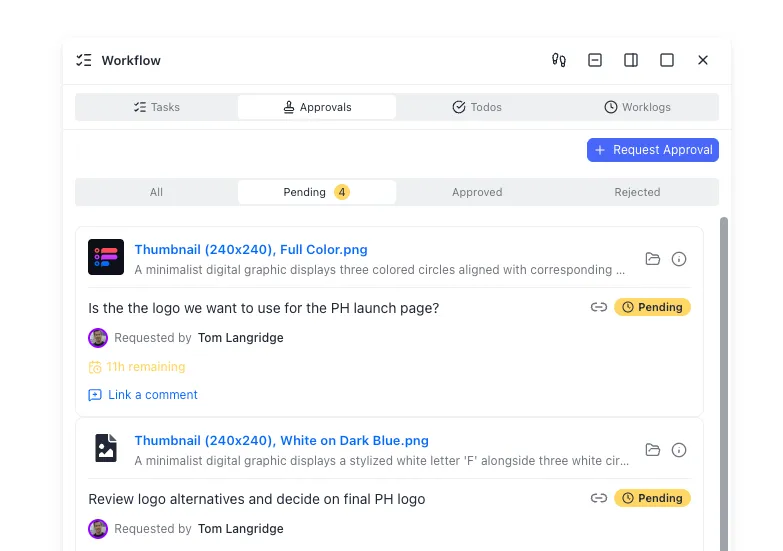
To resolve these limitations, teams use Fast.io as a shared collaboration workspace around Clay. When a script writes output videos to a workspace, the files are automatically indexed. The platform maintains a complete, per-file version history, ensuring that concurrent script changes and designer updates remain auditable.
To extract structured details from raw asset briefs and guidelines before sending data to Canva, teams use Metadata Views. Instead of writing custom parsing rules or OCR regex, developers define extraction columns in natural language. The AI creates a typed schema (supporting Text, Integer, Decimal, Boolean, URL, JSON, and Date & Time), scans the documents, and populates a spreadsheet grid. This structured database can be queried via the Fast.io API or the Model Context Protocol (MCP) server, which is separate from Fast.io's semantic search tool, Intelligence Mode.
Fast.io exposes developer tools, allowing systems to manage files programmatically:
- The MCP server exposes Streamable HTTP at
/mcpand legacy SSE at/sse(configured via Fast.io Storage for Agents) to let external scripts query workspaces. - WebSocket event feeds and activity polling notify external applications in real time when assets are added or modified.
- Ownership transfer enables developers to build custom workspaces, configure the schema, and transfer the assets to the client's internal administrator via a secure claim link while retaining workspace access to maintain the pipeline.
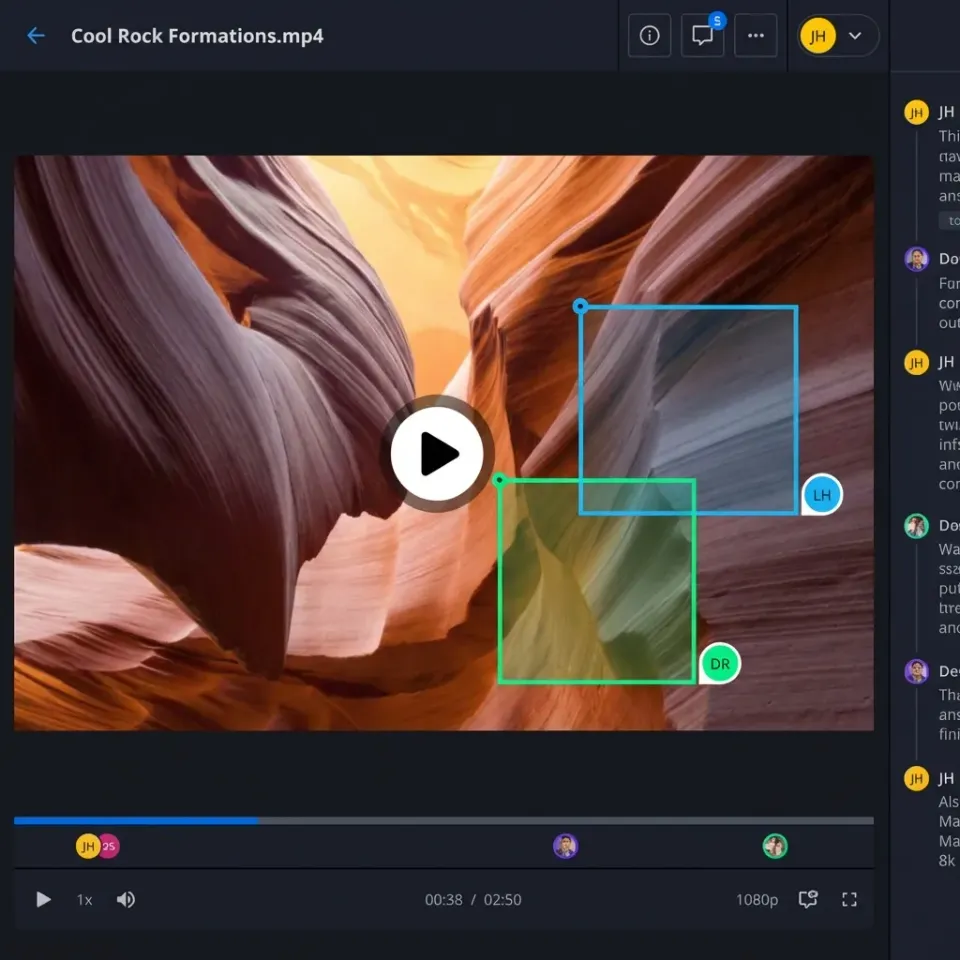
- Reviewers can open videos directly in the browser and use comments anchored to specific timestamps to provide feedback, avoiding scattered message threads.
How to Manage Throttling Limits and Deliver Outreach Videos
Outbound campaigns must accommodate rate limits and rendering latency when scaling video production. The Canva Connect API enforces a rate limit of 60 requests per minute per user. Because Clay enriches rows rapidly, growth teams should run their HTTP actions in throttled batches or implement an API queue with exponential backoff to handle rate limit errors.
Video rendering also introduces substantial latency. Unlike static image compilation, rendering high-definition MP4 files takes time, requiring several minutes per asset. To prevent review delays, Fast.io supports HLS video streaming. Creative managers and sales reps can watch generated videos instantly in the browser without waiting to download the full file.
For client delivery, teams use Fast.io's expiring branded shares (Send/Receive/Exchange). Instead of sending heavy email attachments, the system generates secure, expiring share links with per-recipient access control. Managers can revoke access individually or set the links to expire automatically when a promotion ends.
Fast.io plans start with the Starter tier at $9.99/mo, the Business tier at $49.99/mo, and the Enterprise tier at $199.99/mo [Fast.io Pricing Overview]. Monthly plans start with a Business Trial of up to 14 days that requires a credit card [Fast.io Business Trial Terms], allowing growth teams to test Metadata Views and HLS streaming. Pricing details can be compared on the Fast.io pricing page.
Sources
References used to verify factual claims in this guide.
-
81% of business buyers prefer video over written outreach when evaluating new products
-
personalized video outreach increases click-through rates by up to 16x
-
The Canva Connect API enforces a rate limit of 60 requests per minute per user
-
Starter plan at $9.99/mo, Business plan at $49.99/mo, and Enterprise plan at $199.99/mo starts with a 14-day Business Trial that requires a credit card
Frequently Asked Questions
How do I generate AI video in Canva?
You can generate AI videos in Canva using its built-in generative tools, such as Magic Media, by typing text prompts to compile short video clips. For programmatic volume, you create a brand template with dynamic data fields and use a developer script to send JSON payloads to the Canva Connect API autofills endpoint, merging lead data into custom video templates automatically.
Is Canva AI video generator free?
Canva provides basic text-to-video generation features for free under standard monthly account limits. Advanced features, brand templates, and Connect API access require a Canva Pro or Canva Enterprise subscription. High-volume API automations require a Canva Enterprise plan to handle the rendering throughput.
How to automate video production for outreach?
To automate outreach video production, you can build a four-step workflow: first, perform lead research in Clay; second, use Clay's HTTP API integration to send a webhook POST request with enriched lead data; third, use a Node.js serverless function to call the Canva Connect API autofill endpoint to generate custom videos; and fourth, download the finished files and host them in a secure Fast.io workspace.
Related Resources

Securely deliver automated outreach videos with Fast.io
Keep all your Canva AI Video Generator assets organized in a persistent workspace with automatic indexing, version control, and Metadata Views. Sign up today and get started with a 14-day Business Trial.