Integrating Canva AI Photo Editor with GTM Pipelines
Outbound and account-based marketing campaigns require highly personalized visual assets, but manual creation stalls pipelines. This guide shows how to programmatically integrate Canva's AI photo editor with Clay workflows, using Fastio for persistent storage, automated verification, and secure client handoff.


Why Go-to-Market Campaigns Need Automated Visual Personalization
Over 90% of marketing assets require photo enhancement before they can be deployed in live campaigns [Venngage 2025 Survey]. This visual bottleneck forces go-to-market (GTM) teams to choose between speed and creative quality. By programmatically connecting Canva's AI-driven picture editor to automated pipelines, companies can eliminate this trade-off.
In account-based marketing (ABM) and cold outreach, personalization is no longer optional. Visual elements, such as customized social media banners, personalized presentation slides, and custom email headers, see significantly higher engagement than plain text. However, graphic designers cannot manually produce hundreds of unique assets for every lead. Even though generative fill reduces manual edit times by 80%, manually applying edits within design tools remains a bottleneck when scaling outbound operations [Adobe Firefly Impact Survey].
Canva's AI Photo Editor uses generative AI to edit, enhance, and manipulate photos programmatically or within design workspaces. To scale this capability, GTM teams can build automated pipelines. Instead of a designer opening Canva for every prospect, an automated workflow takes the lead data, retrieves relevant logos or assets, calls the Canva Connect API to insert that data into a pre-designed template, and exports the final image. This method allows sales and marketing departments to scale visual personalization without increasing creative overhead.
Related guides
- Best OpenClaw Workflows for AI Image Generation PipelinesOpenClaw 2026.4.5 turned agents into image producers. The native image_generate tool supports 10 providers out of the...
- Top OpenClaw Workflows for AI Photo Batch Processing and Bulk EditingA five-product e-commerce photo batch that took 100 minutes of manual editing dropped to 15 minutes once an OpenClaw...
- How to Automate Canva Templates with Clay HTTP EnrichmentsOutbound personalization can lift engagement significantly, but manual asset creation creates massive operational...
- How to Use Canva Background Remover in Clay GTM Workflows"Canva background remover" draws about 40,500 monthly US searches at keyword difficulty 17 and a CPC near $7, yet most...
- How to Connect Canva AI Image Generator to Clay WorkflowsAlthough visual content is 40 times more likely to get shared on social media than text-only formats, automating...
- How to Integrate an AI Video Editor in Clay GTM SequencesIntegrating an AI video editor API into Clay Go-To-Market (GTM) sequences automates personalized video creation for...
More on this subject: Clay and GTM Agents (82 guides)
Structuring a Programmatic Image Generation Pipeline
Building a programmatic visual content pipeline requires three components: a data enrichment platform, a graphic design API, and a persistent storage layer.
First, the data enrichment platform serves as the source of truth for the campaign. Clay is widely used for this task, allowing marketing teams to pull lead lists, enrich prospect data, and run custom integration steps. Clay collects prospect details, such as company names, domains, and the web URLs of their brand logos.
Second, the graphic design engine renders the personalized images. The Canva Connect API allows external platforms to interact with Canva brand templates. When Clay passes variables to Canva, the API generates a customized asset by autofilling the template and applying platform-level Canva photo editing functions, such as automated background removal or image positioning.
Third, the pipeline requires a persistent storage layer to manage the generated visual assets. When evaluating storage options, teams often consider local drives or AWS S3 buckets. While S3 provides raw object storage, it does not offer built-in collaboration tools, visual reviews, or access portals for marketing teams. Google Drive is another common choice, but its API frequently limits high-volume uploads and lacks granular permission controls for external agencies.
Fastio offers a comprehensive workspace alternative. It serves as a shared environment where human designers and automated agents work together on the same file repository. By using Fastio, teams can persist input data, store output graphics, and review files within a single system. When brand assets are generated, they are written to a Fastio folder that maintains a complete, per-file version history. This ensures that every iteration remains auditable.
Fastio organization accounts require a paid subscription; monthly plans start with a trial of up to 14 days that requires a credit card, and annual plans have no trial. Teams can choose the Starter plan at $9.99/mo, the Business plan at $49.99/mo, or the Enterprise plan at $199.99/mo.
How to Connect Clay to the Canva AI Photo Editor API
Integrating a data enrichment platform with graphic design automation requires a clear sequence of configuration steps. The following guide details how to establish the connection, extract prospect logo files, programmatically upload visual brand assets, run the template autofill job, and download the final visual assets back to your persistent workspace. By following this guide, developers can construct a pipeline that runs without human intervention. This setup handles errors, respects API limits, and keeps all outreach collateral organized. We will cover the Canva Brand Template configuration, Fastio metadata extraction, the asset upload endpoints, and the file export sequence. These stages form the foundation of a complete GTM asset generation engine.

Preparing the Canva Brand Template
Before writing code, designers must create a Brand Template inside the Canva editor. Using the Data autofill application in the editor interface, designers tag specific elements as data fields. For this GTM pipeline, create a template with two designated fields:
- The company_name field is a text field representing the prospect's company.
- The company_logo field is an image field representing the prospect's brand logo.
Record the unique Brand Template ID, which begins with the prefix B_.
Retrieving Asset Data via Fastio Metadata Views
Before calling Canva, Clay needs the correct input images. If prospects have uploaded brand materials, pitch decks, or logos to your workspace, you can extract this data automatically.
Rather than using basic OCR tools or writing custom image parsing scripts, developers can deploy Fastio's Metadata Views. Users define the fields they want extracted in natural language, and the AI designs a typed schema. For this pipeline, set up a Metadata View that reads incoming brand guidelines PDFs and extracts the logo_url and primary_brand_color. The extraction outputs structured data into a sortable grid, which the Clay workflow queries via the Fastio API or MCP server. This structured extraction layer is distinct from Fastio's general RAG tool, Intelligence Mode, which is optimized for search and summaries rather than structured grid extraction.
Uploading Custom Logos to Canva
Clay initiates the image generation process using its custom HTTP API integration. Because Canva cannot reference external URLs directly during template insertion, the workflow must first upload the prospect's logo to Canva's assets.
Send a POST request to Canva's asset upload endpoint: POST https://api.canva.com/rest/v1/asset-uploads
Headers:
Authorization: Bearer
Request Body:
{
  "title": "acme_logo.png",
  "mime_type": "image/png"
}
The response contains an upload job ID. The workflow polls the job status: GET https://api.canva.com/rest/v1/asset-uploads/{jobId}
Once the status returns as success, Canva provides an asset.id for the uploaded logo.
Executing the Autofill Job
Next, Clay sends a request to merge the prospect's logo and company name into the Canva Brand Template.
Send a POST request to the autofill endpoint: POST https://api.canva.com/rest/v1/autofills
Headers:
Authorization: Bearer
Request Body:
{
  "brand_template_id": "B_12345ABCD",
  "title": "Custom Header - Acme Corp",
  "data": {
    "company_name": {
      "type": "text",
      "text": "Acme Corp"
    },
    "company_logo": {
      "type": "image",
      "asset_id": "A_98765ZYXW"
    }
  }
}
The workflow polls the job status using: GET https://api.canva.com/rest/v1/autofills/{jobId}
When the status displays success, the API returns the generated design_id.
Exporting and Saving the Personalised Asset
Finally, export the generated design as a PNG file.
Send a POST request to the exports endpoint: POST https://api.canva.com/rest/v1/exports
Headers:
Authorization: Bearer
Request Body:
{
  "design_id": "D_54321QWERTY",
  "format": "png"
}
Poll the export job: GET https://api.canva.com/rest/v1/exports/{jobId}
When complete, the API provides a download URL that remains active for 24 hours. The workflow downloads the image and saves it directly to the Fastio workspace using the Fastio API.
Managing Webhook Retries and Rate Limits in Clay Workflows
When running bulk campaigns, rate limits present a common challenge. Canva's API limits vary based on account class, but a sudden spike in requests can result in 429 Too Many Requests responses.
To prevent failures:
- Implement an exponential backoff retry strategy in your HTTP actions.
- Store progress states in Clay to resume workflows if a script times out.
- Use a queue system to throttle outgoing requests, keeping them under Canva's threshold.
Here is an example Javascript snippet that can run within a Clay custom code column to orchestrate this process:
async function generateAsset(companyName, logoUrl, accessToken) {
  try {
    const uploadRes = await fetch('https://api.canva.com/rest/v1/asset-uploads', {
      method: 'POST',
      headers: {
        'Authorization': `Bearer ${accessToken}`,
        'Content-Type': 'application/json'
      },
      body: JSON.stringify({
        title: `${companyName}_logo.png`,
        mime_type: 'image/png'
      })
    });
    const uploadJob = await uploadRes.json();
    let assetId = null;
    for (let i = 0; i < 10; i++) {
      await new Promise(resolve => setTimeout(resolve, 2000));
      const statusRes = await fetch(`https://api.canva.com/rest/v1/asset-uploads/${uploadJob.id}`, {
        headers: { 'Authorization': `Bearer ${accessToken}` }
      });
      const status = await statusRes.json();
      if (status.job.status === 'success') {
        assetId = status.job.asset.id;
        break;
      }
    }
    if (!assetId) throw new Error('Asset upload timed out');
    const autofillRes = await fetch('https://api.canva.com/rest/v1/autofills', {
      method: 'POST',
      headers: {
        'Authorization': `Bearer ${accessToken}`,
        'Content-Type': 'application/json'
      },
      body: JSON.stringify({
        brand_template_id: 'B_12345ABCD',
        title: `Custom Banner - ${companyName}`,
        data: {
          company_name: { type: 'text', text: companyName },
          company_logo: { type: 'image', asset_id: assetId }
        }
      })
    });
    const autofillJob = await autofillRes.json();
    return autofillJob;
  } catch (error) {
    console.error('Workflow error:', error);
    return null;
  }
}


Store your Canva AI Photo Editor exports in Fastio
Get a shared workspace with an MCP-ready endpoint to persist images generated from Canva's AI photo editor, automate document extraction with Metadata Views, and review assets with comments anchored to the image. Monthly plans start with a trial of up to 14 days.
How to Verify and Approve Programmatically Generated Assets
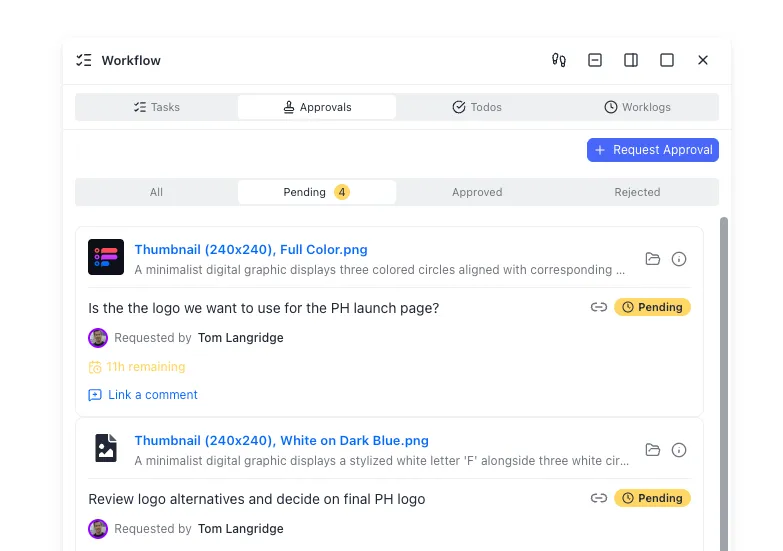
Running an automated pipeline at scale introduces the risk of visual errors. A logo might have an awkward aspect ratio, or a long company name might overflow the designated text box. Marketing teams must verify these assets before sending them to prospects.
Traditionally, teams check images by downloading them locally and sharing feedback via email or messaging threads. This workflow leaves files scattered across different places and increases the chance of publishing mistakes. Competing storage folders like Google Drive do not support structured review flows.
Fastio gives reviewers one place to check this output. When new graphics are saved to a Fastio workspace, every reviewer sees the current file, with earlier versions kept in its version history. Fastio keeps a detailed activity log of file activity and comments, providing a reliable chain of custody for compliance.
Reviewers can open the images in their browser and use Comments & Anchors to pinpoint visual errors. Comments can be anchored to specific pixel coordinates on the image, making it clear what changes are needed. If an image is rejected, a designer or automated agent can update the asset, upload a new version, and ask for another look in the comments. Fastio's version history preserves the prior designs, ensuring that all edits remain transparent and recoverable.
Furthermore, developer teams can programmatically inspect the output. The Fastio MCP server exposes metadata extraction capabilities at /mcp and /sse. An automated QA agent can query a Metadata View to verify that the generated image files contain the required visual tags and that their dimensions match the campaign specifications.
How to Distribute Personalized Assets through Intelligent Client Portals
Once the personalized images are approved, the GTM team must deliver them to clients, partners, or internal sales reps.
Sharing files as email attachments can lead to file size limits and lacks tracking capabilities. Creating shared links on legacy platforms like Dropbox or Box provides simple download links, but does not allow branding or client interaction.
Fastio addresses this issue with branded Content Portals and Branded Shares. Teams can set up password-protected portals featuring custom logos, colors, and vanity URLs. Clients can view high-resolution images, presentations, or PDFs directly in their browser without creating an account.
Inside the portal, clients can interact with the shared assets. Fastio's portal AI, Ripley, is available to answer questions about the shared documents, using Ripley AI to get answers with citations. This turns a simple file share into an interactive portal, allowing partners to access verified visual assets quickly.
Sources
References used to verify factual claims in this guide.
-
Over 90% of marketing assets require photo enhancement
-
Generative fill reduces manual edit times by 80%
-
provides a download URL that remains active for 24 hours Canva's API limits vary based on account class, but a sudden spike in requests can result in 429 Too Many Requests responses
Frequently Asked Questions
How do I use Canva AI photo editor?
You can use Canva's AI Photo Editor features, such as background removal and magic grab, by selecting an image within the Canva editor workspace and opening the photo effects panel. To use these features programmatically, set them up within a Canva Brand Template. When you pass data via the Canva Connect Autofill API, the generated graphics automatically inherit those visual enhancements and styles.
Is Canva AI photo editor free?
Canva provides access to many AI photo editing tools for free under basic account limits, while advanced Magic Studio features (like Magic Expand and high-resolution background removal) require a Canva Pro or Canva Enterprise subscription. To run automated, off-platform workflows using the Canva Connect API, you must have a Canva Enterprise organization account.
Can I bulk edit photos using Canva's API?
Yes. By preparing a brand template with configured data fields inside the Canva editor, you can programmatically upload assets and generate multiple designs using the Connect API. By chaining asset uploads and autofill jobs via custom HTTP requests in a GTM pipeline like Clay, you can bulk generate, export, and download hundreds of personalized graphics automatically.
Related Resources

Store your Canva AI Photo Editor exports in Fastio
Get a shared workspace with an MCP-ready endpoint to persist images generated from Canva's AI photo editor, automate document extraction with Metadata Views, and review assets with comments anchored to the image. Monthly plans start with a trial of up to 14 days.