Windsurf OneDrive Connector: Connecting Cascade in Devin Desktop to OneDrive
Cognition renamed Windsurf to Devin Desktop on 2026-06-02, moving Cascade into Devin Local. A Windsurf OneDrive connector links Cascade (Devin Local) in Devin Desktop to Microsoft OneDrive storage via remote MCP, enabling semantic retrieval without local file hydration. Instead of reading zero-byte Files On-Demand placeholder stubs, teams sync OneDrive folders into a Fast.io workspace and search indexed documents over remote MCP.


How a Windsurf OneDrive Connector Bridges Devin Desktop and Cloud Storage
When coding assistants in an IDE inspect local file mirrors managed by cloud sync clients, operating system virtualization stubs frequently return zero bytes instead of file contents. In Devin Desktop (formerly Windsurf), Cascade reads these placeholder stubs during automated coding loops, causing silent tool failures and corrupted build context. A Windsurf OneDrive connector links Cascade (Devin Local) in Devin Desktop to Microsoft OneDrive storage via remote MCP, enabling semantic retrieval without local file hydration.
Cognition renamed the Windsurf editor to Devin Desktop on 2026-06-02, evolving the IDE into an agent command center for managing autonomous coding operations. Under this architecture, Devin Cloud handles background, multi-repository tasks, while Cascade continues operating locally as Devin Local. According to the updated documentation at https://docs.windsurf.com/ (Welcome to Devin Desktop, updated 2026-10-28), the editor maintains full backwards compatibility with existing VS Code extensions, keybindings, and Model Context Protocol configurations while expanding agent coordination across spaces.
Modern engineering organizations rarely maintain all project context within git repositories. Architecture decision records, OpenAPI specifications, database schemas, compliance policies, security audit checklists, and product requirement documents frequently reside in enterprise Microsoft OneDrive folders or SharePoint document libraries. When developers instruct Cascade to implement a backend service or refactor an authorization flow, the assistant must inspect these upstream documents to produce code that matches organizational standards.
Developers typically attempt to bridge this gap through manual file mentions in the Cascade chat window or by syncing OneDrive folders to their local hard drives. Pasting large documents into the chat interface floods the context window with raw text, consuming thousands of tokens and triggering model attention degradation. Meanwhile, syncing corporate folders to developer laptops creates storage bottlenecks, triggers file watcher thrashing, and breaks agent tool execution when encountering virtualization stubs.
Related guides
- Claude Box Connector: Connecting Anthropic Agents to Box CloudA Claude Box connector links Anthropic Claude models to enterprise Box storage, enabling AI agents to search and...
- Codex OneDrive Integration: Connecting OpenAI Coding Agents to OneDriveA Codex OneDrive integration connects OpenAI Codex agents to Microsoft OneDrive repositories, allowing coding agents to...
- Windsurf SharePoint Connector: Connect Devin Desktop to SharePoint LibrariesCognition transitioned the Windsurf editor to Devin Desktop, pairing Cascade with local and cloud agents. Deploying a...
- Windsurf Rate Limits (Now Devin Desktop): Cascade Quotas, Token Caps, and IndexingWindsurf rate limits (in the editor renamed Devin Desktop in June 2026) govern daily and weekly token budgets for...
- Windsurf File Size Limits in Devin Desktop: Indexing Caps and RulesCognition renamed Windsurf to Devin Desktop on 2026-06-02, transitioning the Cascade assistant into Devin Local while...
- Windsurf Box MCP: Connect Cascade to Enterprise Box StorageA Windsurf Box MCP integration links Codeium's Windsurf IDE and Cascade agent to Box cloud storage via the Model...
More on this subject: AI Coding Assistants (96 guides)
Why Local Filesystem Bridges and Direct Graph Connectors Fail
The Model Context Protocol (MCP) provides an open JSON-RPC specification that enables AI coding assistants like Cascade to connect with external data stores, developer tools, and file storage systems. By exposing structured tools, resources, and prompt templates, MCP allows agents to interact with third-party environments without requiring specialized native plugins for every service.
When engineering teams attempt to establish a windsurf onedrive integration, they usually explore two architectural paths: running a local stdio filesystem bridge against desktop sync directories or configuring a direct Microsoft Graph API connector. Both architectures introduce severe operational failure modes during automated development workflows. Understanding why these approaches break helps clarify why an indexed, remote workspace architecture is necessary for reliable coding sessions.
OneDrive Files On-Demand and Zero-Byte Placeholder Stubs
A common initial approach involves configuring a local stdio MCP server, such as @modelcontextprotocol/server-filesystem, pointed at the local directory where OneDrive mirrors cloud files on the developer workstation (C:\Users\username\OneDrive on Windows or ~/Library/CloudStorage/OneDrive-... on macOS).
This approach fails in production because of OneDrive Files On-Demand. To preserve local workstation disk space, OneDrive uses operating system virtualization features, including NTFS reparse points and the Windows Cloud Files Filter Driver (CldFlt) on Windows, as well as the File Provider extension on macOS. Online-only files appear in local file explorers with regular file names and reported sizes, but their local footprint is zero bytes.
When a local stdio MCP server attempts to open an online-only file on behalf of Cascade, the operating system attempts synchronous hydration from Microsoft servers. If network latency spikes, or if the calling process executes non-blocking file reads without waiting for operating system hydration, the filesystem bridge receives an empty buffer or encounters an I/O read timeout. Cascade receives a broken file descriptor or an empty response, causing the agent loop to abort silently.
Beyond placeholder read errors, syncing corporate folders directly to developer machines introduces additional operational overhead:
- Workstation Storage Depletion: Synchronizing shared project drives containing design assets, PDFs, and data dumps quickly consumes dozens of gigabytes of solid-state storage on developer machines.
- IDE File Watcher Churn: The OneDrive desktop sync client frequently updates file metadata and sync state attributes. The IDE's background file watchers interpret these changes as file system activity, triggering continuous re-indexing passes that increase CPU utilization and input latency.
- Repository Contamination Risk: Storing synchronized corporate documents alongside local application source code increases the risk of accidentally staging proprietary spreadsheets, business plans, or credentials into git commits.
The Roadblocks of Direct Microsoft Graph API Connectors
To avoid local disk dependencies, some engineering teams attempt to connect Cascade directly to the Microsoft Graph API (graph.microsoft.com) using custom remote MCP wrappers.
While this eliminates local disk stubs, direct Graph API integration introduces persistent operational hurdles:
- Enterprise Tenant Permissions and Entra ID Consent: Microsoft Graph requires authentication through Microsoft Entra ID. Registering custom applications, generating client credentials, and requesting broad tenant scopes like
Files.Read.Allrequires enterprise administrator approval that many development teams cannot obtain. Managing token refresh cycles inside local IDE configurations creates ongoing maintenance friction. - API Rate Limits and Request Throttling: Microsoft Graph enforces strict rate limits across its multi-tenant infrastructure. When Cascade performs recursive folder exploration or iterative file inspections, it issues dozens of rapid API requests. As documented in Microsoft Graph throttling guidance, the API signals throttling using specific status codes: "When you implement error handling, use the HTTP error code 429 to detect throttling." When Cascade receives an HTTP 429 response with a
Retry-Afterheader, the agent execution loop stalls, interrupting active development sessions. - Full Document Streaming vs Targeted Semantic Excerpts: Microsoft Graph file endpoints transfer entire file streams rather than targeted excerpts. Downloading a lengthy PDF specification or a massive spreadsheet consumes tens of thousands of tokens, filling Cascade's context window with irrelevant boilerplate and diluting model focus.
- Multi-Hop Traversal Latency: Enumerating nested folders across Microsoft Graph requires sequential API requests to resolve drives, folder IDs, and item children, adding network round trips before Cascade can access a single line of relevant context.
Why an Indexed Workspace Solves Cloud Sync and Hybrid Retrieval
To eliminate both the zero-byte read errors of local filesystem stubs and the rate-limiting bottlenecks of direct Graph API calls, engineering teams deploy an intelligent workspace architecture. Organizations keep Microsoft OneDrive as their authoritative corporate system of record where human teams create and organize files. They then link designated project folders to Fast.io through Cloud Sync, establishing an intelligent workspace that indexes document contents for instant MCP retrieval.
Fast.io Cloud Sync connects directly to Microsoft OneDrive using secure server-to-server authorization. Folders sync into a Fast.io workspace through the OneDrive connector. Cloud Sync runs one-way or two-way, on a schedule or on demand, and is never continuous, live, or real-time. (Cloud Sync connects Google Drive, Dropbox, Box, and OneDrive folders to a workspace, one-way or two-way, on a schedule or on demand, with SharePoint document libraries accessible through the OneDrive connector.) Because synchronization occurs cloud-to-cloud, no local workstation disk space is consumed, and no incomplete Files On-Demand placeholder stubs are created on developer machines.
Intelligence Mode and Hybrid Search
When documents synchronize into a Fast.io workspace, Intelligence Mode automatically processes incoming files into an optimized retrieval index. Intelligence Mode combines full-text keyword indexing, semantic vector embeddings, and metadata value filtering into a unified hybrid search engine.
When Cascade needs technical context, it executes a hybrid search query through Fast.io's consolidated MCP tools. The workspace server evaluates the query against the pre-indexed corpus, extracts the exact paragraphs that answer the developer's question, and delivers concise text passages with verified document citations. Cascade receives the necessary architectural rules and API contracts without absorbing thousands of irrelevant tokens.
Structured Document Extraction with Metadata Views
For technical assets containing tabular or semi-structured data, teams configure Metadata Views to turn documents into queryable structured data. Metadata Views define typed schemas (Text, Integer, Decimal, Boolean, URL, JSON, Date & Time) that extract fields across PDFs, Word documents, and spreadsheets without OCR templates or manual parsing scripts. Cascade can query these structured records through MCP to retrieve database field types, API endpoints, or environment parameters directly.
What a Measured Comparison Shows
The connector comparison is published at https://fast.io/benchmarks/, where Fastio was measured the fastest and the lowest cost of the providers tested.
Architectural Tradeoffs: Direct Storage versus Indexed Workspaces
Engineering teams evaluating how Cascade in Devin Desktop should access Microsoft OneDrive assets weigh several structural tradeoffs:
- Retrieval Target: Direct storage connectors query raw Microsoft Graph endpoints, whereas an indexed workspace queries a pre-computed hybrid search index.
- Context Delivery: Direct API tools stream entire files into the conversation context, whereas workspace hybrid search extracts specific paragraphs with source document citations.
- Workstation Footprint: Desktop synchronization consumes workstation solid-state storage, whereas cloud-to-cloud synchronization avoids developer machine disk usage.
- Files On-Demand Stubs: Local file system bridges fail when encountering unhydrated online-only stubs, whereas server-side sync reads authoritative cloud files directly.
- Rate Limit Exposure: Iterative agent tool calls risk triggering HTTP 429 throttling against Microsoft Graph, whereas querying an indexed workspace shields upstream OneDrive storage from repeated polling.
- Structured Extraction: Processing semi-structured documents through direct storage requires custom manual parsing, whereas Metadata Views extract structured schemas automatically.
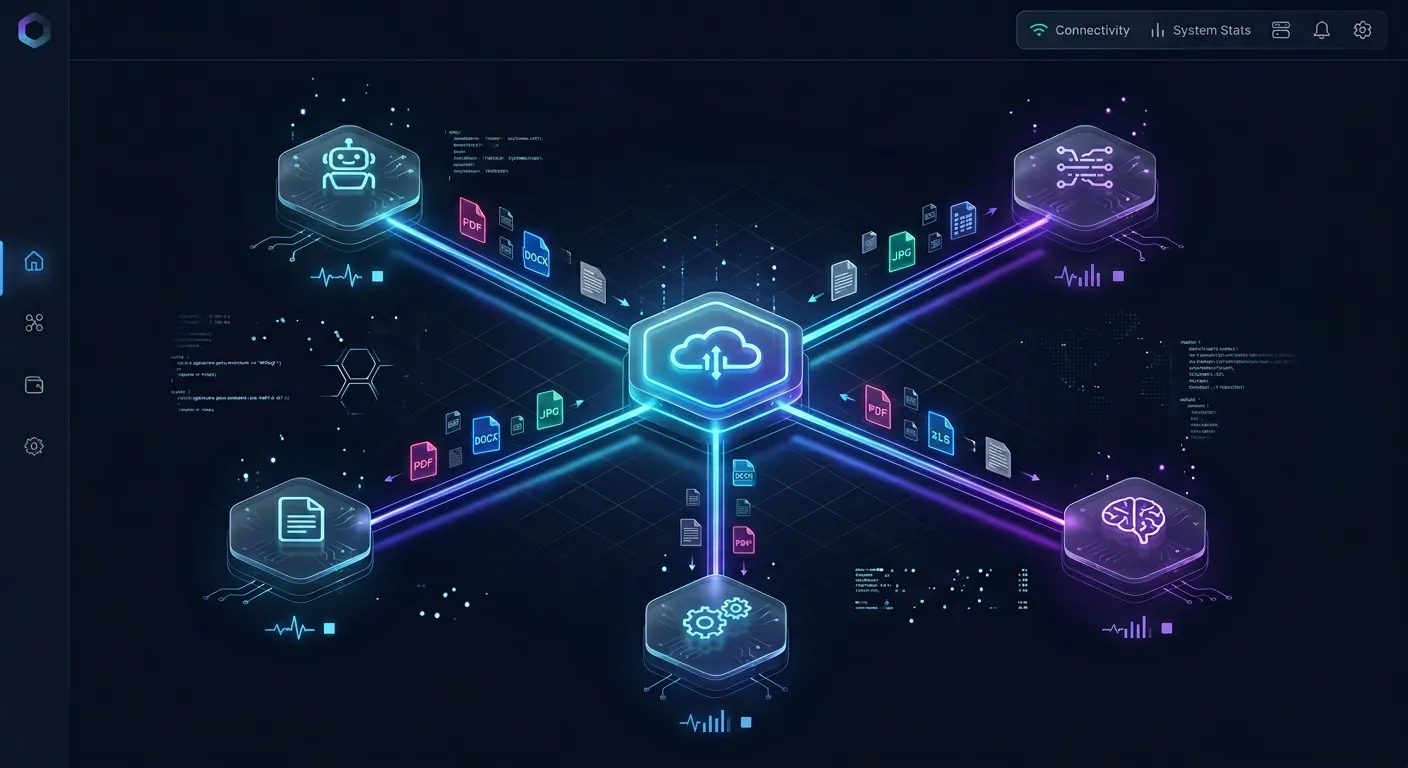


Connect Devin Desktop to OneDrive without local sync bottlenecks
Deploy an intelligent workspace that syncs your OneDrive folders, indexes technical documentation for Cascade, and connects over remote MCP. Monthly plans start with a 14-day free trial.
Steps to Configure Devin Desktop mcp_config.json for Remote MCP
Connecting Cascade in Devin Desktop to a Fast.io workspace synced with Microsoft OneDrive requires configuring the editor's Model Context Protocol settings. Follow these step-by-step instructions to establish the connection:
Step 1: Connect OneDrive to Fast.io via Cloud Sync
- Sign in to your Fast.io account and open the target workspace for your project.
- In workspace settings, select Cloud Sync and choose Microsoft OneDrive as the provider.
- Complete the Microsoft OAuth authorization flow to grant Fast.io read access to the designated project folder or SharePoint document library.
- Select your sync direction (one-way from OneDrive or two-way) and set your sync schedule (for example, daily, every six hours, or on demand).
- Trigger an initial sync. Intelligence Mode will automatically index the synced documents for hybrid search.
Step 2: Open mcp_config.json in Devin Desktop
In Devin Desktop (formerly Windsurf), locate the Cascade panel on the right sidebar. Click the ... (Actions) menu in the top right corner and select Open MCP config file.
Alternatively, you can open the file directly in your code editor. The default configuration file paths are:
- macOS / Linux:
~/.codeium/windsurf/mcp_config.json(or~/.config/devin/mcp_config.json) - Windows:
%APPDATA%\codeium\windsurf\mcp_config.json
Step 3: Add the Fast.io Remote MCP Server Definition
For coding agents such as Devin Desktop, Fast.io serves MCP over Streamable HTTP at the dedicated code address: https://mcp.fast.io/mcp/code.
Add the fast-io server configuration under the mcpServers object in mcp_config.json:
{
  "mcpServers": {
    "fast-io": {
      "url": "https://mcp.fast.io/mcp/code"
    }
  }
}
Devin Desktop connects over Streamable HTTP and handles authentication interactively via browser OAuth, so no API key or authorization header is required in standard editor configurations.
If you are running Devin in a headless script, CI/CD container, or automated test runner where interactive browser sign-in is unavailable, provide an API key using the headers property:
{
  "mcpServers": {
    "fast-io": {
      "url": "https://mcp.fast.io/mcp/code",
      "headers": {
        "Authorization": "Bearer YOUR_FASTIO_API_KEY"
      }
    }
  }
}
Step 4: Authorize the Connection and Review Permissions
- Save
mcp_config.jsonand return to the Devin Desktop interface. - In the Cascade panel, click the refresh button next to MCP Servers.
- Cascade will launch a browser window to complete OAuth authentication with Fast.io.
- On the Review Permissions screen, choose Read Only or Read & Write access and select the specific organization and workspace containing your synced OneDrive assets.
- Confirm authorization. Detailed setup instructions and troubleshooting steps are documented at Fast.io MCP Documentation.
Step 5: Query OneDrive Files Directly from Cascade
Once connected, Cascade accesses Fast.io's consolidated MCP toolset for coding environments: auth, auth_manage, upload, upload_manage, search, execute, execute_manage, and how-to. Reads stay on execute (GET only), while file writes route through execute_manage.
You can now prompt Cascade to retrieve technical context from your OneDrive documents:
Cascade, search our project workspace for the database schema requirements in the billing migration spec and write the Prisma migration file.
Cascade calls the search tool, retrieves the exact indexed clauses from your OneDrive files with source citations, and generates implementation code without reading zero-byte stubs or hitting Microsoft Graph rate limits.
Best Practices for Concurrency, Sync Cadence, and Multi-Agent Collaboration
Deploying an indexed workspace architecture bridges the gap between enterprise document stores and developer coding environments. By connecting Microsoft OneDrive to Fast.io and exposing the indexed files through remote MCP, teams give Cascade fast, reliable context without cluttering developer workstations or exhausting language model token budgets.
To maintain high development velocity across growing engineering teams, organizations should adopt clear operating patterns. Managing sync cadence, isolating project contexts, and establishing multi-agent coordination protocols ensures that human engineers and autonomous agents collaborate cleanly without overwriting work or introducing security risks. The following practices help teams maintain clean workspace boundaries and reliable multi-agent workflows.
Managing Sync Cadence and Workspace Boundaries
Because Cloud Sync runs on a schedule or on demand rather than continuous real-time streaming, teams should align their sync cadence with active development sprints. For example, scheduling an automated sync prior to morning planning sessions or triggering an on-demand sync after major specification updates helps Cascade work against current requirements.
To maintain strict security and context boundaries, create dedicated workspaces for specific projects or teams. Fast.io permissions are configured at the organization, workspace, and share levels through member roles. If a project requires sharing specific technical assets with external contractors or client teams, developers can create a branded share link with optional password protection and download restrictions without exposing the broader workspace.
Multi-Agent Concurrency and Conflict Avoidance
Modern development environments increasingly combine multiple agents working across shared codebases and documents. For instance, developers may run Devin Cloud for long-running pull request preparation, Cascade in Devin Desktop for real-time interactive pair programming, and automated CI pipelines for validation.
Fast.io provides built-in mechanisms to coordinate concurrent agent and human activities:
- Per-File Version History: Every file modification creates a distinct version in history. If an agent writes an update or modifies a configuration file, earlier versions remain fully accessible for comparison or instant rollback.
- Detailed Activity Log: Fast.io records a detailed activity log of organization changes, tracking file uploads, edits, moves, deletions, membership adjustments, and share creation across both humans and agents (read-only actions like views or downloads are not recorded).
- Advisory File Locks: When an agent prepares to execute a sequence of modifications, it can acquire an advisory per-file lease via MCP (
lock-acquireandlock-releaseonstorage_manage,lock-statusonstorage). Advisory locks signal active editing to other agents and expire automatically unless heartbeated, avoiding deadlocks while preserving concurrent write integrity. - Collaborative Notes: Teams can maintain markdown Notes alongside project files. Notes provide a shared scratchpad where humans and agents leave context briefs, architectural decisions, and handoff instructions with version-checked saves.
- Ownership Transfer: In agency or consulting workflows, an agent can create an organization, build out workspaces and shares, and transfer primary ownership to a human client while retaining administrative access.
Subscription Plans and Getting Started
Fast.io workspaces operate on a subscription model designed for agentic development teams. Monthly plans start with a 14-day free trial, which requires a credit card. Creating an account is free; doing real work requires an organization on a paid subscription.
Review subscription tiers and capacity allowances on the Fast.io pricing page:
Monthly plans start with a 14-day free trial, which requires a credit card. Credits meter AI work. Storage allowances and member seats come with each subscription plan. Organization administrators can add member seats, review workspace allocations, or configure Cloud Sync schedules directly from account settings.
Sources
References used to verify factual claims in this guide.
-
Microsoft Graph returns HTTP status code 429 when requests exceed service throttling limits.
Frequently Asked Questions
How do I connect Windsurf to OneDrive?
To connect Windsurf (now Devin Desktop) to OneDrive, sync your OneDrive folders into a Fast.io workspace using Cloud Sync, then add Fast.io's remote MCP endpoint (`https://mcp.fast.io/mcp/code`) to Devin Desktop's mcp_config.json. Cascade signs in via browser OAuth and queries indexed OneDrive documents over Streamable HTTP without consuming local disk space.
Does Cascade support Microsoft OneDrive MCP?
Cascade in Devin Desktop supports Model Context Protocol servers over stdio and Streamable HTTP. While local stdio filesystem servers often fail when reading online-only OneDrive Files On-Demand stubs, connecting Cascade to a Fast.io workspace synced with OneDrive provides reliable, remote hybrid search across all project documents.
How do I prevent 0-byte file errors in Devin Desktop with OneDrive?
Zero-byte file errors occur when local AI tools attempt to read online-only OneDrive Files On-Demand placeholders before the operating system hydrates them. You can eliminate these errors entirely by syncing OneDrive folders cloud-to-cloud into a Fast.io workspace, allowing Cascade to query pre-indexed text passages via remote MCP instead of reading unhydrated local stubs.
What MCP transport does Devin Desktop use for Fast.io?
Devin Desktop connects to Fast.io using the Streamable HTTP transport at `https://mcp.fast.io/mcp/code`. It does not require an SSE transport flag or an mcp-remote bridge process. Interactive sessions authenticate via browser OAuth, while headless environments pass an API key in the connection headers.
Can Cascade access SharePoint libraries through this connector?
Yes. Fast.io Cloud Sync supports SharePoint document libraries through its Microsoft OneDrive connector. Once synced into your Fast.io workspace, SharePoint documents are indexed alongside OneDrive files and made searchable to Cascade in Devin Desktop via MCP.
How does Fast.io Cloud Sync differ from real-time desktop synchronization?
Fast.io Cloud Sync connects cloud storage providers directly to Fast.io workspaces on a schedule or on demand. Unlike desktop sync clients, Cloud Sync is never continuous, live, or real-time, eliminating local file watcher CPU churn and preventing desktop storage depletion.
Related Resources

Connect Devin Desktop to OneDrive without local sync bottlenecks
Deploy an intelligent workspace that syncs your OneDrive folders, indexes technical documentation for Cascade, and connects over remote MCP. Monthly plans start with a 14-day free trial.