Windsurf SharePoint MCP: Connect Cascade in Devin Desktop to Document Libraries
Cognition renamed Windsurf to Devin Desktop on 2026-06-02, transitioning the Cascade assistant to Devin Local. Setting up a windsurf sharepoint mcp architecture connects Cascade to enterprise document libraries without fragile scripts or local sync bottlenecks. Rather than pulling raw files into editor memory, teams sync SharePoint libraries into an indexed Fast.io workspace and query documents via the remote Model Context Protocol server.

Connecting Windsurf Cascade in Devin Desktop to SharePoint Document Libraries
When Cognition renamed the Windsurf editor to Devin Desktop on 2026-06-02, developers gained updated capabilities for connecting the Cascade assistant (succeeded by Devin Local) to external enterprise data sources. Enterprise developers connecting an AI code editor to company documentation face a structural barrier: corporate SharePoint document libraries often hold hundreds of thousands of files across complex permission hierarchies that overwhelm local editor contexts. Enterprise IT policies frequently restrict third-party desktop sync clients from downloading entire SharePoint site collections locally, leaving developers stranded when they need project architecture specifications, API contracts, or security guidelines stored in Microsoft 365.
At its core, a Windsurf SharePoint MCP allows developers to connect Windsurf's Cascade assistant to Microsoft SharePoint document libraries via the Model Context Protocol for secure team document search. The Model Context Protocol (MCP) provides an open standard for exposing data sources and operational tools to language models without requiring developers to write custom integrations for each tool. By establishing an indexed sharepoint document library mcp windsurf configuration, teams give developers direct access to architecture decision records, data models, and team conventions right inside their coding environment.
The fundamental challenge lies in the mismatch between enterprise storage layouts and AI context requirements. Human teams design SharePoint libraries around deep, nested folder hierarchies, metadata tags, and sprawling site collections. Locating a specification visually requires human patience and folder tree navigation. In contrast, an AI coding assistant like Cascade in Devin Desktop operates under strict latency constraints and finite context windows. When an assistant attempts to parse multi-gigabyte directory trees or traverse nested subfolders over unindexed network endpoints, the connection stalls, exceeds token limits, or triggers enterprise rate limits before returning useful context.
To solve this problem effectively, engineering teams need an architecture that preserves enterprise governance while delivering sub-second document retrieval directly into the code editor. Rather than forcing the editor to act as a file sync client, developers can decouple source storage from contextual search using an intelligent Fast.io workspace.
Related guides
- Claude SharePoint MCP: Connect Claude Desktop to SharePointClaude SharePoint MCP connects Claude Desktop to Microsoft SharePoint sites and document libraries via the Model...
- How to Connect OpenAI Codex Agents to SharePoint Document LibrariesConnecting OpenAI Codex to SharePoint allows autonomous coding agents to query enterprise architecture documentation,...
- Windsurf SharePoint Connector: Connect Devin Desktop to SharePoint LibrariesCognition transitioned the Windsurf editor to Devin Desktop, pairing Cascade with local and cloud agents. Deploying a...
- Windsurf Google Drive MCP: Connect Cascade in Devin Desktop to Google Workspace FilesCognition renamed Windsurf to Devin Desktop on 2026-06-02, transitioning the Cascade assistant to Devin Local. Setting...
- Windsurf OneDrive MCP: Connect Cascade in Devin Desktop to Cloud StorageCognition renamed Windsurf to Devin Desktop on 2026-06-02, transitioning the Cascade assistant to Devin Local. Setting...
- How to Connect Cursor to SharePoint via MCP: Integration GuideCursor SharePoint MCP connects Cursor IDE to enterprise SharePoint document libraries using the Model Context Protocol,...
More on this subject: AI Coding Assistants (109 guides)
Why Raw Microsoft Graph API Scripts Fail in AI Code Editors
Much of the existing developer documentation surrounding SharePoint integration focuses on raw Microsoft Graph API scripts rather than actionable MCP server setups for Windsurf Cascade. While writing custom Python or TypeScript scripts to call Microsoft Graph endpoints seems viable initially, this approach breaks down quickly under real-world development workflows. Rather than attempting to build a custom windsurf sharepoint connector using unmanaged scripts or raw HTTP requests, engineering teams require a solution that manages token lifetimes and rate limits transparently.
Enterprise Authentication and Tenant Consent Barriers
Microsoft Graph secures SharePoint Online behind Microsoft Entra ID. Calling Graph endpoints requires registering an enterprise application, configuring delegated or application permissions such as Files.Read.All and Sites.Read.All, and obtaining tenant-wide admin consent. In most organizations, software engineers do not possess global administrator privileges in Microsoft Entra ID.
Even when an Entra ID app registration is granted, managing authentication inside an IDE presents continuous friction. Ad-hoc scripts require developers to manage client secrets, handle OAuth2 token refresh cycles, or run local HTTP redirect listeners on developer machines. If a corporate security policy enforces Conditional Access rules, device compliance checks, or short-lived token lifetimes, raw scripts fail repeatedly, breaking Cascade's ability to maintain context during active programming sessions.
The 5,000-Item Threshold and Graph API Rate Throttling
SharePoint Online enforces architectural safeguards to protect shared infrastructure. By default, the list view threshold is configured at 5,000 items, as documented in Microsoft Learn guidance. When a document library contains thousands of files, unindexed queries that attempt to scan folders or filter metadata fail at the database level.
Furthermore, Microsoft Graph enforces aggressive rate limits. When an AI assistant executes automated requests to discover documents, recursively evaluate nested directories, or pull file contents, the API quickly returns HTTP 429 (Too Many Requests) responses with Retry-After backoff headers. These delays interrupt the interactive conversation between the developer and Cascade, causing editor queries to time out.
Context Window Exhaustion from Unfiltered File Payloads
A raw Microsoft Graph script typically downloads entire files (such as multi-megabyte PDF specifications or Word documents) and passes the raw text directly into the agent's context window. This approach suffers from two severe flaws:
- Token Bloat: Ingesting entire documents consumes tens of thousands of tokens per query, rapidly exhausting model context limits and increasing operational expenses.
- Context Dilution: When an LLM receives an entire seventy-page architectural document to answer a single question about an API header format, the relevant details get lost in the noise, leading to hallucinations or vague code suggestions.
Connecting Windsurf Cascade effectively requires pre-indexing document contents and exposing targeted semantic search tools rather than transferring bulk files across raw API endpoints. For teams evaluating storage backends, adopting dedicated storage for agents provides a purpose-built alternative to ad-hoc API wrappers.
Architecture: Bridging SharePoint to Devin Desktop via Fast.io MCP
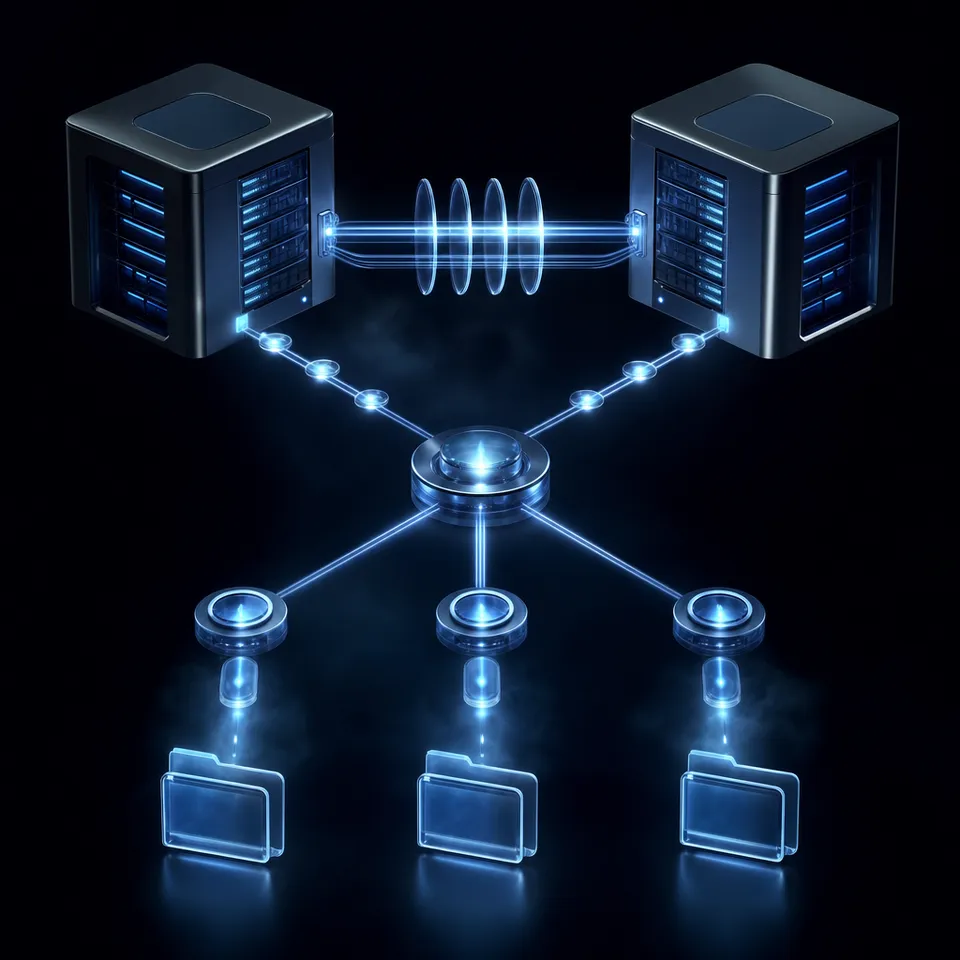
Solving the SharePoint connectivity problem requires decoupling enterprise storage from developer querying. Instead of pointing Windsurf Cascade directly at Microsoft Graph or downloading site collections to local laptops, teams use an intelligent cloud workspace as an indexing bridge.
How the SharePoint to MCP Architecture Operates
The recommended deployment architecture establishes a clean, automated pipeline between Microsoft 365, an intelligent cloud workspace, and Devin Desktop:
- Document Library Source: Technical documentation, architectural RFCs, coding standards, and API specifications remain securely stored in Microsoft SharePoint Online.
- Scheduled Cloud Sync: Folders sync into a Fast.io workspace through the OneDrive connector. Cloud Sync runs one-way or two-way, on a schedule or on demand, and is never continuous, live, or real-time. Cloud Sync also covers Google Drive, Dropbox, and Box.
- Workspace Intelligence Indexing: Once files land in the workspace, Intelligence Mode automatically generates full-text and semantic vector indexes across all supported formats, including PDF, DOCX, Markdown, and plain text.
- Remote MCP Server: Fast.io exposes a consolidated remote MCP endpoint over Streamable HTTP at
https://mcp.fast.io/mcp/code, which serves thesearchtool used below, eliminating the need to run local background daemons or Node.js processes. - Cascade Context Retrieval: When a developer prompts Cascade in Devin Desktop, the assistant calls the
searchtool. The server evaluates the query against the semantic index and returns only the relevant excerpts, accompanied by precise document citations.
Measured Connector Performance
When evaluating remote MCP connections against native storage connectors, retrieval speed and resource efficiency dictate how smoothly an assistant performs. The connector comparison is published at https://fast.io/benchmarks/ where Fastio was measured the fastest and the lowest cost of the providers tested. By shifting document parsing and vector search to an optimized cloud workspace, the editor receives concise answers without downloading large document libraries locally. Teams can explore how workspace-level intelligence simplifies development by reviewing Fast.io AI capabilities.


Query Enterprise SharePoint Libraries in Devin Desktop
Sync SharePoint documents to an indexed Fast.io workspace, enable semantic search, and connect Cascade through remote MCP. Monthly plans start with a 14-day free trial.
Step-by-Step Configuration in Windsurf and Devin Desktop
Configuring Devin Desktop (formerly Windsurf) to connect to your SharePoint documentation through the remote MCP server requires only a few minutes. As outlined in the Devin Desktop documentation, Cascade natively supports MCP servers configured via JSON. Because Fast.io provides a hosted, remote endpoint over Streamable HTTP, you do not need to install local npm packages or configure local runtimes. Establishing a reliable cascade mcp sharepoint online workflow allows Cascade to retrieve authoritative project standards during code refactoring and feature implementation without manual context switching.
1. Locate the MCP Configuration File
Devin Desktop maintains its MCP server registry in a single configuration file. The file location depends on your operating system:
- macOS and Linux:
~/.codeium/windsurf/mcp_config.json - Windows:
%USERPROFILE%\.codeium\windsurf\mcp_config.json
You can open this file directly in Devin Desktop by clicking the MCPs icon in the top-right corner of the Cascade panel and selecting Configure, or by searching for Windsurf: Configure MCP Servers in the Command Palette (Cmd + Shift + P on macOS or Ctrl + Shift + P on Windows/Linux).
2. Add the Fast.io Remote MCP Server Entry
Edit your mcp_config.json to register the Fast.io remote endpoint. Provide your Fast.io API key in the request headers:
{
  "mcpServers": {
    "fastio-sharepoint": {
      "url": "https://mcp.fast.io/mcp/code",
      "headers": {
        "Authorization": "Bearer YOUR_FASTIO_API_KEY"
      }
    }
  }
}
Make sure to replace YOUR_FASTIO_API_KEY with an API key generated from your organization settings. Because this connection uses Streamable HTTP, authentication occurs securely over TLS without exposing credentials to local shell environments.
3. Verify the Connection in Cascade
Save the configuration file and restart Devin Desktop. Once reopened, Cascade automatically connects to the server and detects the consolidated MCP toolset, including the search tool.
You can verify the connection inside the Cascade panel:
- Look for the green indicator next to
fastio-sharepointin the MCP server list. - Confirm that the
searchtool is available to Cascade. - Test the integration by asking Cascade a question grounded in your SharePoint documentation: "What are our team guidelines for handling database migrations according to our architecture docs?"
Cascade will invoke the search tool, query the indexed SharePoint workspace, and provide an answer citing the exact source documents.
Enterprise Access Control, Versioning, and Document Intelligence
Connecting developer tooling to company documentation requires enterprise-grade governance. An uncontrolled integration risks exposing sensitive HR files, financial records, or unreleased intellectual property to automated agents. The intelligent workspace architecture enforces rigorous security boundaries at every layer.
Granular Access Controls and Scoped Workspaces
Rather than granting an AI agent access to an entire SharePoint tenant, administrators configure targeted workspaces in Fast.io. Access controls operate at three distinct tiers:
- Organization Level: Defines tenant membership, billing, and global administrative policies.
- Workspace Level: Isolates project environments. An engineering team workspace holds only technical specifications, avoiding exposure of sensitive business data.
- Share Level: Gives a collaborator only the files placed in a share, keeping public documentation apart from restricted architecture RFCs.
A detailed activity log records the changes human teammates and automated agents make. Every file upload, edit, and permission modification is logged, providing clear accountability for enterprise compliance teams.
Per-File Version History and Advisory Locking
When multiple developers and automated agents collaborate within the same workspace, managing document changes requires clear coordination. Every file in Fast.io retains full version history. If an agent updates a technical specification or a developer modifies an architecture note, previous revisions remain restorable at any time.
To coordinate concurrent writes between team members and agents, Fast.io provides advisory file locks through MCP (storage_manage actions lock-acquire and lock-release, and storage action lock-status):
lock-acquire: Grants an advisory lease on a target file, registering the agent's identity.lock-status: Inspects whether a file is currently locked and by whom.lock-release: Relinquishes the lease once file modifications are complete.
These locks are advisory and time-limited, renewing via heartbeat. They prevent unintended race conditions without blocking emergency updates or deadlocking workspace pipelines.
Structured Extraction with Metadata Views
In addition to unstructured semantic search, enterprise teams frequently need structured data extracted from SharePoint files. Fast.io provides Metadata Views, an AI extraction layer that turns unstructured documents into a live, queryable database.
Instead of writing custom regular expressions or training brittle OCR templates, teams describe the desired schema in natural language. Metadata Views extracts structured fields, such as contract renewal dates, API version tags, compliance statuses, and author names, into a typed data grid. Developers and agents can query these values directly via MCP or filter search operations by specific metadata values, bridging the gap between raw document archives and structured developer context.
For project documentation, Fastio Notes provides markdown notes kept directly in the workspace next to files, indexed for AI grounding and version-checked across developers and agents.
Troubleshooting Common Windsurf MCP and SharePoint Connection Issues
When deploying MCP connections across distributed development teams, engineers occasionally run into configuration or environmental roadblocks. Here is how to diagnose and resolve the most common issues:
MCP Server Shows Disconnected in Cascade
If Devin Desktop displays a red status icon or reports that the MCP server failed to initialize:
- Verify URL and Header Syntax: Ensure
mcp_config.jsonuses the exact endpointhttps://mcp.fast.io/mcp/codeand that theAuthorizationheader containsBearerfollowed by your valid API key without line breaks. - Corporate Proxy and Firewall Rules: Some enterprise networks inspect outbound HTTPS traffic or block non-standard user agents. Verify that your development machine can reach
mcp.fast.ioon port 443. - Editor Restart: Changes to
mcp_config.jsonrequire a full restart of Devin Desktop to reload the MCP host process.
Cascade Returns No Results for Known SharePoint Documents
When Cascade fails to locate a document you know exists in your SharePoint library:
- Check Cloud Sync Status: Fast.io Cloud Sync for OneDrive and SharePoint runs on a schedule or on demand. If a document was added to SharePoint moments ago, trigger an on-demand sync from the Fast.io workspace dashboard to pull the latest updates.
- Confirm Intelligence Mode Is Active: Semantic retrieval requires Intelligence Mode to be enabled on the target workspace. When active, newly synced files are automatically indexed for hybrid search.
- Inspect Workspace Scope: Verify that your API key has read permissions on the specific workspace containing the synced SharePoint library. Review organizational seat allocations and workspace structures on the Fast.io pricing page.
Handling Large File Collections Without Performance Degradation
If your SharePoint site collection contains tens of gigabytes of documentation:
- Scope Sync at the Folder Level: Avoid syncing entire root site collections containing video archives or raw database backups. Point Cloud Sync at designated documentation folders (such as
/Engineering/Architectureor/Product/Specs). - Rely on Remote Semantic Search: Never configure local MCP servers to crawl or mirror files to your local drive. Cascade's remote
searchtool retrieves only relevant passages, keeping IDE memory usage minimal regardless of total library size.
Sources
References used to verify factual claims in this guide.
-
By default, the list view threshold is configured at 5,000 items.
Frequently Asked Questions
Can Windsurf Cascade access SharePoint document libraries?
Yes. Windsurf Cascade (in Devin Desktop) accesses SharePoint document libraries through the Model Context Protocol. By syncing SharePoint libraries to an intelligent workspace that indexes document contents, Cascade can execute semantic searches and retrieve relevant excerpts directly within the editor.
How do I set up a SharePoint MCP server for Windsurf?
To set up a SharePoint MCP server, sync your SharePoint document libraries into a Fast.io workspace using Cloud Sync, enable Intelligence Mode for automatic semantic indexing, and add the remote endpoint `https://mcp.fast.io/mcp/code` with your API key to `mcp_config.json` in Devin Desktop.
How do I handle enterprise authentication when connecting Windsurf to SharePoint?
Connecting through an intelligent workspace bypasses the need for individual developers to manage Entra ID app registrations, client secrets, or OAuth redirect flows on their local machines. Authentication to Microsoft 365 is managed once at the workspace level, while developers authenticate to the MCP server using scoped API keys.
What is the fastest way to search company SharePoint documents in Windsurf?
The fastest approach is using remote semantic search via the Fast.io MCP search tool. Instead of pulling large files or deep folder trees across Microsoft Graph, Cascade queries the pre-indexed cloud workspace and receives precise, citation-backed passages in milliseconds.
Does Cloud Sync download all SharePoint files to my local hard drive?
No. Cloud Sync transfers files directly between SharePoint Online and your Fast.io cloud workspace. Your local machine downloads only the specific search excerpts and document citations that Cascade requests during a conversation, saving local disk space and bandwidth.
What happened to Windsurf and the Cascade agent?
Cognition renamed the Windsurf editor to Devin Desktop on 2026-06-02, transitioning the Cascade assistant to Devin Local. The MCP integration remains fully compatible, allowing developers to configure remote and local MCP servers in `mcp_config.json`.
Related Resources

Query Enterprise SharePoint Libraries in Devin Desktop
Sync SharePoint documents to an indexed Fast.io workspace, enable semantic search, and connect Cascade through remote MCP. Monthly plans start with a 14-day free trial.