How to Sync Google Drive to MCP for AI Agent Workspaces
Syncing Google Drive to MCP allows AI agents to access Google Drive files through a standardized protocol by mirroring cloud folders into an indexed workspace served by a remote MCP endpoint. Direct Google Drive API calls and local desktop MCP servers face rate limits, token exhaustion, and fragile credential storage. Mirroring Drive folders to an intelligent workspace gives AI agents fast hybrid search, persistent versioning, and unified MCP tooling across runtimes.

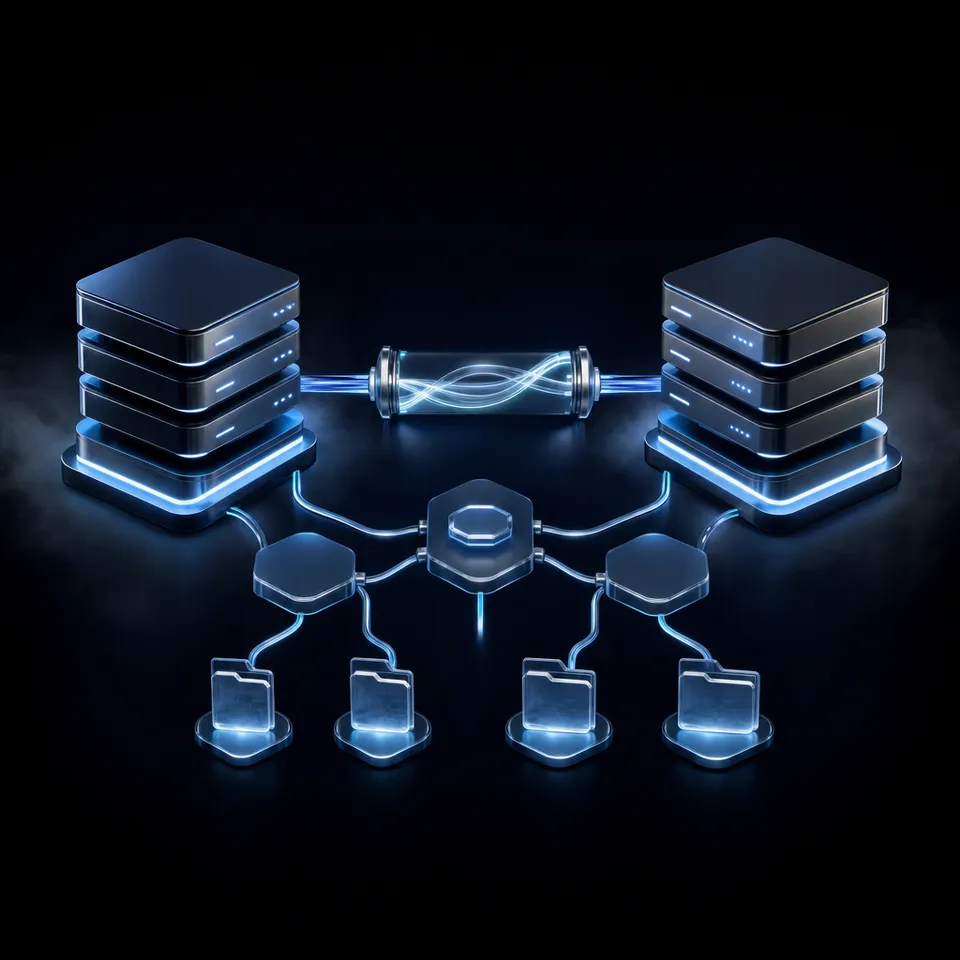
Why Direct Google Drive API Access Bottlenecks AI Agents
Connecting an AI agent directly to Google Drive through raw API calls or local stdio scripts creates an immediate operational bottleneck when multi-step agent workflows attempt to crawl directories and ingest full documents.
When an autonomous agent attempts to locate a single project requirement across shared team drives, direct API connections force the model to issue repetitive directory traversal calls, download entire file payloads over the network, and parse massive text blocks into working memory. This architecture introduces three immediate points of failure: API rate limit throttling, context window exhaustion, and credential fragmentation across developer machines.
API Rate Limits and Multi-Agent Throttling
Native Google Drive API rate limits throttle high-frequency multi-document agent queries. When an autonomous coding loop or research swarm runs multiple parallel tasks against a Google Workspace tenant, concurrent file listing and export calls quickly trigger rate limit errors. Google enforces per-user and per-project request quotas to protect infrastructure from abuse. While a human browsing Drive in a web browser rarely exceeds these thresholds, an agent executing iterative retrieval loops can consume hundreds of API requests in seconds. Once throttled, the agent halts, drops active execution threads, or requires complex exponential backoff logic that degrades pipeline throughput.
Context Window Exhaustion from Raw File Downloads
Pre-indexed MCP search retrieves targeted excerpts instead of full document payloads. Direct API connectors do not index files; they download raw file contents or export Google Docs and Google Sheets into text representations. An agent attempting to verify a single API contract parameter inside a complex system architecture specification must pull the entire document into its working prompt context. Loading whole documents consumes thousands of tokens, increases model inference costs, and dilutes the model's attention span. High-volume document injection leads to lost context in large context windows, causing models to miss critical instructions or hallucinate answers.
The Local stdio Script Trap and Headless Environments
Beyond API throttling and context bloat, the prevailing implementation pattern recommended across open-source tutorials relies on local stdio Python MCP servers. In this model, developers run a local process that authenticates via an interactive OAuth desktop consent screen, storing credentials in a local token file on the developer's laptop. While functional for single-user prototyping in desktop tools, this architecture breaks down in production engineering environments:
- Headless CI/CD runners in GitHub Actions, GitLab CI, and CircleCI cannot spawn interactive browser windows to complete OAuth consent handshakes.
- Cloud containers and remote development environments (such as Docker containers, GitHub Codespaces, and cloud virtual machines) lack access to the developer's local filesystem credentials.
- Multi-agent swarms running concurrently cannot share laptop-bound stdio server processes without risking file lock conflicts and token corruption.
- Team collaboration is blocked because each engineer must configure individual Google Cloud developer projects, OAuth client credentials, and local environment variables.
Production agent workflows require decoupled cloud storage that mirrors Google Drive assets into an indexed workspace served over remote, standards-compliant MCP endpoints. For architectural patterns on structuring persistent storage for autonomous systems, consult agent storage guidelines.
Related guides
- How to Sync Dropbox to MCP for AI Agents and Automated PipelinesSyncing Dropbox to MCP gives AI agents fast, searchable access to team files without downloading entire directory...
- How to Sync OneDrive to MCP for AI Coding and Workflow AgentsSyncing OneDrive to MCP allows AI agents to access Microsoft OneDrive files through a standardized protocol by...
- Cloud Storage MCP: Connecting AI Agents to Drive, Dropbox, and OneDriveAI agents require access to files stored across Google Drive, Dropbox, Box, and OneDrive, but local filesystem...
- OneDrive MCP Integration: Graph API Limitations and Remote Workspace SyncDeploying an onedrive mcp integration reveals severe operational constraints across local sync folders and direct Graph...
- How to Sync SharePoint to MCP: Enterprise Agent Document AccessSyncing SharePoint to MCP bridges enterprise Microsoft 365 document libraries with autonomous AI agents by...
- Box MCP Server Setup and AI Agent Storage IntegrationA Box MCP server allows AI agents to interact with Box enterprise files and folders using the standardized Model...
More on this subject: MCP and Model Context Protocol (244 guides)
Native Google Drive Connectors vs. Cloud-Synced Remote MCP Workspaces
Syncing Google Drive to MCP is an architecture pattern where cloud storage folders are mirrored into an intelligent workspace and served to AI agents over the Model Context Protocol, enabling fast semantic search without consuming context tokens on raw file downloads.
When software teams connect Google Drive files to the Model Context Protocol, they typically evaluate two approaches: direct Google Drive API MCP servers and cloud-synced workspace MCP endpoints.
Pattern 1: Direct Google Drive API MCP Servers
Direct MCP servers translate agent tool calls into real-time Google Drive REST API requests. Implementations range from Google's official Drive MCP server developer preview to community open-source packages and commercial gateway connectors like Gumloop. Google Drive offers a remote Model Context Protocol server that uses OAuth 2.0 for authentication and authorization. In this pattern, the server exposes tools such as search_files, read_file_content, and create_file.
While direct connectors provide a standard protocol wrapper around Google Drive, they inherit every limitation of the underlying Drive API:
- Search Latency: Querying documents via Google Drive's native search API evaluates metadata and full-text queries across Google Workspace indexing clusters. Each tool call incurs round-trip network overhead, adding substantial latency to multi-turn agent loops.
- Context Exhaustion from Full Payloads: When an agent calls
read_file_contentordownload_file_content, the direct server returns the complete file buffer. The agent must ingest the full payload into prompt memory, consuming context headroom needed for code reasoning. - Strict API Quotas: Autonomous agent swarms executing rapid searches quickly exhaust tenant quotas, resulting in rate limit throttling.
Pattern 2: Cloud-Synced Workspace MCP Endpoints
The cloud-synced workspace pattern decouples Google Drive file synchronization from agent query execution. Instead of querying Google Drive APIs during reasoning loops, target Drive folders sync into an intelligent cloud workspace such as Fast.io workspaces.
When documents arrive in the workspace, the platform processes them through Intelligence Mode, automatically generating full-text indices and semantic vector embeddings. When an AI agent needs information, it connects to a remote MCP endpoint over Streamable HTTP and executes targeted hybrid search queries. Rather than streaming raw multi-megabyte files across the network, the agent receives concise, relevant text passages accompanied by exact source file citations.
In connector performance testing published at Fast.io benchmarks, Fastio was measured the fastest and the lowest cost of the providers tested. By serving pre-indexed document excerpts over remote MCP, workspaces eliminate redundant file transfers and minimize model token consumption.
Four-Step Workflow to Sync Google Drive to Fast.io MCP
Connecting Google Drive to an intelligent workspace requires mapping your folders, establishing a synchronization cadence, and pointing your AI agents to the remote MCP server.
Step 1: Authorize Google Drive in Cloud Sync
In your workspace settings, select Cloud Sync to initiate the provider authorization flow. Fast.io connects to Google Drive via OAuth, requesting read or read/write permissions for selected folders. Cloud Sync connects Google Drive, Dropbox, Box and OneDrive folders to a workspace, one-way or two-way, on a schedule or on demand. Because authentication takes place at the workspace level, your team members and autonomous agents do not need individual Google Cloud service accounts or developer API keys.
For historical archives or static reference collections that do not require recurring synchronization, teams can also execute a one-time import using cloud import.
Step 2: Map Target Drive Folder to Workspace
Select the specific Google Drive folder containing project assets, architectural specifications, or team documentation, and map it to a dedicated Fast.io workspace.
Workspace boundaries serve as essential security perimeters. Fast.io enforces role-based access controls strictly per organization, workspace, and share. Permissions are never applied at the individual folder or file level; every workspace member reaches all files within that workspace according to their assigned role. By mapping distinct Google Drive folders to dedicated workspaces (such as an engineering workspace, a product workspace, or a client delivery workspace), administrators guarantee that an AI agent granted access to one project cannot access unrelated corporate documents.
Step 3: Configure Scheduled or On-Demand Synchronization
Configure the synchronization mode and schedule to match your operational requirements:
- One-Way vs. Two-Way Sync: Configure one-way synchronization (Google Drive to Fast.io) to treat Google Drive as the canonical read-only source of truth. This prevents autonomous agents from modifying source documents. Select two-way synchronization when agents need to file generated code reviews, summary reports, or revised documentation back into Google Drive for human colleagues.
- Synchronization Schedule: Establish batch synchronization (such as nightly or hourly updates) to refresh workspace documents automatically. Alternatively, trigger on-demand synchronization programmatically before initiating an automated pipeline. Note that Cloud Sync operates on a schedule or on demand; it is never continuous, live, or real-time.
Step 4: Connect AI Agents via Remote MCP
Once files are synchronized and indexed, connect your AI agents to the remote Fast.io MCP server. The server operates over Streamable HTTP and exposes distinct endpoints optimized for specific agent workflows:
https://mcp.fast.io/mcp/tools: For Claude applications, desktop clients, and general personal agents.https://mcp.fast.io/mcp/code: For coding agents running in IDEs, terminal environments, or continuous integration pipelines (such as Claude Code, Cursor, and VS Code).
Agents perform hybrid search queries against the pre-indexed Google Drive files, receiving direct text passages and document citations without downloading raw binaries.


Connect Google Drive Folders to AI Agents with Sub-Second Search
Sync your Google Drive folders into an intelligent workspace. Give Claude Code, Cursor, and custom agents instant semantic search over your documents through remote MCP. Monthly plans start with a 14-day free trial (credit card required).
Configuring AI Clients and Coding Agents for Remote MCP
Integrating AI agents with your synchronized Google Drive workspace requires adding the remote Fast.io MCP endpoint to your client configuration. Review Fast.io MCP setup documentation for full client guides.
1. Claude (Web, Desktop, and Mobile)
To connect Claude to your synced Google Drive files:
- Open Claude and go to Customize, then Connectors.
- Add a custom connector and enter
https://mcp.fast.io/mcp/tools. - Select Connect and sign in to Fast.io in the browser window that opens.
- Review the permissions screen and select the organizations and workspaces your connection can access.
- In any chat session, enable Fast.io from the plus menu under Connectors.
2. Claude Code
For terminal-based coding agents using Claude Code, add the remote HTTP server using the command line:
claude mcp add --transport http fast-io https://mcp.fast.io/mcp/code
Run /mcp inside Claude Code to complete the interactive OAuth authentication flow. If configuring a project-level .mcp.json file, define the HTTP transport:
{
  "mcpServers": {
    "fast-io": {
      "type": "http",
      "url": "https://mcp.fast.io/mcp/code"
    }
  }
}
3. Cursor
Open your project or user configuration file (~/.cursor/mcp.json or .cursor/mcp.json in your repository root) and configure the remote server entry:
{
  "mcpServers": {
    "fast-io": {
      "url": "https://mcp.fast.io/mcp/code"
    }
  }
}
4. VS Code and Copilot Agent Mode
In your workspace .vscode/mcp.json file, declare the server under the servers block:
{
  "servers": {
    "fast-io": {
      "type": "http",
      "url": "https://mcp.fast.io/mcp/code"
    }
  }
}
5. Headless CI/CD Runners and Cloud Containers
When deploying autonomous agents inside containerized runtimes, GitHub Actions workflows, or cloud virtual machines where interactive browser sign-in is impossible, authenticate using an API key passed as an authorization header on the connection.
Configure your agent runtime to provide Authorization: Bearer <your-fastio-api-key> on the HTTP connection to https://mcp.fast.io/mcp/code or https://mcp.fast.io/mcp/tools.
Tool Surface for Synced Google Drive Files
The /mcp/code endpoint exposes a consolidated MCP toolset tailored for software engineering and automated file workflows:
search: Executes hybrid vector and full-text keyword queries across your synced Google Drive documents. An agent passes natural language questions (such as "Find the database migration runbook for our staging cluster") and receives targeted text excerpts with file citations.execute: Reads specific document contents, inspects metadata, or queries Metadata Views.execute_manage: Handles write operations. When an agent creates test plans, deployment logs, or revised code comments,execute_managewrites the new file directly into the workspace.- Advisory File Locks: When multiple agents collaborate in a workspace, agents acquire an advisory lease using
lock-acquireandlock-releaseonstorage_manage, or verify active leases usinglock-statusonstorage. An advisory lock alerts other agents that an active update is underway, while per-file version history preserves every revision. - Structured Data Extraction: For teams handling structured documents like customer contracts, invoices, or vendor agreements stored in Google Drive, Metadata Views automatically extracts typed fields (text, numbers, dates, booleans) into queryable database views accessible by agents via MCP.
Multi-Agent Concurrency, Access Governance, and Delivery
Operating AI agents in production environments requires clear synchronization cadences, strict data governance, and reliable mechanisms for delivering agent outputs to human stakeholders.
Synchronization Cadence vs. Real-Time Expectations
Cloud Sync is architected for scheduled and on-demand synchronization rather than continuous or real-time file mirroring. In production agent environments, this model offers distinct operational advantages:
- Controlled Update Windows: By syncing Google Drive folders on a schedule (such as hourly or nightly), teams prevent mid-task documentation shifts while agents execute multi-step reasoning plans.
- Pre-Pipeline On-Demand Sync: Automated deployment pipelines can trigger an on-demand sync prior to launching test generation or verification agents, ensuring agents work against current documentation.
- Reacting to Workspace Events: When downstream agents need to trigger actions immediately after files arrive, they subscribe to the workspace activity long-poll (
GET /current/activity/poll/{entity_id}?wait=95&lastactivity={timestamp}) or WebSocket activity feed. This event-driven pattern eliminates the need for agents to constantly poll Google Drive APIs.
Role-Based Access Controls and Data Governance
Enterprise Google Drive accounts often contain confidential financial records, personnel files, and legal documents alongside engineering specifications. Granting an AI agent raw service account credentials to Google Drive risks exposing sensitive corporate data to automated prompts or accidental data exfiltration.
Fast.io enforces role-based access controls strictly per organization, workspace, and share. Permissions are never applied at the individual folder or file level; every workspace member reaches all files within that workspace according to their assigned role. By creating a dedicated workspace for each project and syncing only the required Google Drive folder, administrators establish an impermeable boundary around agent operations.
Concurrency and Per-File Version History
When multiple autonomous agents and human developers collaborate within a single workspace, concurrent writes can occur. For example, a code documentation agent and an automated security audit agent might update release notes simultaneously.
Fast.io handles concurrent edits through per-file version history and an advisory lock model. If two agents save modifications at the same time, both writes land safely, and the workspace preserves every revision in the file version history. Team members can inspect past revisions, compare diffs, and restore prior versions at any time.
The detailed activity log records every modification, upload, move, deletion, share creation, and permission update. While the platform does not log read-only events (such as file views or downloads), it maintains an auditable record of which person or agent performed each content update.
Client Delivery and Ownership Transfer
When an AI agent finishes compiling research or generating project deliverables, sharing the resulting files with human clients or colleagues is straightforward:
- Branded Shares: Deliver finished assets through custom-branded share links (Send, Receive, or Exchange). Shares can be durable or expiring, include optional password protection, and allow administrators to disable file downloads. External clients access shared files in a clean web portal without creating an account or consuming a subscription seat.
- Programmatic Ownership Transfer: Autonomous agents can provision a new organization and workspace, build required documentation, and transfer primary ownership to a human team lead while retaining administrative access.
Sources
References used to verify factual claims in this guide.
-
Google Drive offers a remote Model Context Protocol server that uses OAuth 2.0 for authentication and authorization.
-
Google Drive MCP provides a standardized protocol interface for AI agents to access files across Google Drive accounts.
Frequently Asked Questions
Can I connect Google Drive to MCP?
You can connect Google Drive to MCP either by running direct API connectors or by mirroring folders into an intelligent workspace. In the workspace pattern, you configure Cloud Sync to mirror your Google Drive folder into Fast.io, then connect your AI agent to `https://mcp.fast.io/mcp/code` for coding agents or `https://mcp.fast.io/mcp/tools` for general assistants using Streamable HTTP.
How do AI agents access files in Google Drive via MCP?
AI agents access Google Drive files through MCP by issuing standardized tool calls. Instead of downloading whole files via Google Drive REST APIs, the agent connects to Fast.io's remote MCP endpoint and calls the `search` tool. Intelligence Mode queries pre-indexed full-text and semantic embeddings, returning targeted text passages and citations directly into the model context.
What is the difference between local Google Drive MCP and synced remote MCP?
Local Google Drive MCP servers run as stdio processes on developer laptops, relying on desktop OAuth tokens that fail in headless CI/CD pipelines and cloud containers. Synced remote MCP mirrors Google Drive folders to an intelligent cloud workspace on a schedule or on demand, serving pre-indexed search results over a hosted Streamable HTTP endpoint accessible from any environment.
How does Fast.io handle multi-agent writes to synced Google Drive folders?
Fast.io preserves all writes through per-file version history and supports advisory file locks (`lock-acquire` and `lock-release` on `storage_manage`, `lock-status` on `storage`). If two agents modify a document simultaneously, both updates land safely as discrete versions in the file history, and every edit is recorded in the detailed activity log.
Does syncing Google Drive to MCP support real-time file updates?
No. Cloud Sync operates on a schedule or on demand; it does not operate as a continuous or real-time file mirror. To react to changes as files land in the workspace, downstream agents subscribe to the workspace activity long-poll or WebSocket activity feed, enabling automated event-driven processing without continuous polling.
Related Resources

Connect Google Drive Folders to AI Agents with Sub-Second Search
Sync your Google Drive folders into an intelligent workspace. Give Claude Code, Cursor, and custom agents instant semantic search over your documents through remote MCP. Monthly plans start with a 14-day free trial (credit card required).