How to Sync Dropbox to MCP for AI Agents and Automated Pipelines
Syncing Dropbox to MCP gives AI agents fast, searchable access to team files without downloading entire directory trees. By pairing scheduled Cloud Sync with remote MCP search endpoints, automated pipelines bypass API rate limits, prevent context window bloat, and maintain persistent file context across multi-agent workflows.

Why Raw Cloud Storage Access Bottlenecks AI Agents
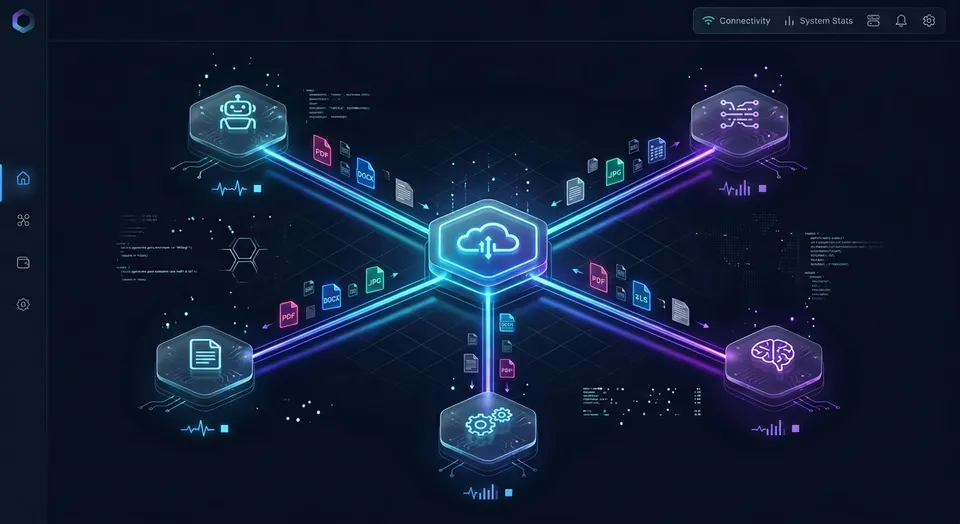
Connecting an AI agent directly to Dropbox through raw API downloads creates an immediate operational bottleneck. When an agent must crawl directories and download full documents over API connections just to locate a single project update, it burns thousands of context tokens on irrelevant file payloads and quickly triggers rate limit backoffs across multi-agent pipelines.
Syncing Dropbox to MCP is the process of linking Dropbox cloud storage to AI agents using the Model Context Protocol by maintaining synchronized, pre-indexed workspace folders accessible via remote search tools.
Human file sync and agent context retrieval solve different problems. Desktop sync clients like Dropbox for macOS or Windows keep local hard drives aligned with cloud folders by tracking filesystem events and downloading binaries in the background. AI agents operating in automated pipelines rarely run on personal laptops with persistent local storage. They run inside containerized workers, cloud virtual machines, IDE agent windows, or serverless functions. Mounting desktop sync daemons in these headless environments is fragile and unsuited for multi-agent concurrency.
When developers evaluate how to sync Dropbox folders to MCP, they often begin by writing a basic Python script using the Dropbox API. The script exchanges an authorization code for an access token, calls directory listing endpoints, downloads PDFs or spreadsheets to a temporary container path, and parses the raw text into the model context window. This approach breaks down quickly in production:
- Excessive token consumption: Passing entire multi-megabyte documents into an LLM context window to answer simple questions exhausts token budgets and pushes models toward attention degradation.
- API rate limit backoffs: Raw file downloads over Dropbox API consume excessive agent tokens and trigger rate limit backoffs when parallel subagents query files simultaneously.
- Directory traversal latency: Multi-step recursive folder listing consumes round-trips and tool-call cycles before the agent can even inspect file contents.
- Context staleness: Ephemeral agent scripts re-download files repeatedly across runs, lacking a shared, continuously indexed knowledge base that stays current with team changes.
A production-grade Dropbox MCP sync workflow eliminates this problem by decoupling the primary storage tier from the agent retrieval surface.
Related guides
- How to Sync Google Drive to MCP for AI Agent WorkspacesSyncing Google Drive to MCP allows AI agents to access Google Drive files through a standardized protocol by mirroring...
- How to Sync OneDrive to MCP for AI Coding and Workflow AgentsSyncing OneDrive to MCP allows AI agents to access Microsoft OneDrive files through a standardized protocol by...
- Cloud Storage MCP: Connecting AI Agents to Drive, Dropbox, and OneDriveAI agents require access to files stored across Google Drive, Dropbox, Box, and OneDrive, but local filesystem...
- How to Connect Gemini to Dropbox via MCPConnecting Gemini to Dropbox via MCP allows Google Gemini models and agents to interact with Dropbox storage through...
- OneDrive MCP Integration: Graph API Limitations and Remote Workspace SyncDeploying an onedrive mcp integration reveals severe operational constraints across local sync folders and direct Graph...
- How to Sync SharePoint to MCP: Enterprise Agent Document AccessSyncing SharePoint to MCP bridges enterprise Microsoft 365 document libraries with autonomous AI agents by...
More on this subject: MCP and Model Context Protocol (244 guides)
What the Native Dropbox MCP Server Exposes and Where It Stalls
Developers seeking to connect Dropbox to MCP server infrastructure can evaluate the official remote Model Context Protocol server hosted by Dropbox at https://mcp.dropbox.com/mcp. Built on the open-source MCP specification, this hosted endpoint allows compatible AI clients to connect to an authorized Dropbox account without managing local server runtimes or background daemon processes.
Deploying a native Dropbox Model Context Protocol integration allows supported LLMs to inspect files, folders, and Paper documents directly from chat interfaces and coding environments. The native Dropbox remote server exposes several standard tools:
ListFolder: Browses directory contents in batches and supports cursor-based pagination.GetFileMetadata: Retrieves file properties including size, modification timestamps, and MIME types by path or file ID.GetFileContent: Extracts text from supported file formats like PDFs, Microsoft Word documents, and text files.Search: Performs keyword queries across files and folders by name or text content.GetUsageAndQuota: Inspects team and individual storage consumption.CreateFolder: Creates new directory paths for organizing outputs.
While this native connector works well for single-user queries inside personal chat interfaces, production pipelines encounter specific architectural constraints:
First, file extraction has size caps. The native Dropbox remote MCP server limits direct text extraction from supported files to 5 MB. Documents exceeding this threshold return fallback content links rather than direct text context, forcing agent pipelines to handle secondary download routines outside the MCP conversation loop.
Second, directory browsing introduces latency. Because directory listings return fixed batch sizes per call, inspecting large team folders requires repeated round-trip cursor calls. An agent looking for a specific contract or dataset across nested folders can burn context tokens and round trips paging through directory batches before finding the relevant file.
Third, keyword search lacks vector-based semantic retrieval. The native search tool matches filenames and exact string appearances, but it does not generate vector embeddings, chunk large documents into semantic passages, or surface relevant paragraphs when an agent asks conceptual questions.
Finally, concurrent multi-agent teams risk hitting API quotas. When several autonomous agents query the same Dropbox account concurrently, uncoordinated tool calls multiply API requests against Dropbox endpoints, resulting in HTTP 429 rate limit backoffs.
How to Sync Dropbox to MCP Using Scheduled Workspaces
A scalable alternative is decoupling storage from context retrieval. Human team members continue creating, editing, and organizing files inside their familiar Dropbox folders. Behind the scenes, those folders sync into an intelligent workspace where files are automatically parsed, indexed, and exposed to AI agents through a dedicated MCP search server.
Remote MCP workspaces allow agents to query Dropbox file content via search without full directory downloads. Instead of pulling entire documents across the network, the agent performs targeted hybrid searches that return only the relevant excerpts, citations, and metadata required to complete its task.
Step 1: Connect Dropbox Folders via Cloud Sync
In Fast.io, Cloud Sync connects Google Drive, Dropbox, Box and OneDrive folders to a workspace, one-way or two-way, on a schedule or on demand. It does not run continuous, live, or real-time sync, which protects agent pipelines from thrashing during incomplete file writes.
To configure sync:
- Open your Fast.io organization and create a dedicated workspace for your project or team repository.
- Navigate to workspace settings and select Cloud Sync.
- Choose Dropbox from the provider list and authenticate through OAuth.
- Select the specific Dropbox source folders your agents need to access.
- Set the sync direction: select one-way sync if agents only need read access to team files, or two-way sync if agents should push finished deliverables back to Dropbox.
- Select a sync schedule (such as hourly, daily, or manual on-demand triggers before batch pipeline runs).
Step 2: Automatic Background Indexing with Intelligence Mode
Once files land in the workspace, Fast.io's Intelligence Mode indexes them automatically. The system performs text extraction, generates vector embeddings, and builds a hybrid search index combining full-text keywords, semantic vectors, and metadata values. No external vector database, embedding pipeline, or chunking script is required.
For documents containing structured records, such as vendor agreements, invoices, or specifications, Metadata Views turn unstructured files into live, typed tabular databases. Agents define fields in natural language, and the extraction engine populates typed columns (Text, Integer, Decimal, Boolean, Date & Time, JSON) that agents can query directly through MCP.
Measured Connector Performance
In independent connector evaluations conducted within Claude Cowork and published at Fast.io Benchmarks, Fastio was measured the fastest and the lowest cost of the providers tested, with retrieval accuracy reaching parity across the native connectors evaluated.


Connect Dropbox to AI Agents with Intelligent Search
Sync your Dropbox folders into a persistent Fast.io workspace with automatic hybrid search, per-file version history, and remote MCP endpoints for Claude, Cursor, and automated pipelines. Starts with a 14-day free trial.
How to Connect AI Agent Clients to the Remote MCP Server
Fast.io hosts a remote Model Context Protocol server over Streamable HTTP. It requires no local npm installation, no npx execution, and no bridge processes. Agents connect directly using the remote endpoint designed for their client architecture.
Endpoint addresses by client category:
- Claude applications and general MCP clients:
https://mcp.fast.io/mcp/tools - ChatGPT and Codex custom MCP servers:
https://mcp.fast.io/mcp/operations(or install the Fastio plugin from the ChatGPT plugin directory) - Coding agents (Claude Code, Cursor, VS Code, Cline, Gemini CLI):
https://mcp.fast.io/mcp/code
Official setup documentation is available at https://mcp.fast.io/docs, and agents can inspect the machine-readable skill guide at https://mcp.fast.io/skill.md.
Connecting Interactive Clients
For Claude (web, desktop, and mobile), open Customize, then Connectors. Add a custom connector, paste https://mcp.fast.io/mcp/tools as the server URL, select Connect, and sign in to Fastio in the browser window that opens. Inside any chat, turn Fastio on from the connector menu. Do not edit local configuration files for Claude.
For ChatGPT, install the Fastio plugin directly from the plugin directory at chatgpt.com/plugins, select Install plugin, and complete the sign-in prompt. In conversations, mention @Fastio to query the workspace. If your workspace policy restricts plugins, configure a custom developer MCP server pointing to https://mcp.fast.io/mcp/operations.
For Codex, install the plugin in the CLI using codex plugin add fast-io@openai-curated-remote or open the Plugins tab in the ChatGPT desktop app, then sign in when prompted. For the Codex IDE extension, add the custom server with codex mcp add fastio --url https://mcp.fast.io/mcp/operations and log in using codex mcp login fastio.
For Cursor, configure your project or user settings at .cursor/mcp.json or ~/.cursor/mcp.json:
{
  "mcpServers": {
    "fast-io": {
      "url": "https://mcp.fast.io/mcp/code"
    }
  }
}
For Claude Code, register the remote HTTP endpoint directly from your terminal:
claude mcp add --transport http fast-io https://mcp.fast.io/mcp/code
Run /mcp inside Claude Code to complete the interactive OAuth authentication.
For VS Code Copilot agent mode, configure .vscode/mcp.json under the servers key:
{
  "servers": {
    "fast-io": {
      "type": "http",
      "url": "https://mcp.fast.io/mcp/code"
    }
  }
}
Connecting Headless Automated Pipelines
Automated pipelines running inside GitHub Actions, Docker containers, or Python orchestration scripts connect by sending a bearer token on the HTTP connection:
curl -X POST "https://mcp.fast.io/mcp/tools" \
  -H "Content-Type: application/json" \
  -H "Accept: application/json, text/event-stream" \
  -H "Authorization: Bearer your-fastio-api-key" \
  -d '{
    "jsonrpc": "2.0",
    "id": 1,
    "method": "tools/call",
    "params": {
      "name": "storage",
      "arguments": {
        "action": "search",
        "query": "Q3 quarterly revenue report summary"
      }
    }
  }'
Querying Synced Files via Consolidated MCP Tools
Fast.io provides a consolidated MCP toolset organized into functional pairs. On https://mcp.fast.io/mcp/tools, read operations use the storage tool, while modifications use the storage_manage tool:
- Semantic and keyword search: Agents invoke the
storagetool withaction: "search"and a natural-language query. The server queries the pre-indexed Dropbox files and returns relevant text snippets with citations. - Metadata inspection: Agents invoke
storagewithaction: "details"to check file size, timestamps, or version identifiers before requesting content. - Directory inspection: Agents invoke
storagewithaction: "list"to view folder structures without pagination headaches. - Output generation: When an agent finishes drafting a report or processing data, it invokes
storage_managewithaction: "upload"to save the artifact into the workspace.
Multi-Agent Coordination, Version History, and Safe Handoffs
When multiple agents read and write against the same synchronized workspace, automated pipelines require coordination mechanisms to prevent overwrites and maintain data integrity.
Advisory File Locking
Fast.io implements advisory per-file leases in workspace storage. When an agent begins a complex, multi-step editing operation, it acquires a temporary lease:
- Acquire lock: call the
storage_managetool withaction: "lock-acquire". - Check lock status: call the
storagetool withaction: "lock-status". - Release lock: call the
storage_managetool withaction: "lock-release".
Advisory locks signal to other agents and team members that a file is actively being updated. The lock expires automatically unless heartbeated by the holding agent. Because locks are advisory, they do not block emergency reads, and concurrent writes are safely resolved through version control.
Per-File Version History and Detailed Activity Logs
Every file in a Fast.io workspace retains full version history. If an automated script produces an incorrect output or overwrites an earlier draft, teammates can inspect previous versions and restore the correct file state with a single click or API call.
The workspace maintains a detailed activity log that records modifications, additions, moves, deletions, and permission changes across the organization. Both human edits and agent actions appear in the log, providing clear traceability for team audits. The activity log tracks changes only; it does not record passive reads, views, or file downloads.
Scoped Access and Ownership Transfer
Permissions in Fast.io are set per organization, workspace, and share through member roles. Every workspace member reaches workspace files according to their assigned role. When an automated workflow needs to isolate specific deliverables or share a single folder with external partners or clients, you create a dedicated branded share link. Shares can be set to view-only, allow file uploads, or disable file downloads completely.
In automated setups, an agent can be provisioned to create an organization, configure workspaces, and set up Cloud Sync connections. Once the infrastructure is ready, the agent initiates an ownership transfer to hand primary administration to a human manager while keeping admin privileges to continue its work.
Two-Way Sync Back to Dropbox
When Cloud Sync is configured for two-way synchronization, new files and version updates generated by AI agents inside the Fast.io workspace sync back to Dropbox on the configured schedule. Business stakeholders who live in Dropbox receive agent-generated deliverables, structured summaries, and processed reports without leaving their existing workflow tools.
Monthly subscriptions start with a 14-day free trial, which requires a credit card, providing full access to Cloud Sync, Intelligence Mode auto-indexing, and the consolidated remote MCP toolset.
Sources
References used to verify factual claims in this guide.
-
The native Dropbox remote MCP server limits direct text extraction from supported files to 5 MB.
Frequently Asked Questions
Can I connect Dropbox to Claude or Cursor using MCP?
Yes. You can connect Claude and Cursor to Dropbox either through Dropbox's native remote MCP server at `https://mcp.dropbox.com/mcp` or by syncing your Dropbox folders into a Fast.io workspace and connecting via `https://mcp.fast.io/mcp/tools` (for Claude) or `https://mcp.fast.io/mcp/code` (for Cursor). The Fast.io path provides pre-indexed semantic search and automated vector retrieval across large document repositories.
How do I sync Dropbox folders to an MCP server?
Configure Cloud Sync inside a Fast.io workspace by authorizing your Dropbox account via OAuth, selecting the target folders, and choosing a sync schedule. Files sync on schedule or on demand into the workspace, where Intelligence Mode automatically parses and indexes them. Your AI agents then connect to the Fast.io remote MCP server to query those files over Streamable HTTP.
How do AI agents query Dropbox files efficiently via MCP?
Agents query files efficiently by using search-driven retrieval instead of downloading raw binaries. With Fast.io's consolidated MCP toolset, an agent calls the `storage` tool with `action: "search"` to retrieve targeted text passages, relevant citations, and structured metadata. This avoids burning context tokens on large files and prevents API rate limit errors.
What happens when multiple agents edit files in a synced workspace?
Agents use advisory file locks (`lock-acquire` and `lock-release` on the `storage_manage` tool) to signal when a file is being modified. If concurrent writes occur, Fast.io's per-file version history preserves every version so no work is permanently overwritten, while the detailed activity log records which agent or team member made each change.
Does Fast.io Cloud Sync update files in real time?
No. Cloud Sync connects Google Drive, Dropbox, Box and OneDrive folders to a workspace, one-way or two-way, on a schedule or on demand. It is never continuous, live, or real-time. Scheduled sync ensures that batch file transfers or large uploads complete cleanly before agents begin indexing and querying file content.
How does search differ between native Dropbox MCP and Fast.io Intelligence Mode?
The native Dropbox MCP server provides keyword search across filenames and text content, with direct extraction limited to files under 5 MB. Fast.io's Intelligence Mode automatically splits documents into semantic chunks and builds a hybrid index combining full-text keyword search, semantic vector retrieval, and structured Metadata Views, allowing agents to find concepts even when exact keywords do not match.
Related Resources

Connect Dropbox to AI Agents with Intelligent Search
Sync your Dropbox folders into a persistent Fast.io workspace with automatic hybrid search, per-file version history, and remote MCP endpoints for Claude, Cursor, and automated pipelines. Starts with a 14-day free trial.