Connecting Google Drive to Continue.dev with Model Context Protocol
Software engineers frequently lose momentum toggling between code in VS Code and architecture specifications stored in Google Drive. Configuring Continue.dev with the Model Context Protocol lets your coding assistant read, search, and verify design documents directly from your IDE prompt. This guide covers direct Google Drive MCP connectors, indexed workspace patterns, and complete configuration examples for both legacy and current Continue environments.

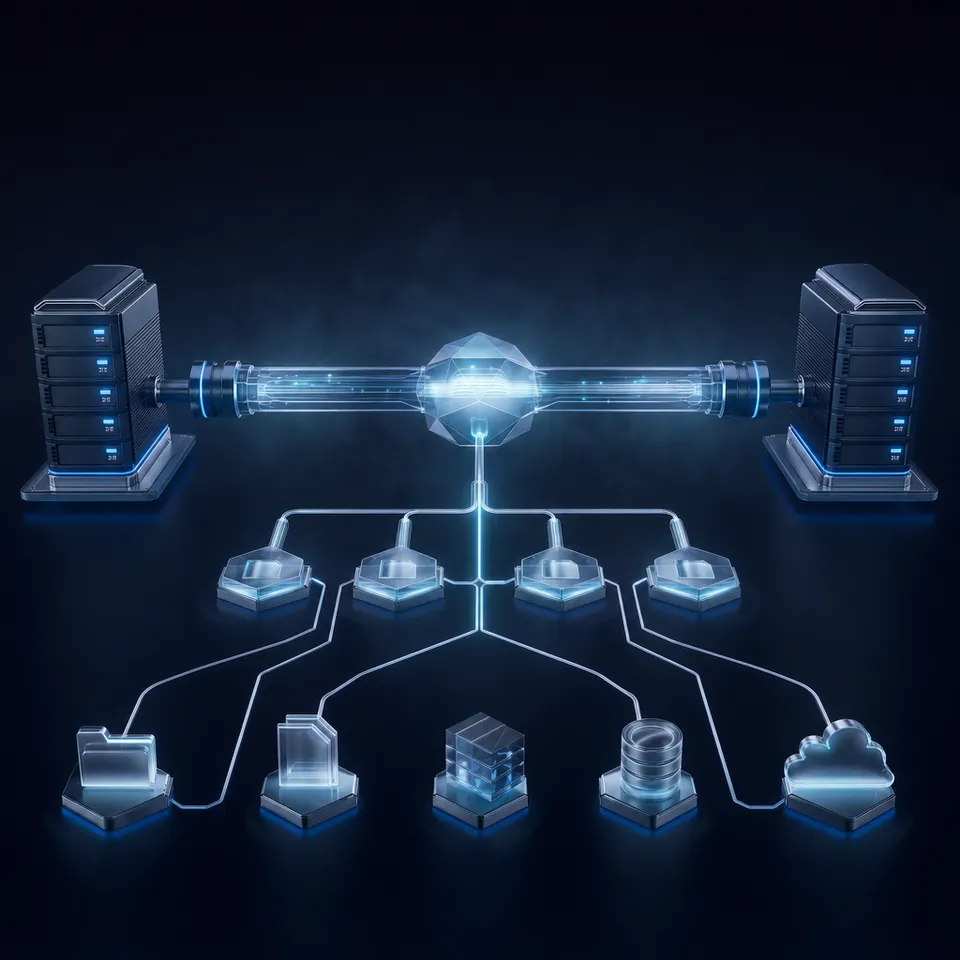
Why Connecting Continue.dev to Google Drive Solves the Context Gap
A coding assistant restricted to your local git repository is blind to the decisions that shaped the code. Product requirements, database schema migrations, third-party API contracts, and architecture decision records routinely live in Google Docs and Google Drive sheets rather than markdown files in your repository. When an agent generates code without those documents, it invents business logic, misinterprets field constraints, and forces engineers to spend hours context-switching between IDE windows and browser tabs to check specifications.
Continue.dev Google Drive MCP is a configuration that exposes Google Drive files and product specifications directly to the Continue.dev coding assistant via standard MCP JSON settings. Continue.dev is among the most popular open-source AI coding extensions for VS Code and JetBrains. It allows developers to customize their language model backends, define custom context providers, and connect external developer tooling through open protocols. However, most developer tutorials for Continue.dev focus exclusively on local repository indexing, completely ignoring how engineers reference remote PRDs, API schemas, and design docs hosted in Google Drive.
Engineers frequently lose coding momentum switching between IDE windows and browser tabs to check Google Docs specifications. A developer implementing an authentication middleware must leave their editor, search corporate drive folders, locate the relevant security specification, copy token requirements, and paste that text back into the chat window. This manual handoff slows implementation velocity and introduces human error when copied sections omit critical validation rules. Establishing a continue dev google drive workflow keeps developers in their flow state instead of switching between applications.
The Model Context Protocol (MCP) establishes an open standard for exposing external data repositories and development tools to language models without writing proprietary client plugins. Configuring a continue dev google drive mcp integration allows the assistant to search and read Google Drive specifications autonomously during code generation, debugging, and refactoring sessions.
Related guides
- Connecting Microsoft OneDrive to Continue.dev with Fastio Remote MCPContinue.dev OneDrive MCP integration connects the open-source AI code assistant in VS Code or JetBrains to OneDrive...
- Cloud Storage MCP: Connecting AI Agents to Drive, Dropbox, and OneDriveAI agents require access to files stored across Google Drive, Dropbox, Box, and OneDrive, but local filesystem...
- How to Connect Continue.dev to SharePoint via MCPConnecting Continue.dev to SharePoint via MCP allows developers to search and reference enterprise documentation...
- Google Drive MCP Server Authentication: Setup and ArchitectureGoogle Drive MCP server authentication handles the authorization handshake allowing AI agents to securely query and...
- How to Sync Google Drive to MCP for AI Agent WorkspacesSyncing Google Drive to MCP allows AI agents to access Google Drive files through a standardized protocol by mirroring...
- Model Context Protocol File Size Limits: Transports, Buffers, and RetrievalWhile the Model Context Protocol specification enforces no hard file size cap, transport buffer constraints, JSON...
More on this subject: MCP and Model Context Protocol (274 guides)
Comparing Native Google Drive MCP with Indexed Cloud Workspaces
Connecting Continue.dev to Google Drive can follow two distinct architectural paths: configuring a direct remote MCP server provided by Google Workspace, or syncing files into an indexed cloud workspace that exposes a dedicated developer MCP endpoint.
Direct Remote MCP via Google Workspace Developer Preview
Google provides an official remote MCP server for Google Drive under the Google Workspace Developer Preview Program, hosted at https://drivemcp.googleapis.com/mcp/v1, as documented in Google's Drive MCP guide. This service implements the Model Context Protocol over Streamable HTTP and exposes tools such as search_files, get_file_metadata, and download_file_content.
While direct connectivity allows an assistant to reach files stored in Drive, it presents distinct operational hurdles for development teams:
- Administrative Setup: Connecting directly to the Drive MCP endpoint requires an active Google Cloud project, manual enablement of the Google Drive API (
drive.googleapis.com) and the Drive MCP API (drivemcp.googleapis.com), and configuration of an OAuth Web application client with authorized redirect URIs. - Brute-Force File Downloads: The native connector retrieves files using standard Google Drive REST calls. When an assistant needs information from a forty-page product specification or a sprawling design sheet, the connector downloads the entire document payload into memory.
- Context Bloat and Token Consumption: Ingesting full documents floods the LLM context window with thousands of irrelevant tokens. This bloat inflates inference costs and dilutes model attention, frequently causing the assistant to miss the specific technical requirements needed for code generation.
- API Rate Limits: Rapid interactive queries from an agent running automated development loops can trigger Google Drive API rate limits, returning rate-limiting errors that interrupt coding flow.
The Indexed Workspace Approach with Fast.io
The alternative pattern separates raw file storage from model context retrieval. The engineering team continues to store specifications, architecture decision records, and API contracts in Google Drive, Dropbox, Box, or OneDrive.
Instead of forcing the coding assistant to query Google Drive REST endpoints directly, folders sync into an intelligent Fast.io workspace. Cloud Sync connects Google Drive, Dropbox, Box and OneDrive folders to a workspace, one-way or two-way, on a schedule or on demand, and is never continuous, live, or real-time. SharePoint libraries connect through the OneDrive connector.
Inside the workspace, Intelligence Mode automatically generates hybrid search indexes across all synced documents, combining full-text indexing, semantic vector embeddings, and metadata values. Fast.io hosts a remote MCP server over Streamable HTTP at https://mcp.fast.io/mcp/code, serving a consolidated MCP toolset designed specifically for coding agents.
Adding continue.dev google drive context through this architecture changes how retrieval works in practice. When a developer prompts Continue.dev in Agent mode, the assistant calls the search tool. Instead of pulling entire documents over the wire, the search tool executes a semantic query against the pre-computed index and returns concise, relevant passages with source document citations. The connector comparison is published at https://fast.io/benchmarks/ where Fastio was measured the fastest and the lowest cost of the providers tested. Developers can inspect dedicated storage for agents and evaluate Fast.io AI capabilities to see how pre-indexed retrieval protects IDE performance.
Configuring Continue.dev: config.json and config.yaml Setup
Continue.dev supports Model Context Protocol configurations across Visual Studio Code, Cursor, and JetBrains IDEs. Depending on the version of Continue.dev installed in your development environment, settings are managed through a legacy config.json file or the modern config.yaml format.
Both files reside in your user profile directory:
- macOS and Linux:
~/.continue/config.jsonor~/.continue/config.yaml - Windows:
%USERPROFILE%\.continue\config.jsonor%USERPROFILE%\.continue\config.yaml
You can open this configuration from inside VS Code by clicking the gear icon at the bottom of the Continue sidebar panel.
JSON Configuration in config.json
In Continue.dev environments utilizing config.json, MCP servers are declared within the mcpServers object (or under experimental.modelContextProtocolServers in earlier builds). To declare a continue dev mcp server pointing to an indexed cloud workspace holding your Google Drive documents, configure the remote Streamable HTTP server:
{
  "mcpServers": {
    "google-drive-docs": {
      "type": "streamableHttp",
      "url": "https://mcp.fast.io/mcp/code",
      "headers": {
        "Authorization": "Bearer YOUR_FASTIO_API_KEY"
      }
    }
  }
}
If your configuration file uses the legacy experimental array format, define the transport object directly:
{
  "experimental": {
    "modelContextProtocolServers": [
      {
        "transport": {
          "type": "streamableHttp",
          "url": "https://mcp.fast.io/mcp/code",
          "headers": {
            "Authorization": "Bearer YOUR_FASTIO_API_KEY"
          }
        }
      }
    ]
  }
}
Modern YAML Configuration in config.yaml
Current versions of Continue.dev standardize on config.yaml. To declare the Fast.io remote MCP endpoint in config.yaml, add the server entry under the top-level mcpServers key:
version: 1.0.0
name: Developer Agent Config
schema: v1

mcpServers:
  - name: google-drive-docs
    type: streamable-http
    url: https://mcp.fast.io/mcp/code
    requestOptions:
      headers:
        Authorization: "Bearer YOUR_FASTIO_API_KEY"
Replace YOUR_FASTIO_API_KEY with an API key generated from your organization settings. For complete parameter details and connection options, review the Fast.io MCP setup guide and the MCP tooling guide.
Direct Google Drive MCP Configuration
If your organization participates in the Google Workspace Developer Preview Program and prefers to connect directly to Google's hosted Drive MCP server, configure the remote endpoint using OAuth:
mcpServers:
  - name: google-drive-native
    type: streamable-http
    url: https://drivemcp.googleapis.com/mcp/v1
When connecting directly to drivemcp.googleapis.com, Continue prompts you to complete an OAuth sign-in flow using your Google Cloud client credentials. Note that direct endpoints query raw Google Drive storage, whereas workspace endpoints query pre-indexed semantic excerpts.


Bring Google Drive Documentation Directly into VS Code
Connect your Google Drive specifications to Continue.dev with Fast.io's remote MCP server and intelligent workspaces. Monthly plans start with a 14-day free trial, credit card required.
Step-by-Step Implementation: From Google Drive Files to IDE Context
Connecting your documentation to Continue.dev requires establishing a clean synchronization pipeline, generating semantic search indexes, and verifying tool execution inside your editor. Completing this continue dev mcp google drive setup connects your IDE directly to your documentation repository.
Step 1: Connect Your Documentation Folder
Your team keeps product documentation, API specifications, and architecture decision records in Google Drive. Rather than manually exporting these files or moving them to a new platform, configure Cloud Sync in your Fast.io organization:
- Create a dedicated workspace named
Technical-Documentation. - Connect your Google Drive account and select the specific folder containing your engineering documentation.
- Configure the sync schedule. Cloud Sync connects Google Drive, Dropbox, Box and OneDrive folders to a workspace, one-way or two-way, on a schedule or on demand, and is never continuous, live, or real-time.
- Run an initial on-demand sync to populate the workspace with your current documents.
Step 2: Enable Intelligence Mode for Automatic Indexing
Once documents reside in the workspace, activate Intelligence Mode in workspace settings:
- Intelligence Mode automatically parses incoming files, including PDF architecture blueprints, Word requirements documents, Google Docs text exports, and markdown specifications.
- The system builds a hybrid index supporting full-text search, semantic vector retrieval, and search-by-metadata-value.
- No separate vector database, embedding pipeline, or chunking service is required. Ingestion occurs automatically upon file arrival.
Step 3: Configure Continue in VS Code
With the workspace populated and indexed, configure your editor:
- Open VS Code and install the official Continue extension from the Visual Studio Marketplace.
- Open
~/.continue/config.yaml(orconfig.json). - Add the
google-drive-docsserver entry pointing tohttps://mcp.fast.io/mcp/codewith your bearer token. - Save the configuration file. Open the VS Code Command Palette (
Cmd + Shift + Pon macOS orCtrl + Shift + Pon Windows) and runDeveloper: Reload Windowto initialize the connection.
Step 4: Switch to Agent Mode
Continue.dev manages external tools through MCP when operating in Agent Mode:
- Open the Continue sidebar using the keyboard shortcut (
Cmd + Lon macOS orCtrl + Lon Windows). - In the chat interface, look for the mode toggle next to the model selector.
- Switch the mode from Chat to Agent. MCP servers and their exposed tools remain inactive in standard Chat mode.
- Click the tool icon in the Continue panel to confirm that the
searchandexecutetools are loaded and ready.
Step 5: Execute Context Queries
Test the integration by asking a question that requires information from your Google Drive specifications:
What are the required HTTP headers and error response formats for our payment webhook endpoint according to our API design document?
Continue.dev calls the search tool on the Fast.io MCP server, receives concise passages matching your query, and displays the exact answer in the chat panel with citations referencing the source Google Drive document.
Practical Engineering Workflows and Context-Aware Prompts
Integrating Google Drive documentation into Continue.dev introduces practical coding workflows that eliminate manual context copying. Here is how engineering teams use MCP documentation retrieval during active development.
Implementing Endpoints from Product Requirements Documents
Product managers frequently write PRDs containing complex business rules, validation criteria, and authorization checks in Google Docs. When building backend controllers, developers instruct Continue.dev to ground its implementation in those specifications:
Review the checkout validation rules in our Google Drive specification folder. Implement the Express router middleware in src/middleware/checkout.ts, so that order quantity limits, currency validation, and coupon restrictions match the specification exactly.
In Agent mode, Continue queries the workspace index, extracts the relevant business rules, and writes code that conforms to the product specification on the first pass.
Aligning Database Migrations with Architecture Decision Records
Architecture decision records (ADRs) document why specific database technologies, column constraints, or indexing strategies were chosen. When creating database migration scripts, developers verify schema consistency against historical ADRs:
Check our architecture decision records for guidelines on tenant isolation and UUID primary keys. Draft a PostgreSQL migration script adding the tenant_id foreign key to the audit_events table following our team standards.
The assistant retrieves the ADR detailing tenant isolation policies, verifies the required indexing pattern, and generates the migration script without requiring the developer to search the intranet.
Generating Test Suites Grounded in Acceptance Criteria
Writing comprehensive integration tests requires knowing all edge cases defined during product planning. Developers use Continue.dev to generate test fixtures directly from acceptance criteria:
Query the customer onboarding specification for account verification edge cases. Generate Jest integration tests for authService.verifyToken, covering expired tokens, mismatched signatures, and revoked organizations.
Because Continue reads the authoritative specification directly, the resulting test suite covers edge cases that developers might otherwise overlook when writing tests from memory.
Troubleshooting MCP Connections and Managing Context Limits
When connecting Continue.dev to cloud storage documentation via MCP, configuration mismatches or credential expirations can occasionally prevent tools from executing. Use these diagnostic steps to resolve common issues.
Continue Fails to Detect the MCP Server
If Continue.dev does not list external tools or reports a connection error during startup:
- Inspect Transport Syntax: Verify that the transport type is specified as
streamable-http(inconfig.yaml) orstreamableHttp(inconfig.json). Fast.io uses Streamable HTTP rather than Server-Sent Events (SSE). Do not configure Server-Sent Events or local bridge packages. - Validate Authorization Headers: Confirm that the
Authorizationheader includes the wordBearerfollowed by your API key. Missing spaces or malformed tokens will cause the server to reject the handshake. - Confirm Endpoint URL: Check that the URL is set to
https://mcp.fast.io/mcp/codefor coding agents. Do not use legacy paths or root domains. - Reload Developer Window: Configuration updates do not always apply dynamically. In VS Code, run
Developer: Reload Windowto force Continue to reload the MCP client runtime.
Tools Do Not Execute During Prompts
If the MCP server is visible in settings but Continue answers prompts without querying external files:
- Verify Agent Mode: Continue.dev only calls external MCP tools when running in Agent Mode. Standard Chat mode bypasses external tool execution entirely. Toggle the interface dropdown to Agent mode before submitting context-dependent queries.
- Refine Prompt Phrasing: Explicitly instruct the assistant to search external documentation if natural language heuristics fail to trigger tool invocation. Phrases like "Search our architecture documentation for..." or "Query our workspace specs to find..." signal the model to invoke the
searchtool.
Search Yields No Results for Recent Files
If Continue connects successfully but cannot find documents known to exist in Google Drive:
- Check Cloud Sync Status: Cloud Sync transfers files on a schedule or on demand. If a teammate added a new specification to Google Drive minutes ago, open your Fast.io workspace and trigger an on-demand sync.
- Confirm Intelligence Mode Indexing: In Fast.io workspace settings, verify that Intelligence Mode is enabled and that document indexing has completed. Very large PDF uploads may require a brief period to finish text extraction and vector generation.
- Verify Workspace Membership: Fast.io enforces role-based permissions at the organization, workspace, and share levels. Ensure that the API key configured in Continue belongs to a user account with active membership in the workspace holding your technical documentation.
Preventing Context Bloat
Querying documentation through an intelligent workspace prevents the severe context degradation associated with direct file downloads:
- Rely on Semantic Passages: When querying large technical corpora, avoid instructions that ask the assistant to "read the entire folder". Allow the
searchtool to return ranked passages with citations. This preserves model attention and keeps prompt token counts low. - Isolate Technical Folders: Scope your workspace sync to folders containing technical specifications, API contracts, and engineering runbooks. Keeping marketing collateral or general company documents in separate workspaces prevents cross-topic noise during code generation.
Frequently Asked Questions
How do I add Google Drive as a context provider in Continue.dev?
You can add Google Drive context to Continue.dev by connecting an MCP server in your Continue configuration file (`config.json` or `config.yaml`). The most efficient method syncs your Google Drive folder to an intelligent Fast.io workspace and connects Continue to the remote Streamable HTTP endpoint `https://mcp.fast.io/mcp/code` using your API key.
Can Continue.dev read Google Docs via MCP?
Yes. When connected to an MCP server, Continue.dev can read Google Docs specifications. Fast.io automatically converts and indexes Google Docs text exports in your workspace, allowing Continue.dev to query document contents using semantic search in Agent mode.
How do I configure MCP servers in Continue.dev config.json?
In `~/.continue/config.json`, add an `mcpServers` object containing your server definition with `type: "streamableHttp"`, `url: "https://mcp.fast.io/mcp/code"`, and an `Authorization` header containing your bearer API key. In modern Continue versions, this same configuration is declared under `mcpServers` in `config.yaml`.
What is the difference between direct Google Drive MCP and an indexed workspace?
Direct Google Drive MCP connects via Google's developer preview endpoint and downloads entire raw files into memory on demand. An indexed workspace syncs Google Drive documents beforehand and exposes semantic search over pre-computed embeddings, returning only the relevant paragraphs and saving significant token costs.
Does Fast.io sync with Google Drive?
Yes. Fast.io provides Cloud Sync, which connects Google Drive, Dropbox, Box and OneDrive folders to a workspace, one-way or two-way, on a schedule or on demand. It is never continuous, live, or real-time. SharePoint libraries are supported through the OneDrive connector.
Why are my MCP tools not executing in Continue.dev?
Continue.dev only invokes MCP tools when operating in Agent mode. If you are in standard Chat mode, tools will not execute. Switch the interaction mode dropdown in the Continue panel from Chat to Agent to enable external tool calls.
Related Resources

Bring Google Drive Documentation Directly into VS Code
Connect your Google Drive specifications to Continue.dev with Fast.io's remote MCP server and intelligent workspaces. Monthly plans start with a 14-day free trial, credit card required.