Cloud Storage MCP: Connecting AI Agents to Drive, Dropbox, and OneDrive
AI agents require access to files stored across Google Drive, Dropbox, Box, and OneDrive, but local filesystem connectors break down across multi-machine environments. A cloud storage MCP server implements the Model Context Protocol over remote HTTP, bridging external repositories to autonomous runtimes. By pairing scheduled workspace synchronization with hybrid neural and lexical indexing, teams provide agents with precise file context without exhausting token limits.

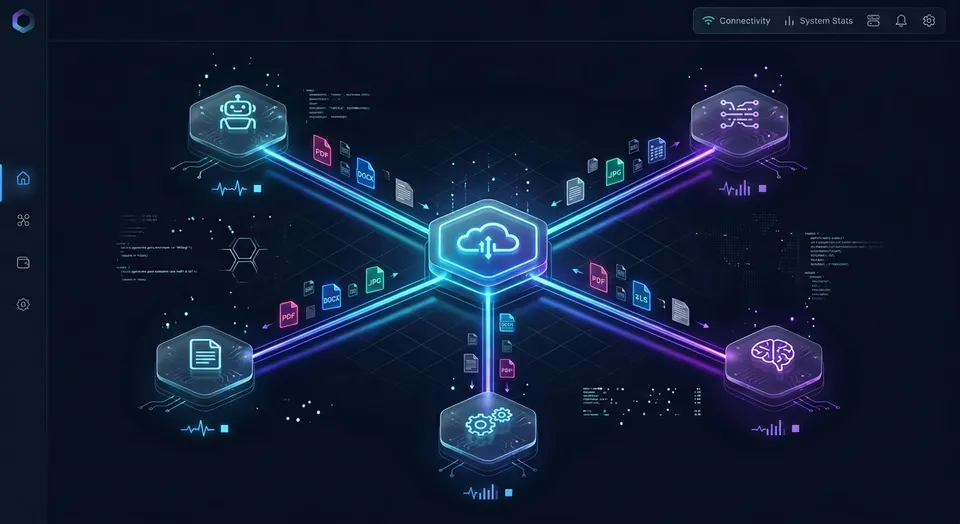
Why Distributed AI Agents Need Cloud Storage MCP
Pointing an autonomous agent directly at a personal cloud storage API breaks at the boundary between human desktop habits and automated multi-file retrieval. Desktop sync clients leave unindexed file stubs, personal OAuth tokens expire mid-task, and naive directory traversals exhaust context windows before the agent reads a single target file. Solving this requires a cloud storage Model Context Protocol (MCP) server that sits between the agent runtime and enterprise cloud storage, replacing brute-force directory downloads with indexed search and remote HTTP execution.
A cloud storage MCP server is an implementation of the Model Context Protocol that provides AI agents with standardized tools to browse, search, read, and write files in cloud repositories like Google Drive, Dropbox, and OneDrive.
Developers usually start with a local filesystem server running over standard input and output streams (stdio). This pattern works when an individual developer runs an agent like Claude Code or Cursor against a local repository at /Users/username/projects. The agent invokes read_file or list_directory, the operating system resolves the path, and the content flows into the context window.
Production pipelines do not run on a single laptop. Teams deploy autonomous agents inside cloud containers, ephemeral Docker sandboxes, and remote worker pools. Meanwhile, business knowledge lives across enterprise cloud repositories: contracts in Google Drive, assets in Dropbox, specifications in Box, and spreadsheets in Microsoft OneDrive or SharePoint document libraries.
Plugging an agent into local filesystem mounts fails for distributed teams. If an agent in a remote container writes an analysis brief to a local path, that file remains trapped in an ephemeral container volume. Teammates cannot review it, peer agents cannot search it, and external clients cannot receive it. A dedicated cloud storage MCP server solves this by providing persistent, shared, network-accessible storage through standardized protocol tools designed for agentic workflows.
Why Local Stdio Connectors Fail in Distributed Agent Architectures
Local stdio connectors carry architectural assumptions that collapse in production environments. Standard input and output binds the MCP server to the process lifecycle of the host application. In isolated containers or ephemeral workers, running local stdio subprocesses requires installing runtimes, compiling dependencies, and managing process signals inside every container instance.
Desktop synchronization clients also rely on virtual file hydration. Clients like OneDrive Files On-Demand, Dropbox Smart Sync, and Google Drive for Desktop save local disk space by replacing actual file contents with pointer records and hydration stubs. When a local filesystem MCP server inspects these paths, it encounters placeholders whose contents are not on disk. If an agent attempts to open a large PDF or presentation that exists only as an unhydrated pointer, the read triggers a blocking download, which can cause tool execution timeouts or unhandled I/O exceptions.
Local directory scanning also inflates prompt costs. When an agent traverses local files, it issues recursive list_directory calls across hundreds of nested folders. Each listing injects directory trees, timestamps, and permission bits into the context window. An agent searching a corporate repository can burn through substantial context before finding the few relevant files required to fulfill the request. A cloud storage MCP server eliminates this token waste by shifting search, filtering, and indexing to the storage infrastructure itself.
The Three Core Layers of a Cloud Storage MCP Architecture
A production-grade cloud storage MCP implementation relies on three distinct functional layers:
- Storage Provider Synchronization Layer: Connects to external cloud repositories including Google Drive, Dropbox, Box, and Microsoft OneDrive. It manages API credentials, handles provider rate limits, tracks delta tokens for incremental updates, and pulls folder hierarchies into unified workspaces.
- Neural Vector and Lexical Indexing Layer: Rather than treating files as raw byte streams, the storage layer extracts text from PDFs, spreadsheets, presentations, and documents upon ingestion. It creates hybrid indexes combining BM25 keyword matching with dense vector embeddings. This allows agents to query documents conceptually using semantic search and retrieve precise excerpts with source citations.
- Remote Streamable HTTP Tool Exposure: The server exposes standardized MCP tools over remote HTTP endpoints using OAuth 2.0 or scoped bearer tokens. Agents on developer workstations, serverless workers, or cloud orchestration frameworks connect to the identical shared storage substrate without local synchronization daemons.
Related guides
- How to Connect Gemini to Dropbox via MCPConnecting Gemini to Dropbox via MCP allows Google Gemini models and agents to interact with Dropbox storage through...
- How to Connect Google Gemini to Microsoft OneDrive via MCPGemini OneDrive MCP is a configuration that bridges Google Gemini AI models with Microsoft OneDrive storage via the...
- Microsoft 365 MCP Server: Connecting Agents to OneDrive and SharePointA Microsoft 365 MCP server connects AI coding assistants to OneDrive and SharePoint repositories via the Model Context...
- Roo Code MCP Setup: Connecting Coding Agents to Cloud WorkspacesRoo Code MCP connects the Roo Code autonomous coding extension in VS Code to local tools and remote Model Context...
- How to Connect AI Agents to Azure Blob Storage via MCPAn Azure Blob Storage MCP server exposes cloud containers and object storage to AI agents using standard Model Context...
- How to Connect Gemini to Storage via MCP ServerConnecting Google Gemini to persistent storage through a Model Context Protocol server replaces clumsy context-window...
More on this subject: MCP and Model Context Protocol (238 guides)
How Native Provider MCP Connectors Handle Drive, Dropbox, and OneDrive
Engineering teams often begin their agent integrations by exploring native connectors for the storage services their organizations already use. Most teams already store operational documents in Dropbox, Google Drive, OneDrive, Box, or SharePoint, and practical integration begins from that operational reality. Each provider maintains distinct API conventions, authentication requirements, rate-limiting policies, and payload constraints. Understanding what native connectors reach, where they operate reliably, and where they run into latency or context overhead limits helps developers make informed architectural decisions. Connecting agents to disparate storage silos requires evaluating how each platform handles remote tool calls, format transformations, and recursive directory searches across production workspaces and team drives.
Google Cloud Storage and Google Drive Connectors
Google supports Model Context Protocol access through different pathways depending on whether data resides in object storage or Google Workspace.
For object storage, Google provides a remote MCP server for Google Cloud Storage (GCS) running directly on Google Cloud infrastructure and authenticated through Identity and Access Management (IAM). As detailed in the official Google Cloud documentation, read operations support both text and binary formats including PDFs, audio, video, and images, while write operations are restricted to text files, with a documented size limit on single read and write operations.
Google Drive requires a different integration approach centered on the Google Drive v3 API. While open-source community MCP servers exist for Drive, agents calling Drive APIs directly encounter specific operational hurdles:
- Proprietary Document Formats: Google Docs, Google Sheets, and Google Slides do not exist as standard binary files on disk. An agent reading a Google Doc must request an export conversion, translating Docs to text or PDF and Sheets to CSV. Managing these conversion parameters across multiple tool calls increases prompt complexity.
- API Quotas and Rate Limits: Google Drive enforces per-user and per-project request limits. An agent that recursively lists files or fetches revision histories across shared team drives can quickly trigger rate-limiting errors.
- Token Expiration in Long-Running Workflows: Personal Google OAuth tokens require periodic refresh. In long-running background agent workflows, expired refresh tokens stall execution unless unattended service accounts are configured with domain-wide delegation.
- Lack of Built-In Semantic Retrieval: The native Drive search API supports basic metadata queries and full-text keyword matching, but lacks dense vector search. An agent looking for conceptual answers must download entire files into its context window.
Dropbox, Box, and Microsoft OneDrive Tooling
Connecting agents to Dropbox, Box, or OneDrive introduces comparable integration tradeoffs:
- Dropbox Tooling: Native Dropbox integrations rely on path-based addressing (
/folder/file.ext) and cursor-based polling through/files/list_folder/continue. While effective for human file sharing, agents face latency when scanning large team spaces. Downloading each file sequentially over the Dropbox API introduces substantial latency and tool-call churn, and writing large files requires multi-step chunked upload sessions. - Box Enterprise Connectors: Box offers enterprise MCP connectors using Box Content APIs with OAuth 2.0, Client Credentials Grant (CCG), or JSON Web Tokens (JWT). While Box provides enterprise security, raw API responses return verbose JSON metadata structures containing enterprise attributes, collection IDs, and user permission arrays that consume valuable context space.
- Microsoft OneDrive and SharePoint Libraries: Microsoft environments connect through the Microsoft Graph API using endpoints like
/me/drive/itemsor/sites/{site-id}/drive/items. Microsoft Graph enforces strict throttling policies (HTTP 429 Too Many Requests), requiring agents to parseRetry-Afterresponse headers. Permissions are governed by broad tenant scopes likeFiles.Read.AllorSites.ReadWrite.All, making it difficult to restrict an autonomous agent to a single project folder without complex directory policy configurations.
When agents query these native APIs directly, the model acts as the file system crawler, the text parser, and the search engine, consuming excessive API calls and context space.
Unified Workspaces and Scheduled Cloud Sync for Agent Teams
Rather than forcing agents to crawl disparate cloud APIs directly, a unified workspace architecture separates storage synchronization from agent query execution. The Fastio path lets teams keep their existing cloud storage while giving agents an intelligent interface.
In this architecture, teams maintain their existing repositories in Google Drive, Dropbox, Box, or OneDrive. Cloud Sync connects Google Drive, Dropbox, Box and OneDrive folders to a workspace, one-way or two-way, on a schedule or on demand, never continuous, live or real-time; SharePoint libraries through the OneDrive connector.
Files are synchronized from existing corporate storage into dedicated organization-owned workspaces. Once files enter the workspace, background intelligence workers automatically process them, extracting text, computing vector embeddings, and updating hybrid search indexes.
When the agent needs information, it does not issue raw directory listings or download multi-megabyte PDFs over external APIs. Instead, the agent connects through the remote MCP server and searches the indexed files instead of pulling whole folders.
Where connector performance was evaluated across native provider implementations in Claude Cowork, the results are documented in the published connector benchmark. Fastio was measured the fastest and the lowest cost of the providers tested.
This decoupled architecture delivers distinct advantages:
- Elimination of Third-Party API Drawdowns: Agent queries hit the indexed workspace cache rather than drawing down Google Drive or Microsoft Graph API quotas.
- Unified Cross-Provider Access: Files originating from a Google Drive folder and a OneDrive document library coexist within the same workspace, allowing an agent to search across both repositories in a single query.
- Predictable Context Windows: Agents receive concise, ranked search excerpts with citations rather than entire unparsed documents.

Hybrid Search and Intelligence Mode
Workspace intelligence operates through Intelligence Mode, which indexes every document upon arrival. This index powers hybrid search, combining three complementary retrieval methods:
- Full-Text Lexical Search: Matches exact keyword strings, error codes, part numbers, and technical identifiers that dense vector embeddings often miss.
- Semantic Neural Search: Matches conceptual intent, enabling an agent asking about revenue projections for fiscal year end to locate sections titled Q4 Financial Outlook even when the exact phrasing differs.
- Search by Metadata Value: Allows filtering by structured document attributes, file types, tags, and date ranges.
When an agent searches a workspace using GET /current/workspace/{workspace_id}/storage/search/ with search, files_scope, and folders_scope parameters, the platform returns targeted passages accompanied by file citations. The agent reads only the necessary paragraphs to construct its response, keeping context windows lean.
For structured documents such as invoices, contracts, receipts, and insurance forms, teams can configure Metadata Views. Metadata Views turn unstructured documents into a live, queryable database. Users describe the fields they want extracted in natural language, and AI designs a typed schema across text, integer, decimal, boolean, URL, JSON, and date and time fields. Agents can create Views, trigger extraction, and query structured records directly through MCP tools without building custom optical character recognition (OCR) pipelines.
Advisory File Locking and Per-File Version History
When multiple agents and human teammates collaborate inside the same cloud repository, concurrent writes present a real risk. Two autonomous agents reviewing the same dataset might attempt to update an analysis file simultaneously. In traditional cloud drives, concurrent saves create duplicate conflict files or silently overwrite changes.
Fastio addresses multi-agent concurrency through advisory file locks and complete version history:
- Advisory File Locks: An agent acquires an advisory per-file lease in workspace or share storage using the
lock-acquireaction on thestorage_managetool, and releases it withlock-release. Other agents and human members can check whether a file is currently leased usinglock-statuson thestoragetool. A lock expires automatically unless heartbeated by the holder. Crucially, the lock acts as an advisory coordination signal rather than an exclusive barrier. It never prevents concurrent writes from completing; instead, it allows cooperating agents to avoid stepping on each other active work. - Per-File Version History: If concurrent writes do land, or if an agent generates an erroneous output, full per-file version history preserves every iteration. Prior versions can be inspected, compared, and restored at any time, ensuring that automated agent edits remain completely auditable.


Connect Your Cloud Storage to AI Agent Workspaces
Set up scheduled synchronization from Google Drive, Dropbox, Box, and OneDrive into indexed workspaces with remote MCP tools. Starts with a 14-day free trial.
Connecting Client Frameworks to Cloud Storage MCP Over Remote HTTP
A major barrier in agent development has been configuring complex local transport bridges. Many early MCP tutorials instruct developers to run local stdio wrappers or configure npx mcp-remote bridges.
Fastio provides a hosted remote MCP server over Streamable HTTP, with one address per kind of client. It requires no local npm installations, no background daemon processes, and no local bridges. Every JSON-RPC request is transmitted over standard HTTP POST requests with Accept: application/json, text/event-stream, delivering immediate responses or real-time event streams.
The server exposes dedicated endpoints optimized for specific client environments:
https://mcp.fast.io/mcp/tools: The primary endpoint for general AI applications and personal agent runtimes. Use this address for Claude (claude.ai, Claude Desktop, Claude mobile, and Claude Cowork), Manus, OpenClaw, Hermes Agent, and any general MCP client.https://mcp.fast.io/mcp/operations: The endpoint for custom ChatGPT and Codex connections. For both ChatGPT and Codex, installing the Fastio plugin from the directory is preferred. The/mcp/operationsendpoint serves as the alternative when custom MCP servers are required.https://mcp.fast.io/mcp/code: The streamlined endpoint for coding agents operating inside terminal sessions and IDEs. Use this address for Claude Code, Cursor, Cline, VS Code Copilot agent mode, Gemini CLI, Devin, and related coding tools.
Client Configuration and Authentication Patterns
Connecting your preferred client takes only a few moments:
Claude (Web, Desktop, Mobile, and Claude Cowork):
Open Customize, then Connectors; add a custom connector and paste https://mcp.fast.io/mcp/tools; select Connect and sign in to Fastio in the window that opens; in a chat, turn Fastio on from the + menu under Connectors. No edit to claude_desktop_config.json is needed. On the Review Permissions screen, pick Read Only or Read & Write and choose which organizations and workspaces the connection can reach.
ChatGPT:
Open the plugin directory at chatgpt.com/plugins, find Fastio, select Install plugin, and sign in to Fastio when prompted. Alternatively, configure a custom MCP server: in Settings, open Security and login and turn on Developer mode, go to chatgpt.com/plugins, select the plus button, name it Fastio, enter https://mcp.fast.io/mcp/operations as the MCP server URL, create the connection, and sign in to Fastio when prompted.
Codex:
In the Codex CLI, run codex plugin add fast-io@openai-curated-remote; in Codex in the ChatGPT desktop app, use the Plugins tab. Sign in to Fastio when prompted. For the Codex IDE extension or a custom setup, run codex mcp add fastio --url https://mcp.fast.io/mcp/operations, then codex mcp login fastio to sign in.
Cursor IDE:
In your user configuration at ~/.cursor/mcp.json or within a project at .cursor/mcp.json, add the remote server entry:
{
  "mcpServers": {
    "fast-io": {
      "url": "https://mcp.fast.io/mcp/code"
    }
  }
}
Claude Code CLI: Add the remote HTTP endpoint directly from your terminal:
claude mcp add --transport http fast-io https://mcp.fast.io/mcp/code
Then run /mcp inside Claude Code to complete authentication in your browser. A project .mcp.json entry needs "type": "http" and "url".
VS Code and GitHub Copilot Agent Mode:
Add the configuration to .vscode/mcp.json under the servers object:
{
  "servers": {
    "fast-io": {
      "type": "http",
      "url": "https://mcp.fast.io/mcp/code"
    }
  }
}
Cline Extension:
In Cline MCP settings, declare the server with "type": "streamableHttp" pointing to https://mcp.fast.io/mcp/code.
Headless Agents, CI/CD Jobs, and Custom Code:
When running headless agent frameworks like Hermes Agent, OpenClaw in headless mode, Python scripts, or Docker containers, browser OAuth is unavailable. In these environments, create a scoped API key (the Fastio CLI can do this with fastio auth api-key create --name "CI pipeline") and send it on the connection to /mcp/tools or /mcp/code:
Authorization: Bearer your-fastio-api-key
To disconnect, remove the connector in the AI client, then in Fastio open Settings, then Devices & Agents, then Connected Devices, and select Revoke. Consult the setup documentation for detailed instructions, inspect tool actions in the MCP skill reference, and reference agent onboarding parameters in llms.txt.
Executing Tool Calls Across Workspace Storage and Intelligence
The Fastio MCP server organizes capabilities into functional tool pairs. On /mcp/tools, each operational area provides a read tool and a management tool. Read tools inspect state, while write and modification operations require the corresponding _manage tool:
storageandstorage_manage: Browse directory trees, inspect file metadata, search workspace contents, acquire advisory locks, delete items, and move assets.uploadandupload_manage: Check upload progress and write new files, including text an agent composes on the fly.workspaceandworkspace_manage: Inspect workspace metadata, list member permissions, and update workspace settings.shareandshare_manage: Generate branded download links, configure receive folders, and manage expiring share access.
For example, when an agent searches for project documents across synced cloud folders, it calls the storage read tool:
{
  "name": "storage",
  "arguments": {
    "action": "search",
    "query": "Q3 product roadmap specifications",
    "workspace_id": "YOUR_WORKSPACE_ID"
  }
}
When saving a completed report back to the workspace, the agent calls upload_manage:
{
  "name": "upload_manage",
  "arguments": {
    "action": "stream-upload",
    "workspace_id": "YOUR_WORKSPACE_ID",
    "parent_node_id": "root",
    "filename": "Q3-Summary.md",
    "content": "# Q3 Product Roadmap Summary"
  }
}
On /mcp/code, tools are optimized for coding agents using search and execute for retrieval and inspection, and execute_manage for writes.
To react to incoming files without polling repeatedly, agents subscribe to the workspace activity events feed using WebSocket connections or HTTP long-polling (GET /current/activity/poll/{entity_id}?wait=95&lastactivity={timestamp}). When Cloud Sync pulls new files from Google Drive or Dropbox, the agent receives an immediate event and initiates processing.
Governance, Access Control, and Human Collaboration
Deploying autonomous agents across corporate data repositories requires clear governance boundaries. Giving an agent unmonitored access to raw cloud drives risks accidental deletions, permission leaks, and untracked file edits. A cloud storage MCP architecture provides the access controls and administrative oversight required for production deployments. Mixed teams of software engineers, operational managers, and autonomous agents require explicit permission boundaries, transparent auditability for every state modification, and dependable handoff mechanisms from automated background workers to human reviewers. Establishing explicit access controls ensures that team members maintain complete oversight of automated file operations while empowering agents to complete multi-step tasks across enterprise repositories.
Role-Based Permissions and Auditability
Access control in Fastio is governed by member roles assigned at three explicit levels: the organization, the workspace, and the share. Every workspace member reaches the whole workspace according to their assigned role. There are no folder-level or file-level permissions. If a project team needs to grant an agent or external contractor access to only a subset of files, the correct operational model is creating a dedicated workspace for that project or issuing a scoped share link holding that specific folder.
To maintain complete accountability across mixed teams of humans and agents, Fastio records every modification in a detailed activity log. The activity log captures what changed and who changed it, logging uploads, edits, moves, deletions, membership updates, permission adjustments, and share creation. It does not record read-only events such as views, downloads, or file opens.
Fastio runs on cloud infrastructure partners, including Google Cloud Platform and Cloudflare, that are certified to industry security standards, and data is encrypted in transit and at rest.
Agent-to-Human Ownership Transfer and Delivery Workflows
A powerful pattern in autonomous workflows is ownership transfer. An agent can provision a new project: creating an organization, configuring workspaces, establishing Cloud Sync connections to client Drive or Dropbox folders, setting up Metadata Views, and indexing initial assets. Once configured, the agent hands the organization to a human team member or client with a claim link.
For client delivery, workspaces support branded shares configured as Send, Receive, or Exchange links. Send links distribute versioned assets without requiring recipients to create an account. Receive links provide an upload portal where clients drop requested documents directly into a workspace folder, bypassing email attachment chains. Exchange links allow both downloading deliverables and uploading revisions within a single branded URL. Shares can be durable or expiring, configured with per-recipient access, and can disable file downloads.
Team members and agents coordinate directly inside the workspace using Collaborative Notes kept beside the files, posting summaries and instructions with version-checked saves.
When completed documents need a client's signature, teams use built-in e-signature. Documents can be sent for signature directly from the workspace, routing signers in sequence or in parallel, with optional one-time passcodes per signer, a tamper-evident audit certificate, and the executed copy filed back into the workspace automatically upon completion.
Subscription plans for organizations are structured around predictable tiers:
Monthly plans start with a 14-day free trial that requires a credit card and ends early if trial credits run out. Credits meter AI operations like semantic indexing and natural language search. External guests who access shared files via link do not consume user seats. Detailed options are available on the pricing page.
Sources
References used to verify factual claims in this guide.
-
Remote Model Context Protocol servers run on cloud infrastructure and offer an HTTP endpoint for AI application communication.
Frequently Asked Questions
What is a cloud storage MCP server?
A cloud storage MCP server is an implementation of the Model Context Protocol that provides AI agents with standardized tools to browse, search, read, and write files in cloud repositories like Google Drive, Dropbox, and OneDrive. It exposes remote HTTP endpoints that allow models to inspect file metadata, perform semantic searches, and retrieve content without relying on local filesystem mounts.
How do AI agents access cloud storage through MCP?
AI agents connect to remote cloud storage MCP servers over Streamable HTTP using standard JSON-RPC protocol messages. Clients authenticate via OAuth 2.0 or scoped bearer tokens. Once connected, the agent receives tool declarations for actions like search, file inspection, and content uploads, executing tool calls directly across shared cloud workspaces.
What is the difference between local filesystem MCP and cloud storage MCP?
Local filesystem MCP servers run locally over standard input and output (stdio), accessing files on a single machine's local disk. Cloud storage MCP servers run on remote cloud infrastructure over HTTP, enabling multi-machine agent pipelines, team collaboration, and scheduled synchronization across cloud drives like Google Drive, Dropbox, Box, and OneDrive without local sync stubs.
Does Fastio sync with Google Drive?
Yes. Cloud Sync connects Google Drive, Dropbox, Box and OneDrive folders to a workspace, one-way or two-way, on a schedule or on demand. Files synchronized from Google Drive are automatically indexed in the workspace for full-text and semantic neural search.
Can multiple AI agents safely write to the same cloud storage workspace?
Yes. Fastio provides advisory per-file locks through the storage_manage tool, allowing agents to lease files while performing updates. In addition, per-file version history preserves every version created by humans or agents, preventing data loss during concurrent operations.
How does cloud storage MCP prevent context window exhaustion?
Instead of forcing agents to download entire directories or multi-megabyte files into prompt context, an intelligent cloud storage MCP server uses hybrid search. The platform indexes documents using lexical and vector embeddings, returning concise passages with source citations so models read only the specific paragraphs needed to answer a query.
Related Resources

Connect Your Cloud Storage to AI Agent Workspaces
Set up scheduled synchronization from Google Drive, Dropbox, Box, and OneDrive into indexed workspaces with remote MCP tools. Starts with a 14-day free trial.