How to Share Construction Drawings Online Securely
Secure sharing of construction drawings online helps avoid costly mistakes and project delays. These drawings cover site plans, floor plans, elevations, sections, details, and schedules. Teams use them to coordinate work digitally. Poor document handling causes rework from miscommunication. This guide explains the problems, key features needed, and steps for secure sharing with Fastio.

What Are Construction Drawings?
Construction drawings provide the technical details for building projects. They include architectural floor plans, structural elevations, MEP sections, site plans, foundation details, wall sections, and material schedules. Architects create the initial designs. Engineers check structural safety. Contractors build on site. Subcontractors use them for their work.
Files come in formats like DWG for AutoCAD, RVT for Revit BIM, PDF for markup and printing, DWF for light viewing, and IFC for BIM exchange. Projects can generate hundreds to thousands of files across all sheets, revisions, and related documents.
Sharing these files online securely keeps details accurate, versions current. and intellectual property safe. Without it, wrong plans lead to expensive rework. Autodesk reports note the costs from communication issues.
Helpful references: Fastio Workspaces, Fastio Collaboration.

Related guides
- How to Share Construction Blueprints SecurelyGuide to construction blueprint sharing: Construction teams send blueprints like CAD drawings, PDFs, BIM models to...
- How to Share As-Built Drawings for Construction Closeout**As-built drawings file sharing** helps with construction closeout. These drawings show final built conditions,...
- How to Share Construction Specifications SecurelySecure sharing of construction specifications. Specs detail materials, methods, and standards across CSI divisions....
- How to Share Revit Files with Construction TeamsRevit files for construction projects regularly exceed 500 MB, making email and basic cloud drives impractical for...
- How to Share Construction Daily Logs EfficientlyConstruction daily logs sharing keeps subs, owners, and inspectors up to date on site progress. Traditional PDF emails...
- How to Share Construction Progress Photos with Your TeamProgress photos keep everyone aligned on what happened on site. This guide walks through a practical workflow for...
More on this subject: Construction (16 guides)
Challenges in Sharing Construction Drawings Online
Construction teams often run into problems sharing drawings online. Large files, typically ranging from 50MB to 5GB for BIM models or complete plan sets. cause slow uploads, timeouts, and storage limits on platforms like Dropbox or Google Drive. Without resumable chunked uploads, teams resort to splitting files or using unreliable FTP.
Tracking versions gets messy without good tools. Files end up named "final_plan_v3_updated.dwg," and teams work from old copies.
Sharing with outside subs and suppliers brings security risks. Links without passwords. dates, or domain checks can lead to IP leaks.
Field teams need quick mobile access without big downloads or CAD installs, even with weak connections.
Managers spend time on emails and calls hunting current versions. Industry reports highlight how document mismanagement contributes to a large share of project delays and rework costs.
Standard file services lack construction tools like markup or submittal tracking. They often provide blurred or low-res previews, hiding critical details like dimensions. notes, or linework. Teams then download full files unnecessarily or miss important changes.

Key Features for Secure Construction Drawing Sharing
Look for platforms with these features when sharing construction drawings.
Large File Support: CAD and BIM files frequently exceed several GB. Essential features include chunked, resumable uploads to handle large sizes without arbitrary limits or automatic compression that degrades quality. Fastio supports files up to 100 GB on the Enterprise plan with resumable uploads and streams originals directly, keeping lines, hatches. and dimensions exact.
Security Controls: Require encryption at rest and in transit, password-protected links, expiration dates, view-only modes, and domain restrictions. Fastio offers these, plus instant revocation, multi-factor authentication (MFA), and single sign-on (SSO) for enterprise security.
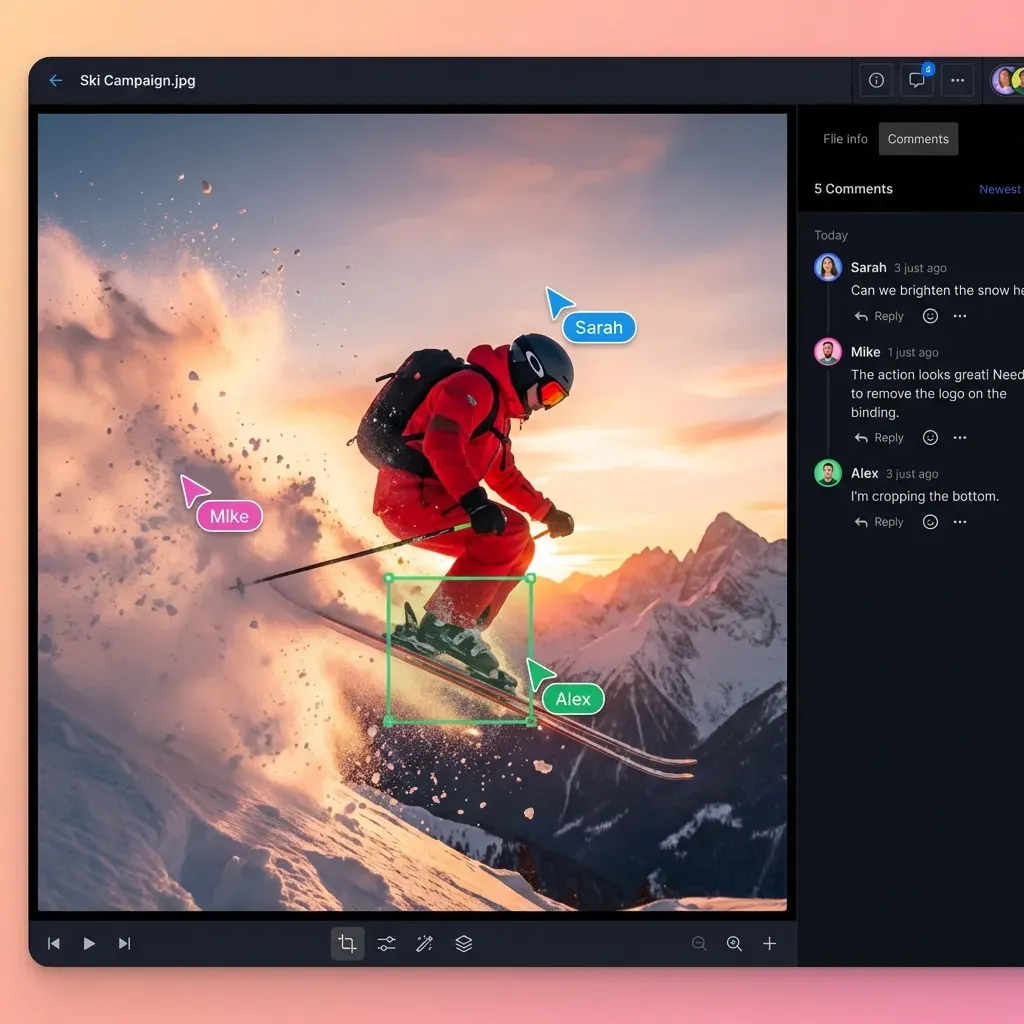
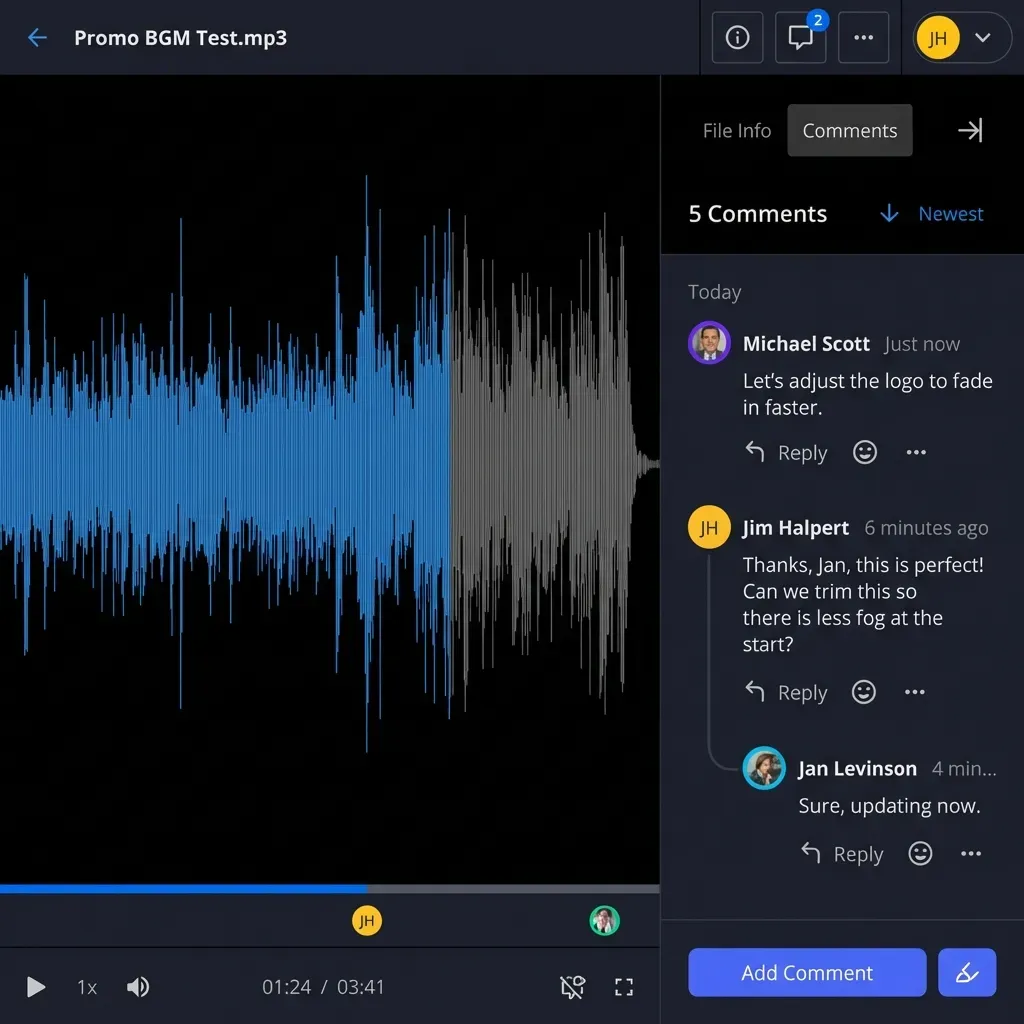
Collaboration Tools: Granular permissions at organization, workspace, folder. or file levels allow precise control. Real-time presence shows who's viewing which files. Contextual comments can be pinned to specific areas on drawings. Fastio includes follow mode to sync views during joint reviews, ideal for coordinating changes across teams.
Tracking and Compliance: Detailed audit logs capture views, downloads, edits. logins, and permission changes. Unlimited guests access without accounts or seat costs. Fastio provides exportable activity reports for audits, disputes, or project closeouts, ensuring accountability.
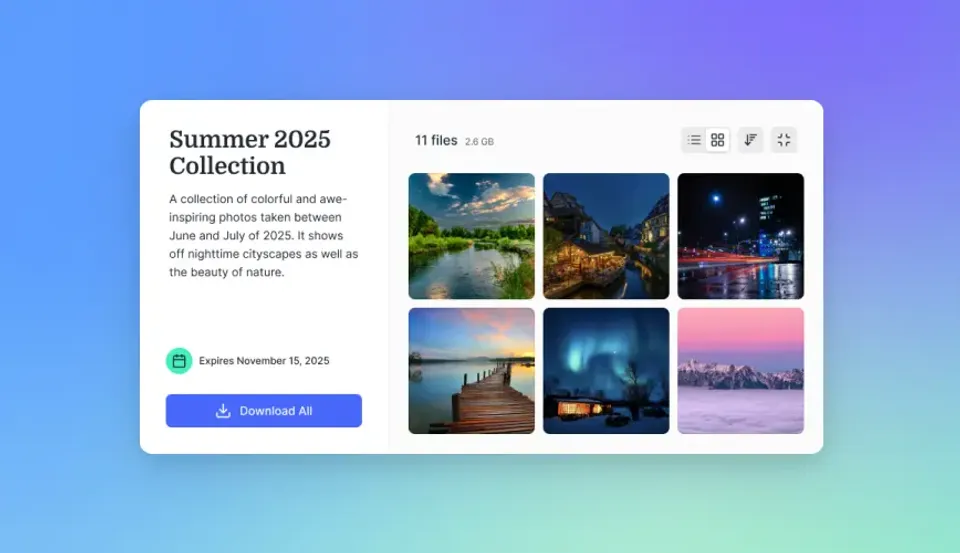
Previews and Mobile: Native browser previews for DWG, RVT, PDF, and more. with no software installs needed. Full zoom, pan, and search on mobile devices. with offline caching for poor connectivity. Fastio renders high-fidelity views on desktops, tablets, and phones alike.
Fastio workspaces offer these tools for construction teams.


Try it yourself
See how Fastio handles your files.
Step-by-Step Guide to Share Drawings Securely
Follow these steps on Fastio to share construction drawings securely. keeping full quality.
Create Project Workspace: Log in to Fastio. Make a workspace like "ProjectName-Phase." Add folders for "As-Built Plans," "Revisions," "Submittals," "RFIs." Invite team members and set roles like admin, edit, or view.
Upload Files: Drag in DWG, RVT, or PDF sets. Fastio handles multi-GB files by chunking, creates previews, and makes them searchable.
Set Permissions: Assign access levels: edit for designers, view and download for contractors, comments only for inspectors. Turn on MFA, SSO, and link expiration defaults.
Make Secure Shares: Pick a folder or file. Create a branded link. Set password. multiple-day limit, view-only, and domain filter. Share the link via email or portals.
Track and Work Together: Review activity logs. Pin comments to sheets or spots. Use live presence for reviews.
Field Access: Send mobile-friendly links. Teams view zoomable previews in browser, with offline support for bad signal.
This method cuts down errors and keeps better control.
Handling Large Files Without Compression
Fastio streams CAD files as-is, without compression or alteration. Lines stay sharp, dimensions precise, and details intact. Unlike email attachments or basic cloud drives with size limits, there's no quality drop or upload failures.
Configuring Permissions for Subs and Inspectors
Set role-based access: full edit for architects, download for contractors. view/comment for inspectors. Apply domain restrictions (e.g., @subcontractor.com) and expiration dates. Revoke access instantly if someone leaves the project.
Using Activity Logs
Track every action—who viewed a plan, when, and from where. Export logs for RFI responses or legal records. Alerts notify of unusual activity like mass downloads.
Best Practices for Construction Plan Sharing
Use these tips to make sharing construction plans easier.
Name files consistently: "Project-Type-Phase-Version-Date.ext," like "Smith-Res-v1-SitePlan-20260303.dwg." Turn on auto-versioning to skip manual changes.
Organize workspaces by phase: "Bidding," "Design," "Construction," "As-Built." Link related files for quick finds.
Comment right on the files instead of emailing. Pin notes to specific sheets or details.
Check activity logs weekly for odd access. Set alerts for big downloads.
For bids or subs, set up data rooms with your branding to track views and time.
Use tools like Bluebeam or Autodesk BIM 360 for markup. Upload the results to Fastio for sharing.
Train your team every quarter. Put workflow guides in the workspace for new people.
Move done projects to archive. Keep them searchable without using active storage.
Version Control Best Practices for Construction Drawings
Proper version control minimizes errors from outdated plans. Use platforms with automatic versioning that timestamps and stores every upload. Adopt naming conventions like "ProjectID-SheetType-Rev01-YYYYMMDD.ext" to avoid confusion.
Organize revisions in dedicated folders: "Issued for Bid", "Issued for Construction", "As-Builts". Compare versions visually to highlight changes in linework or notes.
Fastio automatically versions files, allows restores, and integrates with workflows from Revit or AutoCAD exports. This setup reduces rework incidents.
Mobile and Field Access Strategies
Field teams need reliable access despite spotty signals. Prioritize platforms with browser-based previews that load quickly and support offline mode. Ensure zoom-to-detail for verifying rebar spacing or pipe routings on site.
Train crews to use share links via QR codes posted on site. Combine with photo uploads for punch lists directly tied to plan sheets.
Fastio's mobile previews work offline after initial load, caching high-res views for iOS and Android.
Frequently Asked Questions
What are the best platforms for sharing construction drawings?
Procore and Autodesk Construction Cloud handle full project management. Bluebeam works for markup. Fastio suits secure sharing of large files, with previews and activity logs. It supports unlimited guests without compression.
How to share construction drawings without quality loss?
Pick services with native previews like Fastio. They show originals without resizing, so CAD details stay sharp. Skip ones that compress files.
Can I share large blueprints online for free?
Fastio's Business Trial (monthly plans, credit card required) handles large uploads and shares with multiple monthly credits.
How do contractors view CAD files on mobile?
Browser previews on Fastio work without apps. Zoom and pan DWG or RVT files on phones, including offline mode.
What security features protect shared plans?
Encryption, activity logs, detailed permissions, password and expiring links. domain limits. Fastio adds instant revocation and can disable downloads on a share.
How to manage drawing revisions online?
Platforms like Fastio with auto-versioning track each change. See history. roll back, and compare versions.
What file formats work best for online construction sharing?
PDF for broad use, DWG or DWF for CAD, IFC for BIM. Fastio previews them all in browser.

Ready to get started?
See how Fastio can help your team collaborate more efficiently.