How to Search SharePoint with Gemini: Bridging Google AI and Microsoft 365
Searching SharePoint with Gemini allows teams using Google AI suite to query and summarize corporate documents stored in Microsoft SharePoint document libraries without manual file migration. By connecting SharePoint libraries through an indexed workspace and remote Model Context Protocol, teams can search enterprise files directly from Gemini prompts without downloading full folders or running brittle custom scripts.


Why Teams Need to Search SharePoint with Gemini Across Multi-Cloud Stacks
When an organization standardizes on Google Gemini for conversational intelligence while storing corporate documentation in Microsoft SharePoint, team members lose direct access to their primary knowledge base the moment they open a chat prompt. Corporate engineering, legal, finance, and operations teams routinely operate across mixed cloud environments. A technology company might run Google Workspace and Google Cloud infrastructure for everyday communication, data pipelines, and developer tooling, while relying on Microsoft 365 and SharePoint Online as the central repository for corporate policies, architectural specifications, contract templates, and historical project archives.
Searching SharePoint with Gemini allows teams using Google AI suite to query and summarize corporate documents stored in Microsoft SharePoint document libraries without manual file migration. Establishing a reliable bridge between these two environments enables employees to query company manuals, cross-reference vendor agreements, and extract technical details without leaving their preferred AI interface.
Most vendor tutorials and administrative guides provide an unhelpful recommendation: abandon Google Gemini entirely and purchase Microsoft Copilot licenses for every employee, or embark on a costly migration of terabytes of SharePoint data into Google Drive. Neither option addresses the practical needs of modern cross-cloud teams. Organizations adopt Gemini for its specific multi-modal reasoning capabilities, large context processing, and direct integration with developer environments like Gemini CLI. Simultaneously, migrating decades of structured SharePoint document libraries breaks existing business workflows, invalidates internal links, strips away custom Microsoft 365 metadata schemas, and introduces massive administrative overhead.
The core issue is that Google Gemini consumer and web applications provide out-of-the-box extensions only for Google Workspace tools such as Google Drive, Gmail, and Google Docs. They offer no native connector for third-party enterprise document management platforms like Microsoft SharePoint. When team members need information from an internal SharePoint document library to complete an analysis in Gemini, they face a broken workflow: they must switch context, search SharePoint manually through a browser, download the relevant documents to their local workstations, and upload those files back into their Gemini conversation. Solving this challenge requires an architectural bridge that keeps documents securely in SharePoint while providing Gemini with indexed, low-latency search capabilities.
Related guides
- How to Connect Google Gemini to SharePoint for Enterprise Document SearchDeploying a Gemini SharePoint connector allows enterprise teams to query, retrieve, and summarize files stored across...
- How to Connect Gemini CLI to SharePoint via MCPConnecting Gemini CLI to SharePoint allows terminal-based developers to query corporate document libraries directly...
- How to Connect AnythingLLM to SharePoint Document LibrariesDeploying an AnythingLLM SharePoint connector enables local and team AI workspaces to query Microsoft 365 document...
- How to Build a LangGraph SharePoint Connector for Multi-Agent SystemsA LangGraph SharePoint connector provides stateful multi-agent workflows with callable tools to query, filter, and...
- Rclone SharePoint: Setup, Mount & Fast Cloud SyncRclone SharePoint configuration allows command-line synchronization and mounting of Microsoft 365 SharePoint document...
- SharePoint Agent: Connecting Autonomous AI Agents to SharePoint StorageConnecting autonomous AI agents to enterprise SharePoint storage gives tool-calling assistants access to company...
More on this subject: Agent File and Document Workflows (394 guides)
The Three Architectural Approaches to Querying SharePoint Files
Teams attempting to bridge Google Gemini and Microsoft SharePoint generally consider three distinct architectures: manual document ingestion, custom Microsoft Graph API wrappers, or managed cloud data store connectors. Each approach carries distinct tradeoffs in operational complexity, query latency, and token consumption.
Manual Document Downloads and Local Uploads
The simplest fallback method requires users to locate documents in SharePoint, download them to local laptops, and manually upload or paste excerpts into Gemini chat windows. While this requires no administrative setup, it introduces severe operational friction.
Local copies drift out of date the moment a colleague edits a specification in SharePoint. Storing corporate documents on individual developer machines expands an organization's attack surface and consumes local disk space.
Desktop sync clients such as OneDrive and SharePoint Files On-Demand also use virtual file placeholders to save local disk space. When automated scripts or command-line developer tools traverse local directories containing virtual files, the operating system triggers automatic on-demand downloads across the network. A single recursive search can unintentionally pull tens of gigabytes of archived documents onto a developer machine, exhausting local storage and freezing terminal operations.
Custom Microsoft Graph API Wrappers and Custom Scripts
To automate retrieval, technical teams often write Python or PowerShell middleware to query the Microsoft Graph API directly. While technically viable, maintaining custom scripts across an engineering team creates ongoing administrative debt.
Calling Microsoft Graph programmatically requires registering an application inside Microsoft Entra ID (formerly Azure Active Directory), configuring API scopes such as Sites.Read.All or Files.Read.All, generating client secrets, and securing tenant-wide administrator consent. In enterprise settings, security teams rarely grant broad application-level read permissions across an entire SharePoint tenant to custom developer scripts. Managing client secrets on individual developer machines also introduces credential leakage risks and requires constant maintenance as OAuth tokens expire.
SharePoint Online also enforces strict structural constraints to protect database performance. By default, the list view threshold is configured at 5,000 items. When an enterprise document library grows past this threshold, unindexed folder queries and automated traversal scripts fail at the database level. Beyond indexing constraints, Microsoft Graph enforces aggressive API rate limits. High-frequency queries or bulk file downloads trigger HTTP 429 throttling responses, introducing latency that causes Gemini requests to time out.
Direct API scripts also cause prompt bloat. These scripts typically download entire raw files, such as multi-page PDF specifications or multi-megabyte Word documents, and stuff their full text into Gemini's prompt context. This brute-force ingestion consumes tens of thousands of tokens per question, inflates API bills, and dilutes the model's attention, increasing the likelihood of hallucinations or missed details.
Gemini Enterprise Data Store Connectors
Google Cloud provides enterprise data store connectors for SharePoint Online within Gemini Enterprise and the Vertex AI Search console. Administrators can configure a SharePoint data store by registering an application in Microsoft Entra ID, generating credentials, and selecting either federated search or scheduled data ingestion.
While native to Google Cloud, this approach requires substantial cloud infrastructure configuration and carries distinct connector limitations. For file upload and download actions for Google and third-party connectors, the maximum supported file size is 50 MB for the Gemini Enterprise – Business edition. While sufficient for simple office memos, this restricted ceiling prevents teams from indexing large technical manuals, high-resolution media decks, complex CAD drawings, or consolidated regulatory compliance binders.
The Workspace Bridge: Connecting SharePoint to Gemini via Remote MCP
The most effective architecture separates persistent storage from model context retrieval. Rather than building custom Microsoft Graph integrations or moving files out of SharePoint, teams place an intelligent cloud workspace between Microsoft 365 and Google Gemini. In this model, SharePoint remains the authoritative system of record where business users edit and collaborate on files. An intelligent Fast.io workspace connects to SharePoint, indexes content for retrieval-augmented generation (RAG), and exposes the indexed corpus to Gemini through the Model Context Protocol (MCP).
Automated Storage Synchronization Without Local Disk Overhead
Fast.io Cloud Sync connects Google Drive, Dropbox, Box and OneDrive folders to a workspace, one-way or two-way, on a schedule or on demand, never real-time. SharePoint document libraries are reached through the OneDrive connector (OneDrive for Business). Organizations configure Cloud Sync to mirror designated SharePoint document libraries into a dedicated workspace on an hourly, daily, or on-demand schedule. Because the synchronization runs server-to-server, it consumes no bandwidth or disk space on individual user laptops.
Server-Side Intelligence Mode and Hybrid Search
Once files land in the workspace, Fast.io Intelligence Mode indexes documents for hybrid search. Hybrid search combines full-text lexical search, semantic meaning search, and search-by-metadata-value into a unified retrieval index. When a user asks a question, the search engine identifies relevant document chunks across PDFs, Word documents, spreadsheets, presentations, and plain text files without requiring a standalone vector database or separate embedding infrastructure.
Remote Model Context Protocol Access Over Streamable HTTP
To deliver these indexed results to Gemini, Fast.io operates a hosted, remote MCP server over Streamable HTTP. Gemini clients, coding assistants, and custom AI agents connect directly to this endpoint. For developer environments like Gemini CLI, the server is available at https://mcp.fast.io/mcp/code. For general AI clients and agent frameworks, the server is available at https://mcp.fast.io/mcp/tools. Fast.io MCP setup documentation is available at https://mcp.fast.io/docs, and the complete tool specification can be reviewed at https://mcp.fast.io/skill.md.
In connector performance evaluations published at https://fast.io/benchmarks/, Fastio was measured the fastest and the lowest cost of the providers tested. By indexing documents on the server and returning only relevant passages with citations, the MCP connector prevents the massive token overhead associated with full-file downloads.
Quick Setup: Connect SharePoint to Gemini in 4 Steps
Connecting SharePoint to Gemini through an intelligent workspace requires four straightforward steps:
- Connect the SharePoint Library: In Fast.io, create a Cloud Sync connection using the OneDrive connector, authenticate with your Microsoft 365 account, and select the desired SharePoint site and document library. Set your sync frequency to a recurring schedule or on demand.
- Enable Workspace Intelligence: Turn on Intelligence Mode in the workspace settings. Fast.io processes incoming files, extracts text, and generates the hybrid search index.
- Configure the Remote MCP Endpoint: Add Fast.io's remote MCP URL to your Gemini configuration using Streamable HTTP.
- Query SharePoint Documents: Ask natural language questions in Gemini. The assistant calls the remote MCP
searchtool and returns answers grounded in your SharePoint documentation with exact citations.
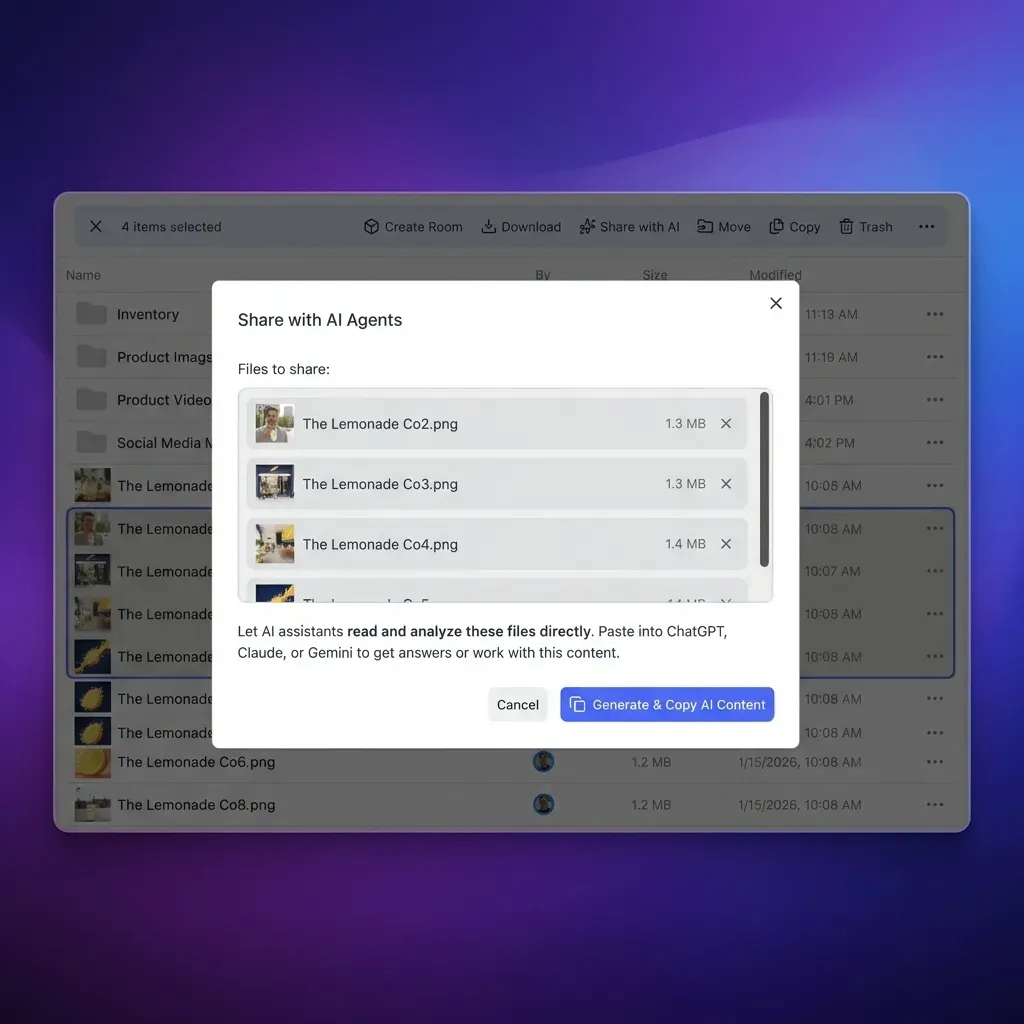


Search Enterprise SharePoint Libraries from Google Gemini
Sync SharePoint document libraries to an indexed Fast.io workspace, enable semantic search, and connect Gemini through remote MCP over Streamable HTTP. Monthly plans start with a 14-day free trial.
How to Query SharePoint Files from Gemini CLI and Automated Agents
Developers and technical teams frequently use Gemini CLI to interact with models directly from their terminal environments. Connecting Gemini CLI to an indexed Fast.io workspace gives the command-line assistant direct access to corporate SharePoint documentation without downloading files locally.
Configuring Gemini CLI for Remote MCP
To configure Gemini CLI, open your global configuration file at ~/.gemini/settings.json (or .gemini/settings.json in your project root) and add the Fast.io server under the mcpServers object:
{
  "mcpServers": {
    "fastio": {
      "httpUrl": "https://mcp.fast.io/mcp/code"
    }
  }
}
In Gemini CLI and its forks, the url property selects the legacy Server-Sent Events transport, while httpUrl selects Streamable HTTP. Because Fast.io serves its remote MCP endpoint over Streamable HTTP, setting httpUrl directs Gemini CLI to use the correct transport without connection errors.
After saving the configuration, start an interactive session by running gemini in your terminal. Run /mcp auth fastio to complete the browser-based OAuth sign-in flow. The sign-in screen presents a Review Permissions prompt where you can select Read Only or Read & Write access and specify which workspaces the connection can reach.
To disconnect, remove the connector in the AI client, then in Fastio open Settings, then Devices & Agents, then Connected Devices, and select Revoke.
Querying Technical Documentation and Runbooks
Once connected, team members can query SharePoint documentation directly through Gemini prompts:
> Search our synced SharePoint technical documentation for the disaster recovery runbook and summarize the failover steps for our primary PostgreSQL cluster.
Gemini CLI evaluates the prompt, identifies that external context is needed, and invokes the search tool on https://mcp.fast.io/mcp/code. Fast.io executes a hybrid search across the indexed SharePoint documents, extracts the relevant paragraphs from the disaster recovery runbook, and returns the text along with exact file names and section references. Gemini synthesizes the instructions directly in the terminal, citing the source document without downloading the file to your computer.
Cross-Referencing Policy and Legal Documents
Operational or compliance teams can also cross-reference multiple policy documents stored across SharePoint sites:
> Query our SharePoint legal library for vendor data retention requirements and identify any conflicting clauses between our standard master services agreement and our cloud security policy.
Because Fast.io performs semantic search across the entire workspace, Gemini receives matching excerpts from both documents simultaneously. The model can compare specific provisions and highlight discrepancies without manual document searching.
Automated Pipelines and Python Agents
For automated pipelines, background workers, or custom agent frameworks built with Python, agents connect to Fast.io's remote MCP endpoint by providing a scoped API key as an Authorization: Bearer <api key> header on the connection to https://mcp.fast.io/mcp/code. Rather than dealing with complex Microsoft Graph SDKs, the agent sends standard JSON-RPC requests to the search tool to retrieve relevant document passages with minimal code.
Enterprise Governance, Versioning, and Structured Extraction with Metadata Views
Connecting AI assistants to corporate repositories requires strict data governance to prevent over-broad access. In native SharePoint configurations, document permissions often become convoluted across subfolders, broken inheritance chains, and custom sharing links. The intelligent workspace architecture enforces clear boundaries while preserving developer utility.
Scoped Workspace Boundaries
Fast.io manages permissions at the organization, workspace, and share levels through member roles. Every workspace member reaches the whole workspace according to their assigned role.
This clean permission model allows administrators to enforce strict least-privilege access. An organization creates dedicated workspaces for specific business domains, such as an Engineering Knowledge Base, a Legal Matter Workspace, or a Human Resources Policy Portal. Administrators configure Cloud Sync to connect only the specific SharePoint document libraries relevant to each domain. Sensitive employee records, executive compensation files, or unannounced project plans stored in other SharePoint libraries remain completely isolated and invisible to the AI workspace.
Detailed Activity Logging
Enterprises maintain full visibility over automated and human activity through a detailed activity log. Fast.io records all state-changing events, including file uploads, edits, moves, deletions, membership updates, permission modifications, and share creation. The activity log records changes rather than read-only events such as views, downloads, opens, or queries. This provides compliance officers and systems administrators with an accurate record of how workspace assets evolve over time.
Per-File Version History and Advisory File Locks
When team members update documents in SharePoint, Cloud Sync synchronizes those updates into the Fast.io workspace according to the configured schedule or on-demand trigger. Fast.io preserves a complete per-file version history, enabling teams to inspect prior revisions, review changes, or restore earlier document states if necessary.
In collaborative environments where both human users and AI agents interact with workspace files, Fast.io provides advisory file locks through MCP actions. Clients can inspect lock status using lock-status on the storage tool, or acquire and release locks using lock-acquire and lock-release on storage_manage. An advisory file lock is a per-file lease in workspace or share storage that expires automatically unless periodically heartbeated by the holder. It signals that a file is undergoing active modification. An advisory file lock never grants exclusive write rights or prevents overwrites; concurrent writes land safely, and per-file version history preserves every version.
Structured Extraction with Metadata Views
For organizations managing large volumes of complex documents, semantic search is only the first step. Teams frequently need to extract structured data points, such as renewal dates, counterparty names, contract values, or compliance ratings, across hundreds of SharePoint files.
Fast.io Metadata Views turn unstructured documents into a live, queryable database. Users describe the fields they want extracted in natural language, and AI automatically designs a typed schema supporting Text, Integer, Decimal, Boolean, URL, JSON, and Date & Time formats. Fast.io matches files across the workspace and populates a structured spreadsheet without requiring brittle optical character recognition (OCR) templates or rigid parsing rules.
Metadata Views work across PDFs, Word documents, spreadsheets, presentations, and scanned pages. Users can add new columns to an existing view without reprocessing the original files. AI agents and Gemini workflows can query structured extraction results directly via MCP tools, enabling automated reporting, compliance tracking, and portfolio analysis without manual data entry.
Sync Optimization, Boundary Rules, and File Capacities
Establishing a reliable SharePoint-to-Gemini pipeline requires thoughtful configuration around sync boundaries, schedule frequency, and file capacities.
Scoping Document Library Paths
When setting up Cloud Sync, avoid syncing root site collections containing thousands of miscellaneous files, archived mailboxes, or legacy system backups. Instead, target specific document libraries or departmental folders. For example, configure sync for /sites/ProductEngineering/Shared Documents/Architecture or /sites/Legal/Contracts/Active. Scoping sync boundaries ensures that Gemini's retrieval index remains focused on high-value documentation while respecting corporate access policies.
Sync Frequency and Ingestion Cadence
Cloud Sync connects Google Drive, Dropbox, Box and OneDrive folders to a workspace, one-way or two-way, on a schedule or on demand, never real-time. For corporate document libraries where policies and specifications update periodically, a daily or twice-daily sync schedule provides an optimal balance between freshness and system overhead. When a team publishes an urgent architectural revision or new compliance guideline to SharePoint, administrators or authorized members can trigger an on-demand sync from the Fast.io workspace to pull the latest changes immediately.
Managing Large Enterprise Files
Standard enterprise AI connectors often impose restrictive file size limits that cause indexing failures on large assets. While third-party connectors in Gemini Enterprise enforce a 50 MB limit on file actions, Fast.io workspaces accommodate large enterprise files directly, handling substantial design archives, technical manuals, and multi-gigabyte regulatory packages without truncation.
Plan Economics and Trial Evaluation
Organizations can evaluate the SharePoint-to-Gemini bridge using Fast.io subscription plans. Monthly plans start with a 14-day free trial, which requires a credit card. Starter, Business, and Enterprise plans scale storage capacity, workspace counts, and seat allowances to match organizational requirements. Creating an account is free; doing real work requires an organization on a paid subscription. Credits cover AI work only. Storage and member seats are part of each plan. Full plan specifications and pricing are available on Fast.io pricing.
Sources
References used to verify factual claims in this guide.
-
By default, the list view threshold is configured at 5,000 items.
-
For file upload and download actions for Google and third-party connectors, the maximum supported file size is 50 MB for the Gemini Enterprise – Business edition.
Frequently Asked Questions
Can Google Gemini search Microsoft SharePoint?
Google Gemini cannot search Microsoft SharePoint natively out of the box in its consumer and standard web interfaces. While Google Workspace extensions allow Gemini to query Google Drive and Docs, accessing SharePoint requires an architectural bridge. Organizations can connect SharePoint document libraries to an indexed Fast.io workspace via the OneDrive connector and query the indexed documents from Gemini using the remote Model Context Protocol.
How do I connect Gemini to SharePoint document libraries?
To connect Gemini to SharePoint, set up an intelligent Fast.io workspace and enable Cloud Sync using the OneDrive connector to link your SharePoint document library. Turn on Intelligence Mode to index the files for hybrid search. Then, configure your Gemini client, such as Gemini CLI, to connect to Fast.io's remote MCP endpoint at `https://mcp.fast.io/mcp/code` using Streamable HTTP, allowing Gemini to search files directly from natural language prompts.
What is the best way to query Microsoft files using Google Gemini?
The best way to query Microsoft files using Google Gemini is through an intermediate indexed workspace rather than direct API calls or manual uploads. Syncing Microsoft 365 files into an intelligent workspace provides automatic text extraction, semantic indexing, and hybrid search. When Gemini queries the workspace via remote MCP, it receives concise text passages and exact citations, avoiding context window bloat and excessive token consumption.
Why should I use an indexed workspace instead of direct Microsoft Graph API scripts?
Direct Microsoft Graph API scripts require Microsoft Entra ID app registrations, tenant-wide administrative consent, and secret management. They also face API rate limits and the default 5,000-item SharePoint list view threshold. In contrast, an indexed workspace handles synchronization server-to-server and exposes semantic search over MCP, returning relevant passages rather than downloading full files.
Does Fast.io sync with Google Drive?
Yes. Fast.io Cloud Sync connects Google Drive, Dropbox, Box and OneDrive folders to a workspace, one-way or two-way, on a schedule or on demand. Teams can sync folders from any of these four providers into dedicated Fast.io workspaces for AI agent querying.
How does Fast.io handle permissions for synced SharePoint files?
Fast.io enforces role-based permissions set per organization, workspace, and share. Every workspace member reaches the whole workspace according to their assigned role. Teams protect sensitive data by creating dedicated workspaces for specific projects and syncing only authorized SharePoint libraries, keeping confidential records isolated.
Can Google Gemini extract structured metadata from SharePoint documents?
Yes. Fast.io Metadata Views turn unstructured documents into a typed, queryable database. Users describe the fields they need in natural language, and AI generates schemas supporting Text, Integer, Decimal, Boolean, URL, JSON, and Date & Time formats. Gemini agents can inspect schemas and query structured extraction records directly via MCP tools without custom parsing scripts.
Why does Gemini CLI use httpUrl instead of url for MCP configuration?
In Gemini CLI and its forks, the url property selects the legacy Server-Sent Events transport, while httpUrl selects Streamable HTTP. Fast.io serves its remote MCP endpoint over Streamable HTTP at `https://mcp.fast.io/mcp/code`. Setting httpUrl directs Gemini CLI to use the correct transport and prevents connection failures.
Related Resources

Search Enterprise SharePoint Libraries from Google Gemini
Sync SharePoint document libraries to an indexed Fast.io workspace, enable semantic search, and connect Gemini through remote MCP over Streamable HTTP. Monthly plans start with a 14-day free trial.