Rclone SharePoint: Setup, Mount & Fast Cloud Sync
Rclone SharePoint configuration allows command-line synchronization and mounting of Microsoft 365 SharePoint document libraries using Microsoft Graph API credentials. Pairing dedicated Azure Entra ID app registrations with proper VFS cache flags avoids frequent HTTP 429 throttling bottlenecks. Synced libraries also connect to intelligent workspaces, giving AI agents fast semantic search without local disk bloat.


How Rclone Authenticates with SharePoint and Microsoft Entra ID
Connecting rclone to Microsoft SharePoint document libraries bridges command-line automation with corporate cloud storage, but default configurations quickly trigger Microsoft Graph API throttling and authentication failures. While standard interactive setup routines work for personal cloud accounts, enterprise SharePoint sites require explicit Azure Entra ID app registrations, custom tenant endpoints, and tailored Virtual File System (VFS) cache flags to avoid stalling background synchronizations.
Rclone SharePoint configuration allows command-line synchronization and mounting of Microsoft 365 SharePoint document libraries using Microsoft Graph API credentials. By establishing a direct API bridge, developers and system administrators can synchronize directories, schedule unattended backups, and mount document libraries directly onto Linux, macOS, or Windows servers.
+-------------------------------------------------------------------------+
|                       Rclone CLI & Local Mount                          |
|         (rclone sync / rclone copy / rclone mount / VFS Cache)          |
+-------------------------------------------------------------------------+
                                     |
                       (OAuth 2.0 / Microsoft Graph API)
                                     |
+-------------------------------------------------------------------------+
|                  Microsoft Entra ID (Single Tenant App)                 |
|             (Client ID + Client Secret + Scoped Permissions)             |
+-------------------------------------------------------------------------+
                                     |
              +----------------------+----------------------+
              |                                             |
+-----------------------------+               +---------------------------+
|  SharePoint Site Collection |               |  Personal OneDrive Drive  |
|    (Corporate Documents)    |               |      (User Storage)       |
+-----------------------------+               +---------------------------+
Understanding the SharePoint Storage Hierarchy
SharePoint Online organizes content differently from consumer storage providers. Rather than presenting a flat file system, Microsoft 365 structures storage across three distinct tiers:
- Site Collections and Sites: Top-level containers representing teams, business units, or project workspaces, such as an engineering portal.
- Document Libraries: Sub-containers within each site that store files. A single SharePoint site can host multiple distinct document libraries, such as shared team documents, technical specifications, or archived project records.
- Drives and Items: In Microsoft Graph API parlance, each document library maps directly to a drive object containing a hierarchy of folder and file items.
Rclone interacts with SharePoint Online through its unified onedrive backend. Because OneDrive for Business is architecturally built upon SharePoint foundation services, rclone uses the same underlying driver to communicate with Microsoft Graph API endpoints at https://graph.microsoft.com/v1.0.
The Problem with Public Client IDs
When running rclone config, the interactive wizard allows leaving the client_id and client_secret fields blank, prompting rclone to use its built-in public client credentials. In an enterprise environment, relying on this shared client ID causes two common failures:
- Administrative Consent Blocks: Most enterprise Microsoft 365 tenants enforce strict Conditional Access policies and disable end-user consent for multi-tenant applications. When authenticating rclone with the public ID, Entra ID rejects the request with errors stating that the application requires administrator approval.
- Aggressive API Throttling: Microsoft Graph enforces request rate limits calculated across both the target tenant and the calling application. Thousands of community users share rclone's default client ID globally. When collective traffic spikes, Microsoft Graph throttles requests made with that shared credential, causing routine file syncs to fail with HTTP 429 status codes.
Creating a custom enterprise application registration in your organization's Microsoft Entra ID tenant isolates your API quota and provides clear audit visibility for IT administrators.
Registering an Enterprise App in Microsoft Entra ID
To create dedicated API credentials for rclone, sign in to the Microsoft Entra admin center with permissions to register applications:
- Navigate to Identity > Applications > App registrations and select New registration.
- Enter a recognizable name, such as
Rclone SharePoint Sync. - Under Supported account types, select Accounts in this organizational directory only (Single tenant) to restrict access to your corporate directory.
- In the Redirect URI section, choose Web and enter
http://localhost:53682/. Rclone spins up a local web server on port 53682 to capture the OAuth authorization code during desktop authentication. - Select Register to create the application. Copy the Application (client) ID and Directory (tenant) ID from the overview page.
Under Certificates & secrets, select New client secret, set an expiration timeframe, and copy the secret string from the Value column immediately.
Finally, navigate to API permissions > Add a permission > Microsoft Graph:
- For interactive user authentication, select Delegated permissions and add
Files.Read,Files.ReadWrite,Files.Read.All,Files.ReadWrite.All,offline_access, andSites.Read.All. TheSites.Read.Allscope allows rclone to discover and list SharePoint site collections. - For unattended background services, select Application permissions, assign
Files.ReadWrite.AllandSites.Read.All, and click Grant admin consent.
Related guides
- SharePoint Delta Sync: Graph API Delta Queries & AI Agent IndexingSharePoint delta sync uses Microsoft Graph delta queries to track incremental file additions, edits, and deletions...
- How to Connect AnythingLLM to SharePoint Document LibrariesDeploying an AnythingLLM SharePoint connector enables local and team AI workspaces to query Microsoft 365 document...
- Box to SharePoint Migration Guide: Planning and ExecutionBox to SharePoint migration transitions files, folder hierarchies, and metadata from Box Enterprise to Microsoft...
- ChatGPT SharePoint Connector Limits: 100 MiB File Cap, Throttling, and ArchitectureAs of October 2026, the native ChatGPT SharePoint connector enforces a 100 MiB file ceiling and triggers Microsoft...
- How to Connect ChatGPT to a SharePoint Document LibraryConnecting ChatGPT to a SharePoint document library allows OpenAI models to query and cite business documents stored in...
- Dropbox to SharePoint Migration: Guide, Tools, and ArchitectureDropbox to SharePoint migration is the process of transferring folders, permissions, and file versions from Dropbox...
More on this subject: Agent File and Document Workflows (394 guides)
Step-by-Step Configuration for SharePoint Document Libraries
Connecting rclone to your SharePoint site requires running the interactive configuration tool and linking your custom credentials to the target document library.
1. Launch Interactive Configuration
Open your terminal and launch the rclone configuration menu:
rclone config
Type n and press Enter to create a new remote. When prompted for a name, enter a clean identifier such as sharepoint-docs.
2. Select the Storage Provider
Rclone presents a list of supported storage backends. Type onedrive:
Option Storage.
Type of storage to configure.
Choose a number from below, or type in an existing value.
Storage> onedrive
3. Enter Your Azure Client ID and Secret
Paste the Application (client) ID and client secret you generated in Microsoft Entra ID:
Option client_id.
OAuth Client Id.
client_id> 00000000-0000-0000-0000-000000000000

Option client_secret.
OAuth Client Secret.
client_secret> your_generated_client_secret_value
4. Configure Advanced Single-Tenant Endpoints
Because you registered a single-tenant enterprise application, point rclone to your tenant-specific authorization and token endpoints rather than generic multi-tenant URLs:
Edit advanced config?
y/n> y
Advance through the settings until you reach auth_url and token_url. Supply your Directory (tenant) ID:
Option auth_url.
Custom auth endpoint to use.
auth_url> https://login.microsoftonline.com/YOUR_TENANT_ID/oauth2/v2.0/authorize

Option token_url.
Custom token endpoint to use.
token_url> https://login.microsoftonline.com/YOUR_TENANT_ID/oauth2/v2.0/token
Accept default values for the remaining advanced settings until prompted for web browser authentication.
5. Complete OAuth Authentication
When prompted to use a web browser for automatic authentication:
Use web browser to automatically authenticate with remote?
y/n> y
On a local workstation, type y. Rclone opens your default web browser to the Microsoft 365 sign-in screen. Authenticate with your corporate account and accept the requested permissions.
On a headless Linux server, select n. Run the displayed authorization command on a machine with a browser:
rclone authorize "onedrive" "CLIENT_ID" "CLIENT_SECRET"
Complete sign-in on your workstation, copy the resulting JSON token block, and paste it back into your server terminal.
6. Select the SharePoint Site and Document Library
After authentication, rclone queries Microsoft Graph for available storage targets:
Choose a number from below, or type in an existing value
 1 / OneDrive Personal or Business
 2 / Sharepoint site
 3 / Type in driveID
 4 / Type in SiteID
 5 / Search a Sharepoint site
Your choice> 2
Choose option 2 (Sharepoint site) or option 5 (Search a Sharepoint site). Enter your site name or full URL path. Rclone queries the site collection and displays all document libraries associated with that site. Select the index number of your target library (such as Shared Documents).
Confirm the drive configuration with y to save the remote to ~/.config/rclone/rclone.conf.
7. Test and Verify Remote Connectivity
Verify that rclone communicates with your SharePoint document library by listing directories and checking storage capacity:
rclone lsd sharepoint-docs:
rclone ls sharepoint-docs:Specifications
rclone size sharepoint-docs:
To copy local files into SharePoint, run:
rclone copy /var/data/specs sharepoint-docs:Specifications --progress
Using rclone copy uploads new or modified files without removing destination files. If you require a strict mirror where local deletions propagate to SharePoint, use rclone sync with caution.
Mounting SharePoint Document Libraries as a Local File System
While batch synchronization commands like rclone copy and rclone sync work well for scheduled backups, many workflows require interactive filesystem access. Using the rclone mount command, you can expose a remote SharePoint document library as a native folder on your local file system, allowing local scripts, desktop applications, and command-line tools to read and write files on demand.
+-------------------------------------------------------------------------+
|                  Local Linux / macOS / Windows System                   |
+-------------------------------------------------------------------------+
   | (Local App / Script)
   v
[ /mnt/sharepoint Mountpoint ] <---> [ FUSE / WinFsp Driver ]
                                              ^
                                              |
                                   [ Rclone VFS Cache Layer ]
                                   (Mode: full / Disk Cache)
                                              |
                                              v
                              (HTTPS / Microsoft Graph API)
                                              |
+-------------------------------------------------------------------------+
|                      SharePoint Online Document Library                 |
+-------------------------------------------------------------------------+
The Role of the Virtual File System (VFS) Cache
Cloud storage APIs like Microsoft Graph do not natively support standard POSIX file operations such as arbitrary read seeks, partial file rewrites, and file locking. When an application opens a document, it expects random read and write access across byte ranges.
By default, rclone operates with --vfs-cache-mode off, streaming data sequentially over HTTP. Opening an Office spreadsheet or editing a code file directly on an unbuffered mount causes the application to crash or throw input/output errors.
Configuring rclone's Virtual File System cache resolves this incompatibility:
--vfs-cache-mode off: No local disk caching. Only sequential reads and sequential writes work. Desktop applications fail.--vfs-cache-mode minimal: Caches files opened for read-and-write only when seeking is required. Still prone to application write errors.--vfs-cache-mode writes: Caches files opened for writing locally, uploading the completed file to SharePoint once closed. Read operations remain unbuffered.--vfs-cache-mode full: Caches both read and write operations to local disk. Files download into local chunks on demand and stage locally before background upload. This mode provides full POSIX emulation and is mandatory for reliable mounting of SharePoint.
Recommended Production Mount Command
On Linux and macOS (which require FUSE) or Windows (which requires WinFsp), launch the mount with optimized caching, directory buffering, and timeout flags:
rclone mount sharepoint-docs: /mnt/sharepoint \
  --vfs-cache-mode full \
  --vfs-cache-max-age 24h \
  --vfs-cache-max-size 50G \
  --dir-cache-time 15m \
  --attr-timeout 10m \
  --poll-interval 1m \
  --vfs-read-chunk-size 32M \
  --vfs-read-chunk-size-limit 256M \
  --buffer-size 64M \
  --allow-other \
  --daemon
Key flags in this configuration include:
--vfs-cache-max-size 50G: Sets an upper boundary on local disk consumption so caching large document libraries does not fill your host drive.--dir-cache-time 15m: Retains directory hierarchy listings in memory for 15 minutes, speeding up directory navigation by avoiding repetitive Graph API directory queries.--poll-interval 1m: Checks Microsoft 365 change notifications every minute to invalidate cached directories when remote files change.--allow-other: Permits non-root system users and background service accounts to access the mounted directory.
Path Length and Naming Limits
SharePoint Online enforces structural constraints that differ from native Linux ext4 or macOS APFS file systems. According to the Rclone documentation for Microsoft OneDrive, "The entire path, including the file name, must contain fewer than 400 characters for OneDrive, OneDrive for Business and SharePoint Online."
Additionally, SharePoint disallows specific characters in filenames: quotation marks, asterisks, colons, angle brackets, question marks, slashes, backslashes, and pipe characters. When rclone runs on Linux or macOS and encounters these characters in local files during sync or copy operations, it automatically maps them to visually identical Unicode equivalents to prevent API upload rejections.
To unmount the filesystem cleanly when stopping the process, run:
fusermount -u -z /mnt/sharepoint
Using the -z flag performs a lazy unmount, detaching the filesystem immediately even if some processes still hold open file handles.
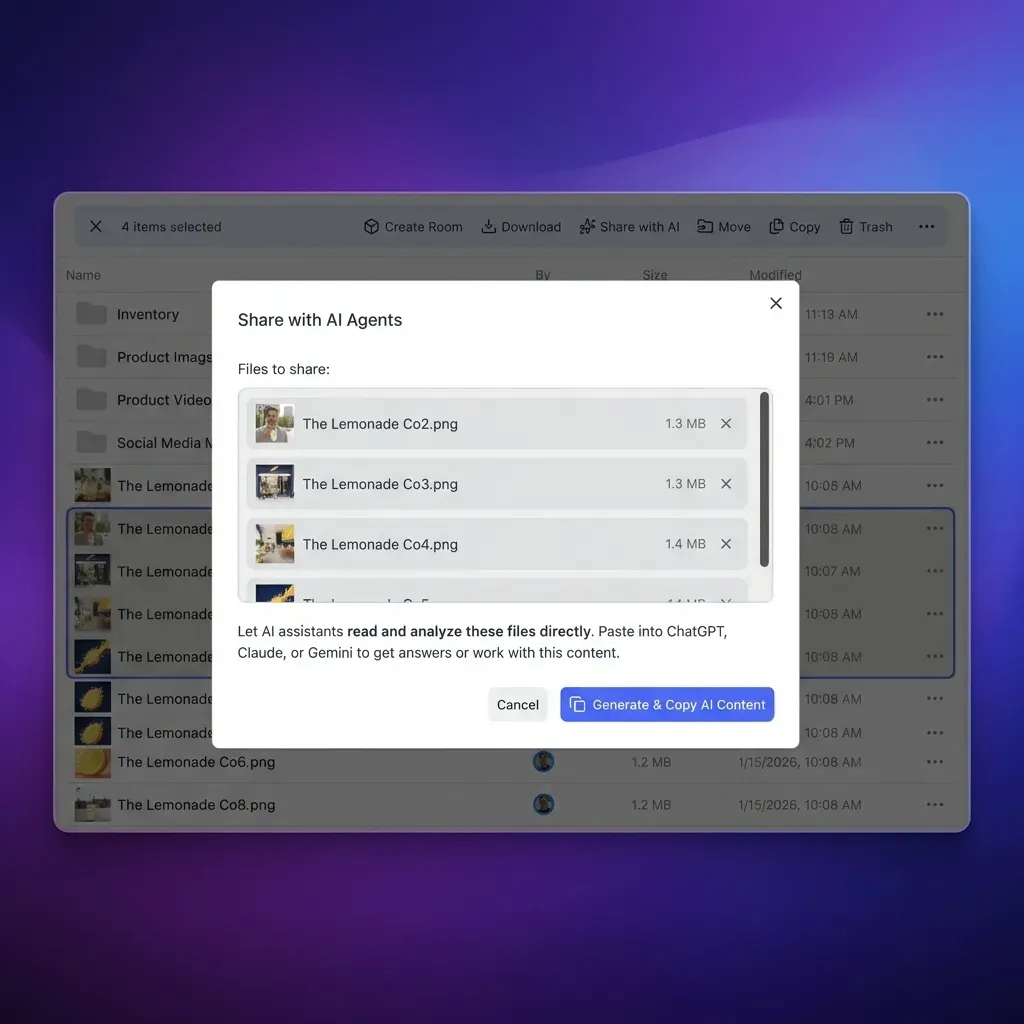


Connect SharePoint Document Libraries to Intelligent Agent Workspaces
Sync your SharePoint folders into an indexed Fast.io workspace, enable semantic retrieval, and connect agents via remote MCP without local sync bottlenecks. Monthly plans start with a 14-day free trial.
Why Microsoft Graph Rate Limits Trigger HTTP 429 Errors
When synchronizing deep SharePoint site collections containing tens of thousands of technical documents, automated processes frequently encounter Microsoft 365 platform limits. Understanding how Microsoft Graph throttles high-volume traffic allows you to tune rclone parameters and prevent sync failures.
Microsoft Graph Rate Throttling and HTTP 429 Responses
Microsoft 365 protects multi-tenant infrastructure by enforcing dynamic request quotas across API endpoints. When rclone initiates multiple concurrent requests to traverse directory trees or transfer files, Microsoft Graph responds with HTTP status code 429 (Too Many Requests).
As detailed in the official Microsoft Graph throttling guidance, "Backing off requests using the Retry-After delay is the fastest way to recover from throttling because Microsoft Graph continues to log resource usage while a client is being throttled."
If an application ignores the Retry-After header and retries requests immediately, Microsoft Graph extends the penalty duration, resulting in stalled connections and command timeouts.
Client (Rclone)                           Microsoft Graph API
      |                                            |
      |--- Directory Listing Request ------------->|
      |<-- HTTP 200 OK ----------------------------|
      |                                            |
      |--- Rapid Batch Upload Requests ----------->| (Quota Exceeded)
      |<-- HTTP 429 Too Many Requests -------------|
      |    Header: Retry-After: 30                 |
      |                                            |
      | [ Rclone Sleep 30s: Backoff Period ]       |
      |                                            |
      |--- Retry Request ------------------------->|
      |<-- HTTP 200 OK ----------------------------|
Tuning Rclone Flags to Prevent Rate Throttling
To operate smoothly within Microsoft Graph limits during bulk migrations or scheduled syncs, adjust rclone's concurrency and pacing parameters:
rclone sync /local/data sharepoint-docs:Backup \
  --transfers 2 \
  --checkers 4 \
  --tpslimit 10 \
  --tpslimit-burst 5 \
  --user-agent "ISV|rclone.org|rclone/v1.68.0" \
  --retries 5 \
  --low-level-retries 10
These parameters stabilize large synchronization jobs:
--transfers 2: Limits concurrent file uploads to 2. Rclone defaults to 4 parallel transfers, which can overwhelm Graph upload endpoints when transferring large numbers of small files.--checkers 4: Restricts directory scanning workers to 4 threads, preventing sudden query spikes during the initial file comparison phase.--tpslimit 10: Caps total transactions per second at 10 API requests, preventing bursts that trigger automated tenant throttling.--user-agent "ISV|rclone.org|rclone/v1.68.0": Identifies traffic clearly. Microsoft documentation recommends decorating HTTP traffic with an ISV identifier to prevent generic anti-abuse heuristics from flagging the client.
Resolving Expired OAuth Refresh Tokens
OAuth refresh tokens generated by Microsoft Entra ID have a maximum inactivity window. If you configure rclone but do not execute any commands against the SharePoint remote for 90 days, Entra ID invalidates the refresh token. Subsequent commands fail with authentication errors.
Rather than deleting and recreating the remote, refresh the existing token credentials using rclone's built-in reconnect command:
rclone config reconnect sharepoint-docs:
Rclone opens your browser, completes authentication, and updates ~/.config/rclone/rclone.conf with a fresh access token and refresh token while preserving your existing drive IDs, client IDs, and mount configurations.
Handling Checksum and File Size Discrepancies
A known characteristic of SharePoint Online is its background processing of Microsoft Office files (.docx, .xlsx, .pptx). When an Office document is uploaded, SharePoint's internal search crawler and metadata indexing services parse the file and inject property tags directly into the document container.
This automatic modification changes the file's binary hash and can alter its byte count by several bytes. When rclone performs its post-transfer verification, it detects that the local SHA1 or QuickXorHash does not match the server hash, prompting rclone to report an error or re-upload the file continuously.
To resolve this issue when synchronizing Office documents, add the following flags:
rclone sync /local/docs sharepoint-docs:Documents \
  --ignore-checksum \
  --ignore-size
These flags instruct rclone to rely on modification timestamps rather than binary hashes when determining whether an Office file requires updating.
Bridging SharePoint to AI Workspaces with Remote MCP
While rclone provides an effective command-line mechanism for mounting and mirroring SharePoint files to local disk, engineering teams face significant architectural hurdles when exposing these documents to modern AI tooling. Connecting autonomous coding agents (such as Claude Code, Cursor, Windsurf, or custom developer scripts) to local filesystem mounts often leads to operational bottlenecks.
Traditional Approach (Local Filesystem Mount)
+-------------------+      rclone mount      +--------------------+
|  SharePoint Site  | ---------------------> | Local Server Disk  |
|  Document Library |   (429 Throttling,     | (/mnt/sharepoint)  |
+-------------------+    Token Expiry)       +--------------------+
                                                        |
                                              (Context Exhaustion)
                                                        v
                                             +--------------------+
                                             | Local Stdio Agent  |
                                             | (Bloated Context)  |
                                             +--------------------+

Intelligent Workspace Approach (Fast.io Remote MCP)
+-------------------+   Fast.io Cloud Sync   +--------------------+
|  SharePoint Site  | ---------------------> |  Fast.io Workspace |
|  Document Library |   (Scheduled/On-Demand,|  (Auto-Indexed     |
+-------------------+    No Local Disk)      |   Semantic RAG)    |
                                             +--------------------+
                                                        |
                                              (Streamable HTTP)
                                                        v
                                             +--------------------+
                                             | Remote MCP Server  |
                                             | (storage tool)     |
                                             +--------------------+
                                                        |
                                              (Targeted Passages)
                                                        v
                                             +--------------------+
                                             | AI Agents & Teams  |
                                             | (Low Token Usage)  |
                                             +--------------------+
The Limitations of Raw Filesystem Mounts for AI Agents
Pointing an AI agent at a local rclone mount creates three fundamental problems:
- Local Disk and Bandwidth Exhaustion: Mounting SharePoint locally requires storing gigabytes of cache data on developer workstations. When an agent searches across thousands of files, directory traversals trigger extensive VFS reads, filling host drives and pulling gigabytes over metered connections.
- Context Window Saturation: Standard local filesystem tools read entire files sequentially. If an agent needs to extract an API parameter from a 100-page architectural specification, passing the entire document into the prompt window consumes tens of thousands of tokens, causing context bloat and increasing inference costs.
- Container and CI/CD Friction: Local FUSE mounts cannot easily run inside ephemeral CI/CD runners, Docker containers, or serverless functions due to missing host privileges.
The Intelligent Cloud Workspace Path
A cleaner architectural pattern decouples enterprise document storage from agent context delivery using an intelligent cloud workspace. Instead of mounting SharePoint locally, teams keep their existing SharePoint storage as the corporate system of record, sync designated folders into a Fast.io workspace, and let agents query documents remotely.
Through Fast.io Cloud Sync for OneDrive, SharePoint document libraries sync into a designated workspace one-way or two-way, on a schedule or on demand (Cloud Sync, which also covers Google Drive, Dropbox, and Box, is never continuous, live, or real-time). This eliminates the need to maintain background rclone daemons on individual developer machines.
Once files land in the workspace, Intelligence Mode automatically generates full-text and semantic vector indexes across all supported formats, including PDF, DOCX, Markdown, and plain text. When an agent needs information, it does not download the entire file; it queries the semantic index and receives precise, citation-backed excerpts.
Querying SharePoint Knowledge via Remote MCP
Fast.io exposes a consolidated remote Model Context Protocol endpoint over Streamable HTTP at https://mcp.fast.io/mcp/tools. Because this endpoint is hosted in the cloud, AI agents can connect directly from any environment without local FUSE drivers or background Node.js daemons.
Developers configure headless agent environments with a lightweight JSON configuration:
{
  "mcpServers": {
    "company-sharepoint": {
      "url": "https://mcp.fast.io/mcp/tools",
      "headers": {
        "Authorization": "Bearer YOUR_FASTIO_API_KEY"
      }
    }
  }
}
When an agent needs context from your SharePoint documentation, it invokes the consolidated storage tool using the search action. The server evaluates the semantic query against the indexed documents and returns relevant passages with exact file citations. Developers evaluating agent infrastructure can explore dedicated storage for agents and review Fast.io AI capabilities.
Structured Document Extraction with Metadata Views
In addition to semantic text retrieval, enterprise teams frequently need structured data extracted from SharePoint archives. Fast.io provides Metadata Views, an automated extraction layer that transforms unstructured documents into a live, queryable database.
Rather than building brittle parsing scripts or training OCR pipelines, teams describe the desired schema in plain English. Metadata Views analyzes files in the workspace and extracts typed attributes (Text, Integer, Decimal, Boolean, URL, JSON, Date & Time) into a structured grid. Agents can query these structured records directly via MCP or filter document search operations by metadata attributes.
Multi-Agent Coordination and Auditing
When multiple automated agents and human engineers share access to project documents, managing concurrency and accountability becomes essential. Fast.io provides enterprise governance tools:
- Advisory File Locks: Agents acquire and release advisory file leases using the MCP
storage_managetool (lock-acquireandlock-release) and inspect them withstorage(lock-status). Locks renew via periodic heartbeat, preventing conflicting edits without locking out emergency human updates. - Per-File Version History: Every file modification creates a distinct version snapshot, allowing previous revisions to be reviewed or restored at any time.
- Detailed Activity Log: Every file upload, modification, and permission change is recorded, giving security teams visibility into the changes agents make.
- Granular Permissions: Access is granted per organization, workspace, and share through member roles, so agents only see the documentation shared with them.
Benchmarks are published at https://fast.io/benchmarks/. By combining the governance of Microsoft 365 with the retrieval speed of an intelligent workspace, teams give their AI assistants instant access to corporate knowledge without local sync bottlenecks.
Sources
References used to verify factual claims in this guide.
-
SharePoint Online and OneDrive paths are subject to a character limit that includes the file name.
-
Microsoft Graph returns HTTP 429 status codes when throttling thresholds are exceeded and logs resource usage while requests continue.
Frequently Asked Questions
How do I connect rclone to SharePoint?
To connect rclone to SharePoint, run rclone config, create a new remote, and select the onedrive storage type. Supply your custom Azure Entra ID client ID and client secret, configure your tenant authorization URLs, and complete authentication. When prompted for the drive type, select option 2 (Sharepoint site), provide your SharePoint site URL, and choose the target document library.
Can rclone mount a SharePoint document library?
Yes. Rclone mounts SharePoint document libraries as local directories using the rclone mount command. Because cloud storage APIs do not natively support arbitrary byte seeking or in-place file writes, you must enable rclone's Virtual File System cache by specifying --vfs-cache-mode full to allow desktop applications and file managers to read and write documents reliably.
How do I fix rclone SharePoint 429 rate limit errors?
To resolve HTTP 429 throttling errors on SharePoint, register your own single-tenant application in Microsoft Entra ID instead of using rclone's shared public client ID. In your sync commands, reduce transfer concurrency using --transfers 2 and --checkers 4, cap transaction rates with --tpslimit 10, and decorate requests with an explicit user agent flag such as --user-agent "ISV|rclone.org|rclone/v1.68.0".
What permissions are required for the Azure Entra ID app registration?
For interactive user synchronization, configure Microsoft Graph Delegated permissions including Files.Read, Files.ReadWrite, Files.Read.All, Files.ReadWrite.All, offline_access, and Sites.Read.All. The Sites.Read.All permission is required for rclone to query and discover SharePoint site collections and document libraries. For unattended server backups, configure corresponding Application permissions with tenant admin consent.
Why does rclone report checksum or size mismatches on SharePoint files?
SharePoint Online automatically parses Microsoft Office files (.docx, .xlsx, .pptx) upon upload to update embedded metadata properties. This server-side modification alters the file hash and byte count, causing rclone's post-transfer verification to fail. To prevent rclone from re-uploading identical files in a loop, add the --ignore-checksum and --ignore-size flags to your sync command.
How do I refresh an expired rclone SharePoint token?
Microsoft Entra ID OAuth refresh tokens expire after 90 days of inactivity. If your rclone commands fail with authentication errors after a period of disuse, run rclone config reconnect remote: in your terminal. This command opens your browser to re-authenticate with Microsoft 365 and updates your configuration file with fresh tokens while preserving your existing drive IDs and settings.
Can AI agents query SharePoint documents without local rclone mounts?
Yes. Instead of mounting SharePoint locally and reading entire multi-megabyte files into memory, teams sync SharePoint document libraries into a Fast.io workspace using Cloud Sync. Workspace Intelligence Mode automatically indexes the files for hybrid semantic search, allowing AI agents to query relevant excerpts with exact citations over a remote Model Context Protocol (MCP) server.
Related Resources

Connect SharePoint Document Libraries to Intelligent Agent Workspaces
Sync your SharePoint folders into an indexed Fast.io workspace, enable semantic retrieval, and connect agents via remote MCP without local sync bottlenecks. Monthly plans start with a 14-day free trial.