How to Build an AI Photo Frame with Raspberry Pi and OpenClaw
Most Raspberry Pi photo frame builds stop at a slideshow script that cycles through a local folder. Adding OpenClaw as the intelligence layer turns that into a smart display that curates photos by content, syncs albums from cloud storage, and responds to voice or chat commands. This guide covers hardware selection, display software, OpenClaw integration, and using Fastio for persistent cloud-synced photo storage.


What a Standard Pi Photo Frame Gets You (and Where It Falls Short)
A Raspberry Pi digital photo frame is one of the most popular Pi projects. The concept is simple: connect a Pi to a display, load photos onto an SD card or USB drive, and run slideshow software. The whole build costs $50 to $100 depending on the screen, compared to $130 to $250 for a commercial frame from Nixplay, Aura, or Skylight.
The standard approach works well for basic rotation. Pi3D PictureFrame is the go-to slideshow software for Pi builds. It supports cross-fade transitions, matte formatting for mixed aspect ratios, 4K output on Pi 4 and Pi 5 hardware, and Home Assistant integration. Paired with Raspberry Pi OS Bookworm and the Wayland compositor, it handles image rendering smoothly even on lower-end boards.
Where the standard build falls short is everything beyond display. Want photos from Google Photos or iCloud? You need to set up rclone or icloudpd sync scripts and schedule them with cron. Want to curate photos by people, places, or events? You're writing custom scripts or doing it by hand. Want to ask the frame to show "photos from last summer" or "pictures of the dog"? That's not possible with a slideshow player alone.
OpenClaw fills that gap. It's an open-source AI agent that runs on the same Pi that drives your display, connects to cloud LLMs for reasoning, and executes shell commands and tool calls on your behalf. Instead of a static slideshow, you get a frame that understands what's in your photos and responds to requests.
Related guides
- How to Build a Hermes Agent AI Code CheckerThe proportion of copy-pasted code in repositories rose from 8% in 2020 to 12% in 2024, representing a 48% relative...
- How to Build AI Agents with the Claude Agent SDKThe Claude Agent SDK is Anthropic's toolkit for building AI agents that can read files, run commands, search the web,...
- How to Build an OpenClaw Smart Mirror with Raspberry PiA smart mirror display agent is an OpenClaw-powered Raspberry Pi connected to a TFT or monitor behind a two-way mirror,...
- How to Build a Live Sports Scoreboard Agent with OpenClaw on Raspberry PiThe robbydyer/sports project on GitHub pulls live NHL, NBA, MLB, MLS, and NCAA scores to a Raspberry Pi LED matrix, but...
- How to Build a Smart Medication Reminder with OpenClaw on Raspberry PiMost DIY Raspberry Pi pill dispensers run on fixed timers. This guide adds an OpenClaw agent that tracks adherence...
- How to Build a Smart Irrigation Controller with OpenClaw on Raspberry PiMost Raspberry Pi irrigation projects water plants when a sensor reads 'dry.' That works, but it ignores weather...
More on this subject: OpenClaw on Raspberry Pi (192 guides)
How to Choose Hardware and a Display for Your Pi Frame
The Pi itself handles both the slideshow rendering and the OpenClaw agent process. Since OpenClaw offloads inference to cloud APIs (Anthropic, OpenAI, Google), the Pi only needs enough resources for the agent runtime, display output, and photo decoding.
Raspberry Pi 5 (8 GB) is the best option. It costs around $80 for the board, draws about 5W under typical load, and handles 4K display output natively. A Pi 4 (4 GB) also works and costs less, though 4K performance is slightly worse. The OpenClaw docs list 2 GB RAM as the minimum with swap, but 4 GB or more gives headroom for both the agent and the slideshow software running simultaneously.
Storage matters more than you'd think. A 128 GB SD card holds roughly 18,000 photos at typical JPEG sizes. For better reliability, use a USB SSD. SD cards degrade under sustained write cycles, and syncing cloud photos means constant writes. A 256 GB USB SSD costs $25 to $35 and will outlast any SD card.
For the display, bigger is better. Small 7-inch TFT screens work but don't do photos justice. A 24-inch IPS monitor with 1920x1200 resolution and slim bezels makes a dramatic difference for wall mounting. Look for matte finish (reduces glare in living rooms), downward-facing HDMI and power ports (cleaner wall mount), and IPS panel technology (better color and viewing angles than VA or TN panels). Thrift stores and refurbished electronics shops are good sources for slim monitors at $30 to $60.
A complete build list:
- Raspberry Pi 5 (8 GB): ~$80
- 128 GB microSD or USB SSD: $15 to $35
- Official Pi 5 power supply (27W USB-C): ~$12
- 24-inch IPS monitor (new or refurbished): $60 to $150
- Micro HDMI to HDMI cable: ~$8
- Picture frame or wall mount hardware: $10 to $40
Total cost ranges from roughly $185 to $325, with the display being the biggest variable. Compare that to a Skylight 15-inch frame at $299 plus a $39/year subscription, or an Aura Mason at $199. The Pi build gives you a bigger display, no subscription fees, full control over software, and an AI agent running alongside.
How to Set Up the Slideshow and Display Software
Start with the display layer before adding OpenClaw. This way you can verify the hardware works and have a functional photo frame even before the AI integration.
Operating system: Flash Raspberry Pi OS Bookworm Lite (64-bit) using the official Raspberry Pi Imager. The Lite version is headless by default, but you'll add the display compositor manually. Pre-configure SSH, Wi-Fi, and your login credentials in the Imager before flashing.
Display compositor: Bookworm uses Wayland by default. Install the labwc compositor, which is lightweight and well-suited to dedicated display applications. TheDigitalPictureFrame.com's 2025 guide covers the exact package installation and configuration for labwc with Pi3D PictureFrame, and it's tested across Pi 2 through Pi 5.
Slideshow software: Pi3D PictureFrame is the standard for Pi photo frames. It runs inside a Python virtual environment and reads images from a designated folder. Key configuration options in its configuration.yaml file include:
pic_dir: the folder path where photos are storedtime_delay: seconds between transitions (default 200, but 15 to 30 works better for living room frames)fade_time: cross-fade duration in secondsmat_images: enables automatic matting for photos that don't match the display aspect ratioshuffle: randomizes display order instead of sequential
Photo source folder: Create a dedicated directory like /home/pi/photos. This is where cloud-synced photos and locally loaded images will live. Pi3D PictureFrame watches this folder and picks up new images automatically.
Auto-start on boot: Configure the slideshow to launch automatically when the Pi powers on. A systemd service unit is the cleanest approach: it starts after the display compositor is ready and restarts if the process crashes.
At this point you have a working digital photo frame. Photos in the designated folder display with transitions, and the frame starts automatically on power-up. The next step adds intelligence.


Give your photo frame a persistent cloud album
Upload photos from any device, sync them to your Pi automatically, and let your OpenClaw agent manage the library. generous storage, MCP-ready for agent integration.
Installing OpenClaw as the Intelligence Layer
OpenClaw is an open-source AI agent framework. On a Raspberry Pi, it connects to cloud-hosted LLMs and executes local tool calls, including shell commands through its exec tool. That capability is what makes it useful for a photo frame: it can manage files, run scripts, and respond to natural language requests, all on the same device that's driving the display.
Installation prerequisites: You need a 64-bit OS (already covered), Node.js 24, and network access. If your Pi has 4 GB or less of RAM, create a 2 GB swap file before installing. The OpenClaw docs estimate about 30 minutes for a full installation on a Pi 5.
API key setup: OpenClaw needs at least one LLM API key. The docs recommend cloud models like anthropic/claude-sonnet-4-6 rather than local inference, which performs poorly on Pi hardware. You'll configure your API key during the onboarding wizard, which runs after installation.
Accessing the agent: On a headless Pi, you interact with OpenClaw through its Control UI at localhost:18789 via SSH tunnel, or through the command line. For a photo frame that responds to voice input, you'd add a USB microphone and configure OpenClaw's messaging integration. For a simpler setup, interact through a phone or laptop browser over your local network.
What OpenClaw can do for the photo frame:
The exec tool lets OpenClaw run shell commands on the Pi. This means it can move files into and out of the photo directory, trigger slideshow restarts, adjust display settings, and run sync scripts. Combined with its natural language understanding, you can ask the agent to "show only photos from the beach trip" and it will filter the photo folder accordingly.
OpenClaw's skill system (via ClawHub) allows installing pre-built capabilities. Skills relevant to a photo frame build include file management, scheduling (for timed album rotations), and API integrations (for pulling photos from external services).
State persistence: OpenClaw stores its state in ~/.openclaw/ and persists across reboots. Your agent remembers previous conversations, installed skills, and configuration, so the photo frame picks up where it left off after a power cycle.

How to Add AI Photo Curation and Cloud Sync
The real value of an OpenClaw-powered photo frame isn't just voice control. It's making the frame smarter about what it shows and where photos come from.
Cloud photo sync: Most families keep photos in Google Photos, iCloud, or a mix of both. On a standard Pi frame, you'd set up sync tools manually:
- Google Photos: gphotos-sync or rclone (note that Google changed its Photos API scopes in 2025, which broke some rclone workflows; gphotos-sync is currently more reliable)
- iCloud: icloudpd downloads photos from your iCloud library to a local folder. One user reported fitting about 18,000 photos on a 128 GB SD card using this tool.
- Dropbox, OneDrive, S3: rclone supports dozens of cloud storage backends.
With OpenClaw, you can ask the agent to set up and manage these sync jobs instead of writing cron scripts yourself. Tell it "sync my Google Photos album called Family to the photo directory every 6 hours" and it can create and maintain the scheduled task using its exec and scheduling capabilities.
AI-powered curation: This is where the photo frame goes beyond what commercial frames offer. OpenClaw can call vision APIs to analyze photo content, then organize images into categories. Ask "show photos with people in them" or "skip screenshots and memes" and the agent can filter the active slideshow folder based on image content. The filtering happens by moving files between staging and display directories, so Pi3D PictureFrame picks up the changes without modification.
Contextual displays: Because OpenClaw can access external data through tool calls, you can build time-aware curation rules. Show holiday photos during December. Display photos of a family member on their birthday. Rotate through travel photos when the weather outside is bad. These rules live as natural language instructions in the agent's context, not as code you have to maintain.
Shared album contributions: If multiple family members want to add photos to the frame, you need a central drop point. Local options include a Samba share on the Pi or an SFTP endpoint. For a cleaner workflow, use a cloud workspace like Fastio as the central hub. Family members upload photos through the web interface or mobile browser, and the Pi syncs from the workspace. More on this in the next section.
Using Fastio for Photo Storage and Agent Handoff
A photo frame that lives in your house still needs to connect to the outside world for photo uploads, album sharing, and backup. Running a file server on the Pi itself works but creates maintenance overhead and security exposure. A cloud workspace simplifies the architecture.
Fastio works well here for a few reasons. Fastio provides structured cloud workspaces starting with the Starter plan (250 GB storage, 100,000 monthly credits) and a 14-day Business Trial. That provides ample capacity for thousands of high-resolution photos organized across multiple albums or themes.
Workspace as photo hub: Create a workspace called "Photo Frame" and organize folders by album, event, or date. Family members upload photos through the Fastio web interface on any device. The Pi runs a scheduled sync job (managed by OpenClaw) that pulls new photos from the workspace to the local display directory.
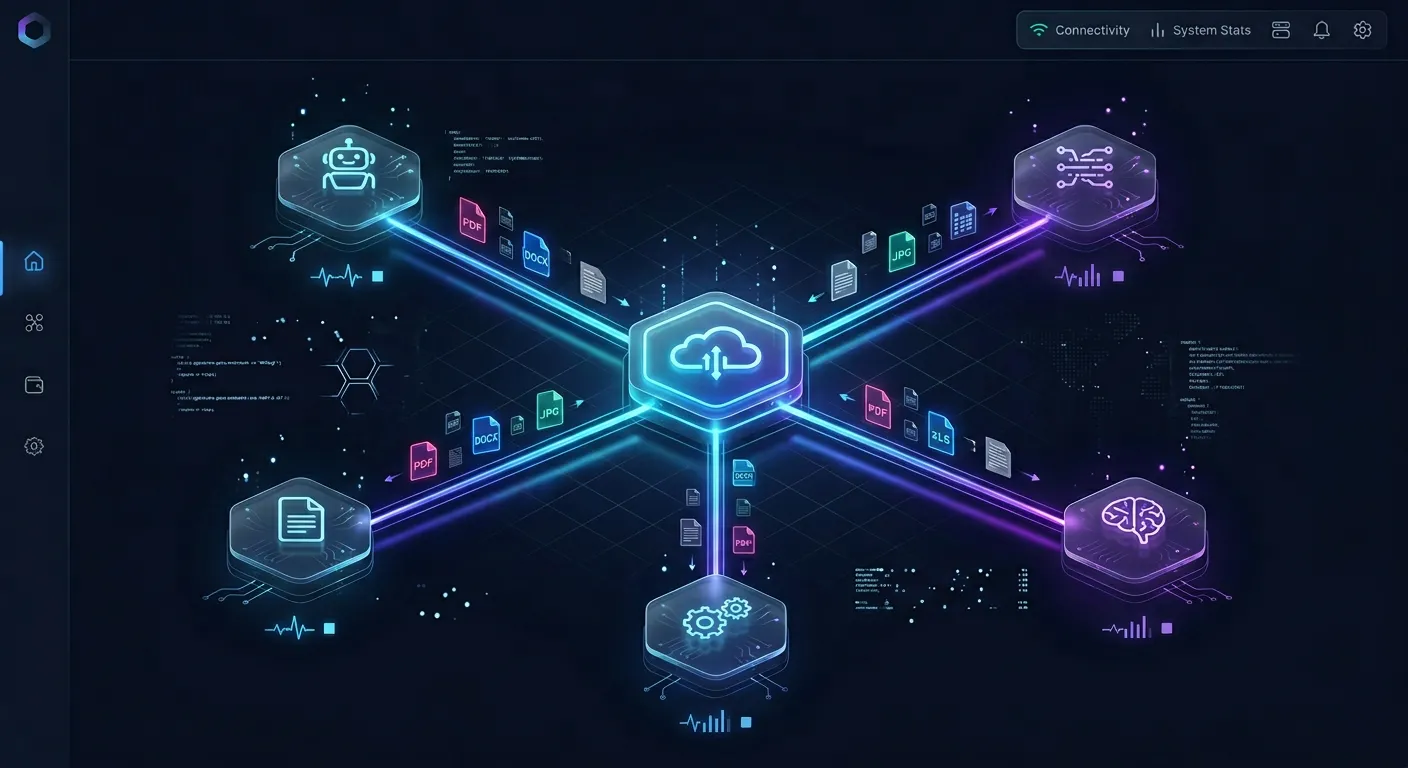
MCP server integration: Fastio exposes a MCP server with a consolidated MCP toolset for workspace operations, file management, AI chat, and more. OpenClaw supports MCP natively. Once connected, the agent can list files in the workspace, download new photos, upload frame screenshots for remote monitoring, and search photos by description. Once Intelligence is enabled on the workspace, uploaded files are automatically indexed for semantic search, making your photo library searchable by content without any extra setup.
Ownership transfer for gifting: One practical use case: build a photo frame as a gift for a parent or grandparent. Set up the workspace, configure the frame, and populate it with initial photos. Then use Fastio's ownership transfer feature to hand the workspace to the recipient while keeping admin access yourself. They can view and upload photos through the web UI, and you can manage the technical side remotely. The agent keeps working with admin credentials in the background.
Compared to other cloud options: Google Drive and Dropbox work for basic sync, but they don't offer an MCP interface for agent integration or built-in AI search. S3 is cheap storage but requires custom scripting for everything. iCloud works well for Apple-only families but has no API for agent access. Fastio sits in the middle: cloud storage with agent-native MCP tooling, built-in AI indexing once Intelligence is enabled, and scalable workspace plans.
For setup details on connecting OpenClaw to Fastio, see the storage for OpenClaw guide and the MCP skill documentation.

Sources
References used to verify factual claims in this guide.
-
Raspberry Pi 5 (8 GB) costs roughly $80 and draws about 5W under typical load
-
Commercial smart frames cost $130 to $299 with some requiring $39/year subscriptions
-
icloudpd user stored roughly 18,000 photos on a 128 GB SD card
-
OpenClaw minimum requirements are 1 GB RAM, 1 core, 500 MB disk, 64-bit OS
Frequently Asked Questions
How do I make a digital photo frame with Raspberry Pi?
Flash Raspberry Pi OS Bookworm Lite (64-bit) onto your Pi, install the labwc Wayland compositor for display output, and set up Pi3D PictureFrame as the slideshow software. Point it at a folder of photos, configure transition timing in the configuration.yaml file, and create a systemd service to auto-start on boot. A Pi 4 or Pi 5 with a 24-inch IPS monitor makes a good combination. Total hardware cost runs $100 to $325 depending on the display.
What is the best screen for a Raspberry Pi photo frame?
A 24-inch IPS monitor with 1920x1200 resolution gives the best balance of size, color accuracy, and price. IPS panels have wider viewing angles than VA or TN, which matters for a frame viewed from different spots in a room. Look for matte finish to reduce glare and downward-facing ports for cleaner wall mounting. Refurbished monitors at $30 to $60 work well. The Pi 5 can also drive 4K displays for a 27-inch or larger build.
Can a Raspberry Pi display photos from cloud storage?
Yes. Tools like gphotos-sync pull photos from Google Photos, icloudpd syncs from iCloud, and rclone supports Dropbox, OneDrive, S3, and dozens of other backends. Set up a scheduled sync job (via cron or an OpenClaw agent) to keep the local photo folder updated. With OpenClaw managing the sync, you can add or change cloud sources through natural language instead of editing scripts manually.
How do I add smart features to a digital photo frame?
Install OpenClaw on the same Raspberry Pi that runs your slideshow. OpenClaw connects to cloud LLMs and can execute shell commands locally through its exec tool. This lets you add voice-controlled album switching, AI-powered photo curation (filtering by content, people, or location), contextual scheduling (holiday photos in December), and cloud sync management. The agent persists across reboots and remembers your preferences.
How much does a Raspberry Pi photo frame cost compared to commercial options?
A complete Pi photo frame build costs $50 to $325, with most of the variation in display choice. A basic build with a small screen runs under $100. Commercial frames from Nixplay, Aura, and Skylight cost $130 to $299, and some add subscription fees ($20 to $39 per year) for cloud features. The Pi build has no recurring costs, offers a bigger display, and gives you full software control.
Does OpenClaw run local AI models on the Raspberry Pi?
OpenClaw can run on a Raspberry Pi, but it uses cloud-hosted models for inference rather than running LLMs locally. The Pi handles the agent runtime, tool execution, and display output while API calls to services like Anthropic or OpenAI handle the reasoning. This keeps hardware requirements low (a Pi 4 with 2 GB RAM works with swap) and means you get full-capability models without needing expensive local GPU hardware.
Related Resources

Give your photo frame a persistent cloud album
Upload photos from any device, sync them to your Pi automatically, and let your OpenClaw agent manage the library. generous storage, MCP-ready for agent integration.