How to Use Raspberry Pi Connect for Remote OpenClaw Agent Management
Raspberry Pi Connect gives you browser-based remote access to a Pi running OpenClaw, with no port forwarding, no VPN, and no client software to install. This guide walks through the full setup, compares Pi Connect against Tailscale and SSH tunnels for agent management, and covers how to pair remote access with a persistent workspace so agent outputs reach your team without manual file transfers.


Most Pi Deployments Run Headless, and OpenClaw Makes That Harder to Manage
Raspberry Pi shipped 7.6 million boards in FY2025, and 75% of demand came from industrial and OEM customers rather than hobbyists. That ratio tells you something about how most Pis actually run: no monitor, no keyboard, tucked into a rack or screwed to a wall. Managing a headless Pi over SSH works fine when all you need is a terminal. But when that Pi runs an OpenClaw agent, you often want more.
OpenClaw turns a Raspberry Pi into an always-on AI gateway. The Pi handles orchestration, maintains local state, and sends API calls to cloud model providers like Anthropic or OpenAI. The models do the heavy compute; the Pi just needs enough power to run Node.js and keep a messaging connection alive. A Pi 4 with 4 GB handles this comfortably, and a Pi 5 with 8 GB gives you headroom for local tools.
The challenge is access. OpenClaw's official Raspberry Pi documentation recommends Tailscale for remote access and links to an SSH tunneling guide. Both work, but both require you to install third-party software or configure port forwarding. Raspberry Pi Connect takes a different approach: it is the official remote access service from Raspberry Pi Ltd., it runs entirely in your browser, and the free personal tier has no device limit. For managing a single OpenClaw Pi from your laptop or phone, it is the simplest option available.
Related guides
- How to Connect Claude Code to OneDrive with Remote MCPClaude Code OneDrive integration connects Anthropic's terminal coding agent to Microsoft OneDrive folders, enabling CLI...
- How to Connect Claude to SharePoint: Setup, Sync & Remote WorkspacesConnecting Claude to SharePoint enables Anthropic AI models and Claude Cowork to search, summarize, and extract...
- How to Use OpenClaw as an SSH Session Manager on Raspberry PiSecurity researchers found over 135,000 OpenClaw instances exposed on the public internet in early 2026, most with no...
- How to Build a PiKVM Remote Server Agent with OpenClaw on Raspberry PiPiKVM gives you BIOS-level remote access to any server from a browser. Adding an OpenClaw agent on a second Raspberry...
- How to Connect OpenClaw to Home Assistant on Raspberry PiThe OpenClaw Home Assistant integration uses the ha-mcp skill to give AI agents natural language control over smart...
- How to Build a Raspberry Pi Thin Client with OpenClaw Remote Desktop AgentA Raspberry Pi running RDP or VNC software makes a capable thin client for under $100, replacing commercial hardware...
More on this subject: OpenClaw on Raspberry Pi (192 guides)
What Raspberry Pi Connect Provides
Raspberry Pi Connect is a service, not a protocol. You install the rpi-connect package on your Pi, sign in with a Raspberry Pi ID, and your device appears in a web dashboard at connect.raspberrypi.com. From there, you get two access modes.
Remote shell opens a terminal session in your browser tab. It works on every Raspberry Pi model that runs Raspberry Pi OS Bookworm (64-bit) or later. The session is independent of SSH, so you do not need to configure keys or open ports. You can check OpenClaw logs, restart the agent daemon, or run system commands the same way you would over SSH, just through a browser window instead.
Screen sharing mirrors the Pi's graphical desktop to your browser. This requires the Wayland display server, which is the default in Bookworm, and it only works on Pi 4 and Pi 5 hardware. If you run Raspberry Pi OS Lite (no desktop environment), screen sharing is not available, but the remote shell still works.
Remote updates, added in March 2026, let you push OS-level updates to your Pi from the Connect dashboard without opening a shell session. You create an artifact (a script or package), register it with a SHA-256 checksum, and deploy it to one or many devices. If the Pi is powered off when you trigger the update, Connect queues it and applies it the next time the device comes online.
Connections are encrypted and use peer-to-peer WebRTC when possible. When a direct connection fails, traffic routes through Raspberry Pi's relay servers, which store only metadata. The personal tier is free with no device cap. An organisation tier is available for teams that need shared device management.

Setting Up Pi Connect on an OpenClaw Raspberry Pi
This walkthrough assumes you have a Pi 4 or Pi 5 running Raspberry Pi OS Bookworm (64-bit) with OpenClaw already installed. If you have not installed OpenClaw yet, follow the official Pi installation guide first.
Step 1: Install the rpi-connect package
SSH into your Pi and update the package list:
sudo apt update && sudo apt install -y rpi-connect
On a fresh Bookworm install, rpi-connect may already be present. The install command is idempotent, so running it again does no harm.
Step 2: Sign in to your Raspberry Pi ID
rpi-connect signin
This prints a URL you open in any browser. Log in with your Raspberry Pi ID (create one free at raspberrypi.com if you do not have one), authorize the device, and give it a recognizable name like "openclaw-pi-office" or "agent-pi-5."
Step 3: Enable persistent service
By default, rpi-connect runs as a user-level systemd service, which means it stops when you log out. On a headless Pi, you want it to survive reboots and logouts:
loginctl enable-linger
This is the same linger setting that OpenClaw's own daemon needs, so if you followed the OpenClaw install guide, you likely already have it enabled.
Step 4: Verify remote access
Open connect.raspberrypi.com from any device. Your Pi should appear in the dashboard. Click the device name, then choose "Remote Shell" to open a terminal, or "Screen Sharing" to mirror the desktop (Pi 4/5 with a graphical environment only).
Step 5: Test OpenClaw from the remote shell
In the browser terminal, check that the OpenClaw daemon is running:
systemctl --user status openclaw-gateway.service
You should see "active (running)." From here, you can manage your OpenClaw agent exactly as you would over SSH: check logs, restart services, update configuration, or run commands.


Give your Pi agent a workspace that outlasts the SD card
Your OpenClaw agent writes files to the cloud; your team finds them without SSH.
Pi Connect vs Tailscale vs SSH Tunnels: Which Fits Your Setup
Each remote access method makes different tradeoffs. The right choice depends on how many Pis you manage, whether you need access to other devices on the same network, and how much setup you are willing to do.
Raspberry Pi Connect
- Setup: install one package, sign in, done
- Access: browser only, no client software
- Cost: free personal tier, paid organisation tier
- Scope: one Pi at a time, no network-level access
- Latency: WebRTC peer-to-peer when possible, relay fallback
- Extras: OTA updates from dashboard, screen sharing
Best for: managing a single OpenClaw Pi from any device with a browser. The zero-configuration approach means you can set it up in under five minutes and access the Pi from a phone, a borrowed laptop, or a hotel business center PC.
Tailscale
- Setup: install Tailscale on the Pi and on your client device
- Access: full network, SSH, VNC, HTTP services
- Cost: free for up to 100 devices
- Scope: connects all enrolled devices into a private mesh
- Latency: WireGuard, generally lower than WebRTC relay
- Extras: MagicDNS, subnet routing, exit nodes
Best for: managing multiple Pis or needing access to services on the Pi's local network. If you run OpenClaw on three Pis and want to reach each one's dashboard port (18789) from your laptop, Tailscale gives you a private network that makes every enrolled device reachable by hostname.
SSH tunnels with port forwarding
- Setup: configure router port forwarding or use a reverse tunnel service
- Access: terminal and forwarded ports only
- Cost: free (but you need a public IP or a relay server)
- Scope: one connection at a time, manual per-port setup
- Latency: depends on network path and relay
- Extras: none built-in
Best for: environments where you already have SSH infrastructure and cannot install additional software. SSH tunnels are the fallback when Pi Connect or Tailscale are not an option, but they require the most manual configuration.
A practical approach: start with Pi Connect for immediate browser access, then add Tailscale if you need to reach multiple devices or local network services. You can run both simultaneously without conflicts.
Keeping Agent Outputs Accessible with a Persistent Workspace
Remote access solves one problem: you can reach your Pi. But it does not solve the problem of getting files off of it. When an OpenClaw agent generates reports, collects data, or produces artifacts, those files sit in ~/.openclaw/workspace/ on the Pi's local storage. If the SD card fails or the Pi loses power during a write, you lose whatever was not backed up.
Local storage options like USB SSDs improve reliability (OpenClaw's own docs recommend SSD over SD cards for exactly this reason), but they do not help with sharing. If a teammate needs a file the agent produced, you have to SCP it off the Pi, upload it somewhere, and send a link. That manual step is where things tend to break.
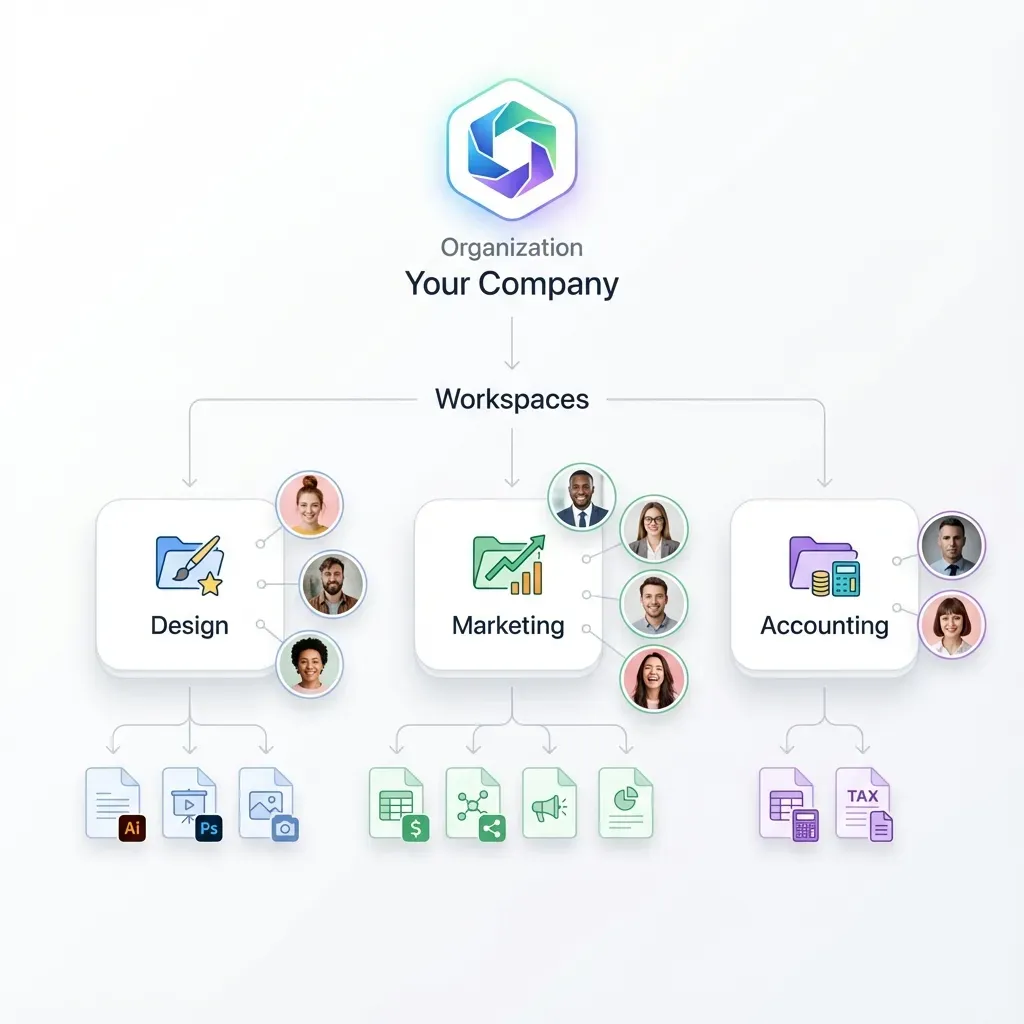
One approach is to pair your Pi agent with a cloud workspace that handles persistence and sharing automatically. Fast.io provides workspaces purpose-built for this pattern: agents write files through the Fast.io MCP server, and those files are immediately available to teammates through the web interface, searchable once Intelligence is enabled for the workspace, and shareable through branded Send/Receive links.
The practical workflow looks like this: your OpenClaw agent runs on the Pi, processes tasks, and uploads outputs to a Fast.io workspace via the MCP endpoint at /mcp. You manage the Pi remotely through Pi Connect when you need to check logs or restart services. Your team accesses the agent's outputs through Fast.io without ever needing SSH access to the Pi.
Alternatives include syncing to S3 or Google Drive via cron scripts, which works but requires you to manage credentials, handle sync conflicts, and build your own sharing layer. For a single agent producing a few files per day, a cron-to-S3 approach is fine. For agents that produce frequent outputs or that need to hand work off to a human reviewer, a workspace with built-in search and permissions saves setup time.
Fast.io offers paid plans starting at $9.99/mo (Starter, 250 GB) with a 14-day Business Trial. That provides ample capacity for OpenClaw Pi agent outputs, and the remote MCP server works with any LLM provider your agent uses.
When Pi Connect Is Not Enough
Pi Connect covers single-device management well, but some setups outgrow it.
Multiple Pis running different agents. Pi Connect shows all your devices in one dashboard, but you can only interact with one at a time through the browser. If you manage a cluster of Pis, each running a different OpenClaw skill, Tailscale's mesh network lets you reach any device by hostname and run parallel SSH sessions from a single terminal.
Local network services. OpenClaw exposes a dashboard on port 18789, but Pi Connect's remote shell does not give you a way to access that port from your browser. You would need to run a separate SSH tunnel or use Tailscale to reach the dashboard directly.
Unreliable network. Pi Connect relies on an active internet connection. If your Pi sits behind a flaky cellular modem or a rural broadband line that drops frequently, the WebRTC connection may not stay stable. Tailscale handles reconnection more gracefully because WireGuard sessions resume automatically when connectivity returns.
Organisation-wide device management. The free personal tier works for individual developers. If your company deploys Pis for production agent workloads, the paid organisation tier adds team device sharing, but you should evaluate whether a dedicated fleet management tool like Balena or a custom Ansible playbook fits better.
Automation. Pi Connect's March 2026 remote updates feature is a step toward automation, but it is still in beta and cannot yet retrieve script outputs through the dashboard. For fully automated deployments, build a CI pipeline that SSHes into the Pi through Tailscale and runs update scripts directly.
The good news is that these tools compose. Pi Connect for quick browser check-ins, Tailscale for deeper network access, and a cloud workspace like Fast.io for persistent output storage can all run on the same Pi without conflicts.
Sources
References used to verify factual claims in this guide.
-
Raspberry Pi shipped 7.6 million boards in FY2025
-
75% of Raspberry Pi demand comes from industrial and OEM customers
-
Pi Connect added OTA remote updates in March 2026
Frequently Asked Questions
How do I set up Raspberry Pi Connect?
Install the rpi-connect package with `sudo apt install rpi-connect`, then run `rpi-connect signin` and follow the browser link to authenticate with your Raspberry Pi ID. Enable linger with `loginctl enable-linger` so the service persists after logout. Your Pi will appear at connect.raspberrypi.com within a few seconds.
Can I use Raspberry Pi Connect to manage OpenClaw remotely?
Yes. Pi Connect's remote shell gives you terminal access to the Pi from any browser, which is all you need to check OpenClaw logs, restart the gateway service, or update configuration. Screen sharing is also available on Pi 4 and Pi 5 if you need to see the graphical desktop.
Is Raspberry Pi Connect free?
The personal tier is free with no device limit. You can add as many Pis to your account as you own. A paid organisation tier is available for teams that need shared device management, and it includes a four-week free trial.
Does Raspberry Pi Connect work with Pi OS Lite?
The remote shell works on Pi OS Lite since it only needs a terminal. Screen sharing requires a graphical desktop running on the Wayland display server, so it is not available on Lite installations. If you run OpenClaw on a headless Pi with no desktop environment, remote shell is your only Pi Connect option.
What is the difference between Pi Connect and Tailscale for remote access?
Pi Connect gives you browser-based terminal and desktop access to individual Pis with no client software needed on your computer. Tailscale creates a private mesh network across all your devices, giving you full network-level access including SSH, VNC, and HTTP services. Pi Connect is simpler for single-device management; Tailscale scales better for multiple devices or when you need to reach services on the Pi's local network.
Can I run Pi Connect and Tailscale on the same Pi?
Yes. They operate independently. Pi Connect uses WebRTC for browser-based access, while Tailscale creates a WireGuard VPN tunnel. You can use Pi Connect for quick check-ins from your phone and Tailscale for deeper SSH sessions from your workstation.
How do I keep OpenClaw agent outputs accessible to my team?
Configure your agent to upload outputs to a cloud workspace like Fast.io via the remote MCP server endpoint. Teammates access files through the web interface without needing SSH access to the Pi. Fast.io offers paid plans with 250 GB on Starter, which is more than enough for typical agent output.
Related Resources

Give your Pi agent a workspace that outlasts the SD card
Your OpenClaw agent writes files to the cloud; your team finds them without SSH.