How to Run Filesystem MCP in Docker and Connect Agents to Cloud Storage
Running the filesystem Model Context Protocol (MCP) server inside Docker provides containerized AI agents with sandboxed file access. While local Docker volume mounts work for static host files, connecting agents to corporate drives like Google Drive, Dropbox, and OneDrive creates sync latency and token exhaustion. This guide covers deploying the filesystem MCP Docker container, configuring permissions, and using remote indexed workspaces to query cloud storage without local daemons.


Why Containerized AI Agents Need Filesystem MCP and Cloud Storage
Running an autonomous AI agent inside a Docker container isolates execution dependencies and protects host systems, but container isolation becomes an immediate liability the moment the agent needs to read or write persistent enterprise files. Pointing a containerized agent at an empty ephemeral container filesystem means all analysis, generated artifacts, and state vanish when the container terminates, while attempting to bind-mount an entire enterprise cloud drive exposes the agent to file-locking conflicts, broken sync stubs, and API throttling.
MCP filesystem Docker refers to deploying Model Context Protocol filesystem servers or clients inside containerized environments to provide sandboxed, persistent file access to autonomous AI agents. The Model Context Protocol provides an open specification that standardizes how artificial intelligence models inspect directories, read documents, and write changes across external storage environments.
In production engineering teams, developers containerize agent runtimes such as Claude Code, AutoGen, CrewAI, LangGraph, and bespoke Python workers using Docker. Containerization ensures reproducible execution, packages dependencies cleanly, and enforces boundaries around agent code execution. However, institutional knowledge does not sit inside Docker images. Organizations store their operational contracts, technical documentation, architectural diagrams, spreadsheets, and client deliverables across distributed enterprise drives, including Google Drive, Dropbox, Box, OneDrive, and SharePoint.
When engineers attempt to bridge containerized agents to these external repositories, standard approaches break down. Developers often try mounting host directories where desktop sync clients run, or bundling fragile background sync scripts directly inside the container. These patterns introduce hydration failures, credential expiration, and excessive token consumption.
Fastio publishes head-to-head comparisons of agent storage connectors across Fastio and standard enterprise cloud storage providers at Fast.io Benchmarks. In these multi-document audits over identical corpora, Fastio was measured the fastest and the lowest cost of the providers tested, requiring fewer tool calls and fewer input tokens to reach complete answers. Every measured row represents that provider's native connector in Claude Cowork. Connecting containerized agents to enterprise files reliably requires understanding both container-native filesystem server deployments and cloud-hosted workspace architectures.
Related guides
- How to Connect Wasabi Hot Cloud Storage to AI Agents via MCP ServerConnecting to a Wasabi MCP server gives AI agents structured tool access to cloud storage buckets without exposing...
- How to Connect AI Agents to Azure Blob Storage via MCPAn Azure Blob Storage MCP server exposes cloud containers and object storage to AI agents using standard Model Context...
- Cloud Storage MCP: Connecting AI Agents to Drive, Dropbox, and OneDriveAI agents require access to files stored across Google Drive, Dropbox, Box, and OneDrive, but local filesystem...
- How to Connect Gemini to Storage via MCP ServerConnecting Google Gemini to persistent storage through a Model Context Protocol server replaces clumsy context-window...
- How to Use the Google Cloud Storage MCP Server with AI AgentsConnecting autonomous AI agents to Google Cloud Storage buckets allows language models to inspect and retrieve...
- How to Connect MinIO S3 Storage to AI Agents via MCP ServerConnecting local or self-hosted MinIO object storage to AI agents gives coding assistants and autonomous workers...
More on this subject: MCP and Model Context Protocol (249 guides)
How to Run the Filesystem MCP Server in Docker
The Model Context Protocol includes an official reference implementation for local file operations, published as @modelcontextprotocol/server-filesystem and packaged in Docker images such as mcp/filesystem. Deploying the filesystem MCP server in Docker provides an isolated process boundary where the language model can interact with files through structured tool calls.
The filesystem MCP server communicates with client applications using standard input and output streams (stdio). When running the server inside a Docker container, the container must be executed interactively so that the MCP client can stream JSON-RPC messages across the container boundary.
docker run -i --rm \
  --mount type=bind,src=/path/to/local/data,dst=/projects \
  mcp/filesystem /projects
The command uses three core Docker flags:
-i: Keeps standard input open, allowing the MCP client to exchange JSON-RPC protocol messages with the containerized server process.--rm: Automatically removes the container instance upon termination, preventing container sprawl on the host machine.--mount type=bind: Maps an explicit host directory into the container at/projects, establishing the physical file boundary./projects: The trailing positional argument defines the allowed directory path passed directly to the filesystem MCP server process.
Configuring MCP Clients for Docker Execution
To connect an AI interface or agent runtime to the containerized server, register the Docker execution command in the client configuration file. For Claude Desktop, open claude_desktop_config.json located at ~/Library/Application Support/Claude/claude_desktop_config.json on macOS or %APPDATA%\Claude\claude_desktop_config.json on Windows. Add the server under the mcpServers object:
{
  "mcpServers": {
    "filesystem": {
      "command": "docker",
      "args": [
        "run",
        "-i",
        "--rm",
        "--mount",
        "type=bind,src=/path/to/project,dst=/projects",
        "mcp/filesystem",
        "/projects"
      ]
    }
  }
}
When the client initializes, it spawns a background Docker container running mcp/filesystem. The container exposes a standardized set of filesystem tools to the model:
read_text_file: Reads the complete UTF-8 contents of a file, with optionalheadandtailparameters to inspect specific line ranges.read_media_file: Reads binary files, returning base64-encoded strings with appropriate MIME types for images, audio, or raw binary resources.read_multiple_files: Takes an array of file paths and returns contents in a single conversational turn.write_file: Creates a new file or overwrites an existing file at a specified path.edit_file: Applies line-based diff replacements and pattern matching directly to targeted text blocks.create_directoryandlist_directory: Manages directory structures and lists file metadata.get_file_info: Retrieves file sizes, modification timestamps, and permissions.
Directory Access Control and the MCP Roots Protocol
The filesystem MCP server enforces path-based access control. The server inspects every tool argument and rejects any read or write request targeting paths outside the allowed directories specified at startup.
For advanced agent clients, the server supports the MCP Roots protocol. When an MCP client supports roots, it sends an initialization handshake listing its allowed working roots. The client can notify the server of runtime directory changes using notifications/roots/list_changed without requiring a container restart. If the server is launched without positional directory arguments and the client does not implement the roots protocol, the server throws an initialization error and terminates.
Container Permissions and User ID Mapping
By default, Docker containers run with root user privileges inside the container namespace. When the containerized filesystem server executes a write_file or create_directory tool call, the resulting files on the host machine are owned by root. On Linux and macOS systems, this prevents the host user from editing or deleting files created by the agent without running elevated sudo commands.
To ensure created files match host ownership, pass the host user and group IDs to the Docker command:
docker run -i --rm \
  --user $(id -u):$(id -g) \
  --mount type=bind,src=/path/to/local/data,dst=/projects \
  mcp/filesystem /projects
When the agent only needs to analyze existing documents without write permissions, enforce a read-only bind mount by appending the ro option:
docker run -i --rm \
  --mount type=bind,src=/path/to/local/data,dst=/projects,ro \
  mcp/filesystem /projects
Enforcing read-only mounts provides a structural guardrail against accidental overwrites or prompt injection attacks attempting to tamper with source files.
The Breakdown of Local Docker Mounts for Cloud Storage
While running mcp/filesystem inside Docker works for static local folders, serious operational friction emerges when teams attempt to connect containerized agents to company drives in Google Drive, Dropbox, Box, OneDrive, or SharePoint. Competitor guides frequently suggest simply bind-mounting the host's cloud sync folder directly into Docker. In real engineering environments, this approach fails across four distinct operational dimensions.
1. Files-On-Demand and Hydration Failures
When cloud storage desktop applications conserve local disk space using on-demand synchronization, such as OneDrive Files-On-Demand, Dropbox Smart Sync, and Google Drive Streaming, files appear in the host filesystem as virtual pointer stubs rather than complete byte streams. When a human user double-clicks a file, an operating system kernel filter driver catches the system call, fetches the file content over the network, writes the bytes to disk, and passes control back to the application.
Docker containers run on a virtualized Linux kernel. When a Docker container bind-mounts a host directory containing cloud stubs, file read operations executed inside the container do not pass through the host operating system's filter drivers. The container kernel reads the raw stub file directly from disk.
As a result, calling read_text_file on a cloud-synced document inside Docker returns either zero bytes, an empty string, or an I/O error such as EBADF. The AI model assumes the document is empty or missing, resulting in hallucinations, failed tasks, and corrupted outputs.
2. Fragility of Containerized Sync Daemons
To bypass host stub limitations, some teams attempt to bundle headless synchronization clients, such as rclone, Python sync loops, or background sync daemons, inside the agent's Docker container or as a companion sidecar container. This pattern introduces substantial architectural liabilities:
- OAuth Token Degradation: Corporate cloud storage providers require interactive OAuth 2.0 flows with multi-factor verification. Refresh tokens stored inside headless Docker containers regularly expire or get revoked by identity security policies, breaking the agent connection without warning.
- API Rate Limiting: When an autonomous agent attempts to locate relevant files by traversing nested directories, it triggers rapid bursts of API calls. Cloud storage providers throttle these requests, returning HTTP 429 Too Many Requests or HTTP 503 SlowDown responses that stall agent loops.
- Disk Exhaustion: Syncing an entire corporate department folder into a local Docker volume consumes massive local disk space, creating container startup delays and storage bloat on developer workstations or cloud container hosts.
- Sync Lag and Conflict Files: Synchronization between local containers and remote drives is periodic, not instantaneous. When team members edit files in the cloud while an agent modifies files locally, sync daemons generate conflict copies, fragmenting institutional records.
3. Context Window Exhaustion from Full-File Ingestion
The standard filesystem MCP server operates at the whole-file level. Calling read_text_file reads the entire target document and inserts its raw text into the model's prompt context.
Enterprise documents are frequently extensive: vendor agreements span dozens of pages, technical specification manuals contain extensive chapters, and financial records hold deep tabular data. Ingesting an entire document to answer a targeted question consumes substantial prompt tokens in a single interaction.
This rapid token consumption inflates operational inference costs and introduces response latency. More critically, flooding the context window with boilerplate text causes attention degradation, increasing the probability that the model misses critical constraints buried in dense paragraphs.
4. Absence of Native Document Parsing and OCR
Enterprise drives hold diverse document formats, including scanned PDF agreements, slide decks, architectural drawings, and photographed invoices. The filesystem MCP server treats all files as raw text or opaque binary streams. It possesses no built-in optical character recognition (OCR) or document layout parsing.
When a containerized agent calls read_text_file on a scanned PDF, the tool returns unreadable raw byte sequences. Unless developers build, host, and maintain custom OCR pipelines, document parsers, and embedding infrastructure alongside their Docker containers, the agent remains completely blind to non-text documentation.
Connecting Containerized Agents to Cloud Storage via Remote MCP
To bypass the limitations of local Docker volume mounts and fragile sync daemons, production engineering teams position an intelligent cloud workspace between their storage repositories and containerized agents. Instead of forcing containers to sync heavy files locally, teams synchronize their cloud folders into Fast.io and connect their Dockerized agents to a remote Model Context Protocol endpoint.
Fast.io is an intelligent workspace platform designed for agentic teams. Rather than treating storage as a passive byte bucket, Fast.io automatically ingests, parses, OCRs, and indexes files on arrival. The platform exposes a remote MCP server accessible over standard network connections, allowing containerized agents to perform targeted semantic retrieval across corporate records without local disk overhead.
Remote Streamable HTTP Architecture
The Fast.io MCP server operates as a remote cloud service at https://mcp.fast.io/mcp/tools over Streamable HTTP. When authenticating containerized agents via API keys, send the key as an Authorization: Bearer <api key> header on the connection. Detailed setup instructions are available in the Fast.io documentation.
An AI agent running inside a Docker container requires no local bind mounts, no host volume drivers, and no background sync processes. The container simply needs standard outbound HTTPS access. Configure the agent runtime with the remote endpoint and a scoped Fast.io API key:
{
  "mcpServers": {
    "fastio": {
      "url": "https://mcp.fast.io/mcp/tools",
      "headers": {
        "Authorization": "Bearer YOUR_FASTIO_API_KEY"
      }
    }
  }
}
This configuration functions identically whether the agent container runs on a developer laptop, inside a continuous integration pipeline, or across managed cloud container clusters such as Amazon ECS or Google Cloud Run.
Cloud Storage Sync Without Local IO
Organizations do not need to migrate off their existing file platforms. Fast.io allows teams to maintain their authoritative document archives in Google Drive, Dropbox, Box, or OneDrive while bringing active project folders into shared workspaces.
Fast.io Cloud Sync maintains folders in sync across Google Drive, Dropbox, Box, and OneDrive on a recurring schedule or on demand. File transfers are scheduled or on-demand and are never real-time streaming. SharePoint document libraries connect directly through the OneDrive connector. Additionally, Fast.io Cloud Import pulls designated files directly from cloud storage URLs into a workspace without consuming local network bandwidth or host disk space.
Hybrid Search Retrieval Versus Raw Object Ingestion
When files enter a Fast.io workspace, Intelligence Mode processes the incoming data. Fast.io extracts text, executes OCR on scanned PDFs and images, and builds a hybrid search index combining exact lexical keyword matching with dense semantic embeddings.
The Fast.io MCP server provides a consolidated storage tool driven by an action parameter. When a containerized agent needs to locate information to answer a prompt, it calls the storage tool using action: search:
{
  "name": "storage",
  "arguments": {
    "action": "search",
    "query": "container security policies non-root execution guidelines",
    "workspace_id": "ws_infra_docs"
  }
}
Instead of downloading an entire infrastructure manual into the agent's context window, the workspace executes a hybrid search and returns the exact paragraphs discussing container privileges, complete with file names and page citations. The agent receives concise, relevant factual context, keeping the context window clear and minimizing token expenses.
Structured Document Extraction with Metadata Views
While natural language search handles narrative queries, organizations frequently require structured data extraction across large collections of operational documents, such as vendor agreements, invoices, insurance policies, and compliance certificates.
Fast.io provides Metadata Views, turning unstructured documents into live, queryable databases. Users describe the desired extraction schema in natural language, and Fast.io designs a typed schema supporting Text, Integer, Decimal, Boolean, URL, JSON, and Date & Time.
The platform extracts structured fields across PDFs, scanned records, presentations, and spreadsheets without rigid OCR templates. Containerized agents query Metadata Views programmatically through MCP, allowing models to filter files by metadata properties before retrieving specific textual excerpts.
Workspace Plans and Agent Onboarding
Every organization starts with a 14-day free trial, which requires a credit card. Subscription plans on Fast.io pricing include Starter at $29/mo, Business at $99/mo, and Enterprise at $299/mo. Credits meter AI operations, and overage is priced at $10 per 100,000 credits. Storage capacity and member seats are included with each plan.
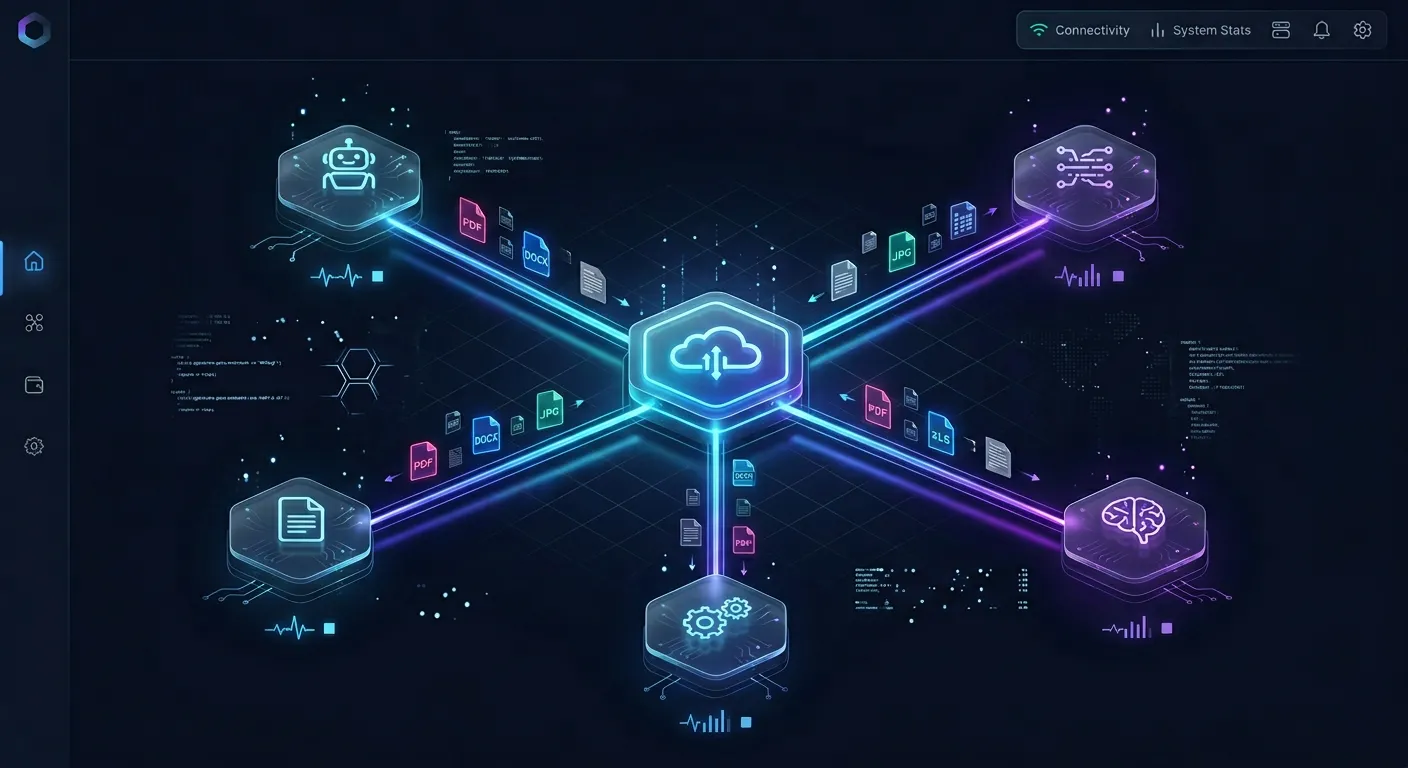


Connect Docker Agents to Cloud Storage via Remote MCP
Replace fragile filesystem MCP Docker mounts with persistent cloud workspaces. Fastio provides a hosted MCP endpoint with hybrid search and multi-cloud sync. Starts with a 14-day free trial.
Operational Best Practices for Containerized MCP Security and Governance
Connecting autonomous containerized agents to corporate storage repositories introduces governance, data integrity, and compliance requirements. Implementing structured safeguards ensures agents operate reliably within organizational boundaries.
Scoped API Credentials and Network Isolation
When running agents in Docker containers, follow least-privilege principles at both the network and storage layers:
- Container Network Isolation: Place agent containers inside dedicated Docker user-defined bridge networks. Restrict container egress to required endpoints, preventing compromised containers from probing internal network services.
- Granular Permission Scoping: Rather than provisioning organization-wide administrative tokens, issue Fast.io API keys scoped strictly to specific workspaces or project folders. An agent deployed for infrastructure analysis should possess zero visibility into legal or financial workspaces.
- Partner Infrastructure Standards: Fastio runs on cloud infrastructure partners, including Google Cloud Platform and Cloudflare, that are certified to industry-leading security standards. All communications between agent containers, Fast.io endpoints, and underlying storage providers are protected by encryption in transit and at rest.
Version History and Advisory File Locks
Autonomous agents generating code, documentation, or configuration files risk overwriting shared team assets during execution. In standard local Docker volume mounts, an erroneous write permanently destroys the prior version on disk.
Fast.io maintains comprehensive per-file version history across all workspace documents. Every modification produces a distinct version while preserving complete historical copies. If an agent produces an inaccurate draft or unintentionally truncates a file, team members can inspect the version timeline in the Fast.io interface and revert to prior versions instantly.
When multiple containerized agents or human team members work concurrently in the same workspace, Fast.io provides advisory file locks. An agent acquires, heartbeats, and releases a lock through the MCP storage tool using lock-acquire, lock-status, and lock-release. An advisory lock gives other collaborators visibility into active editing sessions. Because locks are advisory, they expire automatically if not heartbeated, and they never block writes or create deadlocks: concurrent writes land safely, and version history records every update.
Immutable Chain of Custody with Append-Only Audit Logs
Enterprise governance requires visibility into how artificial intelligence interacts with company records. Fast.io maintains a detailed activity log that permanently records all workspace activity.
Every search query, document view, metadata extraction, file upload, and permission modification is recorded with an immutable timestamp and actor identity. Compliance officers can review the audit log to verify exactly what files a containerized agent inspected during a research run, establishing complete chain of custody for internal security reviews.
Event-Driven Agent Workflows
Rather than running aggressive polling scripts inside Docker containers to detect newly uploaded files, agents can subscribe to the Fast.io events feed. Fast.io supports WebSocket or long-poll subscriptions to workspace activity, enabling containerized agents to sleep until a file changes and wake up immediately to process incoming data. Outbound webhooks do not ship, ensuring agent architectures remain secure without requiring public ingress endpoints on local Docker hosts.
Collaborative Notes and Ownership Transfer
AI agents deliver the greatest impact when their work integrates smoothly into human workflows. Fast.io includes Collaborative Notes, a real-time co-editing canvas featuring visible multiplayer cursors for human collaborators and AI agents. A containerized agent can summarize multi-cloud research findings directly into a shared note, allowing human colleagues to refine conclusions collaboratively.
When external consultants or technical teams build agent workflows for enterprise clients, Fast.io provides built-in ownership transfer. An agent can set up the organization, configure cloud storage sync, generate Metadata Views, and transfer complete organization ownership to a human executive via a secure claim link while retaining administrative access for maintenance.
Sources
References used to verify factual claims in this guide.
-
The Model Context Protocol is an open standard that enables developers to build secure, two-way connections between their data sources and AI-powered tools.
Frequently Asked Questions
How do you run a filesystem MCP server in Docker?
To run a filesystem Model Context Protocol (MCP) server in Docker, use the official mcp/filesystem image with interactive STDIN enabled via the -i flag. Mount a local host directory into the container using the mount flag and specify the target container directory as a positional argument. In your MCP client configuration file, declare docker as the command and provide the run arguments in the args array.
Can a Dockerized AI agent access Google Drive or OneDrive via MCP?
A Dockerized AI agent cannot reliably access corporate cloud storage like Google Drive or OneDrive through local bind mounts because desktop placeholder stubs and Files-On-Demand drivers require host operating system hooks that do not execute inside Linux containers. Instead of running fragile daemons inside Docker, teams connect containerized agents to cloud storage using an intelligent workspace layer like Fast.io. Fast.io maintains folders in sync across Google Drive, OneDrive, Box, and Dropbox. Files are indexed automatically and exposed through a remote MCP endpoint.
What are the best practices for containerized MCP file security?
Best practices for containerized MCP file security include running containers as non-root users using the user flag, mounting filesystems with read-only permissions whenever write access is unnecessary, and strictly limiting allowed directory arguments. When connecting to remote storage, use scoped API keys restricted to specific workspaces rather than broad organization credentials, maintain an immutable append-only audit log of all file interactions, and preserve per-file version history.
Why does bind-mounting local cloud storage into Docker fail?
Bind-mounting local cloud storage into Docker fails because enterprise desktop sync clients like OneDrive Files-On-Demand and Dropbox Smart Sync store files as placeholder stubs to save disk space. The actual file bytes are downloaded only when host operating system drivers intercept an application open request. When a containerized agent requests a file from inside a Linux Docker container, host hydration hooks are bypassed, returning empty 0-byte files or read errors.
How does remote MCP over HTTP compare to local stdio in Docker?
Local stdio MCP runs as a child process on a single machine, communicating across standard input and output streams. It requires local runtime dependencies, Docker daemon management, and host bind mounts. Remote MCP over Streamable HTTP operates as a hosted network endpoint that accepts HTTPS requests with Bearer token authentication. Remote MCP requires zero local daemons, works across distributed container clusters and cloud platforms, and eliminates local synchronization overhead.
Does Fastio require running sync software inside the Docker container?
No. Fast.io requires no synchronization daemons, background agents, or storage drivers inside Docker containers. Fast.io manages cloud synchronization server-side across Google Drive, Dropbox, Box, and OneDrive on a recurring schedule or on demand. Containerized agents interact with workspaces through Fast.io's remote MCP endpoint over standard outbound HTTPS connections.
Related Resources

Connect Docker Agents to Cloud Storage via Remote MCP
Replace fragile filesystem MCP Docker mounts with persistent cloud workspaces. Fastio provides a hosted MCP endpoint with hybrid search and multi-cloud sync. Starts with a 14-day free trial.