How to Set Up a Company Brain in Ten Minutes: Quickstart Guide
Scattered documents across disparate drives prevent human workers and autonomous AI agents from retrieving accurate operational context. Setting up a dedicated company brain on Fast.io provides a unified workspace where contracts, technical specifications, and internal records are indexed on arrival. This quickstart guide walks through creating the workspace, turning on automated semantic retrieval, connecting cloud storage, and configuring remote Model Context Protocol endpoints. The wiring takes about ten minutes, while syncing and indexing continue in the background.


Why Traditional Knowledge Bases Fail Autonomous AI Agents
Point an AI agent at an unindexed cloud folder and it often misses the facts it needs or fills gaps with guesses. Human operators face the same friction when they hunt for out-of-date specifications, buried onboarding packets, and scattered vendor agreements. The standard enterprise response is building a custom retrieval-augmented generation pipeline using external vector databases, embedding APIs, and complex orchestration code, a project that routinely stalls across engineering sprints and demands ongoing infrastructure maintenance.
The ten minutes cover the wiring of a company brain: creating a dedicated workspace with Intelligence enabled, connecting AI assistants to the remote MCP server, and giving the agent an Ask the Brain skill. Connecting cloud storage drives can start in the same session, while syncing and indexing existing files continue in the background, and team members and AI assistants can query each file once it is indexed. Instead of cobbling together a fragile data pipeline, teams can rely on an intelligent workspace where storage and retrieval live in the same place.
When company files reside in an intelligent workspace, documentation becomes an active knowledge engine. Human team members view and edit files directly in their browser or desktop environment, while AI agents running in Claude, ChatGPT, Cursor, or terminal environments read the exact same data through structured protocols. The result is a unified operational layer that keeps every teammate and autonomous process aligned on verified facts.
The Hidden Complexity of Custom Retrieval Stacks
Engineering teams often assume that giving an AI access to internal knowledge requires building a custom retrieval pipeline from scratch. A typical DIY implementation requires spinning up an external vector database, provisioning an embedding service, writing custom chunking scripts for PDFs and spreadsheets, and deploying an orchestration server running LangChain or LlamaIndex.
This architecture introduces substantial technical debt. Document parsers frequently fail on complex tables or image-heavy presentations. When a policy changes or a contract is amended, updating the external vector index requires custom synchronization jobs. If the synchronization job drops a webhook or fails silently, the vector database serves stale records while the source repository holds the corrected file. Maintaining this custom infrastructure pulls engineers away from core product work and drives up recurring cloud API bills. Storage-level indexing replaces this multi-tier architecture by embedding retrieval directly into the file repository where work happens.
What Documents Belong in an Operational Knowledge Base
A company brain is not an unfiltered archive of every temporary draft or chat transcript created across an organization. To keep answers precise and prevent context clutter, organizations focus on core operational records that reflect business ground truth.
Effective company brains organize five main categories of material:
- Technical Specifications and Architecture Decisions: System designs, API schemas, deployment runbooks, and Architecture Decision Records (ADRs) that explain engineering choices.
- Standard Operating Procedures (SOPs): Step-by-step operational checklists, release schedules, customer support playbooks, and incident remediation steps.
- Customer Agreements and Vendor Contracts: Executed master service agreements, statements of work, vendor licensing limits, and procurement documentation.
- Organizational Policies and Onboarding Guides: Employee handbooks, benefits policies, security protocols, and team-specific onboarding curricula.
- Autonomous Agent Outputs: Research syntheses, competitive intelligence briefs, and structured document extracts generated by internal agents for team reuse.
Housing these documents in an intelligent workspace makes them queryable in plain English without requiring manual tagging or folder reorganization.
Related guides
- Building a Company Brain for Sales Engineering: Faster Technical WinsA sales engineering company brain organizes product specifications, architecture blueprints, security whitepapers, and...
- Company Brain Workflow for RFP Responses: Accelerating Technical BidsA company brain workflow for RFP responses centralizes past winning proposals, technical specifications, and security...
- Knowledge Base Best Practices for Human Teams and AI AgentsKnowledge base best practices are operational standards for structuring, synchronizing, and securing central...
- 18 agentic workflows to run against your company brainYour agent starts every session knowing nothing about your company. A company brain fixes that. One Fastio workspace...
- How to Build a Company Brain for Customer Success TeamsA company brain for customer success unifies client contracts, onboarding records, and product documentation into an...
- How to Build a Company Brain for Finance Teams: Security, Isolation, and AI RetrievalA company brain for finance teams centralizes accounting policies, vendor agreements, audit files, and financial models...
More on this subject: Agent Memory and Storage (335 guides)
How to Set Up a Company Brain in Ten Minutes
Deploying a company brain does not require days of infrastructure provisioning. Following four milestones, an organization creates the workspace, connects its drives and agents, and runs a first query; the wiring takes about ten minutes, while syncing and indexing existing files continues in the background.
Create a Dedicated Workspace and Enable Intelligence Set up the workspace within the organization. Restrict membership to designated team members. Toggle Intelligence Mode on the workspace settings so every uploaded or synced file is automatically processed for hybrid search, combining full-text indexing with semantic vector retrieval.
Configure Cloud Sync for Document Ingestion Connect existing document repositories without manual downloads. Cloud Sync connects Google Drive, Dropbox, Box, and OneDrive folders (including SharePoint document libraries accessed through the OneDrive connector) to the workspace, one-way or two-way, on a schedule or on demand. Files take the Fast.io workspace permissions immediately upon arrival. The first sync and the indexing that follows run in the background, and a large archive takes longer than the setup itself.
Connect Your AI Agent to the Remote MCP Server Provide autonomous AI assistants with programmatic access. Fast.io hosts a remote Model Context Protocol server over Streamable HTTP at
https://mcp.fast.io/mcp/toolsfor general assistants,https://mcp.fast.io/mcp/codefor IDE coding agents, andhttps://mcp.fast.io/mcp/operationsfor custom ChatGPT and Codex servers. Standardizing on MCP eliminates the need for bespoke agent integrations. Then give the agent an Ask the Brain skill, so it queries the company brain workspace before it drafts or changes anything.Run Your First Citation-Backed Test Query Once the first files are indexed, verify retrieval by asking a factual question in chat or through an agent tool call. Intelligence Mode returns concise answers accompanied by direct citations pointing to the exact file names, page numbers, and text snippets used to construct the response.
Workspace Creation and Automated Storage Indexing
The first step establishes a clean workspace boundary. An administrator creates an organization on Fast.io and establishes a dedicated workspace named for the company brain, such as core-knowledge or company-brain.
Within the workspace settings, turning on Intelligence Mode starts background indexing. When a PDF, Word document, markdown file or text document lands in a workspace with Intelligence on, it is queued for text extraction and indexing automatically.
Workspaces handle substantial document volumes without manual intervention. Upload limits scale with plan tiers, allowing large collections of vendor manuals, scanned contracts, and historical documentation to upload directly without splitting archives into separate chunks.
Connecting Storage Drives with Scheduled Cloud Sync
The next step brings historical records into the newly created workspace. Moving away from scattered folders does not require downloading gigabytes of PDFs to a local machine before re-uploading them.
Cloud Sync connects Google Drive, Dropbox, Box, and OneDrive folders directly to the workspace. For organizations running on Microsoft 365, SharePoint document libraries connect through the OneDrive connector. Administrators select whether the sync operates one-way to mirror reference files or two-way to keep folders aligned across environments. Sync runs on a schedule or on demand, rather than continuous or real-time polling, keeping system load predictable.
A key security principle governs this ingestion: synced files adopt the Fast.io workspace permissions, not the source drive's sharing settings. If a Google Drive folder had loose link-sharing settings, those settings do not carry over: in Fast.io, the synced copies follow the workspace's permissions. The original links in Google Drive are unchanged. The first sync of a large archive, and the indexing that follows, continue in the background after the connection is set up.
Configuring the Remote MCP Endpoint
The third step connects external AI agents to the repository. Rather than writing custom API wrappers for each LLM provider, Fast.io exposes its capabilities through the Model Context Protocol (MCP), an open standard for connecting AI clients to external context.
The Fast.io MCP server is fully hosted and remote, operating over Streamable HTTP without requiring local package installations or node runtime environments. Connecting an AI tool is a short step:
- Claude (Web, Desktop, and Mobile): Open Customize, navigate to Connectors, select Add custom connector, and paste
https://mcp.fast.io/mcp/tools. Select Connect and complete the browser OAuth sign-in. In any chat conversation, activate Fastio from the plus menu under Connectors. - Claude Code: Run
claude mcp add --transport http fast-io https://mcp.fast.io/mcp/codein your terminal, then execute/mcpto authenticate. - Cursor: Add an entry to
~/.cursor/mcp.jsonor.cursor/mcp.jsonwith the server URLhttps://mcp.fast.io/mcp/code. - ChatGPT and Codex: Install the Fastio plugin directly from the plugin directory, or configure a custom MCP connector pointing to
https://mcp.fast.io/mcp/operations. - Headless Agents and Scripts: When running autonomous daemons, pass a scoped Fast.io API key in the connection header as
Authorization: Bearer <api key>.
Detailed setup instructions are available in the remote MCP documentation, with full tooling descriptions documented in the MCP skill guide and agent onboarding documentation.
Once the client is connected, write an Ask the Brain skill for the agent: an instruction to query the company brain workspace before drafting, planning or changing anything, and to cite the file behind every factual claim. This last piece of wiring is what makes the agent check the workspace instead of guessing.
Executing the Initial Verification Query
The final step checks that files are indexed and agents can retrieve ground truth. Testing the setup requires asking a question that depends on proprietary facts contained within an ingested document.
For example, asking 'What are our payment terms for enterprise clients under the standard master services agreement?' prompts Intelligence Mode to scan the indexed files. The retrieval engine combines full-text keyword matching with vector-based semantic search to identify relevant paragraphs across hundreds of pages.
The response returns the substantive answer along with explicit citations. Each citation links to the source document, the specific page number, and the excerpted snippet that provided the evidence. Citations let teammates check any claim against the file it came from. Teammates can click any citation to inspect the underlying file in the workspace viewer.


Wire Up Your Company Brain in About Ten Minutes
Create an intelligent workspace, start syncing your operational files, and connect your AI agents with citation-backed retrieval while indexing continues in the background. Monthly plans start with a 14-day free trial.
How Permission Boundaries Prevent Unauthorized Context Retrieval
Deploying an enterprise AI knowledge base requires strict access controls. A common flaw in custom RAG implementations is the absence of retrieval boundaries: an agent queried by a junior employee might retrieve confidential executive compensation files or unannounced merger proposals simply because the vector database indexed all company files into a single collection.
Fast.io addresses this risk with workspace boundaries. Permissions are configured per organization, workspace, and share, governed strictly by member roles. A workspace does not have folder-level or file-level permissions. Every member of a workspace has access to all contents within that workspace based on their assigned role: Owner, Admin, Member, Guest, or View.
Because search and Fast.io Intelligence answer only from the workspaces and shares the asker belongs to, a restricted workspace keeps its documents out of other people's answers, as long as its join setting is closed to automatic joining. Restricting sensitive information means placing those documents in a distinct workspace and limiting who can join it.
Workspace-Level Access Control for Agents and Humans
To maintain document security, organizations structure workspaces by domain and sensitivity. For instance, general SOPs, technical specifications, and company policies live in a company-wide workspace where all employees and general AI assistants hold Member roles. Financial ledgers, executive compensation sheets, and board minutes live in an executive workspace restricted to leadership.
When creating a new workspace, the join setting defaults to allowing any member of the parent organization to join. To keep confidential data private, administrators restrict this setting so only named individuals and designated agent accounts can enter.
Organization roles include Owner, Admin, and Member, while workspace roles add Guest and View. API keys used by autonomous agents act with the permissions of the user account that created them, narrowed by the scopes set on the key. If an agent only needs to read, the person connecting it chooses Read Only on the sign-in screen, and data-altering tools are then not offered. That removes the risk of unintended file edits or deletions through that connection.
Tracking Document Lifecycle Changes in the Activity Log
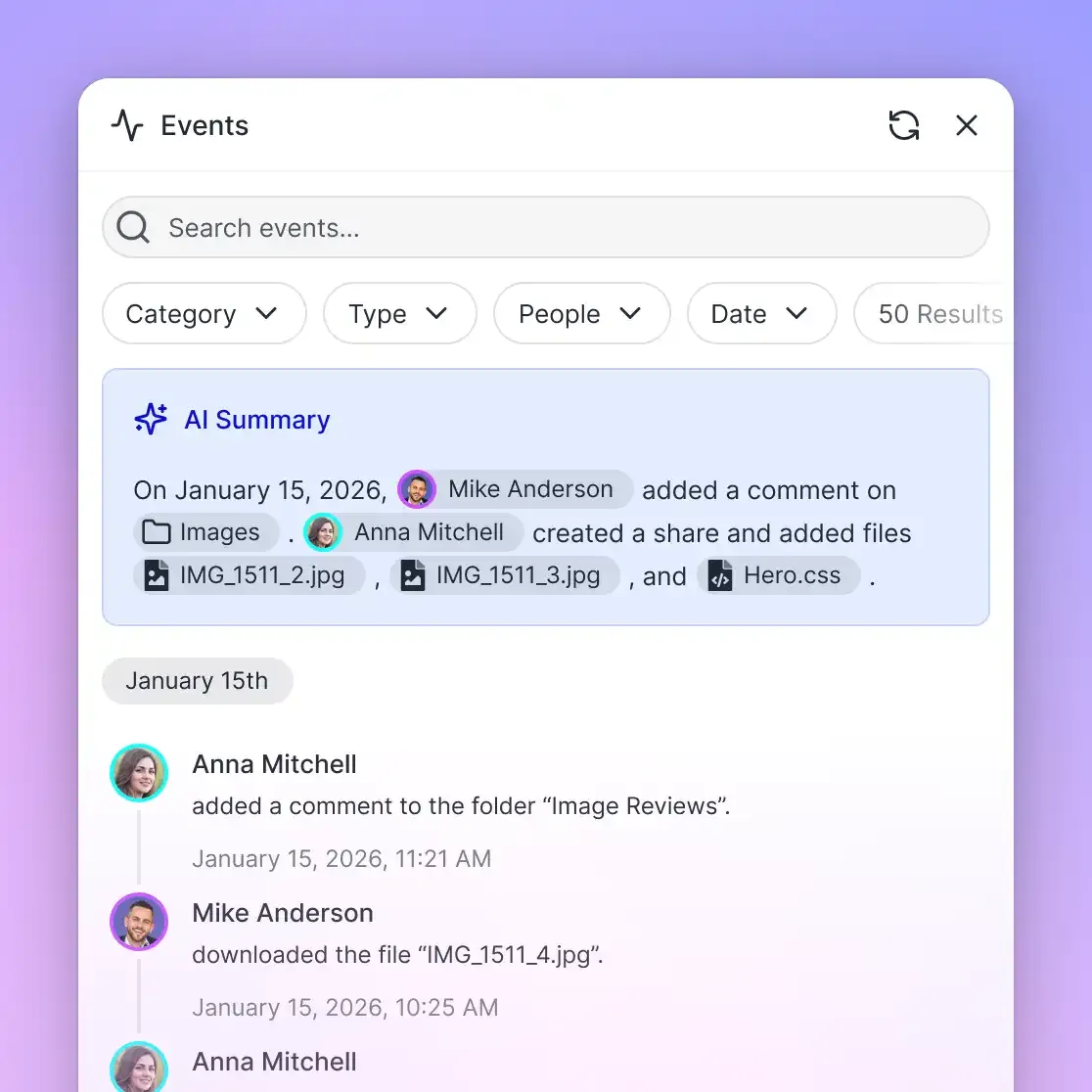
Auditing changes is critical when multiple people and automated agents share a knowledge repository. Fast.io includes a detailed activity log that records operational modifications across the organization.
The activity log tracks concrete changes: file uploads, content edits, file moves, deletions, membership updates, permission adjustments, and share creations. Both human actions and agent operations are attributed with timestamps and user identities. The log does not track read-only actions such as views, file opens, or downloads.
In addition to activity logging, Fast.io maintains full per-file version history. When an agent updates a technical document or an employee uploads an amended handbook, the previous version is preserved. If an erroneous edit occurs or an agent overwrites useful text, administrators can review the version list and restore earlier versions with a single click. This versioning framework provides a safety net that protects the integrity of the company brain.
Structuring Metadata Views for Exact Document Extraction
Semantic search and conversational Q&A solve many knowledge retrieval challenges, but modern business operations also require structured data. An operations lead evaluating vendor renewals cannot spend hours asking a chat assistant for individual contract expiration dates one by one. They need a structured overview that can be sorted, filtered, and queried programmatically.
Traditional data extraction relies on rigid optical character recognition (OCR) templates that fail whenever a vendor alters a page layout. Fast.io addresses this challenge through Metadata Views, which turn unstructured documents into a live, queryable database without templates or manual extraction rules.
Users describe the fields they want in natural language, and the system automatically designs a typed schema that extracts matching values across PDFs, Word documents, spreadsheets, presentations, scanned pages, and images. The resulting view presents document data in a structured, spreadsheet-like table where teams can analyze operational details at scale.
Automating Schema Design and Document Extraction
Defining the fields to extract is quick: describe the information you want in plain language. An administrator or team lead creates a view within a workspace and enters a prompt describing the desired information. For example, a legal operations lead might specify: 'Extract counterparty name, effective date, renewal notice deadline, contract value, and governing law.'
The system generates a typed schema supporting seven field formats: Text, Integer, Decimal, Boolean, URL, JSON, and Date & Time. As files match the view criteria, the system extracts values and populates the view columns automatically.
Because extraction operates incrementally, teams can add new columns at any point without re-uploading or reprocessing the entire file archive. AI agents connecting through the Fast.io MCP server can inspect schemas, query extracted values, and use structured document metadata to trigger subsequent actions, bridging the gap between raw document storage and structured data analysis.
Maintaining Living Context with Collaborative Notes
Not all institutional knowledge arrives in polished PDF reports or formal handbooks. Much of a team's operational context develops during project execution, technical debriefs, and ongoing agent tasks.
Fast.io provides Collaborative Notes kept directly beside files within workspaces. These notes allow team members and autonomous agents to document operational insights, meeting takeaways, and workflow guidelines in clean markdown.
Collaborative Notes support live co-editing, allowing people and agents with the same note open to see each other's labeled cursors and edits as they type. An engineering agent can read an architecture document, execute a benchmarking script, and append its findings to a Collaborative Note beside the design specification. Human engineers reviewing the workspace see the agent's annotated notes alongside the source files, maintaining transparent collaboration across human and machine workflows.
Connecting Humans and AI Agents in Daily Workflows
Once established, a company brain transforms daily execution across multiple departments. By connecting human workers and AI tools to a shared knowledge layer, organizations eliminate repetitive inquiries and accelerate operational handoffs.
- Engineering and Technical Development: Software engineers using Cursor or Claude Code connect directly to the company brain using
https://mcp.fast.io/mcp/code. When writing code or refactoring services, the coding agent inspects internal API specifications, security guidelines, and architectural decisions stored in the workspace, generating code that adheres to team conventions. - Customer Support and Solutions Engineering: Customer-facing teams query the company brain to draft accurate responses to complex client inquiries. By pulling facts directly from product documentation and historical statements of work, representatives provide technical answers with source citations.
- Cross-Organizational Onboarding: New employees query the company brain to learn team procedures, vacation policies, and technical setups. Instead of waiting for senior colleagues to answer routine questions, new hires receive immediate, citation-backed answers that link directly to authoritative handbooks.
- External Client Delivery: When specific documents must be shared externally, teams create branded shares directly from the workspace. Branded Send, Receive, and Exchange shares allow teams to deliver deliverables or collect files with custom logos, background artwork, and optional download restrictions, keeping external sharing separate from internal workspace operations.
Developer and Terminal Agent Integration
For technical teams, the primary value of a company brain is programmatic accessibility. Developers do not want to switch context to a web browser to search for internal documentation while writing code.
By adding Fast.io to their IDE or terminal client configuration, engineers allow their coding agents to query storage for agents directly. When a developer asks their agent to implement a new database migration or integrate an authentication provider, the agent calls the Fast.io MCP search tool to find relevant internal standards.
Because the MCP server handles authentication and retrieval through Streamable HTTP, developers work with standard tools without running local synchronization daemons. The workspace serves as persistent memory across development sessions, ensuring that context remains stable even when local development environments are reset.
Subscription Plans and Scalable Deployment
A company brain on Fast.io scales with organizational needs. Every organization runs on a paid subscription, and monthly plans start with a 14-day free trial that requires a credit card.
The table below outlines the core subscription plans and resource allocations:
Seats count organization members only, while external collaborators accessing shares do not consume account seats. Extra storage costs $0.015 per GB a month and extra bandwidth $0.04 per GB, neither using AI credits; credits cover chat, file ingestion, agent runs and document processing, with overage at $10 per 100,000 credits. More details are available on the Fast.io pricing page.
Sources
References used to verify factual claims in this guide.
-
A company brain provides a centralized repository of core operational pages that AI agents read before taking action to maintain business context.
-
Building a tool-agnostic company brain allows teams to switch between different AI assistants without losing accumulated institutional context.
Frequently Asked Questions
How long does it take to set up a company brain?
The wiring takes about ten minutes: create a workspace with Intelligence on, connect your drives with Cloud Sync, connect your AI client to the Fast.io MCP server, and write an Ask the Brain skill for your agent. Syncing and indexing a large archive continues in the background and depends on its size, and you can run a first test query as soon as the first files are indexed.
How do you connect an AI agent to a company brain in minutes?
You connect an AI assistant using Fast.io's remote Model Context Protocol endpoint over Streamable HTTP. In desktop clients like Claude, add `https://mcp.fast.io/mcp/tools` as a custom connector and complete the OAuth sign-in. For coding agents like Claude Code or Cursor, specify `https://mcp.fast.io/mcp/code` in your client configuration.
What is the fastest way to build an AI-queryable knowledge base?
The fastest approach is deploying a cloud workspace platform with storage-native indexing rather than building a custom retrieval pipeline with vector databases and embedding scripts. Once files are uploaded or synced to a workspace with Intelligence enabled, text extraction, semantic embeddings, and hybrid search are generated automatically.
Does Fast.io sync with Google Drive?
Yes. Fast.io supports Cloud Sync with Google Drive, Dropbox, Box, and OneDrive folders, as well as SharePoint libraries through the OneDrive connector. Folders can be synced one-way or two-way, on a schedule or on demand, and all synced files inherit the permissions of the Fast.io workspace.
Can AI agents overwrite or corrupt documents in the company brain?
An agent with Read & Write access can save new versions of a file, but Fast.io keeps full per-file version history, so earlier versions can be restored, and the detailed activity log shows who made each change. Connecting the agent with Read Only access removes the tools that change data.
How do workspace permissions prevent AI agents from accessing restricted company files?
Fast.io enforces role-based access controls at the organization, workspace, and share levels. There are no folder-level or file-level permissions within a workspace. Search and Intelligence Mode only retrieve answers from workspaces and shares that the querying user or agent belongs to, preventing unauthorized access across workspace boundaries.
Related Resources

Wire Up Your Company Brain in About Ten Minutes
Create an intelligent workspace, start syncing your operational files, and connect your AI agents with citation-backed retrieval while indexing continues in the background. Monthly plans start with a 14-day free trial.