Google Shared Drive Best Practices: Architecture, Limits, and Organization
Google Shared Drives centralize file ownership across organizations, but unmanaged sprawl quickly triggers item caps, crawl timeouts, and permission chaos. Implementing structured drive boundaries, group-based permissions, and shallow folder hierarchies keeps assets organized and accessible. When connecting storage to AI pipelines, synchronizing folders into an intelligent workspace prevents connector delta-sync bottlenecks.

Understanding Google Shared Drive Limits and Why Governance Matters
A single Google Shared Drive is capped at a maximum of 500,000 items, including files, folders, shortcuts, and items in trash. Each user can upload and copy 750 GB to Drive within 24 hours. When an organization treats a Shared Drive as an unstructured repository for company assets, reaching those ceilings stalls day-to-day work, disrupts team collaboration, and blocks critical synchronization connectors.
In standard personal storage like Google My Drive, individual users own every file they create. When an employee departs an organization, deactivating their corporate account risks orphaning essential project documents, breaking file links, and stranding assets across personal folders. Google Shared Drives solve this ownership dilemma by anchoring file ownership to the corporate organization rather than individual user accounts. Files remain intact, shared links persist, and team members collaborate within a shared container.
However, moving from personal storage to shared drives without architectural planning introduces governance challenges. Unmanaged shared drives accumulate redundant files, outdated assets, and sprawling folder trees.
Understanding the exact technical limits of Google Shared Drives is the foundation of effective administration. Google historically set a threshold of 400,000 items per shared drive before raising the ceiling to 500,000 items. Many system administrators assume this limit applies only to standard files like Google Docs, Sheets, and uploaded PDFs. The cap counts every object within the drive container: individual files, subfolders, nested folders, empty folders, Google Drive shortcuts, and every deleted object sitting in the trash.
The trash mechanism is one of the most common causes of unexpected capacity warnings. Files moved to the shared drive trash continue consuming capacity against the 500,000-item ceiling until they are permanently deleted or purged after the standard 30-day retention cycle. In active shared drives where automated scripts create and delete temporary files, thousands of trashed objects accumulate invisibly, pushing the container toward the ceiling.
Google Workspace administrators can monitor capacity from the Admin Console (admin.google.com) by navigating to Apps, then Google Workspace, then Drive and Docs, and opening Manage shared drives to inspect the Item Cap column. Google displays a warning banner inside the shared drive interface when remaining capacity nears its capacity limit, but relying on visual warnings is risky for automated environments.
Related guides
- Google Drive Resumable Upload: Architecture, Limits, and Workspace SolutionsGoogle Drive resumable upload is an HTTP protocol for transferring files larger than 5 MB in chunks, using a temporary...
- How to Connect ChatGPT to Google Shared DrivesConnecting ChatGPT to Google Shared Drives gives teams direct conversational access to collective documentation,...
- Can ChatGPT Upload Files to Google Drive? How to Save AI OutputsChatGPT cannot natively upload, write, or export files directly back to Google Drive; its native integration is...
- Google Drive API for Shared Drives: Querying, Permissions, and CorporaAccessing files inside Google Shared Drives with Google Drive API v3 requires explicit configuration flags that differ...
- Google Shared Drive Access Levels: Manager vs Contributor Role BreakdownGoogle Shared Drive access levels govern what members can edit, organize, delete, and administer across shared company...
- How to Fix the Google Drive Download Quota Exceeded ErrorWhen multiple active AI agents and developers pull files from a single shared Google Drive link, they easily trigger...
More on this subject: Agent File and Document Workflows (325 guides)
How to Structure Google Shared Drives for Departments and Projects
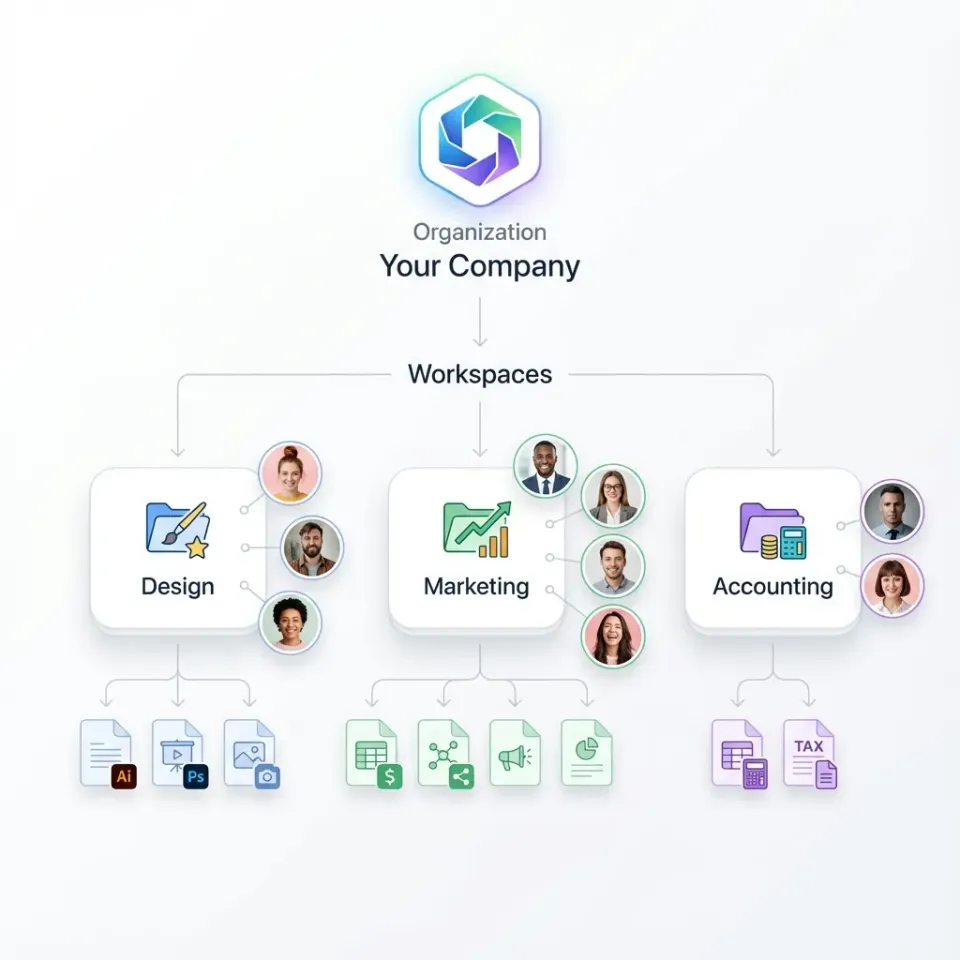
The most common structural mistake in Google Workspace deployments is creating a single, monolithic shared drive for the entire organization (for example, "Company Shared Drive" or "All Team Files"). Monolithic drives inevitably hit item capacity, experience degraded search performance, and force complex permission exceptions.
To build a scalable storage architecture, organizations apply five foundational best practices:
- Separate Drives by Department or Matter: Establish distinct shared drives aligned with organizational units, active client matters, or distinct functional disciplines rather than consolidating everything into one space.
- Respect the 500,000 Item Cap: Design drive boundaries so that individual drives never approach item limits, leaving ample headroom for team growth.
- Assign Group Permissions via Google Groups: Manage access by adding Google Groups instead of individual email addresses to eliminate permission debt during employee transitions.
- Keep Folder Hierarchies Shallow: Restrict folder depth to fewer than five levels, avoiding deep nesting that obscures files and breaks automated crawlers.
- Isolate Archive Drives: Move completed projects and cold files into designated read-only archive drives to preserve capacity in active workspaces.
Designing Departmental and Project Boundaries
A well-structured Google Workspace deployment divides storage across three primary types of shared drives:
- Departmental Drives: Dedicated to ongoing functional operations (
ENG - Architecture & Specs,FIN - Accounting & Audit,MKT - Brand & Creative). These drives house living operational documents used by permanent teams. - Project and Client Matter Drives: Dedicated to bounded initiatives or client engagements (
PRJ - Cloud Migration,MATTER - Acme Acquisition). Once a project or matter concludes, the entire drive can be transitioned to an archive state or placed into read-only mode without disrupting other teams. - Corporate Resource Drives: Central repositories for company-wide references (
CORP - Employee Handbook & Policies,HR - Onboarding Documents). These drives are configured with broad read-only access and restricted write permissions.
Folder Depth and Navigation Discipline
Google Drive technically permits folder nesting to reach 100 levels deep within a shared drive. While allowed by the platform, deep folder nesting creates severe operational friction. Users struggle to locate files buried ten subfolders deep, web breadcrumbs truncate on desktop screens, and local desktop synchronizers encounter operating system path character limits.
Maintaining a maximum folder depth of fewer than five levels keeps browsing intuitive and accelerates search discovery. Root folders should represent broad categorical workflows, while secondary levels organize specific deliverables or time periods.
Standardized Naming Conventions
Consistent naming conventions eliminate ambiguity across distributed teams. Naming best practices include:
- Drive Name Prefixes: Prefix shared drives with functional identifiers (for example,
DEPT -,PRJ -,ARCHIVE -) so users can quickly filter drives in their navigation pane. - Numeric Root Ordering: Prefix top-level folders with numbers (for example,
01_Strategy,02_Drafts,03_Final_Deliverables) to maintain an intentional browsing sequence across web and desktop interfaces. - Standard Date Formats: Use ISO date formats (
YYYY-MM-DD) on project folders and dated assets to prevent chronological confusion across international teams.


Ground AI Agents in Synced Google Drive Files
Connect your Google Shared Drives to an intelligent workspace with scheduled Cloud Sync and remote MCP search. Start your 14-day free trial.
How to Manage Permissions and Group Access in Shared Drives
Google Shared Drives offer five distinct member roles, allowing administrators to implement the principle of least privilege across collaborative teams:
- Manager: Full administrative control. Managers can add and remove members, modify drive settings, delete the shared drive, and move folders between shared drives.
- Content Manager: Default role for everyday collaborators. Content Managers can upload, edit, move, and delete files, but cannot alter drive membership or administrative settings.
- Contributor: Allows users to add and edit files, but prevents them from deleting files or moving files between folders. This role is ideal for external contributors, vendors, or junior team members.
- Commenter: Read-only access with the ability to view files and leave comments or suggestions.
- Viewer: Strictly read-only access. Viewers cannot edit, comment, or modify file metadata.
The Power of Group-Based Permissions
Google imposes a ceiling of 600 direct members on a single shared drive. Adding individual employee email addresses directly to shared drives creates rapid permission debt. When an employee changes departments or leaves the company, IT administrators must track down and remove their account across dozens of individual shared drives.
Managing shared drive access through Google Groups eliminates this administrative overhead. A single shared drive can include up to 100 Google Groups, and those groups can encompass up to 50,000 individual users.
Individual User Access:
User Email -> Shared Drive (Ceiling: 600 direct members, manual offboarding)

Group-Based Governance:
User Email -> Google Group (e.g., engineering@company.com) -> Shared Drive (Scale: 50,000 users, centralized offboarding)
When an engineer joins the company, adding them to the engineering Google Group automatically grants them appropriate access across all engineering shared drives. When they leave, removing them from the group instantly revokes their access across the entire drive ecosystem.
Managing Folder-Level Sharing Exceptions
Google allows folder sharing within shared drives, enabling teams to share a specific subfolder with collaborators without granting access to the entire drive.
While folder-level sharing provides convenience for external contractors or cross-functional reviews, overusing it re-creates the permission complexity of personal drives. Folder sharing can only expand permissions (for example, granting Content Manager access on a specific folder to someone who is a Viewer at the drive level); it cannot restrict permissions granted at the root drive level. Teams should reserve folder-level sharing for discrete collaboration needs and audit folder permissions quarterly.
Administrative Security Policies
Google Workspace administrators can enforce global security baselines across shared drives within the Google Admin Console:
- Restricting External Sharing: Prevent files within sensitive drives (such as Legal or Finance) from being shared outside the corporate domain.
- Disabling Viewer Actions: Prevent Viewers and Commenters from downloading, printing, or copying confidential files.
- Restricting Drive Creation: Limit the ability to create new shared drives to designated administrators or department leads to prevent uncontrolled drive sprawl.
Why Deep Hierarchies Break Connectors and AI Ingestion Pipelines
Most conventional advice on Google Drive organization focuses exclusively on human usability. In modern enterprise environments, files are increasingly read and processed by automated pipelines, business workflows, and artificial intelligence agents.
In automated environments, deep folder hierarchies and sprawling item counts become severe technical bottlenecks.
How Storage Connectors Crawl Google Drive
When an automated connector or AI indexing pipeline connects to Google Drive, it interacts through the Google Drive API (files.list and changes.list). Because Google Drive is built as an object store with parent-child relationships rather than a traditional hierarchical filesystem, calculating folder trees requires recursive API traversal.
When a connector crawls a shared drive with ten or fifteen nested subfolder levels, it must execute multiple API calls to map parent IDs and discover nested documents. Google Drive enforces strict per-user and per-project API quotas. During large crawls or initial synchronizations, recursive tree traversal consumes API quotas rapidly, triggering HTTP 429 rate-limit errors and exponential backoff delays.
Delta Sync Latency and Crawler Timeouts
To keep indexes up to date without re-crawling entire drives, automated connectors rely on delta syncs. The connector requests changes since a specific change token.
When a shared drive contains hundreds of thousands of items across deep hierarchies, reconciling change logs requires extensive tree re-computation. If an indexing pipeline takes hours to reconcile change tokens across deeply nested folders, connection pools time out. The pipeline either drops file updates, leading to stale context, or restarts a full crawl, continuing the cycle of API throttling.
The Problem of Context Bloat in AI Retrieval
When an AI agent needs to ground its responses in company documents, traditional native connectors attempt to stream entire files or dump whole folders into prompt context. Loading massive PDFs, multi-megabyte presentations, or raw folder dumps into prompt context exhausts token allowances, inflates inference costs, and increases conversational latency.
AI workflows require an intermediate architecture that decouples enterprise storage from AI context retrieval. Rather than pulling raw files across slow connectors, systems need an intelligent workspace that indexes documents on arrival and provides targeted, citation-backed excerpts.
In benchmark testing across cloud storage connectors published at https://fast.io/benchmarks/, Fastio was measured the fastest and the lowest cost of the providers tested. By maintaining primary storage in Google Drive while connecting through an intelligent workspace, engineering teams eliminate recursive crawler bottlenecks and ground AI assistants in accurate, up-to-date documentation.
How to Connect Google Shared Drives to Fastio Workspaces via MCP
Organizations do not need to migrate away from Google Workspace to take advantage of agentic AI. Google Shared Drives remain the authoritative system of record for team collaboration and document authoring, while Fastio acts as the intelligent workspace and execution substrate for AI agents.
Scheduled Cloud Synchronization
Fastio Cloud Sync connects Google Drive, Dropbox, Box and OneDrive folders to a workspace, one-way or two-way, on a schedule or on demand. Fastio Cloud Sync never runs continuous, live, or real-time sync, which maintains predictable system performance and avoids exhausting cloud API quotas.
Engineering and operations teams can configure a scheduled one-way sync from designated Google Shared Drive folders into a Fastio workspace. Technical documentation, customer contracts, architecture decision records, and standard operating procedures sync cleanly without requiring manual file exports or custom scripts.
Automatic Ingestion with Intelligence Mode
Once documents arrive in a Fastio workspace, Intelligence Mode parses and indexes them automatically. Fastio builds a unified search index combining keyword search, semantic vector retrieval, and metadata value matching.
Instead of deploying complex embedding pipelines, maintaining external vector databases, or writing custom chunking scripts, teams query the workspace index directly. When an AI agent asks a question, Fastio retrieves the exact relevant passages and provides verified source document citations.
Structuring Documents with Metadata Views
Beyond unstructured document search, business teams frequently need to extract structured data from repetitive documents such as vendor invoices, employee agreements, or technical specs.
Fastio Metadata Views turn document collections into queryable, structured databases. Users describe the fields they wish to extract using natural language, and the system automatically generates a typed schema supporting Text, Integer, Decimal, Boolean, URL, JSON, and Date & Time types.
Document Ingestion Pipeline:
Google Shared Drive -> Cloud Sync -> Fastio Workspace -> Intelligence Mode (RAG) + Metadata Views
                                                                |
                                                                v
                                                        Remote MCP Server
                                                                |
                                                                v
                                              AI Agents (Claude, ChatGPT, Coding Tools)
Metadata Views extract dates, counterparties, line items, and schema attributes across PDFs, scanned files, and Word documents without OCR templates or regular expressions. New columns can be added at any time without reprocessing existing files, and AI agents can query the extracted metadata directly via MCP.
Connecting AI Agents via Remote MCP
Fastio provides a remote Model Context Protocol (MCP) server running over Streamable HTTP. Rather than installing local daemons or bridge processes, AI assistants connect directly to hosted endpoints:
- Claude and General Clients: Connect at
https://mcp.fast.io/mcp/tools. - Coding Agents and IDEs: Connect at
https://mcp.fast.io/mcp/code. - ChatGPT and Codex: Connect via the Fastio plugin or at
https://mcp.fast.io/mcp/operations.
Interactive clients authenticate with OAuth through a browser permissions dialog where users select Read Only or Read & Write access and scope connections to specific workspaces. Headless scripts, background agents, and CI pipelines authenticate using a scoped Bearer token header (Authorization: Bearer your-fastio-api-key). Detailed setup instructions are available in the Fastio MCP documentation and MCP skill reference, with machine-readable onboarding in llms.txt.
Enterprise Governance and Subscriptions
Fastio enforces role-based permissions at the organization, workspace, and share levels through member roles. Every workspace member accesses content according to their role. When sharing specific documents with external partners, branded shares can disable file downloads to protect sensitive assets. A detailed activity log records organizational changes, edits, and deletions to maintain accountability across humans and agents.
Every Fastio organization operates on a paid subscription. Monthly plans start with a 14-day free trial that requires a credit card. Platform credits meter AI search and metadata extraction, with storage and member seats bundled into each tier.
Sources
References used to verify factual claims in this guide.
-
A Google Shared Drive can contain a maximum of 500,000 items, including files, folders, shortcuts, and items in trash. Each user can upload and copy 750 GB to Drive within 24 hours.
Frequently Asked Questions
What is the maximum limit for a Google Shared Drive?
A Google Shared Drive can contain a maximum of 500,000 items, including files, folders, shortcuts, and items in trash. In addition, each user can upload and copy 750 GB to Drive within 24 hours. Google Shared Drives also support folder nesting reaching 100 levels deep.
How should you structure a Google Shared Drive?
Structure Google Shared Drives by separating containers along departmental, project, or client boundaries rather than building one monolithic drive. Keep folder depth under five levels, use consistent naming conventions with category prefixes, assign permissions through Google Groups, and isolate completed projects into read-only archive drives.
How many Shared Drives can an organization have?
A Google Workspace organization can create thousands of shared drives, though Google Drive navigation displays up to 10,000 shared drives per account. Organizations needing larger structures manage visibility through organizational units, administrative policies, and direct drive links.
How do trashed files affect Google Shared Drive limits?
Trashed files continue to count against the 500,000 item limit of a shared drive until they are permanently deleted by a manager or automatically purged after 30 days. In high-velocity drives, empty the trash regularly to avoid unexpected capacity warnings.
What causes crawl timeouts when connecting AI agents to Google Drive?
Deep folder hierarchies require recursive API calls to resolve parent-child relationships, quickly exhausting Google Drive API quotas and slowing down delta syncs. Synchronizing folders into an intelligent workspace that indexes documents on arrival allows AI agents to search via MCP without recursive directory crawling.
Can you share a single folder outside a Google Shared Drive?
Yes. Google allows managers to share individual subfolders with specific users or groups without granting access to the entire shared drive. However, folder sharing should be used sparingly to prevent unmanageable permission sprawl.
Related Resources

Ground AI Agents in Synced Google Drive Files
Connect your Google Shared Drives to an intelligent workspace with scheduled Cloud Sync and remote MCP search. Start your 14-day free trial.