How to Connect Cursor to Remote MCP Servers for Cloud Storage
Cursor can query remote documents and team storage by connecting to Model Context Protocol endpoints over Streamable HTTP and SSE. Instead of cloning bulky PDFs and specifications into your local Git repository, you can configure Cursor to retrieve indexed passages on demand. This tutorial covers remote MCP configuration in Cursor, credential management, and connecting team storage repositories.

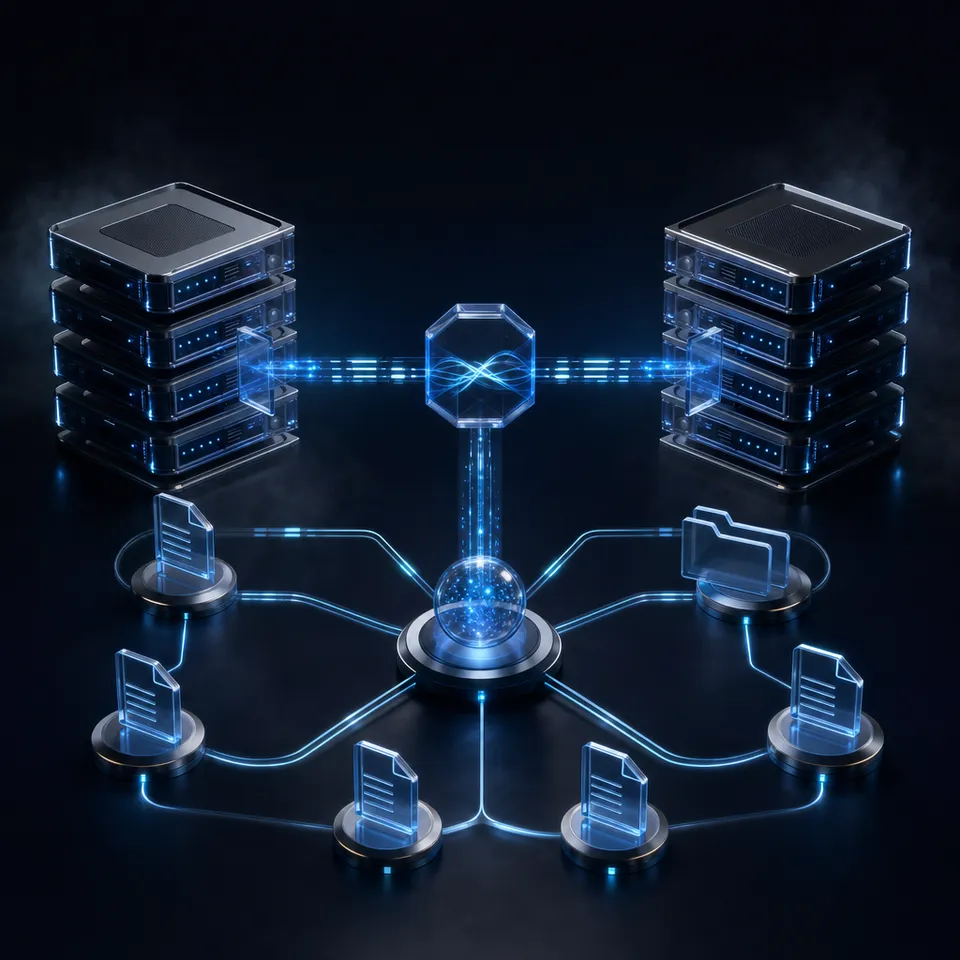
Why Local Storage Fails Cursor Agents for Cloud Documents
Developers keep code inside Git repositories, but the documents that dictate how that code should function live elsewhere: architecture decision records in Google Drive, design specifications in Dropbox, partner contracts in Box, and compliance guidelines in OneDrive. Cursor excels at indexing source files in the local workspace, but attempting to drop hundred-megabyte PDF manuals or customer data exports directly into the repository root crashes token budgets and introduces massive context bloat.
Most developer tutorials assume engineers only use Cursor to inspect local codebases and Git history. That assumption overlooks how engineering teams build software in practice. Technical specifications, system architecture designs, database schema reviews, and third-party API guides are regularly drafted and updated by product managers, security teams, and client stakeholders in external cloud drives. When an engineer asks Cursor Composer to scaffold an API integration based on an external standard, or asks Cursor Chat to verify authorization logic against an enterprise security policy, the necessary context is missing from the local workspace.
The default workaround is inefficient. Engineers manually download PDFs, spreadsheets, or text files from corporate storage, drop them into a temporary folder, and add them to .gitignore. This habit bloats local disk usage, slows down workspace indexing, and risks leaking confidential data. Furthermore, static local copies become stale the moment a team member updates the original file in cloud storage.
A Cursor remote MCP server allows the Cursor IDE to interact with remote data stores and APIs via Model Context Protocol SSE endpoints, giving Cursor Composer and Chat access to indexed cloud documents.
Early Model Context Protocol guides focused on local command-line servers running over standard input and output (stdio). A local process started with npx or python executes on the developer's machine, requiring local runtime dependencies, environment variables, and personal credentials. When teams scale, local stdio configurations become difficult to manage: every developer must maintain local scripts, authentication tokens proliferate across workstations, and local tools often pull full files to local disks before parsing them. Remote MCP servers shift document ingestion, indexing, and authentication to the server side, allowing Cursor to query tools over a network endpoint without local process management.
Related guides
- How to Connect Manus AI to MCP StorageConnecting Manus AI to MCP storage enables the autonomous agent to securely read, write, and persist files within a...
- How to Connect Hermes Agent to MCP StorageOnly 57. This guide explains how to connect the Hermes Agent to MCP storage servers, enabling durable reads, writes,...
- How to Connect Cursor to Cloud Workspaces with Filesystem MCPCursor Filesystem MCP connects Cursor's AI Composer and Agent mode to file trees and cloud repositories through Model...
- How to Connect Cursor to Box Storage via MCP: Integration GuideConnecting Cursor to Box allows AI coding agents to search and reference enterprise documentation, specs, and design...
- How to Connect Cursor to Dropbox Storage via MCP: Integration GuideConnecting Cursor to Dropbox allows AI coding agents to search and reference project documentation, specs, and design...
- How to Connect Cursor to Dropbox via MCP: Step-by-Step SetupConnecting Cursor to Dropbox via MCP allows Cursor agent mode to retrieve documents and code assets directly from cloud...
More on this subject: AI Coding Assistants (80 guides)
Architecture of Remote MCP Connections in Cursor
Model Context Protocol provides an open specification for connecting AI assistants to external data sources. Inside Cursor, the IDE acts as an MCP client. When you interact with Composer or Chat, the agent evaluates the user prompt against available tools exposed by connected MCP servers. If the prompt references external specifications or files, Cursor issues a structured JSON-RPC 2.0 tool call to the designated server and receives structured content in response.
Understanding how Cursor communicates with remote servers requires examining the transport layers and configuration boundaries available in the editor. Remote endpoints allow engineering organizations to maintain centralized document stores while giving local coding assistants real-time retrieval capabilities across multiple repositories without duplicate index generation.

Transport Protocols: Streamable HTTP and Legacy SSE
Cursor supports two primary network transports for connecting to remote MCP servers:
Streamable HTTP: This modern transport operates over standard HTTP POST requests with streaming responses. Unlike stateful websocket connections, Streamable HTTP requests are stateless, resilient to network renegotiation, and compatible with cloud load balancers and reverse proxies. It allows Cursor to transmit authentication headers on every call and receive chunked responses cleanly. Fast.io serves its remote MCP interface over Streamable HTTP, and coding agents such as Cursor connect at
https://mcp.fast.io/mcp/code.Server-Sent Events (SSE): The legacy MCP transport protocol establishes a persistent, unidirectional HTTP connection from server to client to stream events, paired with an HTTP POST endpoint for incoming client messages. Fast.io's older SSE address keeps working for existing setups, but new Fast.io setups use Streamable HTTP.
Both transports enable remote servers to expose tools, prompts, and resources without requiring a long-running subprocess on the developer's laptop.
Configuration Scopes: Project-Level vs Global Settings
Cursor manages MCP servers through JSON configuration files in two primary locations:
Project-Specific Configuration (
.cursor/mcp.json): Located in the root of the active workspace or repository. This file is intended for team-shared integrations. By committing.cursor/mcp.jsonto version control, team leads ensure that every developer cloning the repository automatically receives identical tool configurations, pointing to the project's shared documentation workspace.Global Configuration (
~/.cursor/mcp.json): Located in the user's home directory. This file applies across every workspace opened in Cursor. It is best suited for personal development tools, global utilities, or individual cloud drives that an engineer accesses across multiple client projects.
When Cursor launches, it reads both files and merges their contents into a unified tool registry. If a server identifier exists in both the global and project-level files, the project-level definition takes precedence. This allows individual repositories to override default endpoints or test staging configurations without modifying global machine preferences.
How to Configure Remote Storage MCP in Cursor in Five Steps
Connecting Cursor to a remote MCP storage server takes five straightforward steps:
- Get your remote MCP server endpoint.
- Choose your configuration scope (project-level or global).
- Define the remote server in
mcp.json. - Verify the connection and inspect server logs.
- Query cloud documents in Cursor Composer and Chat.
1. Get Your Remote Server Endpoint
The Fast.io remote MCP server for coding agents such as Cursor lives at https://mcp.fast.io/mcp/code and uses Streamable HTTP. There is no API key to generate: Cursor signs in to Fast.io with OAuth in the browser, and on the Review Permissions screen you choose Read Only or Read & Write and which organizations and workspaces the connection can reach.
2. Choose Your Configuration Scope
Decide whether the storage server should be available globally across all your projects or scoped to a specific repository. For shared repositories, create .cursor/mcp.json in your project root. For personal setup across multiple codebases, edit ~/.cursor/mcp.json.
You can also create or edit this file directly from the editor interface by opening Cursor Settings, choosing the Tools & MCP section (or the Customize MCPs panel in newer builds), and selecting New MCP Server.
3. Add the Server Definition to mcp.json
Open your target mcp.json file and declare the remote server inside the mcpServers object:
{
  "mcpServers": {
    "fastio": {
      "url": "https://mcp.fast.io/mcp/code"
    }
  }
}
Because Cursor signs in to Fast.io with OAuth, the file holds no credentials, so you can commit .cursor/mcp.json to version control without exposing a key.
4. Verify the Connection and Inspect MCP Logs
Save your configuration file and restart Cursor to reload the MCP client, then sign in to Fast.io in the browser window that opens. Open Cursor Settings and review the Tools & MCP panel. You should see fastio listed with an active indicator, confirming that Cursor completed the initialization handshake.
To inspect the communication between Cursor and the remote server, open the Output panel using Cmd+Shift+U on macOS or Ctrl+Shift+U on Linux and Windows. Select "MCP Logs" from the channel dropdown. The log displays the protocol handshake, capability negotiation, and discovered tools.
5. Query Cloud Documents in Composer and Chat
Open Cursor Composer (Cmd+I / Ctrl+I) or Chat (Cmd+L / Ctrl+L). Submit a query that requires external documentation, such as "Review our authentication endpoints against the API specification in our Fast.io workspace." Cursor automatically selects the Fast.io search tool, queries the index, and grounds its response in the retrieved excerpts.


Connect Cursor to your team's indexed cloud storage
Give Cursor Composer and Chat direct access to your documentation and specs across shared workspaces with built-in semantic search. Monthly plans start with a trial of up to 14 days (credit card required); annual plans have no trial.
How to Bridge Cloud Storage into Cursor Workspaces
Most engineering teams already maintain extensive file collections in Dropbox, Google Drive, OneDrive, Box, or SharePoint. Asking teams to migrate existing operational repositories just to enable an IDE agent is neither practical nor necessary.
However, attempting to connect coding assistants directly to raw cloud drive APIs introduces severe performance bottlenecks:
- Directory Traversal Overhead: Native cloud storage APIs are designed for human navigation, requiring recursive directory listings before identifying target documents. When an agent searches for an architecture decision, it must make repeated API calls to enumerate folders.
- API Rate Limits: Major storage providers impose strict throttling on API calls. Autonomous agent loops that issue rapid directory requests frequently trigger HTTP 429 rate limit errors, stalling the developer's coding flow.
- Context Window Saturation: Raw cloud connectors pull entire document payloads. If a team maintains a 200-page vendor contract or a 50-megabyte specification, reading that file through a raw connector consumes tens of thousands of tokens. This exhausts context window limits, degrades model reasoning, and drives up token expenses.
To eliminate these constraints, teams use an intelligent workspace as an indexing bridge. Organizations retain their existing storage platforms as the system of record. Google Drive, Dropbox, Box, and OneDrive folders sync into a Fast.io workspace: synchronization runs one-way or two-way, on a schedule or on demand; never real-time. SharePoint document libraries can be accessed through the OneDrive connector.
When documents enter a Fast.io workspace, Intelligence Mode automatically indexes their contents using hybrid search: combining full-text keyword indexing, dense semantic vector embeddings, and metadata values. When Cursor queries the remote MCP server, the search tool searches the index and returns only the precise text chunks relevant to the developer's question, accompanied by exact document citations. Cursor receives the necessary context without transferring full files.
In head-to-head testing published at Fast.io Benchmarks, Fast.io was measured the fastest and at the lowest cost of the providers measured.
Production Workflows, Metadata Extraction, and Security Controls
Integrating Cursor with remote cloud storage unlocks practical development workflows that go far beyond local code autocomplete.
Architectural Consistency in Cursor Composer
When refactoring complex microservices or updating database models, developers use Composer to modify multiple files across a repository. By connecting to remote storage MCP, Composer checks proposed code changes against architectural decision records stored in the cloud workspace. The agent verifies that route parameters, naming conventions, and payload shapes match enterprise standards before writing code to disk.
Structured Extraction with Metadata Views
Technical documentation often includes unstructured formats like PDF architecture blueprints, security audit certificates, and third-party vendor agreements. Fast.io Metadata Views turn unstructured documents into a live, queryable database. Users describe the fields they want extracted in natural language, and AI designs a typed schema across Text, Integer, Decimal, Boolean, URL, JSON, and Date & Time columns.
Because Metadata Views can be queried over MCP, Cursor can filter workspace files by extracted metadata values. For example, an engineer can query all API specifications targeting a specific version number or extract rate limit constants without having to parse long prose documents.
Scoped Permissions and Auditability
Connecting developer tools to corporate data requires strict access controls. Fast.io provides granular permissions at the organization, workspace, folder, and file level. Rather than giving Cursor broad visibility across an entire drive, administrators create dedicated technical workspaces, and each connection reaches only the workspaces chosen at sign-in on the Review Permissions screen.
All file reads, searches, and agent activities are recorded in a detailed activity log, ensuring complete visibility into which documents were queried during development sessions. Per-file version history preserves prior revisions, ensuring concurrent team activities remain auditable.
Monthly plans start with a trial of up to 14 days (credit card required); annual plans have no trial. Creating an account is free; doing real work requires an organization on a paid subscription.
Troubleshooting Remote MCP Connections
If you encounter issues connecting Cursor to your remote MCP server, review these common failure points:
- Sign-In Failures: If the Fast.io sign-in window closes or loops without connecting, remove the server and add it again. If a change is refused, the connection may have Read Only access or may not reach that workspace; disconnect, reconnect, and choose Read & Write or the workspaces you need.
- Connection Timeouts: Confirm that the URL is
https://mcp.fast.io/mcp/codeand that outgoing HTTPS traffic on port 443 tomcp.fast.iois permitted. - Active Tool Boundaries: Cursor functions most effectively when keeping enabled MCP tools focused on relevant servers rather than loading excessive tools into the prompt. Disabling unused servers in Cursor Settings reduces context overhead and prevents tool selection confusion.
- Configuration Cache: Cursor does not always hot-reload manual edits to
mcp.json. After updating configuration files, restart Cursor or toggle the server off and on in the settings panel to refresh the tool list.
Sources
References used to verify factual claims in this guide.
-
Cursor connects to external tools and cloud services through the Model Context Protocol to bring documentation and specifications into coding workflows.
Frequently Asked Questions
Does Cursor support remote MCP servers?
Yes. Cursor supports remote Model Context Protocol servers over Streamable HTTP and Server-Sent Events (SSE). You can configure remote endpoints in your project-level `.cursor/mcp.json` or global `~/.cursor/mcp.json` by specifying the server URL and authorization headers.
How do I add an SSE MCP server in Cursor?
To add an SSE server, open `.cursor/mcp.json` or `~/.cursor/mcp.json` and declare your server under `mcpServers` with a `url` pointing to the SSE endpoint, such as `https://mcp.example.com/sse`. You can pass authentication tokens inside the `headers` object using standard Bearer authorization headers. Fast.io itself uses Streamable HTTP, and Cursor connects at `https://mcp.fast.io/mcp/code` and signs in with OAuth in the browser.
Can Cursor search files in Google Drive or Dropbox through MCP?
Yes. While querying Google Drive or Dropbox APIs directly from an IDE agent is slow and token-intensive, you can bring folders into a Fast.io workspace (Google Drive, Dropbox, Box, and OneDrive sync; never real-time). Fast.io Intelligence Mode indexes the files for hybrid search, allowing Cursor to search and retrieve targeted passages through the Fast.io remote MCP server.
Why use remote MCP instead of adding files to Cursor project root?
Adding large technical manuals, architecture PDFs, or customer files directly to your Git repository causes repository bloat, slow clone times, and context window exhaustion. Remote MCP servers keep documents in managed cloud workspaces and expose search tools, enabling Cursor Composer and Chat to retrieve only the relevant passages on demand.
Where is the mcp.json file located in Cursor?
Cursor supports two locations for `mcp.json`. For project-specific tools shared with your team, place the file at `.cursor/mcp.json` in your repository root. For personal tools accessible across every workspace, edit `~/.cursor/mcp.json` in your user home directory.
How do I debug remote MCP connection errors in Cursor?
To debug remote MCP connections, open the Output panel in Cursor using `Cmd+Shift+U` on macOS or `Ctrl+Shift+U` on Windows and Linux. Select "MCP Logs" from the channel dropdown. The log shows initialization requests, capability negotiation, tool discovery, and network error messages.
Related Resources

Connect Cursor to your team's indexed cloud storage
Give Cursor Composer and Chat direct access to your documentation and specs across shared workspaces with built-in semantic search. Monthly plans start with a trial of up to 14 days (credit card required); annual plans have no trial.