Configuring Filesystem MCP in Windsurf (Now Devin Desktop): Local vs Remote Storage
Configuring the Model Context Protocol (MCP) filesystem integration in Windsurf (renamed Devin Desktop in June 2026) connects the Cascade agent (now Devin Local) to project directories. While local stdio servers work for small codebases, pointing them at cloud-synced folders causes editor hangs on virtual file stubs. This guide explains how to set up local filesystem access, resolve sync driver conflicts, and connect to intelligent cloud workspaces over remote Streamable HTTP.

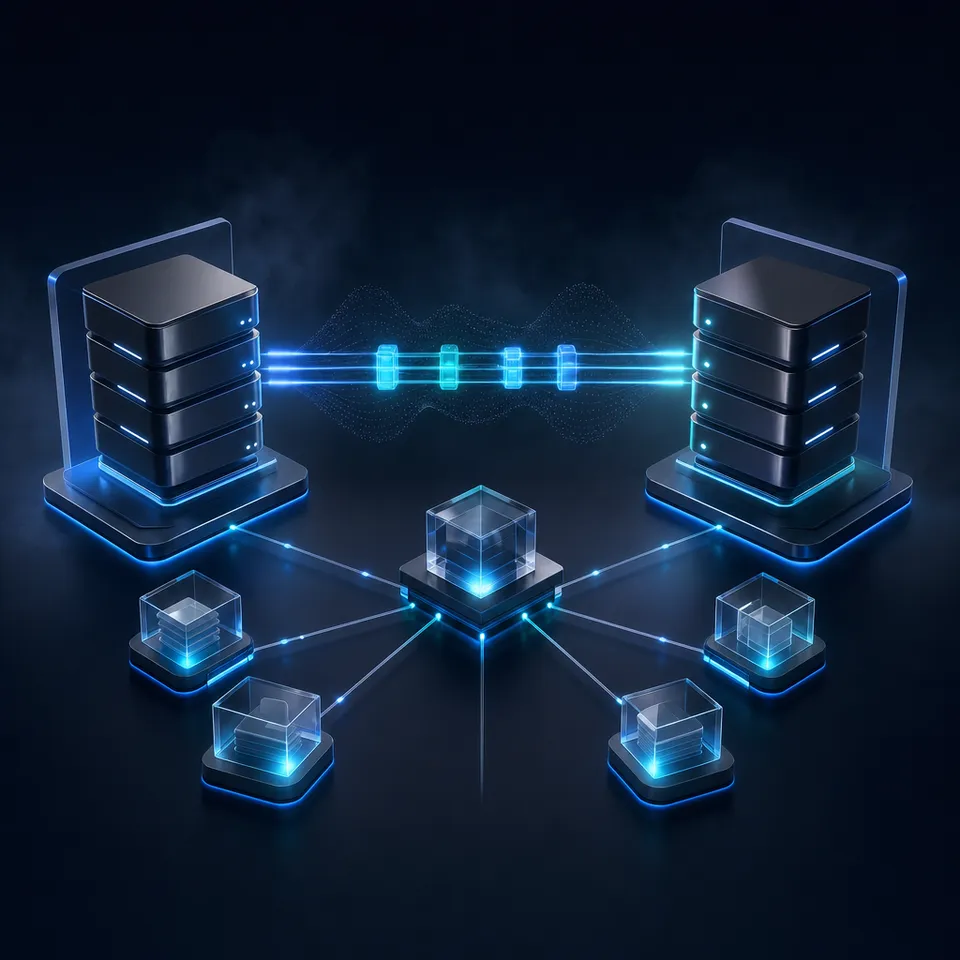
How Windsurf (Now Devin Desktop) Connects to Filesystem MCP Servers
Pointing local filesystem MCP servers at cloud-synchronized directories causes coding assistants to freeze because virtual file placeholders break standard filesystem I/O operations. In Devin Desktop (formerly Windsurf, renamed by Cognition in June 2026), the Cascade coding agent (succeeded by Devin Local) encounters unhydrated file stubs when developers attempt to grant access to synchronized cloud drives, stalling process execution. Understanding the architectural mechanics of the Model Context Protocol (MCP) in Devin Desktop helps engineering teams configure reliable local and remote storage access without crashing their editor.
The Windsurf filesystem MCP configuration connects Windsurfs Cascade agent to local and remote directory trees for autonomous coding and project search. Rather than restricting an AI coding model to the immediate files open in active editor tabs, MCP provides an open standard for exposing external tools, databases, and file collections to the model context. Through MCP, Cascade and Devin Local can read implementation specifications, inspect legacy code repositories, cross-reference API contracts, and write code changes across multiple directories. Developers planning storage architectures can explore Fastio storage for agents to see how intelligent workspaces support autonomous coding assistants.
Devin Desktop implements MCP using a client-server architecture where the editor serves as the host client. The editor manages communication channels to one or more MCP servers across three supported transport mechanisms:
Standard Input and Output (
stdio): Devin Desktop executes a local command-line binary or script as a child process. The editor communicates with the server over standard input (stdin) and standard output (stdout) streams. This transport is the standard pattern for local utilities, including the official@modelcontextprotocol/server-filesystempackage.Streamable HTTP: Devin Desktop connects to a remote web service using HTTP POST requests for client-to-server messaging alongside server-initiated responses. This modern transport is designed for cloud-hosted environments, centralized team knowledge bases, and distributed agent fleets.
Server-Sent Events (SSE): Devin Desktop opens an HTTP connection to receive continuous event streams from a remote endpoint while transmitting client requests over separate HTTP channels.
For local directory access, the standard approach employs stdio to run @modelcontextprotocol/server-filesystem. Because the server runs locally on the developer's operating system, it inherits the permissions and filesystem visibility of the local user account.
Locating the Windsurf MCP Configuration File
Devin Desktop manages MCP server registrations through a centralized JSON settings file. Windsurf Cascade stores its Model Context Protocol server list in a central JSON configuration file located in the user directory. The exact path depends on your operating system:
- macOS and Linux:
~/.codeium/windsurf/mcp_config.json - Windows:
%USERPROFILE%\.codeium\windsurf\mcp_config.json
Developers can edit this file directly in any text editor or open it from within Devin Desktop. In the editor interface, locate the Cascade panel, click the hammer icon representing MCP in the top-right toolbar, and select Configure to load mcp_config.json. If you have not previously configured an MCP server, the file contains an empty mcpServers JSON object.
Defining Allowed Directories and Security Boundaries
The official Filesystem MCP server operates inside an explicit security boundary. When launching the server, you must provide one or more directory paths as positional command-line arguments. The server inspects these paths during startup and restricts all subsequent read, write, and search operations to those specified trees.
To configure local filesystem access in mcp_config.json, add an entry to the mcpServers block specifying the command and args:
{
  "mcpServers": {
    "local-filesystem": {
      "command": "npx",
      "args": [
        "-y",
        "@modelcontextprotocol/server-filesystem",
        "/Users/username/Developer/projects/core-api",
        "/Users/username/Developer/shared-docs"
      ]
    }
  }
}
On Windows workstations, file paths require double backslashes to escape JSON string syntax, or standard forward slashes:
{
  "mcpServers": {
    "local-filesystem": {
      "command": "npx",
      "args": [
        "-y",
        "@modelcontextprotocol/server-filesystem",
        "C:\\Users\\username\\Developer\\projects\\core-api",
        "C:\\Users\\username\\Developer\\shared-docs"
      ]
    }
  }
}
Once saved, click the Refresh icon in the Cascade MCP menu. Cascade establishes the stdio connection and registers tools such as read_file, read_multiple_files, write_file, list_directory, and directory_tree. The agent can then inspect files within those specified folders when responding to coding prompts.
Related guides
- Claude Filesystem Connector: Local Stubs vs Remote Agent StorageThe Claude filesystem connector links Claude Desktop and Claude Cowork to local file paths and mounted directories...
- How to Connect Claude Desktop to Box Storage via MCPClaude Box MCP connects Anthropic Claude Desktop to enterprise Box storage using the Model Context Protocol, giving...
- How to Connect Cursor to Cloud Workspaces with Filesystem MCPCursor Filesystem MCP connects Cursor's AI Composer and Agent mode to file trees and cloud repositories through Model...
- Windsurf Box MCP: Connect Cascade to Enterprise Box StorageA Windsurf Box MCP integration links Codeium's Windsurf IDE and Cascade agent to Box cloud storage via the Model...
- How to Set Up MCP Servers in Windsurf (Now Devin Desktop)Windsurf, renamed Devin Desktop in June 2026 by Cognition, supports MCP servers through its Cascade AI agent, letting...
- Windsurf Context Window (Now Devin Desktop): Cascade Token Limits, Indexing, and MCPThe Windsurf context window (in the editor renamed Devin Desktop in June 2026) governs the active token budget and...
More on this subject: AI Coding Assistants (80 guides)
Why Local Filesystem MCP Crashes on Cloud Sync Folders
Many development teams store their architectural documents, product roadmaps, and client requirements in commercial cloud storage providers such as Microsoft OneDrive, Google Drive, Dropbox, Box, or Apple iCloud Drive. When developers configure Windsurf's filesystem MCP server, the intuitive instinct is often to point the server's allowed directories at the local desktop sync folder (for example, ~/OneDrive/EngineeringDocs or ~/Library/Mobile Documents/com~apple~CloudDocs/Specs).
However, competitor setup guides fail to warn developers that local filesystem MCP crashes on virtual sync folders (OneDrive Files On-Demand and iCloud stubs). When Cascade attempts to inspect or search these folders through a local stdio server, the editor frequently hangs indefinitely or drops the server connection. Understanding the operating system mechanics behind this failure explains why local filesystem bridges are incompatible with desktop cloud sync clients.
The Mechanics of Virtual Files and Placeholder Stubs
To conserve local hard drive space on modern laptops, cloud storage providers enable virtual synchronization features by default. Microsoft calls this feature Files On-Demand, Apple labels it Optimized Mac Storage in iCloud Drive, and Dropbox provides Smart Sync.
Under default settings, online-only files in cloud storage do not consume local drive space until opened by an application. Instead of storing the complete file payload locally, the desktop sync client creates a lightweight placeholder known as a virtual stub or reparse point:
Windows NTFS Reparse Points: In Windows 10 and 11, the Cloud Files Filter Driver (
CldFlt.sys) intercepts filesystem calls. Online-only files appear in File Explorer with a blue cloud status icon. The directory entry contains file metadata (such as filename, size, and modification timestamp) and an NTFS reparse tag (IO_REPARSE_TAG_CLOUD), but allocates zero physical clusters on the disk.macOS APFS Dataless Files: On macOS, cloud sync clients use Apple's FileProvider API. Online-only items are marked with extended filesystem flags indicating dataless files. The operating system knows the file exists in the cloud, but the local physical byte size is zero.
When an interactive human user double-clicks an online-only document in File Explorer or Finder, the operating system pauses the launch, sends an asynchronous download request to the cloud sync engine, hydrates the file to local disk, and opens the file once hydration completes.
Why Node.js Filesystem Calls Cause Cascade to Hang
The official @modelcontextprotocol/server-filesystem server is a Node.js process. It interacts with the operating system using standard POSIX and Win32 system calls wrapped by the Node.js fs module, including fs.readdir, fs.stat, and fs.readFile. This architecture creates three severe failure modes when exposed to virtual sync directories:
Hydration Timeouts and Blocking Event Loops: When Cascade invokes a tool like
directory_treeorsearch_files, the MCP server scans hundreds of files in sequence. If those files are online-only stubs, each read operation attempts to trigger network hydration through the operating system filter driver. Because Node.js handles I/O through an event loop, waiting on dozens of simultaneous background downloads stalls the process. If any single network download exceeds the transport timeout threshold, the MCP client aborts the request.Unhandled Operating System Errors: When an application attempts a raw binary read on an unhydrated stub while the workstation is offline, on a high-latency connection, or under restrictive group policies, the OS driver rejects the I/O. Windows surfaces Win32 error
0x80070780(ERROR_CANT_RESOLVE_FILENAME) orERROR_CLOUD_FILE_UNSUCCESSFUL. On macOS and Linux, the call returnsEBUSYorEPERM. The Filesystem MCP server does not implement custom recovery routines for cloud reparse points; the unhandled exception terminates the Node.js child process immediately.Transport Termination in Cascade: When the local subprocess crashes, Windsurf loses its
stdiostream. The editor logs aServer transport closed unexpectedlymessage, and Cascade hangs waiting for the tool to return data. Because the connection died mid-turn, Cascade's reasoning loop stops responding until the developer manually resets the IDE or restarts the editor.
Context Window Bloating from Unfiltered File Crawls
When developers work around sync crashes by marking their cloud folders as Always keep on this device to force complete local downloads, local filesystem crawling presents an architectural flaw: prompt buffer exhaustion.
A local filesystem MCP server has no semantic understanding of document content. When Cascade searches for an architectural guideline or data schema across local directories, the server returns the entire raw text of matched files. Reading a 60-page system architecture specification, an extensive API reference manual, or several large CSV files injects tens of thousands of tokens directly into Cascade's prompt buffer.
This context dumping introduces three consequences:
- Rapid Token Consumption: Reading large files consumes project token budgets rapidly, accelerating usage costs.
- Latency Penalties: Sending giant prompt payloads increases time-to-first-token and slows down response generation.
- Reasoning Degradation: Flooding an LLM's active context window with hundreds of lines of irrelevant boilerplate text dilutes the model's attention, making it more likely to overlook critical code constraints.
Local filesystem MCP was engineered for small, strictly local repositories of plain source code. Connecting Cascade to enterprise knowledge, documentation, and shared project assets requires an intelligent workspace architecture.


Connect Windsurf Cascade to Intelligent Cloud Workspaces
Give Cascade instant semantic search across your project documents without local sync crashes, stub hydration freezes, or bloated context windows. Monthly plans start with a trial of up to 14 days (credit card required); annual plans have no trial.
Remote Cloud Workspaces vs Local Drive Crawling
Instead of forcing a local command-line subprocess to crawl desktop file trees, modern development workflows connect Windsurf Cascade to an intelligent cloud workspace via remote MCP. Engineering organizations do not need to discard their existing storage tools. Teams already keep operational files, design briefs, database schemas, and product specifications in Dropbox, Google Drive, OneDrive, or Box.
The Fastio workspace model allows teams to keep their primary cloud storage repositories intact while eliminating the operational friction of local filesystem crawling. Folders from Google Drive, Dropbox, Box, and OneDrive sync into a Fast.io workspace one-way or two-way, on a recurring schedule or on demand rather than continuously. Once files land in the workspace, Fast.io Intelligence Mode indexes the content automatically, making it queryable through remote MCP without continuous local polling.
How Workspace Intelligence Transforms Agent Retrieval
When files synchronize into an intelligent workspace, the platform generates a hybrid search index combining exact keyword matching, semantic vector embeddings, and structured metadata attributes. This architecture fundamentally alters how Windsurf Cascade interacts with project documentation.
Instead of downloading an entire 80-page specification to locate three lines of authentication logic, Cascade invokes Fast.io's remote MCP search tools. The workspace searches the pre-indexed corpus in the cloud, isolates the precise paragraphs answering Cascade's inquiry, and returns concise text extracts accompanied by verified document citations. Cascade obtains the exact implementation parameters needed to write code without cluttering its active context window with hundreds of pages of extraneous prose.
What a Measured Comparison Shows
The operational difference between direct storage traversal and indexed workspace search is measurable rather than rhetorical. Fast.io publishes a head to head benchmark of agent file work that runs one agent through the same multi-document audit over an identical corpus held in Fast.io and in each of the major cloud storage providers, recording completion time, tool calls, token consumption and cost per task. Fastio completed the audit fastest and at the lowest cost of the storage layers tested.
Serving pre-indexed semantic excerpts rather than forcing sequential directory crawling also shields the underlying cloud storage from high-frequency API polling while delivering grounded context to the coding assistant.
Comparing Local Stdio Filesystem to Remote Workspace MCP
Evaluating the architectural differences between local filesystem MCP and an intelligent remote workspace illustrates why remote endpoints provide greater stability for development teams:
Extracting Structured Schemas with Metadata Views
When engineering complex software projects, teams frequently depend on structured parameters embedded across heterogeneous documents: environment variable tables in onboarding guides, OpenAPI endpoint definitions in PDFs, or server configuration parameters in architecture presentations. Standard keyword search often struggles to isolate specific tabular values from narrative text.
Fast.io provides Metadata Views to convert unstructured technical documents into live, queryable data grids without requiring custom OCR rules or manual data-entry scripts.
Users describe the fields they want extracted in plain English. The extraction system analyzes files in the workspace, builds a typed schema (supporting Text, Integer, Decimal, Boolean, URL, JSON, and Date & Time formats), and populates a filterable spreadsheet across PDFs, Word documents, spreadsheets, presentations, and scanned pages. Developers can add new columns at any time without reprocessing existing files. When connected to Windsurf over MCP, Cascade can query these structured columns directly, extracting technical parameters in seconds.
Step-by-Step Setup: Configuring Remote Storage MCP in Windsurf
Connecting Windsurf Cascade to an intelligent cloud workspace eliminates local sync crashes while giving your coding assistant access to company knowledge. Follow this five-step procedure to configure remote workspace MCP access in Windsurf.
1. Ingest Project Files into a Fast.io Workspace
Before configuring Windsurf, establish the central knowledge base in the cloud:
- Log in to your Fast.io organization account and create a dedicated workspace for your project (for example,
backend-microservices-docs). - Populate the workspace with project documentation, architectural diagrams, API schemas, and onboarding guides. You can upload files directly or import existing folders from Google Drive, Dropbox, Box, or OneDrive.
- Verify that Intelligence Mode is active on the workspace. Fast.io automatically processes uploaded documents, generating embeddings and full-text indexes for hybrid search.
2. Plan the Sign-In and Permissions
Cascade authenticates to the Fast.io remote MCP server by signing in through your browser with OAuth, so there is no API key to create or store. On the Fast.io Review Permissions screen, choose Read Only or Read & Write and limit the connection to your target project workspaces.
3. Register the Remote MCP Server in Windsurf
To configure the endpoint, open the central Windsurf MCP configuration file on your development workstation:
- macOS/Linux:
~/.codeium/windsurf/mcp_config.json - Windows:
%USERPROFILE%\.codeium\windsurf\mcp_config.json
Add a new remote server definition to the mcpServers object. Fast.io provides remote MCP access for coding agents over Streamable HTTP at https://mcp.fast.io/mcp/code.
Configure the server entry using the serverUrl field:
{
  "mcpServers": {
    "fastio-workspace": {
      "serverUrl": "https://mcp.fast.io/mcp/code"
    }
  }
}
The first time Cascade connects, it opens a browser window for the Fast.io sign-in.
4. Reload MCP Servers in Cascade
After saving your edits to mcp_config.json, initialize the new connection in Windsurf:
- Open the Cascade side panel in Windsurf.
- Click the hammer icon in the panel toolbar to open the MCP management overlay.
- Click the Refresh icon in the top corner of the overlay, or completely restart Windsurf.
- Confirm that
fastio-workspaceappears in the list of active servers with a green status indicator.
When initialized, Fast.io exposes a consolidated MCP toolset for workspace search, document retrieval, and metadata queries without cluttering Cascade's interface.
5. Query Project Specifications in Cascade
After connecting the remote server, Cascade can query indexed project documentation directly from chat prompts. You can test the integration with natural language instructions:
Cascade, search our Fast.io workspace for the payment gateway API integration specification.
What HTTP status codes does our service need to return upon receiving a successful charge event?
Cascade recognizes that the prompt requires external project context, calls the Fast.io search tool via Streamable HTTP, retrieves the relevant passages and document citations, and generates code that conforms to your architectural standards.
Troubleshooting Windsurf Filesystem and Remote MCP Issues
When configuring MCP servers in Windsurf, developers may encounter connectivity glitches, configuration syntax errors, or tool limit warnings. Use this troubleshooting guide to resolve common MCP issues in Cascade.
Resolving Editor Freezes and Hangs on Cloud Folders
If Windsurf Cascade freezes with a perpetual loading spinner whenever you ask it to examine external files, you are experiencing a virtual sync stub lockup.
- Symptom: Cascade hangs indefinitely on tool execution. The developer console displays
Server transport closed unexpectedlyorENOENTon files visible in File Explorer or Finder. - Cause: The local filesystem MCP server encountered an online-only placeholder managed by OneDrive Files On-Demand, iCloud Drive, or Dropbox Smart Sync. The operating system blocked the Node.js event loop while attempting network hydration.
- Resolution: Do not point
@modelcontextprotocol/server-filesystemat synchronized cloud directories. Either move the required files to a local directory outside cloud sync management, right-click the folder and choose Always keep on this device to force hydration of all files, or connect Cascade to Fast.io using remote MCP.
Fixing Server Transport Closed Unexpectedly on Local Stdio
When a local stdio server fails to launch during Windsurf startup, the configuration file typically contains syntax or execution errors:
- Check Node and NPX Paths: Windsurf launches child processes using your system environment PATH. If you use a Node version manager like NVM or ASDF, Windsurf might fail to locate
npx. Test launching the server manually from your terminal:npx -y @modelcontextprotocol/server-filesystem /path/to/dir. If necessary, provide the absolute path to your Node binary inmcp_config.json. - Validate Windows Path Formatting: On Windows systems, unescaped backslashes break JSON parsing. Always use double backslashes (
C:\\Users\\username\\docs) or single forward slashes (C:/Users/username/docs). Ensure drive letters are capitalized (C:rather thanc:). - Verify Directory Permissions: Confirm that the user account running Windsurf possesses read and execute permissions on all directories listed in the
argsarray.
Managing the Cascade 100-Tool Session Limit
Windsurf Cascade enforces an operational ceiling of 100 total tools across all active MCP servers in a session. Exceeding this ceiling can cause Cascade to ignore new tools or refuse server connections.
- Symptom: Newly added MCP servers do not appear in Cascade, or tool calls fail with capacity warnings.
- Cause: Adding multiple comprehensive MCP servers (such as GitHub, PostgreSQL, AWS, and generic utility bundles) quickly registers dozens of granular tools, exceeding the 100-tool threshold.
- Resolution: Open the Cascade panel, click the MCP hammer icon, and select individual servers to review their registered tools. Toggle off tools you do not need for your current project. Fast.io provides a consolidated MCP toolset that delivers workspace search, document access, and metadata extraction in a compact tool footprint, preserving tool headroom for your other development utilities.
Diagnosing Remote MCP Network and Authentication Errors
When connecting to remote MCP endpoints over Streamable HTTP, connection failures typically stem from credential mismatches or corporate network proxies:
- HTTP 401 Unauthorized or a sign-in loop: Remove the
fastio-workspaceentry, refresh the MCP servers, and add it again so Cascade restarts the Fast.io sign-in. If you use a password manager or a strict browser extension, allow pop-ups for fast.io during sign-in. - Connection Refused or SSL Handshake Failures: Corporate firewalls, VPN tunnels, and zero-trust security appliances may inspect outbound HTTPS traffic. Ensure that your workstation permits outbound HTTPS connections on port 443 to
mcp.fast.io. If your network uses custom internal CA certificates, configure Node'sNODE_EXTRA_CA_CERTSenvironment variable to recognize your corporate root certificates.
Sources
References used to verify factual claims in this guide.
-
Windsurf Cascade stores its Model Context Protocol server list in a central JSON configuration file.
-
Online-only files in cloud storage do not consume local drive space until opened.
Frequently Asked Questions
How do I add the filesystem MCP server to Windsurf?
To add the Filesystem MCP server to Windsurf (now Devin Desktop), open your central configuration file located at ~/.codeium/windsurf/mcp_config.json on macOS and Linux or %USERPROFILE%\.codeium\windsurf\mcp_config.json on Windows. Under the mcpServers object, add a server entry specifying command as npx and args containing -y, @modelcontextprotocol/server-filesystem, and the absolute paths to the directories you want Cascade to access. Save the file and click the Refresh button in the Cascade MCP menu.
Why does Windsurf Cascade hang when reading cloud storage folders?
Windsurf Cascade hangs when reading cloud storage folders because local filesystem MCP servers rely on standard Node.js filesystem calls that cannot handle unhydrated virtual file stubs. Cloud sync engines like OneDrive Files On-Demand and iCloud Drive create zero-byte reparse points that require network hydration before reading. When an MCP process attempts to scan these stubs, the operating system blocks the Node.js event loop or throws an I/O exception, causing the stdio server process to crash and leaving Cascade waiting indefinitely.
Can Windsurf connect to remote storage via MCP instead of local files?
Yes, Windsurf can connect to remote storage over Model Context Protocol using Streamable HTTP or SSE transports. By adding a remote server entry to mcp_config.json with a serverUrl pointing to an intelligent workspace platform like [Fast.io](/storage-for-agents/) and signing in through the browser, Cascade can query indexed project documentation directly in the cloud without requiring local file downloads.
What happens when an MCP server encounters OneDrive Files On-Demand or iCloud stubs?
When an MCP server attempts to read OneDrive Files On-Demand or iCloud stubs, the operating system's cloud filter driver intercepts the read operation to trigger an on-demand download. If the machine is offline, on a slow connection, or scanning numerous files simultaneously, the read operation times out or returns system errors like EBUSY, ENOENT, or Win32 error 0x80070780. This unhandled exception crashes the local MCP process and severs the stdio communication channel to Windsurf.
How does Fast.io Intelligence Mode prevent context window bloat in Cascade?
Direct local filesystem crawling reads entire raw file contents into memory, dumping tens of thousands of tokens into Cascade's context window. Fast.io Intelligence Mode indexes workspace documents on arrival using hybrid search that combines full-text keywords, semantic embeddings, and metadata values. When Cascade queries the workspace, Fast.io extracts only the specific paragraphs matching the query, returning concise text snippets and verified citations rather than multi-megabyte files.
Does syncing cloud folders into Fast.io alter my original files?
No, syncing cloud storage folders into Fast.io does not alter your original files in Google Drive, OneDrive, Dropbox, or Box. Fast.io imports designated folders through authenticated cloud APIs to create an indexed workspace copy. Your source files, permissions, and directory hierarchies in your existing cloud storage remain unchanged.
Related Resources

Connect Windsurf Cascade to Intelligent Cloud Workspaces
Give Cascade instant semantic search across your project documents without local sync crashes, stub hydration freezes, or bloated context windows. Monthly plans start with a trial of up to 14 days (credit card required); annual plans have no trial.