Photopea for Clay GTM Creative Editing Workflows
Photopea draws about 450,000 monthly US searches at keyword difficulty 31 and a CPC of three dollars and fifty-three cents, yet almost none of that demand explains how GTM teams use Photopea with Clay for ABM creative production. This guide walks through a practical loop: store brand PSD sources, edit them in Photopea online, return exports to a shared workspace, and attach durable links in Clay rows without inventing a first-party Clay-Photopea integration.


Why Photopea shows up in GTM creative work
Photopea attracts roughly 450,000 monthly US searches at keyword difficulty 31 and a CPC of three dollars and fifty-three cents [DataForSEO 2026]. That is navigational demand at product scale, and most results still point at the editor itself rather than how GTM operators use Photopea with Clay for ABM asset production. The gap is the reason this guide exists.
Photopea is a free browser-based image editor that opens PSD and layered design files, which makes it useful for GTM operators who need precise creative edits without desktop Photoshop seats. The official product site describes it as a free online photo editor that runs fully locally on your device, with no required uploads, full PSD open and save support, and professional tools such as layers, masks, smart objects, and adjustment layers. For teams that live in browser tabs, that combination is the practical alternative to waiting on a licensed Creative Cloud seat every time a one-pager needs a logo swap.
Clay sits on the other side of the same problem. Clay tables enrich accounts, build lists, and personalize outreach at scale. Creative assets still break the loop. Brand masters arrive as PSDs from agencies. ABM one-pagers need last-mile edits for logo placement, crop, and channel-specific export. SDRs and GTM ops rarely have Photoshop installed, and they should not be pasting final PNGs into chat threads with no version history.
The workable pattern is not a fantasy native "Clay × Photopea" product. Clay's own HTTP API documentation states that HTTP API exists to connect custom tools without native integrations, so you can pull data into a Clay table or push data out with GET, POST, PUT, or DELETE. Photopea remains the human editing surface. Clay remains the row-level orchestration surface. A shared workspace between them holds the source files, approved exports, and share links that get written back into Clay columns.
Related guides
- Top OpenClaw Workflows for AI Photo Batch Processing and Bulk EditingA five-product e-commerce photo batch that took 100 minutes of manual editing dropped to 15 minutes once an OpenClaw...
- Best OpenClaw Alternatives for AI Agent Workflows in 2026OpenClaw's 353k GitHub stars make it the most popular AI agent framework, but security issues in ClawHub and a growing...
- How to Use Canva Background Remover in Clay GTM Workflows"Canva background remover" draws about 40,500 monthly US searches at keyword difficulty 17 and a CPC near $7, yet most...
- How to Convert PDF to PNG for Clay GTM Creative AssetsUS searchers look up "pdf to png" about 74,000 times a month, yet most converters stop at a ZIP download. Clay GTM...
- Clay Templates: How to Launch Ready-Made GTM WorkflowsUS searchers look up "clay templates" about 320 times per month, enough demand to justify a real operating playbook...
- The Clay Tool: A Comprehensive Guide to No-Code GTM WorkflowsWhile traditional B2B databases yield low match rates, the Clay tool sequences data waterfalls across multiple...
More on this subject: Clay and GTM Agents (82 guides)
What Photopea actually gives GTM operators
Before you wire anything into Clay, it helps to be precise about Photopea's strengths and limits.
Browser access without a desktop install
Photopea runs in modern browsers. Operators open a tab, load a PSD, make the edit, and export. That matters for contractors, temporary campaign staff, and salespeople who should not need a permanent design seat for a short crop-and-export task.
Full PSD support as the primary format
Photopea's product materials emphasize full PSD support for both opening and saving, and treat PSD as its main format. For GTM work, that means you can keep agency-layered masters instead of flattening everything to JPG and hoping nobody needs text layers later. You can also convert among PNG, JPG, WEBP, SVG, PDF, and many other formats when the channel requires it.
Local processing by default
Photopea states that editing runs on the device and files do not leave the machine unless the user chooses a cloud save path. That is useful when brand or legal teams care about where layered creative lives during edit sessions. It does not replace a team workspace for storage after the edit. Local processing solves privacy during the session. Shared storage solves handoff after export.
Google Drive path when teams already live in Drive
Photopea is also listed in the Google Workspace Marketplace as a free Drive-connected photo editor that can open and save PSD and related formats. Some GTM orgs will keep brand kits in Drive and open them through that path. Others will keep masters in a dedicated workspace with permissions, audit history, and branded shares for external reviewers. Both are valid. The rest of this article assumes you want a cleaner GTM system of record than a personal Downloads folder.
Pricing reality
Photopea is free and advertising-supported. Premium removes ads and expands optional features. For most GTM last-mile edits, free Photopea online is enough. Do not confuse Photopea's free editor with Fast.io pricing later in this guide. They are separate products with different commercial models.
The Clay creative handoff problem
Clay is strong at enrichment and sequencing inputs. It is not a design file system. When teams run ABM or outbound creative production through Clay alone, friction shows up in predictable places.
Source masters live nowhere durable. Designers email a zip of PSDs. Ops drops them on a laptop. Two weeks later nobody can find the layered file that matches the approved LinkedIn creative.
Exports detach from the row that needed them. A Clay row may know company name, persona, and sequence step, but the final PNG lives in a Slack thread or a temporary Drive link that expires.
Approvals lag because reviewers cannot open PSD. Legal and brand stakeholders want a flat preview with a clear share link, not a large layered file attached to email.
There is no first-party Clay-Photopea integration. That is fine. Clay's HTTP API overview explicitly positions HTTP API for connecting tools that lack native integrations, including pulling external data into tables and pushing data out. You can store a Fast.io share URL or file metadata field in a Clay column, then use HTTP API when you need programmatic create or update calls against your storage or CRM systems. The integration is the workflow you design, not a marketplace tile.
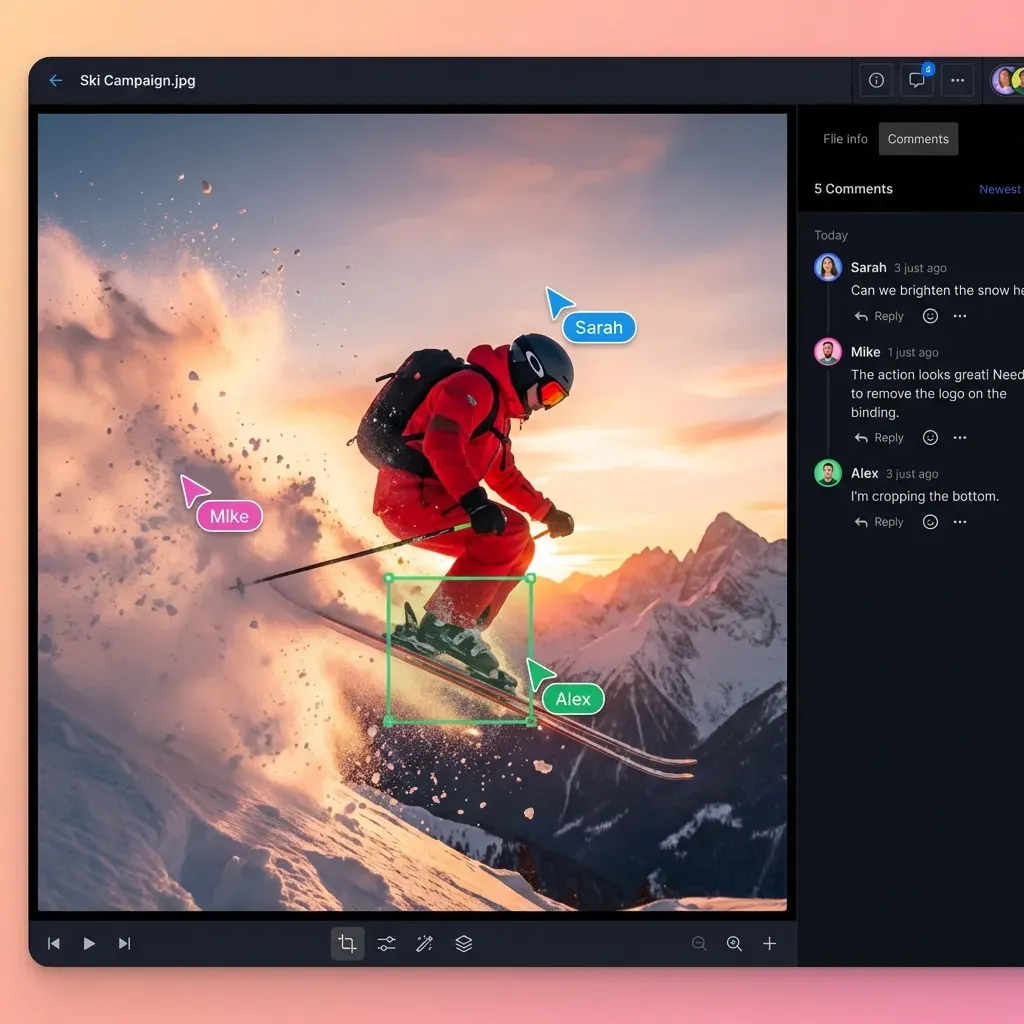
Clay's public templates library already shows how GTM teams automate adjacent creative work, from screenshots of prospect pages to personalized landing page generation. The missing piece for Photopea is the human PSD edit step with a reliable place to put inputs and outputs so Clay rows can reference them.


Keep Clay creative assets in one shared workspace
Store PSD masters and Photopea exports where GTM ops, designers, and agents can all find them. Version history, branded review shares, and MCP access start with a 14-day free trial.
A practical Photopea and Clay GTM workflow
This is the featured-snippet style loop most teams should run. It keeps Photopea as the editor, Clay as the campaign table, and a shared workspace as the asset home.
1. Pull brand assets into one campaign workspace
Create a workspace folder per campaign, for example abm-q3-fintech/. Inside it, keep:
01-masters/for layered PSD, AI, or other source files from brand or agency02-in-progress/for files currently being edited03-exports/for channel-ready PNG, JPG, or WEBP outputs04-reviews/for share packages sent to stakeholders
You can start with Google Drive or Dropbox if that is already company standard. When agents and humans need the same permissions model, version history, and branded shares, move the campaign folder to Fast.io. Fast.io workspaces support per-file version history, granular folder permissions, cloud import from Drive, Dropbox, OneDrive, or Box, and branded Send shares for review.
2. Reference the master from the Clay row
In Clay, add columns such as:
asset_master_urlfor the layered sourceasset_statuswith values likeneeds_edit,in_photopea,in_review,approvedexport_urlfor the final flat filereview_share_urlfor the stakeholder linkchannelsuch aslinkedin,email_header, orone_pager
Ops does not paste binary files into Clay. Ops pastes durable URLs. That keeps the table light and the file system honest.
3. Edit in Photopea online
Open Photopea in the browser, load the PSD from your workspace download or Drive path, and make the GTM-specific edits:
- Swap logo or product screenshot layers for the target account when brand allows
- Crop to channel dimensions without destroying the master
- Adjust text layers for offer variants already defined in Clay columns
- Export flat PNG or JPG for outreach tools that reject PSD
Save the layered working file back under 02-in-progress/ with a clear name such as 2026-07-17_acme_linkedin_header_v3.psd. Export the delivery file to 03-exports/ as 2026-07-17_acme_linkedin_header_v3.png.
4. Return exports to the shared workspace
Upload the PSD and PNG to the campaign folders. Prefer overwriting through versioned storage rather than inventing final_FINAL_v7.png names. Fast.io keeps full per-file version history, so a bad export can be restored without hunting through chat history.
If the file arrived from another cloud, use Fast.io cloud import instead of local re-download when possible. Agents can also use the Fast.io MCP server over Streamable HTTP at /mcp (or legacy SSE at /sse) to upload and organize assets programmatically once a human or agent account has org access.
5. Attach links in Clay rows
Paste export_url and review_share_url into the row that owns that account or sequence step. For bulk updates, Clay HTTP API enrichment can POST or PUT metadata into systems that accept JSON, or pull status from an API that returns the current share URL. Clay University documents both HTTP API enrichment on existing rows and HTTP API as a source for new tables, including auth via saved header accounts and rate limiting controls.
A minimal mental model for a row update looks like this:
Clay row: Acme Corp
asset_status: approved
export_url: https://share.example/acme-linkedin-header.png
review_share_url: https://share.example/acme-creative-review
channel: linkedin
Sequencing tools and ad platforms then consume the flat export URL. Humans keep the PSD master for the next revision.
6. Review and approve without emailing binaries
Create a branded Send share for the export package, grant access to brand or legal reviewers, and set expiry when the campaign window ends. Reviewers open a preview link instead of downloading heavy layered masters. When approval lands, flip asset_status to approved in Clay and leave the export URL as the source of truth for launch.
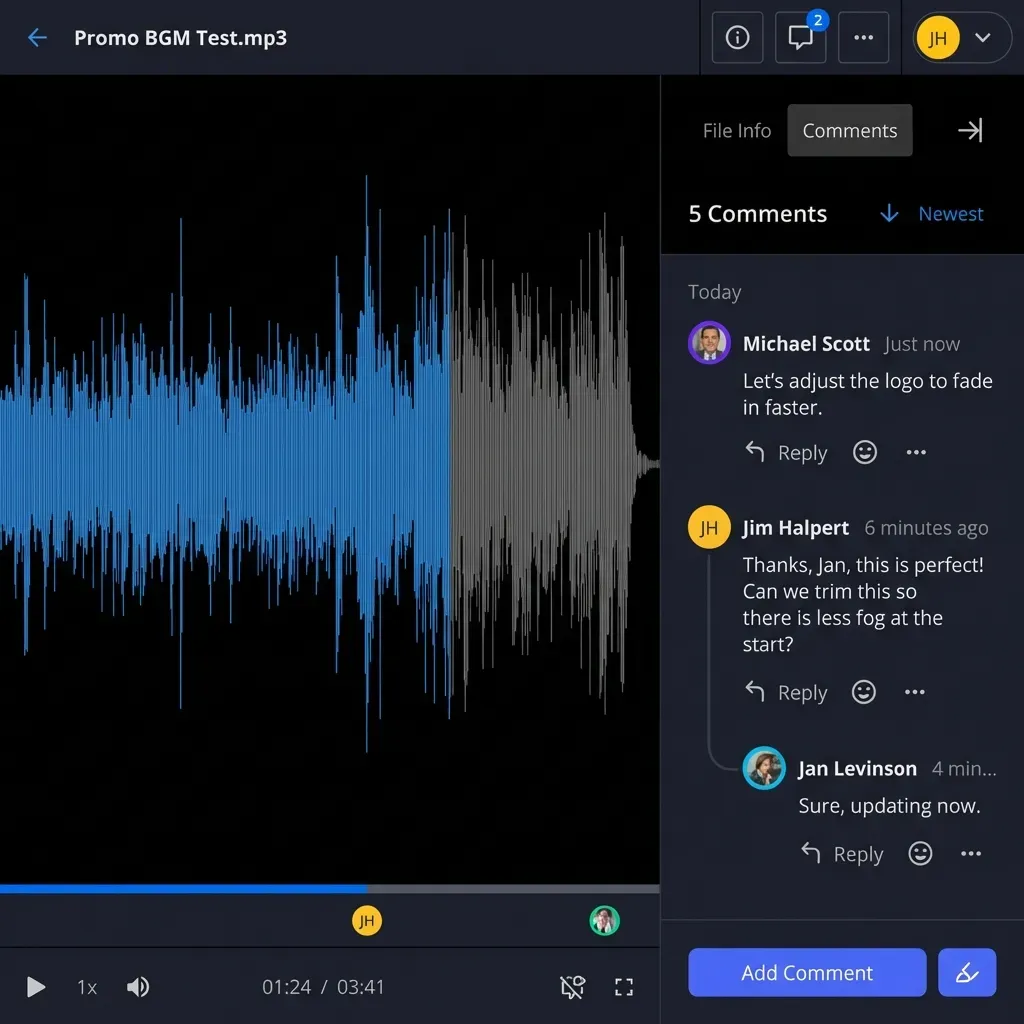
Fast.io also keeps comments anchored to the files when you want sign-off recorded next to the work rather than in chat. That is optional. The required piece is a durable link Clay can store.
Where Fast.io fits around Photopea and Clay
Photopea is the editor. Clay is the GTM table. Storage is the third leg, and teams often under-specify it.
Local disks are fine for a solo operator and terrible for a multi-person ABM pod. Amazon S3 is durable object storage but weak for non-engineers who need previews, share links, and review packages. Google Drive works for many brand kits and pairs with Photopea's Marketplace listing, yet GTM teams often still struggle with expiring links, mixed personal ownership, and agent access patterns.
Fast.io is the intelligent workspace option when humans and agents need the same campaign folder. Practical advantages for this workflow:
- Shared workspaces for masters, in-progress PSDs, and exports under one permission model
- Per-file version history so Photopea re-exports do not erase prior approved cuts
- Branded shares for stakeholder review without forcing reviewers into the editor
- Intelligence Mode for semantic search across brand guidelines, prior creatives, and export notes once indexing is enabled
- Metadata Views when you need structured fields from brand PDFs or image packets, such as dominant colors, logo presence, or campaign codes, via /product/document-data-extraction/
- MCP access so agents can upload exports, create shares, and query workspace content through consolidated MCP tools
- Ownership transfer when an agent boots the campaign org and a human GTM lead takes over billing and membership
Creating a user account is free, but real work requires an organization on a paid subscription. Monthly plans start with a trial of up to 14 days (credit card required); annual plans have no trial. Plans are Starter at $9.99/mo, Business at $49.99/mo, and Enterprise at $199.99/mo. See /pricing/ and /storage-for-agents/ for current packaging.
A common agent pattern looks like this: an agent creates the campaign workspace, imports brand masters, and posts share URLs into Clay via HTTP API. When setup is complete, the agent transfers org ownership to a human ops lead while retaining admin if needed. Humans continue to open Photopea for visual judgment calls that still need a person at the keyboard.
Edge cases that break weak workflows
Huge PSD masters. Browser memory has limits. If a massive composite freezes Photopea, ask design for a channel-specific PSD with unused layers removed, or do the heavy composite in desktop tools and reserve Photopea for last-mile GTM edits.
Fonts missing in the browser. Text can reflow if the operator's machine lacks brand fonts. Keep a fonts note in the campaign folder, or flatten critical type to outlines in the master when brand allows.
Color profile surprises. Export for the channel you actually use. LinkedIn and email clients punish oversized files. Prefer PNG or WEBP at the dimensions the channel documents, not "whatever Photoshop exported last year."
Stale Clay links. When you replace an export, either overwrite the same versioned file so the URL remains stable, or update the Clay column in the same change window. Broken creative links in live sequences are worse than slightly delayed launches.
Credit and rate limits on API hops. If Clay HTTP API posts status into other systems, configure Clay rate limits and test on one row first, as Clay's own HTTP API docs recommend.
Putting the workflow into weekly GTM ops
Treat Photopea as a standard desk tool the way you treat a browser password manager: always available, lightly trained, not mystical.
Week zero setup
- Create the campaign folder template in your chosen workspace.
- Add Clay columns for master URL, export URL, review URL, and status.
- Document the Photopea export presets for each channel in a short note file.
- Decide who may mark
approvedand who may only upload drafts.
Daily loop
- Clay rows enter
needs_editwhen enrichment is ready and creative is required. - An operator opens the master, edits in Photopea, and uploads exports.
- Status moves to
in_reviewwith a share link for brand or legal. - On approval, Clay status flips and the sequence or ad tool consumes
export_url.
When to automate more
Automate storage and metadata first. Use Clay HTTP API and Fast.io MCP for URL writeback, folder creation, and share generation. Leave pixel judgment in Photopea with a human until you have templates so strict that generative tools can fill them reliably. Most ABM one-pagers still need a person to catch bad crops and off-brand type.
What success looks like
Success is not "we never open Photoshop again." Success is fewer blocked sequences because nobody can open a PSD, fewer final assets lost in chat, and Clay rows that always point at the current approved export. Photopea handles the free browser Photoshop alternative job. Clay handles the GTM table. The workspace keeps the files honest.

Sources
References used to verify factual claims in this guide.
-
Photopea attracts roughly 450,000 monthly US searches at keyword difficulty 31 and a CPC of three dollars and fifty-three cents. Photopea is a free online photo editor that runs fully locally, with full PSD open and save support.
-
Monthly plans start with a trial of up to 14 days (credit card required); annual plans have no trial. Plans are Starter at $9.99/mo, Business at $49.99/mo, and Enterprise at $199.99/mo.
-
Photopea stores all files locally and does not upload data to a server unless specified by the user, while supporting PSD and many other formats.
-
Photopea is listed free of charge on Google Workspace Marketplace for opening and saving PSD and related formats with Google Drive.
-
Clay HTTP API lets you send or retrieve data from any tool or database using an API endpoint, even when Clay does not offer a native integration, including connecting to custom tools without native Clay integrations.
-
Clay publishes a public templates library for GTM automation patterns such as personalized landing pages and automated website screenshots.
Frequently Asked Questions
Is Photopea free?
Yes. Photopea is free advertising-supported software in the browser, with optional premium for ad-free use and extra capacity. You can complete most GTM last-mile PSD edits on the free editor without buying a desktop Photoshop seat.
Can Photopea open PSD files?
Yes. Photopea fully supports opening and saving PSD, and treats PSD as its main format. That is why it fits Clay-driven GTM workflows where brand teams still deliver layered masters and ops only needs precise last-mile edits and flat exports.
How can GTM teams use Photopea with Clay workflows?
Store brand masters and exports in a shared workspace, edit layered files in Photopea online, then paste durable export and review URLs into Clay columns. Use Clay HTTP API when you need to push or pull those URLs or statuses programmatically. There is no first-party Clay-Photopea product integration required.
Is Photopea a full Photoshop replacement for agencies?
For many browser-based edits, yes enough. For heavy print production, advanced 3D, or studio color pipelines, many teams still keep desktop Photoshop. GTM operators usually need the middle: open PSD, change layers, export PNG, move on.
Where should Photopea exports live after editing?
Not in a personal Downloads folder. Put them in a versioned shared workspace such as Fast.io, or in a carefully governed Drive folder if that is already company standard. Then attach the stable URL to the Clay row that owns the account or sequence step.
Does Clay integrate natively with Photopea?
No native Clay-Photopea integration is required or claimed here. Clay's HTTP API documentation supports connecting custom tools without native integrations, which is enough to keep asset URLs and statuses in sync around a Photopea editing step.
How does Fast.io help this Photopea and Clay loop?
Fast.io holds masters and exports with per-file version history, permissions, branded review shares, Intelligence Mode search, Metadata Views for structured fields from documents, and MCP access for agents. It is the persistence layer around Photopea and Clay, not a built-in Clay feature.
Related Resources

Keep Clay creative assets in one shared workspace
Store PSD masters and Photopea exports where GTM ops, designers, and agents can all find them. Version history, branded review shares, and MCP access start with a 14-day free trial.