How to Deploy OpenClaw on Ubuntu Server for Raspberry Pi
Ubuntu Server gives Raspberry Pi owners an LTS-backed operating system with five years of free security patches, native arm64 packages, and systemd integration that Raspberry Pi OS does not match for always-on workloads. This guide walks through flashing Ubuntu Server to a Pi 5, installing OpenClaw, configuring systemd for unattended operation, and connecting the agent to Fastio for persistent file storage and handoff.


Why Ubuntu Server for an OpenClaw Deployment
Canonical certifies Ubuntu 26.04 LTS for Raspberry Pi 5, Pi 4, and Compute Module 4, with five years of free security updates through 2031 and optional extension to 15 years through Ubuntu Pro. That is a meaningful difference from Raspberry Pi OS, which follows a rolling-release model with no published end-of-life schedule. For a device that runs an AI agent 24/7 without a keyboard or monitor attached, predictable patching matters more than having the newest kernel.
Most OpenClaw Raspberry Pi guides default to Raspberry Pi OS Lite. The installation steps are nearly identical on Ubuntu Server since OpenClaw's install script targets any 64-bit Linux with apt and systemd. But the guides don't mention Ubuntu at all, which leaves Ubuntu users guessing about package names, service paths, and arm64 compatibility. This guide fills that gap.
Ubuntu Server's arm64 image ships at about 1.1 GB and boots without a graphical environment. The full Ubuntu package archive compiles over 60,000 packages for arm64, which means tools like fail2ban, unattended-upgrades, and ufw install the same way they do on an x86 cloud server. If you already manage Ubuntu VMs in production, running your Pi the same way reduces the number of things you need to remember.
OpenClaw itself is lightweight. The official docs list a minimum of 1 GB RAM, one CPU core, and 500 MB of free disk. Ubuntu Server Lite fits comfortably within a Pi 4 with 4 GB of RAM, and a Pi 5 with 8 GB gives you headroom for concurrent tool calls and local caching. The Pi doesn't run LLMs locally. It orchestrates tool calls, manages integrations, and delegates reasoning to cloud APIs like Anthropic, OpenAI, or Google.
Related guides
- How to Deploy Hermes Agent on KubernetesHermes Agent's official docs cover six terminal backends, but Kubernetes is not one of them. A community-maintained...
- How to Deploy CrewAI to ProductionDeploying CrewAI crews to production moves notebook experiments to reliable systems. Notebooks suit tests, but lack...
- How to Deploy OpenClaw Headless on Raspberry PiA headless OpenClaw deployment runs the AI agent on a Raspberry Pi without a monitor or keyboard, managed entirely via...
- How to Build a PiKVM Remote Server Agent with OpenClaw on Raspberry PiPiKVM gives you BIOS-level remote access to any server from a browser. Adding an OpenClaw agent on a second Raspberry...
- How to Build a Server Room Temperature and Humidity Monitor with OpenClaw on Raspberry PiA Raspberry Pi with a temperature and humidity sensor can log server room conditions. Adding an OpenClaw agent turns...
- How to Build a Raspberry Pi Print Server with an OpenClaw Cloud Printing AgentA Raspberry Pi running CUPS can turn any USB printer into a network-shared printer that every device in your house can...
More on this subject: OpenClaw on Raspberry Pi (192 guides)
How to Flash Ubuntu Server and Prepare the Pi
Download the Raspberry Pi Imager from raspberrypi.com/software on your workstation. Open it, click "Choose OS," scroll to "Other general-purpose OS," then "Ubuntu," and select Ubuntu Server 26.04 LTS (64-bit). If you prefer an older LTS, Ubuntu 24.04 also works. Both produce a headless arm64 image.
Before flashing, click the gear icon in the Imager to configure:
- Hostname (e.g.,
openclaw-pi) - Enable SSH with password authentication
- Set your username and password
- WiFi credentials if not using Ethernet
Flash to your boot media. An NVMe drive via the official Pi 5 M.2 HAT is the best option for durability and speed. A quality microSD card works for testing, but SD cards wear faster under the small random writes that OpenClaw's SQLite database generates. Budget NVMe drives cost under $30 and eliminate that concern.
Insert the media, connect power (use the official 27W USB-C supply for Pi 5), and wait about 90 seconds for the first boot to complete. Ubuntu expands the filesystem automatically on first boot.
Connect and Update
SSH into the Pi from your workstation:
ssh youruser@openclaw-pi
Run the initial system update and install build dependencies:
sudo apt update && sudo apt upgrade -y
sudo apt install -y git curl build-essential
Optimize for Headless Use
Reduce GPU memory since there is no display, and disable Bluetooth if you will not use it:
echo 'gpu_mem=16' | sudo tee -a /boot/firmware/config.txt
sudo systemctl disable bluetooth
Note the path difference: Ubuntu Server stores the boot config at /boot/firmware/config.txt, not /boot/config.txt as on Raspberry Pi OS. This is one of the few places where the two distributions diverge.
If your Pi has 4 GB or less RAM, configure swap space to avoid out-of-memory kills during heavy tool-call bursts:
sudo fallocate -l 2G /swapfile
sudo chmod 600 /swapfile
sudo mkswap /swapfile
sudo swapon /swapfile
echo '/swapfile none swap sw 0 0' | sudo tee -a /etc/fstab
echo 'vm.swappiness=10' | sudo tee -a /etc/sysctl.conf
sudo sysctl -p
Reboot to apply the GPU and Bluetooth changes:
sudo reboot
Install Node.js and OpenClaw
OpenClaw requires Node.js 22.14 or later. Node 24 is recommended for the best performance on arm64. Install it from the NodeSource repository:
curl -fsSL https://deb.nodesource.com/setup_24.x | sudo -E bash -
sudo apt install -y nodejs
node --version
Verify the architecture is correct:
node -p process.arch
This should print arm64. If it prints armv7l, you accidentally flashed a 32-bit image and need to start over with the 64-bit Ubuntu Server image.
Run the Install Script
Install OpenClaw using the official script:
curl -fsSL https://openclaw.ai/install.sh | bash
The script detects your OS and architecture, downloads the appropriate binary, and places it in your PATH. On Ubuntu Server arm64, this works identically to Raspberry Pi OS Lite since both are Debian-based distributions running the same ABI.
Onboard for Headless Operation
Run the onboarding wizard with the daemon flag:
openclaw onboard --install-daemon
This prompts you for API keys and registers the OpenClaw gateway as a systemd service. Use API key authentication rather than OAuth for headless devices, since there is no browser available for the OAuth redirect flow. You will need at least one LLM provider key (Anthropic, OpenAI, or Google).
Verify the gateway is running:
openclaw status
Speed Up CLI Response Time
OpenClaw's Node.js CLI benefits from compile caching on resource-constrained hardware. Add these to your shell profile (~/.bashrc on Ubuntu Server):
export NODE_COMPILE_CACHE=/var/tmp/openclaw-compile-cache
mkdir -p /var/tmp/openclaw-compile-cache
This reduces cold-start latency for CLI commands, which adds up when the agent runs frequent tool calls throughout the day.


Give Your Pi Agent Persistent Storage and Handoff
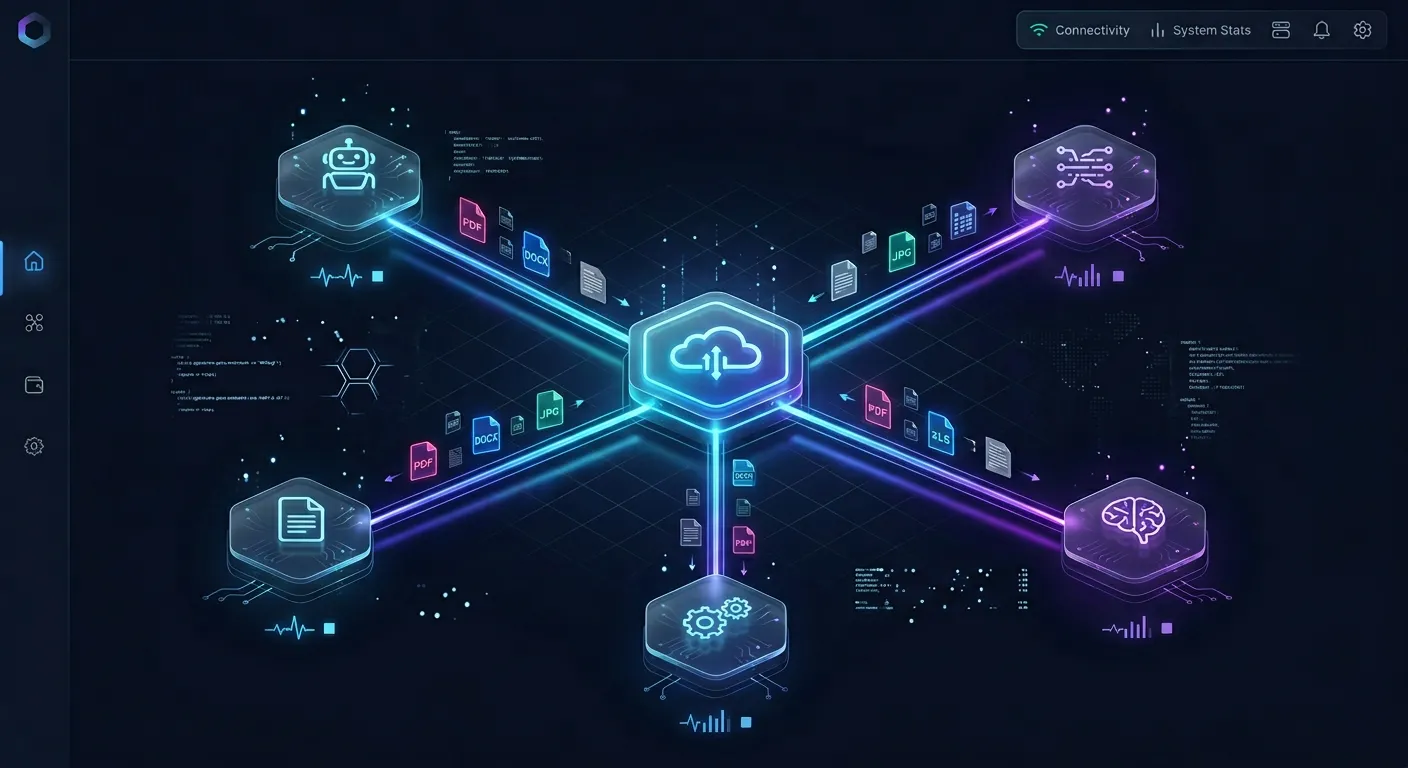
Fastio includes remote MCP server access and ownership transfer so your Raspberry Pi agent can build workspaces and hand them to teammates.
Configure systemd for Always-On Operation
The openclaw onboard --install-daemon command creates a systemd user service. On Ubuntu Server, you need one extra step to make user services survive logout: enable lingering for your user account.
sudo loginctl enable-linger $USER
Without this, systemd kills your user services when you disconnect from SSH. This is a common gotcha that catches people migrating from Raspberry Pi OS, where the default pi user sometimes has linger enabled already.
Check the service status:
systemctl --user status openclaw
If the onboarding wizard created a system-level service instead, you can find it at /etc/systemd/system/openclaw.service and manage it with sudo systemctl commands. The user-level service is preferred because it runs without root privileges, which limits the blast radius if a tool call goes wrong.
Monitor Logs
Follow logs in real time:
journalctl --user -u openclaw -f
Check the last 100 lines for troubleshooting:
journalctl --user -u openclaw --no-pager -n 100
Enable Automatic Security Updates
Ubuntu Server includes unattended-upgrades, which Raspberry Pi OS does not ship by default. Enable it so security patches apply automatically:
sudo apt install -y unattended-upgrades
sudo dpkg-reconfigure -plow unattended-upgrades
This is one of the practical advantages of running Ubuntu Server for an always-on agent. You do not need to SSH in weekly to run apt upgrade. Security patches for the kernel, OpenSSL, and system libraries arrive automatically, and the Pi reboots only when a kernel update requires it.
Firewall Rules
Lock down the Pi so only SSH and the OpenClaw gateway port are accessible:
sudo ufw default deny incoming
sudo ufw allow ssh
sudo ufw enable
If you need remote access to the OpenClaw dashboard, create an SSH tunnel from your workstation rather than exposing the port directly:
ssh -N -L 18789:127.0.0.1:18789 youruser@openclaw-pi

Connect OpenClaw to Fastio for Persistent Storage
OpenClaw stores its configuration and workspace data under ~/.openclaw/ on the Pi's local filesystem. That works for agent logic and state, but files your agent produces for other people (reports, exports, processed documents) need somewhere accessible. Emailing files or pushing to a Git repo works for one-off deliveries, but falls apart when you need versioning, access control, and a way to hand output to a non-technical person.
You have several options for persistent external storage. S3 or MinIO gives you cheap object storage with API access. Google Drive and Dropbox work through their respective APIs. Fastio provides workspaces where agents and humans share the same files, with built-in Intelligence Mode for semantic search across everything the agent uploads.
Fastio fits the Pi deployment pattern well for a few reasons. The MCP server exposes Streamable HTTP at /mcp, so your OpenClaw agent can read, write, search, and manage files through standard MCP tool calls without installing a separate SDK. Fast.io offers paid plans starting at $9.99/mo and a 14-day Business Trial, card required (see pricing). That allows you to test persistent storage and agent workflows alongside your Pi hardware and LLM API spend.
The ownership transfer feature is particularly useful for Pi-based agents that build things for clients or teammates. Your agent creates an organization, populates workspaces with deliverables, and then transfers ownership to the intended recipient. The agent retains admin access for ongoing maintenance while the human gets full control through the web interface. This separates the agent's workspace from the human's workspace cleanly, without sharing credentials or SSH keys.
When Intelligence Mode is enabled on a workspace, every file the agent uploads is automatically indexed for semantic search and citation-backed chat. A colleague can ask questions about the agent's output in natural language without understanding the underlying file structure. For an always-on Pi agent that generates output overnight, this means the team can review results in the morning by asking questions rather than clicking through folders.
Learn more about the agent storage workflow at fast.io/storage-for-agents or read the MCP skill documentation for implementation details.
How to Troubleshoot Common Ubuntu Server Issues
WiFi power management drops connections. Ubuntu Server's NetworkManager sometimes puts the WiFi adapter into power-saving mode, causing intermittent API failures. Disable it:
sudo nmcli connection modify "your-wifi-ssid" wifi.powersave 2
On Ubuntu Server, use nmcli rather than iwconfig, which is not installed by default. For an always-on agent, Ethernet is the better choice if your Pi is near a router.
Kernel differences from Raspberry Pi OS. Ubuntu ships its own kernel builds for Raspberry Pi rather than using the Raspberry Pi Foundation's kernel. In practice, this rarely matters for OpenClaw since the agent does not interact with GPIO pins or hardware peripherals. If you need GPIO access for sensor integrations, install the python3-lgpio package, which works on both Ubuntu and Pi OS kernels.
Snap versus apt for Node.js. Ubuntu Server ships with snap pre-installed, and you may find a snap package for Node.js. Avoid it. The snap confinement model restricts filesystem access in ways that break OpenClaw's tool execution. Stick with the NodeSource apt repository as described in the installation section.
Time zone and locale. Ubuntu Server defaults to UTC, which is correct for a server but can produce confusing timestamps in agent logs if you expect local time. Set your timezone:
sudo timedatectl set-timezone America/New_York
Replace with your actual timezone. The timedatectl list-timezones command shows all options.
SD card wear. If you are running from a microSD card, OpenClaw's SQLite writes will degrade the card over months. Monitor card health with:
sudo apt install -y smartmontools
sudo smartctl -a /dev/mmcblk0
Not all SD cards support SMART, but NVMe drives always do. An M.2 HAT with a budget SSD is the long-term solution for any Pi that runs continuously.
DNS resolution failures. Some ISPs return stale DNS for Ubuntu's update servers. If apt update hangs or fails, switch to a public resolver:
sudo nano /etc/systemd/resolved.conf
Set DNS=1.1.1.1 8.8.8.8 under [Resolve], then restart the resolver with sudo systemctl restart systemd-resolved. This also improves reliability for OpenClaw's API calls to LLM providers.
Sources
References used to verify factual claims in this guide.
-
Ubuntu 26.04 LTS provides five years of free security updates, extendable to 15 years with Ubuntu Pro Raspberry Pi 5 is certified for Ubuntu 26.04 LTS with native arm64 support
-
OpenClaw minimum requirements are 1 GB RAM, 1 CPU core, and 500 MB free disk on a 64-bit OS
-
Pi 5 draws roughly 6W under typical load
Frequently Asked Questions
Can I run Ubuntu Server on Raspberry Pi 5?
Yes. Canonical certifies Ubuntu Server 26.04 LTS and 24.04 LTS for Raspberry Pi 5 with native arm64 support. Download the image from ubuntu.com/download/raspberry-pi and flash it with the Raspberry Pi Imager. The Pi 5's quad-core Cortex-A76 and up to 16 GB RAM run Ubuntu Server without performance compromises.
Is Ubuntu Server better than Raspberry Pi OS for running AI agents?
For always-on agents, Ubuntu Server has practical advantages: predictable LTS security updates, unattended-upgrades out of the box, and the same package ecosystem as cloud Ubuntu VMs. Raspberry Pi OS is better if you need tight hardware integration with GPIO, camera modules, or other Pi-specific peripherals. For a headless OpenClaw deployment that only needs networking and systemd, Ubuntu Server requires less ongoing maintenance.
How do I install OpenClaw on Ubuntu Server?
Install Node.js 24 from the NodeSource apt repository, then run the official install script with curl -fsSL https://openclaw.ai/install.sh | bash. Follow with openclaw onboard --install-daemon to configure API keys and register the systemd service. Enable loginctl linger for your user so the service persists after SSH logout.
What is the best OS for Raspberry Pi AI projects?
It depends on the project. Ubuntu Server works best for headless agents and server workloads because of its LTS support and apt ecosystem. Raspberry Pi OS is better for projects that need the Pi camera stack, GPIO libraries, or the desktop environment. For edge ML inference with TensorFlow Lite or ONNX, both work equally well since the arm64 packages are available on either platform.
Does OpenClaw work on arm64?
Yes. OpenClaw's install script detects the arm64 architecture automatically and installs the correct binary. The entire Node.js runtime and OpenClaw CLI run natively on 64-bit ARM without emulation. Both Raspberry Pi OS Lite (64-bit) and Ubuntu Server (arm64) are supported.
How much does it cost to run OpenClaw on a Raspberry Pi?
The hardware cost is about $80 for a Pi 5 with 8 GB RAM, plus $15-30 for storage (NVMe SSD recommended). Running costs are roughly $4-6 per year in electricity since the Pi draws about 6W under typical load. OpenClaw itself is free. Your main ongoing cost is the LLM API spend, which depends on how many tool calls your agent makes daily.
Related Resources

Give Your Pi Agent Persistent Storage and Handoff
Fastio includes remote MCP server access and ownership transfer so your Raspberry Pi agent can build workspaces and hand them to teammates.