How to Set Up OpenClaw for Multiple Users on a Team
OpenClaw assumes a single trusted operator per Gateway, but 65% of its user base sits in enterprise environments where teams need shared access. This guide covers how to use OpenClaw's multi-agent architecture to give each team member their own isolated agent, route messages through bindings, lock down credentials, and connect everything to a shared workspace for output handoff.


Why Team Deployments Need a Different Approach
GitHub issue #8081 asked for built-in multi-user permission management with role-based access control. The maintainers closed it as "not planned." Yet 65% of OpenClaw users operate in enterprise sectors, according to a 2026 analysis by FatJoe, where multiple people need access to the same agent infrastructure. The gap between single-operator design and team reality is where this guide lives.
OpenClaw's security model is explicit about its assumptions. The official documentation states that auth profiles are per-agent, each stored in a dedicated directory under the agent's own state folder. The Gateway trusts whoever has the auth token. There is no concept of "users" with different permission levels inside a single Gateway.
That does not mean teams cannot use OpenClaw. It means the team architecture has to be intentional. Instead of adding users to a shared instance, you create one agent per team member (or per role) and use OpenClaw's binding system to route each person's messages to their own isolated agent. Each agent gets a separate workspace, separate credentials, and separate session history. The Gateway stays single-operator, but each operator's scope is contained.
Teams deploying OpenClaw for multiple people need to address four areas: credential isolation so one person's API keys stay separate from another's, network access so the Gateway is not exposed without authentication, audit visibility so you can trace which agent took which action, and output management so the work each agent produces can be collected and shared. The rest of this guide walks through each one.
Related guides
- How to Set Up a Claude Cowork Platform for Your TeamA Claude cowork platform gives your team and AI agents a shared space to work on documents and processes together. This...
- How to Set Up Claude Flow for Multi-Agent Code OrchestrationClaude Flow passed 710,000 lifetime npm downloads by mid-2026, making it the most-installed community orchestrator for...
- How to Set Up OpenClaw OAuth and API Key AuthenticationGitGuardian's 2025 report counted 1.2 million AI-service secrets exposed on GitHub, up 81% year over year. OpenClaw...
- How to Set Up OpenClaw Sandbox: Docker, SSH, and OpenShell Isolation88% of organizations reported confirmed or suspected AI agent security incidents in the past year, and unsandboxed code...
- Best OpenClaw Alternatives for AI Agent Workflows in 2026OpenClaw's 353k GitHub stars make it the most popular AI agent framework, but security issues in ClawHub and a growing...
- How to Secure OpenClaw for Enterprise EnvironmentsSecuring OpenClaw takes more than a firewall. Agents in production bring risks like prompt injection and supply chain...
More on this subject: OpenClaw Setup and Guides (199 guides)
Multi-User and Multi-Agent Are Not the Same Thing
Most existing guides about OpenClaw teams conflate two different problems. Multi-agent means running multiple AI instances inside one Gateway, each with its own persona, model configuration, and skill set. Multi-user means multiple human beings interacting with those agents, each expecting isolated sessions, private credentials, and controlled access. The first is an OpenClaw feature. The second is an architecture pattern you build on top of it.
OpenClaw's multi-agent documentation defines an agent as the full per-persona scope: a workspace directory with configuration files, a state directory for authentication and model settings, and a separate session store for chat history. The documentation warns against reusing directories across agents because it causes auth and session collisions.
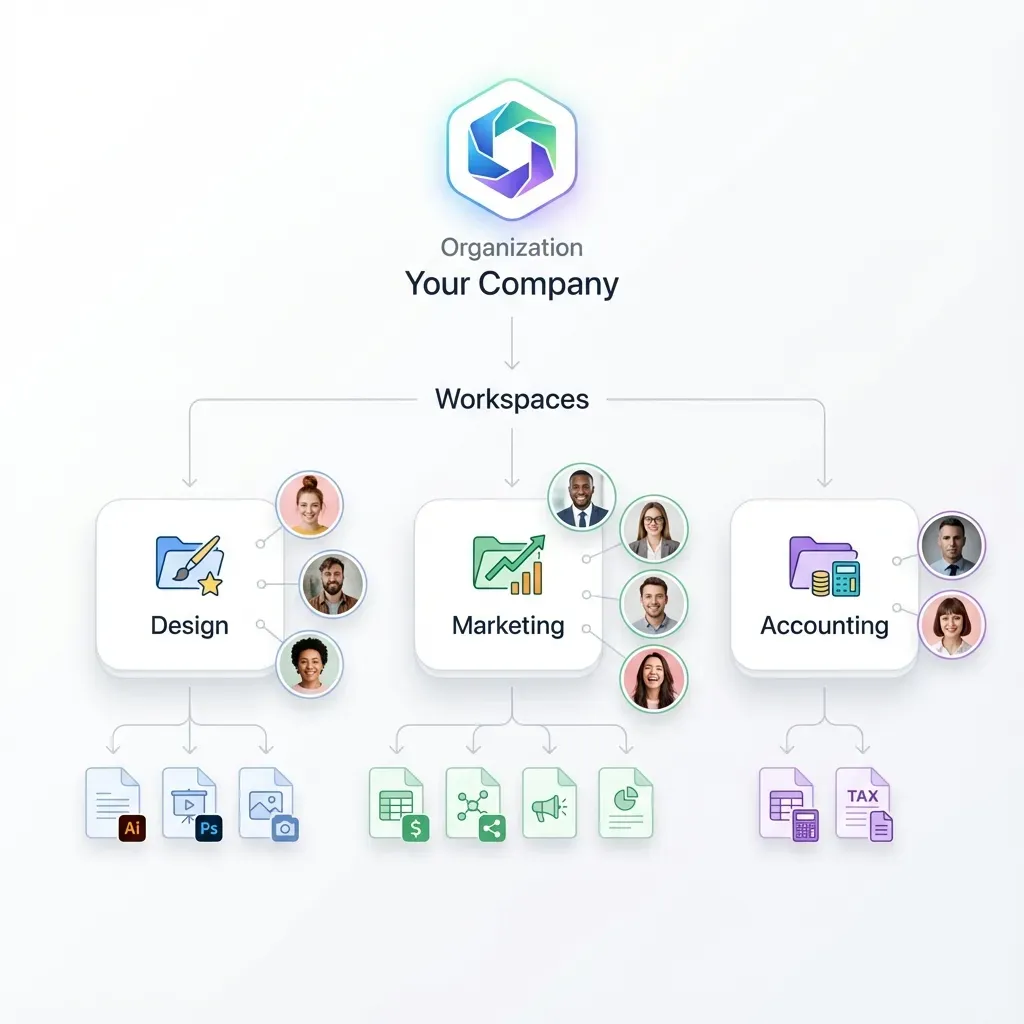
For a team, this isolation is the foundation. When your marketing lead and your engineering manager both need to interact with an OpenClaw-powered agent, you do not give them the same agent with different permissions. You create two agents, each with a workspace tuned to that person's context, credentials scoped to that person's tools, and its own session history. The Gateway routes incoming messages to the right agent based on bindings, which match channel accounts and peer identifiers to specific agent IDs.
This pattern has a practical benefit beyond security. Each team member's agent can run a different model, a different skill set, and a different persona. The marketing lead's agent can run a model optimized for writing with content-creation skills enabled. The engineering manager's agent can run a reasoning-focused model with code execution tools. Same Gateway, completely different agent configurations.
How to Create Isolated OpenClaw Agents for Each Team Member
Start with the OpenClaw guided setup if this is a fresh installation. The onboarding process walks through model selection, workspace creation, Gateway settings, and your first channel integration. Once the default agent is running, use the agent management tools to add a new agent for each team member.
Adding an agent creates an isolated directory with its own workspace, state, and session storage. Each agent's workspace is where you place persona files, skill configurations, and context documents that define what the agent knows and how it behaves. After adding agents, verify that each one appears with its expected binding configuration, then restart the Gateway to pick up the changes. Consult the OpenClaw multi-agent documentation for exact commands and configuration syntax, since these can change between releases.
Workspace Configuration per Agent
Each agent's workspace is where you define its personality and capabilities. OpenClaw uses dedicated configuration files for agent instructions, persona definition, and user context. These files load automatically when the agent starts a session.
For teams, this means you can tailor each agent to its user's job. A sales team member's agent might have product pricing context in its workspace, while a developer's agent might have API documentation and code review instructions. The isolation is complete: changes to one agent's workspace never affect another.
Skills load from individual agent workspaces plus shared roots defined in the Gateway configuration. Set defaults for skills every agent should have (file management, calendar, search) and per-agent overrides for specialized capabilities. A developer's agent might get code execution skills that would be inappropriate for a non-technical team member's agent.
Credential Isolation
Auth profiles are per-agent by design. Each agent reads credentials from its own profile store under its agent directory. This means each team member's agent can authenticate to different services with different accounts, and a compromised credential on one agent does not expose the others.
OAuth tokens do not clone to secondary agent stores automatically. If a team member needs their agent to access a service via OAuth, they need to sign in from that agent's context directly. Only portable static credentials like API keys or tokens can be manually copied between agents, and the official documentation recommends against doing so unless necessary.
For teams that need to share some credentials (a common Slack workspace token, for example), consider using environment variables or an external secrets manager rather than copying tokens into multiple agent profiles. This keeps the source of truth in one place and makes rotation easier.


Collect every agent's output in one shared workspace
Connect your OpenClaw agents to shared Fast.io workspaces with MCP-ready endpoints for reads, writes, and semantic search. Start a 14-day Business Trial (card required).
How to Route Messages and Secure Team Access
With agents created, the next step is telling the Gateway which messages go to which agent. OpenClaw's binding system matches incoming messages to agents through a priority hierarchy documented in the multi-agent routing guide. The system checks seven levels in order: exact peer match (a specific DM or group ID), parent peer match (thread inheritance), guild or team plus roles (for Discord and Slack), guild or team ID alone, account ID match, channel-level wildcard match, and finally the default agent fallback.
For most teams, the simplest approach is binding each team member's messaging account to their corresponding agent. If your team uses Telegram, each person's Telegram user ID maps to a specific agent. If you use Discord, you can bind by guild roles so that everyone with the "engineering" role routes to the engineering agent and everyone with the "marketing" role routes to the marketing agent.
Platforms that support multiple accounts (WhatsApp, Telegram, Discord, Signal) use accountId to identify each login. One Gateway can host multiple phone numbers or bot accounts without session mixing, which means you can give each team member their own dedicated channel into the system.
DM Policies and Group Access
Control who can initiate conversations with each agent through DM policies. Pairing mode, the default, requires unknown senders to present a time-limited code before interacting. The code expires after one hour, and pending requests cap at three per channel. For teams with a fixed roster, switch to allowlist mode to block all unknown senders entirely.
In group chats, enable mention gating with requireMention: true on group configurations. The agent only processes messages that explicitly @-mention it, reducing its attack surface in busy channels. This is particularly important for team deployments where multiple people post in the same group and not every message is intended for the agent.
Per-sender session isolation keeps each person's conversation context separate. Without it, one user's conversation history can leak into another user's session on the same channel. Enable this for any agent that serves more than one person through the same channel account.
Tool Restrictions per Agent
Each agent supports independent sandbox modes and tool policies. Configure allow and deny lists to restrict which operations each agent can invoke. A junior team member's agent might only have read-only tools enabled, while a senior engineer's agent might have full code execution and deployment capabilities.
This is where OpenClaw's multi-agent architecture substitutes for the role-based access control that issue #8081 requested. Instead of assigning permissions to users within a shared agent, you assign capabilities to separate agents. The effect is similar: each person can only do what their agent is configured to allow. The tradeoff is that you manage permissions through agent configuration files rather than a centralized admin panel.
Connecting Team Output to a Shared Workspace
Isolated agents produce isolated output. Each agent writes files to its own workspace, stores session history in its own directory, and has no visibility into what the other agents have produced. For a team, this creates a collection problem: how do you gather the work from five separate agents into one place where the whole team can see it?
Local file storage works for a single operator but breaks down for teams. You could use rsync or a shared network drive, but neither gives you version history, access controls, or the ability for agents to query each other's output. Cloud storage services like Google Drive, Dropbox, or S3 solve the collection problem but add manual steps: someone has to move files from each agent's workspace to the shared location.
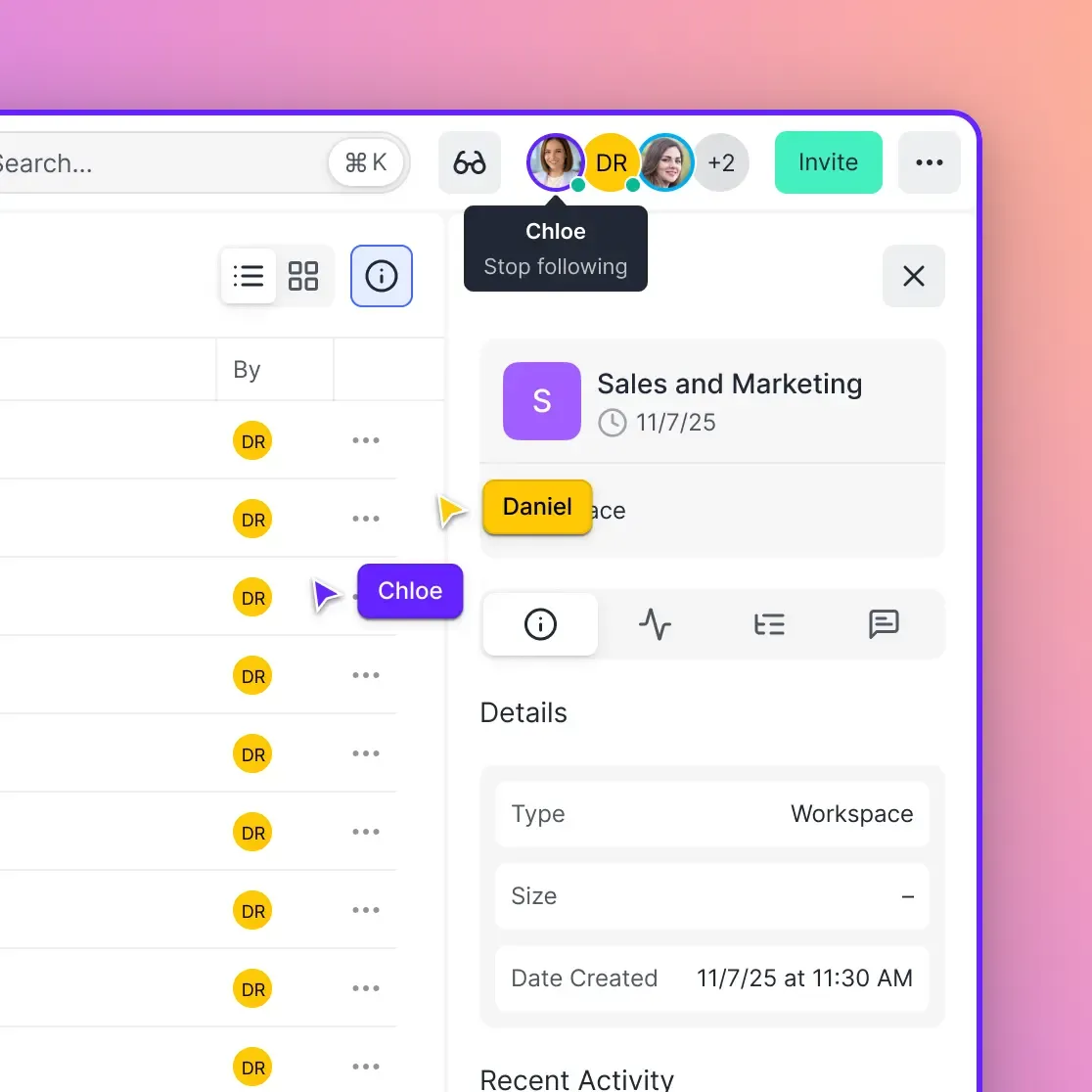
Fast.io eliminates that manual step. Each agent connects to the same Fast.io workspace through the MCP server, which exposes a consolidated MCP toolset for file operations, workspace management, and AI queries over Streamable HTTP at /mcp. When an agent finishes a task, it uploads the output directly to a shared workspace. The rest of the team sees it immediately, with version history and audit trails built in.
The practical setup is straightforward. Create a shared workspace on Fast.io, give each agent MCP access with its own API credentials, and configure upload destinations by workspace path. Engineering output goes to one folder, marketing output to another, and both teams can search across everything once Intelligence is enabled for the workspace, indexing uploaded files for semantic search and RAG queries with citations.
For teams that want an agent to build something and then hand it to a human, ownership transfer lets the agent create workspaces, populate them with files, and transfer ownership to a team member while retaining admin access for future updates. The human gets a polished, shareable workspace. The agent retains the ability to update it. Both sides work from the same source of truth.
Fast.io offers a 14-day Business Trial (card required), and paid plans start at $9.99/mo with usage-based credits at /pricing/. For a small team running OpenClaw, that covers the shared output storage layer with version history and access controls.
Sources
References used to verify factual claims in this guide.
-
65% of OpenClaw users operate in enterprise sectors
-
GitHub issue #8081 requesting multi-user permission management was closed as not planned
-
Auth profiles are per-agent, each reading from its own agent directory
Frequently Asked Questions
How do I set up OpenClaw for a team?
Create a separate agent for each team member using the agent management command documented in OpenClaw's multi-agent guide. Each agent gets its own workspace, credentials, and session history. Configure bindings to route each person's messages to their corresponding agent, then connect all agents to a shared storage workspace for output collection.
Can multiple people use the same OpenClaw agent?
Technically yes, but the official documentation advises against it. OpenClaw's security model assumes a single trusted operator per Gateway, and agents do not have built-in permission levels for different users. If multiple people access the same agent, they share credentials, session history, and tool access with no isolation between them. The recommended approach is one agent per person or per role.
How do I manage permissions in OpenClaw?
OpenClaw does not have built-in role-based access control. GitHub issue
What is the difference between multi-user and multi-agent in OpenClaw?
Multi-agent means running multiple AI instances inside one Gateway, each with its own persona, model, and skills. Multi-user means multiple human beings interacting with those agents with isolated sessions and controlled access. Multi-agent is a built-in OpenClaw feature. Multi-user is an architecture pattern you build on top of multi-agent by creating one agent per person and configuring bindings and access policies.
Does OpenClaw support role-based access control?
Not natively. The feature was requested in GitHub issue
How do I share files between OpenClaw agents on a team?
Each agent's workspace is isolated by design. To share output across a team, connect agents to a shared storage service like Fast.io via MCP. Each agent uploads its output to a common workspace where other team members and agents can access it. This preserves agent isolation while centralizing the team's deliverables with version history and access controls.
Related Resources

Collect every agent's output in one shared workspace
Connect your OpenClaw agents to shared Fast.io workspaces with MCP-ready endpoints for reads, writes, and semantic search. Start a 14-day Business Trial (card required).