How to Set Up OpenClaw Sandbox: Docker, SSH, and OpenShell Isolation
88% of organizations reported confirmed or suspected AI agent security incidents in the past year, and unsandboxed code execution is one of the top attack vectors. OpenClaw's built-in sandboxing isolates tool execution in Docker containers, SSH remotes, or managed OpenShell environments, each with configurable scope and workspace access. This guide walks through practical setup for all three backends and explains when to choose each one.

Why Sandboxing Matters for AI Agent Execution
88% of organizations confirmed or suspected AI agent security incidents in the past year, according to a 2026 Gravitee survey of more than 900 executives and technical practitioners. OWASP's Agentic Top 10 now lists Unexpected Code Execution (ASI05) as a control that requires sandboxing, not merely recommends it.
OpenClaw's sandboxing sits between the Gateway process (which stays on your host) and the tools that actually touch the filesystem: exec, read, write, edit, apply_patch, and process. When sandboxing is on, those tools run inside an isolated environment. The Gateway itself never moves.
The official docs describe it plainly: "This is not a perfect security boundary, but it materially limits filesystem and process access when the model does something dumb." That honesty matters. Sandboxing reduces blast radius. It does not eliminate risk. Combined with tool policies and elevated-exec controls, it forms one layer in a defense-in-depth stack.
Without sandboxing, an agent with exec access can read your SSH keys, inspect environment variables holding API tokens, or write to system directories. The sandbox blocks all of that by default.
Related guides
- How to Run Cline in a Docker Sandbox & Dev ContainerOnly 30% of enterprises isolate their highest-risk AI agents in sandboxes, creating a severe exposure gap. This guide...
- How to Set Up the Hermes Agent Web UI DashboardThe Hermes Agent web dashboard gives you browser-based control over an agent that normally lives in a terminal. This...
- How to Set Up OpenClaw OAuth and API Key AuthenticationGitGuardian's 2025 report counted 1.2 million AI-service secrets exposed on GitHub, up 81% year over year. OpenClaw...
- How to Set Up OpenClaw for Multiple Users on a TeamOpenClaw assumes a single trusted operator per Gateway, but 65% of its user base sits in enterprise environments where...
- Best OpenClaw Alternatives for AI Agent Workflows in 2026OpenClaw's 353k GitHub stars make it the most popular AI agent framework, but security issues in ClawHub and a growing...
- How to Secure OpenClaw for Enterprise EnvironmentsSecuring OpenClaw takes more than a firewall. Agents in production bring risks like prompt injection and supply chain...
More on this subject: OpenClaw Setup and Guides (199 guides)
Understanding Modes, Scopes, and Workspace Access
Before choosing a backend, you need to understand three configuration axes that apply to all of them.
Execution modes control when sandboxing kicks in. off disables it entirely. non-main sandboxes only non-main sessions, which is the default behavior for normal chat sessions on the host. Group and channel sessions use their own keys and count as non-main. all sandboxes every session without exception.
Container scope determines how many containers get created. agent (the default) allocates one container per agent. session creates one per session. shared uses a single container across all sandboxed sessions, which reduces overhead but means one session's side effects are visible to others.
Workspace access controls what the sandbox can see of your actual project files. none (the default) keeps the sandbox workspace in a dedicated local directory with no access to your project directory. ro mounts the agent workspace read-only at /agent, which disables write, edit, and apply_patch tools. rw mounts the workspace read/write at /workspace, giving the agent full filesystem access within the mount.
For most development workflows, mode: "non-main" with scope: "session" and workspaceAccess: "none" is a reasonable starting point. You can loosen access as you understand what your agents actually need.
Docker Backend: Local Container Isolation
The Docker backend is the default choice when you enable sandboxing. It runs tool execution inside local Docker containers while the Gateway process stays on your host machine, using Docker namespaces for process and filesystem isolation.
Image requirements
OpenClaw requires a dedicated Docker image before sandboxing will work. The official sandboxing docs provide both a setup script (for source installs) and manual build instructions. The image uses a minimal Debian base with common development tools pre-installed. OpenClaw fails fast if the image is missing. It will not fall back to another image or pull one automatically, so build it before your first sandboxed session.
Enabling the Docker backend
You enable Docker sandboxing by adding a sandbox block to your Gateway configuration specifying Docker as the backend, along with your chosen mode, scope, and workspace access settings. The official documentation at docs.openclaw.ai/gateway/sandboxing covers the full configuration schema, including all available keys and their defaults.
Network isolation
Sandbox containers default to no network access. This is intentional: it prevents agents from exfiltrating data or reaching internal services. If your agent needs network access for package installs or API calls, you can override the network setting in your sandbox config. Host networking is blocked entirely, and container namespace joining is blocked by default because it allows one container to share another's network stack.
Bind mounts and blocked paths
You can mount host directories into the sandbox, but OpenClaw validates every bind mount against a blocklist of dangerous sources:
- Docker socket (
/var/run/docker.sock) - System directories:
/etc,/proc,/sys,/dev - Credential directories:
~/.aws,~/.ssh,~/.gnupg,~/.docker,~/.config,~/.cargo,~/.netrc,~/.npm
The validation resolves symlinks through the deepest existing ancestor, so creating a symlink to a blocked path and mounting the symlink's parent directory will still be caught. Escapes fail closed even when the leaf path does not exist yet.
Setup commands
A setup command runs once after container creation, not on every tool execution. Common pitfall: the default network is off, so package installs inside a setup command fail unless you configure network access first. Read-only root settings also prevent writes, and the default non-root user cannot run package installs without elevated permissions. The official docs detail all available Docker-specific configuration options.
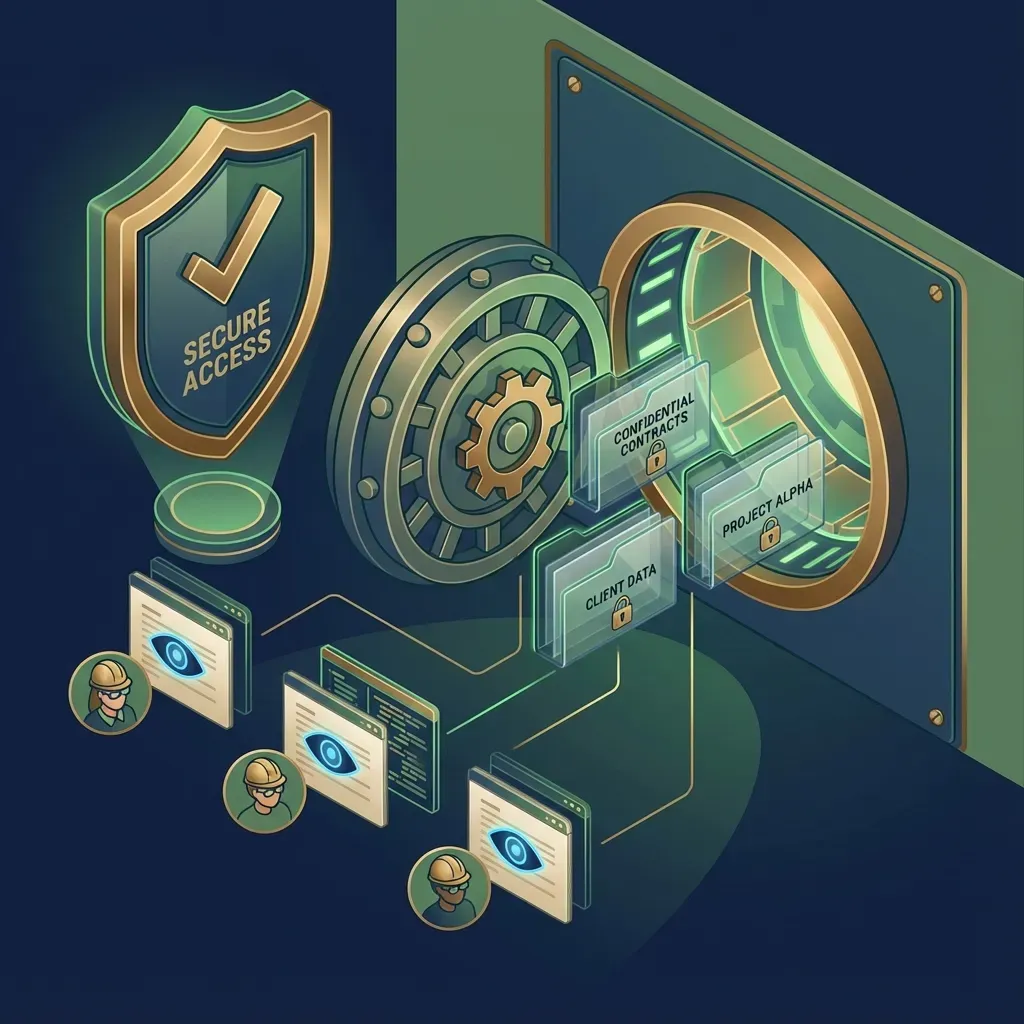


Persist sandboxed agent output in a shared workspace
Generous storage with Intelligence Mode indexing, MCP-native access, and ownership transfer from agent to human.
SSH Backend: Remote Machine Isolation
The SSH backend offloads tool execution to any SSH-accessible machine. This is useful when your agents need to work in an environment that matches production: specific OS versions, pre-installed toolchains, or hardware that Docker cannot easily replicate.
Configuration
SSH config lives under agents.defaults.sandbox.ssh:
agents:
  defaults:
    sandbox:
      backend: "ssh"
      ssh:
        target: "user@gateway-host:22"
        workspaceRoot: "/tmp/openclaw-sandboxes"
        strictHostKeyChecking: true
        updateHostKeys: true
        identityFile: "~/.ssh/id_ed25519"
Authentication supports file-based keys (identityFile, certificateFile, knownHostsFile) and inline data variants (identityData, certificateData, knownHostsData). Inline data gets written to temp files with 0600 permissions. If both file and data versions are set for the same key type, the data variant takes precedence.
How workspace syncing works
The SSH backend uses a remote-canonical model. It copies your local workspace to the remote machine once as an initial seed. After that, all tool execution happens directly against the remote filesystem. Changes made remotely are not automatically synced back to your local machine.
This means if you edit files locally after the initial seed, the sandbox will not see those changes. To reset, run openclaw sandbox recreate, which deletes the remote workspace root and re-seeds from local.
Limitations
The SSH backend does not support sandbox browsers. If your agent workflow involves browser automation, you will need the Docker backend for that portion. Docker-specific settings under sandbox.docker.* are ignored when using the SSH backend.
OpenShell Backend: Managed Remote Environments
OpenShell reuses the SSH transport but adds lifecycle management and workspace syncing options specific to OpenShell's remote environment model. Think of it as SSH-backend-plus: same underlying connectivity, but with managed container lifecycle and two distinct sync strategies.
Configuration
OpenShell config lives under the plugins section:
plugins:
  entries:
    openshell:
      enabled: true
      config:
        from: "openclaw"
        mode: "remote"
        remoteWorkspaceDir: "/sandbox"
        remoteAgentWorkspaceDir: "/agent"
Choosing a workspace mode
OpenShell offers two modes that determine where the "source of truth" lives:
In mirror mode, your local workspace stays canonical. Before every tool execution, OpenClaw syncs local files into the OpenShell sandbox. After execution, it syncs changes back. This behaves like the Docker backend from a workflow perspective, but the extra sync cost adds latency to every turn.
In remote mode, the initial seed copies your workspace to OpenShell, and then everything operates directly on the remote side. File and media tools read through a sandbox bridge. Local edits made after the seed are not visible to the sandbox. This gives lower per-turn overhead at the cost of workspace freshness.
Mirror works best when you are actively editing files outside OpenClaw and need the sandbox to always reflect your latest changes.
Remote works best when the agent is doing autonomous work and you want minimal sync overhead.
Limitations
Like the SSH backend, OpenShell does not yet support sandbox browsers. Docker-specific bind mounts (sandbox.docker.binds) are not available. If you need to mount additional host directories, Docker is still the right backend.
How to Choose the Right Backend
Each backend fits a different deployment scenario. Here is how they compare across the dimensions that matter most.
Docker is the right choice for local development. Setup requires only Docker Desktop and a single image build. You get full bind mount support, GPU passthrough, sandbox browser support, and network-level isolation. The tradeoff is that your agent runs on the same machine you are working on, sharing compute resources.
SSH fits teams that need agents to run on dedicated infrastructure. If your agents need access to specific hardware, pre-installed compilers, or a filesystem that mirrors production, SSH lets you point tool execution at any machine you can reach over SSH. You lose sandbox browser support, and workspace syncing is one-directional (local to remote seed only).
OpenShell adds managed lifecycle on top of SSH. The mirror mode gives you bidirectional sync at the cost of per-turn latency. The remote mode gives you lower overhead but requires you to treat the remote workspace as canonical. OpenShell makes sense when you want the convenience of a managed remote environment without maintaining your own SSH infrastructure.
For most developers getting started with OpenClaw sandboxing, Docker is the path of least resistance. Start there, understand what your agents actually need, and graduate to SSH or OpenShell when your isolation requirements outgrow local containers.
Storing agent output after sandboxed execution
Regardless of which backend you choose, the sandbox handles execution. It does not handle what happens to the files your agent produces. For development work, files stay in the sandbox workspace or get synced back to your local machine. For production workflows where agent output needs to be shared with a team, reviewed, or handed off to a human, you need a persistence layer outside the sandbox.
Fastio works well here. Your agent can write results to a Fastio workspace via the MCP server, where files are indexed for semantic search and AI chat once Intelligence is enabled for the workspace. Fastio offers a 14-day Business Trial (card required; see pricing). The ownership transfer feature lets an agent build a workspace and hand it off to a human, which fits naturally into a sandboxed pipeline where the agent produces output in isolation and a human reviews it in a shared workspace.
Local alternatives include writing to a synced Git repository or an S3 bucket. Cloud storage services like Google Drive or Dropbox work too, but they lack the agent-native MCP tooling and automatic indexing that make retrieval faster downstream.

How to Debug and Manage Sandboxes
OpenClaw includes three CLI commands for sandbox management.
openclaw sandbox list shows all active sandboxes across backends (Docker and OpenShell). Use it to verify that your configuration actually created the containers or remote sessions you expected.
openclaw sandbox recreate deletes the current sandbox runtime and recreates it on the next tool execution. For Docker, this removes and rebuilds the container. For SSH and OpenShell, it deletes the remote workspace root and re-seeds from local. This is your reset button when the sandbox state has drifted or become corrupted.
openclaw sandbox explain is the debugging command. It shows the effective sandbox mode, which tool policies are active, and which configuration keys are driving the behavior. When sandboxing is not working the way you expect, this is the first command to run.
Common troubleshooting patterns
If your setup command fails silently, check that docker.network is not set to none (the default). Package managers need network access. If file writes fail inside the sandbox, check whether readOnlyRoot is set to true or whether workspaceAccess is set to ro.
If sandbox containers seem stale or are not reflecting config changes, run openclaw sandbox recreate to force a clean start. The setupCommand only runs once at container creation time, so config changes to that field require recreation.
Environment variables set in docker.env are visible through docker inspect. Do not put secrets there. Mount secret files into the container instead and read them from the filesystem.
Sources
References used to verify factual claims in this guide.
-
88% of organizations confirmed or suspected AI agent security incidents in the past year
-
OWASP Agentic Top 10 lists Unexpected Code Execution (ASI05) as requiring sandboxing
-
Three sandbox backends, modes, scopes, workspace access levels, and bind mount validation
Frequently Asked Questions
How do I enable OpenClaw sandboxing?
Add a sandbox block to your Gateway config under agents.defaults.sandbox with at least a mode setting. Set mode to 'non-main' to sandbox non-main sessions, or 'all' to sandbox everything. If you do not specify a backend, Docker is used by default. You will need to build the openclaw-sandbox:bookworm-slim Docker image before the first run.
What is OpenClaw sandbox mode?
Sandbox mode controls when tool execution gets isolated. 'off' disables sandboxing entirely. 'non-main' (the recommended default) sandboxes only non-main sessions, keeping your primary chat on the host while isolating group, channel, and secondary sessions. 'all' sandboxes every session without exception.
How does OpenClaw sandbox Docker work?
The Docker backend runs tool execution (shell commands, file reads, file writes) inside local Docker containers while the Gateway process stays on your host machine. Containers use Docker namespaces for isolation, default to no network access, and validate all bind mounts against a blocklist of sensitive paths like docker.sock, ~/.ssh, and ~/.aws. You need to build the sandbox image first and configure the backend in your Gateway config.
Can I run OpenClaw sandbox on a remote server?
Yes, using either the SSH or OpenShell backend. The SSH backend sends tool execution to any machine reachable over SSH. The OpenShell backend adds managed lifecycle and workspace syncing on top of SSH. Both seed the remote workspace from your local files on first run. Neither supports sandbox browsers.
What paths are blocked from bind mounts?
OpenClaw blocks mounting the Docker socket, /etc, /proc, /sys, /dev, and home credential directories including ~/.aws, ~/.ssh, ~/.gnupg, ~/.docker, ~/.config, ~/.cargo, ~/.netrc, and ~/.npm. The validation resolves symlinks through existing ancestors, so symlink-based escape attempts fail closed.
What is the difference between mirror and remote mode in OpenShell?
Mirror mode keeps your local workspace as the source of truth and syncs bidirectionally before and after every tool execution. Remote mode seeds the workspace once and then operates directly on the remote side. Mirror costs more per turn in sync overhead but always reflects local changes. Remote is faster but does not pick up local edits made after the initial seed.
Related Resources

Persist sandboxed agent output in a shared workspace
Generous storage with Intelligence Mode indexing, MCP-native access, and ownership transfer from agent to human.