How to Use the OpenClaw Mobile App on iOS and Android
OpenClaw's iOS and Android apps turn your phone into a companion node for your self-hosted AI assistant. They connect to your gateway over WebSocket and expose phone hardware like camera, microphone, GPS, and screen capture to your agents. This guide covers what each platform offers, how to pair your phone, and where to store the files your mobile sessions generate.


What OpenClaw Mobile Apps Actually Do
Over 110 million people in the U.S. now use AI chatbots exclusively through mobile apps, up from 13 million at the start of 2024, according to Sensor Tower's State of Mobile 2026 report. Most of that growth flows toward cloud-hosted services. But if you run a self-hosted assistant with OpenClaw, your phone can do something those services cannot: feed real-time camera frames, GPS coordinates, and voice input directly into your own agent pipeline.
OpenClaw's mobile apps are not standalone chat clients. They work as companion nodes that connect to a gateway you run on macOS, Linux, or Windows (through WSL2). Your phone becomes a sensor package. The agent running on your gateway can request a photo from your camera, read your GPS coordinates, capture your screen, or listen through your microphone. Everything runs over a WebSocket connection between the app and your gateway, so your data never leaves your infrastructure.
Both apps follow the same core architecture, but they differ in availability and feature depth.
iOS is in internal preview with six capabilities: Canvas, Screen snapshots, Camera, Location, Talk mode, and Voice wake. You need Xcode 16 or later to build and install it. There is no App Store listing or public TestFlight.
Android is on Google Play and ready to install. It covers the same base capabilities plus device integration commands for photos, notifications, contacts, calendar, and motion sensors. It also works alongside Google Assistant for voice-activated launches.
Both platforms discover gateways through Bonjour on your local network, Tailscale for cross-network access, or manual IP entry. Pairing works the same way on both.
The key difference from commercial AI apps: ChatGPT's mobile client connects to OpenAI's servers. OpenClaw's mobile client connects to yours. The phone is an input device, not the host.
Related guides
- How to Code an App From Scratch With ClineLearn how to code an app from scratch with Cline by setting up a structured workspace, scoping tasks, and validating...
- Claude App: How to Download and Use Claude on Every PlatformAnthropic ships Claude across six platforms, but each one gives you different capabilities. This guide covers how to...
- OpenClaw Desktop App: macOS Menu Bar Companion GuideOnly 23% of developers regularly use AI agents, according to the 2025 Stack Overflow survey, and most of those interact...
- How to Deploy OpenClaw on DigitalOcean App PlatformDigitalOcean gives you three ways to run OpenClaw: a 1-Click marketplace Droplet, the managed App Platform for...
- How to Set Up OpenClaw with Google Gemini ModelsOpenClaw's Gemini integration connects your agent to Google's full model family, including Gemini 3.1 Pro for chat,...
- How to Set Up ClawHub for OpenClawClawHub is the public skill registry for OpenClaw, with over 13,000 community skills available. This guide walks...
More on this subject: OpenClaw Setup and Guides (199 guides)
iOS: Canvas, Camera, and Voice Wake
The iOS app connects to your gateway and exposes six core capabilities.
Canvas renders HTML content inside a WKWebView, driven by your gateway's node.invoke commands. You can navigate to URLs, run JavaScript, and capture snapshots of the rendered output. This lets agents build and display rich interfaces on your phone without shipping a custom UI for each skill.
Screen snapshots capture whatever is currently displayed on the device, in JPEG format with configurable resolution. An agent can use this to observe what you are seeing and respond with context-aware suggestions.
Camera capture gives agents access to your iPhone's camera for photos. A home inspection agent could ask you to photograph a water heater label. A receipt-tracking agent could snap expense photos and file them automatically.
Location services provide your geographic coordinates to the gateway. Agents running local search, navigation, or geofenced automations get real-time position data from your phone's GPS.
Talk mode adds push-to-talk voice input. Hold the button, speak, and your audio goes to the gateway for processing through whichever speech provider you have configured.
Voice wake listens in the background for a wake word, so you can activate your agent hands-free without opening the app first.
One important constraint: canvas, camera, and screen capture operations require the app to be in the foreground. If the app is backgrounded, the gateway receives a NODE_BACKGROUND_UNAVAILABLE error instead of results.
The iOS app is currently in internal preview and is not distributed through the App Store. No public TestFlight beta is available either. To run it today, you need Xcode 16 or later and the source code from the OpenClaw repository under apps/ios. Community members have requested TestFlight access on GitHub, but the project has not announced a timeline for broader distribution. If you are comfortable building from source, the repository README walks through the Xcode configuration.
Android: Installation and Device Integration
The official OpenClaw companion app is available on Google Play. Unlike the iOS app, you can install it directly from the store without building from source.
Chat and Sessions
The app provides a full chat interface with session management. You get a default "main" session and can create custom sessions for different projects or workflows. Chat history syncs from your gateway with normalized timestamps, so conversations persist across app restarts.
Canvas and Camera
Like iOS, the Android app renders gateway-driven HTML content through its Canvas feature and supports photo and video clip capture through the device camera. Camera operations require the app to be in the foreground.
Voice Input
The Android app supports two voice modes. Manual capture in the Voice tab uses a pause-to-send pattern: speak, pause, and the app sends your audio to the gateway. Continuous Talk Mode keeps the microphone open and streams audio to your gateway's speech provider in real time. Continuous mode requires Android 14 or later and specific microphone permissions.
When the gateway's talk service is not reachable, the app falls back to local system text-to-speech for agent responses. This means you always get voice output, even when your ElevenLabs or other TTS provider is temporarily down.
Device Integration
This is where Android pulls ahead of iOS in the current builds. The app exposes commands for device status, system info, recent photos, notification lists with actionable items, contacts, calendar entries, and motion data including pedometer step counts. Your agent can read your latest notifications, search your contacts, or check your step count for the day.
The app also registers App Actions metadata for Google Assistant, so you can launch OpenClaw through voice commands.
Notification Forwarding
Administrators can configure notification forwarding from the phone to the gateway with package allowlists and denylists, quiet hours, and per-package rate limiting. This requires the Android Notification Listener permission.
Third-Party Alternatives
Beyond the official app, other options exist on Google Play. andClaw ($4.99) takes a different approach by running the OpenClaw gateway directly on your phone, so you do not need a separate computer as the host. It supports WhatsApp, Telegram, and Discord as messaging channels and works with multiple AI providers including OpenRouter, Anthropic, OpenAI, and Google. Claw To Talk is a free push-to-talk voice companion that connects through Tailscale and supports ElevenLabs voice output for high-quality speech.
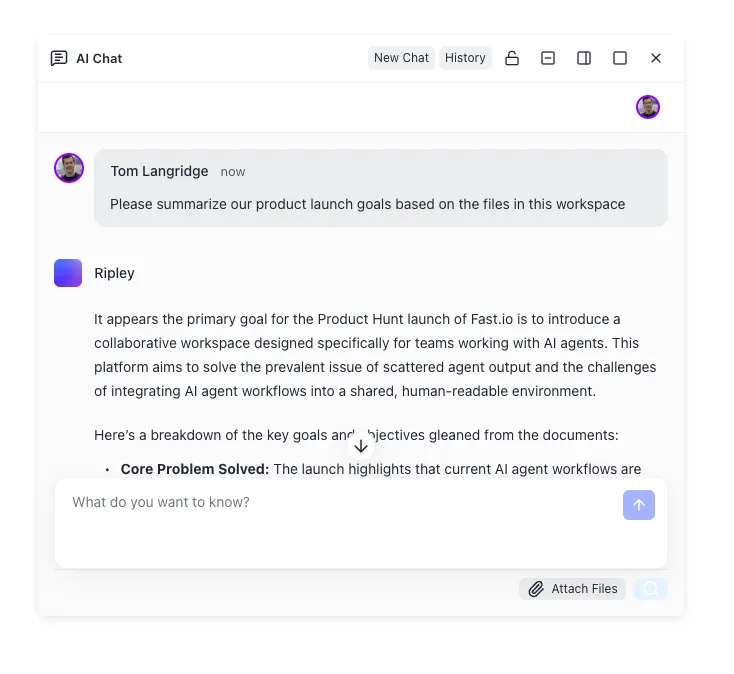


Keep your mobile agent output in one searchable workspace
Fastio stores files from your OpenClaw gateway, indexes them once Intelligence is enabled, and lets you hand off results to your team.
How to Pair Your Phone to a Gateway
Both apps connect to a gateway running on your computer or server. The gateway is the brain. Your phone is an input and output device. Here is how to get them paired.
Starting the Gateway
Start the OpenClaw gateway on your host machine following the setup instructions in the OpenClaw docs. It listens on a configurable port, and it needs to be running before your phone can discover and connect to it.
Discovery Methods
Both apps support three ways to find your gateway:
Bonjour (LAN). If your phone and gateway are on the same Wi-Fi network, the app browses for _openclaw-gw._tcp services automatically. This is the simplest option. No manual configuration required.
Tailscale (cross-network). Connect both devices to the same Tailscale tailnet. The app uses unicast DNS-SD to discover the gateway across networks. Tailscale also provides encrypted transport without you needing to manage TLS certificates.
Manual entry. Type the gateway's IP address and port directly. Use this when automatic discovery is not finding your gateway, or when you have a static IP you prefer to target.
The Pairing Workflow
Once the app discovers your gateway, pairing takes four steps:
- Open the app's connection settings and select the discovered gateway
- The gateway logs a pairing request with a unique request ID
- On your gateway terminal, approve the request:
openclaw devices approve <requestId> - Verify the phone registered as a node:
openclaw nodes status
For trusted home or office networks, you can skip manual approval by configuring autoApproveCidrs on the gateway side. This automatically approves devices connecting from specified subnet ranges.
Network Security
On your local network, the app connects over cleartext ws:// to .local hosts and localhost. If you connect through Tailscale or any public network, you need TLS termination. Set up wss:// through Tailscale Serve or a reverse proxy. Never expose an unencrypted WebSocket endpoint to the internet.
Troubleshooting Common Errors
If you see A2UI_HOST_NOT_CONFIGURED, the gateway is missing its Canvas plugin configuration. Check your gateway's plugin settings and verify the Canvas module is enabled. If operations fail with NODE_BACKGROUND_UNAVAILABLE, bring the mobile app to the foreground. Canvas, camera, and screen capture all require the app to be actively visible on the device.
How to Store Files from Mobile Sessions
Mobile OpenClaw sessions generate files: photos your agent captured, transcripts from voice conversations, outputs created by skills running on the gateway. By default, this output lives on whatever machine hosts your gateway. That works for solo use, but it breaks down when you need to share results with a team or access files from a different device.
One option is to sync files to cloud storage manually. Google Drive, Dropbox, and Amazon S3 all work as destinations, though none of them understand the content of your files or let an agent manage access on your behalf.
Fastio handles both storage and intelligence. Your OpenClaw gateway can write files to a Fastio workspace through the remote MCP server (https://mcp.fast.io/mcp/tools), and your team accesses those same files through the web interface. Once Intelligence is enabled for the workspace, uploaded documents are indexed for semantic search, so when your field agent captures photos and a voice transcript during a site visit, your team can search across all of it by meaning rather than filename.
The ownership transfer feature fits naturally into mobile workflows. An agent running on your gateway can create a workspace, populate it with session output, and transfer ownership to a human team member through a claim link. The agent keeps admin access for future updates. The human gets a workspace ready to use without needing to understand the agent pipeline that built it.
Fastio offers a 14-day Business Trial (credit card required), with plans scaling from Starter to Business and Enterprise at /pricing/. You can connect your gateway to the remote MCP endpoint at https://mcp.fast.io/mcp/tools with a scoped API key sent as a Bearer token.

Sources
References used to verify factual claims in this guide.
-
110 million U.S. chatbot users access AI exclusively through mobile apps, up from 13 million in early 2024
Frequently Asked Questions
Does OpenClaw have a mobile app?
Yes. OpenClaw has companion apps for both iOS and Android. The Android app is available on Google Play. The iOS app is in internal preview and requires building from source with Xcode 16 or later. Both apps connect to a gateway you run on your own hardware and give your agent access to your phone's camera, microphone, GPS, and screen.
How do I set up OpenClaw on my phone?
Install the app (from Google Play on Android, or build from source on iOS), start a gateway on your computer, and pair the phone through the app's connection settings. The app can discover gateways automatically via Bonjour on your local network, through Tailscale for cross-network access, or through manual IP entry.
Is the OpenClaw iOS app on the App Store?
Not yet. The iOS app is in internal preview and is not distributed through the App Store or TestFlight. To run it, you need the OpenClaw source code and Xcode 16 or later to build and install it directly on your device. The project has not announced a timeline for public App Store availability.
Can I use OpenClaw on Android?
Yes. The official OpenClaw companion app is on Google Play. It provides chat, canvas rendering, camera capture, voice input with continuous Talk Mode on Android 14 and later, and device integration for notifications, contacts, calendar, and motion sensors. Third-party options like andClaw can run the gateway directly on the phone without a separate computer.
What can the OpenClaw mobile app do that desktop cannot?
The mobile apps expose phone-native hardware to your agent. Camera capture lets agents request photos. GPS provides real-time location data. The microphone enables push-to-talk and voice wake for hands-free activation. On Android, agents can also read notifications, search contacts, check calendar entries, and access motion sensor data like step counts.
Do I need a gateway running to use the OpenClaw mobile app?
Yes. Both the iOS and Android apps are companion nodes, not standalone AI assistants. They connect to a gateway running on macOS, Linux, or Windows (through WSL2). The gateway handles all AI processing. Your phone provides sensor inputs and displays agent responses.
Related Resources

Keep your mobile agent output in one searchable workspace
Fastio stores files from your OpenClaw gateway, indexes them once Intelligence is enabled, and lets you hand off results to your team.