OpenClaw Desktop App: macOS Menu Bar Companion Guide
Only 23% of developers regularly use AI agents, according to the 2025 Stack Overflow survey, and most of those interact through a terminal. The OpenClaw macOS app changes that dynamic by putting agent controls in the menu bar, where a single click opens a panel for messaging, status checks, and quick actions without leaving your current workflow.


What the OpenClaw macOS App Adds Beyond the CLI
Only 23% of developers regularly use AI agents in their daily work, according to the 2025 Stack Overflow Developer Survey. Most of those who do rely on terminal commands and CLI prompts. That leaves a wide gap between what agents can do and how accessible they feel to developers who spend their day in graphical environments.
The OpenClaw macOS app closes part of that gap. Rather than replacing the CLI, it wraps the Gateway in a native menu bar companion that manages permissions, coordinates local and remote connections, and exposes macOS-specific capabilities that the terminal cannot reach. Camera access, screen capture, canvas rendering, and system notifications all require macOS Transparency, Consent, and Control (TCC) entitlements that only a native app process can own.
The result is a small lobster icon in your menu bar. Click it, and a floating panel drops down with agent messaging, recent activity, quick actions, and Gateway status. You can trigger an agent request, check what it is doing, or approve a command execution without switching windows or opening a terminal.
This guide walks through the full setup: installing the app, configuring Gateway modes, understanding each native tool, and tuning exec approval security so your agent operates within the boundaries you set.
Related guides
- How to Set Up Devin AI Desktop App with Persistent WorkspacesCoordinating local files and cloud agent fleets often leads to overwrites and lost context. This guide explains how to...
- Claude Desktop App: Features, Setup, and TipsThe Claude desktop app bundles Chat, Cowork, and Code into a single native application for Mac, Windows, and ChromeOS....
- How to Use the OpenClaw Mobile App on iOS and AndroidOpenClaw's iOS and Android apps turn your phone into a companion node for your self-hosted AI assistant. They connect...
- How to Deploy OpenClaw on DigitalOcean App PlatformDigitalOcean gives you three ways to run OpenClaw: a 1-Click marketplace Droplet, the managed App Platform for...
- OpenClaw vs Windsurf (Now Devin Desktop): AI Agent vs AI IDE in 2026Seventy percent of developers now run two to four AI coding tools at once, but most comparisons still frame each option...
- How to Set Up OpenClaw with Google Gemini ModelsOpenClaw's Gemini integration connects your agent to Google's full model family, including Gemini 3.1 Pro for chat,...
More on this subject: OpenClaw Setup and Guides (199 guides)
How to Install the OpenClaw macOS App
The macOS app requires macOS 15 (Sequoia) or later. It runs natively on both Apple Silicon and Intel Macs without Rosetta 2. You also need Node.js 22 or newer installed, since the Gateway and CLI are Node-based.
Getting the App
Download the prebuilt OpenClaw.app from the official releases. A build-from-source option also exists in the repository for contributors who want to customize the app. Check the macOS platform docs for current download links and build prerequisites.
First Launch
On first launch, the app walks you through granting macOS TCC permissions. Each permission unlocks a specific set of agent capabilities: Notifications for status updates, Screen Recording for visual observation tools, Camera for photo and video capture, and Accessibility for UI automation. You choose which to grant based on the tools you want agents to access. The app also offers to install the CLI alongside the GUI, giving you both a visual menu bar interface and terminal access for scripting.
State Directory
OpenClaw stores its local state in a dedicated directory on your Mac. The official docs recommend keeping this outside of cloud-synced folders like iCloud or Dropbox, since file-lock race conditions from sync services can cause intermittent Gateway failures.

Gateway Modes: Local and Remote
The Gateway is the process that bridges your messaging channels and AI models to the agent framework. The macOS app manages it in two modes.
Local Mode (Default)
In local mode, the app attaches to an existing Gateway process on your machine. If none is running, it enables the launchd service automatically via openclaw gateway install. This creates a per-user LaunchAgent labeled ai.openclaw.gateway (or ai.openclaw.<profile> for named profiles) that starts on login and restarts on crash.
You can manually control the LaunchAgent:
launchctl kickstart -k gui/$UID/ai.openclaw.gateway
launchctl bootout gui/$UID/ai.openclaw.gateway
Local mode is the simplest configuration. Your Gateway, agent, and macOS app all run on the same machine, and IPC happens over a local Unix domain socket.
Remote Mode
Remote mode connects the macOS app to a Gateway running on another machine over SSH or Tailscale, without spawning any local Gateway process. This is useful when you run your Gateway on a home server, a cloud VM, or a more powerful machine while keeping the macOS app as a lightweight control surface on your laptop.
The app opens SSH tunnels to the remote Gateway:
- A control tunnel on the default Gateway port (18789) for health checks, Web Chat, and configuration
- Uses
-N -L <local>:127.0.0.1:<remote>with BatchMode, ExitOnForwardFailure, and keepalive settings
The app also starts a local node host service that allows the remote Gateway to reach back to your Mac for native tool execution. This reverse connectivity is what makes remote mode powerful: the Gateway runs elsewhere, but screen capture, camera access, and system commands still execute locally on your Mac where TCC permissions live.
Gateway discovery prefers Tailscale MagicDNS names over raw tailnet IPs for better reliability. If you use Tailscale, set up MagicDNS before configuring remote mode.


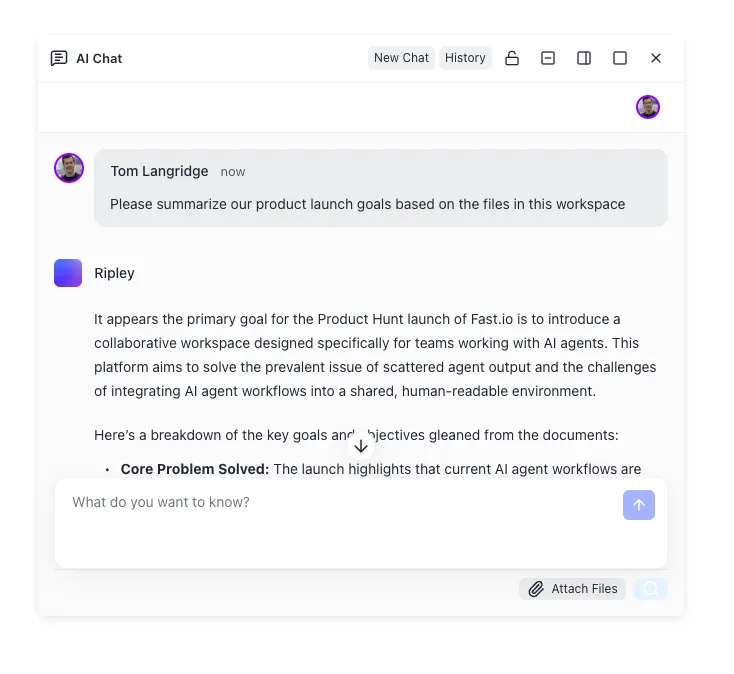
Persist OpenClaw agent output in a shared workspace
Persistent cloud storage for your OpenClaw agents. Store screen captures, canvas exports, and command output where your whole team can access them, MCP-ready at mcp.fast.io.
Native macOS Tools
The CLI gives agents text-based access to your system. The macOS app goes further by exposing native capabilities that require TCC entitlements and a GUI context.
Canvas
Canvas provides a presentation and UI automation surface for agents. The tool actions include:
canvas.presentandcanvas.navigatefor displaying and navigating contentcanvas.evalfor running evaluation logic within the canvas contextcanvas.snapshotfor capturing the current canvas statecanvas.a2ui.*for programmatic UI automation within the canvas
This is particularly useful for agents that need to generate visual output, interact with rendered content, or drive UI workflows that go beyond text responses.
Camera
The camera tools give agents access to your Mac's camera hardware:
camera.snapcaptures a single photocamera.cliprecords a video clip
These require the Camera TCC permission. Common use cases include visual context gathering, document scanning, and environment-aware agent behaviors.
Screen Capture and Recording
Screen tools let agents observe what is happening on your display:
screen.snapshotcaptures the current screen statescreen.recordrecords a video of screen activity
Both require the Screen Recording TCC permission. Agents use these for visual verification (confirming a UI change actually happened), capturing error states for debugging, or recording workflows for documentation.
System Commands and Notifications
system.runexecutes commands on your Mac with the exec approval security layer described in the next sectionsystem.notifysends native macOS notifications through the system notification center
All these tools execute within the macOS app's process context, which is why TCC permissions are granted to the app itself rather than to the CLI or Gateway.
Storing Agent Output
When agents generate files through these tools, the output needs to go somewhere persistent. Local filesystems work for personal use, but break down when you need to share results, hand off to a colleague, or access files from another machine.
Fastio provides persistent cloud workspaces where agents can store their output alongside human files. Fastio offers a 14-day Business Trial (card required; see /pricing/) with MCP access at mcp.fast.io, so agents using the OpenClaw macOS app can write screen captures, canvas exports, and command output directly to a shared workspace. When the agent finishes, ownership transfer lets you hand the workspace to a client or teammate while retaining admin access.
How Exec Approval Security Protects Your Mac
The system.run tool is the most sensitive capability the macOS app exposes. It lets agents execute arbitrary commands on your machine. The exec approval system puts guardrails around this.
Configuration
Exec approvals are configured in ~/.openclaw/exec-approvals.json.
The file supports versioning and per-agent policies, so you can give different agents different levels of access.
Security Modes
Three modes control how the app handles execution requests:
- deny: Blocks all command execution. Use this for agents you want to restrict to read-only tools like screen capture and canvas
- allowlist: Permits only commands matching specific patterns. This is the recommended production setting
- ask: Prompts you for approval on any command not already in the allowlist. Good for initial setup when you are learning what an agent needs
Pattern Matching
Allowlist entries support glob patterns for resolved binary paths (/usr/bin/git or /opt/homebrew/bin/python3) and bare command names for PATH-invoked binaries. The system resolves the actual binary path before matching, so an agent cannot bypass restrictions by invoking a command through a symlink.
Shell Command Restrictions
Raw shell text containing control syntax gets special treatment. Commands with &&, ||, ;, |, backticks, $(), redirects, or parentheses require explicit approval or allowlisting of the shell binary itself. This prevents an agent from chaining an approved command with an unapproved one.
Environment Filtering
Before executing any command, the system filters dangerous environment variables. PATH, DYLD_*, LD_*, NODE_OPTIONS, PYTHON*, PERL*, RUBYOPT, SHELLOPTS, and PS4 are all stripped. Shell wrappers receive only safe variables: TERM, LANG, LC_*, COLORTERM, NO_COLOR, and FORCE_COLOR.
Dispatch wrappers like env, nice, nohup, stdbuf, and timeout are handled transparently. The system persists the inner executable path instead of the wrapper path, so allowlist entries match the real binary being executed.
Practical Setup
Start with ask mode for a new agent. Run it through your typical workflows and approve commands as they come up. After a few sessions, export your approval history as an allowlist and switch to allowlist mode for unattended operation. Keep deny mode as a quick kill switch if an agent starts behaving unexpectedly.
Deep Links, IPC, and Automation
The macOS app supports the openclaw:// URL scheme for triggering agent requests from scripts, shortcuts, and other apps.
Deep Link Parameters
A deep link to openclaw://agent accepts these query parameters:
message(required): the prompt or instruction for the agentsessionKey: target a specific sessionthinking: control the agent's reasoning visibilitydeliver,to,channel: route the response to a specific destinationtimeoutSeconds: set a maximum execution timekey: authentication key for unattended execution
Without a valid key parameter, the app enforces confirmation prompts and message limits. This is the attended mode, suitable for interactive use. With a valid key, execution runs unattended, which is useful for personal automation workflows triggered by Shortcuts, cron jobs, or other apps.
IPC Architecture
Communication between the Gateway and the macOS app uses a layered architecture. In local mode, system.run commands execute over a Unix domain socket with token-based and HMAC authentication plus TTL validation. This ensures that only the authorized Gateway process can trigger command execution on your Mac.
In remote mode, the Gateway communicates with a local node service over WebSocket. The node service then connects to the macOS app via local IPC for commands that need UI context, like screen capture or TCC-gated actions.
Pairing with Persistent Storage
Automation workflows that combine deep links with agent execution often need somewhere to put results. A Shortcuts workflow might trigger an agent via openclaw://agent?message=..., have the agent capture a screen recording, and store the output for later review.
Local storage works for personal scripts, but falls short when multiple machines or team members need access. Services like S3 require configuration and credentials management. Fastio workspaces provide a middle path: persistent storage with built-in search, and agents can write files via the MCP server without managing credentials beyond an API key. Fastio offers a 14-day Business Trial (credit card required; see /pricing/) to evaluate workspaces with your automation output volumes.
For OpenClaw-specific workspace setup, see our workspace configuration guide and the storage for OpenClaw agents landing page.
Sources
References used to verify factual claims in this guide.
-
23% of developers regularly use AI agents
-
macOS app requires macOS 15+, manages TCC permissions, exposes canvas/camera/screen tools, supports local and remote Gateway modes with Unix socket IPC and HMAC auth
-
Community Windows installer available at github.com/agentkernel/openclaw-desktop
Frequently Asked Questions
Does OpenClaw have a desktop app?
Yes. OpenClaw offers a native macOS menu bar companion app that manages permissions, controls the Gateway, and exposes macOS-specific tools like canvas, camera, and screen capture to AI agents. It requires macOS 15 (Sequoia) or later and runs on both Apple Silicon and Intel Macs.
How do I install OpenClaw on Mac?
Download the prebuilt OpenClaw.app or build from source using the Swift project in the apps/macos directory of the OpenClaw repository. On first launch, complete the TCC permissions checklist for Notifications, Accessibility, Screen Recording, Microphone, Speech Recognition, and Automation. The app can also install the openclaw CLI via npm, pnpm, or bun for terminal access.
What can the OpenClaw macOS app do that the CLI cannot?
The macOS app owns TCC entitlements that the CLI process cannot hold. This gives agents access to canvas rendering, camera capture, screen recording, and native macOS notifications. It also provides a visual menu bar panel for messaging agents, monitoring status, and approving commands without opening a terminal.
Is there a Windows desktop app for OpenClaw?
There is a community-maintained Windows installer at github.com/agentkernel/openclaw-desktop that provides a one-click .exe installer and native desktop app for running OpenClaw on Windows. The official macOS app and the Windows installer are separate projects with different feature sets.
Can I connect the macOS app to a remote Gateway?
Yes. Remote mode connects the macOS app to a Gateway running on another machine over SSH or Tailscale. The app opens SSH tunnels for control and health checks while starting a local node host service for reverse connectivity, so native macOS tools still execute locally even though the Gateway runs elsewhere.
How does exec approval security work?
Command execution through system.run is controlled by policies in ~/.openclaw/exec-approvals.json. Three modes are available: deny blocks all execution, allowlist permits only matching glob patterns, and ask prompts for approval on unrecognized commands. The system also filters dangerous environment variables and resolves binary paths before matching allowlist entries.
What macOS permissions does the OpenClaw app need?
The app requests TCC permissions for Notifications, Accessibility, Screen Recording, Microphone, Speech Recognition, and Automation/AppleScript. Each permission unlocks specific agent capabilities. You can grant them selectively based on which tools you want agents to use.
Related Resources

Persist OpenClaw agent output in a shared workspace
Persistent cloud storage for your OpenClaw agents. Store screen captures, canvas exports, and command output where your whole team can access them, MCP-ready at mcp.fast.io.