How to Configure Filesystem MCP in Continue.dev
The Continue.dev filesystem MCP integration allows the Continue IDE extension to access, search, and edit files across local directories and synced cloud workspaces via the Model Context Protocol. Setting up the server requires declaring directory rules in config.json or config.yaml, running Continue in agent mode, and avoiding IDE thread blocking. For teams with shared cloud drives, connecting Continue to indexed remote workspaces eliminates local filesystem crawl latency.

How the Continue.dev Filesystem MCP Integration Operates
Pointing an AI coding assistant at a local project folder works smoothly until the agent needs context from external libraries, configuration files across repositories, or team document drives. In default configuration, the Continue IDE extension operates inside the open workspace boundary, unable to read or edit files in arbitrary directories without explicit permission.
The Continue.dev filesystem MCP integration allows the Continue IDE extension to access, search, and edit files across local directories and synced cloud workspaces via the Model Context Protocol.
Model Context Protocol (MCP) provides an open standard for connecting language models to external data sources and tools. Instead of building custom file-reading plugins for every editor, MCP standardizes how tools are discovered, invoked, and sandboxed. In Continue, MCP tool calls run through local child processes over standard input and output (stdio) or through network connections over Streamable HTTP.
The primary package used for local file operations is @modelcontextprotocol/server-filesystem, an open-source reference server implemented in Node.js. When activated by Continue, the server exposes eleven distinct tool primitives:
read_text_file: Reads the complete text content of a file using UTF-8 encoding.read_media_file: Reads image or audio assets and returns base64 data with MIME types.read_multiple_files: Reads multiple files concurrently in a single round trip.write_file: Creates a new file or completely replaces an existing file.edit_file: Applies selective text modifications with unified diff previews and indentation preservation.create_directory: Creates a new folder and generates missing parent paths.list_directory: Lists directory contents with file and folder markers.move_file: Renames or moves files and folders to new locations within the allowed root.search_files: Recursively searches for files matching glob patterns.get_file_info: Retrieves file metadata, including byte size and timestamp attributes.list_allowed_directories: Queries the root paths the server is permitted to access.
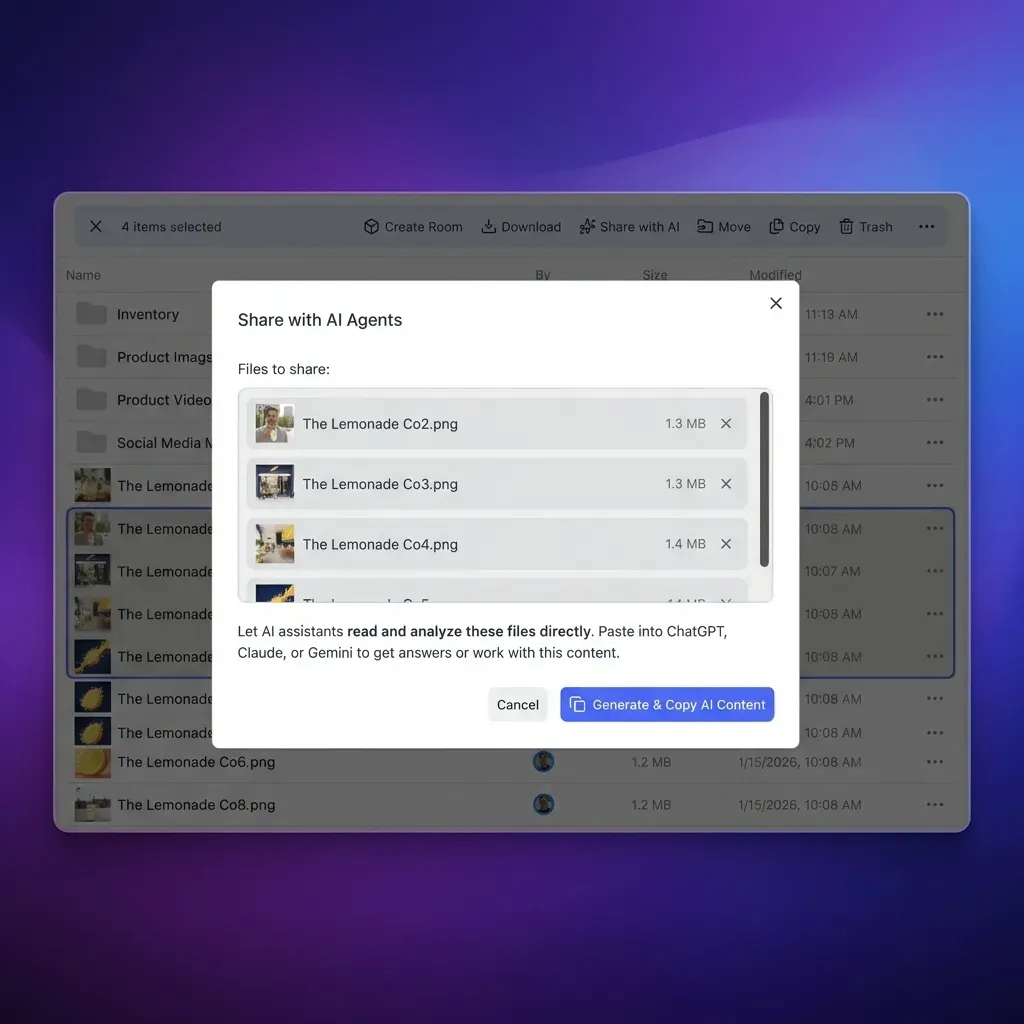
Stdio Process Lifecycle and Protocol Framing
When Continue starts a local filesystem MCP server, it spawns Node.js as a local child process. The IDE extension and the MCP server communicate through standard input (stdin) and standard output (stdout) using JSON-RPC 2.0 messages.
Because stdout carries machine-readable protocol frames, any extraneous text written to standard output breaks the JSON-RPC parser. Shell scripts that print greeting banners, global npm version checks, or debugging console.log statements in custom wrappers corrupt the transport stream. All diagnostics and logging must route to standard error (stderr).
The spawned process shares the lifecycle of the IDE window. If VS Code or JetBrains reloads, or if the Continue extension restarts, the child process terminates immediately.
Directory Boundaries and Access Sandboxing
Security in @modelcontextprotocol/server-filesystem centers on directory allow-listing. When the server launches, Continue passes explicit directory paths as command-line arguments.
The server verifies every incoming file operation against these declared boundaries. Before reading, editing, or listing any target, the server resolves all symbolic links to their canonical absolute paths on disk. If a requested path resolves to a location outside the declared roots, the server rejects the request with an access denial error. This mechanism prevents language models from inspecting sensitive system paths such as ~/.ssh or /etc.
Related guides
- Connecting Google Drive to Continue.dev with Model Context ProtocolSoftware engineers frequently lose momentum toggling between code in VS Code and architecture specifications stored in...
- Connecting Microsoft OneDrive to Continue.dev with Fastio Remote MCPContinue.dev OneDrive MCP integration connects the open-source AI code assistant in VS Code or JetBrains to OneDrive...
- How to Connect Continue.dev to SharePoint via MCPConnecting Continue.dev to SharePoint via MCP allows developers to search and reference enterprise documentation...
- How to Configure Filesystem MCP in Gemini CLI for Cloud StorageConfiguring a filesystem MCP server in Gemini CLI enables Google's command-line assistant to inspect local directory...
- How to Connect Cloudflare R2 to AI Agents via MCP ServerA Cloudflare R2 MCP server connects AI agents directly to Cloudflare S3-compatible R2 object storage for reading,...
- How to Set Up the MongoDB MCP Server for AI Database AgentsConnecting LLMs to document databases requires translating complex data structures and managing polymorphic schemas....
More on this subject: MCP and Model Context Protocol (277 guides)
Configuring Filesystem MCP in Continue.dev Configuration Files
Continue manages its configuration across two file formats: modern YAML configuration and legacy JSON configuration. Both formats allow developers to declare MCP servers under an mcpServers list. Choosing between them depends on your version of the Continue extension, but both formats share the same core parameters: the executable command, the package arguments, and the absolute paths to allowed directories.
The global configuration file lives in your operating system home directory:
- macOS and Linux:
~/.continue/config.yaml(or legacy~/.continue/config.json) - Windows:
%USERPROFILE%\.continue\config.yaml(or legacy%USERPROFILE%\.continue\config.json)
In addition to the global configuration file, Continue supports workspace-level configuration. Developers can add modular configuration files directly inside a .continue/mcpServers/ directory located at the root of a project repository. This project-level separation enables teams to commit shared tool definitions into version control while keeping machine-specific paths in user configuration.
Declaring the Server in config.json
For environments using config.json, add the filesystem entry inside the top-level mcpServers array. Continue requires explicit command-line arguments specifying the directories the server can touch:
{
  "models": [
    {
      "title": "Claude 3.5 Sonnet",
      "provider": "anthropic",
      "model": "claude-3-5-sonnet-latest"
    }
  ],
  "mcpServers": [
    {
      "name": "filesystem",
      "command": "npx",
      "args": [
        "-y",
        "@modelcontextprotocol/server-filesystem",
        "/Users/username/projects/specs",
        "/Users/username/projects/shared-docs"
      ]
    }
  ]
}
Replace /Users/username/projects/specs with the absolute path to your local directory. Do not use tilde abbreviations (~) in the arguments list, because Node.js child process execution does not perform shell expansion on arguments.
Declaring the Server in config.yaml
In modern Continue installations using config.yaml, the same server definition translates into clean YAML syntax:
name: Developer Configuration
version: 1.0.0
schema: v1

mcpServers:
  - name: filesystem
    command: npx
    args:
      - "-y"
      - "@modelcontextprotocol/server-filesystem"
      - "/Users/username/projects/specs"
      - "/Users/username/projects/shared-docs"
If your system PATH does not resolve npx inside the IDE environment, substitute the absolute path to the executable, such as /usr/local/bin/npx or /opt/homebrew/bin/npx on macOS.
Enabling Agent Mode and Tool Permissions
Configuring the server in config.yaml or config.json makes the tools available to Continue, but the extension will not execute them in standard autocomplete or vanilla chat mode. Model Context Protocol tools execute exclusively when Continue operates in Agent Mode.
To activate Agent Mode:
- Open the Continue sidebar using
Cmd + L(macOS) orCtrl + L(Windows and Linux). - Locate the mode selector dropdown near the chat input box.
- Switch from Chat to Agent.
- Enter your prompt, such as "Read the deployment guide in the specs folder and draft an architectural overview."
Continue checks tool configurations and displays confirmation dialogues when the model requests write or edit operations. Tool permissions in ~/.continue/permissions.yaml allow teams to disable destructive primitives like write_file or move_file while keeping read-only tools active.
Path Permissions, Cloud Sync Stubs, and Thread-Blocking Pitfalls
Configuring @modelcontextprotocol/server-filesystem on dedicated local repositories works reliably. However, developer workflows frequently point the filesystem server at folders synced with cloud storage services such as Dropbox, Google Drive, OneDrive, Box, or SharePoint. Developers expect the AI assistant to browse shared documents as effortlessly as local code, but cloud-synced directory trees operate under different file-system semantics.
Pointing local filesystem MCP servers at large cloud-synced folders introduces severe operating system and runtime bottlenecks that conventional documentation overlooks. Understanding these hazards prevents broken builds, IDE freezes, and unrecoverable file overwrites when agents interact with team files. In production environments where repositories and document stores grow to thousands of files, local file traversal creates performance friction across the developer toolchain.
Virtual File Stubs and Dataless Placeholders
Desktop sync clients for Google Drive, Dropbox, Box, and OneDrive use virtual file systems to conserve local disk space. On macOS, this relies on Apple's FileProvider framework, which mounts cloud folders inside ~/Library/CloudStorage/. On Windows, sync clients use the Cloud Files API (Windows Projected File System).
These systems display files in the file explorer as if they were fully stored on disk, but the files exist as dataless placeholders. A dataless stub stores directory metadata (filename, size, modification date) but allocates zero physical blocks on the local solid-state drive until an application explicitly requests its contents.
When a human double-clicks a dataless file, the operating system intercepts the call and downloads the file from cloud servers. But when Continue's filesystem MCP server scans a directory, it executes standard POSIX system calls (readdir, stat, open).
POSIX system calls interact poorly with virtual file stubs:
- Zero-Byte Reads: In some configurations, POSIX
readFileoperations return an empty buffer without triggering an on-demand download. The agent receives zero bytes and assumes the document is empty. - Hydration Deadlocks: If the sync client cannot immediately download the file due to network latency, the OS filter driver hangs the reading thread, leading to POSIX timeout errors (
EDEADLK). - Accidental File Corruption: If an agent attempts to edit a dataless file by writing updated content, it can replace the remote cloud stub with a truncated local file, damaging team assets.
Thread Blocking on Unindexed Recursive Scans
When a language model needs to answer a question about a project, it often begins by calling search_files or directory_tree to discover relevant files.
In @modelcontextprotocol/server-filesystem, file search executes as a synchronous, unindexed traversal over every directory within the allowed path. If the target folder contains node modules, large git histories, or tens of thousands of synced documents from a corporate cloud drive, the Node.js process must stat every individual file sequentially.
Unindexed directory scanning can delay IDE response for ten seconds or more. During this crawl, the single-threaded Node.js event loop blocks on synchronous filesystem I/O. The Continue sidebar becomes unresponsive, the agent pauses execution, and the IDE extension host can freeze while waiting for filesystem operations to complete.
Reading raw files directly into the conversation also consumes massive context window capacity. A local filesystem server reads whole files into the LLM prompt. Ingesting multiple technical manuals or design specifications quickly drains context limits, raises API token costs, and degrades reasoning quality.


Connect Continue.dev to Shared Cloud Workspaces
Eliminate local sync bottlenecks and IDE thread delays by linking Continue to indexed Fast.io workspaces over Streamable HTTP. Monthly plans start with a 14-day free trial.
Connecting Continue.dev to Shared Cloud Workspaces via Remote MCP
To avoid the pitfalls of local directory crawling, teams store project documentation and shared code context in remote, indexed workspaces. Rather than running a local stdio process that crawls raw disk sectors, Continue connects directly to a hosted Model Context Protocol server over Streamable HTTP. This transition replaces brittle desktop sync clients with an architecture engineered for multi-agent workflows and large document corpora.
This architecture separates file storage from the developer's local machine. Files are synchronized from corporate storage systems, indexed on arrival, and queried using semantic search. Instead of moving heavy asset libraries onto local developer laptops, the entire team queries a shared context substrate that remains consistent across development environments.
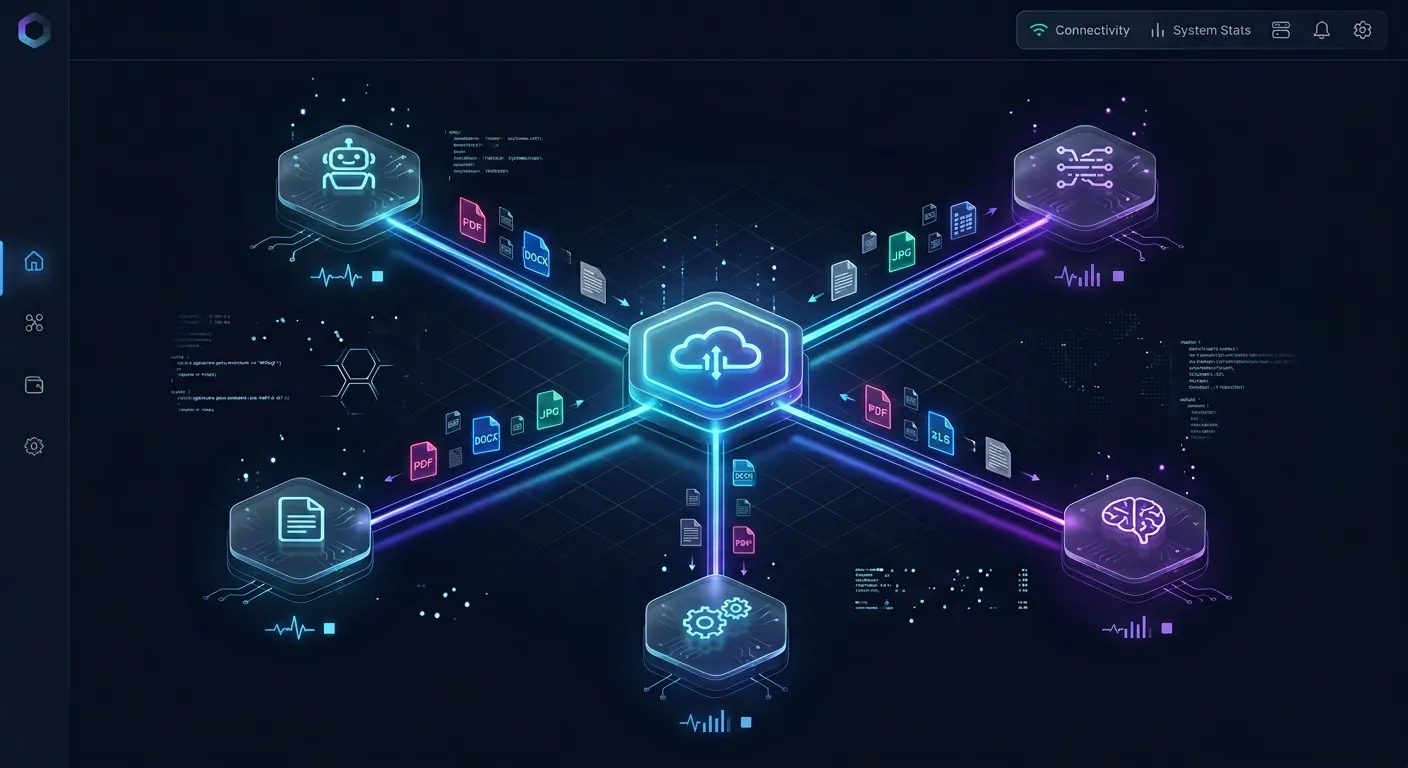
Maintaining Existing Storage with Scheduled Cloud Sync
Engineering teams already maintain documentation, contract specifications, and architectural diagrams across established enterprise repositories like Google Drive, Dropbox, Box, OneDrive, and SharePoint. Requiring engineers to duplicate these folders onto local laptops wastes disk space and creates version divergence.
Fast.io bridges existing storage into indexed workspaces. Cloud Sync connects Google Drive, Dropbox, Box and OneDrive folders to a workspace, one-way or two-way, on a schedule or on demand (never continuous, live or real-time; SharePoint libraries connect through the OneDrive connector).
Once files land in a Fast.io workspace, Intelligence Mode automatically indexes their contents for hybrid search. Hybrid search combines full-text lexical search, semantic vector retrieval, and metadata value filtering. When an AI agent needs context, it does not scan unindexed folders; it queries the workspace index and retrieves only the precise paragraphs and code blocks relevant to the prompt. For structured documents like technical specifications, schemas, or tabular assets, Metadata Views extract typed attributes into filterable schemas that agents can query directly via MCP.
The connector comparison is published at fast.io/benchmarks/ and that page is the only place its numbers live. In that published testing, Fastio was measured the fastest and the lowest cost of the providers tested. Every measured row evaluated that provider's native connector in Claude Cowork; no row evaluated a local stdio server, a Files-On-Demand stub, or SharePoint, and SharePoint was not measured at all.
Configuring Continue.dev with Remote Streamable HTTP MCP
Connecting Continue to an intelligent Fast.io workspace replaces the local stdio configuration with a remote Streamable HTTP endpoint.
Coding agents in an IDE, including Continue, Cursor, Claude Code, and VS Code, connect to the dedicated coding endpoint at https://mcp.fast.io/mcp/code. Review the Fast.io MCP documentation for setup specifics. For headless automation, developers can review the agent developer reference and explore architectural patterns at storage for agents.
To configure Continue with Fast.io, update ~/.continue/config.yaml:
name: Developer Configuration
version: 1.0.0
schema: v1

mcpServers:
  - name: fast-io-workspace
    type: streamable-http
    url: https://mcp.fast.io/mcp/code
When Continue connects to https://mcp.fast.io/mcp/code, interactive sessions use OAuth 2.0 authentication. The browser opens a review screen where you select your organization, workspace, and permissions (Read Only or Read & Write). Headless scripts or background workers pass an API key as an Authorization: Bearer <api_key> header.
Every file in Fast.io retains full version history, and a detailed activity log records changes (uploads, edits, moves, deletions, and permissions updates) across team members and automated agents. Permissions are configured per organization, workspace, and share, ensuring agents only access designated workspace content.
Plan Tiers and Capacity Allocations
Fast.io organizes shared workspaces with transparent capacity boundaries:
Monthly plans start with a 14-day free trial that requires a credit card. Check Fast.io pricing for complete subscription details.
Troubleshooting and Diagnostic Checklist for Continue.dev Filesystem MCP
When configuring Model Context Protocol servers in Continue, errors can arise from path misconfigurations, missing Node.js dependencies, or permission boundaries. Use this diagnostic workflow to identify and resolve common issues.
1. "Access denied - path outside allowed directories"
This error occurs when the language model attempts to read, write, or list a path that does not match the directories declared in the args array:
- Verify Canonical Paths: The filesystem server resolves symbolic links before checking boundaries. If your workspace contains a symlink pointing to another volume or user directory, add the destination directory to
args. - Avoid Relative Path Notations: Ensure all paths in
config.jsonorconfig.yamlare absolute paths starting with/Users/usernameon macOS,/home/usernameon Linux, orC:/Users/usernameon Windows. - Update Server Roots: In Continue, add all relevant project dependencies to the server arguments list and restart the extension.
2. "MCP server failed to start: spawn npx ENOENT"
If Continue displays an ENOENT error upon launching the MCP server, the IDE extension cannot locate the npx binary in its environment:
- GUI Application PATH Differences: On macOS and Linux, applications launched from the desktop dock or application menu do not inherit shell configuration files (
~/.bashrc,~/.zshrc). The IDE environment may only see/usr/bin:/bin. - Provide Absolute Binary Paths: Replace
"command": "npx"with the absolute path to your Node.js package runner, such as/usr/local/bin/npx,/opt/homebrew/bin/npx, orC:/Program Files/nodejs/npx.cmd.
3. Tools Not Visible in Continue Chat
If the filesystem tools do not appear or if the model claims it cannot inspect files:
- Check Active Mode: Verify that Continue is in Agent Mode. Standard Chat mode does not load MCP tools.
- Inspect Extension Logs: Open the IDE Output panel (
View > Outputin VS Code) and select Continue from the dropdown menu to inspect startup logs and connection errors. - Review Terminal Stdio Clashes: If you wrapped the server command in a shell script, ensure the script does not output text to
stdout.
Architecture Comparison: Local Filesystem MCP vs Remote Workspace MCP
Evaluating your project requirements helps determine whether local stdio servers or remote cloud workspaces provide the right foundation:
Sources
References used to verify factual claims in this guide.
-
The official Model Context Protocol filesystem server restricts operations strictly to user-specified allowed directories passed via command-line arguments.
-
Continue requires users to operate in agent mode to execute tools exposed by Model Context Protocol servers.
Frequently Asked Questions
How do I add a filesystem MCP server to Continue.dev?
Add an entry to the mcpServers list in ~/.continue/config.yaml or ~/.continue/config.json. Specify npx as the command, with args including -y, @modelcontextprotocol/server-filesystem, and the absolute paths to the directories Continue is allowed to access. Then switch Continue to Agent Mode.
Where is the Continue.dev MCP configuration file?
The global configuration file is located at ~/.continue/config.yaml (or legacy config.json) on macOS and Linux, and %USERPROFILE%\.continue\config.yaml on Windows. You can also place modular YAML configuration files inside a .continue/mcpServers/ directory at your workspace root.
How can Continue.dev read files outside the project root?
By adding external directory paths as additional arguments to the filesystem MCP server entry in your config file. Once declared, the server permits the AI agent to read, list, and edit files inside those designated directories while blocking unlisted system locations.
Why does Continue.dev delay or freeze when scanning cloud-synced folders?
Cloud sync clients like Dropbox, Google Drive, Box, and OneDrive store online-only files as dataless stubs. When Continue performs recursive unindexed scans, synchronous POSIX system calls force the operating system to download stubs or wait on network responses, blocking Node.js execution threads.
Does Continue.dev support remote cloud workspaces through MCP?
Yes. Continue supports remote MCP servers over Streamable HTTP. You can configure remote endpoints under mcpServers, allowing Continue to query indexed cloud storage with hybrid search without storing files on your local drive. Explore patterns at /storage-for-agents/.
Why are filesystem MCP tools not appearing in my Continue chat?
Model Context Protocol tools only function when Continue operates in Agent Mode. If the extension is set to standard Chat mode, tools remain inactive. Use the mode dropdown in the Continue chat panel to toggle to Agent Mode.
Related Resources

Connect Continue.dev to Shared Cloud Workspaces
Eliminate local sync bottlenecks and IDE thread delays by linking Continue to indexed Fast.io workspaces over Streamable HTTP. Monthly plans start with a 14-day free trial.