Setting Up MCP Filesystem on Windows: Overcoming Path and Cloud Sync Issues
MCP filesystem on Windows enables AI agents running on Windows to interact with local files, overcoming Windows-specific path formatting and cloud storage placeholder constraints. Local stdio servers like @modelcontextprotocol/server-filesystem often fail due to shell execution differences, backslash escaping in JSON configuration files, and OneDrive Files On-Demand hydration delays.

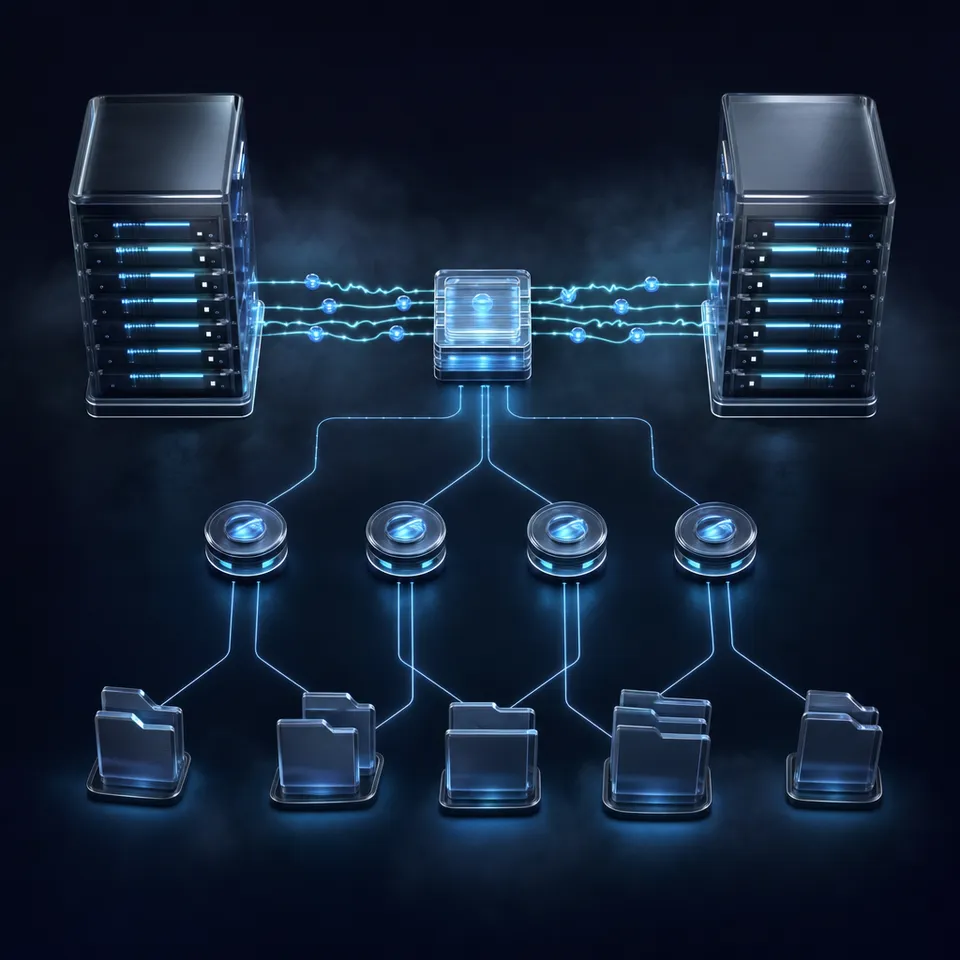
What Causes Local MCP Filesystem Failures on Windows
Local Model Context Protocol filesystem servers on Windows fail at the boundary between Unix process conventions and Windows operating system internals. Desktop AI clients including Claude Desktop, Cursor, and Cline communicate with local MCP tools across standard input and standard output (stdio) streams. On Linux and macOS, client runtimes spawn child processes directly through standard shell pathways. On Windows, executing local filesystem servers introduces distinct architectural friction across process execution wrappers, path syntax conventions, and cloud file virtualization.
MCP filesystem on Windows enables AI agents running on Windows to interact with local files, overcoming Windows-specific path formatting and cloud storage placeholder constraints. The official filesystem server reference implementation, @modelcontextprotocol/server-filesystem, is distributed as a Node.js package. Windows developers frequently encounter unexpected ENOENT (error no entry) process termination errors upon launch. The failure stems from how Windows identifies executable binaries. While Unix environments execute scripts directly using shebang lines, Windows relies on file extensions. In a Windows Node.js installation, the command runner npx exists not as a binary executable, but as npx.cmd, a Windows Command script. When an MCP client attempts to spawn npx without the shell extension or command processor wrapper, the Windows process manager cannot resolve the executable target, abruptly closing the stdio pipe before server handshake negotiation completes.
Beyond process spawning, path formatting creates persistent integration hurdles. Windows file paths historically rely on drive letters and backward slashes, whereas JSON configuration formats treat backward slashes as escape delimiters. When developers copy absolute Windows paths into client configuration files without double escaping, the parser either corrupts directory targets or throws unhandled syntax exceptions.
The most disruptive failure occurs when local directories overlap with cloud synchronization providers like Microsoft OneDrive. Modern Windows installations default to redirecting user folders into cloud-backed storage. OneDrive manages local disk space using on-demand dehydration, creating reparse points that leave empty placeholder stubs on disk. When an autonomous agent attempts a synchronous read on a dehydrated file, the local stdio server stalls while waiting for network retrieval, often timing out and crashing the active tool session. Understanding these underlying mechanisms allows engineering teams to implement reliable configurations or transition to cloud-native workspace storage.
Related guides
- Cloud Storage MCP: Connecting AI Agents to Drive, Dropbox, and OneDriveAI agents require access to files stored across Google Drive, Dropbox, Box, and OneDrive, but local filesystem...
- How to Build a Shared Filesystem MCP Server for AI Agent RoomsMost modern coding agents use MCP for local tool calling, but isolating these tools to single developer machines limits...
- OneDrive MCP Integration: Graph API Limitations and Remote Workspace SyncDeploying an onedrive mcp integration reveals severe operational constraints across local sync folders and direct Graph...
- How to Sync OneDrive to MCP for AI Coding and Workflow AgentsSyncing OneDrive to MCP allows AI agents to access Microsoft OneDrive files through a standardized protocol by...
- How to Connect ChatGPT to OneDrive Using MCPConnecting OpenAI models to enterprise document stores requires moving beyond brittle local folder scripts. A ChatGPT...
- How to Connect Google Gemini to Microsoft OneDrive via MCPGemini OneDrive MCP is a configuration that bridges Google Gemini AI models with Microsoft OneDrive storage via the...
More on this subject: MCP and Model Context Protocol (249 guides)
How to Configure Windows MCP Filesystem Paths and Process Launchers
Resolving local MCP filesystem errors on Windows requires explicit process wrapping and disciplined path normalization. Because MCP client applications launch stdio servers using Node.js child process primitives, the configuration must accommodate Windows shell execution behavior.
To launch @modelcontextprotocol/server-filesystem reliably across Windows environments, configure your client to invoke the Windows Command Processor, cmd.exe, passing /c followed by the npx command. The /c flag instructs cmd.exe to execute the specified command string and terminate upon completion, allowing the MCP server to take ownership of the stdio communication stream.
The following configuration demonstrates the required structure for Claude Desktop (%APPDATA%/Claude/claude_desktop_config.json) and Cline (cline_mcp_settings.json):
{
  "mcpServers": {
    "filesystem": {
      "command": "cmd.exe",
      "args": [
        "/c",
        "npx",
        "-y",
        "@modelcontextprotocol/server-filesystem",
        "C:/Users/username/Projects",
        "C:/Users/username/Documents"
      ]
    }
  }
}
Notice the directory path formatting in the arguments list. In JSON syntax, a single backward slash indicates an escape sequence such as a newline or tab character. Entering C:\Users\Username\Projects causes immediate parsing errors. Even worse, paths containing sequences like \u trigger Unicode escape errors that halt the entire client application.
Developers have two valid approaches for formatting Windows paths in MCP configuration files:
- Forward slashes: Using forward slashes (
C:/Users/username/Projects) is the cleanest approach. Windows kernel system calls and Node.js path modules natively parse forward slashes as directory separators, completely eliminating JSON escape issues. - Escaped backslashes: If backward slashes are required by downstream tools, double every backslash (
C:\\Users\\Username\\Projects) so the JSON parser resolves each pair to a single literal backward slash.
Step-by-Step Configuration Checklist for Windows MCP Stdio
Follow this checklist when initializing or troubleshooting local filesystem servers on Windows:
- Verify Node.js installation in system PATH: Open a Windows PowerShell window and verify that both
nodeandnpxexecute successfully from the terminal. - Target explicit project directories: The
@modelcontextprotocol/server-filesystemserver requires one or more directory paths passed as positional arguments. The server restricts agent operations strictly to those specified directory boundaries. - Use absolute drive paths: Always provide absolute paths beginning with the drive letter. Relative paths like
./workspaceresolve relative to the MCP client application binary rather than your working repository, causing directory lookup failures. - Inspect client launch logs: When an MCP server fails to connect, review the client log files located in
%APPDATA%/Claude/logsor your IDE extension output window to confirm whether the failure is anENOENTcommand issue or a JSON parsing exception.
Why OneDrive Files On-Demand Stalls and Crashes Local MCP Servers
Even when command wrappers and JSON path syntax are correctly configured, local MCP filesystem servers frequently lock up when inspecting folders managed by cloud sync providers. Microsoft OneDrive, Dropbox, and Box on Windows employ virtualization technologies to optimize local disk space. While convenient for human interactive browsing, these mechanisms create severe latency and stability problems for automated AI agents.
The Mechanics of Cloud Files Reparse Points
OneDrive on Windows implements Files On-Demand through the Windows Cloud Files API and the filesystem filter driver cldflt.sys. When Files On-Demand is active, files stored in the cloud appear in Windows File Explorer but do not occupy space on the local drive. The operating system represents these items as NTFS reparse points tagged with specific file attributes, notably FILE_ATTRIBUTE_RECALL_ON_DATA_ACCESS and FILE_ATTRIBUTE_OFFLINE.
When a human user double-clicks a placeholder file, Windows suspends the application, downloads the file stream in the background, writes the bytes to disk, clears the recall attribute, and passes the file handle back to the application.
AI agents, however, interact with files programmatically through standard MCP tools like read_file, list_directory, and get_file_info. When an agent initiates a search across a project folder, the MCP server issues rapid sequential or parallel filesystem read requests across hundreds of files.
This automated inspection triggers critical operational bottlenecks:
- Network retrieval latency: Dehydrated files require on-demand network transfers from Microsoft servers. If an agent attempts to inspect multiple dehydrated technical reports, each file download introduces unpredictable network latency.
- Client timeout termination: Standard MCP client runtimes enforce strict tool execution timeouts to prevent hung processes. When multiple file hydration requests queue up behind the Windows filter driver, tool calls exceed client timeout limits, prompting the client to terminate the stdio session.
- File lock exceptions: If OneDrive background synchronization processes synchronize a file while an agent attempts to read or write to it, Windows returns
EBUSYor sharing violation errors (ERROR_SHARING_VIOLATION), terminating tool execution.
Microsoft documentation explains that the Windows File Explorer MCP connector provides access to common user folders including Documents, Desktop, Downloads, Music, Videos and Pictures on the device. Because modern Windows configurations routinely redirect the entire Documents and Desktop hierarchies into OneDrive storage, pointing an MCP server at your default user folders inevitably exposes agent workflows to placeholder stubs.
Troubleshooting and Hydrating Local Cloud Folders
If you must run local stdio filesystem tools on cloud-synced Windows directories, follow these remediation steps:
- Disable Files On-Demand for agent workspaces: Open File Explorer, navigate to your workspace directory inside the OneDrive folder, right-click the folder, and select "Always keep on this device". Wait until the synchronization status indicator changes to a solid green checkmark.
- Force batch hydration with PowerShell: If File Explorer fails to hydrate deep subdirectories, open PowerShell and execute the attribute command to pin files locally:
attrib -U +P /s /d "C:\Users\Username\OneDrive\Workspace\*"
The -U parameter removes the pinned-offline attribute, while +P pins the files locally, forcing Windows to download all file contents immediately.
- Isolate agent workspaces outside cloud sync trees: Relocate active agent working directories to a dedicated local directory outside of OneDrive, such as
C:/AgentWorkspaces/.
While local pinning resolves immediate hydration hangs, it reintroduces local disk consumption and creates synchronization conflicts when multiple team members or automated agents edit the same repository simultaneously.


Connect Windows Agents to Cloud Workspaces Without Sync Errors
Deploy persistent, searchable storage for your AI agents without local stdio crashes or OneDrive hydration locks. Fast.io provides org-owned workspaces, hybrid semantic search, and an MCP server over Streamable HTTP. Every organization starts with a 14-day free trial.
How Local Filesystem Access Compares to Cloud Storage Connectors
Engineering teams evaluating agent architectures quickly discover that local stdio filesystem servers do not scale beyond a single workstation. In enterprise workflows, team members already maintain source materials, client documents, and research data in platforms like Microsoft OneDrive, Dropbox, Box, Google Drive, and SharePoint. Bridging these repositories to autonomous agents requires choosing between local stdio access, native cloud connectors, and remote cloud workspace platforms.
Local stdio tools like @modelcontextprotocol/server-filesystem run entirely on the host machine. While they provide direct file access for personal developer experiments, they require local compute, depend on host operating system stability, and fail when managing large document corpora or concurrent agent collaboration.
Native cloud connectors provided by individual platforms offer an alternative, allowing agents to reach cloud files over vendor APIs. However, native connectors often process documents by pulling full file payloads across REST interfaces into agent context windows. This approach consumes excessive API bandwidth, increases token overhead, and introduces latency during exploratory research.
In testing published at the connector comparison, Fastio was measured the fastest and the lowest cost of the providers tested against native cloud connectors in Claude Cowork. The published benchmark demonstrates that dedicated cloud workspace infrastructure substantially reduces retrieval latency and token consumption compared to querying raw cloud storage APIs.
Fast.io bridges existing enterprise storage with autonomous agents through Cloud Sync. Rather than migrating entire file archives away from current systems, teams connect their existing Google Drive, Dropbox, Box, or OneDrive accounts directly to an org-owned Fast.io workspace. Folders sync into the workspace one-way or two-way, on a schedule or on demand. SharePoint document libraries connect directly through the OneDrive connector. Synchronization operates without continuous background polling or local I/O bottlenecks.
Once files sync into the Fast.io workspace, Intelligence Mode auto-indexes documents on arrival. Instead of an agent reading hundreds of local files over fragile Windows stdio pipes or downloading full documents from cloud storage, the agent queries the indexed workspace using semantic search, retrieving only relevant context passages accompanied by source citations.
Steps to Connect AI Agents to Fast.io Remote MCP Storage
Transitioning from a local stdio filesystem server to a remote cloud workspace eliminates Windows path quirks, batch command wrappers, and OneDrive hydration delays. Fast.io delivers a remote Model Context Protocol server over Streamable HTTP, giving AI agents direct programmatic access to persistent, org-owned workspaces.
Because the Fast.io MCP server operates as a remote cloud endpoint, configuration in Windows agent clients requires no cmd.exe process wrappers, no local Node.js runtime, and no file path escaping. Agents running in Claude Desktop, Cursor, or Cline connect directly to the remote URL over secure HTTP.
Configuring the Remote MCP Endpoint
To connect an AI agent to your Fast.io workspace on Windows, configure your client settings file:
{
  "mcpServers": {
    "fastio": {
      "url": "https://mcp.fast.io/mcp/tools"
    }
  }
}
The endpoint at https://mcp.fast.io/mcp/tools uses Streamable HTTP. Interactive clients sign in with OAuth in the browser, where a Review Permissions screen lets you select Read Only or Read & Write and choose which organizations and workspaces the connection can reach. Step-by-step setup guides for supported clients are available in the Fast.io documentation. Learn more about configuring dedicated agent environments on the Fast.io storage for agents page and exploring automated multi-cloud ingestion on the cloud import page.
Working with Shared Workspaces and Version Control
Once connected, your agent interacts with the workspace through a consolidated MCP toolset. Rather than issuing low-level operating system calls, the agent operates through specialized tools designed for collaborative knowledge work:
- Hybrid search: Agents execute semantic and full-text searches across workspace files using workspace intelligence, locating precise data points without scanning entire directory trees.
- Per-file version history: When an agent writes or updates a file, Fast.io automatically preserves full version history. If two agents or human teammates update the same document concurrently, both revisions are recorded without data loss.
- Advisory file leases: Agents coordinate access to shared files using advisory locks via the storage_manage tool actions
lock-acquire,lock-status, andlock-release. Leases prevent coordination conflicts while allowing teammates full visibility into active edits. - Human-agent collaboration: Files created or updated by agents appear immediately in the Fast.io web workspace for human review. Team members can annotate content using Collaborative Notes, review updates through the append-only audit log, or transfer workspace ownership to clients.
Moving agent file operations from local Windows stdio pipes to remote cloud workspaces provides your agents with a stable, high-performance foundation that eliminates local synchronization errors.
Sources
References used to verify factual claims in this guide.
-
Microsoft documentation explains that the Windows File Explorer MCP connector provides access to common user folders including Documents, Desktop, Downloads, Music, Videos and Pictures on the device.
Frequently Asked Questions
How do I configure MCP filesystem on Windows?
To configure the local MCP filesystem server on Windows, set cmd.exe as the command in your client configuration and pass the /c flag followed by npx and @modelcontextprotocol/server-filesystem. Specify target project directories using forward slashes (such as C:/Users/username/Projects) or escaped double backslashes. Wrapping the call in the Windows Command Processor ensures that npx.cmd executes properly without throwing ENOENT process launch errors.
Why does MCP fail when reading OneDrive files on Windows?
Local MCP servers fail when reading OneDrive files because of the Windows Cloud Files API Files On-Demand feature. Dehydrated files remain on disk as NTFS reparse points with recall-on-data-access attributes. When an agent attempts a synchronous read on a dehydrated stub, the operating system pauses I/O to download the file over the network. If the download takes too long or OneDrive is paused, the tool call exceeds client execution timeouts and crashes the stdio process with EBUSY or ETIMEDOUT errors.
How do you format file paths for MCP servers in Windows config files?
Windows file paths in JSON configuration files must either use forward slashes (C:/Users/username/Workspace) or double backward slashes (C:\\Users\\Username\\Workspace). Standard JSON syntax treats a single backward slash as an escape delimiter, so unescaped paths like C:\Users fail to parse or cause invalid Unicode escape errors. Forward slashes are natively parsed by Windows system calls and Node.js runtime modules, making them the most reliable choice.
How does remote MCP storage differ from local stdio filesystem access on Windows?
A local stdio MCP server runs as a child process on your Windows machine, reading local directories directly and remaining vulnerable to shell launcher quirks and cloud hydration delays. A remote MCP server, such as Fast.io, runs over Streamable HTTP. It connects your agent to cloud-hosted workspaces where files from OneDrive, Box, or Dropbox are indexed with Intelligence Mode, allowing agents to execute hybrid semantic search without consuming local disk space or managing process wrappers.
Related Resources

Connect Windows Agents to Cloud Workspaces Without Sync Errors
Deploy persistent, searchable storage for your AI agents without local stdio crashes or OneDrive hydration locks. Fast.io provides org-owned workspaces, hybrid semantic search, and an MCP server over Streamable HTTP. Every organization starts with a 14-day free trial.