How to Build a Shared Filesystem MCP Server for AI Agent Rooms
Most modern coding agents use MCP for local tool calling, but isolating these tools to single developer machines limits team collaboration. Deploying a hosted filesystem MCP server coordinates multi-agent swarms in a shared environment and cuts context synchronization delays. This guide covers how to configure secure server backends, map directory permissions, and coordinate human-agent development workflows.

Establishing the Coordination Layer for Autonomous Agents
Many modern coding agents use the Model Context Protocol (MCP) for local tool calling. However, standard local setups restrict these agents to individual developer machines, creating a massive collaboration gap. When scaling to multi-agent swarms, a shared filesystem meaningfully shortens context synchronization delays compared to typical file synchronization approaches. This gap between localized sandboxes and team-wide coordination is where a hosted filesystem MCP server becomes essential.
The Model Context Protocol, developed to standardize how large language models interact with external data sources, relies on a client-server architecture. In a local setup, the host application (such as Claude Desktop or Cursor) acts as the client, spawning the filesystem server as a local subprocess. The client communicates with the server via standard input/output (stdio), passing JSON-RPC messages to read or write files within a specified directory. While this local model works well for a single developer writing code on a laptop, it breaks down in team environments.
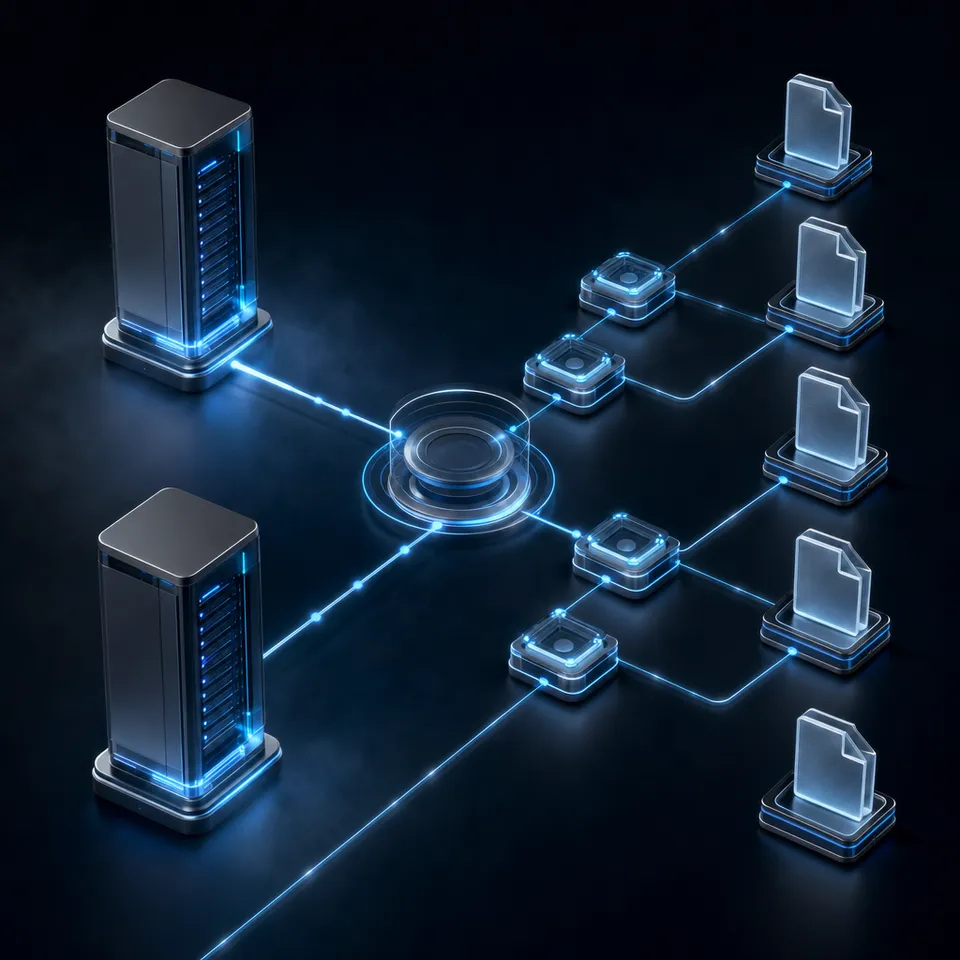
When multiple agents and humans need to collaborate on a shared project, running isolated local servers forces each agent to operate on a fragmented copy of the codebase. A shared filesystem MCP server addresses this by shifting the filesystem server from a local loopback process to a hosted service. By establishing a shared backend, agents running on remote servers, cloud containers, or developer machines can access the same files. This shared architecture creates a neutral directory where agents can read, write, and coordinate their outputs. For example, a research agent can write raw data to a shared folder, which immediately triggers a writer agent to draft a report, all while a human manager monitors the files from a web interface. Shifting the filesystem from a local sandbox to a shared team resource is a critical step in scaling agentic workflows.
Related guides
- Setting Up MCP Filesystem on Windows: Overcoming Path and Cloud Sync IssuesMCP filesystem on Windows enables AI agents running on Windows to interact with local files, overcoming...
- How to Build an MCP Server in GoGo is a strong fit for MCP servers thanks to its compiled performance, lightweight goroutines, and simple deployment as...
- How to Build an MCP Server with FastAPI and PythonGuide to mcp server fastapi python: You can use FastAPI to turn Python code into standardized tools for AI agents like...
- How to Build an MCP Server with Java Spring BootBuilding an MCP server with Java Spring Boot lets you use the Model Context Protocol within the Spring ecosystem....
- How to Build MCP Servers with Python: Best PracticesThe Model Context Protocol (MCP) gives AI agents a standard way to connect to external data and tools. This guide walks...
- How to Build an MCP Server for Dropbox IntegrationBuilding an MCP server for Dropbox enables AI agents to access, manage, and analyze files stored in Dropbox directly...
More on this subject: MCP and Model Context Protocol (244 guides)
Why Multi-Agent Swarms Require Shared Filesystems
When building workspaces where multiple agents run side by side, local storage limits coordination. Standard single-agent tools operate within a sandboxed terminal session on a single computer. When a secondary agent needs to read the output of the first agent, it must wait for a manual push or a local file sync process. This delay increases context synchronization latency, leading to outdated file reads and conflicting edits.
To coordinate effectively, agents need a neutral ground. Development teams run diverse models and frameworks, including Claude Code, Codex, Cursor, Gemini, OpenClaw, CrewAI, LangGraph, and AutoGen. If each tool maintains its own local directory, tracking the lineage of a file becomes impossible. For example, if a Claude Code agent generates a Python script on one machine, a LangGraph agent running on a cloud server cannot access it without a manual file transfer. This fragmentation results in duplicate execution, where agents write conflicting code blocks because they lack visibility into each other's work.
Traditional cloud storage options like Google Drive, Dropbox, or Box do not solve this problem. These tools were designed for human file synchronization, relying on slow desktop clients and background polling. They lack the real-time event loops and immediate write performance that automated agents require. When an agent writes thousands of log lines or processes chunked code outputs, legacy storage APIs introduce API throttling and latency.
Also, traditional file sharing systems do not support the structured tool definitions that large language models expect. An agent cannot query Google Drive for files using semantic context without writing complex API integrations. A shared filesystem MCP server resolves these issues by wrapping the file directory in standard MCP tools. This allows agents to list, read, search, and edit files using simple, unified JSON-RPC commands, regardless of where the agent is running.
For organizations looking to scale agent collaboration, Fast.io provides a hosted workspace platform that bridges this gap. Instead of managing complex server infrastructure, teams can use Fast.io Workspaces to establish shared, org-owned folders that both humans and agents can access. Fast.io exposes action-based MCP tooling directly via Streamable HTTP at /mcp and legacy SSE at /sse, allowing any external agent framework to connect and interact with files in real time. Learn more about the server capabilities on the Fast.io MCP Server page.
A hosted alternative removes the filesystem from the equation entirely; the Fastio MCP integration guide covers connecting agents to a shared workspace instead.


Coordinate agent swarms inside one shared workspace
Set up a persistent, version-controlled workspace for your AI agents with a consolidated MCP server endpoint. Start your 14-day free trial today (credit card required) to connect Claude Code, Gemini, and custom agents.
How to Configure a Shared Filesystem MCP Server Backend
Setting up a shared filesystem MCP server requires moving from local execution to a hosted backend. This ensures that the server can accept remote connections from different agent clients while maintaining strict access controls.
Here is the 4-step checklist for configuring a shared MCP server backend:
- Provision a central server or Docker container running the Node.js filesystem server.
- Define permission boundaries and map shared directories (read-write or read-only volumes).
- Establish secure client authentication using ToolHive or API gateway wrappers.
- Expose the server endpoint via secure HTTP/SSE to agent clients.
To implement this, you can run the official filesystem server package using Node.js. Install the package globally or run it via npx. For security, wrap the server process in an isolated environment. Stacklok ToolHive provides a secure containerized environment for this purpose, preventing unauthorized directory access by local processes.
Below is an example CLI command to mount a specific local directory onto a containerized filesystem MCP server running via ToolHive:
thv run --volume /path/to/host/directory:/projects filesystem
By default, the server expects files to be located in the /projects directory. If you mount your files to a different path inside the container, you must pass that path as an argument to the server command so the agent can discover it. For instance, if you mount a directory to /data, the execution command should be updated to target /data directly:
thv run --volume /path/to/host/directory:/data filesystem -- /data
For teams deploying on Kubernetes, you can run the filesystem MCP server by declaring an MCPServer custom resource. This maps a persistent volume claim (PVC) to the container path and exposes a proxy port for stdio-to-HTTP translation:
apiVersion: toolhive.stacklok.dev/v1beta1
kind: MCPServer
metadata:
  name: filesystem
  namespace: toolhive-system
spec:
  image: mcp/filesystem:1.0.2
  transport: stdio
  proxyPort: 8080
  args:
    - '/projects'
  podTemplateSpec:
    spec:
      volumes:
        - name: my-mcp-data
          persistentVolumeClaim:
            claimName: my-mcp-data-claim
      containers:
        - name: mcp
          volumeMounts:
            - mountPath: /projects/my-mcp-data
              name: my-mcp-data
              readOnly: false
Once the container or service is running, external agents can connect to it. This hosted approach allows cloud-based swarms (like OpenClaw or CrewAI) to invoke file tools without running local node processes. If you prefer to avoid hosting your own backend infrastructure, Fast.io provides a consolidated MCP toolset out of the box. Agents can connect to a shared workspace using a single API token, with Fast.io handling all container hosting, volume mapping, and connection scaling automatically.
Steps to Secure and Manage Access Control for Shared Agent Rooms
Transitioning from a single-user local filesystem server to a shared multi-agent room introduces significant security challenges. Because LLM agents have the capacity to execute commands and modify files, allowing them unrestricted read-write access to a shared repository can lead to accidental data deletion, unauthorized data exposure, or prompt injection exploits. Securing a shared room requires establishing strict permission boundaries.
The first step in securing a shared workspace is mounting directories with minimal privileges. If an agent only needs to analyze logs or read documentation, mount the target volume as read-only. For example, in ToolHive, you can append a :ro flag to the volume mount:
thv run --volume /path/to/host/directory:/projects:ro filesystem
This prevents the agent from modifying or deleting files, even if the model attempts to execute a write command.
The second step is isolating network access. Standard filesystem MCP servers do not require outbound network access to perform local read and write operations. Enabling network isolation prevents a compromised agent from exfiltrating sensitive data to an external server. ToolHive blocks outbound traffic by default, but you can explicitly pass a flag to restrict the container:
thv run --permission-profile none --volume /path/to/host/directory:/projects filesystem
In a team workspace environment, human administrators must manage which directories and folders are exposed. Fast.io implements this security layer through granular permissions (org, workspace, folder, or file level) and a detailed activity log. Every time an agent reads a file, writes a new script, or creates a shared link, the action is recorded in the activity log. This provides full visibility into agent behavior, making it easy to trace how a file changed.
Teams can also use Fast.io Metadata Views to structure the files within their workspaces. Instead of allowing agents to traverse raw text files recursively, Metadata Views extract critical information (like contract dates, finance figures, or invoice totals) into a structured, sortable database. Agents can query this structured view through the Fast.io MCP endpoint, avoiding the risk of giving agents direct access to raw filesystem volumes.
Best Practices for Collaborative Multi-Agent Code Generation
When multiple agents work on the same codebase, conflict resolution becomes a critical engineering challenge. In a shared room, two agents might attempt to write to the same file simultaneously, causing race conditions and lost work. To maintain stable workflows, teams should adopt structured coordination patterns.
First, define clear folder boundaries and workspace paths. Group agents by role and restrict their tool access to specific directories. For example, a frontend agent should only have write access to /projects/frontend, while a backend agent operates in /projects/backend. Fast.io supports this by allowing administrators to configure separate folder-level permissions, ensuring agents cannot overwrite each other's workspace files.
Second, use version control and tracking. Since agents can make hundreds of edits per minute, tracking history is essential. Fast.io maintains a complete per-file version history for all assets in a workspace. If an agent introduces a bug or corrupts a file, a developer or another agent can restore a previous version with a single click. This creates a safety net for automated operations.
Third, establish review checkpoints. Before allowing an agent to push code to production or write directly to shared repositories, build in a human review step. Fast.io's per-file version history and detailed activity log make this practical: when an agent finishes writing a script, a teammate opens the file, reads the version diff, and leaves feedback in Collaborative Notes before the next agent runs. The workspace events feed shows the team the moment a file changes, and once the work is accepted, ownership of the file can be transferred from the agent to the human team via a claim link.
Finally, enable real-time human-agent collaboration. Fast.io Collaborative Notes allow humans and agents to co-edit documents and code snippets in real time. Instead of working in isolated terminals, agents can drop code suggestions directly into a shared note, where team members can comment, edit, and refine the code collaboratively. This ensures that agent output is always integrated with human workflows.
To explore how these capabilities fit your team's development cycle, review the Fast.io pricing options and consider launching a shared workspace.
Sources
References used to verify factual claims in this guide.
-
The ToolHive filesystem MCP server guide covers mounting host directories as volumes, read-only mounts, and network isolation for containerized filesystem servers.
Frequently Asked Questions
What is a filesystem MCP server?
A filesystem MCP server is an implementation of the Model Context Protocol that exposes file operations (such as listing directories, reading, writing, and editing files) as tools that large language models can call. It allows AI agents to interact with files within specified directories, bridging the gap between LLM reasoning and local file storage.
How do you connect Claude to an MCP filesystem?
To connect Claude to an MCP filesystem server, you define the server inside your local `claude_desktop_config.json` configuration file. You specify the command to run the filesystem server, pass the allowed directories as arguments, and restart the Claude Desktop application. For hosted or shared environments, you can use ToolHive or Fast.io to secure and manage the connection endpoint.
Can multiple AI agents share the same filesystem MCP server?
Yes, multiple agents can connect to a shared filesystem MCP server when it is deployed as a hosted service (using HTTP/SSE transports) instead of a local stdio process. This setup allows remote agents and human teammates to collaborate within the same workspace, using tools like Fast.io to manage per-file version history and coordinate file access without conflicts.
Related Resources

Coordinate agent swarms inside one shared workspace
Set up a persistent, version-controlled workspace for your AI agents with a consolidated MCP server endpoint. Start your 14-day free trial today (credit card required) to connect Claude Code, Gemini, and custom agents.