Standardizing File Organization in Legal Matter Management Software
Managing the document substrate of legal matters requires more than financial tracking. This guide covers how corporate legal departments can standardize folder hierarchies, control permissions, and secure external sharing within matter management software to prevent version sprawl and protect client confidentiality.


Why Legal Matter Management Software Requires a Focus on the Document Substrate
Most matter management deployments are bought to control external counsel spend, and they do that well. Tracking billing hours and external budgets only addresses one part of the operational puzzle, though. The real challenge in legal operations is managing the actual document substrate of the matter: how files are stored, organized, and shared safely across internal and external teams. Without standardizing how these files are handled, legal departments face significant risks, including version sprawl, security gaps, and lost efficiency.
Traditional legal departments often treat documents as secondary to financial metrics. As a result, case files are frequently scattered across email attachments, local desktops, and standard shared drives. This lack of centralized organization makes it difficult to maintain a single source of truth for litigation exhibits, contract drafts, or regulatory filings. By shifting focus toward the document substrate, firms can protect confidentiality and ensure that every attorney and paralegal works from the most current file version.
Standard cloud drives are designed for general business collaboration, not the complex filing needs of corporate legal teams. When legal departments rely on flat folder hierarchies or general storage pools, directories quickly become disorganized. Attorneys lose billable hours simply looking for documents, while version control issues lead to outdated terms being included in contract agreements. Legal matter management software is a system designed to help in-house legal departments and law firms manage case files, documents, and workflows on a per-matter basis. By providing a dedicated space where files are organized on a per-matter basis, the software resolves these organizational bottlenecks.
Understanding the difference between case management and matter management is essential for choosing the right system. While case management focuses primarily on litigation tasks, court schedules, and time tracking, matter management handles the broader corporate legal portfolio, including corporate governance, compliance, intellectual property, and transactional records. Focusing on the document substrate ensures that the system serves as a reliable knowledge base for all legal operations, rather than just a billing registry.
The Email-to-Document Integration Challenge
A major source of file fragmentation in legal operations is email correspondence. Clients and opposing counsel frequently send critical evidence, agreements, and pleadings as attachments. If these attachments remain trapped in individual email folders, they are invisible to the rest of the case team. Standard legal matter management software resolves this by allowing teams to ingest email threads and attachments directly into the matter workspace. By integrating email records into the document substrate, legal departments prevent key information from being siloed in personal inboxes, ensuring that the entire team works from a single source of truth.
Related guides
- Law Office File Management: Organizing Matter Folders, Indexing, and ArchivesLaw office file management requires standardized directory hierarchies, predictable file naming conventions, and...
- Legal Vendor Management Software: Managing ALSPs, eDiscovery, and Expert WitnessesLegal vendor management software helps in-house legal departments and law firms centralize procurement, contract terms,...
- Matter Management System: Structuring Workspaces, Budgets, and Legal DocumentsA matter management system serves as the operational engine for corporate legal teams and firms, unifying intake,...
- How to Build an In-House Legal Software Stack: A Practical GuideBuilding an in-house legal tech stack requires a secure document foundation that goes beyond basic cloud storage. This...
- Legal Calendar Software: Rules-Based Docketing and Schedule CoordinationSpecialized legal calendar software prevents missed deadlines, which represent a major risk of professional liability....
- SharePoint for Legal Document Management: Capabilities and LimitsUsing SharePoint for legal document management involves configuring Microsoft 365 libraries and metadata to store,...
More on this subject: Legal Teams (211 guides)
How to Structure Matter-Centric Workspaces in Practice
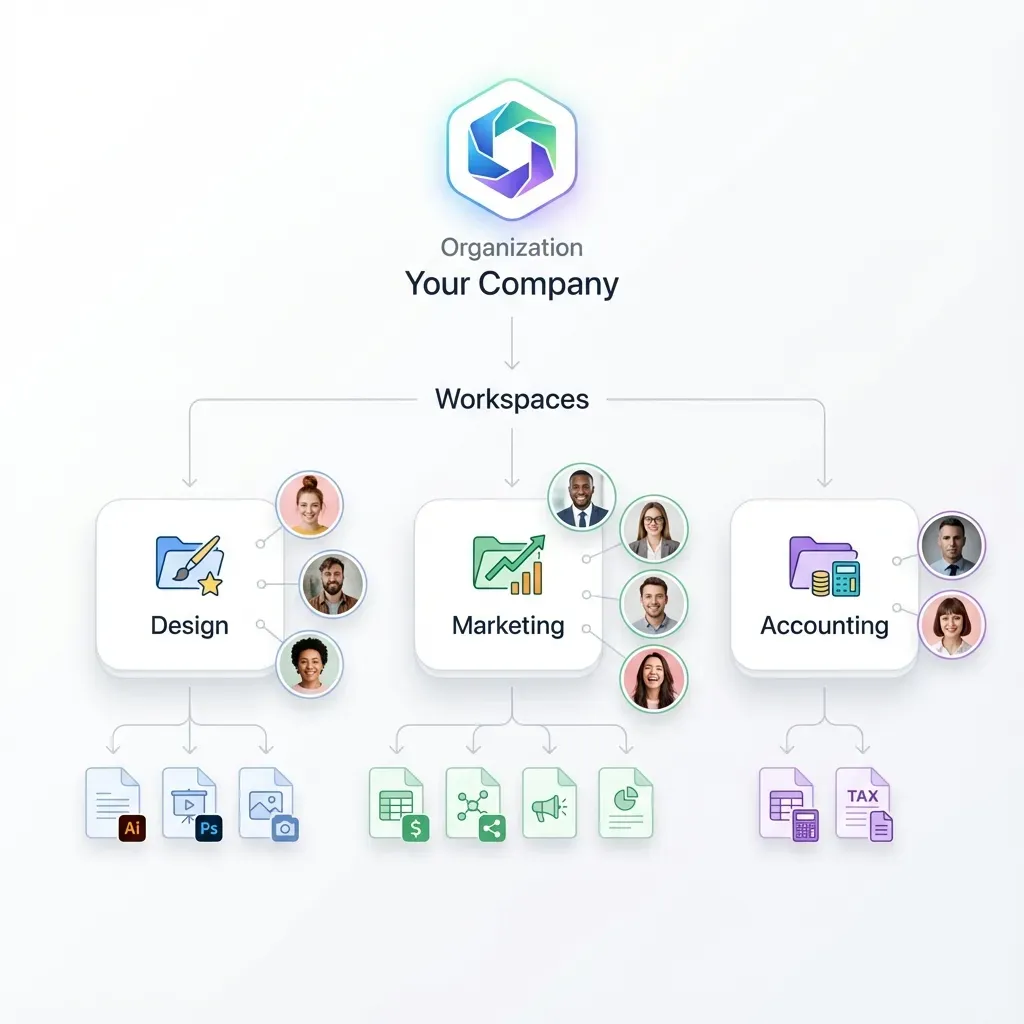
Firms can establish a structured workspace per matter and client to prevent file sprawl and keep case teams aligned. Standardizing folder structures across all matters means a team member joining a matter in its third month already knows where the pleadings are, because they are where they are on every other matter. Rather than maintaining a single massive shared folder for the entire firm, teams should partition files into dedicated workspaces for each matter.
A litigation matter workspace, for example, requires a different folder template than a corporate transaction. When configuring legal matter management software, firms should establish standard folder structures for common practice areas to ensure consistency.
For litigation matters, the workspace should include:
01_Pleadings: For complaints, answers, and formal court filings.02_Correspondence: For communications with clients, opposing counsel, and partners.03_Discovery_Inbound: For documents and files produced by opposing parties.04_Discovery_Outbound: For the firm's own productions and disclosures.05_Exhibits_and_Evidence: For authenticated documents and trial exhibits.06_Motions_and_Orders: For brief drafts, motions, and judge orders.
For transactional matters (such as mergers and acquisitions or corporate restructuring), the folder template should match the deal lifecycle:
01_Intake_and_NDA: For conflict checks, engagement letters, and non-disclosure agreements.02_Due_Diligence: For financial records, employment agreements, and corporate histories.03_Transaction_Documents: For primary deal agreement drafts and revisions.04_Schedules_and_Exhibits: For supporting disclosure schedules and signature packets.05_Closing_Binder: For executed copies and final transaction records.
The table below compares a matter-centric workspace structure with generic shared folders, highlighting the advantages of a dedicated legal workspace:
Transitioning from flat folders to structured workspaces requires clear rules. Case administrators should set up templates that copy these folder layouts automatically upon matter creation. By standardizing folder layouts, legal operations managers prevent attorneys from creating ad-hoc structures that isolate documents. This consistency ensures that any paralegal or co-counsel can join a matter and locate critical files instantly, minimizing administrative delay and protecting firm efficiency.
Steps to Standardize Access Controls and Retention Profiles
Maintaining confidentiality and tracking file custody are critical requirements for corporate legal teams. A modern legal workspace platform provides granular permissions to restrict access to sensitive folders. For example, a firm can grant read-only access to a client folder while keeping internal work product drafts restricted to the case team. These permissions can be adjusted at the workspace, folder, or individual file level, protecting attorney-client work product from unauthorized access.
In addition to permissions, legal operations need visibility into who accessed or modified files. Standard storage solutions lack a detailed audit trail, making it difficult to trace the history of a document. A workspace platform provides a detailed activity log that records every upload, download, view, and version change. This log keeps document access reviewable, which helps with compliance and dispute resolution.
Furthermore, legal files require strict version history to prevent concurrent edits from overwriting valuable work. When multiple attorneys collaborate on a motion or agreement, the workspace preserves every revision. Instead of creating disjointed files with suffixes like '_v2' or '_final_final', the platform maintains a single file name with a complete, restorable version history. This ensures that the team always works on the latest draft while retaining the ability to review prior edits.
Managing file retention is another critical aspect of corporate legal matter management. Legal departments must retain files for statutory periods after a case closes, then dispose of them securely to limit liability. Standard cloud drives require administrators to delete files manually, which leads to outdated records being kept indefinitely. An intelligent matter management system allows administrators to apply retention profiles to archived workspaces, automating file preservation and disposition according to the firm's records management policy.

Chain of Custody and Audit Logging
Maintaining a verifiable chain of custody is a foundational requirement for litigation support and corporate compliance. In the event of a dispute, the firm must be able to prove who accessed, downloaded, or modified specific files, and when those actions occurred. An intelligent legal workspace supports this through its detailed activity log. The activity log records actions by people and agents and is retained according to your plan. This gives the firm a history of file custody to review during internal risk management and external compliance reviews.


Persist legal case files with versioned workspaces
A dedicated environment for legal ops to store, organize, and search client records, featuring metadata extraction and secure external shares. Starts with a 14-day free trial.
Extracting Case Terms with Metadata Views
Legal departments process thousands of transactional and litigation documents monthly, including contracts, pleadings, and corporate filings. Extracting key terms from these documents is historically a manual, error-prone task. Using Metadata Views, legal teams can turn their documents into a live, queryable database. By describing the fields they want extracted in natural language, users can configure a structured database of their legal agreements without setting up manual templates or complex OCR rules.
To create a Metadata View, an administrator describes the columns they need, such as counterparty name, effective date, liability caps, and governing jurisdiction. The workspace's underlying intelligence scans the files in the workspace and populates a sortable, filterable grid. The grid supports seven field types: Text, Integer, Decimal, Boolean, URL, JSON, and Date & Time. This capability is compatible with PDFs, Word documents, images, scanned pages, and even handwritten notes.
This structured data layer differs from basic search or summarization. While semantic search helps find specific paragraphs, Metadata Views extract and structure key details across multiple files. Legal teams can sort contracts by expiration date or filter agreements that contain specific governing law clauses. New columns can be added at any time without reprocessing existing files, enabling legal ops to adapt their database as new questions or compliance requirements arise. Learn more about structured data processing by visiting the Fast.io Document Data Extraction page.
For example, during a corporate due diligence review, a legal team might need to audit one hundred lease agreements for change-of-control provisions. Instead of assigning a paralegal to open and read each file, the team can create a Metadata View with a Boolean column for change-of-control clauses and a text column for landlord names. The system extracts this information automatically, presenting a unified spreadsheet where the team can filter for leases that require landlord consent. This automation reduces review times from days to minutes, allowing attorneys to focus on risk analysis rather than data entry.
Configuring Metadata Schemas without Database Overhead
Traditional databases require database administrators and complex SQL programming to define tables and schemas. In contrast, Metadata Views allow legal operations managers to configure schemas in plain language. For example, a manager can instruct the system to extract the 'governing law state' as a text field or the 'contract value' as a decimal field. The workspace automatically structures the data into columns, allowing users to filter, sort, and search across thousands of documents. This eliminates the need for expensive software development and empowers legal teams to manage their document databases directly.
How to Share Files Securely Without Attachment Overhead
Sharing legal files with clients, co-counsel, and opposing counsel typically relies on email attachments, which introduces significant security risks and size limitations. General cloud links are often too permissive, exposing folders to unauthorized viewers. A professional client portal for law firms resolves this by using branded shares, which allow legal teams to control how external parties access files. These shares can be configured for Send, Receive, or Exchange workflows.
For instance, when distributing trial exhibits to co-counsel, an attorney can create a secure Send share. The share can be set with a specific expiration date and restricted to verified recipient email addresses, ensuring that only the intended partners can view the files. If the firm needs to collect document packages from a client, they can create a Receive share, which allows the client to upload files directly into the workspace without viewing the rest of the folder content. This eliminates the need for insecure, unencrypted email exchanges.
For complex transactions or joint venture negotiations, an Exchange share creates a shared environment where both parties can upload, download, and collaborate on files. These shares can be customized with the firm's branding, custom logo, colors, and backgrounds. The real-time activity feed tracks all file access, ensuring that the firm knows exactly when a client or partner views a document, providing clear visibility and improving external collaboration. For details on how to set up secure shares, visit the Fast.io Portals page.
To build a modern legal workspace for your team, read about our Legal Solutions. Matter-centric file organization is best achieved using dedicated, org-owned Workspaces. By centralizing matter documentation in secure, intelligent workspaces, law firms and corporate legal departments protect client data and reduce administrative overhead.
Client Collaboration without Portal Friction
Requiring clients to create new accounts and remember passwords just to upload a document is a common cause of friction in legal operations. It often leads to clients bypassing the system and sending sensitive files via unencrypted email. Branded shares resolve this by providing guest access links that allow clients to view, download, or upload files securely without creating an account. These links can be set to expire or require one-time email verification codes, protecting client confidentiality while maintaining a simple, direct experience that clients will actually use.
Sources
References used to verify factual claims in this guide.
-
Matter management systems are commonly deployed to track external counsel spend and output
-
A standardized per-matter folder structure lets a new team member locate files without asking
Frequently Asked Questions
What is the difference between case management and matter management?
Case management focuses primarily on litigation tasks, court schedules, and time tracking. Matter management handles the broader corporate legal portfolio, including corporate governance, compliance, intellectual property, and transactional records. While case management systems track billing and calendars, matter management systems focus on organizing files, documents, and workflows on a per-matter basis.
Why do law firms need matter management software?
Law firms need matter management software to standardize how client files are stored, organized, and shared. A dedicated system replaces disjointed shared folders with a consistent structure, preventing file sprawl and ensuring that the team works from the most current document versions. It also provides granular access controls and detailed audit trails, which are critical for preserving confidentiality and maintaining chain of custody.
How do you secure client files when sharing with external counsel?
Client files should be shared using branded shares rather than unencrypted email attachments. These secure shares allow administrators to set expiration dates, require email verification, and restrict downloads. The system's activity log records every view and download, giving the firm clear visibility into when external partners access the shared documents.
What is the best way to transition from generic shared folders to a matter-centric system?
The transition starts with defining standardized folder templates for different practice areas, such as litigation or transactional matters. Case administrators should set up these templates to copy automatically upon matter creation. Existing files should be migrated into these dedicated workspaces, and staff should be trained to use metadata and hybrid search rather than navigating deep folder structures.
Related Resources

Persist legal case files with versioned workspaces
A dedicated environment for legal ops to store, organize, and search client records, featuring metadata extraction and secure external shares. Starts with a 14-day free trial.