How to Integrate Hermes Agent With Slack for Team AI Automation
Hermes Agent's messaging gateway connects to Slack through Socket Mode, giving your team access to a self-improving AI agent directly in channels and DMs. This guide walks through Slack app creation, gateway configuration, channel-specific prompts, multi-workspace support, and solving the file persistence problem with Fastio workspaces.


What Hermes Agent Brings to Slack
Nous Research Hermes Agent is an open-source (MIT-licensed) AI agent that runs on your own server, remembers what it learns, and builds reusable skills from past conversations. The messaging gateway is a single background process that connects Hermes to over 20 platforms, including Slack, Telegram, Discord, WhatsApp, Microsoft Teams, and Matrix. It handles sessions, runs scheduled automations, and delivers voice messages across all configured platforms simultaneously.
Slack gets full feature support: file attachments, threaded replies, emoji reactions, typing indicators, streaming responses, and voice transcription. When someone @mentions the bot in a channel, Hermes replies in a thread. In DMs, it responds to every message without needing a mention. The agent's persistent memory means it builds context over time. Ask it to research a topic on Monday, and it still remembers the findings on Friday.
The integration runs through Slack's Socket Mode, which means no public URL or webhook endpoint is required. Your Hermes instance connects outbound to Slack's API over a WebSocket, reducing the attack surface compared to HTTP-based bot architectures. For teams already running Hermes locally or in Docker, adding Slack takes about ten minutes.
Related guides
- How to Integrate OpenClaw with HubSpot for CRM AutomationOpenClaw can connect to HubSpot's CRM through two paths: Composio's managed MCP server with automatic OAuth, or a...
- How to Integrate OpenClaw with Shopify for Ecommerce AutomationResearchers found 341 malicious skills in OpenClaw's ClawHub marketplace within weeks of its popularity surge, yet...
- How to Connect Hermes Agent to n8n With Webhooksn8n has 400+ integrations but every workflow follows a predetermined path. Hermes Agent adds reasoning to those...
- How to Connect Hermes Agent to Jira With WebhooksHermes Agent's webhook adapter can receive Jira issue events and turn them into agent prompts, but the official docs...
- How to Automate Web Scraping With Hermes Agent's Scrapling SkillHermes Agent's Scrapling skill gives your AI agent three distinct scraping strategies, from fast HTTP fetching for...
- How to Build a Hermes Agent Telegram Bot With Persistent File StorageHermes Agent's messaging gateway connects to Telegram as a persistent background process, handling file attachments,...
More on this subject: Hermes Agent (100 guides)
Step 1: Create and Configure the Slack App
Hermes includes a manifest generator that handles all the scope and event configuration automatically. This is the fast path.
Generate the App Manifest
Run the manifest command from your Hermes installation:
hermes slack manifest --write
This produces a JSON manifest with every required scope, event subscription, and slash command pre-configured. Open api.slack.com/apps, click "Create New App," select "From an app manifest," paste the generated manifest, and follow the prompts.
Required Bot Token Scopes
If you prefer manual setup, add these scopes under OAuth & Permissions:
chat:writefor sending messagesapp_mentions:readfor detecting @mentionschannels:historyandchannels:readfor public channel accessgroups:historyfor private channel accessim:history,im:read, andim:writefor direct messagesusers:readfor looking up user informationfiles:readandfiles:writefor attachment handling
Enable Socket Mode
Navigate to Settings > Socket Mode and toggle it on. Create an app-level token with the connections:write scope. This token starts with xapp- and is separate from the bot token.
Subscribe to Events
Under Features > Event Subscriptions, add these bot events:
message.im(required for DMs)message.channels(required for public channels)message.groups(recommended for private channels)app_mention(required to prevent SDK errors)
Missing event subscriptions are the most common cause of "the bot works in DMs but ignores channels." If you skip message.channels, Slack never delivers public channel messages to the gateway.
Install and Collect Tokens
Go to Settings > Install App, click "Install to Workspace," and authorize. Copy the Bot User OAuth Token (starts with xoxb-). You now have two tokens: the xapp- app token from Socket Mode and the xoxb- bot token from the installation.

Step 2: Configure the Hermes Gateway
With the Slack app created, point the Hermes gateway at it.
Interactive Setup
The guided wizard is the simplest approach:
hermes gateway setup
Select Slack when prompted, paste your bot and app tokens, and enter the Slack Member IDs of authorized users. The wizard writes everything to ~/.hermes/.env and offers to start the gateway when finished.
Manual Configuration
For manual setup, add these environment variables to ~/.hermes/.env:
SLACK_BOT_TOKEN=xoxb-your-bot-token
SLACK_APP_TOKEN=xapp-your-app-token
SLACK_ALLOWED_USERS=U01ABC2DEF3,U04XYZ7GHI8
The SLACK_ALLOWED_USERS setting is a security requirement. Without it, Hermes denies all messages by default. Find Member IDs by clicking a user's profile in Slack, selecting "View full profile," then the overflow menu (three dots), and "Copy member ID."
Set a home channel for scheduled messages and cron output:
SLACK_HOME_CHANNEL=C01YOURCHANNEL
Start the Gateway
hermes gateway start
The gateway runs as a background service. Check its status with hermes gateway status and view logs for connection confirmation. Once running, invite the bot to a channel with /invite @Hermes Agent and send a test message by @mentioning it.


Persist Hermes Agent Files Across Slack Sessions
Persistent cloud workspace with remote MCP server access. Your agent uploads files from Slack, your team browses them in the browser. Starts with a 14-day Business Trial.
Step 3: Set Up Channel Permissions and Behavior
A single Hermes instance can behave differently in each channel. You control this through ~/.hermes/config.yaml.
Mention and Reply Behavior
By default, Hermes requires an @mention in channels but responds to all DMs:
slack:
  require_mention: true
  mention_patterns:
    - "hey hermes"
    - "hermes,"
platforms:
  slack:
    reply_to_mode: "first"
    extra:
      reply_in_thread: true
      reply_broadcast: false
The mention_patterns list lets team members trigger Hermes with casual phrasing instead of a formal @mention. Setting reply_in_thread: true keeps conversations tidy by containing all responses in threads rather than flooding the main channel.
Channel-Specific Prompts
Different channels can give Hermes different instructions:
channel_prompts:
  "C01RESEARCH": |
    You are a research assistant. Focus on finding academic
    sources and summarizing papers.
  "C02ENGINEERING": |
    You are a code review assistant. When asked about code.
    focus on correctness, performance, and security.
Skill Bindings
Bind specific Hermes skills to channels so the agent loads the right tools automatically:
channel_skill_bindings:
  - id: "C01RESEARCH"
    skills:
      - arxiv
      - writing-plans
  - id: "C03SALES"
    skills:
      - crm-lookup
This means the research channel gets access to academic search tools, while the sales channel loads CRM-related skills. Skills are part of Hermes Agent's self-improving system: the agent generates new skills from solved problems and reuses them in future conversations.
Multi-Workspace Deployments
For organizations with multiple Slack workspaces, a single gateway instance can serve all of them. Provide comma-separated bot tokens:
SLACK_BOT_TOKEN=your-first-workspace-bot-token,your-second-workspace-bot-token
Each workspace authenticates independently and gets its own bot user ID. The gateway routes messages to the correct workspace-specific client automatically.
Persistent File Storage for Slack Workflows
Hermes can generate files, receive attachments, and send documents through Slack. But those files live on the host machine's filesystem. If the container restarts or the disk fills up, files disappear. And sharing files with someone who is not in Slack requires manual transfer.
You can solve this with local filesystem mounts, an S3 bucket, or a shared cloud drive. Each works, but each also requires extra configuration for access control, team sharing, and search.
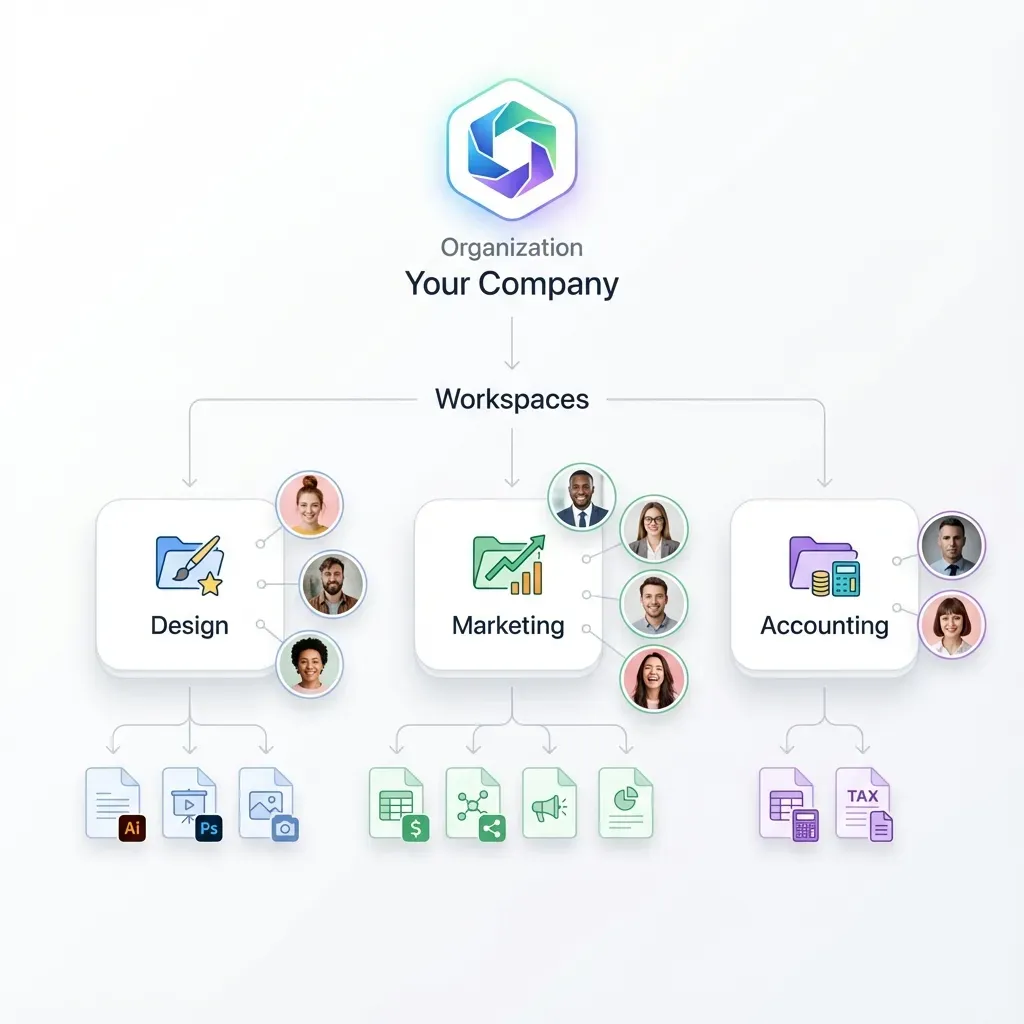
Fastio workspaces offer a cleaner option for teams that want files to be searchable, shareable, and accessible to both agents and humans through the same interface. Start with a 14-day Business Trial (credit card required) and connect it through the Fastio MCP server. When Hermes generates a report in Slack, it can upload the output to a shared workspace where team members browse files through Fastio's web UI, search by content once Intelligence is enabled on the workspace, or pull files into their own tools.
The Fastio MCP server exposes workspace operations, file uploads, downloads, and AI queries as tool calls. Hermes can read from and write to workspaces during any conversation, whether triggered from Slack, Telegram, or the CLI. Files persist across sessions and across platforms, so a document uploaded from a Slack conversation is immediately available in every other Hermes session.
For teams running multiple agents, Fastio's advisory file locks and per-file version history coordinate concurrent writes when two agents interact with the same workspace. Agents acquire a lock before writing and release it when done, while audit trails track every file operation, giving you visibility into what the agent created, modified, or shared. When the agent finishes a project, ownership transfer lets you hand the entire workspace to a human account while the agent retains admin access for ongoing maintenance.

Troubleshooting Common Slack Issues
Most Slack integration problems come from missing event subscriptions or permission scopes. Here are the issues teams hit most often, along with fixes.
Bot responds in DMs but ignores channels. This almost always means message.channels (public) or message.groups (private) events are not subscribed. Add them under Features > Event Subscriptions, then reinstall the app. Scope and event changes do not take effect until you reinstall.
Bot does not appear in DMs. Enable the Messages Tab under Features > App Home and check "Allow users to send Slash commands and messages from the messages tab."
File attachments are not readable. Add the files:read scope under OAuth & Permissions and reinstall. Without this scope, the gateway receives file metadata but cannot download the actual content.
Slash commands fail in threads. Slack blocks native slash commands inside thread replies. Use the ! prefix instead (!stop, !new, !queue) when working within a thread.
Voice messages are not transcribed. Verify that speech-to-text is enabled in ~/.hermes/config.yaml with stt_enabled: true. Hermes supports local faster-whisper, Groq Whisper (requires GROQ_API_KEY), or OpenAI Whisper (requires VOICE_TOOLS_OPENAI_KEY).
Token errors on startup. Regenerate both tokens in the Slack app settings. The bot token (xoxb-) comes from Settings > Install App, and the app token (xapp-) comes from Settings > Basic Information > App-Level Tokens. Update ~/.hermes/.env with the new values.
Security best practice. Store tokens in ~/.hermes/.env with file permissions set to 600. Always populate SLACK_ALLOWED_USERS before exposing the bot to any channel. Without this setting, Hermes denies all incoming messages as a safety default.
Sources
References used to verify factual claims in this guide.
-
Hermes Agent supports over 20 messaging platforms including Slack, Telegram, Discord, WhatsApp, and Microsoft Teams
-
Hermes Agent is open source under the MIT license
-
Slack integration supports file attachments, threaded replies, emoji reactions, typing indicators, and streaming responses
Frequently Asked Questions
Can Hermes Agent work with Slack?
Yes. Slack is one of over 20 messaging platforms supported by the Hermes Agent messaging gateway, with full support for file attachments, threaded conversations, emoji reactions, typing indicators, streaming responses, and voice transcription.
How do I add Hermes Agent to my Slack workspace?
Create a Slack app (use `hermes slack manifest --write` to auto-generate the manifest), enable Socket Mode, subscribe to message events, install the app to your workspace, then run `hermes gateway setup` to connect. The whole process takes about ten minutes.
Does Hermes Agent support enterprise Slack?
Hermes can connect to multiple Slack workspaces simultaneously from a single gateway instance using comma-separated bot tokens. Each workspace authenticates independently with its own bot user ID and WebClient.
Can my team share a Hermes Agent in Slack?
Yes. Add each team member's Slack Member ID to the `SLACK_ALLOWED_USERS` environment variable. The agent responds to @mentions in channels and direct messages from authorized users. Channel-specific prompts and skill bindings let you customize behavior per channel.
Does Hermes Agent need a public URL for Slack?
No. The integration uses Slack's Socket Mode, which connects outbound over WebSocket. This eliminates the need for a public HTTP endpoint or webhook URL, reducing your attack surface.
Can Hermes Agent send and receive files in Slack?
Yes. With the `files:read` and `files:write` scopes enabled, Hermes can receive file attachments from users and send generated files back through Slack. For persistent storage across sessions, connect a Fastio workspace through the MCP server.
Related Resources

Persist Hermes Agent Files Across Slack Sessions
Persistent cloud workspace with remote MCP server access. Your agent uploads files from Slack, your team browses them in the browser. Starts with a 14-day Business Trial.