How to Build a Hermes Agent Telegram Bot With Persistent File Storage
Hermes Agent's messaging gateway connects to Telegram as a persistent background process, handling file attachments, voice messages, and threaded conversations through a single bot. This guide covers the full setup from BotFather token creation through Docker deployment, then solves the problem most tutorials skip, keeping files accessible across sessions by connecting a Fastio workspace as external persistent storage.


What the Hermes Agent Messaging Gateway Does
Nous Research Hermes Agent is an open-source (MIT-licensed) AI agent with persistent memory, skills, scheduled automations, and integrations with over 20 messaging platforms. The messaging gateway is a single background process that connects to all configured platforms, handles sessions, runs cron jobs, and delivers voice messages. Telegram is one of the best-supported platforms, with file attachments, voice input/output, message reactions, and threaded conversations all working natively.
When you run the gateway, Hermes exposes an OpenAI-compatible API on port 8642. Any tool that speaks the OpenAI chat completions format can connect to your agent, whether that is a custom script, an orchestration framework, or the built-in web dashboard on port 9119. The gateway handles session persistence automatically: conversations carry context across messages, and the agent's memory files survive restarts.
The gap in most Telegram bot tutorials is file persistence. Hermes can generate and send files through Telegram using MEDIA: tags in its responses. But those files live on the host machine's filesystem. If the container restarts, the disk fills up, or you want to share files with a team member who is not on Telegram, you need an external storage layer. That is the problem this guide solves.
Related guides
- How to Build an OpenClaw Telegram Bot Agent on Raspberry PiA Raspberry Pi running OpenClaw gives you a personal AI agent that responds to Telegram messages around the clock,...
- How to Build Claude Cowork Persistent StoragePersistent storage in Claude Cowork lets files, outputs, and states survive between agent sessions and deployments....
- Build an AI Generator Detector Pipeline with Hermes AgentMost Hermes tutorials stop after wiring a detector MCP server. A production AI generator detector pipeline needs...
- How to Use Subagent Delegation in Hermes AgentHermes Agent's delegate_task tool spawns child AI agents with isolated contexts and restricted toolsets. This guide...
- How to Connect Hermes Agent to n8n With Webhooksn8n has 400+ integrations but every workflow follows a predetermined path. Hermes Agent adds reasoning to those...
- Hermes Agent API Server: OpenAI-Compatible Endpoints and SetupThe Hermes Agent API server turns your local agent into an OpenAI-compatible HTTP endpoint that any chat frontend can...
More on this subject: Hermes Agent (100 guides)
Step 1: Create the Telegram Bot
Start by creating a bot through Telegram's BotFather, then point Hermes at it.
Get a Bot Token From BotFather
- Open Telegram and message @BotFather
- Send
/newbot - Choose a display name (e.g., "My Hermes Agent")
- Choose a username ending in "bot" (e.g., "my_hermes_agent_bot")
- Copy the API token BotFather returns (format:
123456789:ABCdefGHIjklMNOpqrSTUvwxYZ)
Keep this token secret. If it leaks, anyone can control your bot. Revoke compromised tokens immediately with /revoke in BotFather.
Find Your Telegram User ID
Hermes denies all users by default, so you need your numeric user ID (not your @username). Message @userinfobot on Telegram to get it.
Run the Interactive Setup
The fast path is the guided setup wizard:
hermes gateway setup
Select Telegram when prompted, paste your bot token, and enter your user ID. The wizard writes everything to ~/.hermes/.env.
If you prefer manual configuration, add these lines to ~/.hermes/.env directly:
TELEGRAM_BOT_TOKEN=123456789:ABCdefGHIjklMNOpqrSTUvwxYZ
TELEGRAM_ALLOWED_USERS=your_numeric_user_id
Start the Gateway
hermes gateway
Open Telegram and send your bot a message. If everything is configured correctly, Hermes responds through the bot within a few seconds.
Optional: Customize Bot Behavior
A few environment variables control how the bot behaves in conversations:
TELEGRAM_HOME_CHANNEL: A channel where scheduled task results get postedTELEGRAM_GROUP_ALLOWED_CHATS: Comma-separated group chat IDs if you want the bot in group conversationsTELEGRAM_REACTIONS=true: Enables visual feedback (eyes emoji while processing, checkmark on success, X on errors)
For group chats, you also need to disable privacy mode in BotFather (Bot Settings, Group Privacy, Turn off) so the bot can read all messages instead of only commands and direct replies.
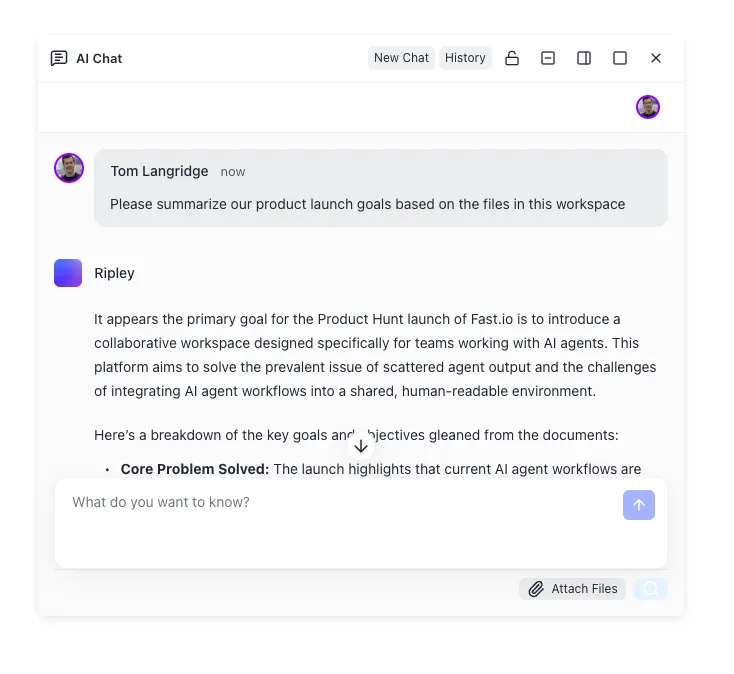
File Sharing and Voice Messages on Telegram
Hermes Agent sends files through Telegram by including MEDIA:/path/to/file tags in its responses. The gateway strips the tag, reads the file from the host filesystem, and delivers it as a native Telegram attachment. This means PDFs arrive as documents, images display inline, and audio files play as voice messages.
The list of supported file types is broad:
- Images: png, jpg, gif, webp, bmp, svg
- Audio: mp3, wav, ogg, opus, flac, aac
- Video: mp4, mov, webm, mkv
- Documents: pdf, txt, md, csv, json, yaml, html
- Office: docx, xlsx, pptx
- Archives: zip, tar, gz, 7z
Voice messages work in both directions. For incoming voice, Hermes transcribes using one of three backends: local (faster-whisper, runs on-device), groq (requires GROQ_API_KEY), or openai (requires VOICE_TOOLS_OPENAI_KEY). For outgoing voice, the agent can respond as a native Telegram voice bubble using OpenAI or ElevenLabs text-to-speech. Edge TTS also works but requires ffmpeg for Opus conversion.
Threaded Conversations
Telegram Bot API 9.4 added Private Chat Topics, letting bots create forum-style threads inside direct messages. Hermes supports this through the /topic command, which enables multi-conversation mode. Each topic thread maintains its own session context, so you can run a research conversation in one thread and a coding task in another without cross-contamination.
Configure topic bindings in ~/.hermes/config.yaml:
platforms:
  telegram:
    extra:
      dm_topics:
        - chat_id: 123456789
          topics:
            - name: Research
              skill: arxiv
            - name: Code Review
              skill: software-development
The File Persistence Problem
Here is where most tutorials stop. Files generated inside a Hermes session live on the host filesystem (or inside the Docker container's volume mount). That creates three problems:
- No external access: Files are trapped on the server. Sharing them means SSHing in or setting up a file server.
- No survival guarantee: Container rebuilds, disk failures, or storage cleanup can wipe generated files.
- No collaboration: If a colleague needs a file the agent created, there is no clean handoff path.
Local storage works fine for throwaway outputs. For anything you want to keep, reference later, or share with others, you need persistent external storage.


Give Your Hermes Telegram Bot Persistent Storage
Files your Hermes bot generates become searchable, shareable, and version-controlled.
Deploy With Docker for Production
Running the gateway as a Docker container gives you restart policies, resource limits, and clean upgrades. The official image (nousresearch/hermes-agent) bundles Python 3, Node.js, Playwright, ffmpeg, and everything else the agent needs.
Initial Setup
Run the setup wizard once against your data directory:
mkdir -p ~/.hermes
docker run -it --rm \
  -v ~/.hermes:/opt/data \
  nousresearch/hermes-agent setup
Configure your Telegram bot token and allowed users during this step.
Docker Compose for Production
services:
  hermes:
    image: nousresearch/hermes-agent:latest
    container_name: hermes-telegram
    restart: unless-stopped
    command: gateway run
    ports:
      - "127.0.0.1:8642:8642"
      - "127.0.0.1:9119:9119"
    volumes:
      - ~/.hermes:/opt/data
    environment:
      - HERMES_DASHBOARD=1
      - ANTHROPIC_API_KEY=${ANTHROPIC_API_KEY}
    deploy:
      resources:
        limits:
          memory: 4G
          cpus: "2.0"
Start it:
docker compose up -d
The restart: unless-stopped policy means Docker restarts the container after crashes or server reboots, but not when you explicitly stop it. Ports bind to 127.0.0.1 to prevent direct internet exposure. Put a reverse proxy (Caddy, nginx) in front for TLS.
The /opt/data volume holds everything stateful: configuration, sessions, memories, skills, and logs. The Docker image itself is stateless, so upgrades are straightforward:
docker compose pull
docker compose up -d
File Sharing in Docker
This is a critical detail: the gateway process sends files to Telegram, not the agent process inside the container. When the agent writes a file to /output/report.pdf inside the container, the MEDIA: tag must reference a path that the gateway can read on the host.
Map a shared volume for file output:
volumes:
  - ~/.hermes:/opt/data
  - ~/hermes-files:/output
Now files written to /output/ inside the container appear at ~/hermes-files/ on the host, where the gateway can pick them up for Telegram delivery. This also gives you a predictable directory to connect to external storage.

Connect Fastio for Persistent File Storage
Local volumes solve the container restart problem but not the access or collaboration problems. Files are still trapped on one server. Fastio workspaces give Hermes a persistent, shareable storage layer that works across sessions, servers, and team members.
The approach: configure Hermes to write output files to a Fastio workspace instead of (or in addition to) local disk. Files uploaded to Fastio get versioned, indexed for search, and accessible through a web UI, API, or MCP server.
Why Fastio Instead of S3 or Google Drive
You could mount an S3 bucket with s3fs or sync to Google Drive with rclone. Those work for raw file storage. Fastio adds three things that matter for agent workflows:
- Intelligence Mode: Once enabled on a workspace, every uploaded file gets auto-indexed. You can search files by meaning, ask questions about their contents, and get answers with citations. No separate vector database or embedding pipeline required.
- Ownership transfer: Your agent creates files, organizes them, and builds out the workspace. When the work is done, transfer ownership to a client or team member. The agent keeps admin access for future updates.
- Branded shares: Send files to external collaborators through Send, Receive, or Exchange shares with your branding. No "download from my server" links.
Fastio offers a 14-day Business Trial (card required; see /pricing/).
Set Up a Fastio Workspace
- Start a 14-day Business Trial at fast.io/pricing
- Create a workspace for your Hermes bot's output (e.g., "hermes-telegram-files")
- Generate an API key from your account settings
Upload Files From Hermes
The simplest integration is a post-processing script that watches the output directory and uploads new files to Fastio. Since Fastio exposes an MCP server with a consolidated MCP toolset, you can also configure Hermes to upload directly through MCP tool calls during its workflow.
For the script approach, install the Fastio CLI (npm install --global @vividengine/fastio-cli), sign in once with fastio auth login, and add a cron job or filesystem watcher that uploads new files from the shared Docker volume:
### Upload a new file from the Hermes output directory
fastio upload file --workspace hermes-telegram-files /home/user/hermes-files/report.pdf
For the MCP approach, Hermes can call Fastio tools natively if you configure the MCP endpoint. Files uploaded through either method get versioned automatically, so you never lose a previous version even if the agent overwrites a file.
Query Files With Intelligence Mode
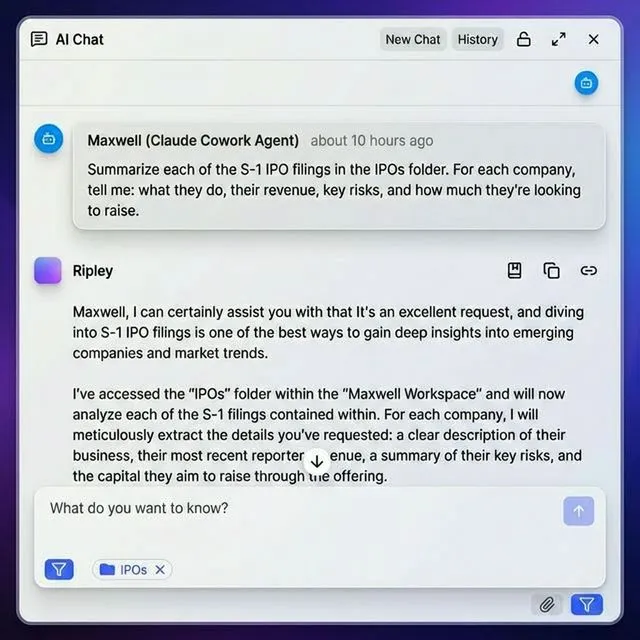
Once files land in a Fastio workspace with Intelligence Mode enabled, they become searchable by content. Ask "find the quarterly report from last Tuesday" and get results based on what the documents contain, not just filenames. This turns your Telegram bot's output directory into a knowledge base that grows with every session.
The agent itself can query this knowledge base through the MCP server's search tools, creating a feedback loop: Hermes generates files, uploads them, and later retrieves context from its own past work.
Troubleshooting Common Issues
Bot Does Not Respond
Check that TELEGRAM_ALLOWED_USERS contains your numeric user ID (not your @username). The gateway denies all unauthenticated users silently. Verify the bot token is correct by checking the gateway logs:
docker logs hermes-telegram
If you see connection errors, check that the server has outbound HTTPS access to Telegram's API servers.
Files Not Delivered on Telegram
The MEDIA: tag path must be readable by the gateway process on the host. If the agent writes to /output/file.pdf inside the container, that path needs to map to a host directory through the Docker volume mount. Check that the volume mapping in docker-compose.yml matches the paths your agent uses.
For Docker deployments, the most common mistake is mapping the volume but having the agent write to a different directory inside the container. Verify with:
docker exec hermes-telegram ls /output/
Voice Messages Not Transcribing
Incoming voice requires a speech-to-text backend. If you are using the local backend (faster-whisper), it needs enough CPU and memory to run the model. The groq and openai backends are faster but require API keys set in the environment.
For outgoing voice with Edge TTS, make sure ffmpeg is installed (it is included in the official Docker image). The conversion from WAV to Opus format fails without it.
Group Chat Bot Ignores Messages
Telegram's privacy mode is enabled by default. The bot only sees /commands and direct replies unless you disable privacy mode in BotFather (Bot Settings, Group Privacy, Turn off). After changing this setting, remove the bot from the group and re-add it. Telegram caches the privacy state at join time.
Container Restarts Losing Session Context
Make sure the /opt/data volume mount is configured and pointing to a directory that persists across container recreations. Session history, memory files, and skill data all live in this directory. If you are using docker run without a volume flag, everything disappears on restart.
Sources
References used to verify factual claims in this guide.
-
Telegram Bot API 9.4 added Private Chat Topics for forum-style threads in direct messages
-
Hermes Agent Docker image is based on Debian 13.4 with Python 3, Node.js, Playwright, and Chromium
-
Hermes Agent messaging gateway supports 20+ platforms including Telegram, Discord, Slack, WhatsApp, and Signal
Frequently Asked Questions
How do I create a Telegram bot with Hermes Agent?
Run `hermes gateway setup`, select Telegram, and paste the bot token you got from BotFather. Add your numeric Telegram user ID to the allowed users list. Then start the gateway with `hermes gateway` (or `docker compose up -d` for Docker deployments). The bot starts responding to messages immediately.
Can Hermes Agent share files through Telegram?
Yes. When the agent includes a `MEDIA:/path/to/file` tag in its response, the gateway reads that file and sends it as a native Telegram attachment. Supported formats include images (png, jpg, gif, webp), documents (pdf, docx, xlsx), audio (mp3, wav, ogg), video (mp4, mov, webm), and archives (zip, tar, gz). The file must be readable on the host where the gateway process runs.
How do I keep Hermes Agent running as a Telegram bot?
Deploy with Docker using `restart: unless-stopped` in your docker-compose.yml. This restarts the container after crashes or server reboots. Bind the `/opt/data` volume to persist configuration, sessions, and memory across restarts. For additional reliability, run behind a reverse proxy with TLS and monitor the container with `docker stats`.
What file types can Hermes Agent handle on Telegram?
The gateway supports images (png, jpg, gif, webp, bmp, svg), audio (mp3, wav, ogg, opus, flac, aac), video (mp4, mov, webm, mkv), documents (pdf, txt, md, csv, json, yaml, html), Office files (docx, xlsx, pptx), and archives (zip, tar, gz, 7z). Voice messages are also supported with configurable speech-to-text backends.
How do files persist across Hermes Agent Telegram sessions?
By default, files live on the host filesystem or Docker volume. For true persistence and shareability, connect an external storage layer like Fastio. Files uploaded to a Fastio workspace get versioned, indexed for semantic search through Intelligence Mode, and made accessible through a web UI or API. This means files survive container rebuilds and can be shared with team members who are not on Telegram.
Can I run multiple Hermes Telegram bots on one server?
Yes. Use separate Docker containers with distinct data directories and port mappings. Each container gets its own volume mount (e.g., `./hermes-bot-1:/opt/data` and `./hermes-bot-2:/opt/data`), its own gateway port, and its own bot token. Never run two containers against the same data directory, as concurrent writes will corrupt state.
Related Resources

Give Your Hermes Telegram Bot Persistent Storage
Files your Hermes bot generates become searchable, shareable, and version-controlled.