File Converter Guide: Safe Document, Audio, and Video Conversion Workflows
A file converter transcodes digital assets between encoding specifications, yet ad-supported web utilities often expose sensitive documents to unverified server retention windows. This guide evaluates online file converter limits, private command-line transcoding alternatives, and batch conversion workflows. Learn how to preserve visual and acoustic fidelity while securing assets inside collaborative workspaces.


How File Converters Work and When Web Utilities Expose Data
Uploading an unredacted legal agreement, proprietary financial spreadsheet, or raw video asset to a free online file converter hands custody of your payload to a remote web server operated by an ad network. While browser-based conversion looks like a harmless instant utility, the underlying operation requires transmitting your data over the public internet, writing it to temporary disk storage, and queueing it through shared transcoding workers.
A file converter is software or an online utility that transcodes digital assets from one encoding specification to another while preserving structural content. Depending on the media type, file conversion handles three primary domains:
- Document Conversions: Converting structural markup (Markdown, HTML) into styled page descriptions (PDF, DOCX), normalizing spreadsheet tables (CSV, XLSX), or flattening vector diagrams into raster images.
- Audio Transcoding: Re-encoding uncompressed linear pulse-code modulation (WAV, AIFF) or lossless compression streams (FLAC, ALAC) into perceptually coded bitstreams (AAC, MP3, Opus) while managing sample rates and channel mappings.
- Video Transcoding: Decompressing video elementary streams from specific codecs (H.264, HEVC, ProRes, AV1) inside container wrappers (MP4, MKV, MOV, WebM), modifying bitrates, frame rates, and color spaces, and repacking them into deliverable formats.
The Mechanics of File Conversion
Every digital asset contains two distinct layers: an envelope structure and internal payload data. In document files, the envelope is often a zipped container adhering to Open Packaging Conventions (such as .docx or .xlsx), wrapping XML files that declare text runs, styles, and document relationships. When a document converter runs, it parses the source XML document object model, translates proprietary formatting tags into standard typography rules, and generates equivalent markup in the target specification.
For audio and video assets, the envelope is a multiplexed container format that synchronizes parallel streams of audio, video, subtitle data, and timecode metadata. Conversion requires demuxing the stream, decoding binary packets through a codec into raw uncompressed frames in memory, applying transformation filters (such as scaling or resampling), and feeding the raw stream into a target encoder.
Hidden Risks in Free Ad-Supported Web Converters
Free conversion websites monetize user traffic through display advertising and data collection. Running massive server clusters to transcode video and process documents incurs high compute and bandwidth expenses. To maintain operational margins, many ad-supported converters cut corners on data isolation and operational security:
- Shared Worker Nodes: Uploaded files often land on shared, multitenant staging storage where temporary worker scripts process jobs from multiple anonymous users in parallel.
- Unverified Server Retention Windows: Many free portals assign predictable, unauthenticated URLs to converted download links. While sites state that assets are purged within a set window, files often linger on cloud object storage buckets until scheduled garbage collection scripts execute.
- Document Metadata Leakage: Simple online document converters regularly leave sensitive document properties intact. Revision histories, author names, software license identifiers, and internal corporate directory paths remain embedded inside the output PDF or DOCX file.
- Third-Party Script Injection: Ad-supported portals frequently load dozens of third-party advertising trackers, analytics pixels, and JavaScript libraries, increasing the browser attack surface while sensitive corporate assets upload in the background.
Related guides
- How to Share Audio Files Without Quality LossSharing audio files for professional production requires more than email attachments.
- WhatsApp File Size Limit: How to Send Large Videos, Audio, and DocumentsThe WhatsApp file size limit restricts standard gallery media to 16 MB while allowing uncompressed documents up to 2 GB...
- YouTube Upload Limits: Maximum File Size, Video Length, and Daily QuotasThe YouTube upload limit restricts verified creators to a maximum file size of 256 GB or 12 hours per video, while...
- How to Create a Direct Download Link for Any FileA direct download link (DDL) triggers your browser's download immediately when clicked, skipping preview pages and...
- How to Share Large Files on Discord (Without Hitting the Size Limit)Discord's file upload limit is 10MB for free users, 50MB for Nitro Basic, and 500MB for full Nitro subscribers. For...
- How to Share Files with China: Working Around the Great FirewallFile sharing with China requires services that aren't blocked by the Great Firewall, as most Western platforms like...
More on this subject: File Sharing (155 guides)
How Online File Converters Compare on Security, Limits, and Retention
Selecting the appropriate file conversion method requires balancing convenience against data confidentiality, format fidelity, and payload size. While quick web utilities suffice for public images, production teams handling confidential agreements, proprietary source media, and bulk assets require strict controls.
The following comparison table evaluates the primary categories of file converters across operational dimensions:
The Reality of Free Tier Size Limits
Free online converters frequently impose restrictive payload caps, forcing users to fragment large datasets or upgrade to premium tiers. As documented in Zamzar's official service limits, free web conversion users can upload files up to 50MB in size. When transferring high-resolution video stems, multi-page architectural blueprints, or raw audio takes, these strict payload ceilings disrupt production workflows.
When files exceed these caps, web tools either abort the upload mid-stream or aggressively downsample image resolutions and audio bitrates to compress the asset. This creates degraded deliverables that fail professional print or broadcast standards.
Data Confidentiality and Retention Windows
The greatest operational risk with free web converters is the retention window. Even when a service promises automatic deletion after 24 hours, your data sits on a third-party server for an entire day. During that interval, the download URL is often accessible to anyone possessing the link hash, exposing your files to automated scrapers or server-side vulnerabilities.
For commercial contracts, patient records, financial filings, and unreleased creative assets, third-party retention violates standard non-disclosure agreements and data governance policies. Organizations handling confidential files should avoid consumer web converters entirely, turning instead to local command-line tools or private cloud workspaces where access permissions are strictly enforced.


Build safe file conversion and sharing workflows
Stop trusting sensitive company files to ad-supported conversion sites. Fast.io gives your team secure workspaces with universal browser previews, automatic proxy generation, chunked uploads, and branded client delivery. Monthly plans start with a trial of up to 14 days (credit card required); annual plans have no trial. Plans are Starter at $9.99/mo, Business at $49.99/mo, and Enterprise at $199.99/mo.
How to Preserve Document Typography, Layout, and Metadata During Conversion
Document conversion presents distinct technical hurdles because documents rely on complex layout engines, font metrics, and embedded structural metadata. Converting a formatted text document is rarely a one-to-one mapping. Minor discrepancies in line spacing, font availability, and margin calculations can alter page counts, break signature blocks, and corrupt mathematical tables.
Font Substitution and Visual Fidelity
When converting a format like Microsoft Word (.docx) to PDF, the rendering engine must calculate exact text coordinates. If the converting system does not possess the specific fonts referenced in the source document, it executes font substitution using local fallbacks (such as replacing Aptos or Calibri with Liberation Sans).
Because character widths differ across typefaces, font substitution introduces severe document anomalies:
- Reflow and Page Drift: A twenty-page agreement can expand into twenty-one pages, causing cross-references and signature lines to drift onto orphan pages.
- Table Cell Truncation: Fixed-width table columns clip numerical data or force unexpected line wraps, obscuring critical financial figures.
- Vector Graphic Misalignment: Embedded diagrams, organizational charts, and vector callouts shift position relative to their surrounding text blocks.
To guarantee visual fidelity, safe document conversion workflows must either run on machines with identical font libraries installed or convert documents using software that embeds full font subsets directly into the output file.
Local Document Conversion with Pandoc and Headless LibreOffice
To convert documents safely without exposing data to external networks, teams can run open-source tools locally through the terminal.
Pandoc serves as an industry standard for structural document transformations, converting Markdown, HTML, LaTeX, and Word files directly from the command line. To render Markdown documentation to a polished PDF using a local LaTeX engine, run:
pandoc specification.md -o specification.pdf --pdf-engine=xelatex -V geometry:margin=1in
To convert a DOCX file back to clean Github-flavored Markdown with extracted images:
pandoc contract_draft.docx -t gfm -o contract_draft.md --extract-media=./media
For complex Office formats requiring perfect layout preservation, LibreOffice operating in headless mode delivers production-grade PDF conversion. To convert a Word document to PDF using headless LibreOffice:
soffice --headless --convert-to pdf:writer_pdf_Export legal_brief.docx --outdir ./converted_docs/
To batch convert all spreadsheets in a folder to PDF format:
soffice --headless --convert-to pdf:calc_pdf_Export *.xlsx --outdir ./converted_spreadsheets/
Running conversion locally guarantees that zero bytes leave your workstation or private server, completely bypassing third-party retention risks and upload size restrictions.
Extracting Structured Data Without Manual Format Conversion
Often, teams initiate document conversion simply because they need to extract specific data trapped inside static files. For example, a finance team might convert hundreds of PDF invoices into Excel spreadsheets just to copy invoice totals and vendor dates.
This manual conversion cycle is inefficient and error-prone. In Fast.io, teams solve this problem using Metadata Views. Instead of converting documents format by format, Metadata Views turns your documents into a live, queryable database.
You describe the target columns in natural language (such as invoice number, payment terms, or counterparty name), and the system automatically matches workspace files, extracts the values into typed fields (Text, Integer, Decimal, Boolean, URL, JSON, Date & Time), and populates a structured, filterable data grid. Metadata Views processes PDFs, Word documents, spreadsheets, presentations, and scanned pages without requiring template configuration, manual OCR rules, or brittle format conversions.
Why Video and Audio Transcoding Requires Stream Copy and Codec Controls
Audio and video files represent the largest assets teams handle, making them especially vulnerable to the arbitrary caps and compression artifacts of free web converters. Understanding the distinction between container wrappers, audio codecs, and video bitstreams is essential for maintaining pristine quality during format changes.
Containers Versus Codecs
The most common misconception in media conversion is confusing file extensions with codecs:
- Containers (Wrappers): Formats such as MP4, MKV, MOV, and WebM act as digital envelopes. The container holds the compressed video track, one or more audio tracks (such as stereo or surround sound), subtitle streams, and metadata tags.
- Codecs (Compression Algorithms): Codecs such as H.264 (AVC), H.265 (HEVC), AV1, Apple ProRes, AAC, and FLAC define how the raw visual frames and audio waveforms are mathematically compressed into binary data.
Because containers are separate from codecs, you often do not need to transcode media to make it playable. If a video is encoded in H.264 inside an MKV container, but your target playback device requires an MP4 file, you can execute a process called remuxing.
Remuxing extracts the compressed streams from the MKV container and wraps them into an MP4 container without re-encoding a single frame:
ffmpeg -i input_recording.mkv -c copy output_recording.mp4
Because remuxing avoids decoding and re-compressing the data, the operation completes in seconds, consumes minimal processor power, and introduces zero generation loss.
Transcoding Audio and Video with FFmpeg
When you must change the underlying codec, modify the resolution, or compress file volume for delivery, local transcoding using FFmpeg provides total control over bitrate and fidelity.
FFmpeg operates as a comprehensive multimedia framework capable of transcoding, decoding, and filtering audio and video formats across diverse architectures. As documented by the FFmpeg project, "FFmpeg is the leading multimedia framework, able to decode, encode, transcode, mux, demux, stream, filter and play pretty much anything that humans and machines have created."
To convert high-resolution 24-bit WAV audio into a high-fidelity streaming deliverable:
ffmpeg -i master_track.wav -c:a aac -b:a 256k deliverable_track.m4a
To extract audio from a video recording into a lossless FLAC archive without video overhead:
ffmpeg -i interview_master.mov -vn -c:a flac interview_audio.flac
For video transcoding, avoid arbitrary fixed bitrates. Instead, use Constant Rate Factor (CRF) encoding, which dynamically allocates bits based on visual complexity:
ffmpeg -i raw_master.mov -c:v libx264 -crf 20 -preset slow -c:a aac -b:a 256k web_master.mp4
To transcode raw footage into modern AV1 for maximum web compression efficiency:
ffmpeg -i raw_master.mov -c:v libsvtav1 -crf 26 -preset 5 -c:a libopus -b:a 128k deliverable.webm
Using CRF ensures that high-motion scenes receive adequate data to prevent macroblocking, while static scenes conserve bandwidth.
Native Media Handling in Intelligent Workspaces
Transcoding media locally requires command-line familiarity and dedicated workstation hardware. However, manually converting high-bitrate video, multi-layered Photoshop assets, or RAW camera captures just so clients or colleagues can view them creates redundant duplicate files.
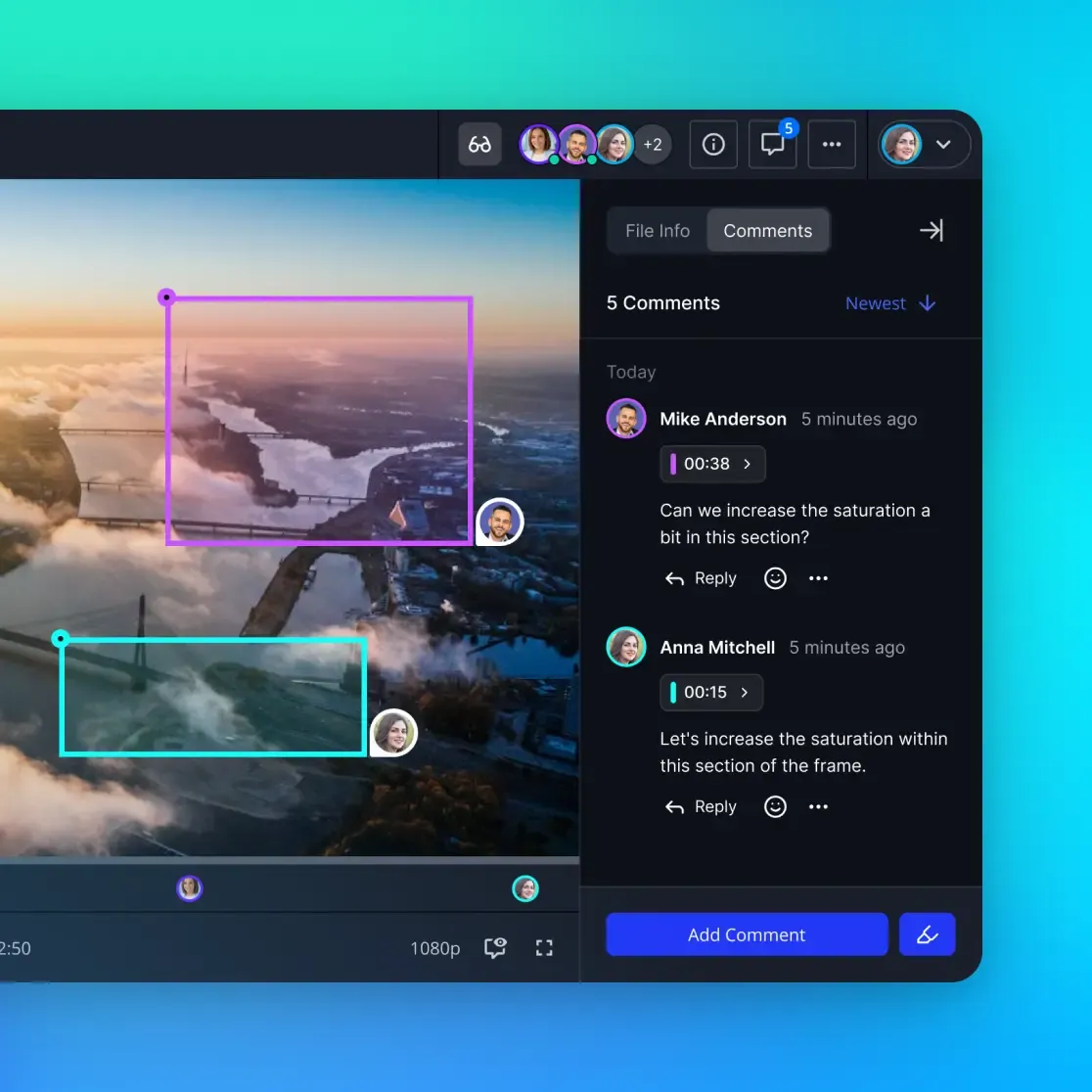
Fast.io eliminates this friction through its built-in Media Engine. When creative teams upload raw video, high-resolution audio stems, CAD files, or multi-gigabyte PSDs, Fast.io automatically generates adaptive bitrate streaming proxies while leaving the original master files completely untouched. Teammates and external clients can stream ultra-high-definition video instantly with smooth timeline scrubbing, view visual audio waveforms, and inspect complex design files directly in their browser without downloading multi-gigabyte files or waiting for local conversion passes. To bring assets in directly from external storage without workstation re-encoding, teams use automated cloud import from Google Drive, Dropbox, Box, or OneDrive.
How to Automate Batch Conversion Pipelines and Secure Asset Distribution
Managing format conversions one file at a time quickly becomes unsustainable when managing client deliverables, legal discovery sets, or marketing campaigns. Moving to an automated batch conversion pipeline eliminates manual friction while ensuring consistent quality settings across entire asset libraries.
Writing Resilient Local Batch Scripts
You can automate local conversion using standard shell scripts that iterate across directory structures. The following bash script processes an entire folder of lossless audio recordings, converting each file to high-efficiency Opus audio while skipping existing outputs:
#!/usr/bin/env bash
set -euo pipefail
INPUT_DIR="./raw_audio"
OUTPUT_DIR="./converted_audio"
mkdir -p "$OUTPUT_DIR"
for file in "$INPUT_DIR"/*.wav; do
  [ -f "$file" ] || continue
  base_name="$(basename "$file" .wav)"
  target_file="$OUTPUT_DIR/${base_name}.opus"
  if [ -f "$target_file" ]; then
    echo "Skipping existing: $target_file"
    continue
  fi
  echo "Transcoding: $file -> $target_file"
  ffmpeg -y -i "$file" -c:a libopus -b:a 160k -v error "$target_file"
done
echo "Batch audio conversion complete."
For automated image pipelines, Python scripts using established imaging libraries can standardize graphic formats, strip color profiles, and convert legacy assets into modern WebP files:
from pathlib import Path
from PIL import Image

source_directory = Path("./product_photos")
target_directory = Path("./web_assets")
target_directory.mkdir(parents=True, exist_ok=True)
for image_path in source_directory.glob("*.png"):
    output_path = target_directory / f"{image_path.stem}.webp"
    with Image.open(image_path) as img:
        rgb_image = img.convert("RGB")
        rgb_image.save(output_path, "WEBP", quality=85, method=6)
        print(f"Optimized: {image_path.name} -> {output_path.name}")
Organizing and Distributing Assets in Shared Workspaces
Completing a batch conversion pass is only half the battle. Once deliverables are processed, teams face the challenge of organizing master assets alongside converted files, tracking revision histories, and securely distributing finished packages to clients.
Sending converted files via email attachments introduces severe file size limits, while consumer file-transfer services expose deliverables to public link leakage and expired download windows. Fast.io provides a unified workspace architecture designed for collaborative asset management:
- Per-File Version History: When you re-encode a video or update a converted PDF deliverable, upload it directly over the existing file. Fast.io maintains a complete, restorable version history for every asset, ensuring clients always see the latest deliverable without losing access to previous iterations.
- Activity Logging: Track every upload, preview, download, and permission change through a detailed activity log. You can see when converted assets were added and which recipients accessed them.
- Branded Client Shares: Instead of directing clients to generic third-party links, create customized Send, Receive, or Exchange links with branded sharing featuring your company's logo, custom background, and vanity URL. Set access passwords and enforce expiration dates to maintain strict control over distribution.
- Inbound Collection Workflows: When clients need to send you raw assets for conversion, configure a Receive share. Clients upload camera cards, raw documents, or audio stems directly into your workspace through a browser interface, bypassing email attachment limits without requiring them to register for an account.
Sources
References used to verify factual claims in this guide.
-
As documented in Zamzar's official service limits, free web conversion users can upload files up to 50MB in size.
-
FFmpeg operates as a comprehensive multimedia framework capable of transcoding, decoding, and filtering audio and video formats across diverse architectures.
Frequently Asked Questions
What is the safest online file converter?
The safest online file converter is one that processes files entirely in your browser using client-side WebAssembly, or an established commercial API provider that uses TLS encryption and enforces immediate, verifiable server deletion upon task completion. Avoid ad-supported conversion sites that assign unauthenticated, public URLs to download files or maintain multi-day retention policies on shared servers. For confidential business documents and proprietary media, the safest approach is running local command-line tools like FFmpeg and Pandoc, or uploading directly to a private workspace like Fast.io where assets remain governed by granular permissions and a detailed activity log.
How do I convert large files without losing quality?
To convert large files without losing quality, check whether your workflow requires true re-encoding or container remuxing. When repackaging video files from MKV to MP4, you can remux the streams using FFmpeg's stream copy flag (-c copy) without touching the underlying video and audio data. If re-encoding is necessary, select lossless codecs like FLAC for audio or ProRes for video, or use perceptually lossless Constant Rate Factor (CRF) encoding between CRF 17 and CRF 20 for H.264 and HEVC. Furthermore, avoid consumer web converters that downsample bitrates to fit within upload caps, relying instead on local conversion utilities or private cloud workspaces that support chunked uploads.
What is the difference between transcoding and remuxing?
Remuxing changes the container wrapper that packages multimedia streams (such as moving an H.264 video stream from an MKV file to an MP4 envelope) without altering the underlying audio or video data. Because remuxing copies data packets directly, it completes in seconds and introduces zero loss in visual or acoustic fidelity. Transcoding decompresses the original stream and re-encodes it using a new compression algorithm, resolution, or bitrate setting. While transcoding allows you to compress file size or convert incompatible formats, it consumes significant processing power and introduces generation loss when lossy codecs are applied.
Why do free online converters limit file upload sizes?
Free online converters impose strict file upload caps to control server infrastructure costs, cloud storage bills, and queue concurrency on shared worker nodes. Transcoding media files requires substantial CPU and GPU processing time, which scales directly with file duration and resolution. Capping upload sizes prevents free tier users from overloading server clusters with multi-gigabyte video files or massive print archives, reserving higher compute capacity for paid API subscribers.
How can I batch convert multiple files locally without uploading them to the web?
You can batch convert files locally using standard terminal scripting tools without transmitting data to remote servers. On macOS and Linux, a bash loop combining FFmpeg, Pandoc, or headless LibreOffice can iterate across directories to process assets sequentially or in parallel. In Python, libraries such as Pillow and PyPDF allow you to build automated scripts that resize images, convert document formats, and strip metadata while executing entirely within your local workstation memory.
Can file conversion strip hidden metadata from documents and images?
Yes, file conversion can strip or preserve metadata depending on the tool and flags applied. Standard document exports from Word to PDF often retain author names, company properties, and revision timestamps unless explicitly sanitized. Dedicated conversion tools allow you to strip metadata completely during processing: FFmpeg provides the -map_metadata -1 flag to eliminate tags from media containers, while image tools like Pillow can save clean image files without copying over EXIF headers containing GPS coordinates and camera serial numbers.
Related Resources

Build safe file conversion and sharing workflows
Stop trusting sensitive company files to ad-supported conversion sites. Fast.io gives your team secure workspaces with universal browser previews, automatic proxy generation, chunked uploads, and branded client delivery. Monthly plans start with a trial of up to 14 days (credit card required); annual plans have no trial. Plans are Starter at $9.99/mo, Business at $49.99/mo, and Enterprise at $199.99/mo.