YouTube Upload Limits: Maximum File Size, Video Length, and Daily Quotas
The YouTube upload limit restricts verified creators to a maximum file size of 256 GB or 12 hours per video, while unverified accounts are capped at 15 minutes. Channels that exceed these parameters or trigger daily upload quotas face halted publishing schedules. Understanding account verification tiers, export compression settings, and master file storage workflows ensures production teams never miss a release deadline.


What Are the Current YouTube Upload Limits for Video Files?
The YouTube upload limit restricts verified creators to a maximum file size of 256 GB or 12 hours per video, while unverified accounts are capped at 15 minutes. This dual constraint functions as a hard platform ceiling on Google servers. If an uploaded video violates either the size cap or the duration limit, the YouTube processing engine rejects the file immediately upon intake, regardless of how much margin remains on the alternative dimension.
A creator who exports an uncompressed multi-hour broadcast exceeding the storage ceiling will see the upload rejected by Google. Conversely, a creator uploading an ambient sleep track that runs past twelve hours will see the upload rejected for duration, even if the compressed file size is minimal. Both parameters must remain within platform allowances simultaneously for YouTube to ingest and transcode the media. Official specifications are detailed in the YouTube Help documentation.
To plan publishing schedules effectively, content teams must distinguish between Google account verification tiers:
- Unverified Accounts (Standard Features): Channels that have not completed phone verification on their Google account are restricted to a maximum video duration of 15 minutes. Standard file size caps apply, but long-form content is blocked by default.
- Phone-Verified Accounts (Intermediate Features): Channels that complete standard Google SMS or voice verification unlock extended video uploads up to 12 hours, custom video thumbnails, and live streaming capabilities.
- Advanced Feature Channels: Channels that complete Google identity verification or accumulate positive operational history gain higher daily upload quotas, expanded live streaming volume, and the ability to embed external links in video descriptions.
The table below summarizes the core platform specifications across verification tiers:
Creators occasionally encounter older videos on the platform that exceed twelve hours in running time, such as historical twenty-four-hour charity livestreams or hundred-hour loop experiments. These assets are legacy uploads published under earlier architecture rules. Google has adjusted its YouTube ingestion infrastructure over time, and the YouTube upload limit of 256 GB or 12 hours per video is now strictly enforced across verified creators.
Browser technology also plays a direct operational role during large transfers. YouTube requires an up-to-date web browser for files that exceed twenty gigabytes. Modern browsers support HTML5 chunked uploading, which splits massive video files into sequential data packets. If a temporary network interruption occurs during a large transfer, chunked transfer protocols allow the browser to resume from the last acknowledged byte rather than forcing the user to restart the upload from the beginning.
Related guides
- How to Upload Video to Link: The Secure Way to Share Large FilesUploading a video to a link is the fast way to share large footage without email bounce-backs or long download times.
- Unlimited File Size Sharing: Professional Tools That Don't Cap Your WorkWorking with large video files, CAD models, and heavy datasets means outgrowing consumer tools fast. While many...
- SharePoint File Size Limit: Upload Limits, Sync Constraints, and Best PracticesThe official SharePoint file size limit in SharePoint Online and Microsoft 365 is 250 GB per individual file. However,...
- Telegram File Size Limit: Upload Limits for Free and PremiumThe Telegram file size limit allows standard accounts to send individual files up to 2 GB in size, while Telegram...
- Best Cloud Storage for Video: 7 Options for Production TeamsVideo files demand more from cloud storage than documents or photos. You need large file support, fast transfers, and...
- MOV vs MP4: Which Video Format Should You Use?Choosing between MOV and MP4 depends on your workflow: MOV offers higher quality for editing on Apple devices, while...
More on this subject: File Sharing (155 guides)
Why Did Your Channel Hit the Daily Upload Limit Reached Error?
Creators who encounter the daily upload limit reached error on YouTube must wait 24 hours before the platform restores their upload quota. When this alert appears in YouTube Studio, the platform halts all incoming file transfers for the channel. The block applies across public videos, unlisted review links, scheduled drafts, and private uploads alike, preventing teams from queueing content in advance.
YouTube enforces daily upload volume caps to protect platform performance and community safety. Unrestricted upload access allows bad actors to flood content delivery networks with automated spam, pirate automated feeds, or overwhelm processing queues. By bounding the number of files a single account can transmit in a single rolling day, the platform preserves server stability for the wider creator ecosystem.
Several specific variables dictate when an individual channel triggers this daily ceiling:
- Channel Feature Tier: Channels operating on Standard or Intermediate feature tiers encounter a restricted daily upload volume. Channels that qualify for Advanced Features receive a substantially higher daily upload allowance.
- Account Age and History: Newly established channels operate under tighter automated scrutiny. YouTube expands daily upload ceilings as a channel establishes consistent adherence to platform policies over weeks and months.
- Community Guidelines Strikes: Receiving an active strike immediately degrades channel standing. Strikes frequently throttle daily upload volume or temporarily suspend upload capabilities entirely.
- Rapid Upload Bursts: Publishing dozens of YouTube Shorts or multi-part video series in a concentrated window can trigger automated anti-spam tripwires, even if individual files are small.
- Regional Regulatory Settings: Certain geographic jurisdictions enforce localized network and child-safety guidelines that adjust default account quotas.
The 24-hour waiting window operates on a dynamic rolling schedule rather than resetting at a fixed calendar hour like midnight. If an editor uploads the final allowed video at three in the afternoon on Tuesday, the channel remains locked until that specific upload ages out of the 24-hour evaluation window on Wednesday afternoon.
If your channel operates on Intermediate access, you can expand your daily capacity by unlocking Advanced Features through YouTube Studio:
- Sign in to YouTube Studio on a desktop web browser.
- Select Settings from the left-hand navigation sidebar.
- Click Channel, then open the Feature eligibility tab.
- Locate the Advanced features panel to inspect your qualification status.
- Select an approved verification path: submit a brief video verification recording, upload an image of a valid government-issued passport or driver's license, or continue posting policy-compliant content for two months to establish channel history organically.
Completing verification elevates your account to the highest daily upload tier. However, if an Advanced channel exhausts its expanded quota during an intensive publishing blitz, no manual override exists. The production team must wait for the rolling 24-hour window to clear before publishing resumes.
Encoding Master Files to Stay Under the YouTube File Size Limit
Exporting video master files requires balancing visual fidelity against total file volume. The mathematical formula governing all digital video files is straightforward: duration in seconds multiplied by total data bitrate yields total file weight. A project timeline that runs for several hours can easily cross the file size threshold if exported using uncompressed or high-bitrate post-production mezzanine codecs.
Professional editing workflows frequently rely on intermediate mastering codecs like Apple ProRes 422 HQ, Avid DNxHR, or GoPro CineForm. These codecs preserve color depth, dynamic range, and intra-frame detail for grading and visual effects. However, their elevated data rates make them impractical for direct YouTube delivery on extended timelines. When an ultra-high-definition timeline is exported in ProRes, the resulting file weight multiplies rapidly. As shown in the table below, multi-hour projects exported in intra-frame codecs will exceed platform ceilings, triggering an immediate rejection in the YouTube upload console.
The table below illustrates how different codecs and bitrates scale across project runtimes:
To maintain clean image quality while guaranteeing compliance with YouTube intake limits, video production teams should configure their non-linear editing export queues using the following distribution parameters:
- File Container: MP4 or MOV container format, with MP4 preferred for web delivery.
- Video Compression Codec: H.264 (AVC) for universal compatibility, or HEVC (H.265) for efficient high-bitrate mastering.
- Bitrate Encoding Mode: Two-pass Variable Bitrate (VBR 2-Pass). During the initial analysis pass, the encoder maps complex motion sequences and simple static frames. During the second pass, the encoder allocates higher bitrates to high-motion segments while compressing simple frames, maximizing overall quality within a controlled average bitrate budget.
- Target Bitrate Guidelines: Review the table above for recommended target bitrates across standard and high-frame-rate deliveries, ensuring files remain well within distribution limits.
- Audio Specifications: Stereo AAC-LC at 384 kbps or 5.1 Surround at 512 kbps, configured with a 48 kHz or 96 kHz audio sampling rate.
- Color Space and Profiles: Rec. 709 for standard dynamic range projects, or Rec. 2020 with HDR10 metadata for high dynamic range mastering.
The table below provides recommended target bitrates across common resolutions and frame rates:
By exporting a dedicated distribution copy using these parameters, editors preserve crisp visual detail while keeping multi-hour files comfortably beneath the platform limit.


Store and Stream Video Master Files Without Upload Bottlenecks
Give your video production team a shared workspace to transfer, stream, and archive high-bitrate master files with chunked uploads and per-file version history. Monthly plans start with a trial of up to 14 days (credit card required); annual plans have no trial. Plans are Starter at $9.99/mo, Business at $49.99/mo, and Enterprise at $199.99/mo.
Managing Uncompressed Video Masters and Production Handoffs
YouTube is a streaming distribution channel, not an archival storage repository or a collaborative production environment. Every video uploaded to YouTube undergoes automated re-encoding into platform delivery formats such as VP9, AV1, or AVC1. This process permanently compresses audio dynamic range, discards intra-frame master detail, and flattens delicate color grades.
Because YouTube re-compresses uploaded media, creative agencies, corporate media teams, and post-production studios must maintain pristine original camera footage, project timelines, and ProRes masters in external workspaces. Editors and producers need dependable systems to exchange large review cuts, collect b-roll from field videographers, and store client-approved master files. Exploring dedicated creative production solutions and secure file sharing options ensures uncompressed assets remain protected.
Media teams frequently struggle when attempting to manage master footage through conventional channels:
- Physical External Hard Drives: Shipping external RAID drives or NVMe solid-state drives via courier provides fast local transfer speeds, but introduces severe physical transit delays, risk of hardware damage, and zero version tracking when multiple editors work simultaneously.
- Commodity Cloud Sync Tools: Conventional tools like Google Drive or Dropbox synchronize files by mirroring local folders to the cloud. When handling heavy video files, background synchronization daemons routinely freeze local disk input and output, trigger sync conflicts when two team members touch the same directory, and lack the bandwidth endurance required for heavy media operations.
Intelligent workspaces built on Fast.io media storage resolve these production handoff bottlenecks by separating high-speed cloud infrastructure from commodity desktop sync:
- Chunked Upload Pipeline: Creative teams can upload massive camera raw assets, multi-track audio stems, and master archives directly through the browser without timeout failures. The chunked transfer engine processes large media assets steadily across varying network conditions.
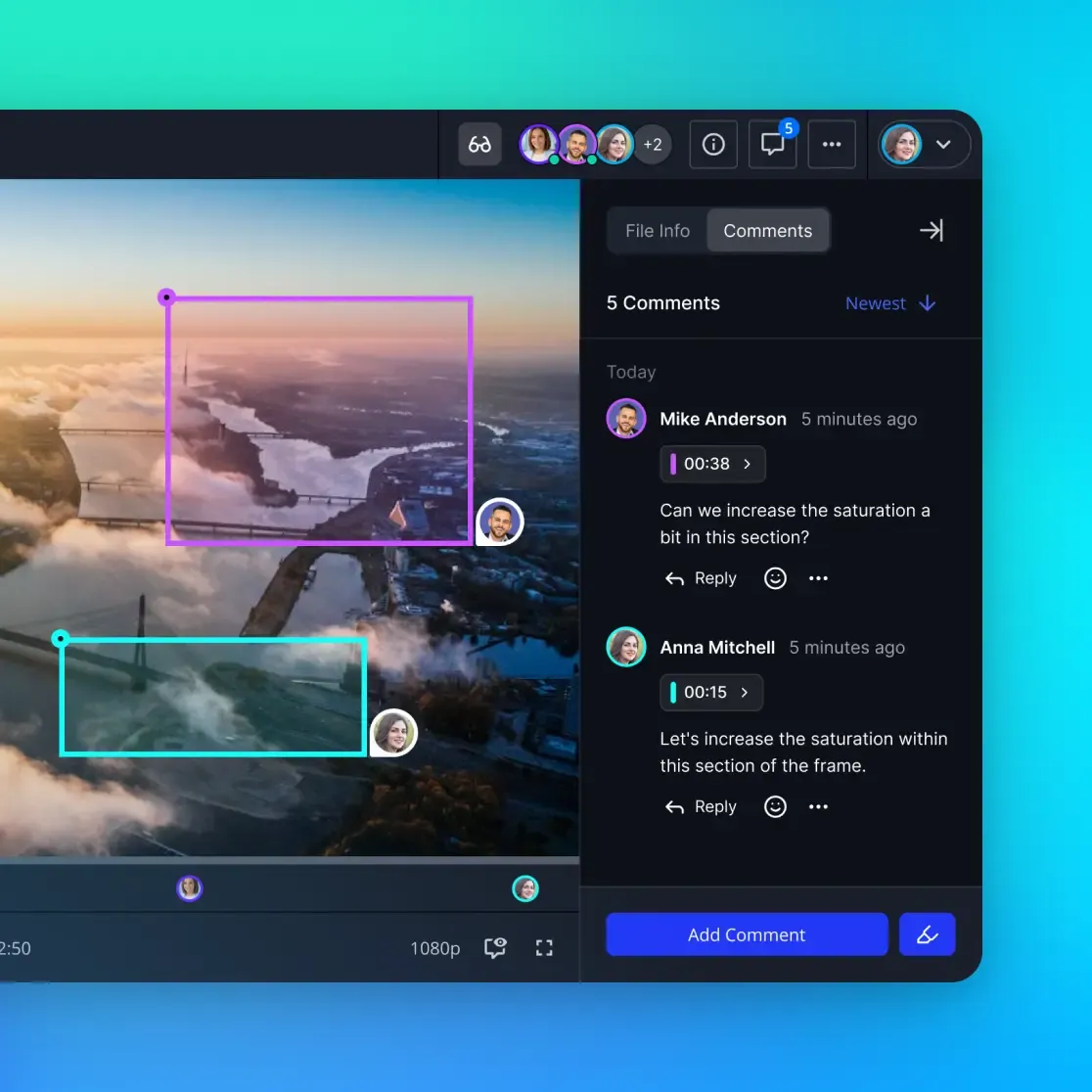
- Native HLS Video Streaming: Rather than forcing clients, directors, or executive stakeholders to download an entire high-bitrate master file simply to review a rough cut, Fast.io automatically generates HTTP Live Streaming (HLS) preview streams. Collaborators can stream high-resolution media immediately in their web browser, skipping download wait times entirely.
- Per-File Version History: Video post-production involves constant iterative adjustments. Every time an editor uploads an updated cut, Fast.io records a clean version snapshot. Production managers can inspect prior passes, compare revisions, and roll back changes without cluttering workspace folders with repetitive duplicate filenames.
- Branded Shares with Granular Control: Studios can generate branded Send, Receive, or Exchange shares with customizable expiration windows and recipient access limits. Field videographers can drop raw camera cards directly into a designated Receive portal without creating an account or accessing internal organization workspaces.
- Collaborative Notes and Metadata Extraction: Media teams can log timecoded editorial feedback, delivery specifications, and shot lists directly alongside assets using Collaborative Notes. In addition, teams can deploy Metadata Views to automatically scan production documents, extracting talent release dates, location agreements, and camera log data into a filterable database.
Monthly plans start with a trial of up to 14 days (credit card required); annual plans have no trial. Plans are Starter at $9.99/mo, Business at $49.99/mo, and Enterprise at $199.99/mo. This operational model gives creative teams dedicated storage, streaming review capabilities, and structured file management for every stage of production prior to final YouTube delivery.
Troubleshooting Failed YouTube Video Uploads and Processing Errors
When a video upload fails or stalls in YouTube Studio, identifying the specific failure mechanism prevents wasted rendering hours. The YouTube ingestion pipeline divides each submission into two distinct operational stages: the upload phase, where your local computer transmits the raw bits to Google servers, and the processing phase, where YouTube transcodes the master file into multiple streaming resolutions.
Review the standard error alerts and their corresponding operational remedies:
Processing Abandoned: Video Is Too Long
This error indicates that the uploaded video exceeds platform duration allowances. If your channel has not completed phone verification, any file longer than 15 minutes triggers this rejection upon processing. If your channel is verified, the file exceeds the 12-hour platform ceiling.
To resolve this issue, navigate to youtube.com/verify and verify your phone number to unlock intermediate permissions. If your account is already verified and the file exceeds 12 hours, reopen your project in your editing software, split the timeline into distinct thematic episodes or segments, and export separate parts.
Upload Abandoned or Network Timed Out
Network timeouts occur when the connection between your computer and YouTube servers drops during transfer, or when your local ISP throttles prolonged high-bandwidth uploads.
To mitigate network drops, connect your editing workstation directly to your router using a physical Cat6 Ethernet cable rather than Wi-Fi. Close background cloud sync clients that contend for upstream bandwidth. If you are uploading a file that exceeds fifty gigabytes, use an updated version of Google Chrome, Mozilla Firefox, or Microsoft Edge, as these browsers implement reliable HTML5 background packet recovery.
Processing Stalled at the Final Render Stage
Creators frequently observe their video processing reach the final percentage stages before appearing to freeze indefinitely. This delay does not mean the upload has failed. YouTube processes standard definition formats first (typically 360p and 480p) so that the video can stream immediately. High-definition and ultra-high-definition renditions require complex multi-pass encoding into VP9 and AV1 codecs, which takes substantial server compute time.
A long high-resolution video rendered at high frame rates can require several hours of background processing after the upload bar hits completion. Check the video status in YouTube Studio. If the status reads Processing HD version, leave the asset undisturbed. Only cancel and re-upload if processing remains stalled with no progress indicator for more than eight hours.
Audio Desynchronization from Variable Frame Rate Footage
Videos recorded via smartphones, webcams, or screen capture software frequently encode with Variable Frame Rate (VFR) to conserve system memory. When ingested by YouTube's constant-rate transcoders, VFR video files often experience progressive audio drift or sudden rendering failures.
Before uploading footage captured from mobile devices or desktop software, transcode the clips to a Constant Frame Rate (CFR) format (such as 24.00, 29.97, 30.00, or 60.00 fps) inside your NLE or using an open-source transcoding utility like HandBrake.
Resuming an Interrupted YouTube Upload
If an active upload disconnects due to a power outage or network drop, YouTube Studio frequently preserves the partial transfer in draft status. Rather than deleting the draft and starting over:
- Open YouTube Studio and locate the pending draft video in your Content tab.
- Click Create in the upper-right corner and select Upload videos.
- Select the exact original file from your local hard drive. The filename, file size, and internal metadata must match the original attempt precisely.
- YouTube will detect the existing partial upload and resume transfer from the point of disconnection, saving critical production hours.
Sources
References used to verify factual claims in this guide.
-
The YouTube upload limit restricts verified creators to a maximum file size of 256 GB or 12 hours per video, while unverified accounts are capped at 15 minutes.
-
Creators who encounter the daily upload limit reached error on YouTube must wait 24 hours before the platform restores their upload quota.
Frequently Asked Questions
What is the maximum file size you can upload to YouTube?
The maximum file size you can upload to YouTube is 256 GB or 12 hours per video, whichever limit is reached first. This ceiling applies to all phone-verified channels. If an account is not verified, video uploads are restricted to a maximum duration of 15 minutes. For files larger than twenty gigabytes, YouTube recommends using an up-to-date web browser that supports HTML5 chunked uploading to ensure uninterrupted transfer.
Why did I hit my daily upload limit on YouTube?
YouTube enforces daily upload limits to curb spam, protect server infrastructure, and maintain platform security. A channel triggers the Daily Upload Limit Reached error when it exceeds its 24-hour quota, which is determined by channel verification status, account age, and active Community Guidelines strikes. Upgrading from Intermediate to Advanced features in YouTube Studio provides higher daily allowances, but once reached, creators must wait 24 hours for the rolling quota window to clear.
How long of a video can an unverified YouTube channel upload?
An unverified YouTube channel can upload videos up to 15 minutes in length. To upload videos longer than 15 minutes, creators must complete standard phone verification on their Google account at youtube.com/verify. Once phone verification is complete, verified creators unlock the Google YouTube upload limit of 256 GB or 12 hours per video, as well as access custom thumbnail creation and live streaming.
Does YouTube reduce video quality during upload?
Yes, YouTube compresses and re-encodes all uploaded media into streaming delivery codecs like VP9, AV1, and AVC1 to optimize playback across diverse viewer devices. Because this automated compression flattens color dynamic range and discards uncompressed master detail, creators should never rely on YouTube as an archival vault. Original camera footage and high-bitrate master exports should always be preserved in dedicated cloud workspaces.
Can you resume an interrupted YouTube video upload?
Yes, YouTube Studio allows creators to resume interrupted uploads if the transfer disconnects. The platform holds the incomplete upload in a draft state in your Content dashboard. By clicking Upload videos and selecting the exact same file with identical naming, size, and metadata within a 24-hour period, YouTube will resume the transfer from the last received chunk rather than restarting from zero percent.
Related Resources

Store and Stream Video Master Files Without Upload Bottlenecks
Give your video production team a shared workspace to transfer, stream, and archive high-bitrate master files with chunked uploads and per-file version history. Monthly plans start with a trial of up to 14 days (credit card required); annual plans have no trial. Plans are Starter at $9.99/mo, Business at $49.99/mo, and Enterprise at $199.99/mo.