How to Use Content Calendar for Team Collaboration
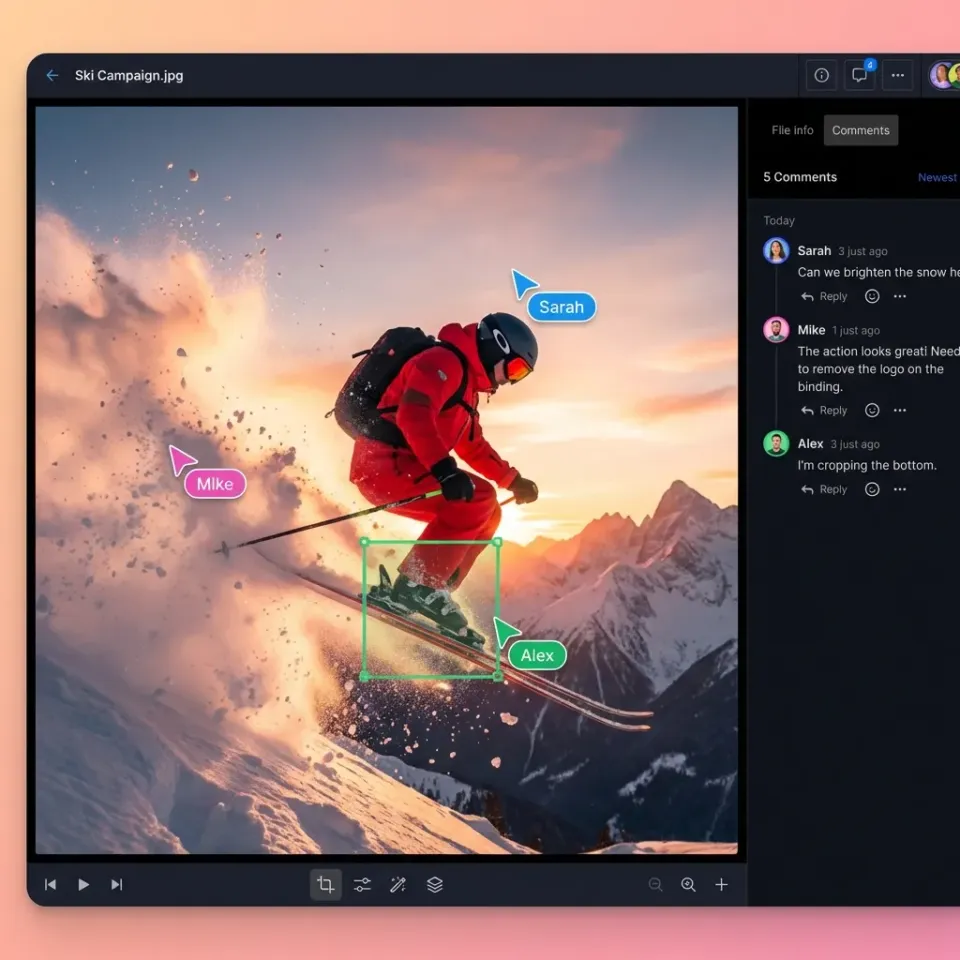
Content calendar team collaboration brings planning, files, and feedback into one shared space. Teams coordinate content production more smoothly when everyone sees the same calendar, assets, and comments. Traditional calendars often lack file handling. Fastio workspaces fix this by combining editorial calendars with native previews, real-time presence, and contextual comments on drafts. Follow this guide to set up your system, follow best practices, and choose tools that fit your workflow.

What Is Content Calendar Team Collaboration?
Content calendar team collaboration is planning, asset storage, and review processes in a shared digital space.
It starts with a timeline of content pieces, due dates, and assignees. Each item links to files like drafts, images, or videos. Team members add comments, track changes, and update status in real time.
This approach works for marketing, editorial, or creative teams. It replaces email chains and scattered folders with one view for all.
Related guides
- How to Set Up DaVinci Resolve Collaboration for Your TeamDaVinci Resolve collaboration enables multiple editors, colorists, and audio engineers to work on the same project...
- How to Build an Influencer Content Collaboration WorkflowAn influencer content collaboration workflow organizes asset sharing, feedback, revisions, approvals, and final...
- 7 Best IT Team Collaboration Tools for 2026IT teams need better ways to share files and logs without getting lost in email chains. This guide reviews seven top...
- How to Collaborate on Music Remotely with Your Production TeamMusicians, producers, and audio engineers can now create and refine tracks together from anywhere.
- How to Build Effective Workspace Collaboration for Your TeamWorkspace collaboration refers to shared digital environments where teams can organize, access, and work on files and...
- How to Collaborate on Blender Projects with Remote TeamsBlender collaboration is the practice of multiple artists working together on 3D projects, sharing .blend files,...
More on this subject: Team Collaboration (125 guides)
Why Use a Content Calendar for Team Collaboration?
Teams waste time chasing files and status updates without a central calendar. Content calendar team collaboration solves this.
Everyone sees deadlines and responsibilities at a glance. Real-time updates mean no more "Is this approved?" questions.
Content teams produce multiple pieces weekly. A shared calendar keeps output steady and quality high. It also helps spot bottlenecks early, like overloaded assignees.
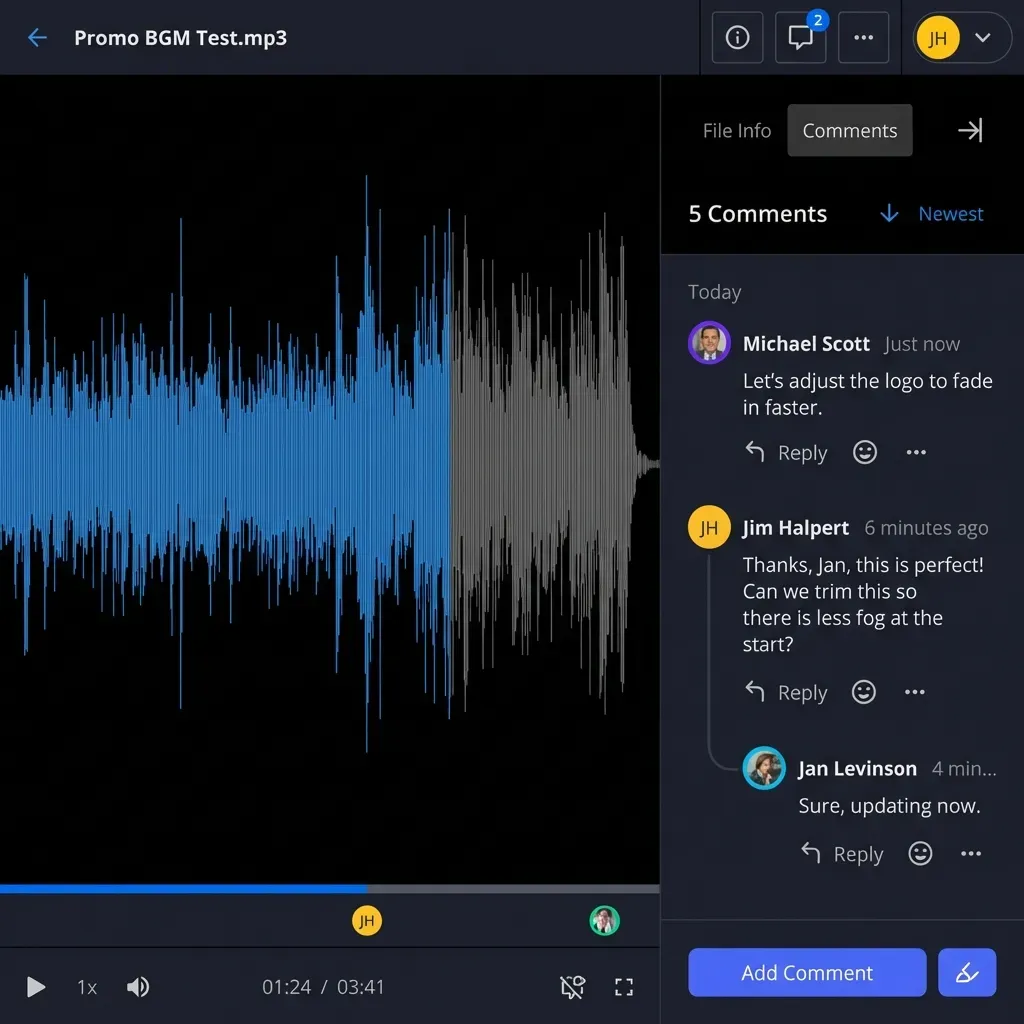
Fastio workspaces add value with file previews and comments directly on assets. View video drafts or PDF proofs without downloading.


Ready for Better Content Team Collaboration?
Fastio workspaces unite calendars and files. Seats included in every plan, real-time presence.
How to Set Up a Content Calendar in Fastio Workspaces
Fastio workspaces act as collaborative editorial calendars with built-in file support.
Step 1: Create a dedicated workspace. Name it "Content Calendar 2026 Q1". Invite your team.
Step 2: Build the calendar structure. Use folders for months or weeks. Inside each, add subfolders for post types like "Blog", "Video", "Social".
Step 3: Add planning files. Upload Google Sheets or Notion exports for timelines. Or use workspace notes for simple lists.
Step 4: Attach assets. Drop drafts into relevant folders. Team members preview images, videos, or docs in browser.
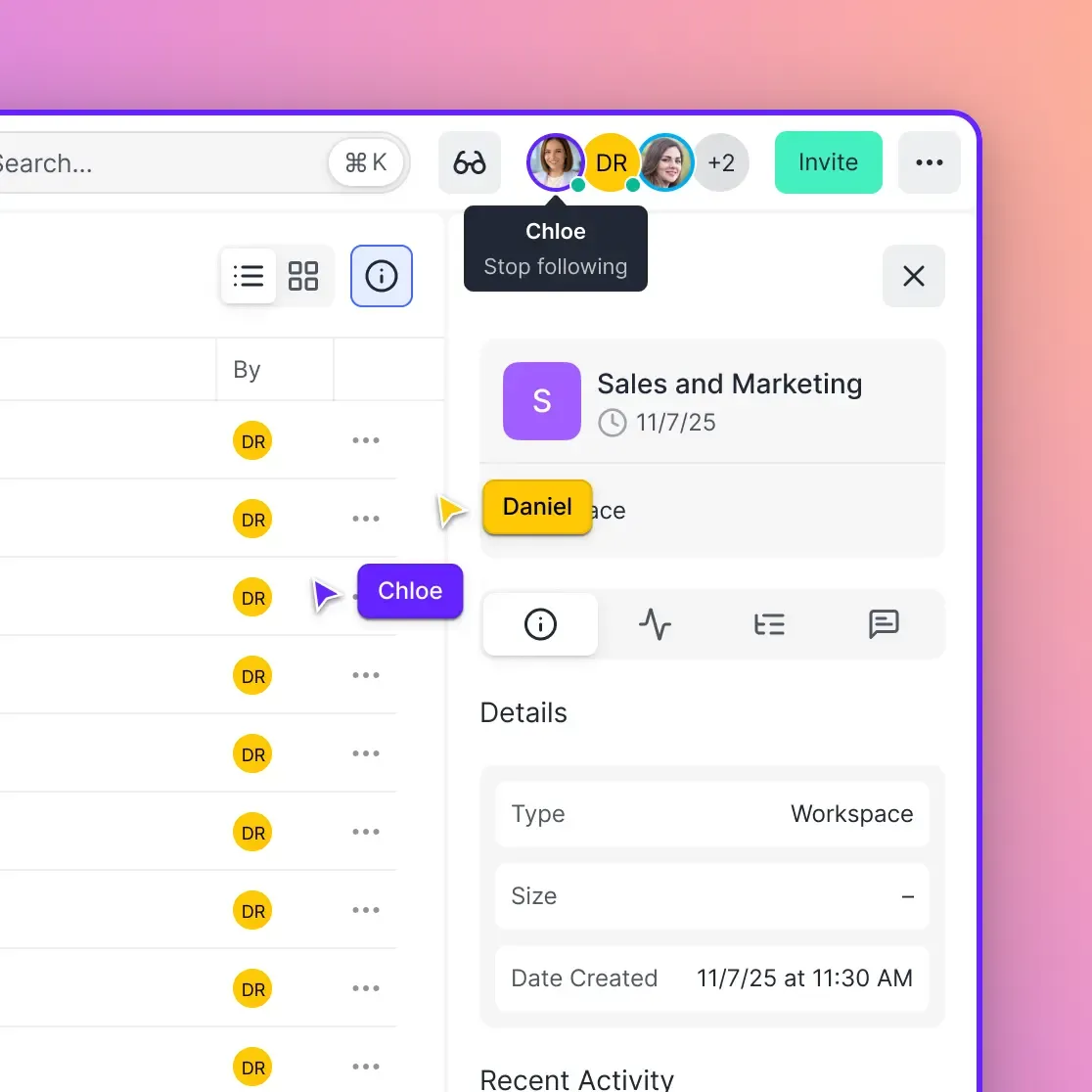
Step 5: Enable collaboration features. Turn on real-time presence to see who views what. Add contextual comments on specific file parts.
Step 6: Track progress. Use activity logs for changes. Set notifications for uploads or comments.
This setup keeps planning and assets together. No switching apps.
Best Practices for Team Content Planning Tools
Start with clear roles. Assign owners for each content piece.
Break calendars into sprints, like weekly planning meetings. Review past performance and plan ahead.
Integrate files early. Link research docs, mood boards, or scripts to calendar entries.
Use tags for categories like "Approved", "In Review", or "Needs Revision".
Schedule buffer time for feedback rounds. Aim for 2-3 review cycles per piece.
Review monthly. Adjust based on what published on time and performed well.
In Fastio, follow mode syncs views during reviews. Presence shows active editors.
Content Calendar Tools Comparison
Many tools handle planning but skip files. Here's how they stack up:
Fastio wins on file handling. Preview PSDs or videos without extra software. Organization-owned files stay safe.

Solve Common Content Calendar Challenges
Challenge: Overloaded calendars. Solution: Archive old items into folders.
Challenge: File version confusion. Solution: Use Fastio versions and comments to track changes.
Challenge: External feedback. Solution: Share folders with clients. Track views in activity logs.
Challenge: Scope creep. Solution: Restrict folder permissions after approval.
These steps keep teams aligned and productive.
Frequently Asked Questions
What are the best content calendar tools?
Asana, Monday.com, CoSchedule, and Airtable lead for planning. For file-heavy teams, Fastio workspaces add previews and real-time comments on assets.
How do team collaboration calendars differ from solo ones?
Team versions include presence indicators, threaded comments, and shared ownership. Solo calendars lack real-time updates and access controls.
Can Fastio replace my content calendar app?
Yes for file-centric teams. Use folders as timelines, attach assets, and collaborate live. Pair with Sheets for complex Gantt charts.
What features make collaborative editorial calendars effective?
Real-time edits, file integration, role-based access, and activity tracking. Fastio covers all with browser previews.
How to get started with content calendar team collaboration?
Pick a tool with file support. Set up folders by date, assign tasks, and hold weekly syncs.
Related Resources

Ready for Better Content Team Collaboration?
Fastio workspaces unite calendars and files. Seats included in every plan, real-time presence.